If your iPhone’s power button has stopped working, you may wonder how to turn it off and on. Fortunately, a few simple, built-in solutions can help you navigate this issue.
The process is quite straightforward and doesn’t require any technical expertise or advanced knowledge of iOS. You can use a Settings option or the built-in AssistiveTouch feature on your iPhone, which can be a lifesaver when your power button is unresponsive or broken. Here’s how to regain control over your iPhone, even without a working power button .
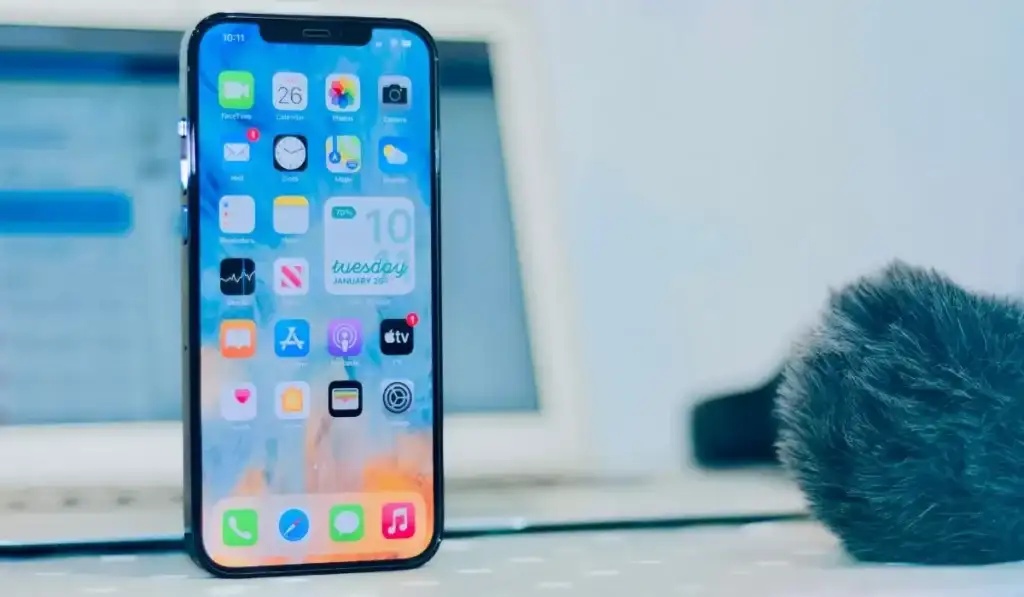
Turn Off Your iPhone From Settings
You can turn off your iPhone using the Shut Down option in the Settings app.
- Open the Settings app and tap General .
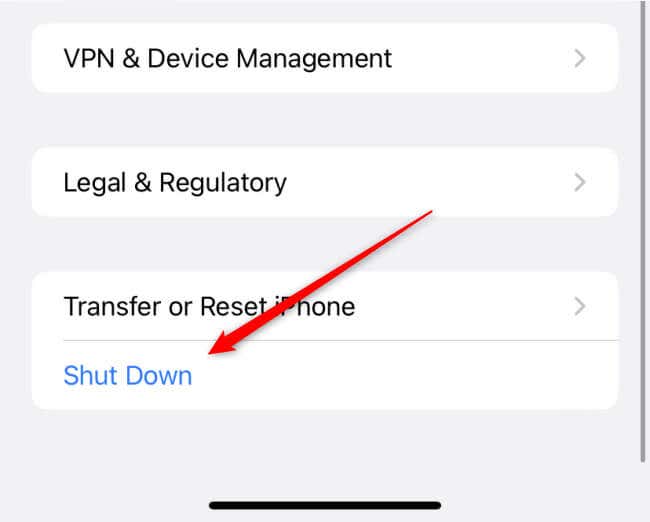
- Scroll down to the bottom of the screen and then tap the Shut Down option.
- Swipe the slider at the top of the screen to the right to confirm that you want to shut down the device.
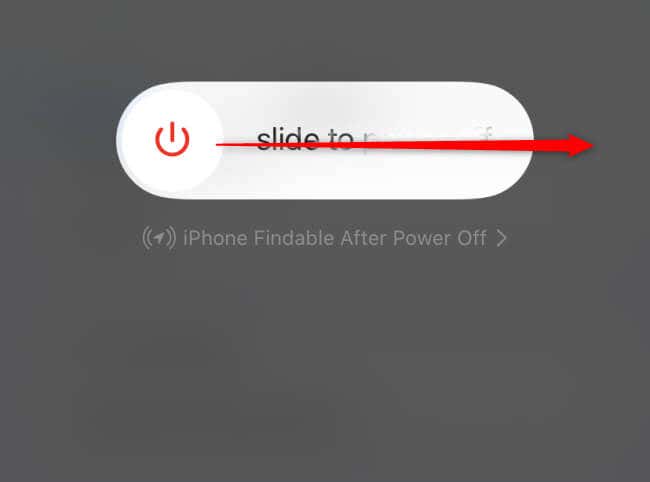
You’ve now successfully turned off your iPhone without a physical power button.
Restart Your iPhone Using AssistiveTouch
Before you can use AssistiveTouch to restart your iPhone , you’ll need to enable the feature. Here’s how to do it.
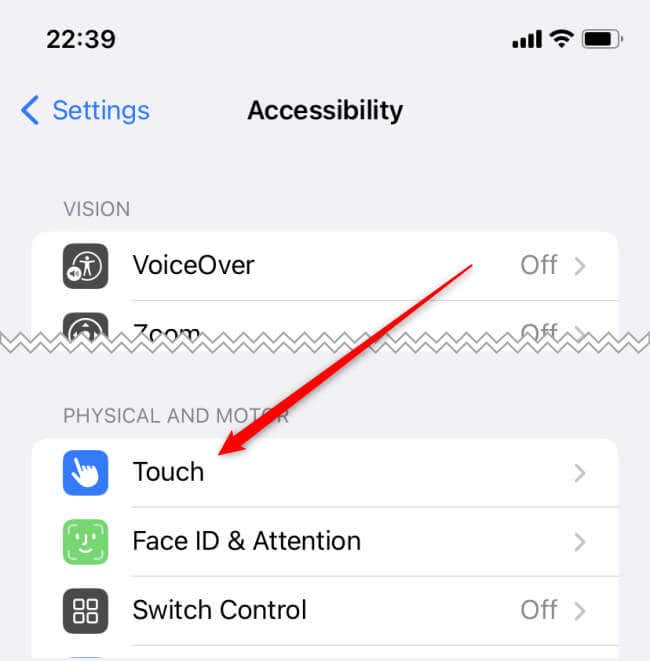
- Open the Settings app and tap Accessibility .
- Tap Touch under the Physical and Motor section of the next screen.
- Tap AssistiveTouch at the top of the next screen. Then, drag the slider to the On position next to AssistiveTouch .
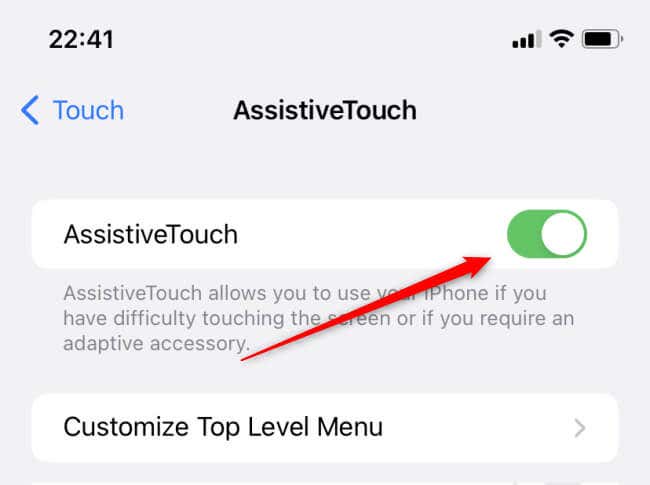
AssistiveTouch is now enabled. Now you can use it to restart your iPhone.
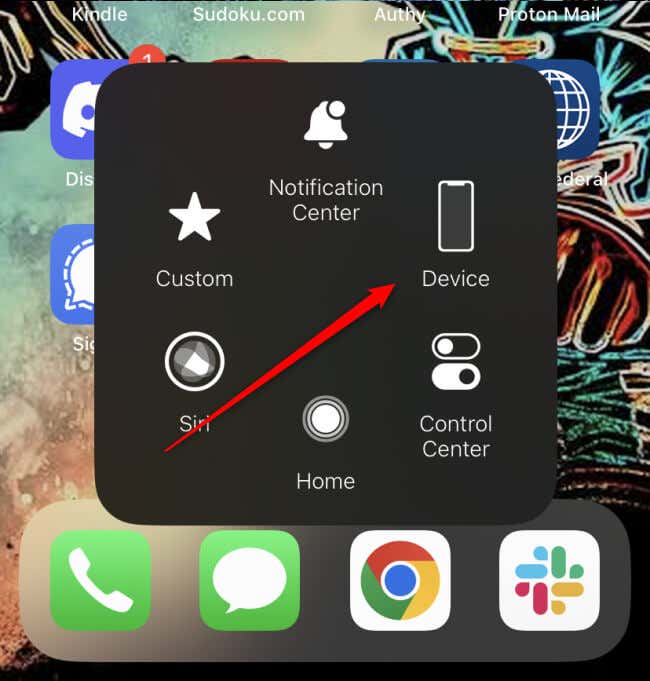
- Tap the AssistiveTouch floating button on your screen.
- In the AssistiveTouch menu, tap on Device .
- Tap the More icon, and then tap Restart .
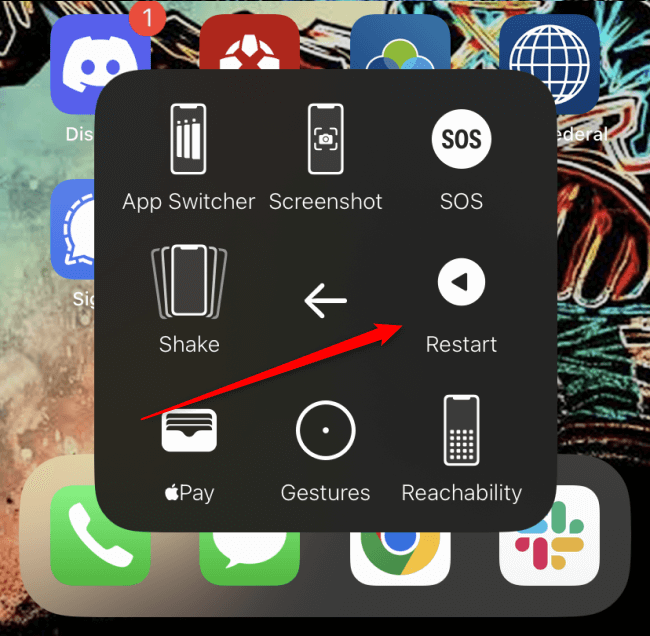
A prompt will appear asking you if you want to restart the iPhone. Tap Restart to confirm. Your iPhone will now restart.
Turn On Your iPhone Without a Button
Unfortunately, AssistiveTouch can’t be used to turn your iPhone back on as it’s a software feature that only works when the device is powered on. However, you can still turn on your iPhone without the power button.
Just connect your iPhone to a power source to turn it on without the power button. Plug your iPhone’s charging cable into a wall charger, computer, or other compatible charging device. Then, connect the other end of the charging cable to your iPhone’s charging port.
Wait a few seconds; your iPhone will automatically turn on when it detects a power source.
- How to Use Your iPhone as a USB Drive on Mac and PC
- How to Turn Off Password Suggestions on iPhone
- How to Accept Invite to Shared Album on iPhone
- How to Send Emails on iPhone
- iPhone Not Sending Emails? 10 Fixes to Try
