Most people have a love-hate relationship with the autocorrect feature on their smartphones.
If you’re a sloppy typist, autocorrect can be incredibly useful at correcting typos. However, the feature could try to autocorrect words not found in the built-in dictionary.
We’ll show you how to disable autocorrect on your iPhone and Android device to make typing easier.

How to Turn Off Autocorrect on iPhone
If you’re havingautocorrect issues on your iPhone, you can turn the feature off with a few taps.
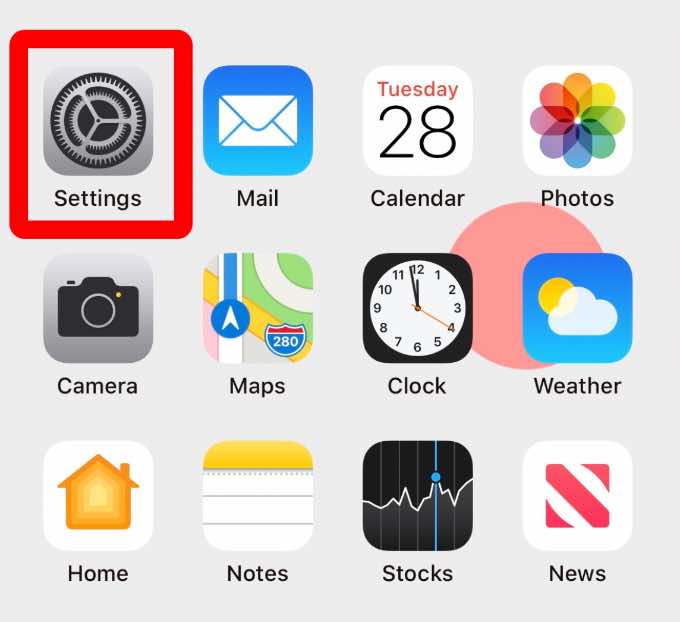
- Open Settings .
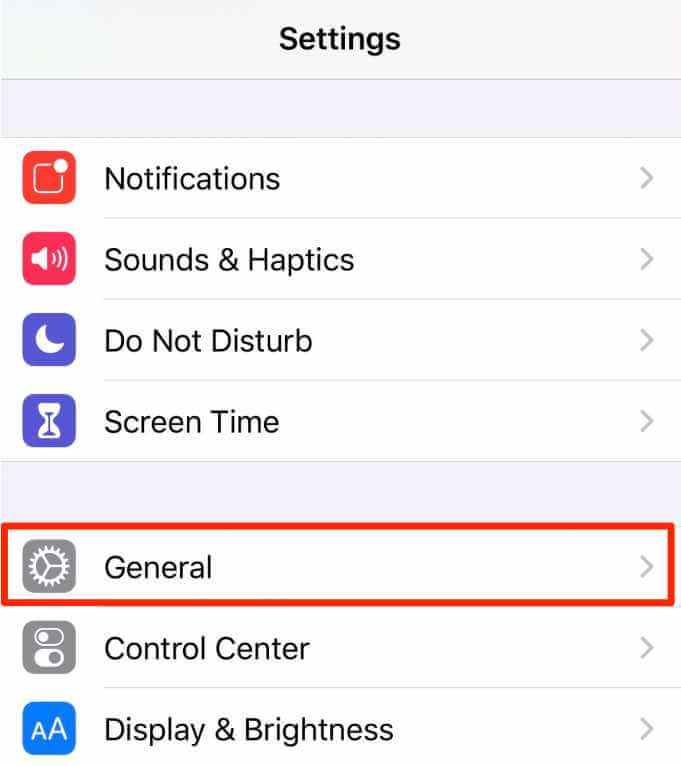
- Tap General .
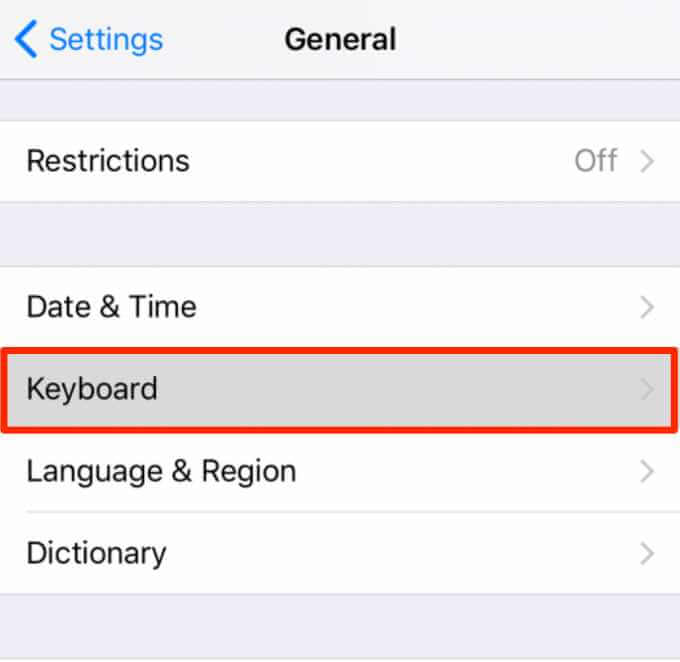
- Tap Keyboard .
- Toggle the Auto-Correction switch off.
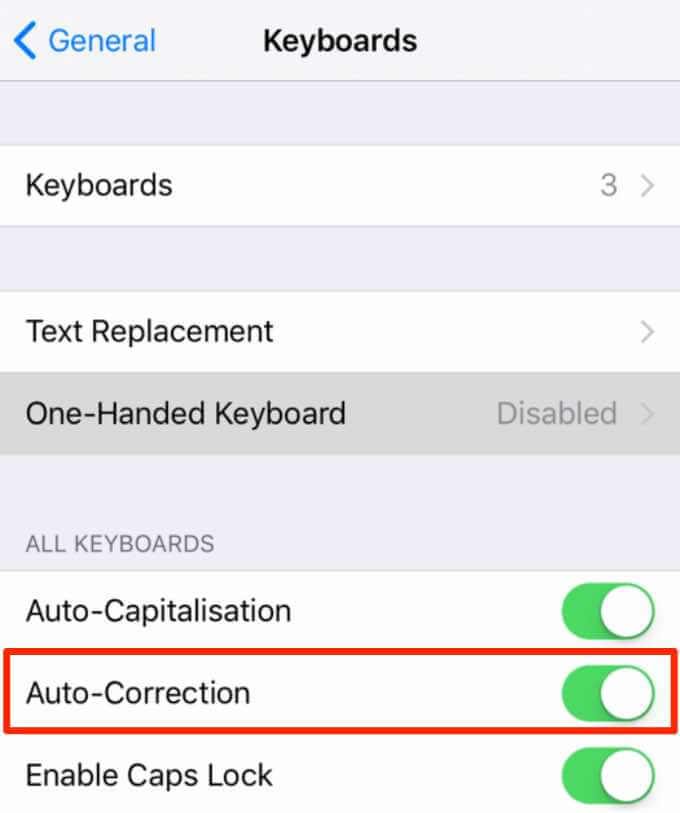
Try typing some text in a new message window. Instead of auto-correcting your words, your phone will flag words as possible misspellings.
You can tap on the misspelled word and pick the correct spelling from the alternative words and spellings list.
Alternatively, go back to your iPhone keyboard settings screen and toggle the Check Spelling switch to off. The red lines that indicate a misspelled word won’t appear going forward.
Add Words or Phrases to the Dictionary
If you prefer not to turn off autocorrect on your iPhone, you can add words or phrases to the built-in dictionary so that they’re not flagged.
- Tap Settings > General > Keyboard .
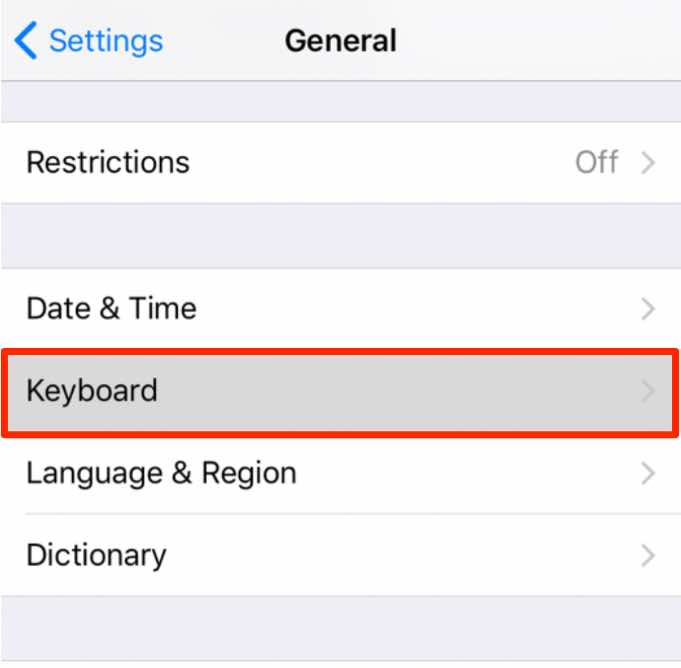
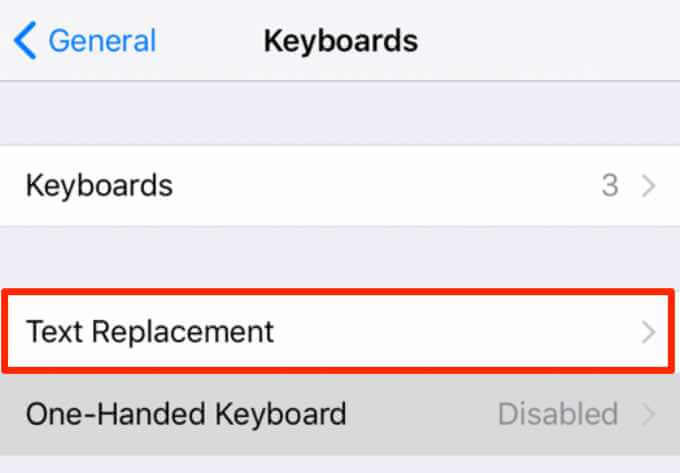
- Tap Text Replacement .
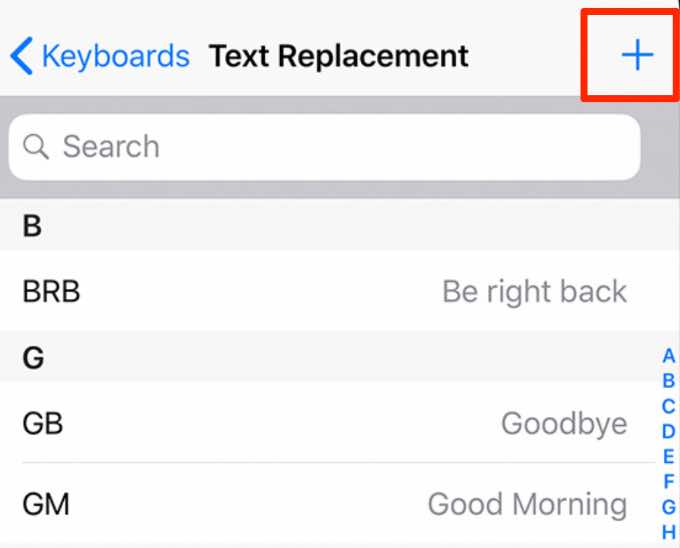
- Tap the + (plus) icon and add the words or phrases you want in the Phrase box.
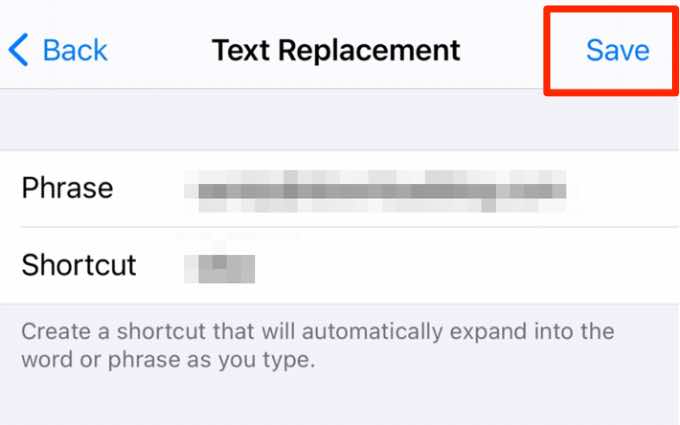
- Tap Save . Once saved, the words or phrases won’t be flagged as incorrect.
Note : You can also enable dictation on your iPhone to use voice recognition and avoid typing words altogether. Just tap the microphone icon in the text message box and start talking.
Turn Off Autocorrect on Samsung Galaxy Devices
If you’re using a Samsung Galaxy device, follow the steps below to turn off the autocorrect feature.
- Open Settings .
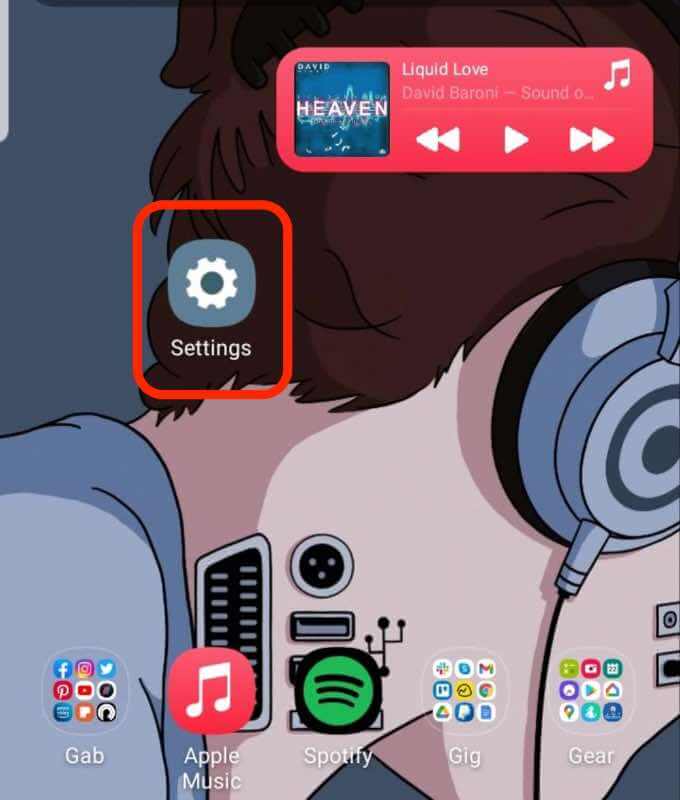
- Tap General Management .
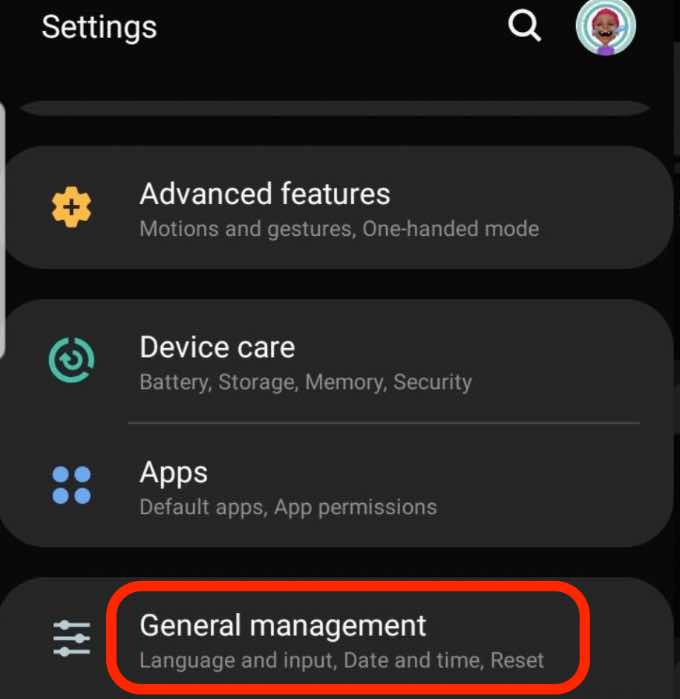
- Tap Language and Input .
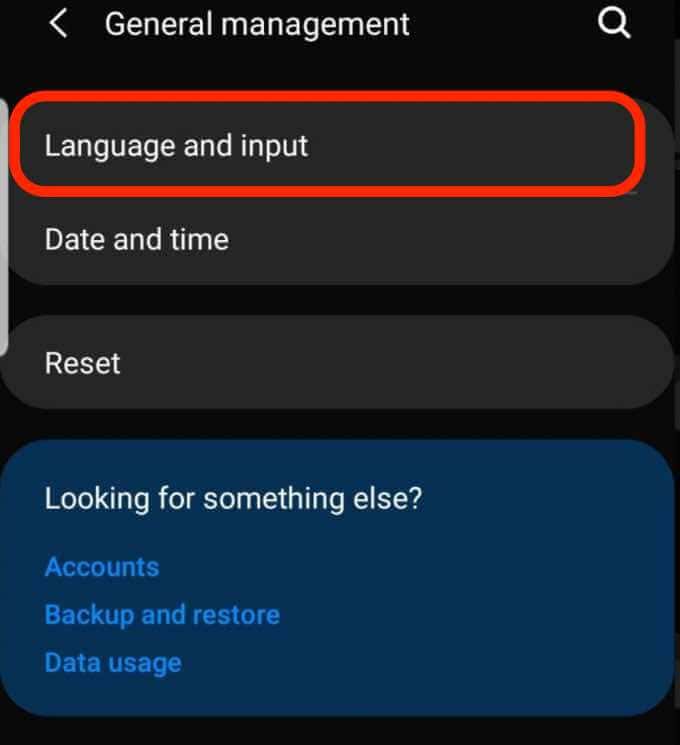
- Tap the On-screen keyboard .
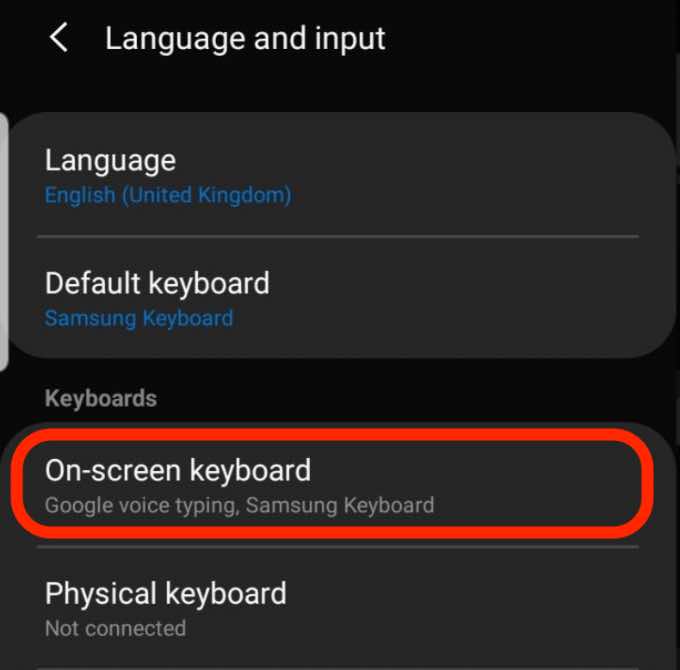
- Tap Samsung Keyboard .
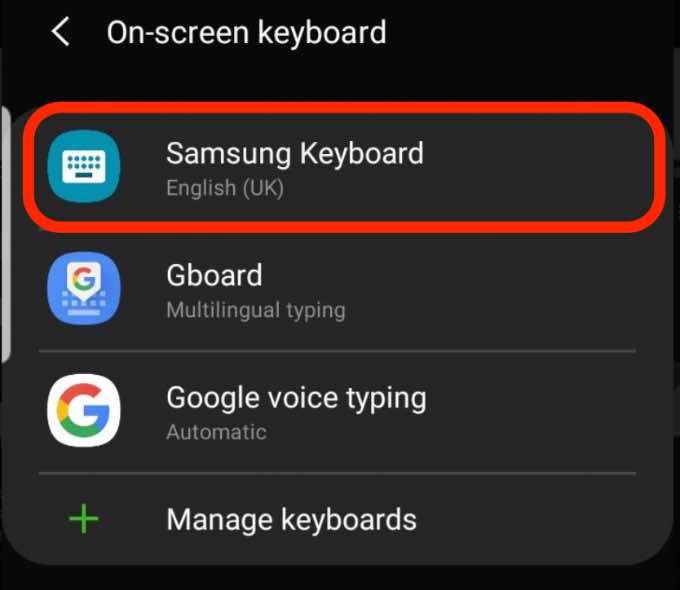
- Tap Smart Typing .
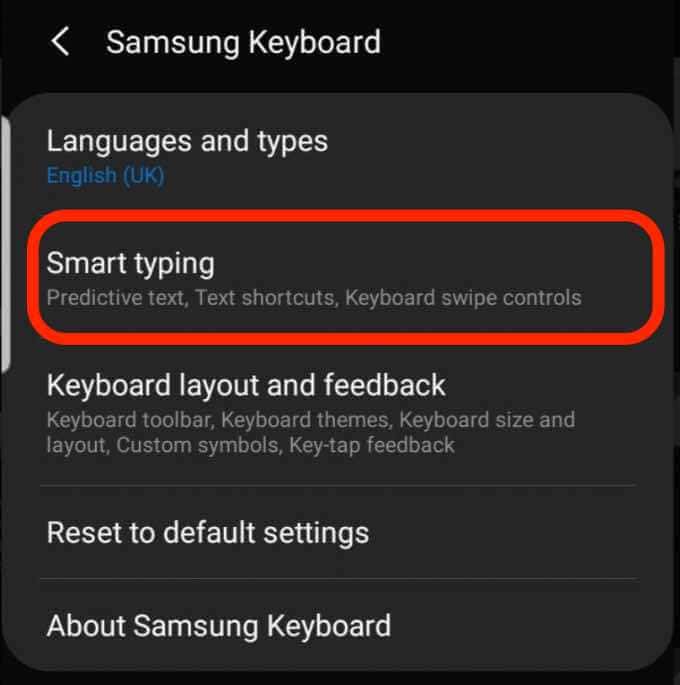
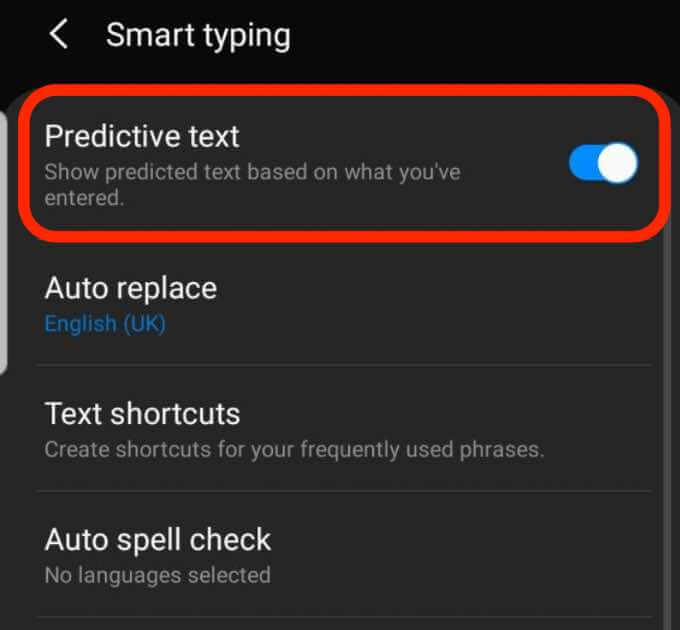
- Toggle the Predictive Text switch off. Your keyboard will no longer try to make suggestions or predict what you’re trying to say.
Add Abbreviations or Words to Your Dictionary
If you don’t want to disable autocorrect, you can add words or abbreviations to your dictionary.
- Tap Settings > System > Languages & Input .
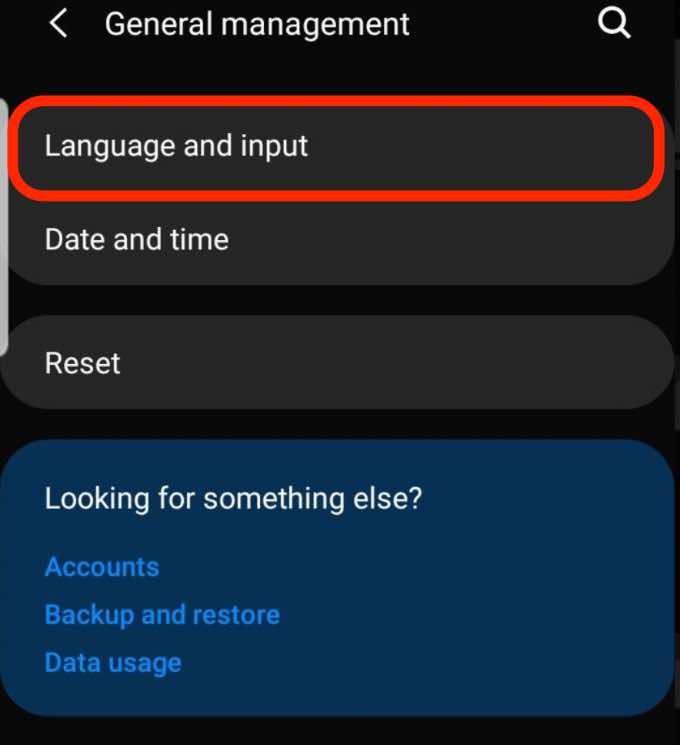
- Tap On-screen Keyboard to open the virtual keyboard settings.
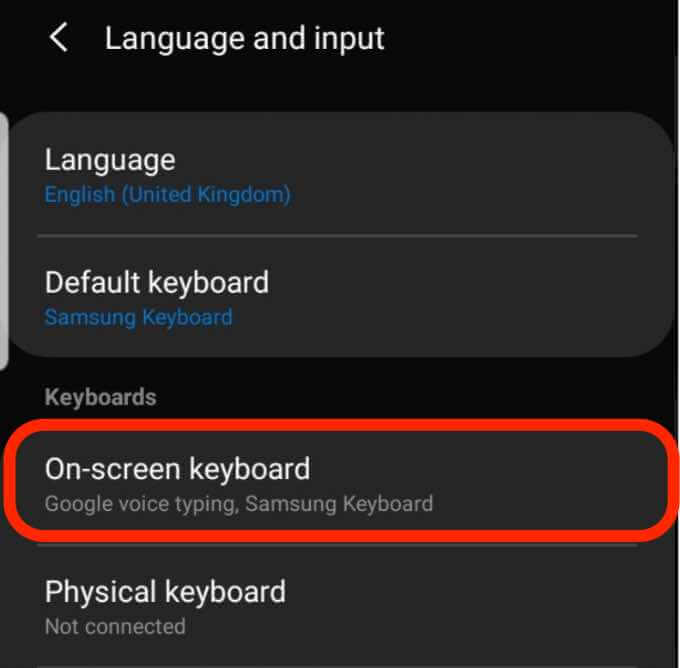
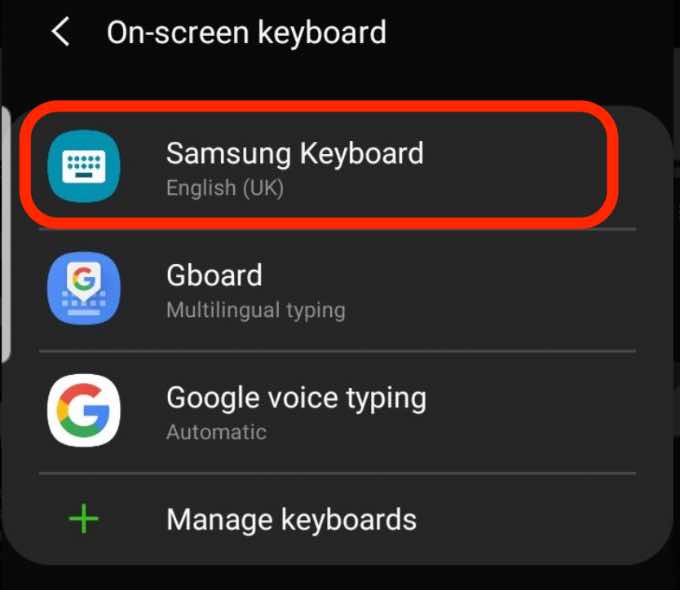
- Tap your active keyboard from the list.
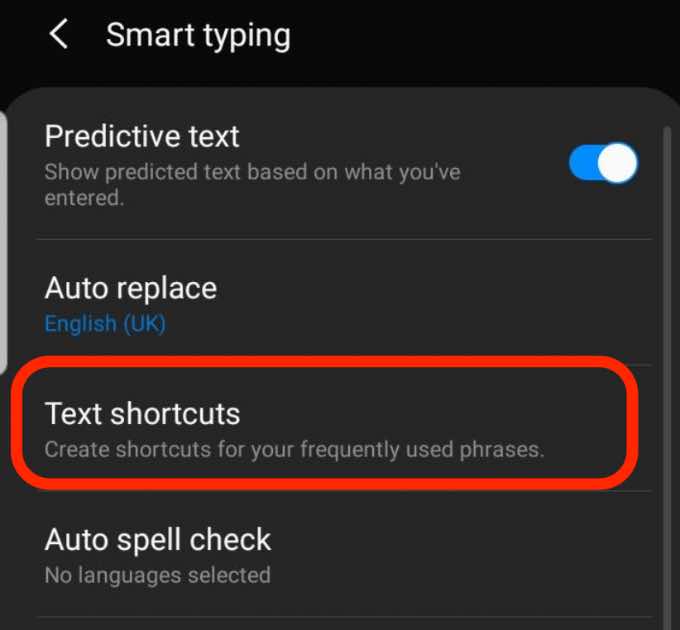
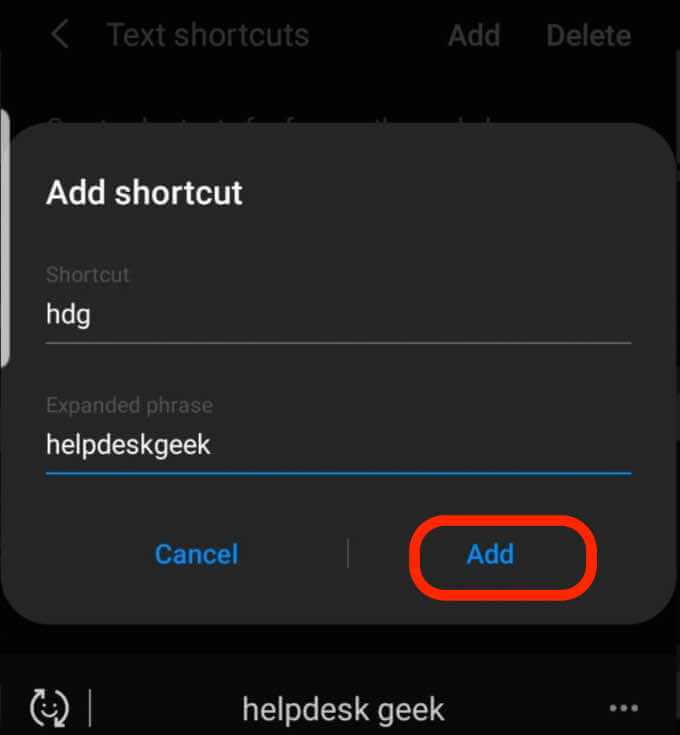
- Tap Smart Typing > Text shortcuts to open the dictionary settings.
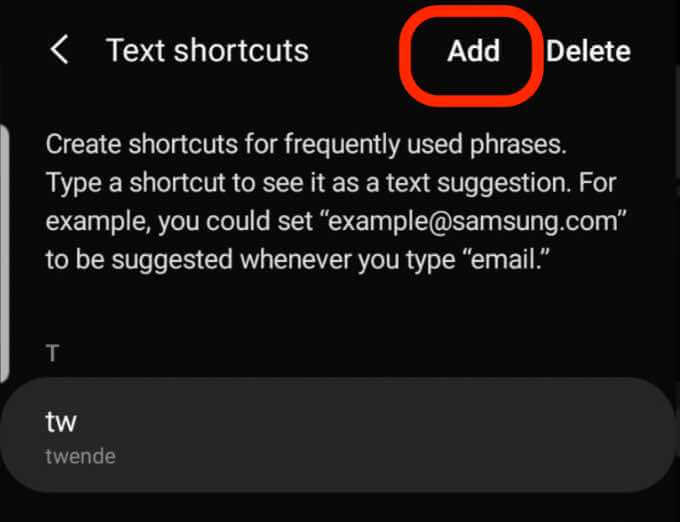
- Tap Add .
- Enter the shortcut and expanded phrase, and then tap Add .
Turn Off Spell Checker (Samsung Keyboard)
You may have disabled autocorrect, but you’ll still get word suggestions from the Android spell checker as you type. If you don’t want these suggestions, you can disable the Android Spell Checker.
- Tap Settings > System > Languages & Input .
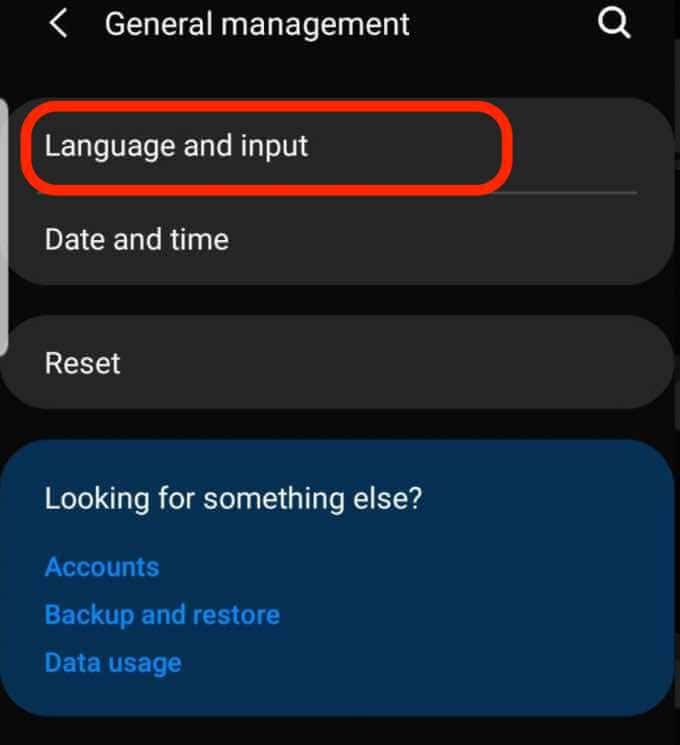
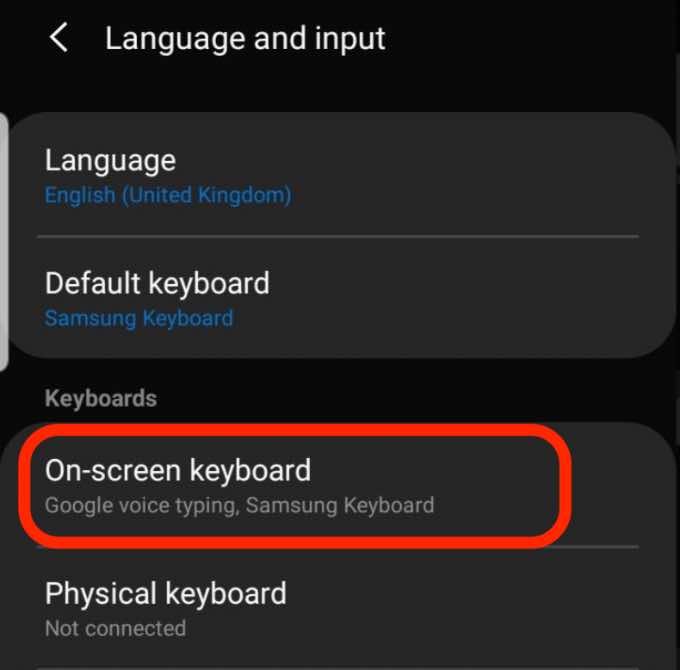
- Tap the On-screen keyboard .
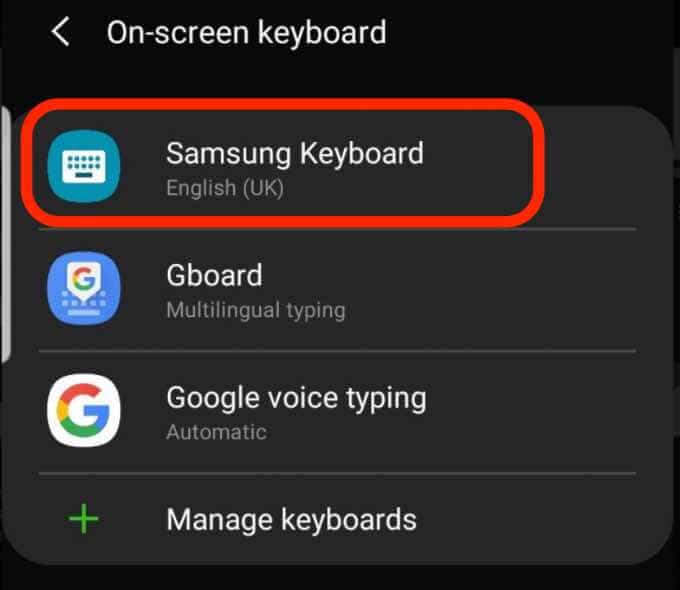
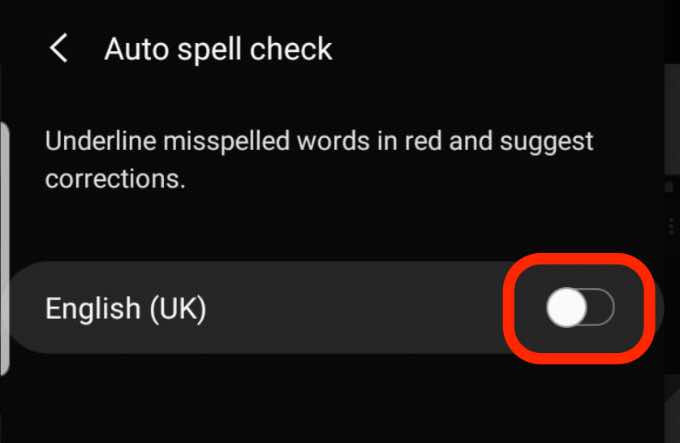
- Tap Samsung keyboard and then tap Smart Typing > Auto spell check .
- Toggle the Auto spell check switch to Off .
How to Turn off Autocorrect on Android (Gboard)
By default, Android devices use Gboard , a typing app with several features including handwriting, Google Translate, predictive text, emoji search, etc.
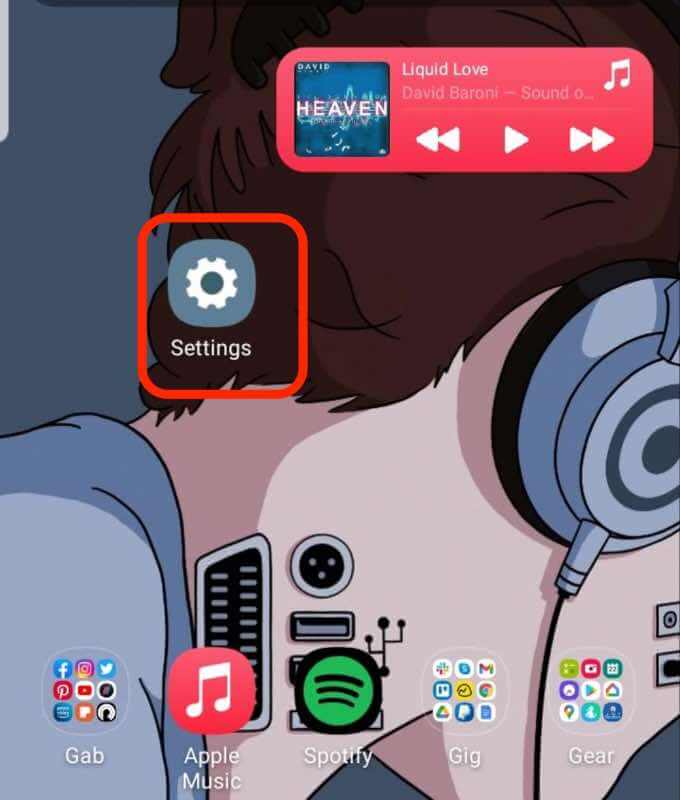
- Open Settings .
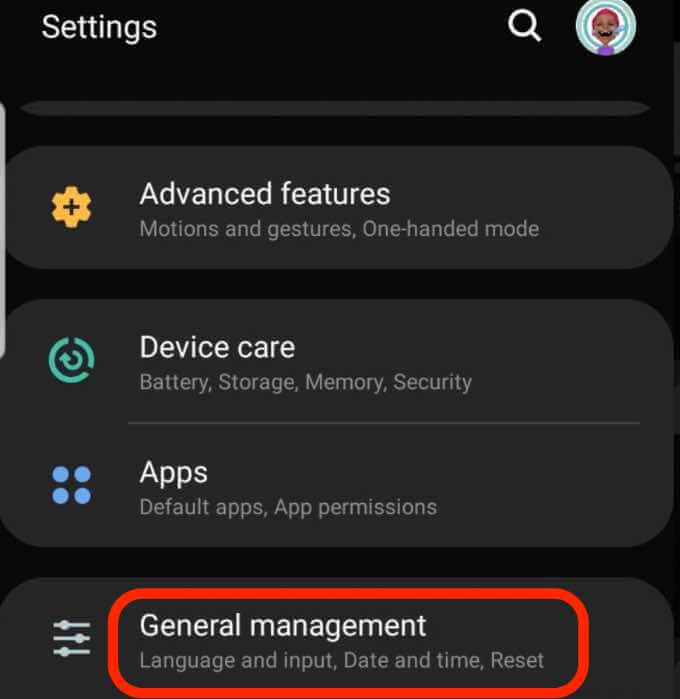
- Tap General Management .
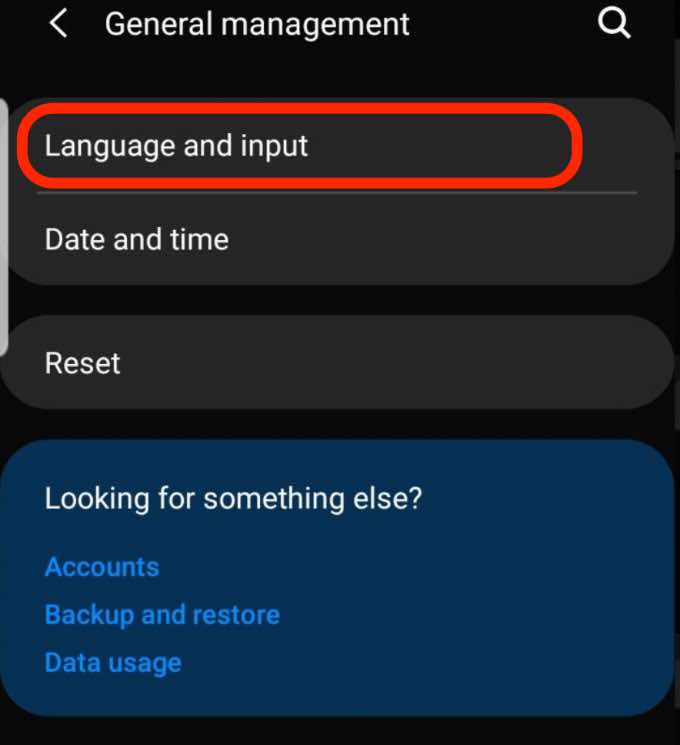
- Tap Language and Input .
- Tap the On-screen Keyboard .
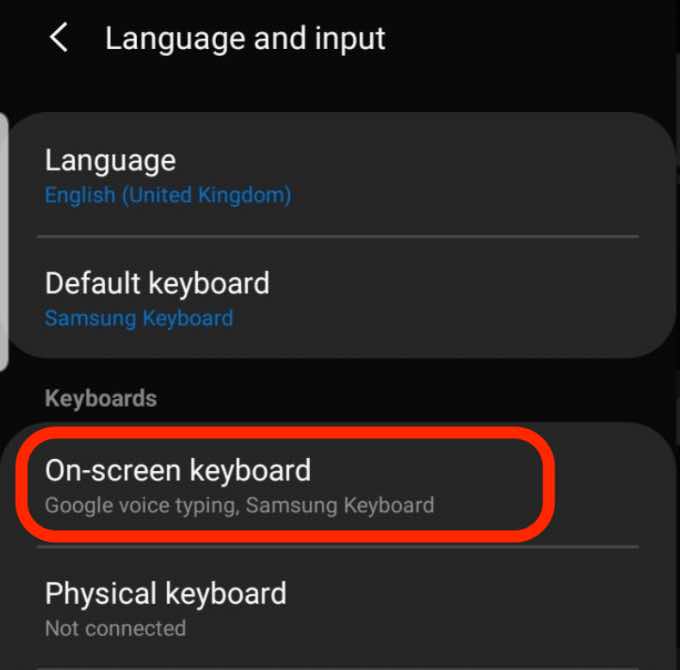
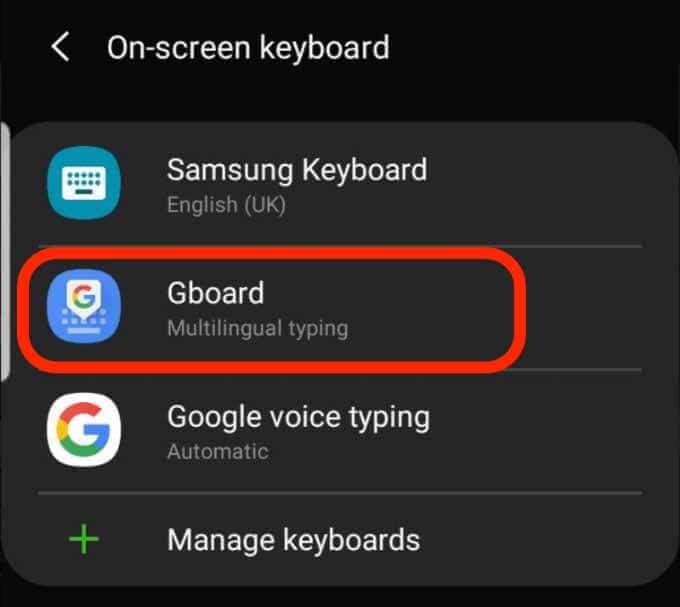
- Tap Gboard (or the keyboard you use) from the list of installed keyboards.
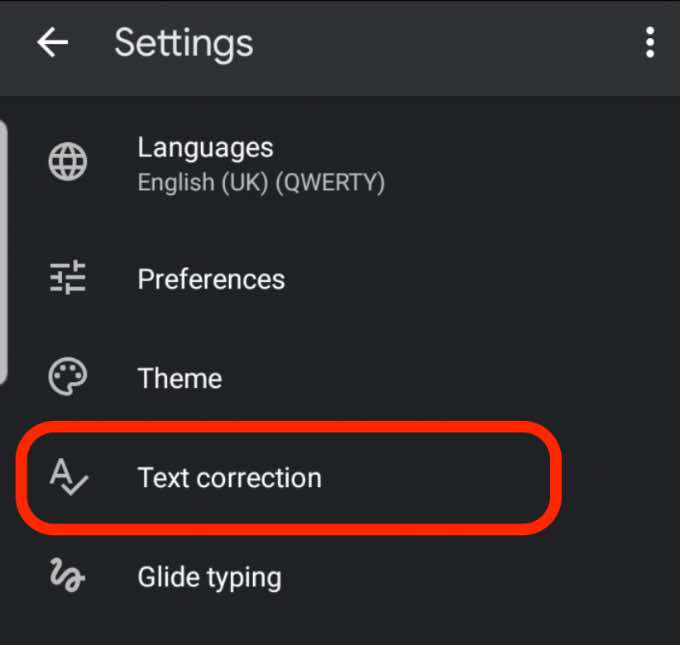
- Tap Text Correction .
- Tap Auto-correction in the Corrections section to turn it off.
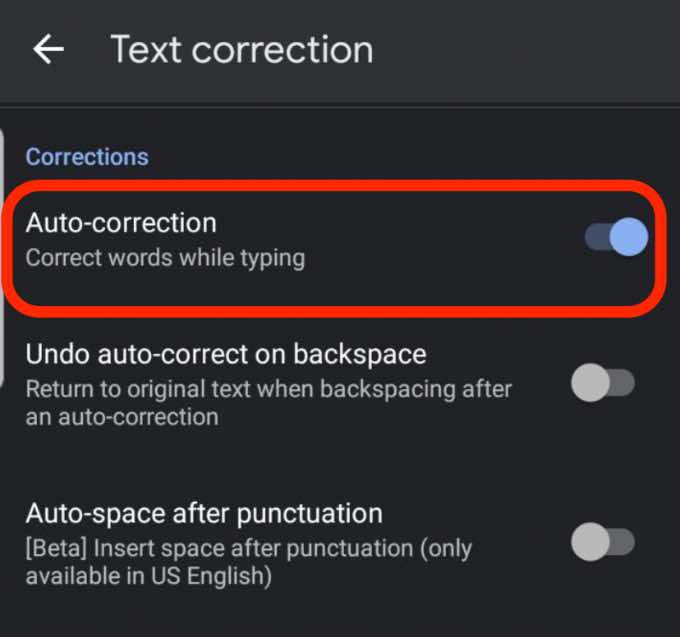
Note : Once you disable autocorrect, the keyboard will still offer correction suggestions.
Avoid Embarrassing Auto-Correct Errors
We’ve all had moments when we’ve sent a message only to find that the autocorrect feature changed a word, and it doesn’t make any sense.
By tweaking the autocorrect settings, you can turn off the feature and avoid embarrassing errors.
Was this guide helpful? Let us know in a comment.
- What Is Android System Intelligence?
- How to Rename Bluetooth Devices in Windows, Android, iOS, and Mac
- Facing a Synchronization Error in Google Drive for Android? Here’s How to Fix It
- 5G Not Showing Up on Android or iPhone? 12 Fixes to Try
- Why Does My Android Hotspot Keep Turning Off? 7 Fixes
Elsie is a technology writer and editor with a special focus on Windows, Android and iOS. She writes about software, electronics and other tech subjects, her ultimate goal being to help people out with useful solutions to their daily tech issues in a simple, straightforward and unbiased style. She has a BCom degree in Marketing and currently pursuing her Masters in Communications and New Media. Read Elsie’s Full Bio
