While you can’t do this on your personal page, you can turn off commenting on Facebook group posts if you have the proper admin privileges. This is a good idea when you want to post a controversial announcement or piece of news that would stir up trolls .

- Find the post you want to silence comments on.
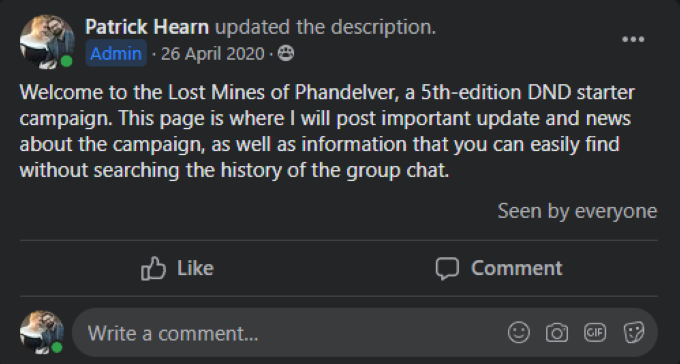
- Select the three dots to the right of the post.
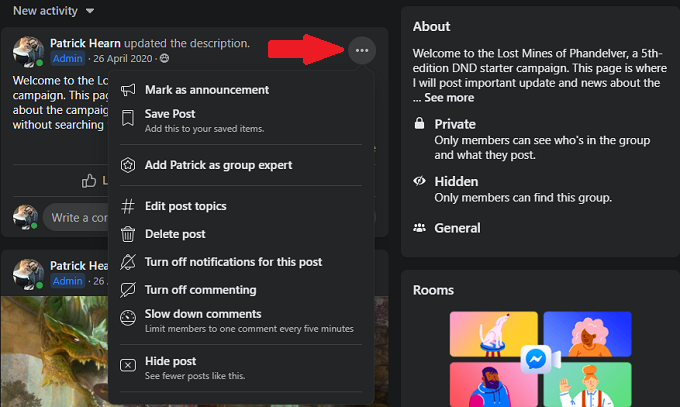
- Select Turn Off Commenting.

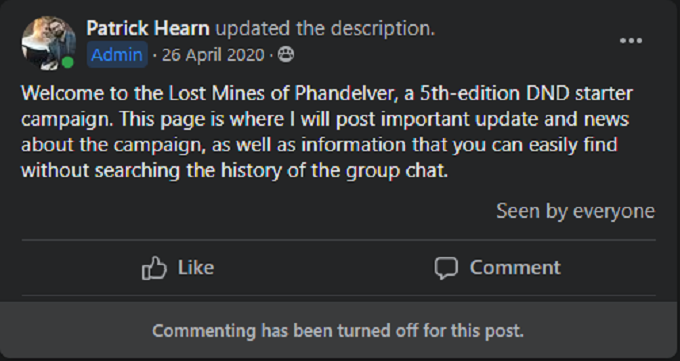
- After this, no one will be able to comment on the post.
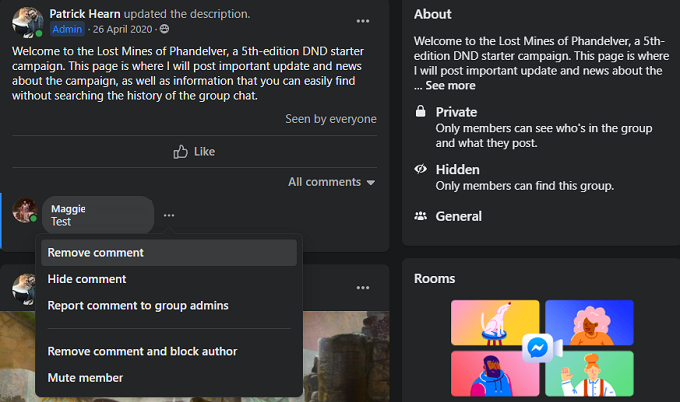
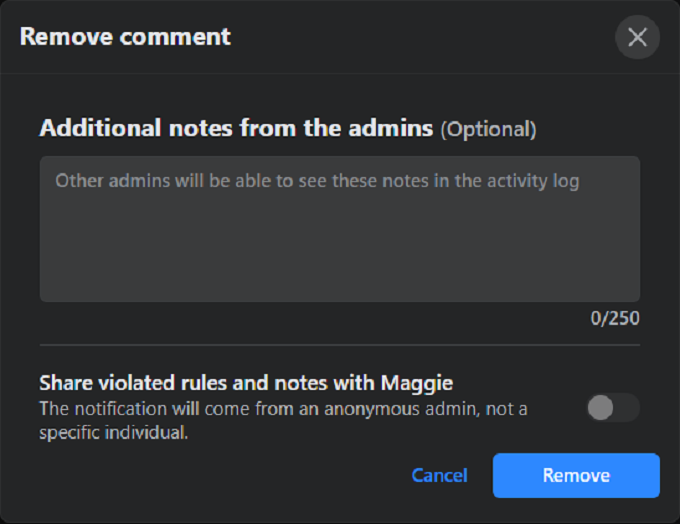
- Hover your cursor beside the offending post and select the three dots beside it.
- Select Remove Comment.
- Another screen appears that gives you the option to provide a note regarding the comment and inform the user why you removed the comment. To continue, select Remove.
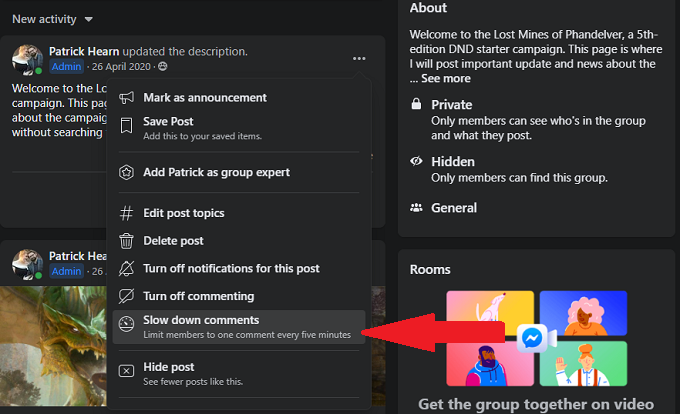
Find the post you want to silence comments on.
Select the three dots to the right of the post.
- Select Slow down comments.
How to Hide Certain Words From Your Profile
While it isn’t possible to turn off commenting on your personal Facebook profile (an odd oversight from Facebook as far as permissions go), you can block specific words from appearing in posts on your profile.
- Select the down-arrow in the top-right corner to open the Facebook options menu.
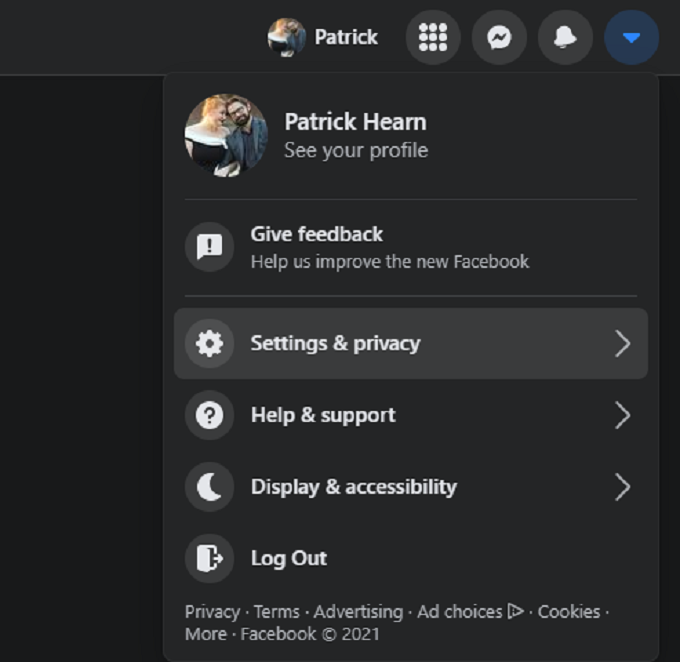
- Select Settings & Privacy > Settings.
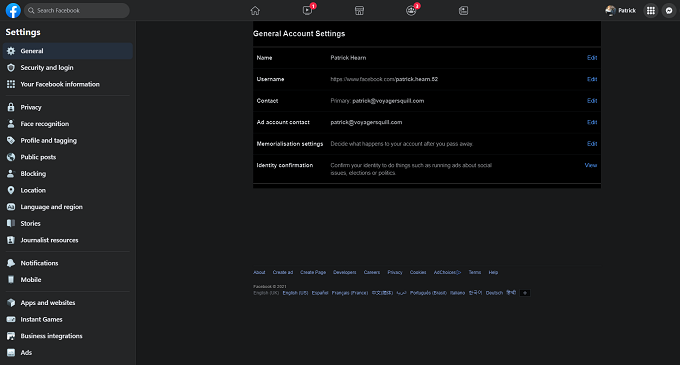
- Select Profile and tagging from the left-hand menu.
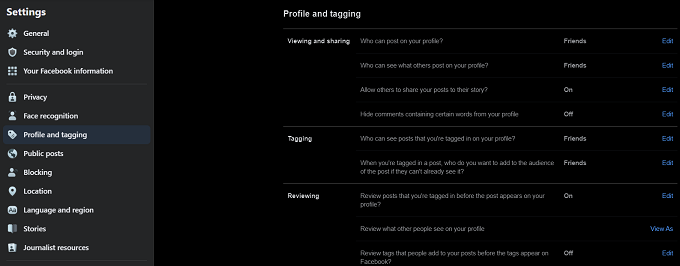
- Underneath Viewing and sharing, select Edit beside Hide comments containing certain words from your profile.
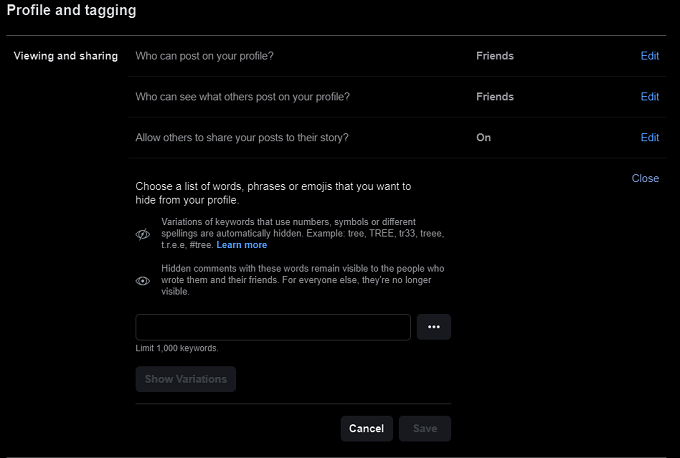
- Enter the word you want to block and select the + symbol.

- Select Show Variations to see any potential common permutations of the word that might appear.
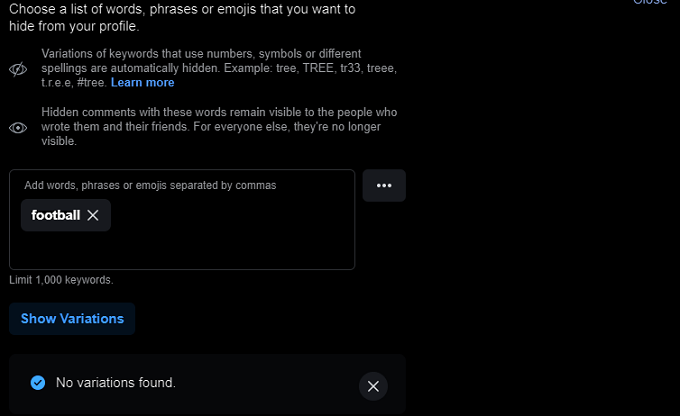
- Select Save.
You can add up to 1,000 different keywords and ban them all from your Facebook timeline. This can be particularly effective during election season when the last thing you want is a slew of highly polarized content coming across your stream. It’s also a good way to block out sports-related content, especially when your least favorite team is on its way to the Super Bowl.
Stop Other People from Posting on Your Facebook Profile
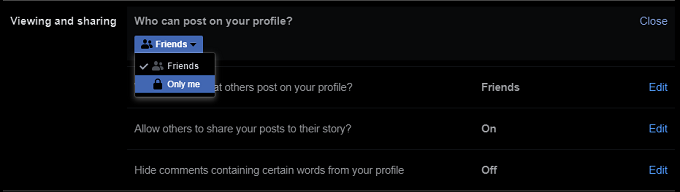
From this same menu, you can stop other people from posting on your profile. At the top of the page where it asks Who can post on your profile? you can set it so that no one else has permission .
- Select Edit.
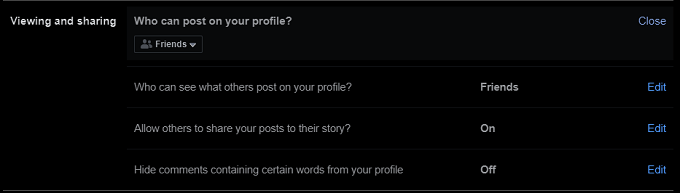
- Select the drop-down box and choose Only Me.
How to Limit Who Sees Your Posts
- Select the down-arrow in the top-right corner to open the Facebook options menu.
- Select Settings & Privacy > Settings.
- Select Public Posts.
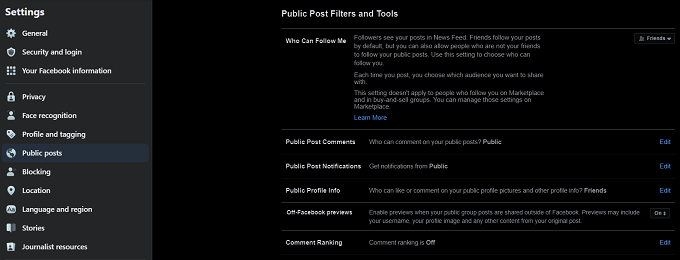
- Select Edit beside Public Post Comments .
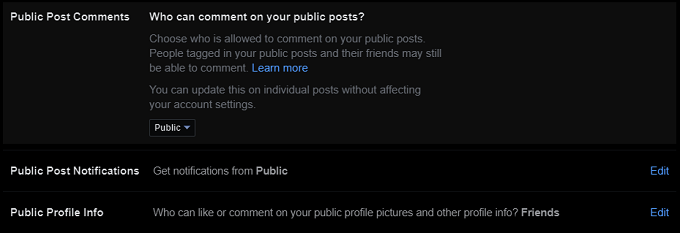
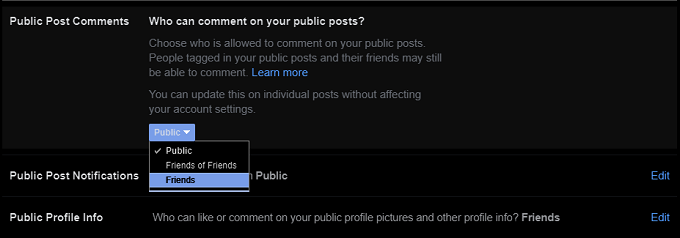
- Select the drop-down box and select Friends.
- How to Make a Post Shareable on Facebook
- Can’t Leave Comments on Facebook Posts? 8 Ways To Fix It
- How to Fix Facebook Notifications Not Working
- Facebook Keeps Logging You Out? 8 Ways to Fix
- Facebook Marketplace Not Working? 9 Ways to Fix
Patrick is an Atlanta-based technology writer with a background in programming and smart home technology. When he isn’t writing, nose to the grindstone, he can be found keeping up with the latest developments in the tech world and upping his coffee game. Read Patrick’s Full Bio
