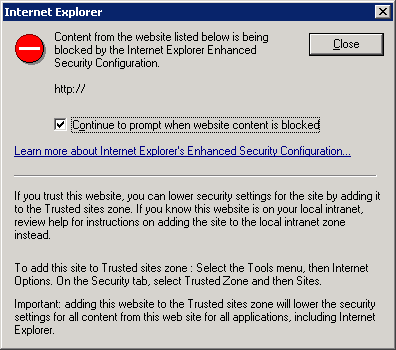
By default, Windows Server 2003 and 2008 ship with Internet Explorer in Enhanced Security configuration, which is basically a locked down version that adds a bit of extra security to your servers.
However, if you know what you are doing, you might want to disable IE enhanced security configuration to get rid of the annoying messages. In this post, I will walk you through the steps to disable enhanced security for both Windows 2003 and Windows 2008.
Windows Server 2003 Method
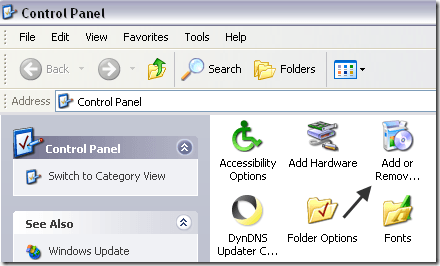
In Windows Server 2003, you can turn off enhanced security for IE by going to Start , Control Panel , and then Add or Remove Programs .
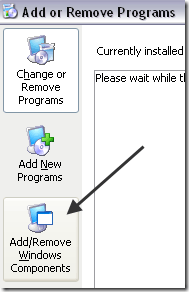
Next, click on Add/Remove Windows Components on the left hand side:
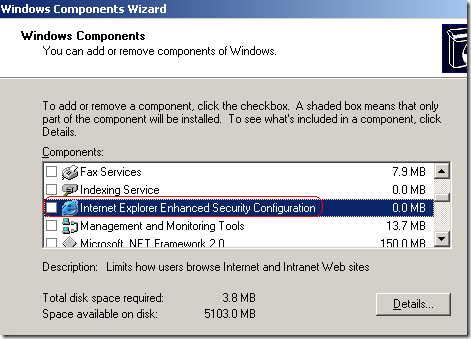
Scroll down to Internet Explorer Enhanced Security Configuration and uncheck the box to turn it off.
Windows Server 2008 Method
In Windows 2008, the process is a little different. First, go to Start, then Administrative Tools and choose Server Manager .
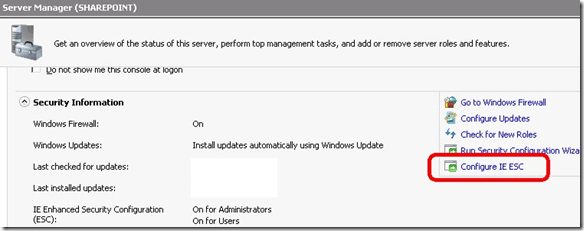
Under the Security Summary section, click on Configure IE ESC .
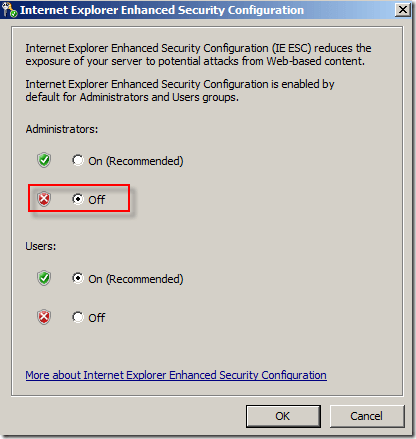
A dialog will pop up where you can disable IE ESC for either Administrators or Users. Click Off to turn off IE ESC for whichever group you prefer.
That’s it! Pretty easy to turn it off, just make sure no one is browsing inappropriate sites that can take down your server! Enjoy!
- How to Backup an iPhone Without iCloud?
- Sluggish Windows 11 PC? Try These 5 Windows 11 Tricks to Free up Virtual Memory
- macOS Tahoe Privacy Settings You Need to Secure Your Mac
- How To Turn Off Notifications On Windows 11?
- How to Recover Lost Files After Windows Update?
Founder of Help Desk Geek and managing editor. He began blogging in 2007 and quit his job in 2010 to blog full-time. He has over 15 years of industry experience in IT and holds several technical certifications. Read Aseem’s Full Bio
