You want to make sure your valuable data is safe and secure. The last thing you want to hear is that your data has fallen into the wrong hands, especially if you lose your precious device.
BitLocker provides an easy way for Windows 10 users to protect their data using encryption. The program creates a secure environment for all your files without any extra effort on your part.
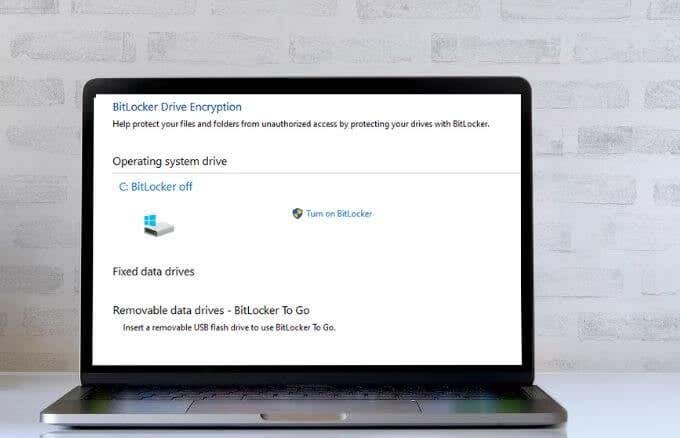
If you don’t need BitLocker anymore, you can turn it off in a few quick steps. However, when you disable BitLocker on Windows 10 it will decrypt all your files, and your data won’t be protected anymore.
What Is BitLocker?
BitLocker is a native feature built into PCs running Windows 10 Pro or Enterprise versions. The feature encrypts your whole hard drive to protect your data from unauthorized tampering and prying eyes.
Not sure what version of Windows you’re using? Check out our guide on how to tell what version of Windows you have installed .
Note : While Windows 10 Home doesn’t have BitLocker, you can still use device encryption to protect your files from unauthorized access if your device gets lost or stolen. You can also put your important files in the OneDrive Personal Vault.
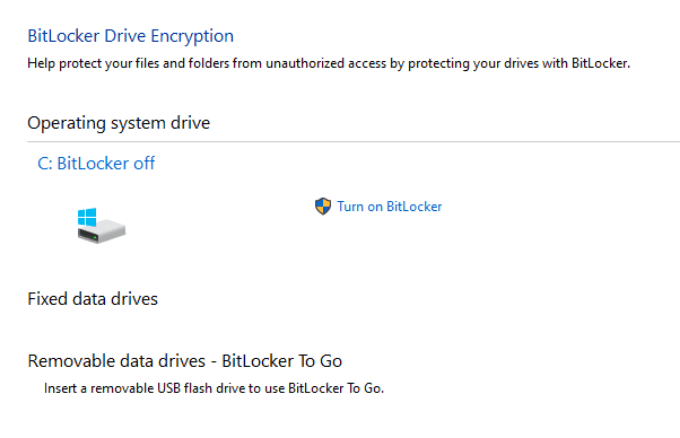
BitLocker uses your Windows login to secure your data without requiring extra passwords. The feature encrypts your data by scrambling it so that no one can access or read it without using a recovery key.
BitLocker only protects your data in case your device is stolen or lost. If you want to protect your files from ransomware or other malware, check out our top picks for the best malware and virus scanners guaranteed to nuke any virus.
How to Disable Bitlocker on Windows 10
BitLocker is a discrete method of protecting your data from unauthorized access. Turning off the feature won’t erase any of your files, but it’s still good practice to keep backup copies of your files.
There are different ways you can disable BitLocker on Windows 10, such as through Settings, Control Panel, the Windows search box, or via PowerShell and Command Prompt. Below are the steps to take when using each of these methods to disable BitLocker.
There are some sites that suggest you should disable the BitLocker Windows Service or use Group Policy to disable BitLocker, but those methods don’t really work and could end up causing misconfigurations and errors.
How to Disable BitLocker in Windows 10 Via Windows Search
The Windows search tool allows you to perform narrow searches to find specific items from File Explorer, Start menu, or the Settings menu. You can also run web searches from here without opening your browser and access the files or apps you use most frequently.
If you want to disable BitLocker, you can easily do so through the Windows search box.
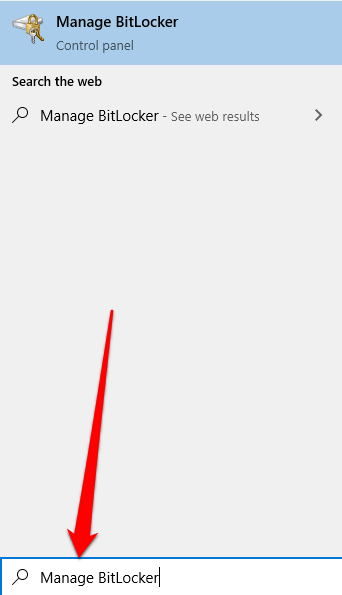
- Sign in to your PC using an administrator account, type Manage BitLocker into the Windows search box, and then select it from the list of results.
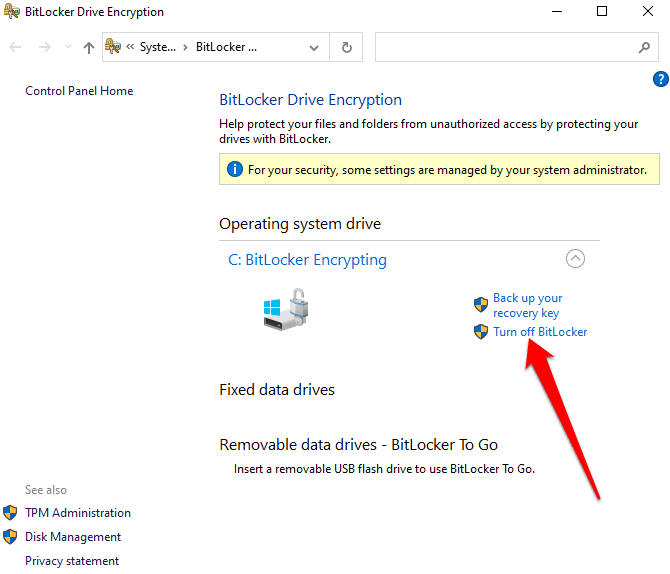
- Next, select Turn off BitLocker .
How to Turn Off BitLocker in Windows 10 Via the Settings Menu
The Windows Settings menu houses basic settings that you can use to make app-specific changes on your PC. Here’s how to turn off BitLocker via the Settings menu.
- Select Start > Settings .
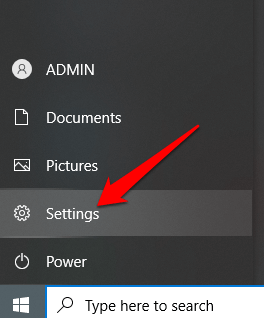
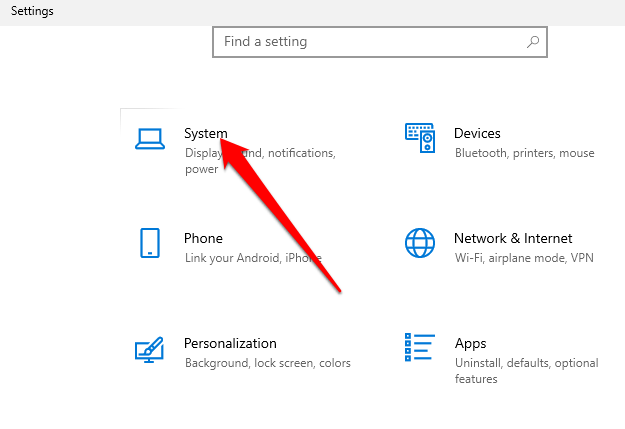
- In the Settings window, select System .
- Select About on the bottom left side, find the Related Settings section on the right pane, and select BitLocker Settings .
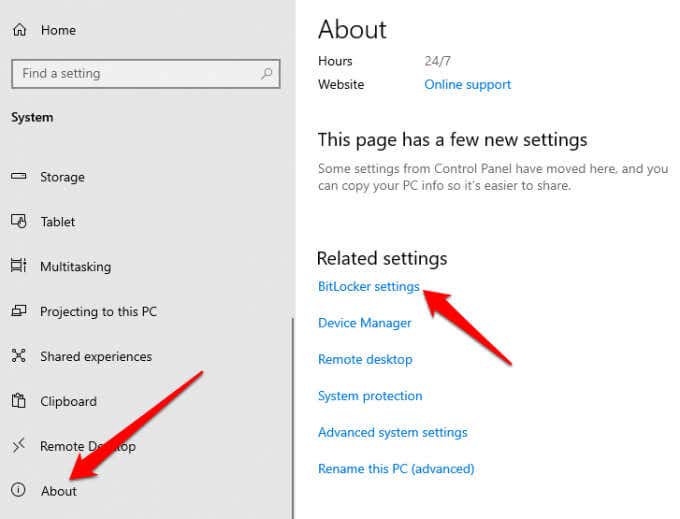
Note : If you still don’t see the tab, it means that your PC doesn’t have BitLocker.
- Next, select Turn off BitLocker .
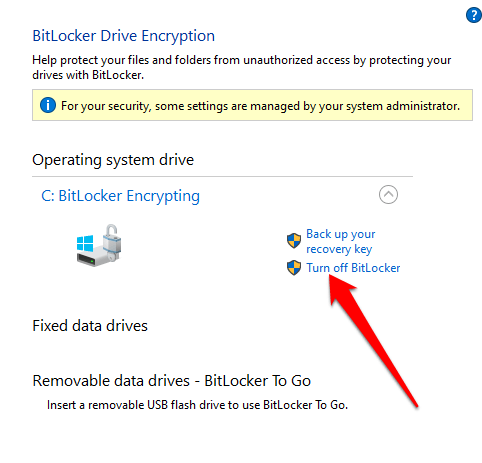
- If prompted, select Turn off BitLocker again. BitLocker will encrypt your hard drive, after which Windows will prompt you to enter your password before the feature is disabled.
How to Remove BitLocker in Windows 10 Via Control Panel
The Windows 10 Control Panel contains settings that control nearly everything about how Windows looks and works. Here’s how to turn off BitLocker via the Control Panel.
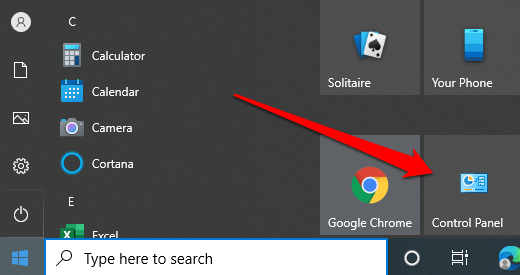
- Open Control Panel from the Start menu or type Control Panel in the search box and select it from the search results.
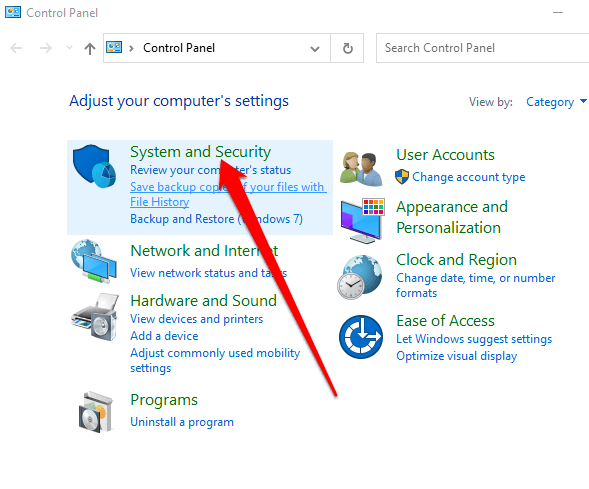
- Select System and Security .
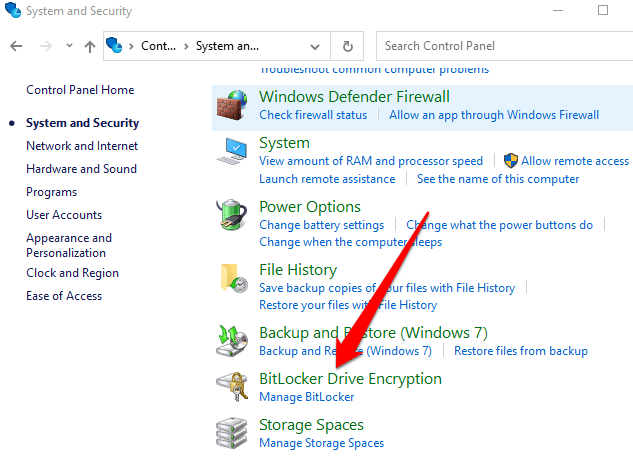
- Next, select BitLocker Drive Encryption > Manage BitLocker .
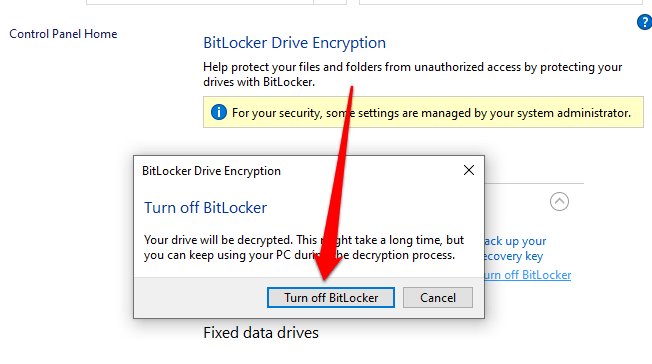
- Select the Turn off BitLocker link.
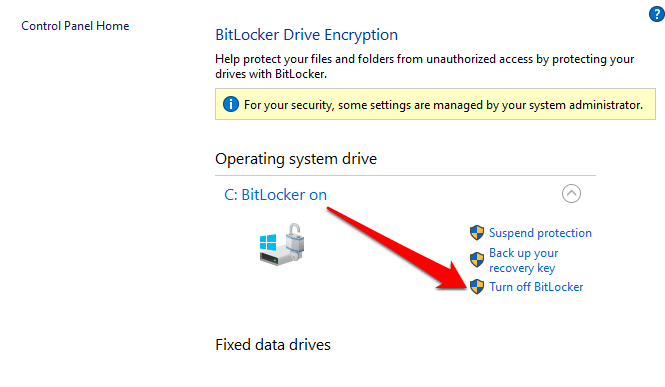
- A popup will appear with the message: Your drive will be decrypted. This might take a long time, but you can keep using your PC during the decryption process . Select Turn off BitLocker to confirm the action.
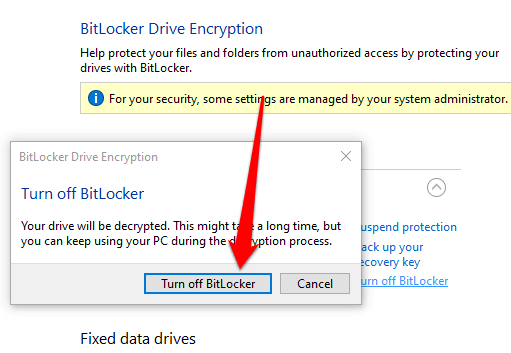
Note : If BitLocker encrypted one hard drive, it will begin the decryption process for that drive. If there are different drives, you’ll need to choose the drive for which you want to turn off BitLocker.
How to Turn Off BitLocker Using PowerShell and Command Prompt
Finally, if you’re having issues using the GUI interface or you can only access the command line tools, you can turn off BitLocker using PowerShell or Command Prompt. For both tools, make sure to run them as Administrator.
For PowerShell, the command is below, but you will replace X with the drive letter of the encrypted drive.
Disable-Bitlocker –MountPoint “X:”
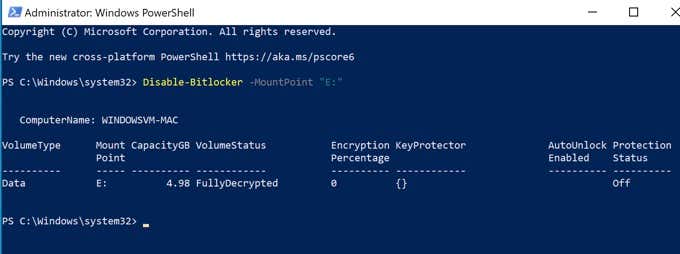
The volume status should be FullyDecrypted and Protection Status should be Off .
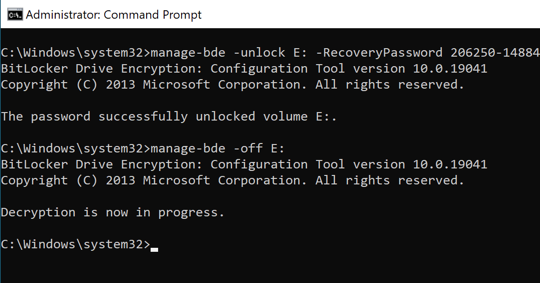
If you’re using the command prompt, you will first need the recovery key that you either saved to your Microsoft account or to a file when you first setup BitLocker. It is normally a set of eight numbers that are each six digits separated by dashes. Once you have that, you’ll you need to type the following command, replacing X with the drive letter on your PC:
manage-bde -unlock X: -RecoveryPassword Recovery-Key
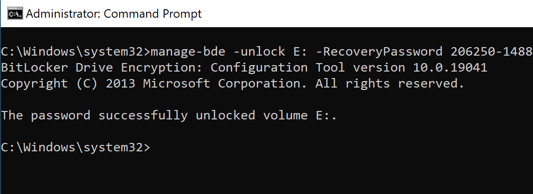
Note that this unlocks the drive, but doesn’t turn off BitLocker fully. If you want to turn it off completely, use this command:
manage-bde -off X:
If you want to enable BitLocker again later, turn to our guide on how to set up full disk encryption on Windows with BitLocker .
Safely Disable BitLocker on Windows 10
Disabling BitLocker will decrypt all of your files, meaning your data won’t be protected anymore. However, you can still encrypt your text files or encrypt all your online and offline data .
Whatever you decide to do, make sure your files are protected. If your data falls into the wrong hands, hackers can use your data against you.
- Preparing for Windows 10 End of Support: Upgrading to Windows 11
- How to Fix a “This file does not have an app associated with it” Error on Windows
- How to Fix an Update Error 0x800705b4 on Windows
- How to Resolve “A JavaScript error occured in the main process” Error on Windows
- How to Fix the Network Discovery Is Turned Off Error on Windows
Elsie is a technology writer and editor with a special focus on Windows, Android and iOS. She writes about software, electronics and other tech subjects, her ultimate goal being to help people out with useful solutions to their daily tech issues in a simple, straightforward and unbiased style. She has a BCom degree in Marketing and currently pursuing her Masters in Communications and New Media. Read Elsie’s Full Bio
Windows Hello is a more secure way of logging into your Windows 10 device without struggling to remember your password . The futuristic login technology uses biometric authentication that’s faster, more secure and easier to access your computer using fingerprint or facial recognition, with enterprise-grade security to boot.
These biometric markers allow you to sign into online devices, apps or networks, plus you can pair a Bluetooth device like your smartphone to your computer and use the Dynamic Lock feature in Windows Hello to lock your computer automatically.
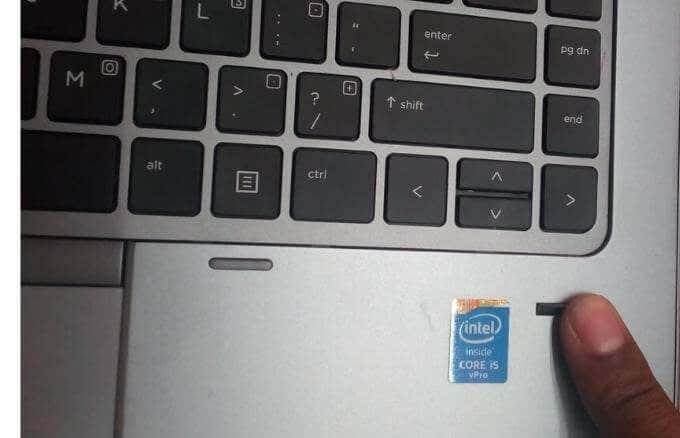
As great as this service sounds, you may sometimes find that the Windows Hello fingerprint is not working because of hardware issues, system corruption, software conflicts, incorrect settings, or faulty, obsolete and incompatible drivers.
If your computer’s fingerprint sign-in with Windows Hello isn’t working, maybe after an update or other changes on your computer, try some of the workarounds in this guide to help you restore the function.
Fixes For Windows Hello Fingerprint Not Working In Windows 10
- Install updates manually.
- Run Hardware & Devices troubleshooter.
- Reset fingerprint & facial recognition options.
- Enable Biometrics in Group Policy Editor.
- Modify Windows Hello Group Policy settings.
- Update System Drivers.
- Perform a Windows Reset.
- Turn off Fast Startup.
- Check for & uninstall updates that caused the problem.
- Reset fingerprint login.
- Reinstall fingerprint software.
- Repair System Files.
- Restart Credentials Manager Service.
How To Fix Windows Hello Not Working In Windows 10

Many reported cases of fingerprint malfunction in Windows Hello are experienced after installing Windows updates, like the 1809 version that caused many issues like system crashes, data loss, failure to boot up, and application crashing among other problems.
Before you use any of the fixes below, check for the following:
- Your device is running Windows 10 and not another version of the operating system; otherwise you can’t use Windows Hello. Consider upgrading to Windows 10 in this case.
- Check that your device has a fingerprint sensor or reader. Some machines may have but they’re probably too old and there’s no available Windows 10 driver for it so the service won’t work.
- Check that your device is compatible with Windows Hello service.
- Check that your internet connection is strong and your device is connected, otherwise Windows Hello won’t work.
- Check for any dust or dirt on the fingerprint scanner as this would affect the reading. If it has any scratches on the sensor, get the machine repaired.
- Use the same finger and position you used when registering your fingerprint with Windows Hello to sign in.
Install Updates Manually
With the Windows Hello fingerprint sign-in not working, you’ll need to revert to using your password or PIN to login and check for Windows Updates manually.
- Once signed in, go to Settings > Update & Security > Windows Update
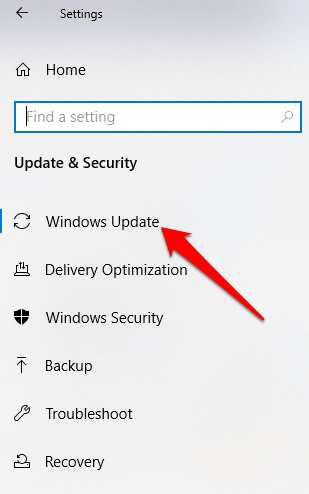
- Install all pending and detected updates, and restart your computer. Try signing in with fingerprint authentication again.
Run Hardware & Devices Troubleshooter
This will scan and detect any possible hardware and devices issue in the system.
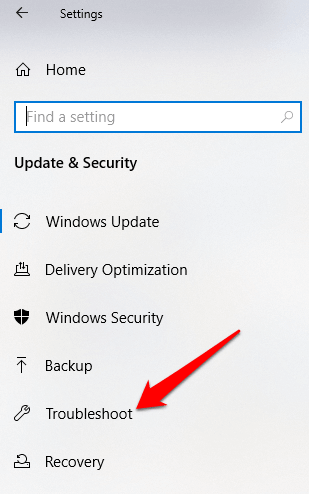
- Click Start > Settings > Update & Security > Troubleshoot .
Reset Fingerprint & Facial Recognition Options
- Click Start > Settings > Accounts .
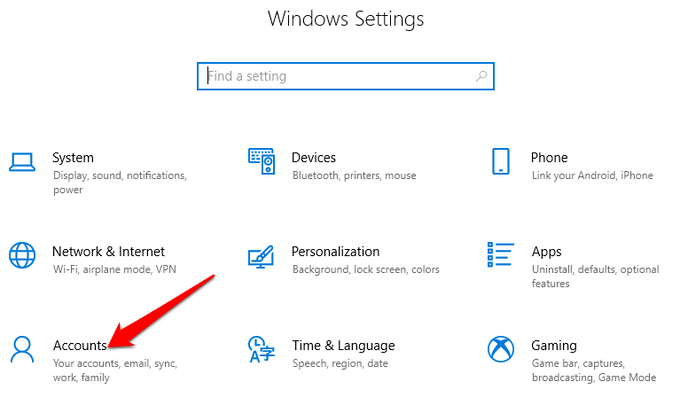
- Click on Sign-in options .
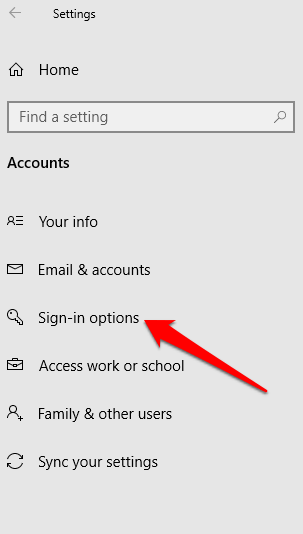
- Find Facial Recognition or Fingerprint options, and click on the Fingerprint option.
- Select Remove , and do the same for Facial Recognition .
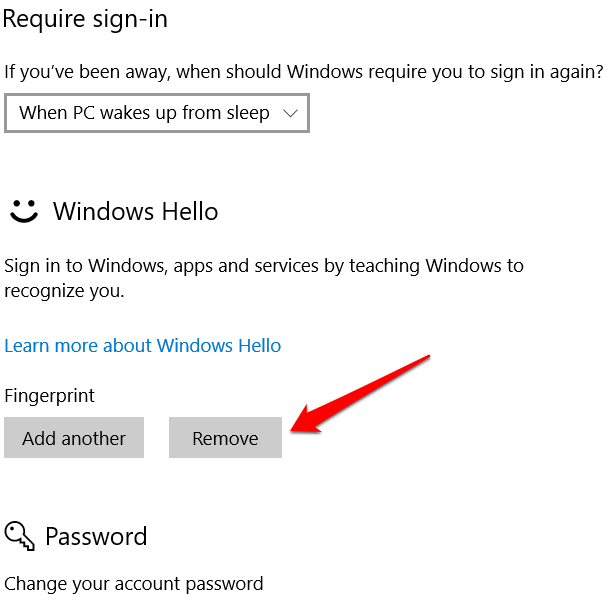
- Next, click Get Started and follow the instructions to reset the Facial Recognition and Fingerprint sign-in options, and then restart your computer.
Enable Biometrics In Group Policy Editor
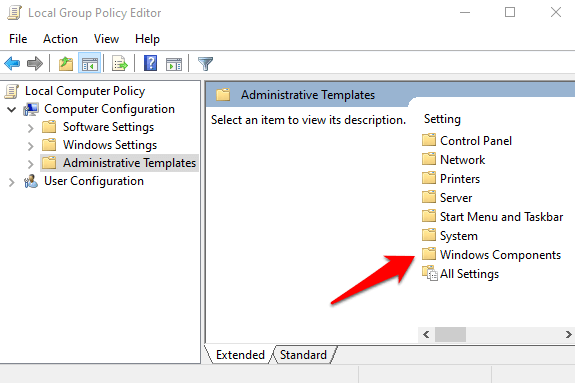
- Type gpedit in the search box and click Edit Group Policy .
- Click Computer Configuration > Administrative Templates .
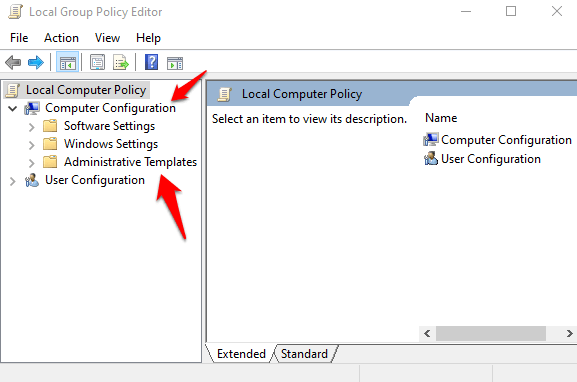
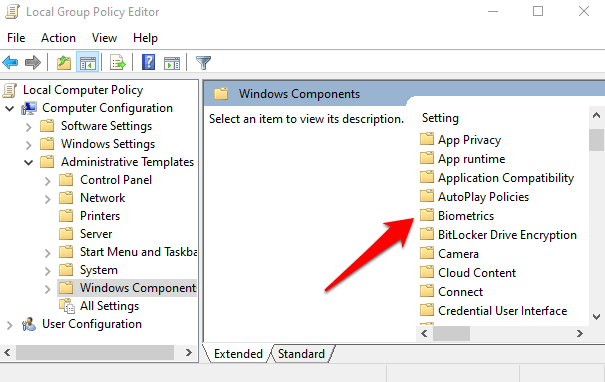
- Double-click Windows Components .
- Double-click Biometrics in the right pane and check whether all its settings are configured.
- If they show Not Configured , this is probably why the Windows Hello fingerprint sign-in isn’t working.
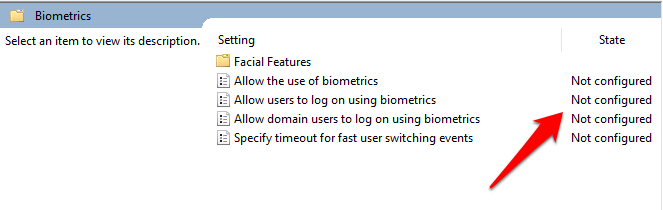
- Right-click each Biometric setting, select Enabled and then click Apply > OK .
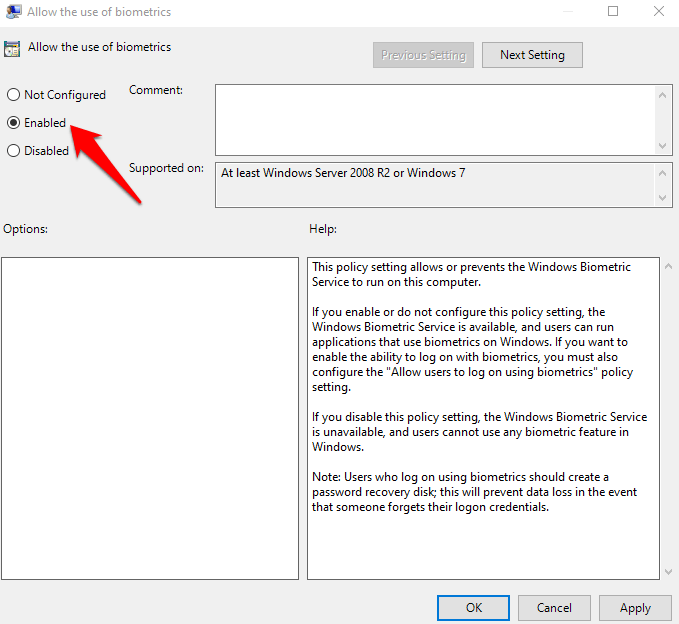
- Double-click Allow user to login using biometrics and select Enabled .
- Click Apply > OK .

Modify Windows Hello Group Policy Settings
A Windows Update may have made some changes to some important Group Policy settings, so you may want to check Windows Hello settings in the Group Policy Editor. The first four steps are the same as the example above.
- Right-click Start > Run . Type gpedit and press Enter .
- Click Computer Configuration > Administrative Templates .
- Next, double-click Windows Components .
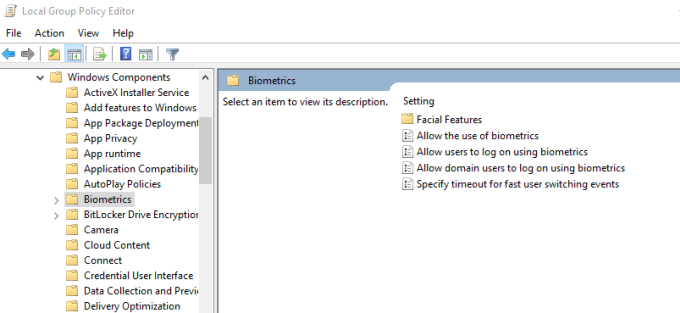
- Double-click Biometrics .
- Double-click Facial Features .
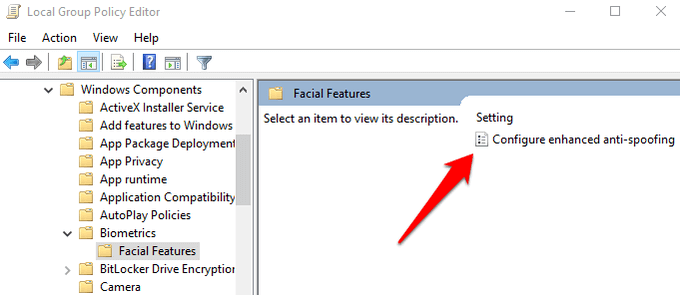
- Right-click Configure enhanced anti-spoofing and select Edit .
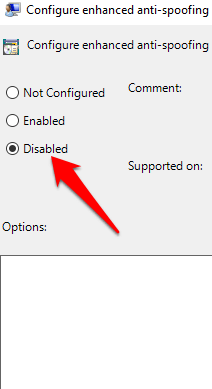
- Disable Configure enhanced anti-spoofing and restart your computer to see if it resolves the Windows Hello fingerprint sign-in problem.
Update System Drivers
Some drivers, in this case the fingerprint reader driver, may have been corrupted at some point, either during an update or other process, causing the fingerprint sign-in to malfunction.
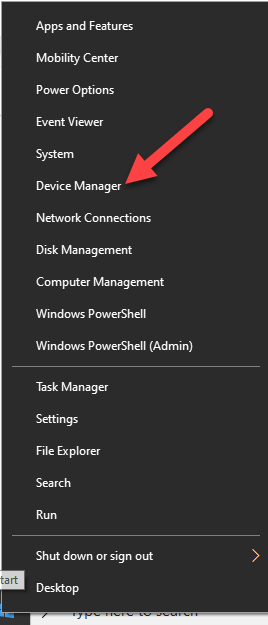
- To resolve that, you can update the drivers by right-clicking Start > Device Manager .
- Find the relevant drivers under Biometric devices , right-click your device and select Remove driver software .
- Do this for all drivers related to Windows Hello and restart your device.
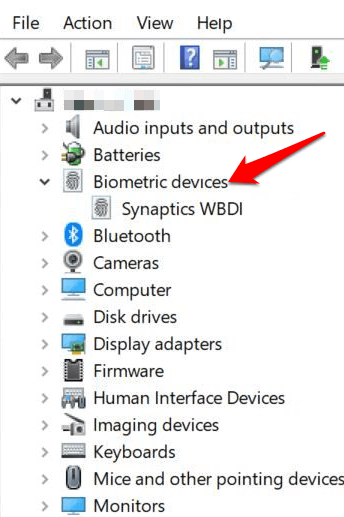
- Right-click and select Scan for hardware changes and the system will detect and install the drivers again.
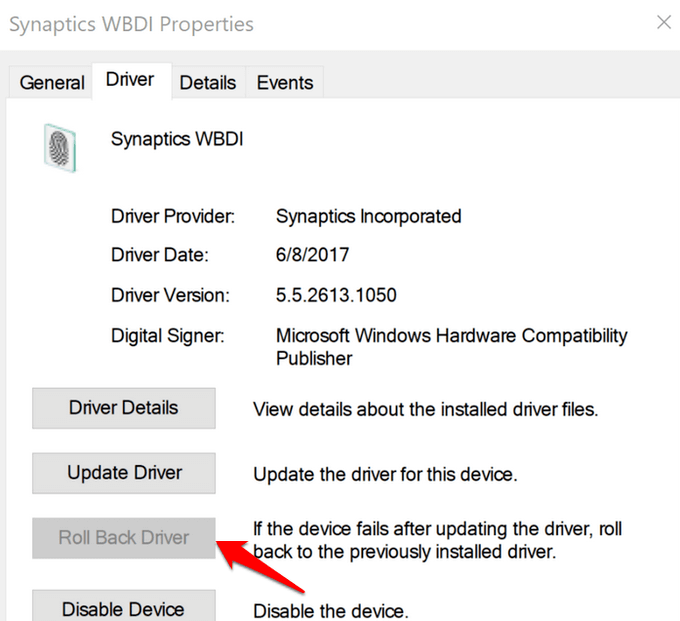
- You can also roll back the corrupted or outdated driver to its previous version by double clicking Biometric Devices and select Roll Back Driver in the properties section.
- Click OK once it’s done.
Perform a Windows Reset
When you reset your Windows device, it repairs damages to all the system files so that Windows Hello can work normally again. It also resets your device settings to the default Windows settings.
- To refresh the device, go to Settings > Update & Security > Recovery > Reset this PC and click Get Started .
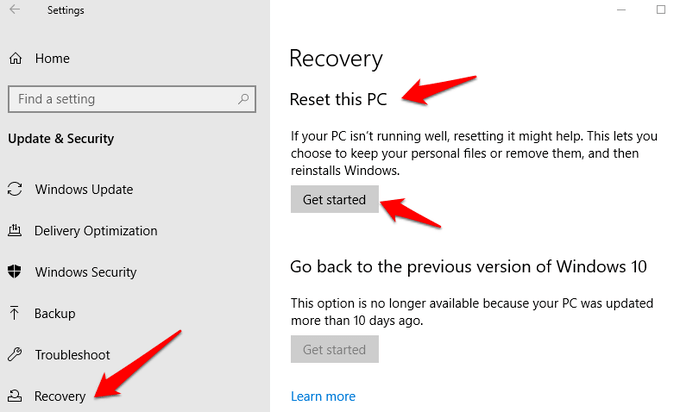
Note: This action will permanently erase your computer data so ensure you backup or copy your data to external or cloud storage before doing anything.
Turn Off Fast Startup
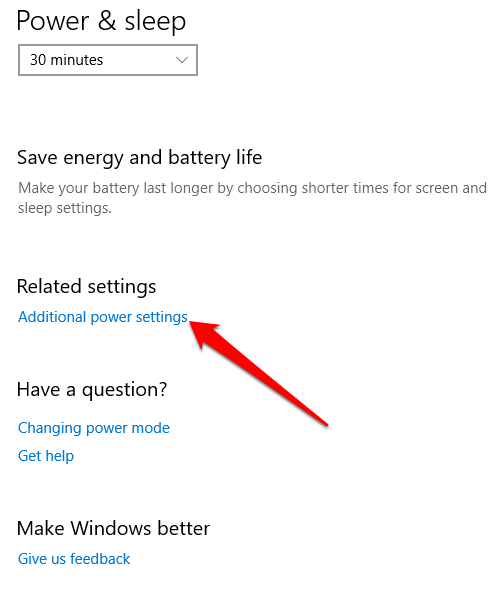
- Click Start > Settings > System > Power & Sleep
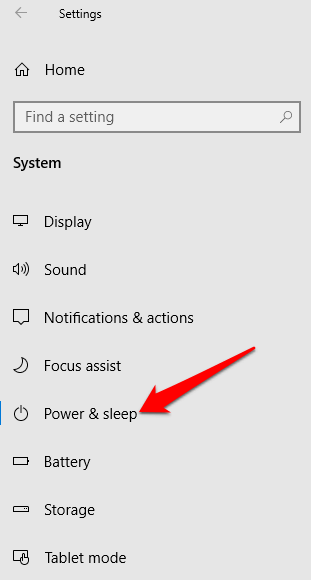
- Click Additional Power Settings .
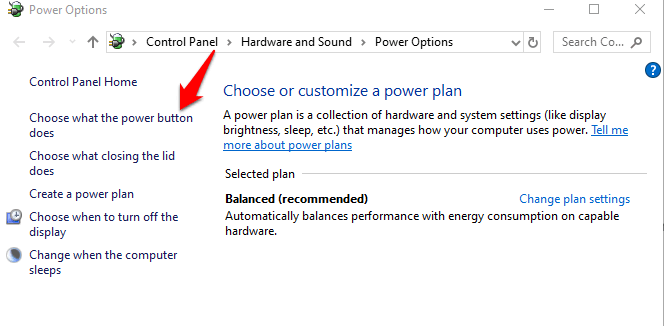
- Next, click Choose what Power button does .
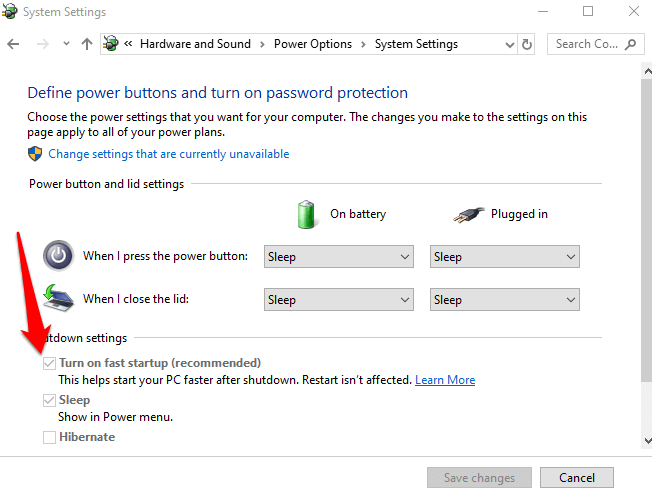
- Click Change Settings that are unavailable and uncheck the Fast Startup box if it’s selected, and click Save changes .
Check For & Uninstall Updates That Caused The Problem
If the fingerprint sign-in issues first started after installing Windows Updates, check for the installed updates and uninstall them.
- Click Settings > Update & Security > Windows Updates .
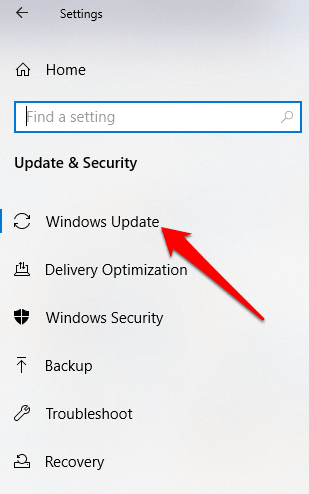
- Go to View Update History .
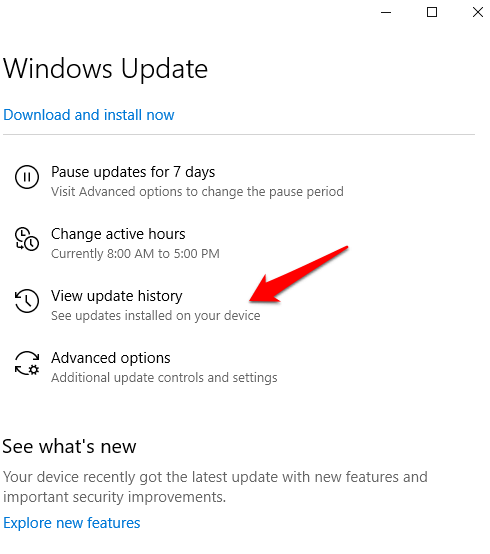
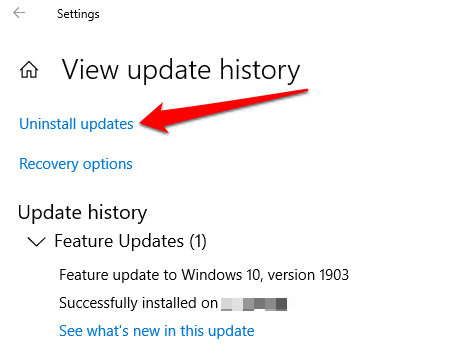
- Click the Uninstall Updates link.
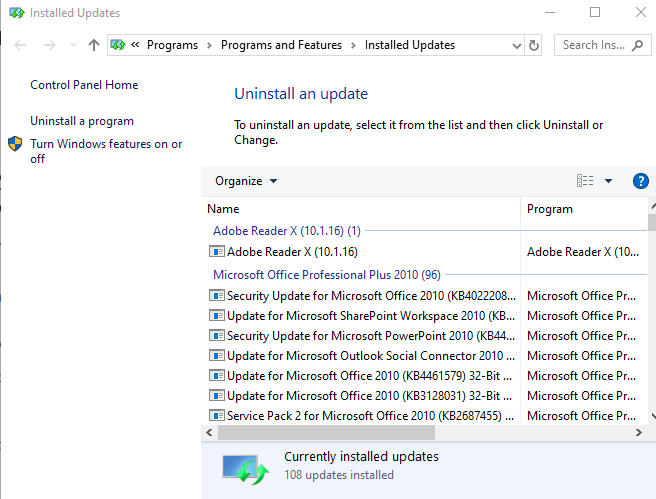
- A new screen will open showing the Installed Updates . Right-click each and select Uninstall .
- Restart your computer and check if Windows Hello fingerprint sign-in works again.
Reset Fingerprint Login
If the issue persists, you can reset your fingerprint login and see if that helps.
- In the search box, type sign-in and press Enter to open the Accounts menu.
- Go to Sign-in options and click Set up under the Windows Hello Fingerprint section.
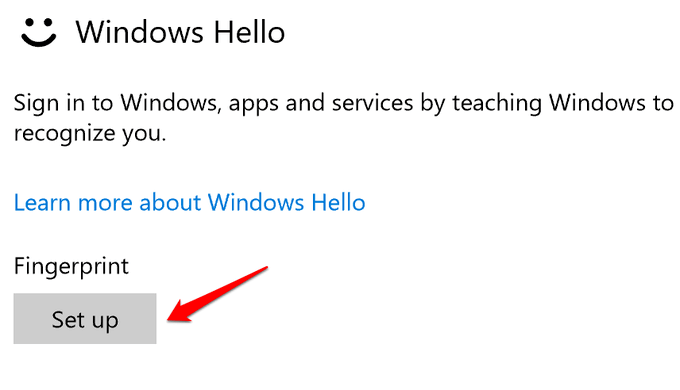
- Click Get Started and follow the instructions to set up your fingerprint sign-in again.
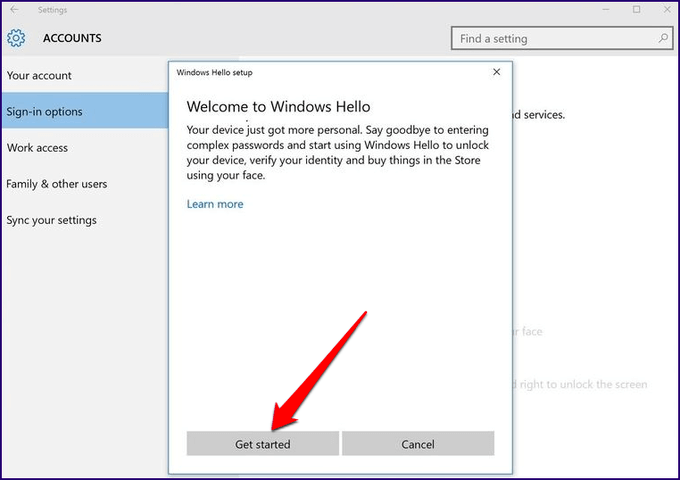
Reinstall Fingerprint Software
- Click Start > Settings > Apps . In Apps and Features .
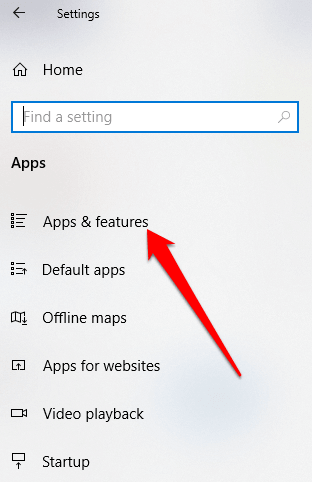
- Find your fingerprint reader and click on it. Click Uninstall and confirm the action.
- Right-click Start > Device Manager and expand the Biometric devices category.
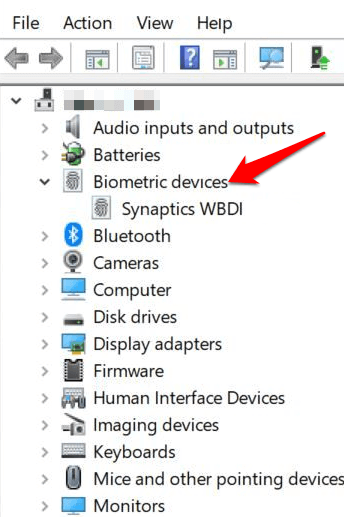
- Find your fingerprint reader, right-click, then select Uninstall device, and confirm the action.
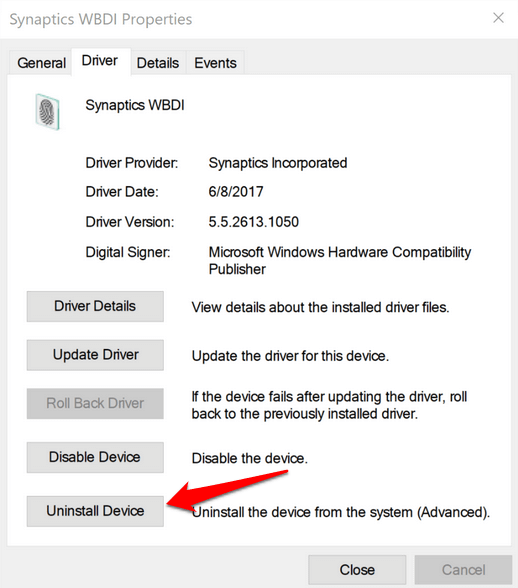
- Restart your computer to apply the changes and check if fingerprint works again.
- You can prevent your computer from disabling the fingerprint reader by going to Device Manager > Universal Serial Bus Controllers category and find the USB Root Hub .
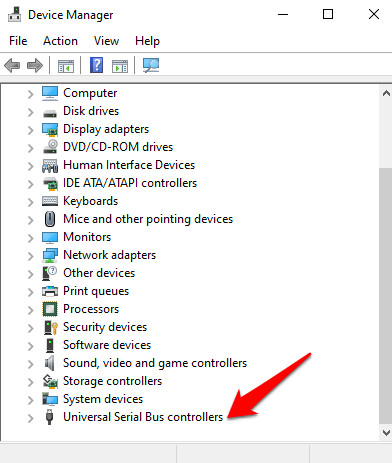
- Double-click USB Root Hub to open its Properties .
- Uncheck the Allow the computer to turn off this device to save power option box under the Power Management tab. Repeat for all USB Root Hub entries.
Repair System Files
File corruption is one of the causes of the fingerprint reader malfunctioning when you’re trying to sign in using the Windows Hello service. you can use the built-in System File Checker to rectify things.
- Type CMD in the search box and select Command Prompt>Run as administrator.
- In the Command Prompt dialog box, type sfc /scannow and press enter to run the command.
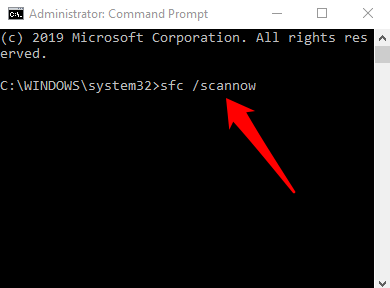
The system files will be scanned, after which you can restart your computer and see if the fingerprint issue is resolved.
Restart Credentials Manager Service
- Right-click Start > Run and type services.msc. Press Enter to open the Services window and search for the Credential Manager Service .
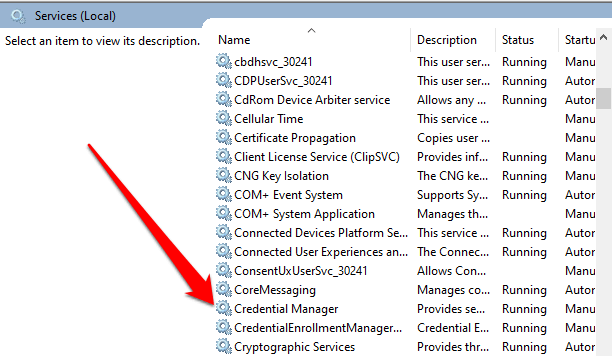
- Double-click the Credential Manager Service to open the Properties window and go to Service Status .
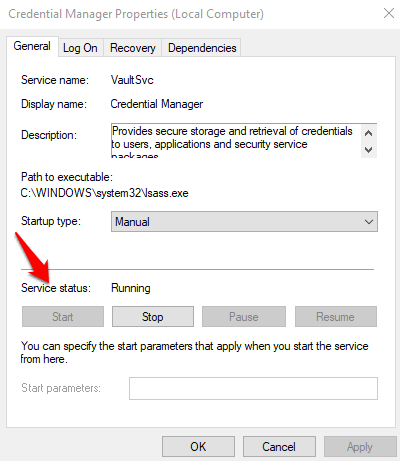
- Click Stop , and then click the Start button again to restart the service.
- Click Apply>OK and check if the fingerprint works again.
If nothing else works, you can switch to a different fingerprint reader.
- Preparing for Windows 10 End of Support: Upgrading to Windows 11
- How to Fix a “This file does not have an app associated with it” Error on Windows
- How to Fix an Update Error 0x800705b4 on Windows
- How to Resolve “A JavaScript error occured in the main process” Error on Windows
- How to Fix the Network Discovery Is Turned Off Error on Windows
Elsie is a technology writer and editor with a special focus on Windows, Android and iOS. She writes about software, electronics and other tech subjects, her ultimate goal being to help people out with useful solutions to their daily tech issues in a simple, straightforward and unbiased style. She has a BCom degree in Marketing and currently pursuing her Masters in Communications and New Media. Read Elsie’s Full Bio
