If you have a habit of activating Siri unintentionally over your AirPods or don’t like how it announces text messages, calls, and notifications, you have the option of turning it off. This tutorial will show you how to disable Siri on Apple’s wireless earbuds and headphones.
How to Turn Off Siri Gestures on Apple AirPods
If Siri is set to activate with a double-tap or press-and-hold gesture on your AirPods or AirPods Pro, you must bind a different action via the AirPods settings .
Note : If you use the AirPods Max, Siri is always bound to the Digital Crown by default and there’s no way to disable it without completely turning Siri off on your Apple devices.
iPhone and iPad
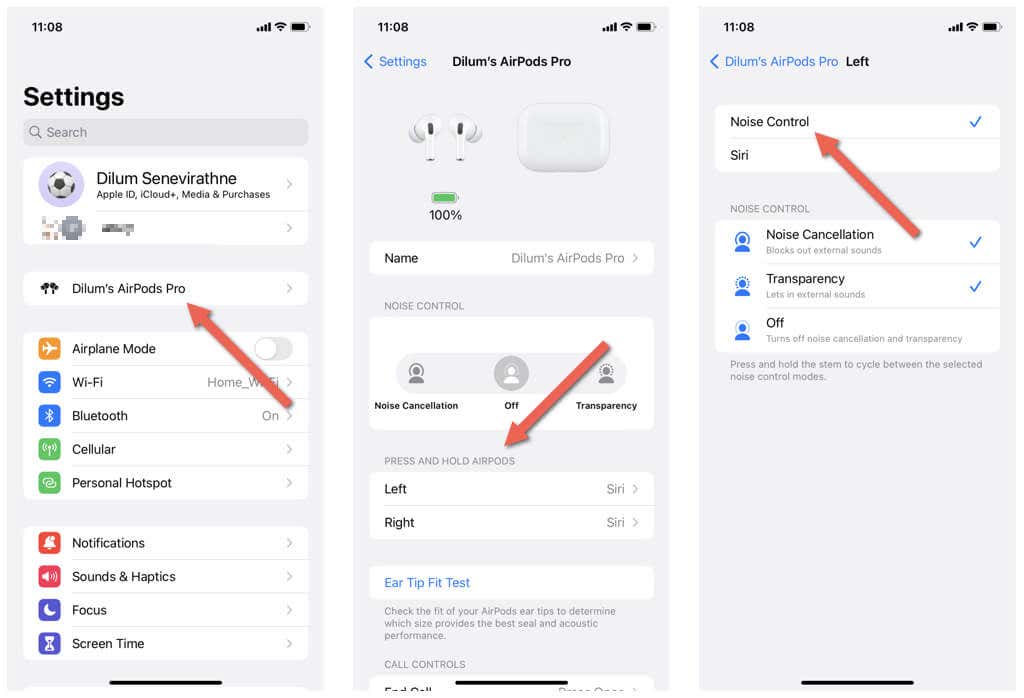
- Open the Settings app on your iOS device.
- Tap [Your Name] AirPods / Pro at the top of the Settings menu. If you’re on iOS 15/iPadOS 15 or older, tap Bluetooth and select the Info icon next to your AirPods.
- Make the following adjustments depending on your AirPods model:
- 1st or 2nd generation AirPods : Tap Left and Right under the Double Tap on AirPod section and switch from Siri to Play/Pause , Next Track , Previous Track , or Off .
- AirPods Pro and 3rd generation AirPods Pro : Tap Left and Right under the Press and Hold AirPods section and switch from Siri to Noise Control .
Mac
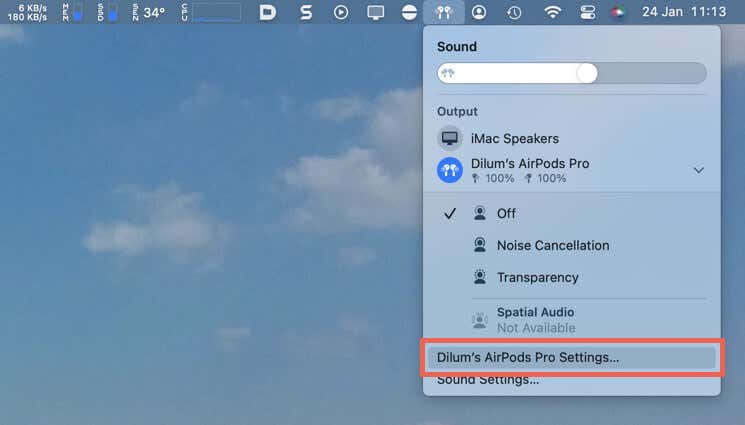
- Select the AirPods icon on the Mac’s menu bar or open the Control Center (select icon with two sliders) and expand Sound . Then, select [Your Name]’s AirPods / Pro Settings .
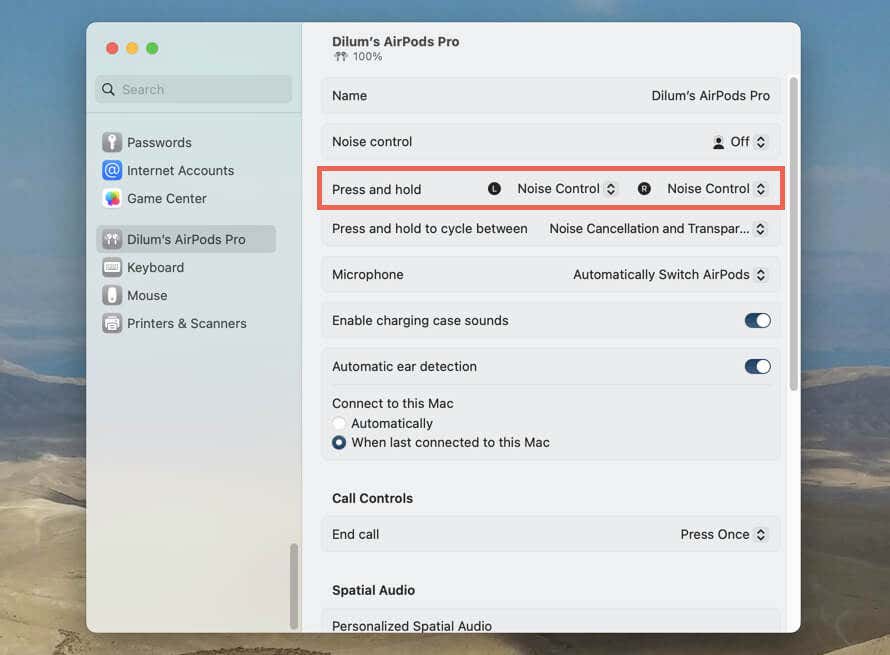
- Make the following adjustment depending on your AirPods model:
- 1st and 2nd generation AirPods : Select Left Double Tap and Right Double Tap and switch from Siri to Play/Pause , Next Track , Previous Track , or Off .
- AirPods Pro and 3rd generation AirPods Pro: Open the Left and Right menus next to Press and hold and switch from Siri to Noise Control .
How to Disable “Hey Siri” and Siri Announcements on AirPods
If you want to stop your AirPods from listening to the “Hey Siri” voice command or block Siri from making announcements through them, you must visit the Siri & Search/Spotlight settings on your iPhone or Mac.
iPhone and iPad
- Open Settings.
- Scroll down and tap Siri & Search .
- Turn off the switches next to Listen for “ Hey Siri ,” . Also, tap Announce Calls and Announce Notifications and disable both features to stop Siri from announcing notifications over your AirPods.
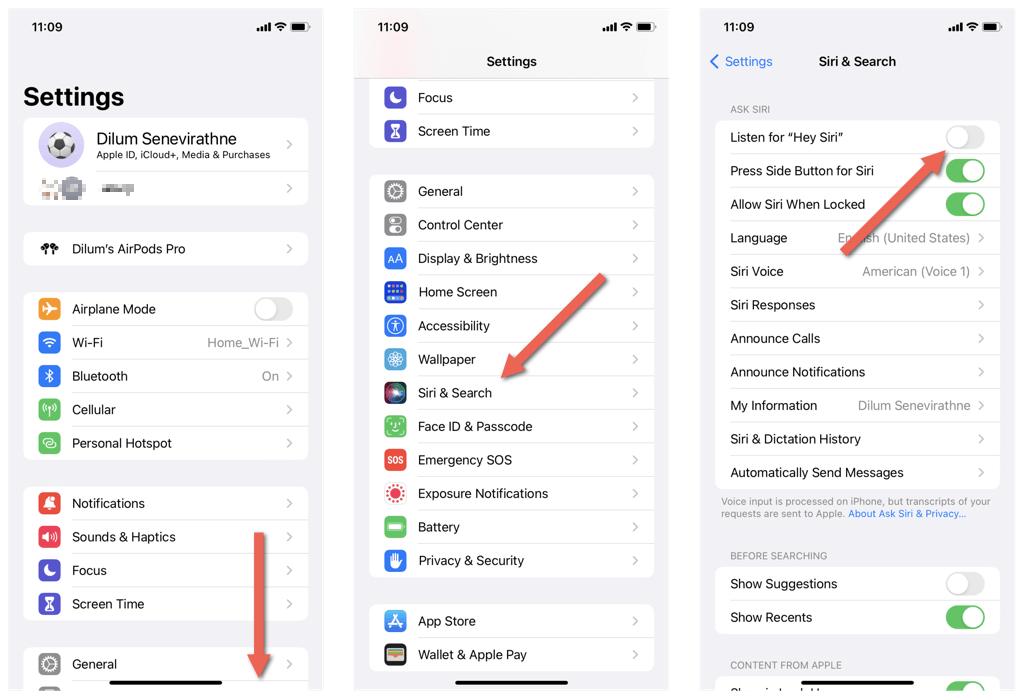
Additionally, disable the Press Side Button for Siri and Allow Siri When Locked options to disable Siri altogether on your iPhone or iPad .
Mac
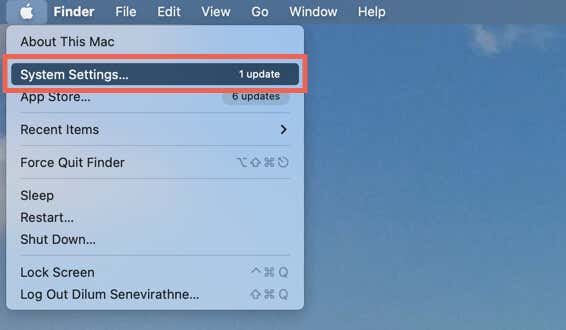
- Open the Apple menu and select System Preferences / Settings .
- Select Siri & Spotlight on the sidebar and turn off the switch next to Listen for Hey Siri .
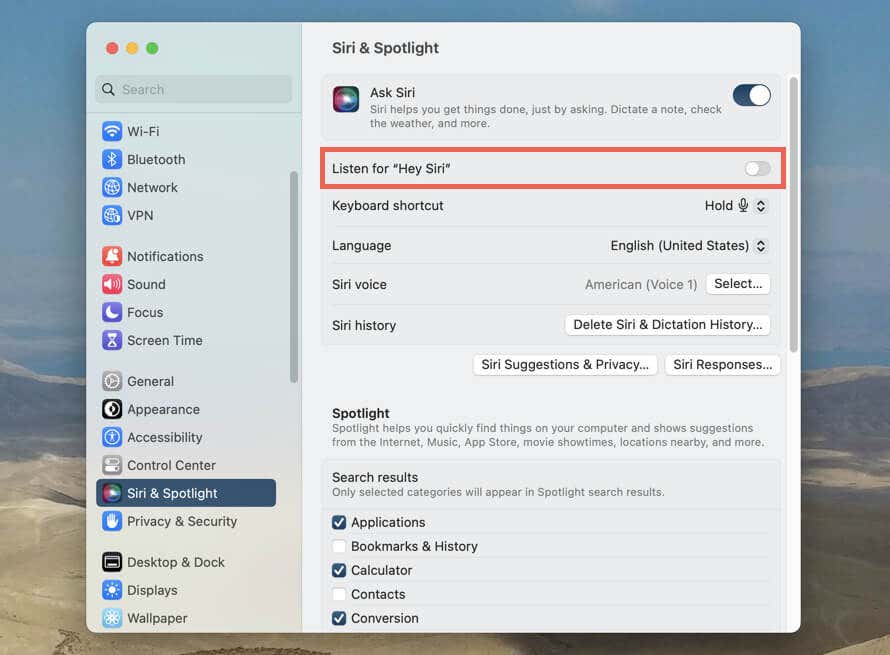
Disable the switch next to Ask Siri if you want to fully disable Siri on your Mac.
Easily Turn Off Siri on Your AirPods
As you just found out, it’s easy to disable Siri on your AirPods. Just repeat the steps above if you want to re-enable Apple’s voice assistant.
- How to Turn Off or Delete Siri Suggestions (iPhone and Mac)
- How to Clean Your AirPods Microphone
- How to Keep AirPods from Falling Out Your Ears
- How to Clean Your AirPods Max (Without Damaging Them)
- How to Dry AirPods You Dropped in Water
