A virtual private network (or VPN) brings a lot of advantages, such as increased online privacy, improved security, and the ability to access geo-restricted content. However, there are situations where you may need to turn it off.
Perhaps you’re experiencing slow internet speeds , or maybe certain apps and services aren’t working correctly when the VPN is active. Whatever the reason, disabling your VPN can help you troubleshoot issues with your internet connection. We’ll show you how to do that on Apple’s iPhone and iPad.
How to Disconnect VPN Through Its GUI on iPhone and iPad
VPN services like NordVPN, ExpressVPN, and CyberGhost VPN allow you to connect and disconnect from VPN servers through their graphical user interfaces for the iPhone and iPad.
Just open the VPN app from your VPN provider, look for a button that reads Disconnect or something similar, and tap it to disable the VPN connection.
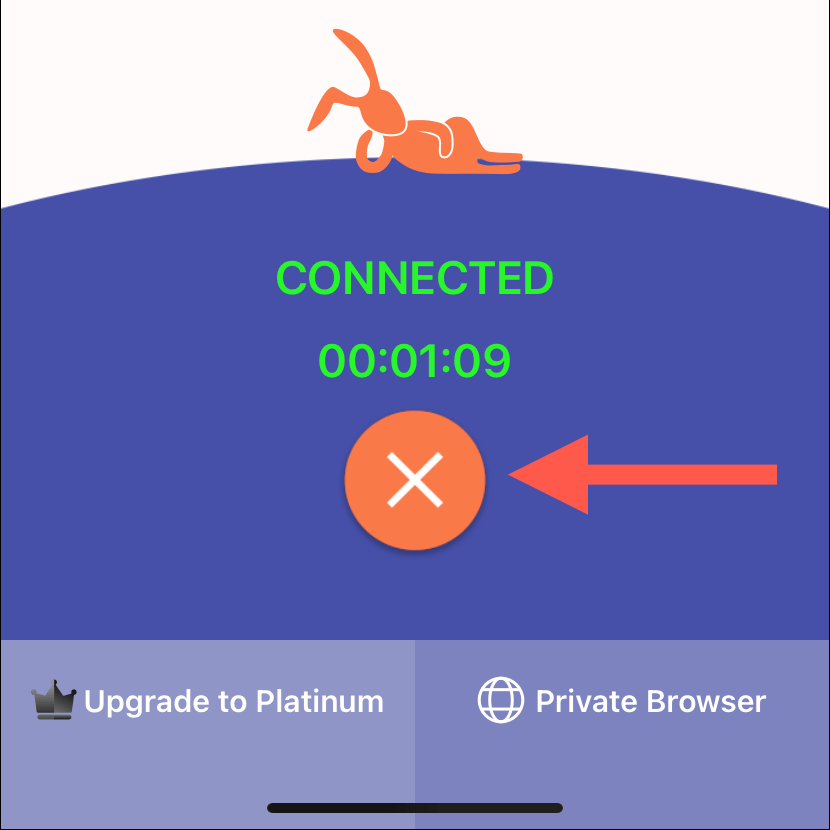
To confirm, check your iPhone or iPad’s status bar or the Control Center—the VPN status icon should not be visible.
How to Disconnect VPN Through Settings on iPhone and iPad
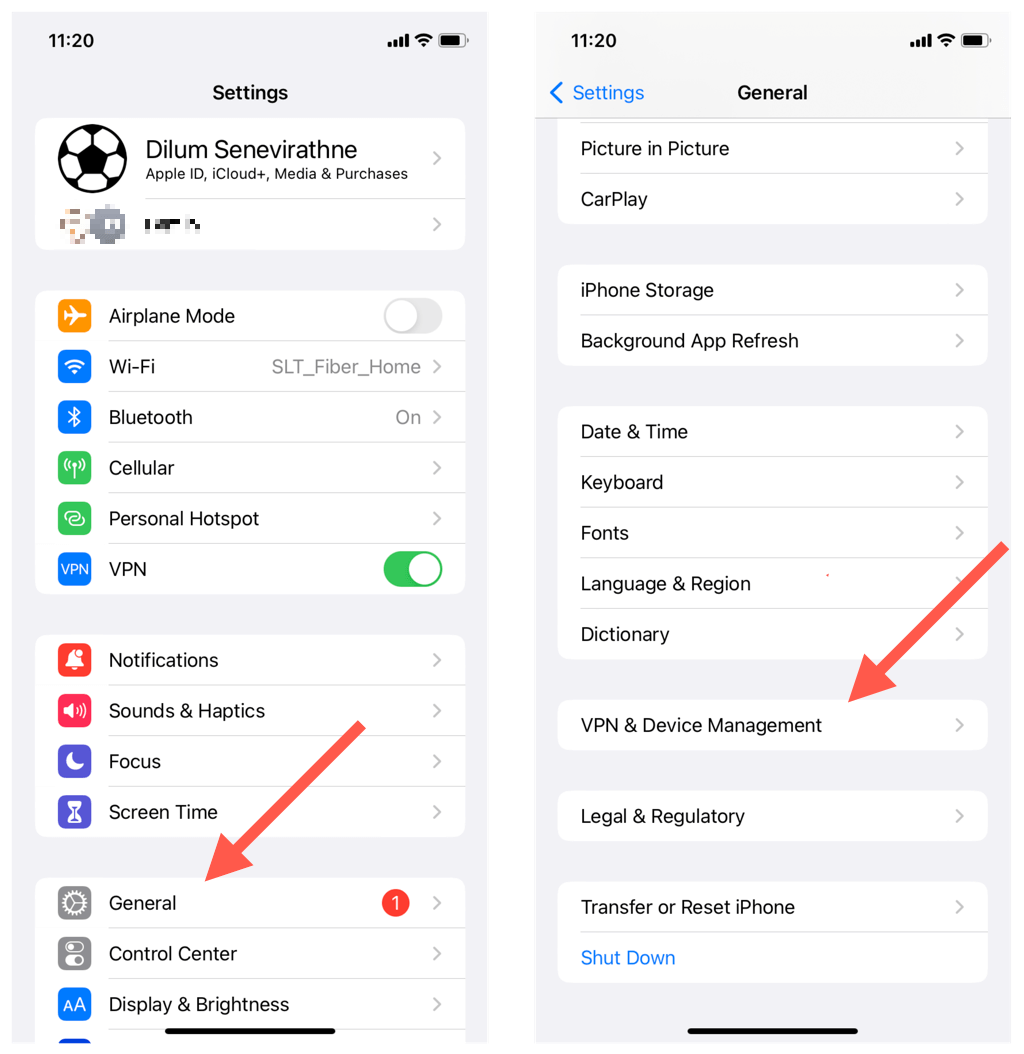
Alternatively, you can disconnect a VPN through the Settings app on your iPhone or iPad. Here’s how:
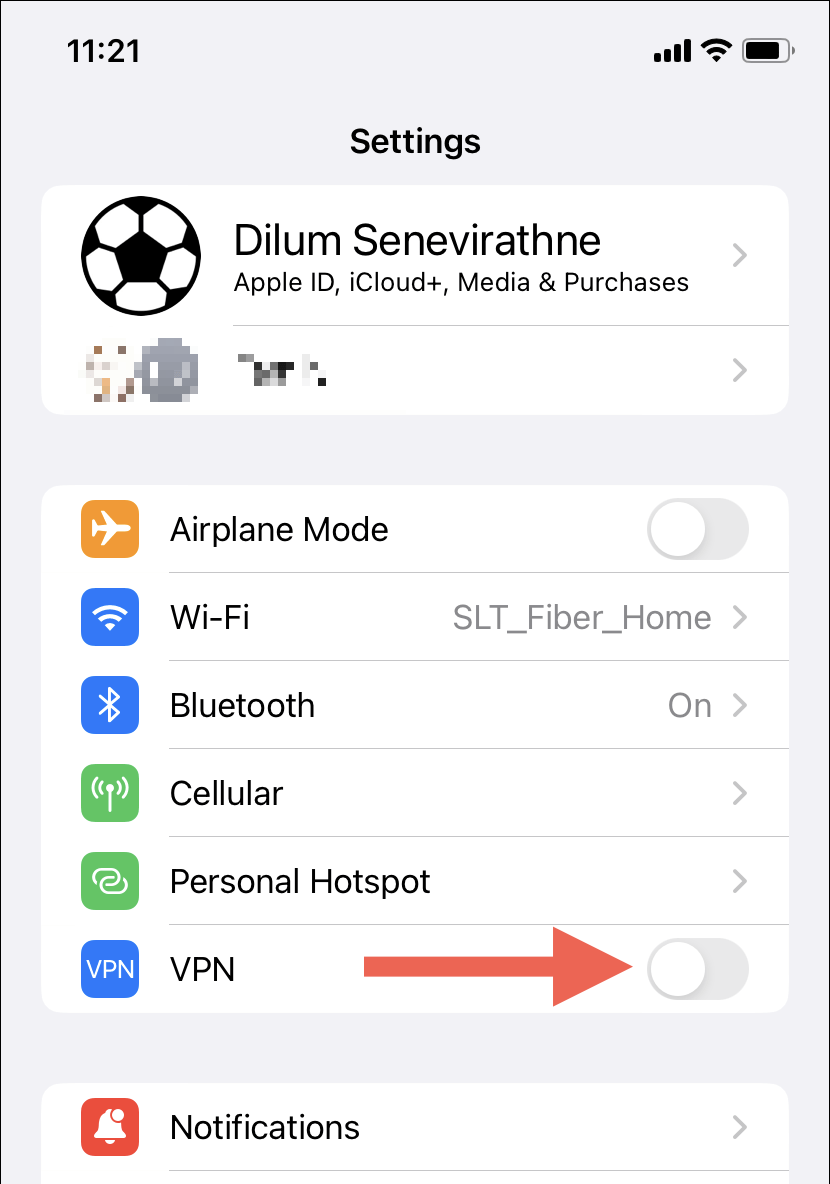
- Open the Settings app on your iOS or iPadOS device.
- Turn off the switch next to VPN .
- Wait until the system software disconnects from the VPN.
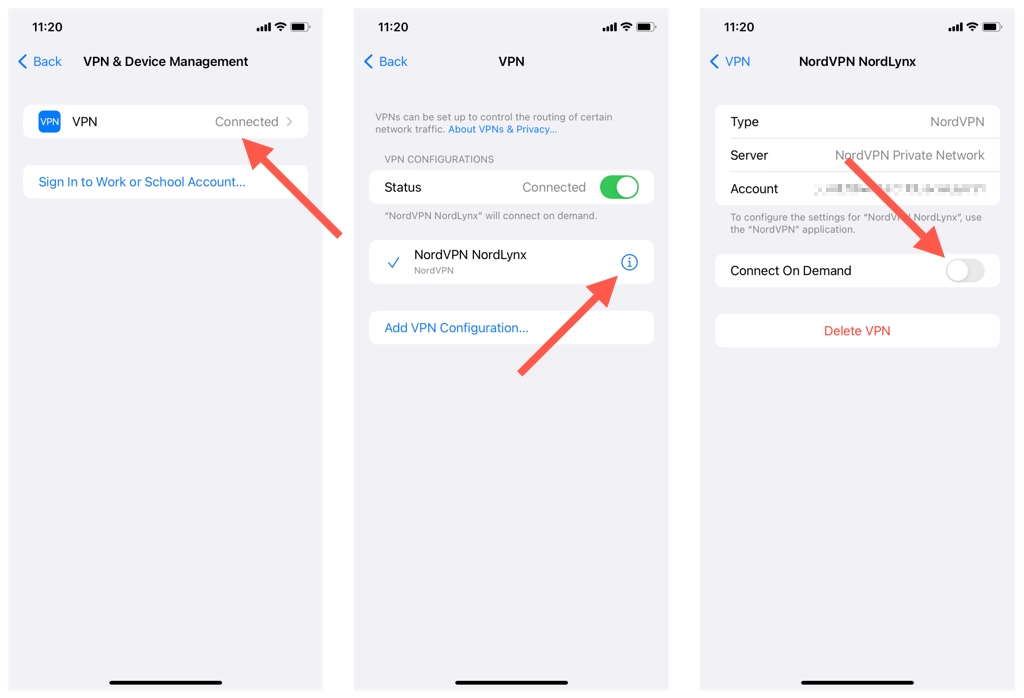
If your iPhone or iPad automatically reconnects to the VPN, you must disable Connect On Demand functionality for the VPN configuration. Here’s how:
- Tap General on the iPhone Settings app.
- Scroll down and tap VPN & Device Management .
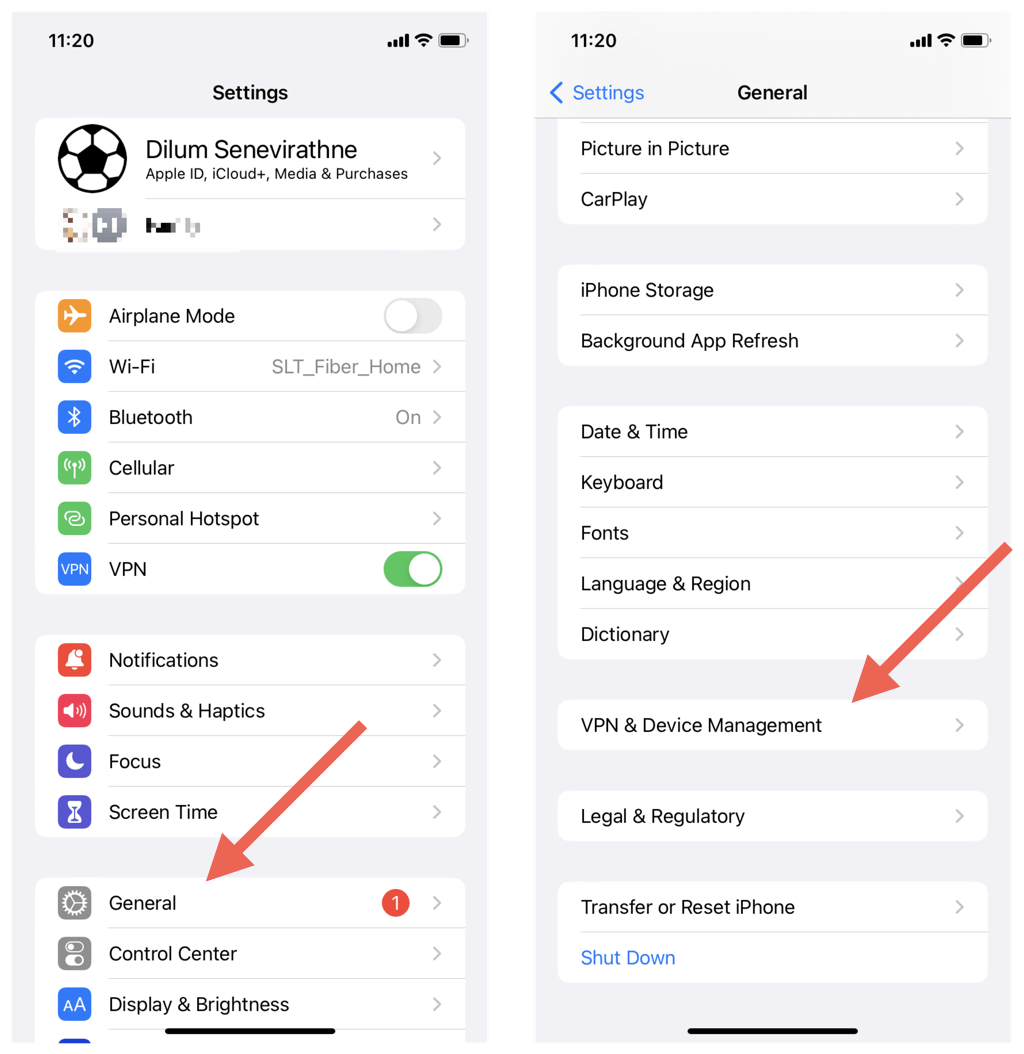
- Tap the Info icon next to the VPN configuration.
- Turn off the switch next to Connect On Demand .
- Go back to the previous screen and disable the Status switch.
How to Delete VPN From the iPhone and iPad
If you no longer need a VPN on your iPhone or iPad, you can permanently delete the VPN app or the VPN configuration.
Delete the VPN App
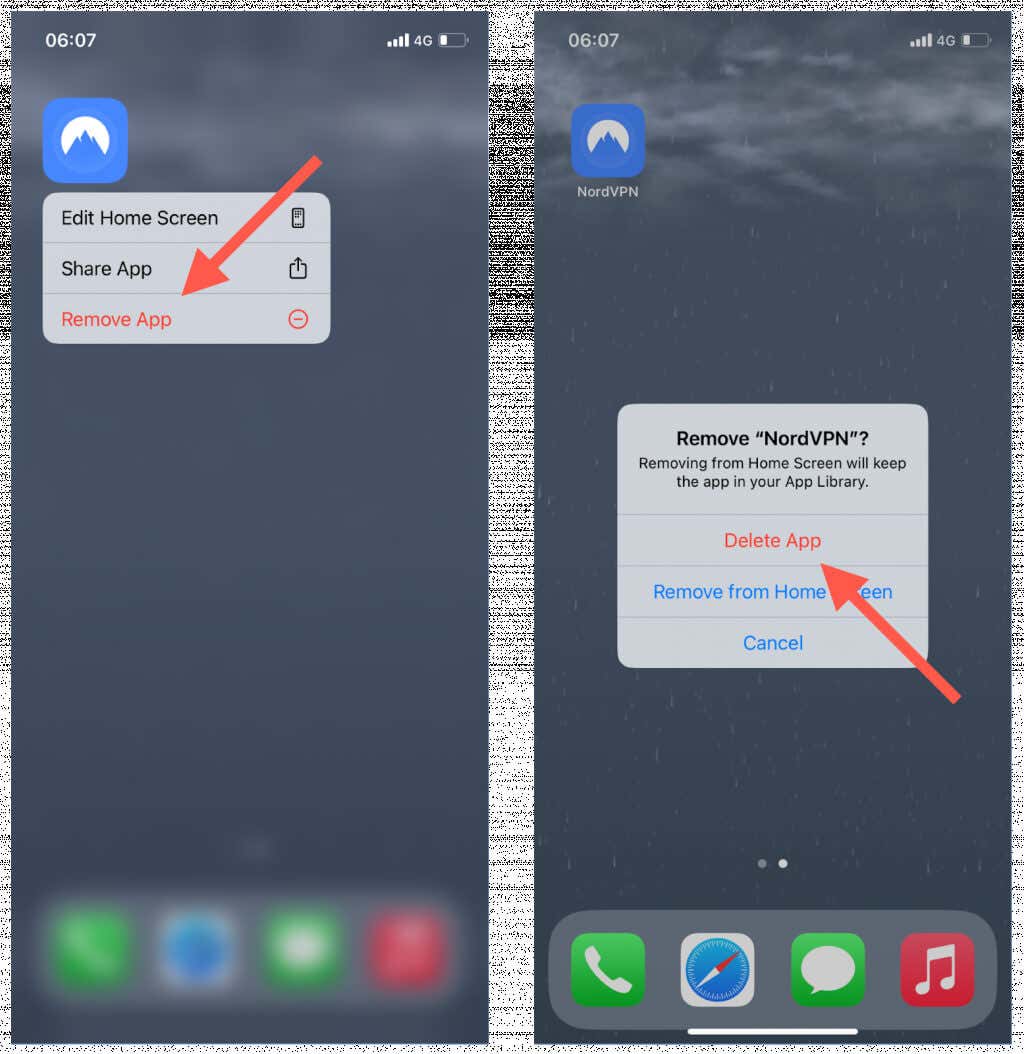
- Long-press the VPN app icon on the Home Screen or App Library.
- Tap the Remove App option on the contextual menu.
- Tap Delete App .
Delete the VPN Settings Configuration
- Open the Settings app and go to General > VPN & Device Management .
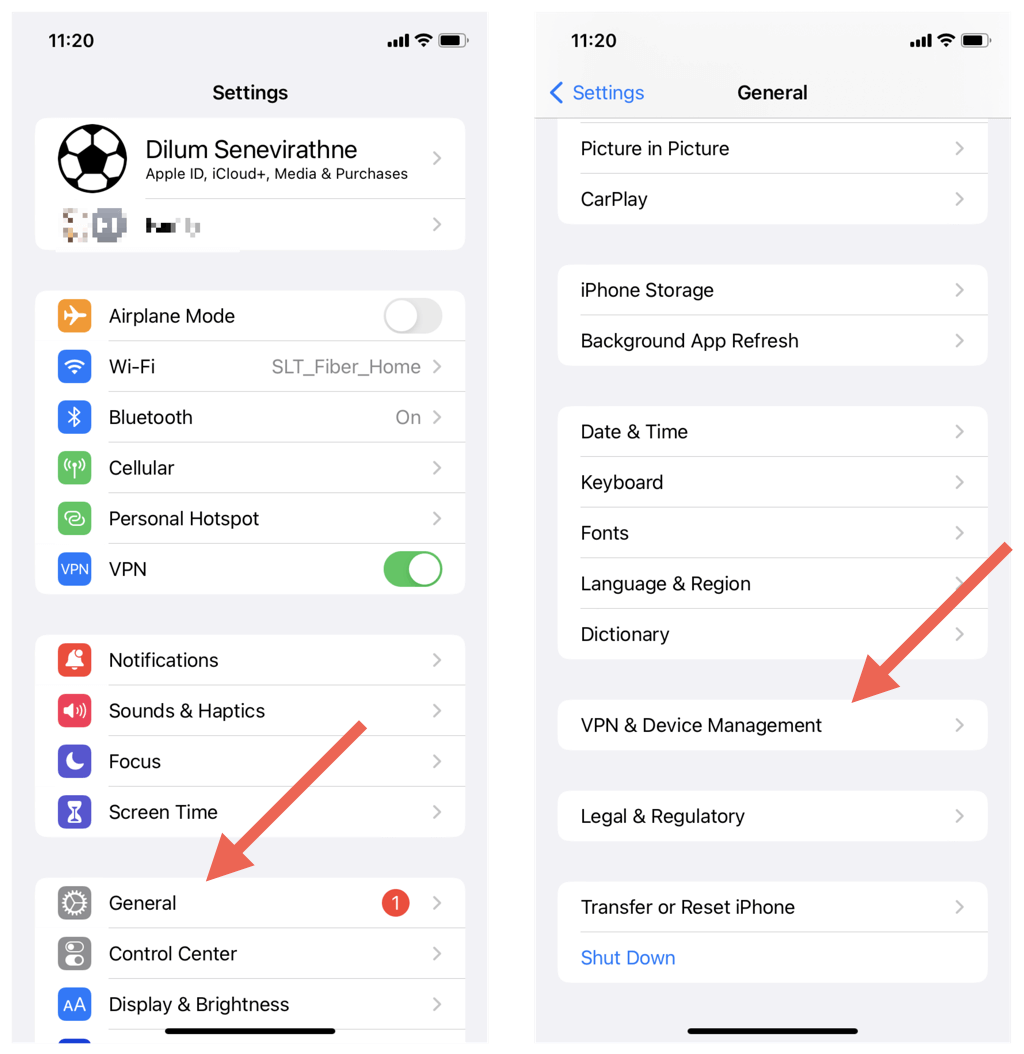
- Tap VPN and select Info next to the VPN profile.
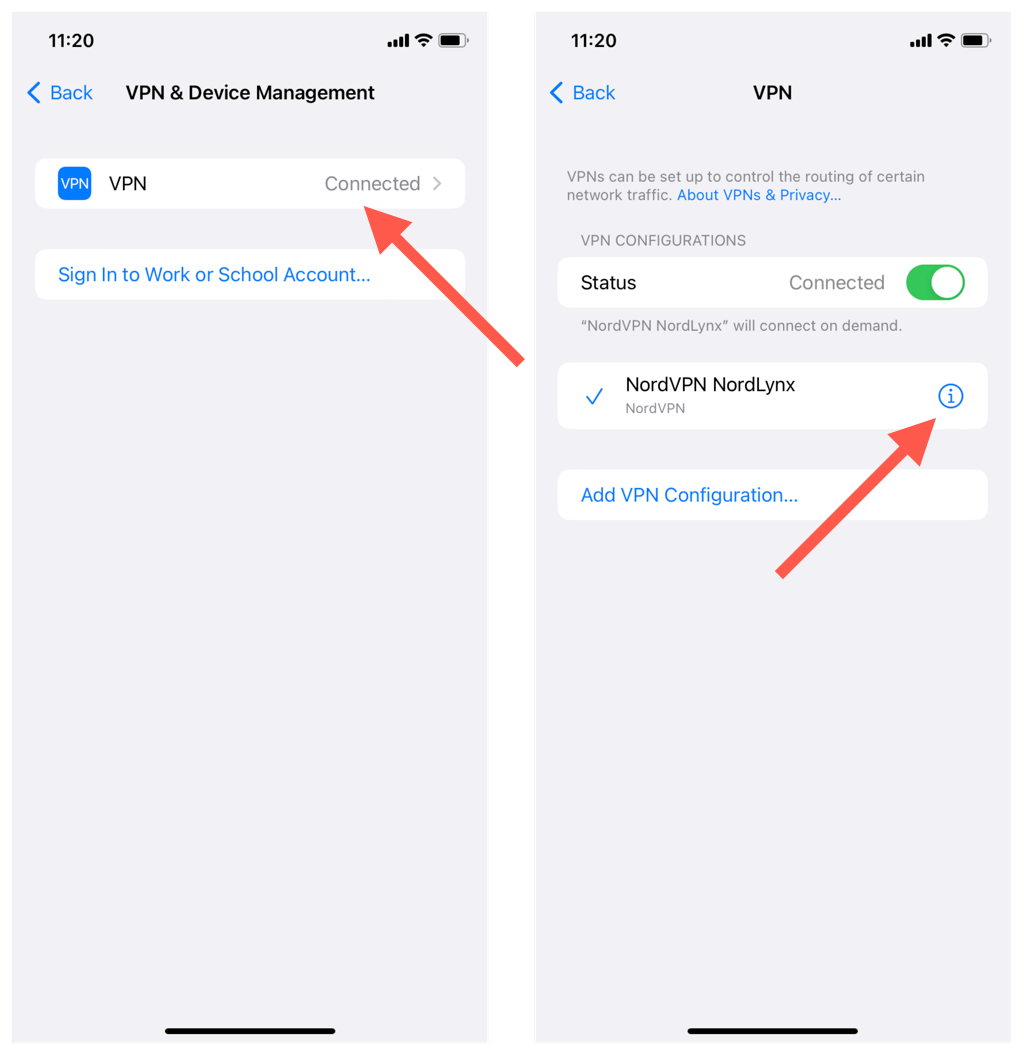
- Tap Delete VPN , then Delete again to confirm.
Note : If you are on a paid VPN plan or trial, go to Settings > Apple ID > Subscriptions and cancel the VPN subscription to avoid getting billed.
Don’t Get Stuck With Your VPN On
Despite the many positives of using a VPN service, there are times when turning it off could be the best course of action. Whether you’re experiencing connectivity issues or a malfunctioning app or service, knowing how to disable a VPN on your iPhone or iPad helps you quickly determine if it’s causing the problem.
Just remember to weigh the risks of turning off your VPN, as it could leave your online activity vulnerable to tracking and hacking, especially on unencrypted websites and public Wi-Fi hotspots.
- iPad Won’t Update? 10 Fixes to Try Right Now
- Is Your iPad Frozen or Freezing? Try These 7 Fixes
- 10 Best Drawing Apps for iPad
- 20 Best Offline Games for iPhone and iPad
- How to Delete Multiple Apps (At Once) On Your iPhone/iPad
