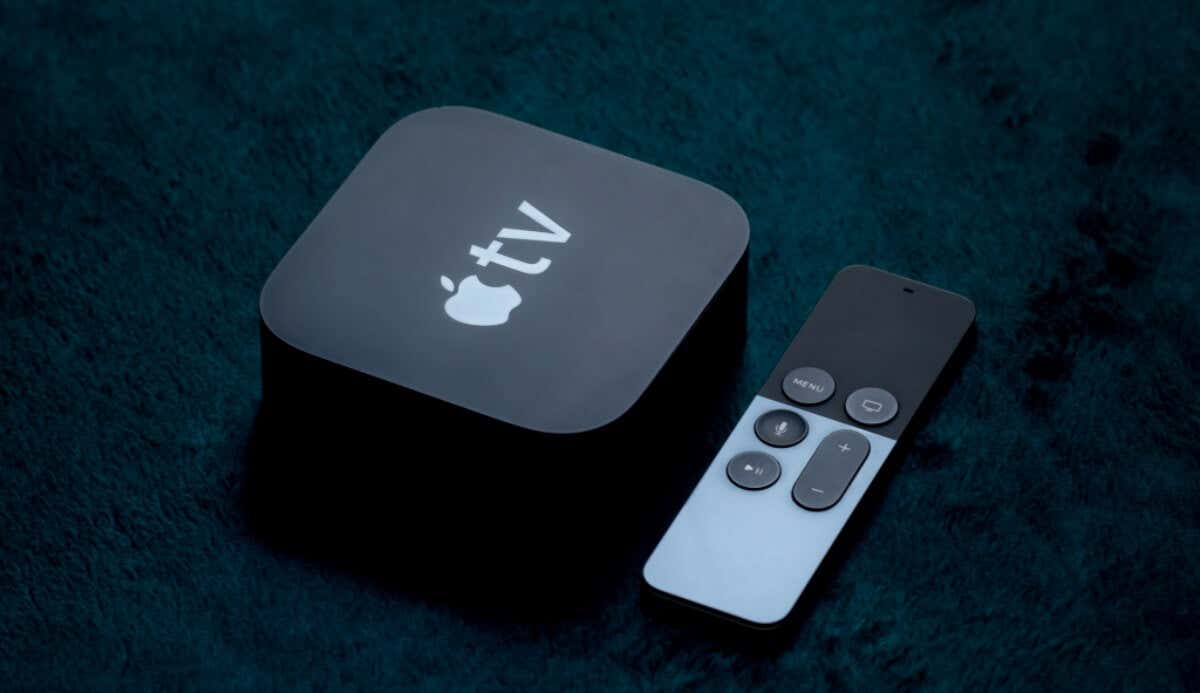
There’s no physical power button on the Apple TV streaming box . The power button on the Apple TV remote also doesn’t turn off or shut down the streaming device. So, how exactly do you turn your Apple TV off?
This tutorial highlights several ways to shut down, restart, and put your Apple TV to sleep.
Unplug Apple TV from Power
Disconnecting your Apple TV from its power source is the only way to turn off the streaming device.
Turn off the wall outlet or unplug your Apple TV’s power cable from the wall socket. Then, plug the power cable into the socket to turn on your Apple TV.
Put Your Apple TV to Sleep
Apple TV enters a low-power resting mode in sleep/standby mode, consuming about 90% less energy than when operational.
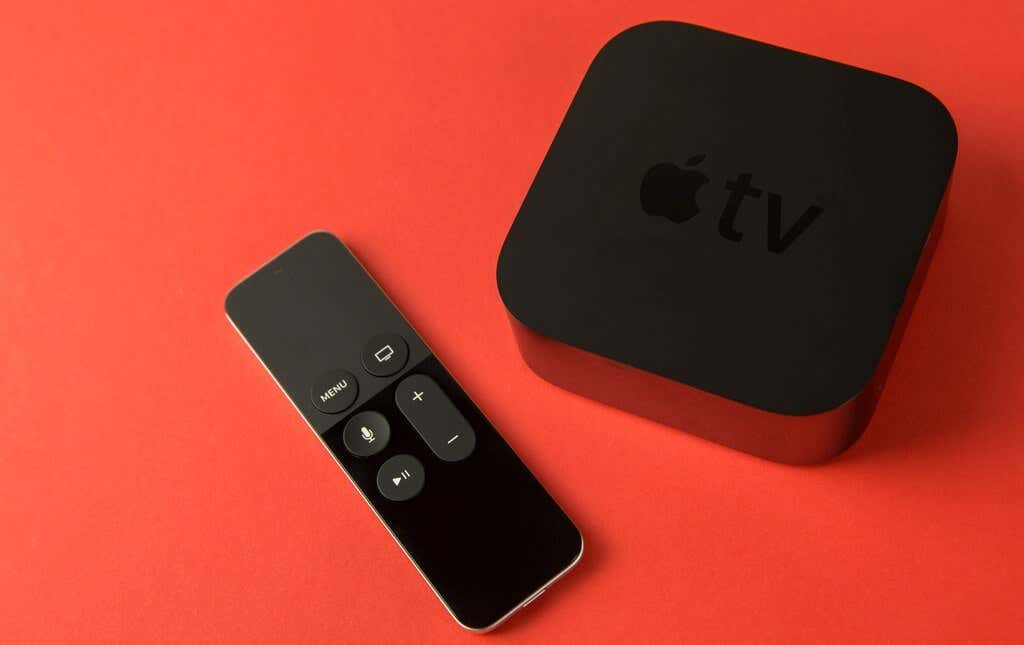
Apple TVs automatically go to sleep after one hour of inactivity. If your smart TV supports HDMI-CEC, turning off your TV puts your Apple TV to sleep.
You can also manually put the streaming device to sleep using a Siri Remote or Apple TV Remote. There’s also an option to set a sleep timer in the Settings menu.
Enter Sleep Mode using Apple TV Remote
The steps differ based on your Apple TV’s software version and the model or generation of your Apple TV or Siri Remote.
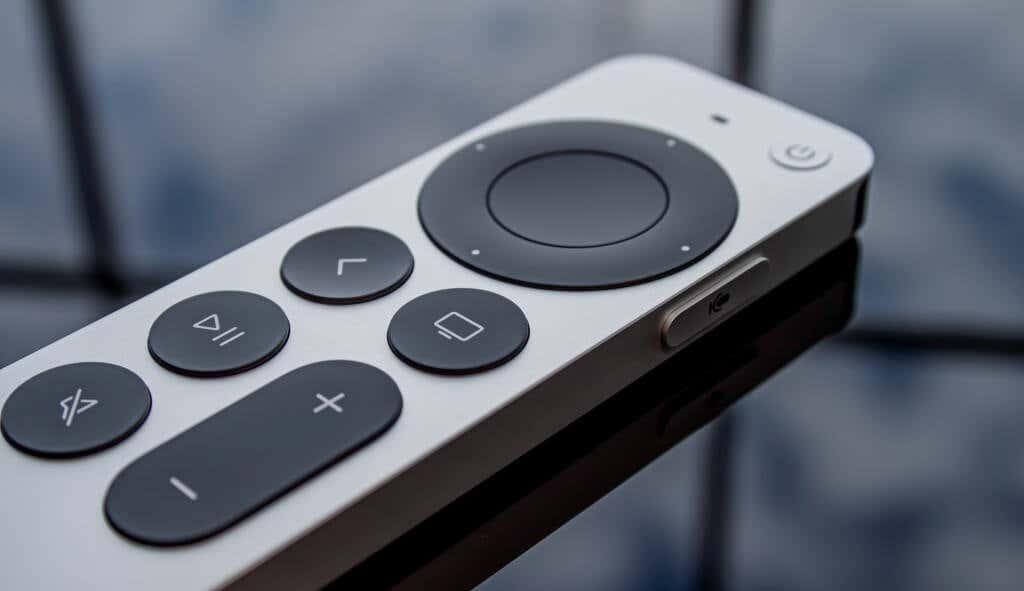
If you have the 2nd generation Siri Remote or Apple TV Remote (or later), press and hold the Power button for at least three seconds.
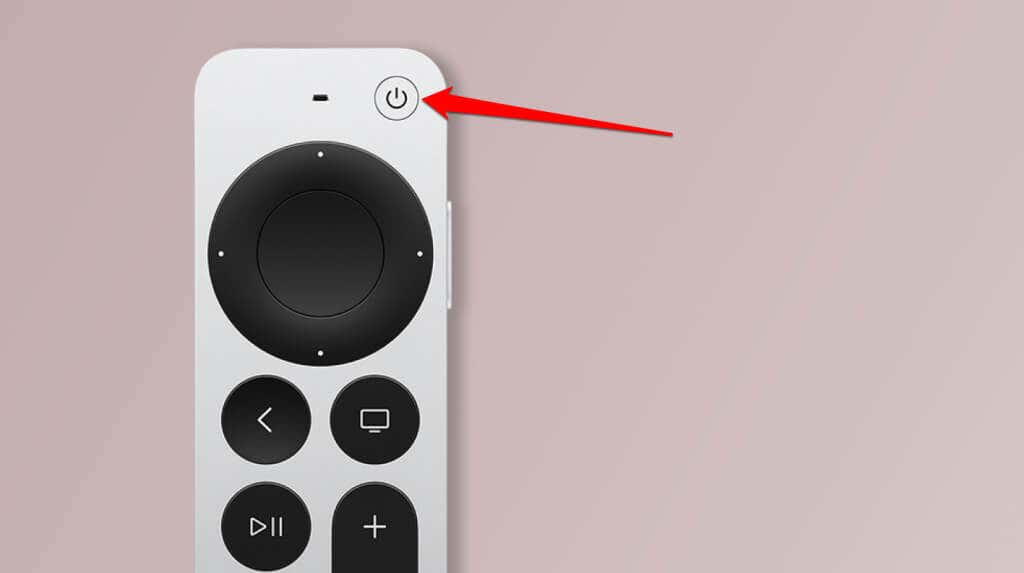
On the 1st generation Siri Remote or Apple TV Remote (Or later), press and hold the TV / Control Center button for three seconds and select Sleep in the Control Center.

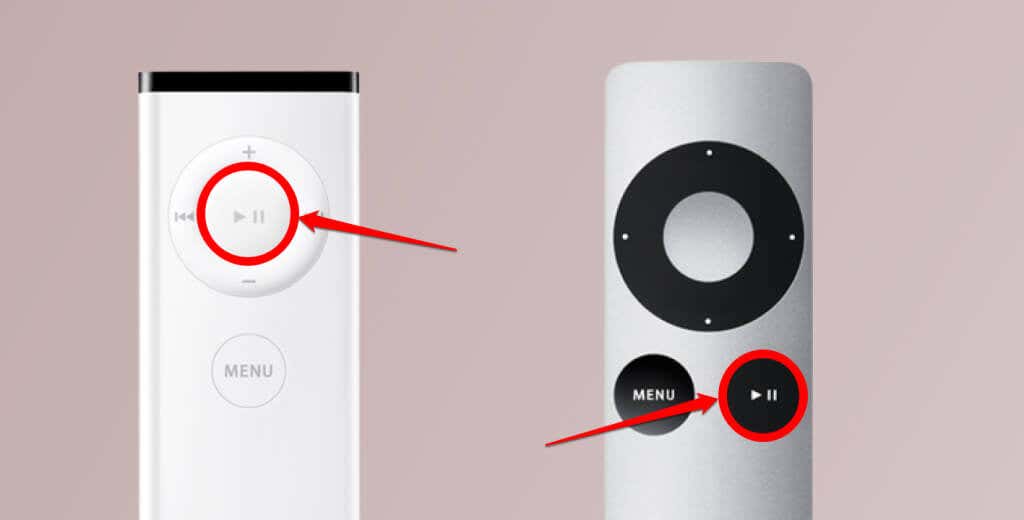
If you use the aluminum or white Apple Remote, press and hold the Play/Pause button for five seconds.
Note: Putting your Apple TV to sleep disconnected any paired devices—speakers, Bluetooth headphones, AirPods, etc.
Put Apple TV to Sleep from Your iPhone/iPad
Open the Apple TV Remote app in your iPhone or iPad’s Control Center . Tap and hold the TV button for at least three seconds and select Sleep on the pop-up.

Enter Sleep Mode from the Settings Menu
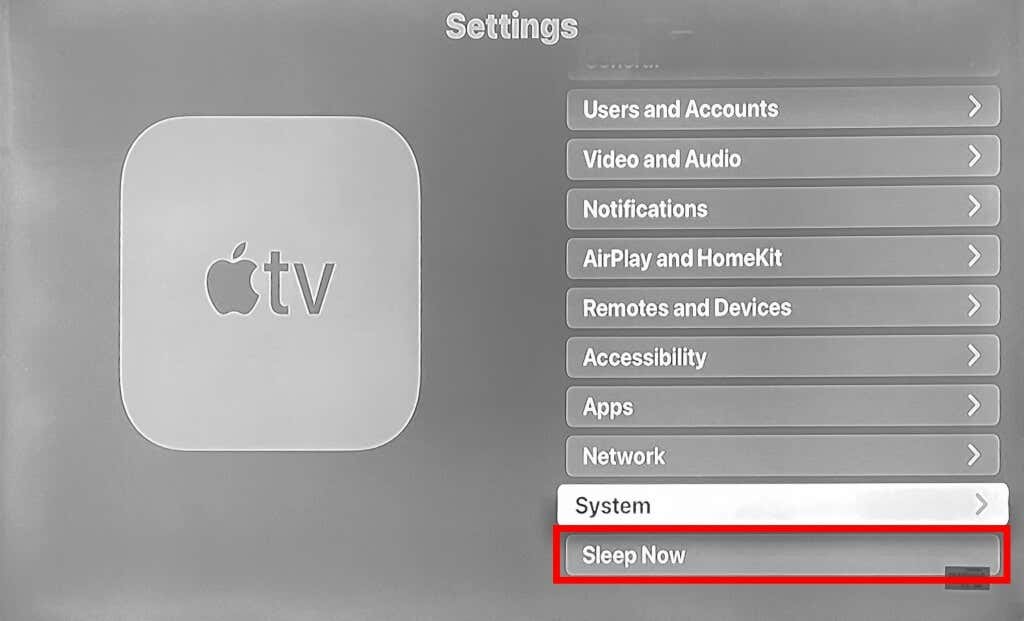
Open the Settings app and select Sleep Now at the bottom of the page.
Set Sleep Schedule on Apple TV
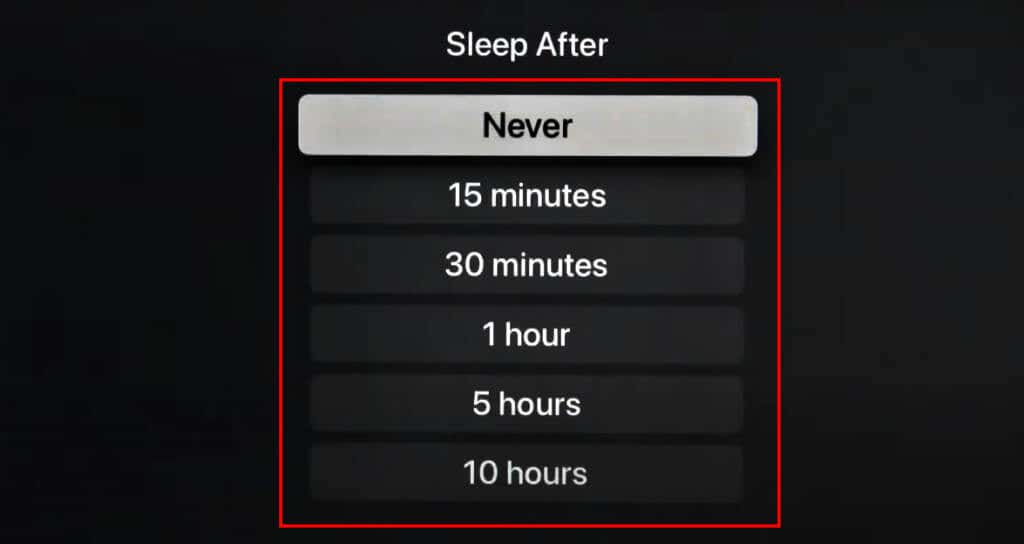
You can customize how long your Apple TV stays idle before automatically entering sleep or standby mode.
Go to Settings > General > Sleep After and choose your preferred sleep delay duration. 15 minutes , 30 minutes , 1 hour , 5 hours , and 10 hours are the available options.
Wake Your Apple TV from Sleep
Press any button on your Apple TV or Siri Remote to wake it up from sleep. On some Apple TV models, only the Menu or TV / Control Center button wakes the streaming device.
Restart Your Apple TV
Restarting your Apple TV shuts down the streaming box and turns it back on. The operation is also called a “Soft Reboot.” It’s a practical troubleshooting fix for issues with third-party apps or system functionalities.
If your Apple TV is freezing or some features don’t work correctly , a soft reboot might fix these issues. You can reboot your Apple TV from the Settings menu or using the remote.
Reboot Apple TV from the Settings Menu
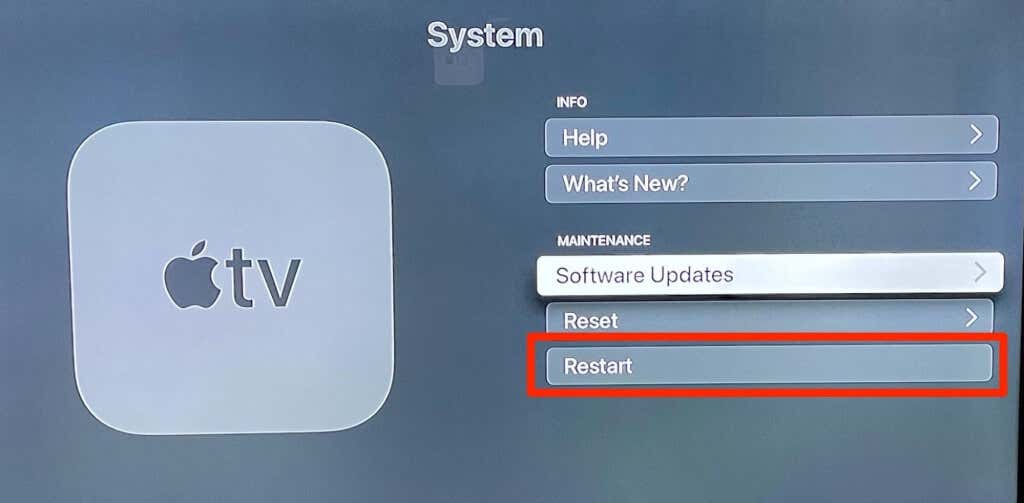
Go to Settings > System and select Restart in the “Maintenance” section.
Reboot Apple TV Using Remote Shortcuts
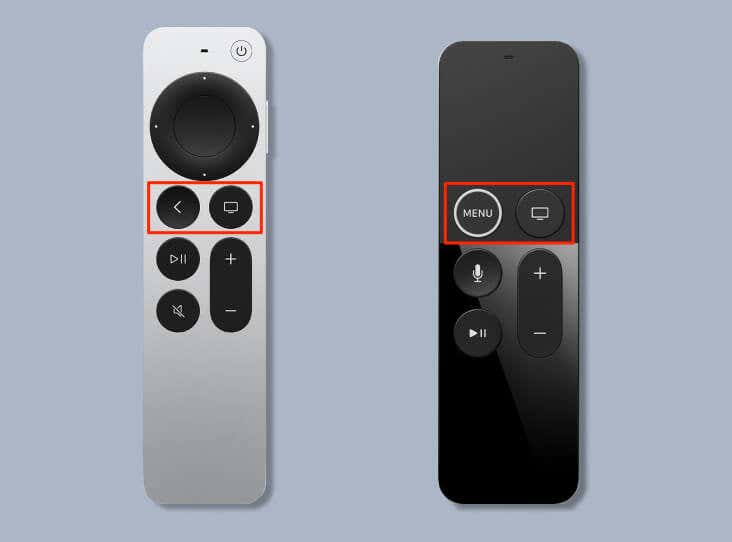
Press and hold the Back and TV / Control Center buttons on the 2nd generation (or newer) Siri or Apple TV Remote. Release both buttons when your Apple TV status light flashes.
On the 1st generation Siri or Apple TV remotes, press and hold the TV / Control Center and Menu buttons until your Apple TV status light flashes.
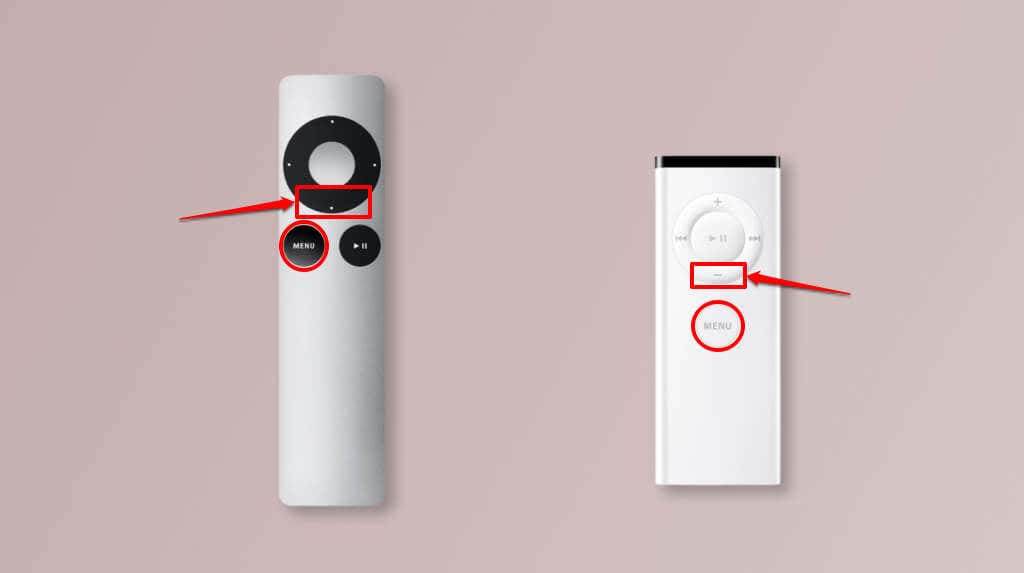
If you use the white or aluminum Apple Remote, press and hold the Menu and Down buttons until your Apple TV status light flashes.
When NOT to Turn Off Your Apple TV
Don’t turn off or unplug your Apple TV from power when installing tvOS updates . Apple recommends allowing more time for the update to complete. Contact Apple Support if your Apple TV won’t turn on or gets stuck on a black screen.
- How to Charge Your Apple TV Remote
- Apple TV Not Working on Roku? Try These 8 Fixes Right Now
- How to Authorize Your Macbook for Apple TV
- tvOS 17: All the New Features
- How to Fix Apple TV Sound/Audio Delay
