Razer Synapse is the control center for all your Razer gadgets, helping you tweak and tailor them to work the way you want. However, keeping Synapse hanging around is pointless if you’re done with your Razer gear—it hogs space, uses system resources, and causes conflicts. Uninstalling the application keeps your PC lean and clutter-free.
But wait—what if you’re still rocking Razer hardware? Rarely, Synapse encounters hiccups and crashes , and uninstalling it is an effective troubleshooting measure. Setting it up from scratch after that refreshes the installation and—in most cases—resolves severe issues.

Whether you’re on a PC or Mac, this guide’s got your back, taking you through the steps to completely uninstall Razer Synapse 3 (Windows) and Razer Synapse 2 (macOS).
Export Your Razer Profiles (Optional)
If you plan to uninstall and reinstall Razer Synapse, consider backing up any customization profiles for your Razer devices. This gives you the option of quickly adding them back later.
Your data should be synchronized with Razer’s servers if you have a Razer ID. However, if you don’t, you can export the profiles manually. To do that:
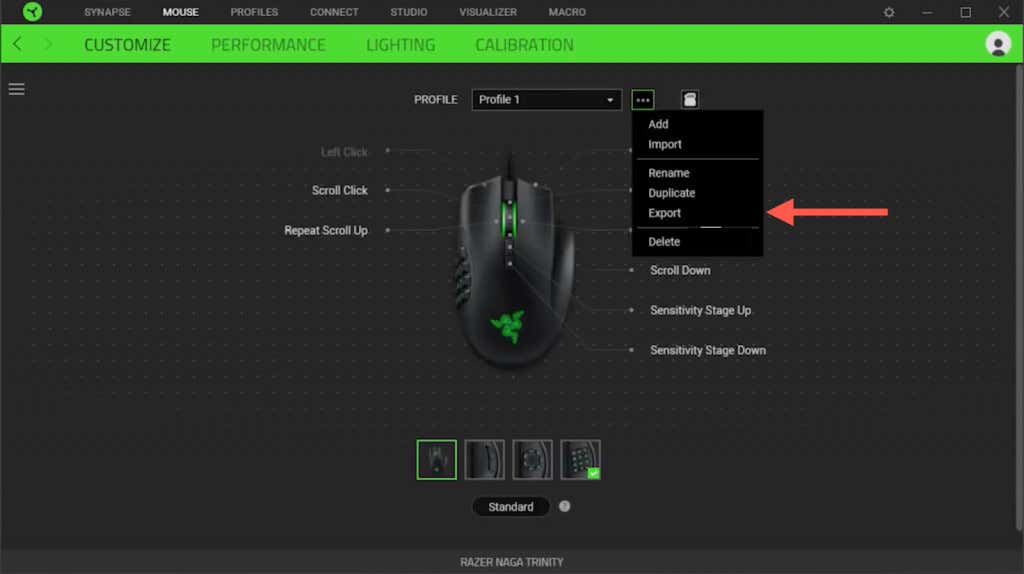
- Select the Razer mouse or keyboard on the top menu in Razer Synapse and choose Customize .
- Select the More icon (three dots) next to the device and select Export .
- Check the boxes next to the profiles you want to export.
- Select Export again.
- Repeat steps 2 – 4 for any other devices you’ve linked up with the software.
Uninstall Razer Synapse 3.0 (Windows)
You can uninstall Razer Synapse via the Apps and Features/Installed Apps console in Microsoft Windows 10/11. You must follow by manually deleting the left-over Razer Synapse installation folder, including any mouse and keyboard drivers you no longer need.
Close Razer Synapse
Razer Synapse always runs in the Windows background, so you must quit it—including any other Razer applications on your computer—to minimize problems during uninstallation. To do that, right-click the Razer icon on the system tray and select Exit All Apps .
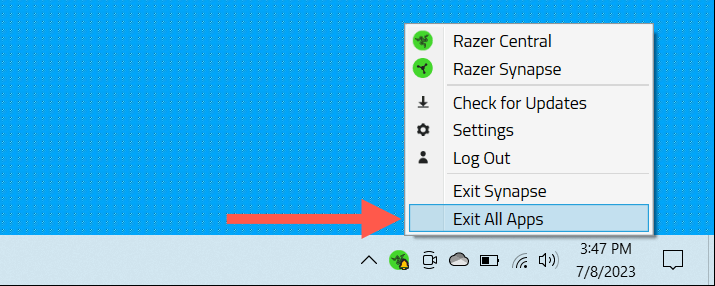
If you have trouble quitting Razer applications, use the Windows Task Manager to end all Razer-related processes.
Remove Razer Synapse
You can uninstall Razer Synapse through the Apps and Features/Installed Apps console in Windows 10 and 11. Here’s how:
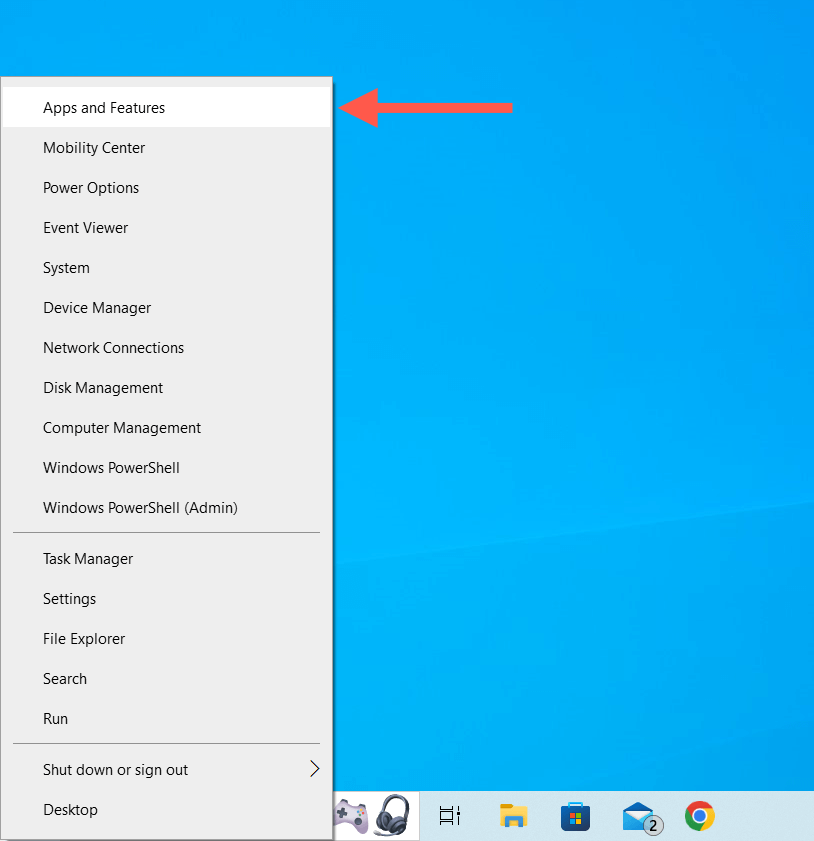
- Right-click the Start button and select Apps and Features (Windows 10) or Installed App s (Windows 11).
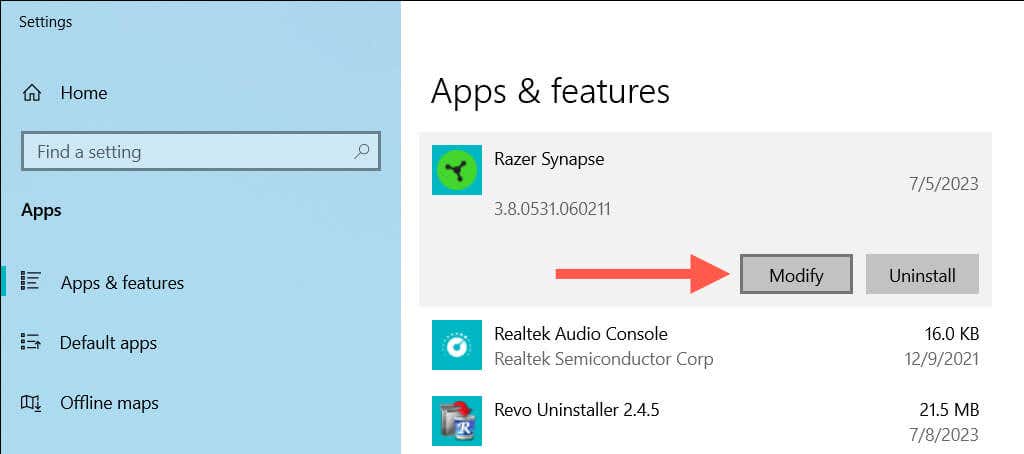
- Scroll down the list of applications and select Razer Synapse . Then, choose Modify —in Windows 11, select the More icon (three dots) to reveal the option.
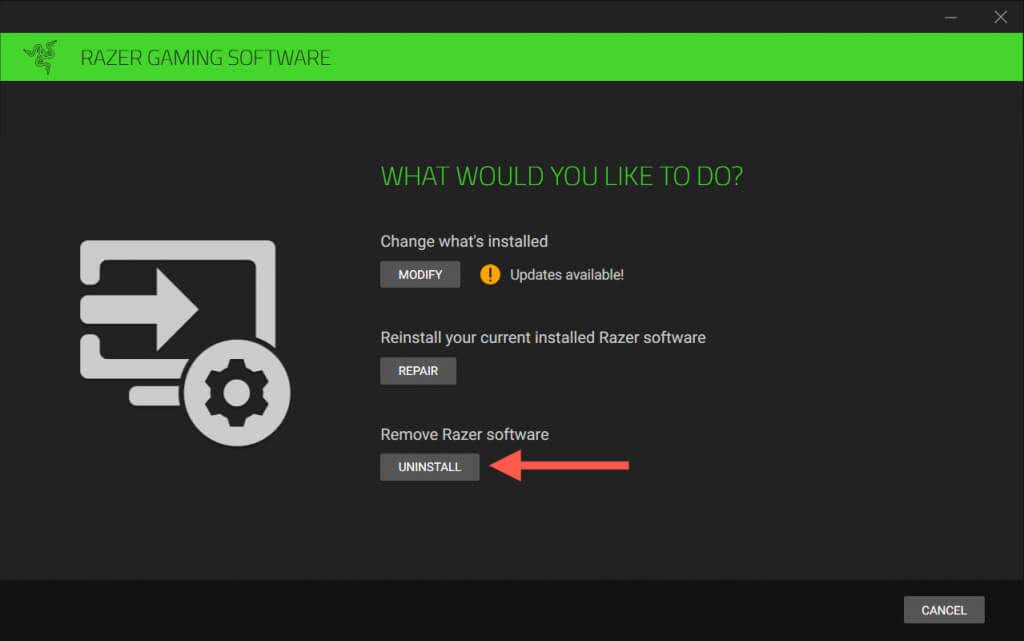
- On the Razer Gaming Software window that shows up, select Uninstall .
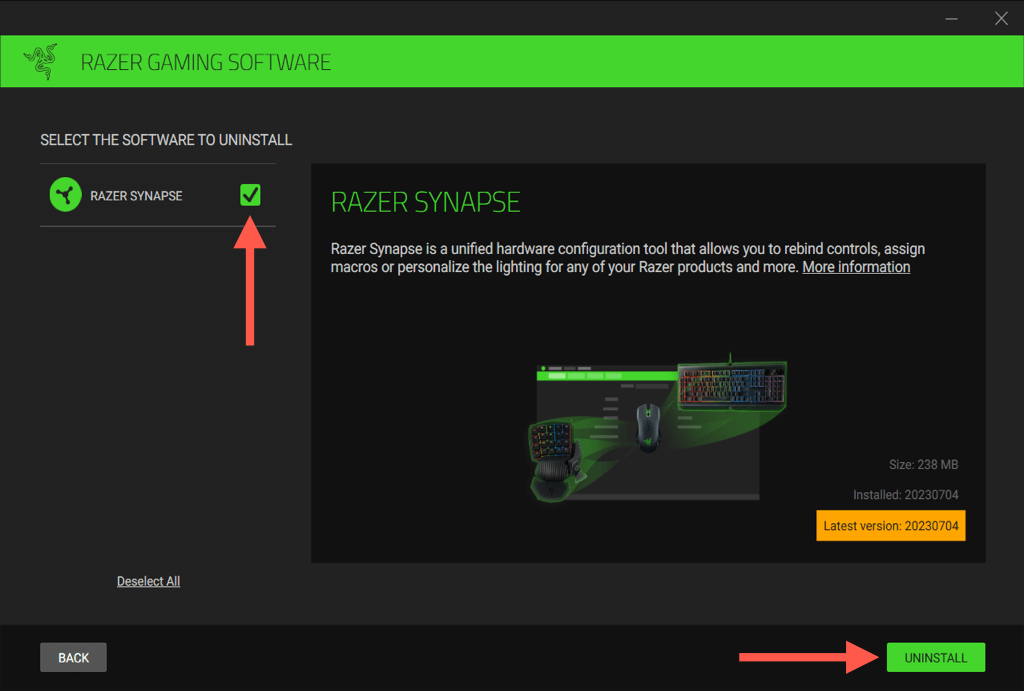
- Check the box next to Razer Synapse and any other Razer products you want to uninstall—select Uninstall to proceed.
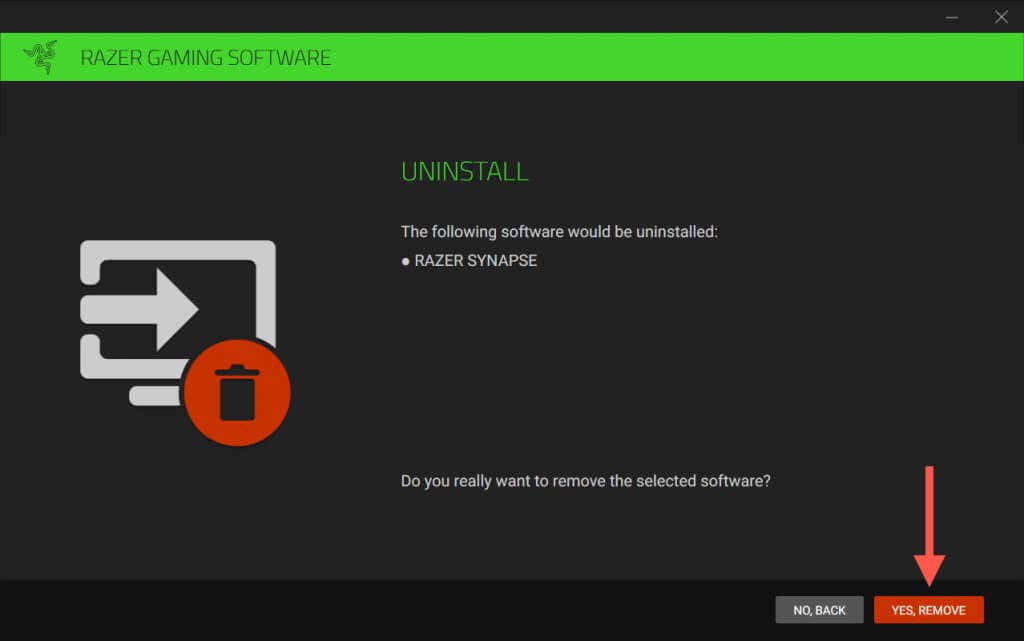
- Select Yes, Remove as confirmation.
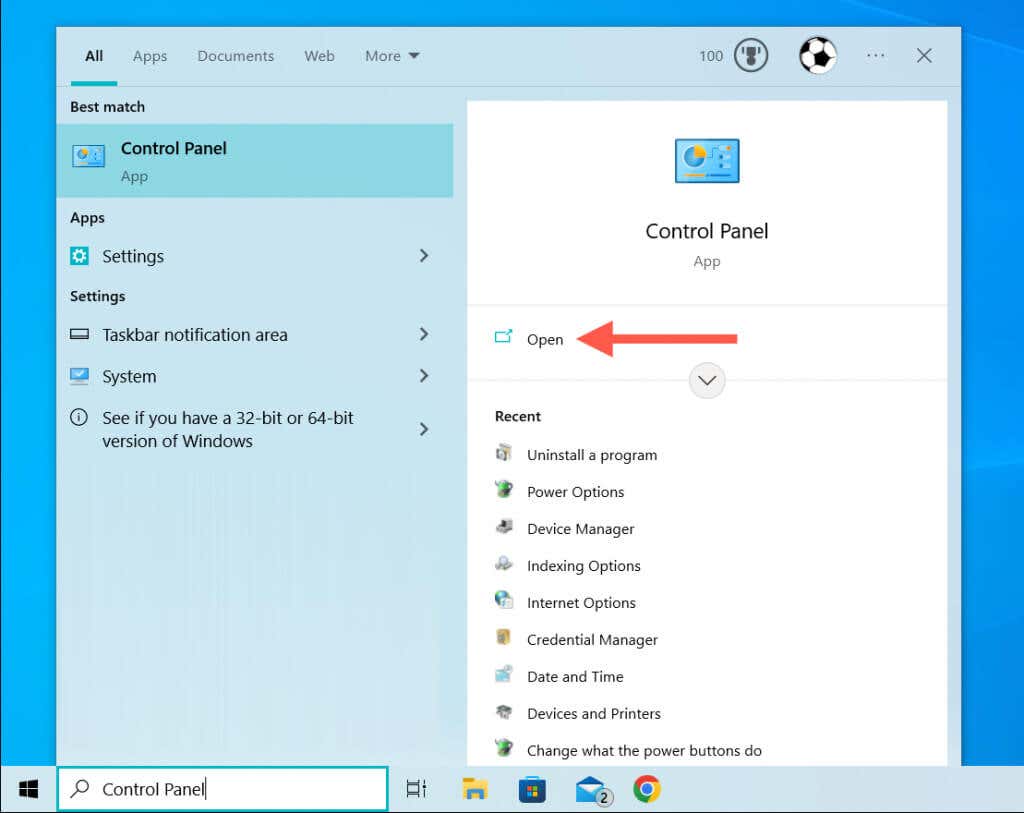
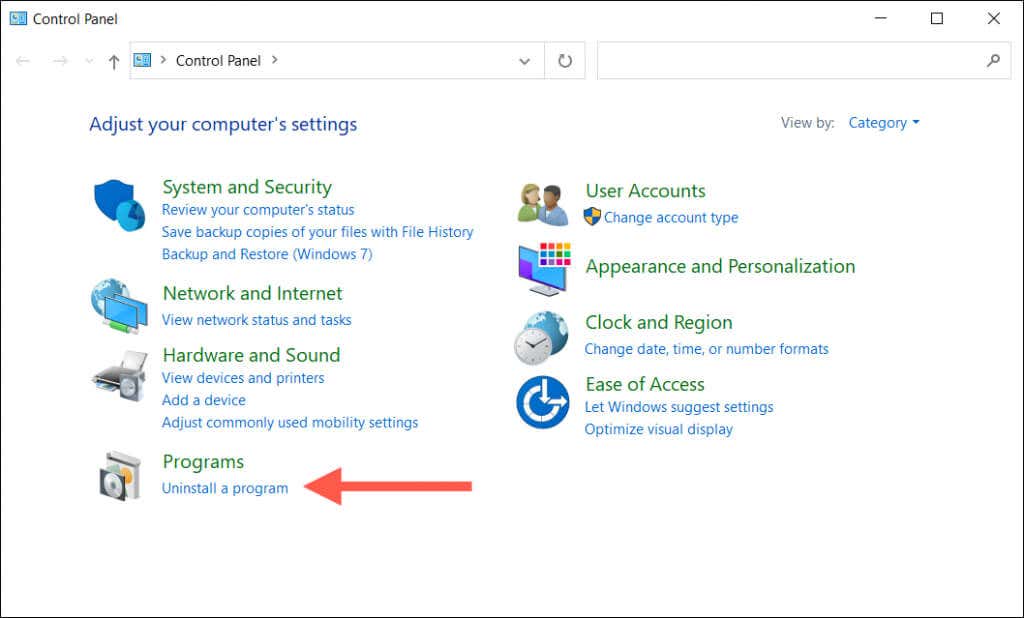
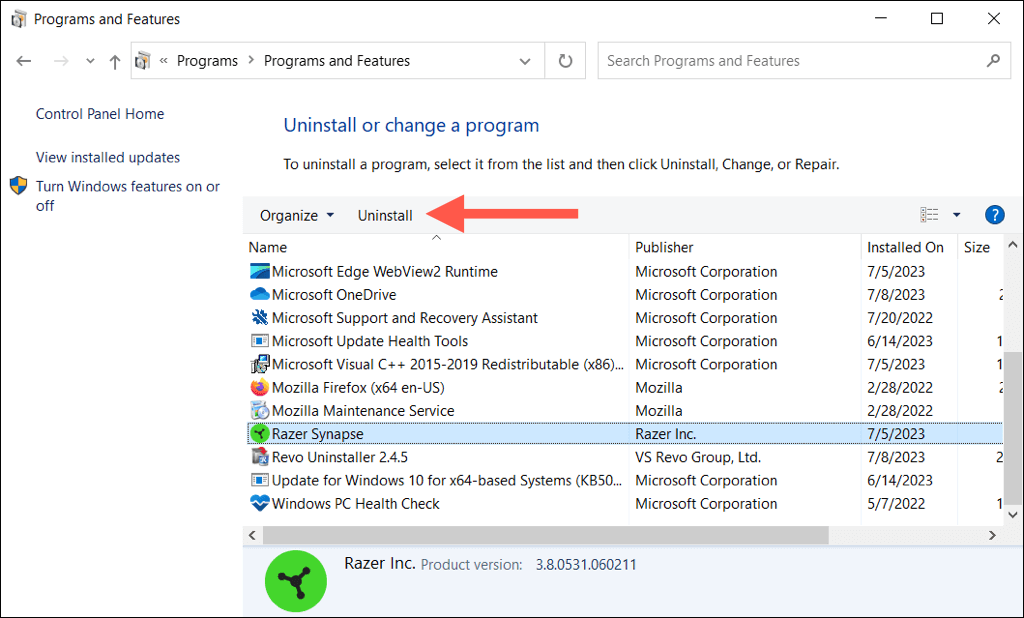
Alternatively, use the older Programs and Features applet in the Windows 10/11 Control Panel to remove Razer Synapse.
- Open the Start menu , type Control Center , and select Open .
- Select Uninstall a program .
- Select Razer Synapse and choose Uninstall .
Remove the Razer Synapse Left-Over Folder
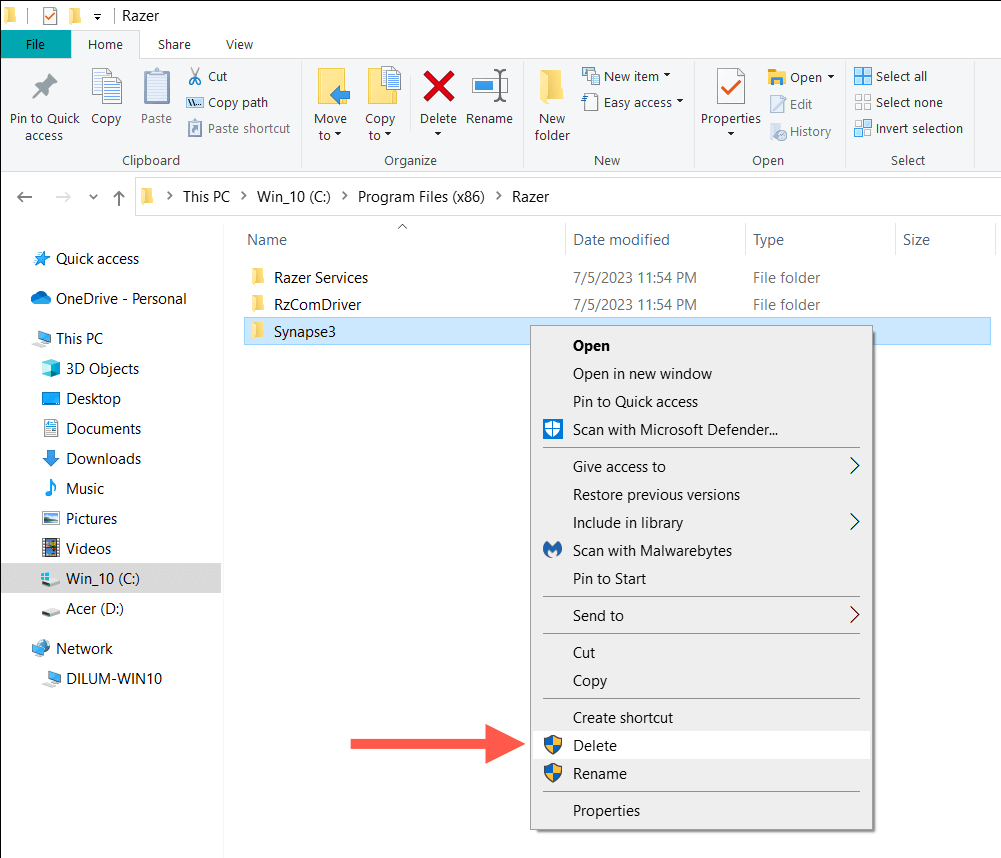
Razer Synapse leaves its installation folder, which contains miscellaneous items related to the application, behind. It’s safe to delete manually. Here’s how:
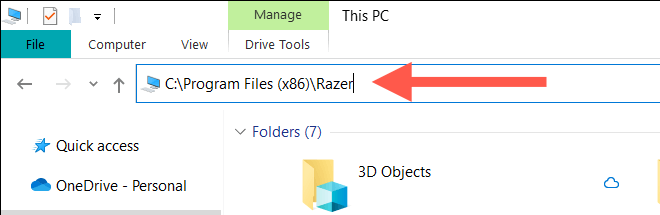
- Open File Explorer, copy the following path into its address bar, and press Enter :
C:Program Files (×86)Razer
- Right-click the Synpase3 folder and select Delete .
Remove Razer Drivers
To delete all hardware drivers for your Razer hardware, use the Device Manager:
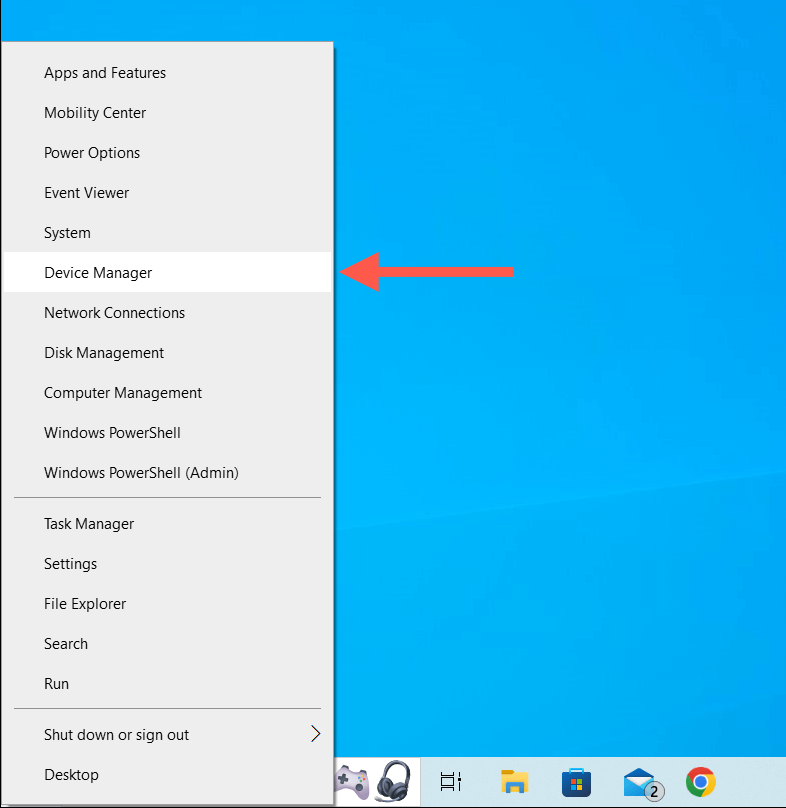
- Right-click the Start button and select Device Manager .
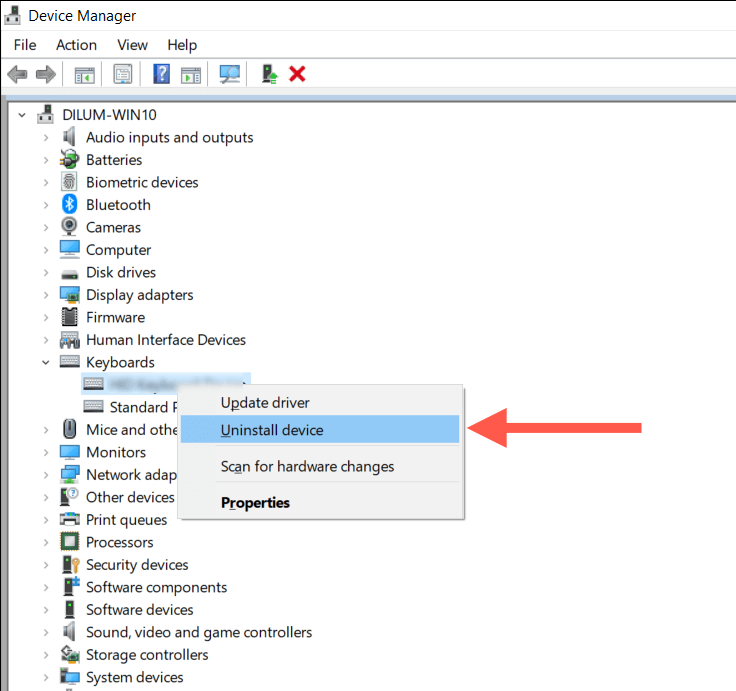
- Expand the Human Interface Devices , Keyboards , and Mouse and other pointing devices sections, right-click a Razer driver, select Uninstall device .
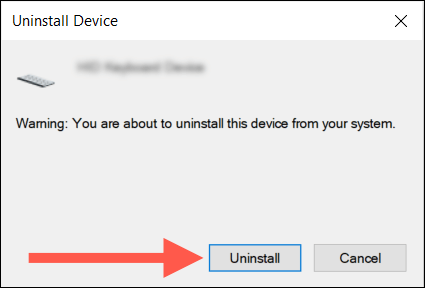
- Select Uninstall to confirm and continue removing any other Razer drivers.
Note : If you have trouble using the Razer Synapse uninstaller to remove Razer Synapse, use a dedicated third-party application removal utility for the job.
Uninstall Razer Synapse 2.0 (macOS)
If you use Razer Synapse 2 on your Mac, you can trash the program like you’d any other application. However, the uninstallation process leaves files and folders to manually delete afterward.
Remove Razer Synapse
To remove the Razer Synapse app on your Mac:
- Open Finder and select Applications on the sidebar.
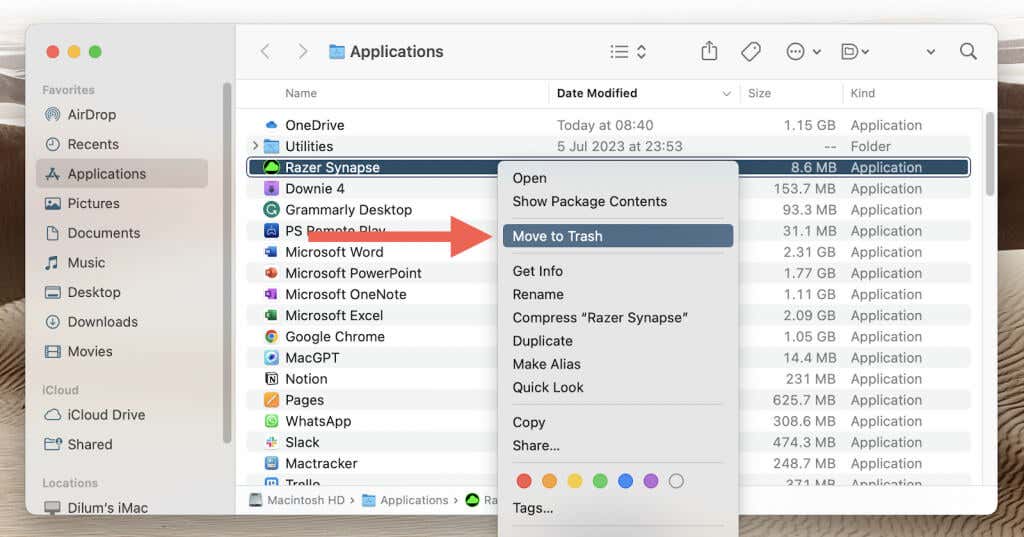
- Control -click Razer Synapse and choose Move to Trash.
- Enter your Mac user account password to authenticate the action.
Remove Razer Leftovers
Use the macOS Finder to locate and delete Razer leftovers. Here’s how:
- Open Finder and select Go > Go to Folder on the menu bar.
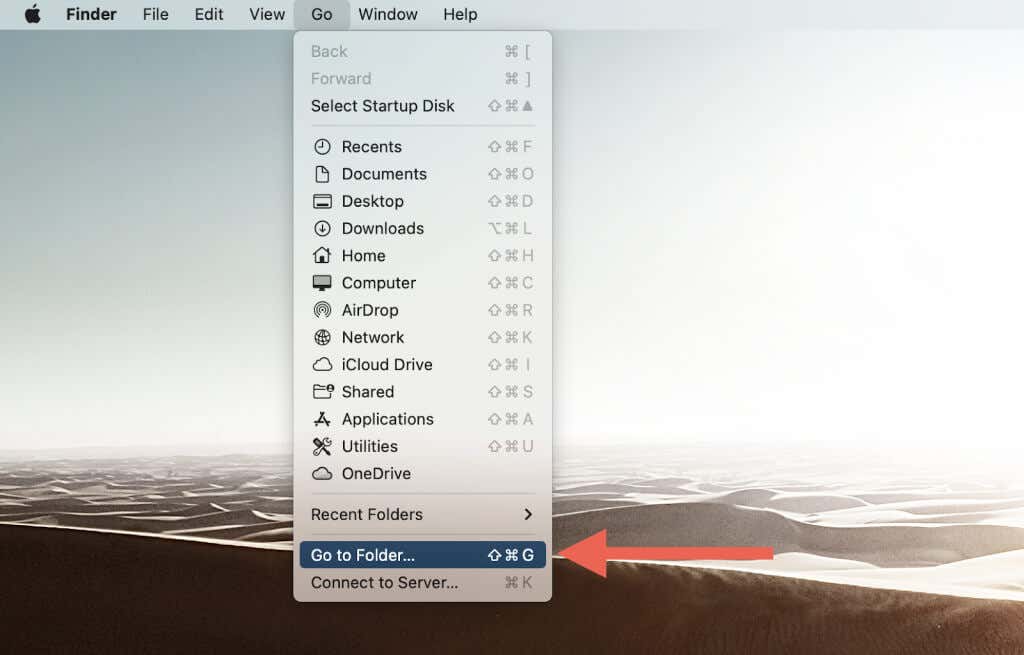
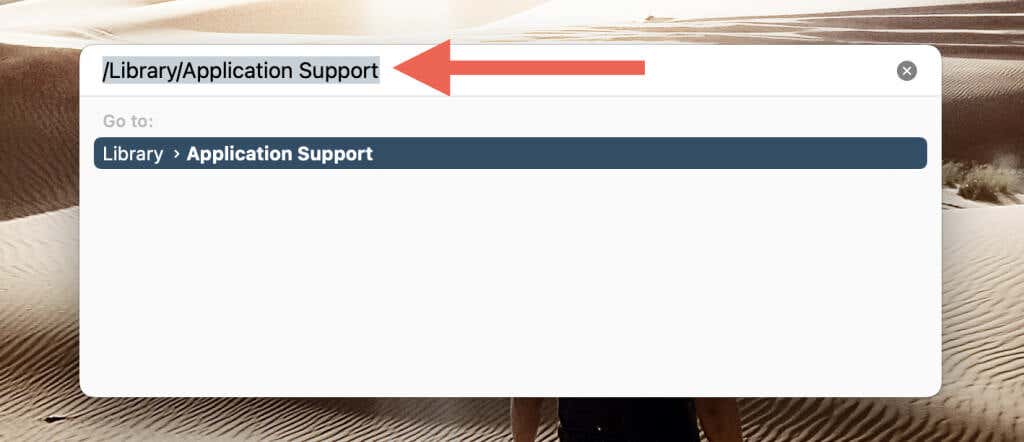
- Visit the following directory:
/Library/Application Support
- Delete the folder labeled Razer .
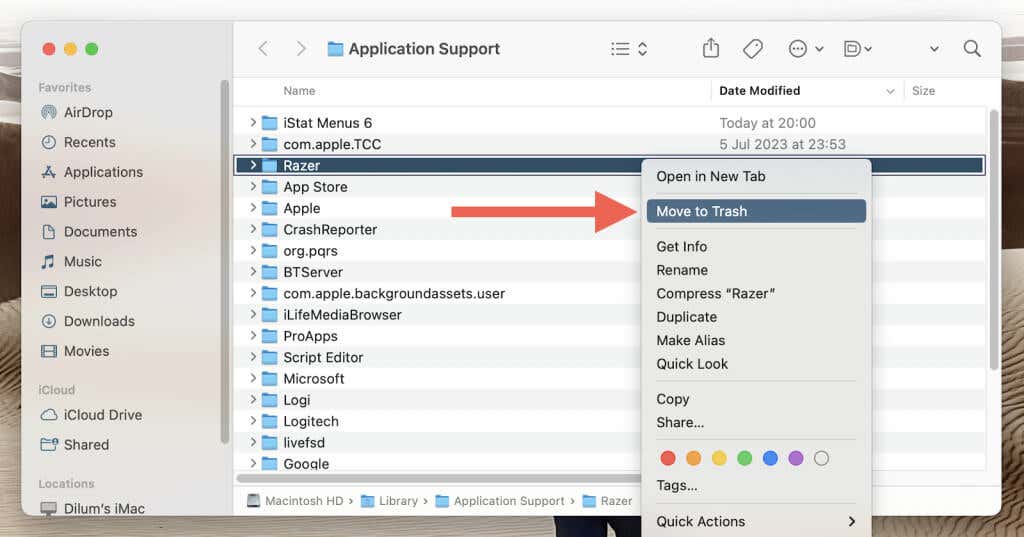
- Repeat steps 1 – 3 , visit the following directories, and remove Razer-related files and folders:
- ~/Library/Application Support — Delete the Razer folder.
- /Library/LaunchAgents — Delete the com.razer.rzupdater.plist file.
- /Library/LaunchAgents — Delete the com.razerzone.rzdeviceengine.plist file.
Note : If you can’t delete Razer Synapse normally, a dedicated Mac program uninstaller should help.
You’re Removed Razer Synapse From Your PC
That’s it! Razer Synapse is no longer on your PC or Mac. If this was all because you’re done with your Razer devices, then you’re all set. But if this was part of troubleshooting to get the application back on track, quickly visit the official Razer website to grab the latest version of Razer Synapse before reinstalling it.
- Razer Mouse or Keyboard Not Showing Up in Razer Synapse? Try These 6 Fixes
- How to Update Razer Synapse on Your Computer
- How to Create, Assign, and Delete Macros in Razer Synapse
- Razer Synapse Not Opening in Windows? 13 Ways to Fix
- How to Backup an iPhone Without iCloud?
Dilum Senevirathne is a freelance tech writer and blogger with three years of experience writing for online technology publications. He specializes in topics related to iOS, iPadOS, macOS, and Google web apps. When he isn’t hammering away at his Magic Keyboard, you can catch him binge-watching productivity hacks on YouTube. Read Dilum’s Full Bio
