The easiest way to remove a YouTube subscription from your account is to use your web browser. You can control your account preferences (such as your current channel subscriptions) from the YouTube website on your PC, Mac, or Chromebook.
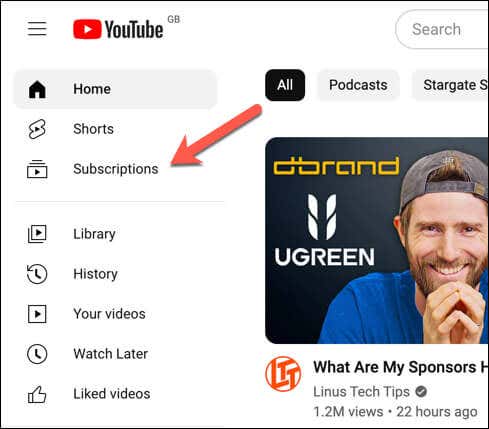
- From your web browser, open YouTube, sign in with your Google account, and select the Subscriptions tab from the sidebar on the left.
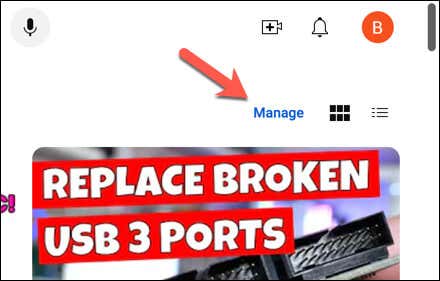
- You’ll see a list of channels that you’re subscribed to and their latest videos. Select the Manage button in the top-right.
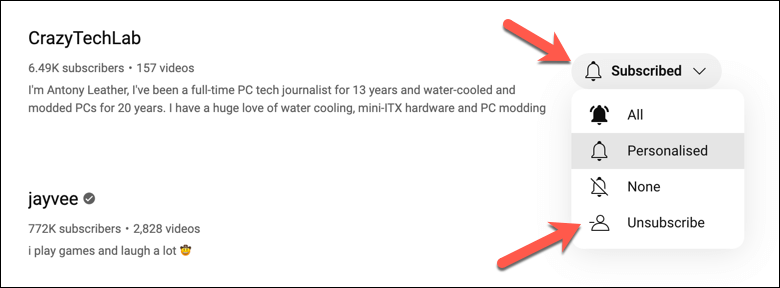
- To unsubscribe from a channel, click the Subscribed button next to it, then choose Unsubscribe from the drop-down menu.
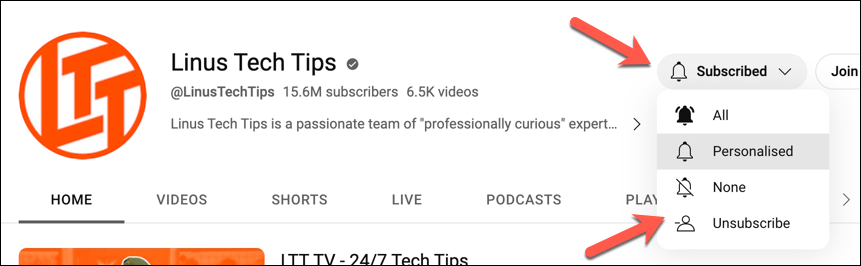
- Alternatively, open a channel’s home page via your Subscriptions tab or YouTube’s search tool and press the Subscribed button in the top-right, then choose Unsubscribe from the drop-down menu.
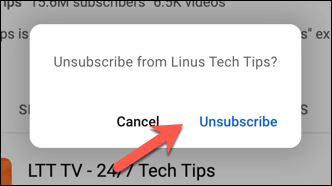
- When prompted, press Unsubscribe in the pop-up to confirm your choice.
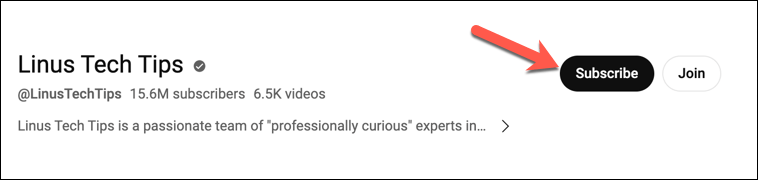
- Once you’ve unsubscribed from the channel, the button will change to Subscribe —this will confirm that you’re no longer subscribed to the channel.
If you prefer to use YouTube on your mobile device, you can control your subscriptions using the app. To remove a YouTube subscription on mobile, follow these steps.
- Open the YouTube app on your mobile device and sign in with your Google account.
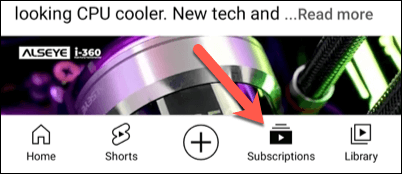
- Tap the Subscriptions icon from the menu at the bottom of the screen. You’ll see a list of channels that you’re subscribed to at the top and their latest videos.
- Tap on a channel name, channel icon, or search for it manually using the YouTube search tool to go to its homepage.
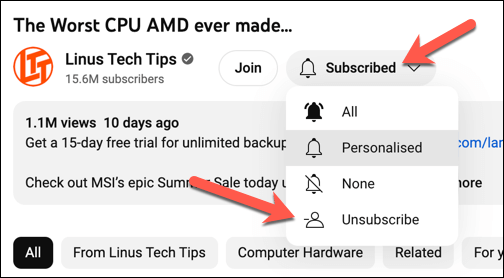
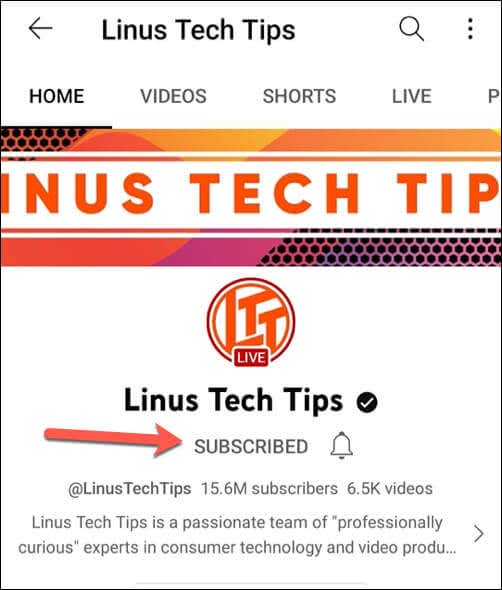
- On the channel’s homepage, tap the Subscribed button below the channel’s name.
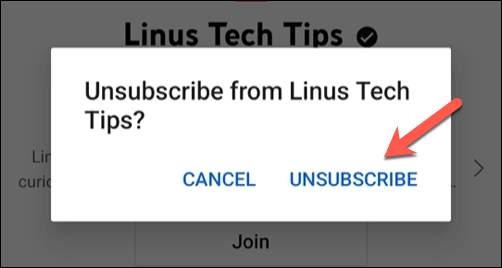
- A pop-up window will ask you to confirm your action—tap Unsubscribe to confirm.
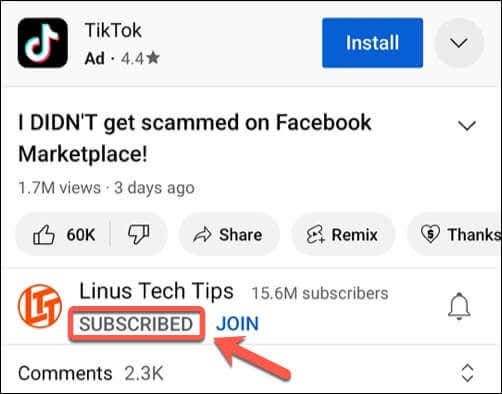
- Once you’ve confirmed the removal of the subscription, the button below the channel’s name will change to Subscribe again. This is confirmation that you’re no longer subscribed to the channel.

Managing Your YouTube Account
Struggling with the amount of ads you’re seeing while a video is playing? You can always look at different ways to block YouTube ads , from a YouTube Premium subscription to other methods, such as using a VPN .
- How to Remove Shorts From YouTube
- How to Fix It When YouTube Won’t Open in New Tab
- How to Fix YouTube’s “Something went wrong” Error
- How to See Dislikes on YouTube Videos
- A Guide to How YouTube Monetization Works
