Keeping the apps on your Apple devices up-to-date ensures you have access to new features, performance enhancements, and security improvements. The latest updates also come with bug fixes for known software-related issues and can be crucial during troubleshooting.
This tutorial will show you how to update third-party and native apps on Apple devices like the iPhone, Mac, and Apple Watch.
Update Apps on iPhone, iPad, and iPod touch
Updating apps on the Apple iPhone, iPad, and iPod touch is a quick and straightforward process that can be done manually or automatically through the App Store. However, native apps are an exception, as they can only be updated by updating the system software.
Update Apps on the iPhone Manually
To update apps you download off Apple’s App Store, you must:
- Open the App Store and tap your Apple ID/iCloud profile icon in the top right corner. Alternatively, long-press the App Store icon on the Home Screen and select Updates .
- Swipe down the screen to initiate a scan for new updates.
- Under the Available Updates section, tap Update All to install all pending app updates. Or, tap the Update button next to an app to update it only.
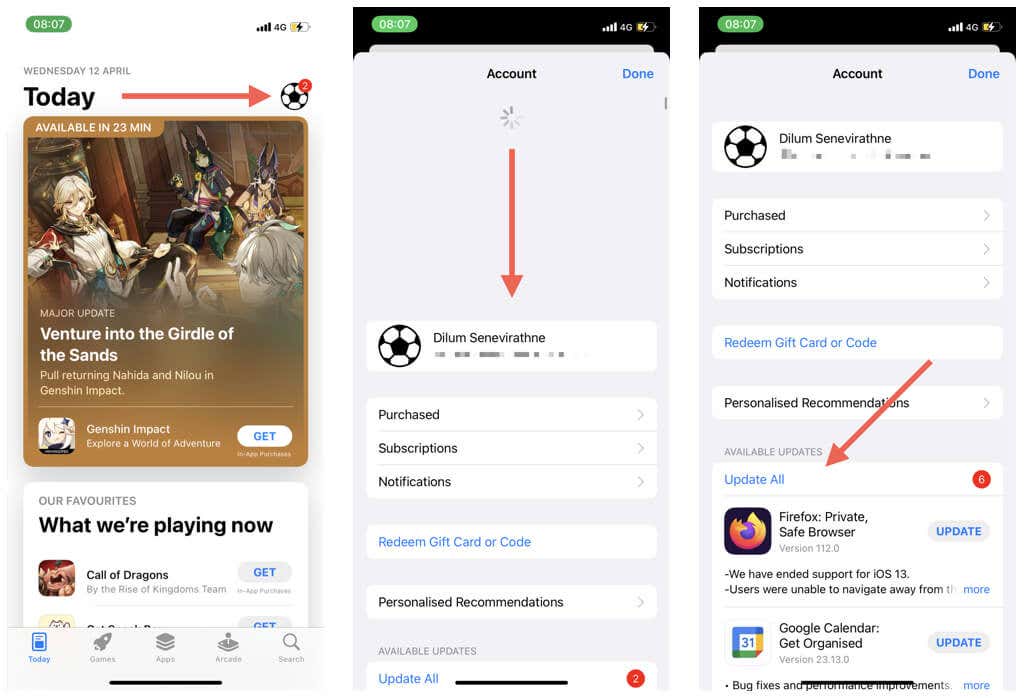
Alternatively, search for an app on the App Store. You should see an Update button on the app’s store page if there’s a pending update.
Auto-Update Apps From the App Store
Manual updates aside, you can instruct the App Store to install new updates automatically. Here’s how:
- Open the Settings app on your smartphone or tablet.
- Scroll down and tap App Store .
- Turn on the switch next to App Updates .
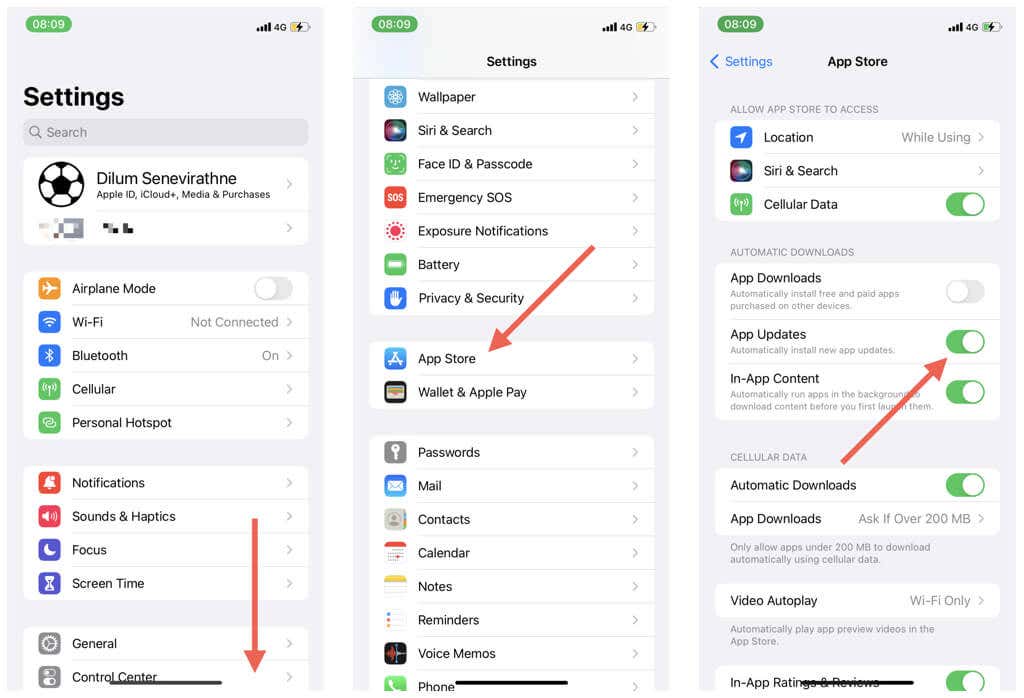
The App Store should install app updates automatically when charging and connected to Wi-Fi. You must still check for updates manually if you run into issues with an app.
Download App Updates for First-Party iPhone Apps
Updates for first-party apps that come pre-installed on your iPhone or iPad, such as Safari, Photos, and FaceTime, come bundled in with regular system software updates. To update iOS or iPadOS :
- Open the Settings app and tap General .
- Select Software Update .
- Wait until your iPhone or iPad initiates a scan for new system software updates. If there’s a pending update, select Download and Install .
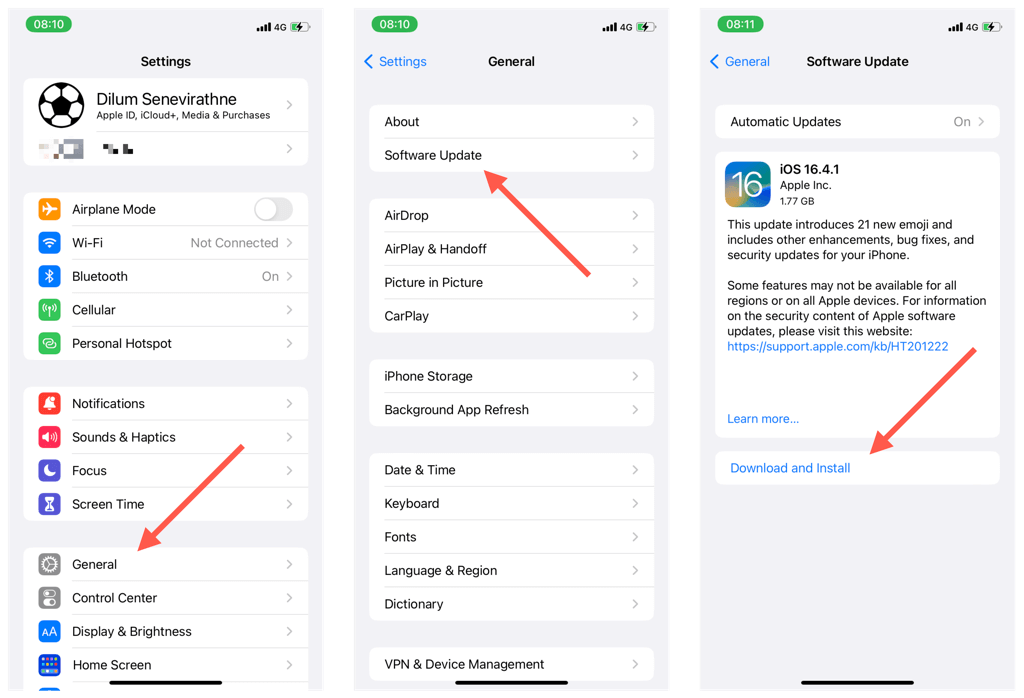
To activate automatic system software updates, tap the Automatic Updates option at the top of the screen and turn on the switches next to Download iOS Updates and Install iOS Updates .
Update Apps on Mac
Updating apps on a Mac is similar to updating apps on an iPhone or iPad, allowing for manual or automatic updates through the App Store. Like iOS devices, native Mac apps require system software updates to stay current. However, updating apps downloaded from sources other than the App Store may require extra effort.
Update Apps on Mac Manually
If you download an app from the Mac App Store, you can update it through the App Store itself. To do that:
- Open the Mac App Store.
- Select Updates on the sidebar.
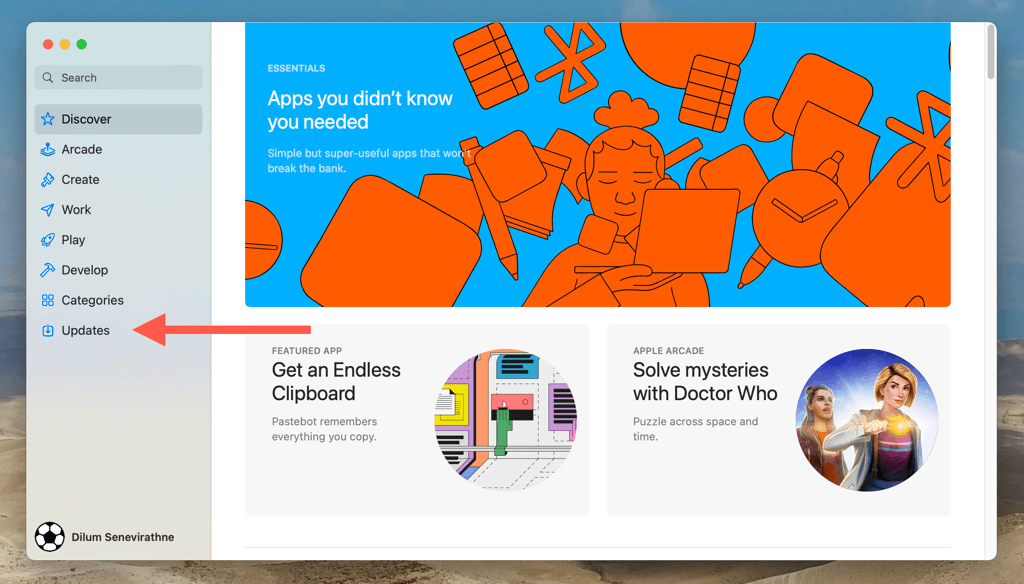
- Under the Available section, select Update All to install all pending app updates. Or, choose Update next to an app to update it only.
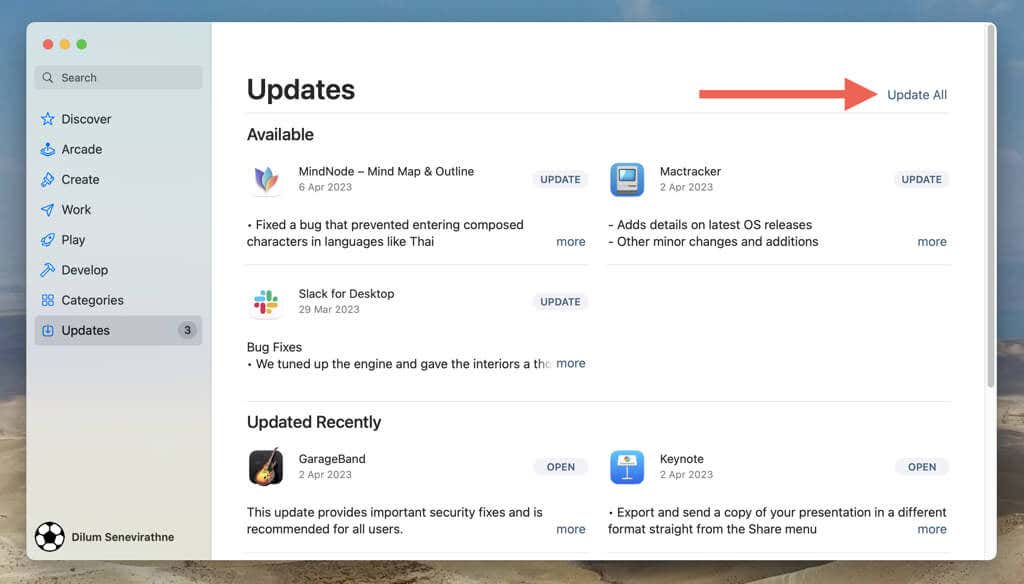
Alternatively, search for an app on the App Store. If an update is available for the app, you will find an Update option on its store page.
Enable Automatic Downloads for App Updates
You can configure the Mac App Store to update apps you download through it automatically. Here’s how:
- Open the App Store.
- Select App Store > Settings / Preferences on the menu bar.
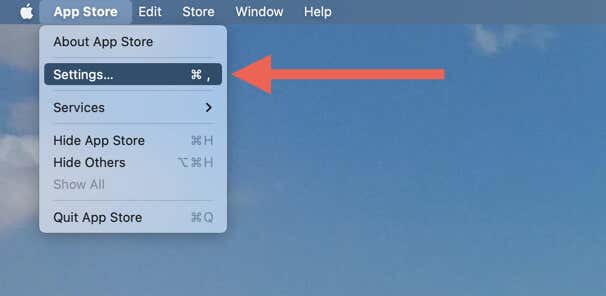
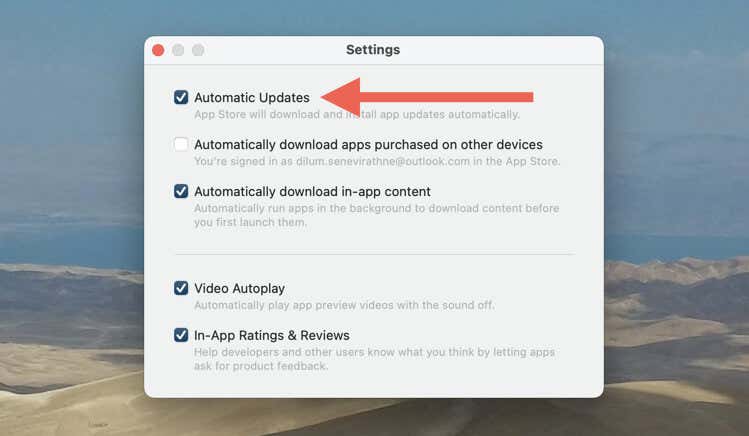
- Check the box next to Automatic Updates and authorize the action with your Mac’s administrator password.
Update Non-App Store Mac Apps
Almost every non-App Store app for the Mac comes with a built-in option that lets you initiate and apply updates. To get to it:
- Press Command + Comma ( , ) to open the app’s internal Settings or Preferences pane. If the app resides on the Mac’s menu bar only, open its status menu.
- Look for and select Check for Updates or something similar.
- Wait until the app updates to its latest version.
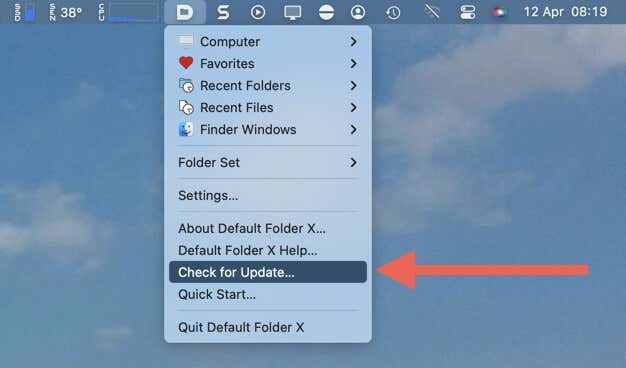
You may also notice additional options that let you auto-update the app. Some applications—such as those from Microsoft—feature dedicated background updaters (e.g., Microsoft AutoUpdate ) that auto-install app updates. Browsers like Chrome for macOS update themselves automatically by default.
Update Native Apps on Mac
You must install the latest version of the system software to update apps that come built into the Mac’s operating system, such as Safari. Here’s how:
- Open the Apple menu and select System Settings / Preferences .
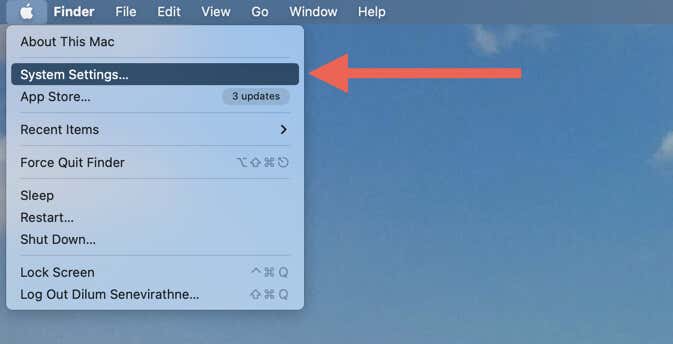
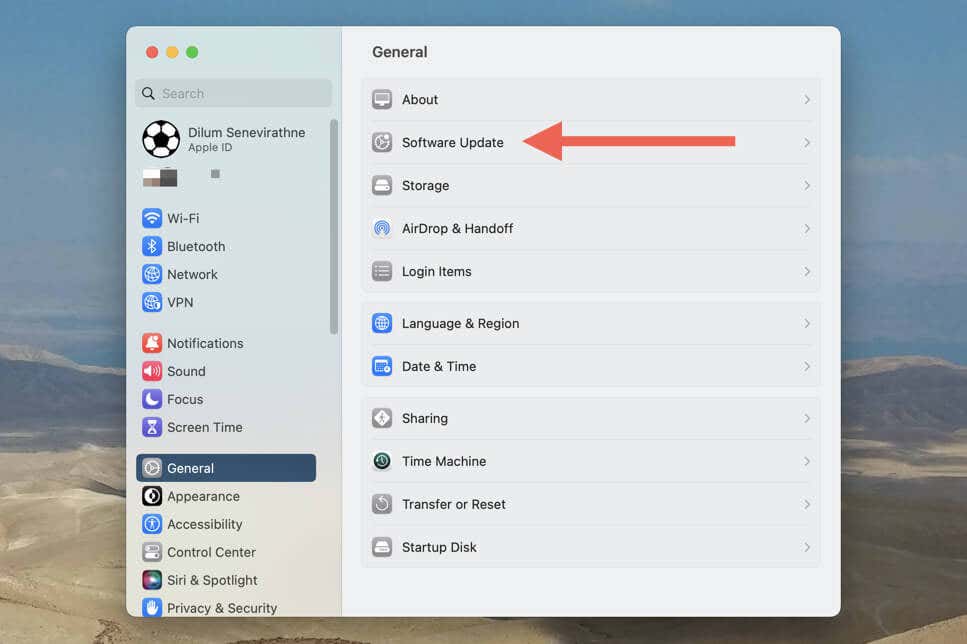
- Select Software Update and wait until your Mac initiates a scan for updates.
- Select Update Now .
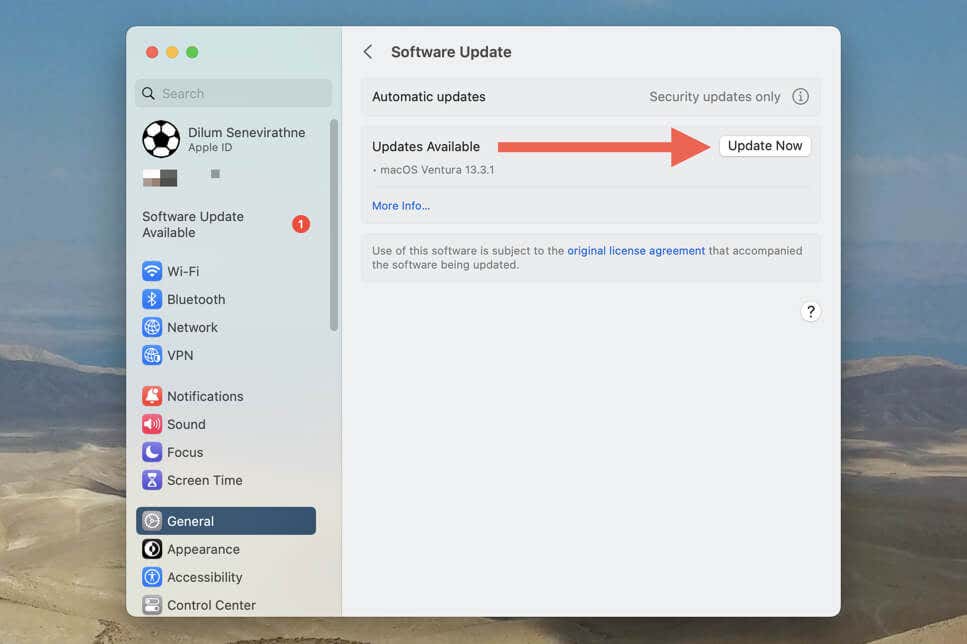
You can set up automatic macOS system software updates from the same screen as above. Select Automatic Updates and check the boxes next to Check for updates , Download new updates when available , and Install macOS updates .
Can’t update macOS? Here are 10 reasons why Mac updates fail .
Update Apps on Apple Watch
You can update apps on your Apple Watch manually or automatically, depending on your preference. Updating native apps follows the same procedure as other Apple devices; you need to update the system software (watchOS) to get them up to date.
Update Apps on Apple Watch Manually
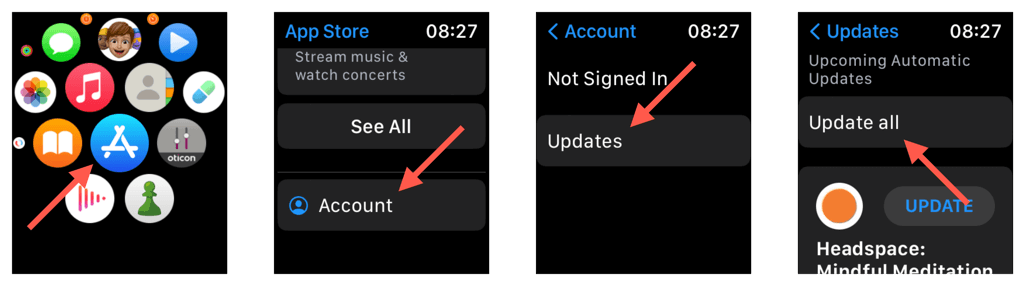
To update Apple Watch apps you download off the App Store, you must:
- Open the App Store.
- Scroll down and tap Account > Updates .
- Tap the Update All option to install all pending app updates. Or, scroll down the list and tap Update to update apps individually.
Enable Automatic Updates on Apple Watch
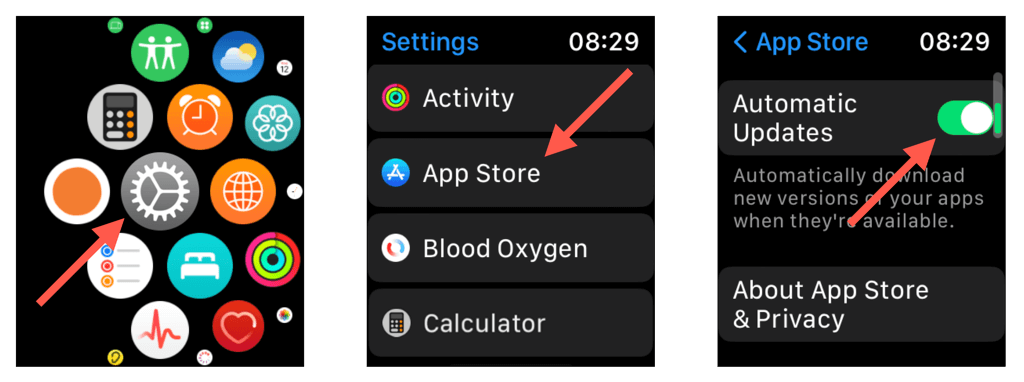
To set up automatic updates for Apple Watch apps from the App Store, you must:
- Press the Digital Crown and tap Settings .
- Scroll down and tap App Store .
- Enable the switch next to Automatic updates .
Update First-Party Apple Watch Apps
To update native Apple Watch apps to their latest versions, you must place the device on its charger and then:
- Open the Apple Watch’s Settings app.
- Go to General > Software Update .
- Tap Download and Install .
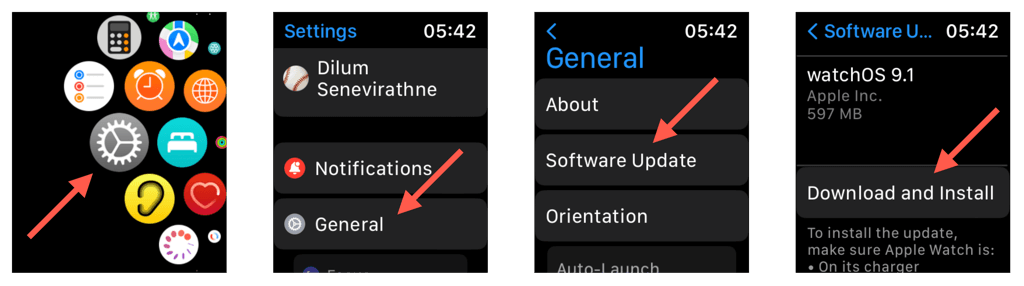
You can also enable automatic system software updates from the same screen. To do that, tap Automatic Updates and turn on the switch next to Automatic Updates.
Update Apps on Apple TV
If you own an Apple TV, you must install system software updates to update stock apps—like Photos, Music, and Podcasts—to new versions. Downloadable apps can be updated through the App Store.
Update First-Party Apple TV Apps
To update native Apple TV apps, you must:
- Open the Settings app.
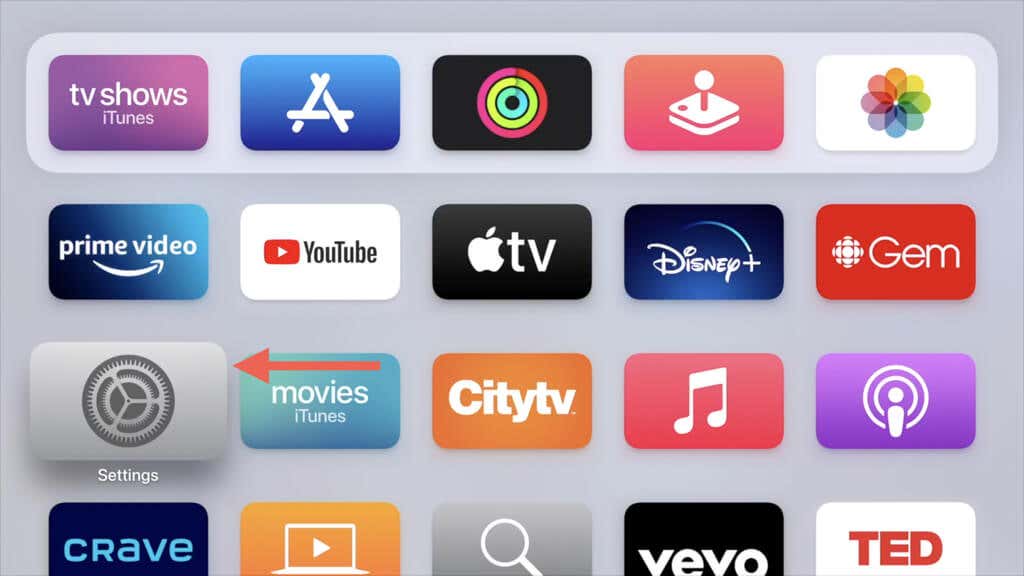
- Select System .
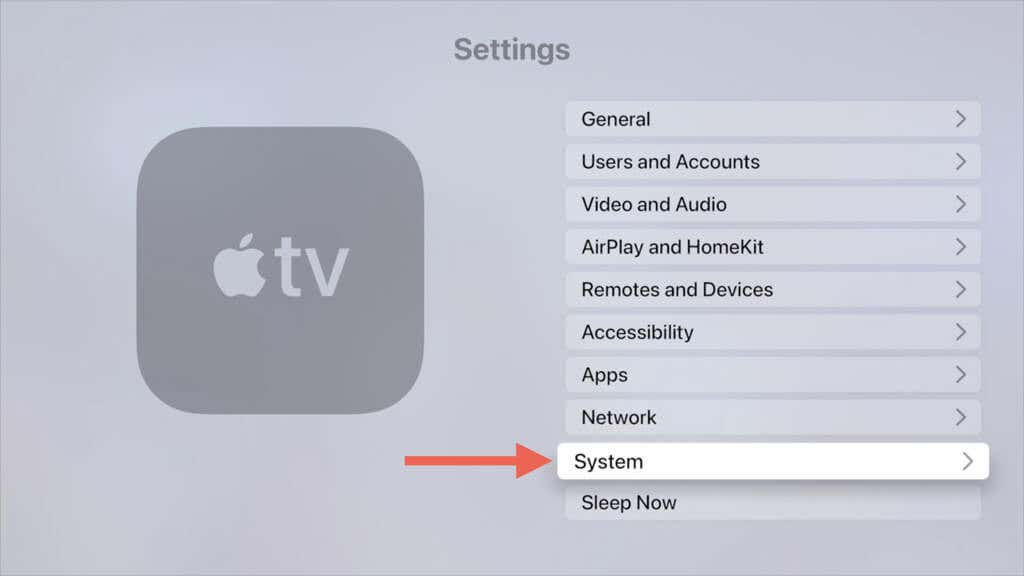
- Go to Software Updates .
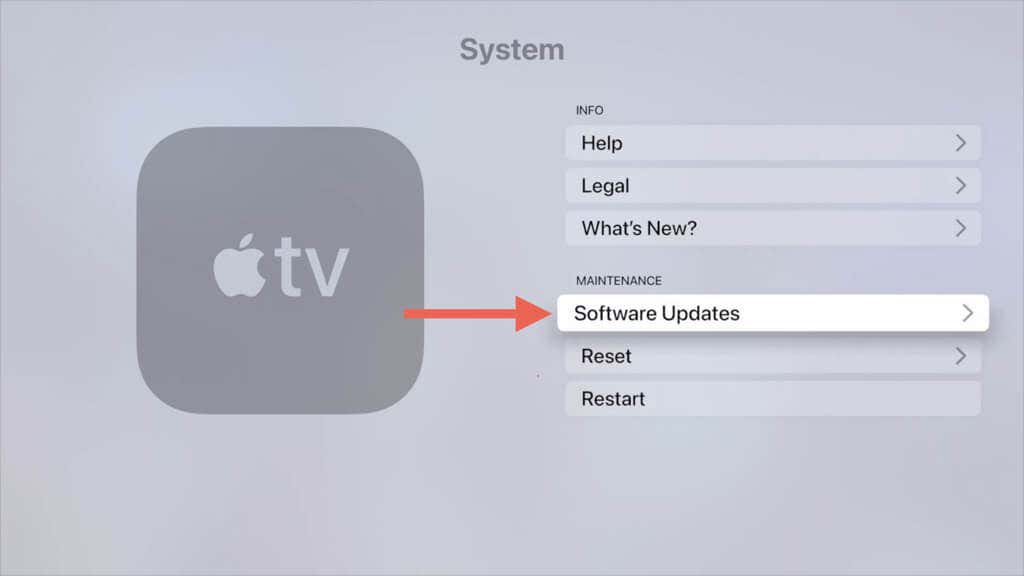
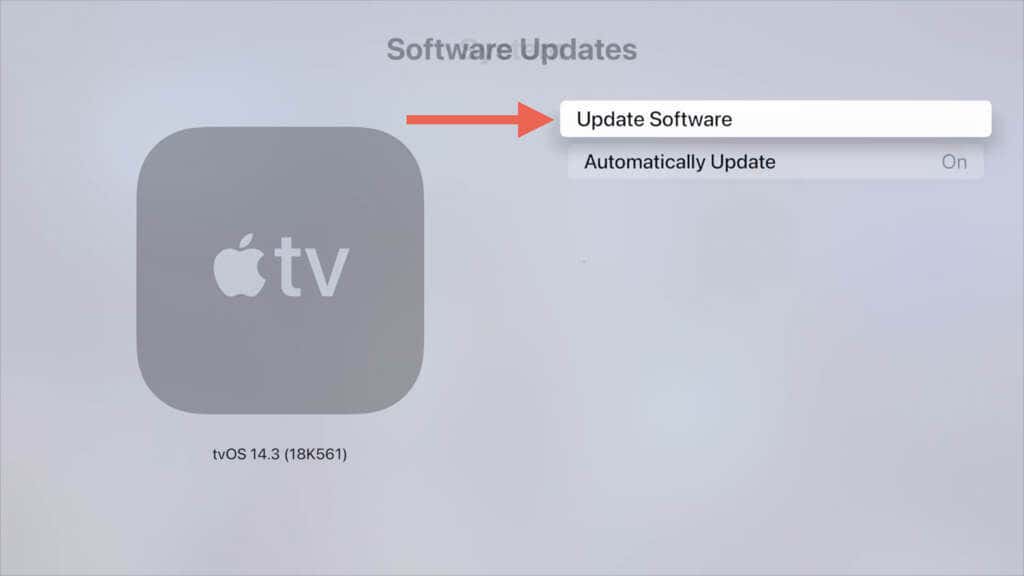
- Select Update Software .
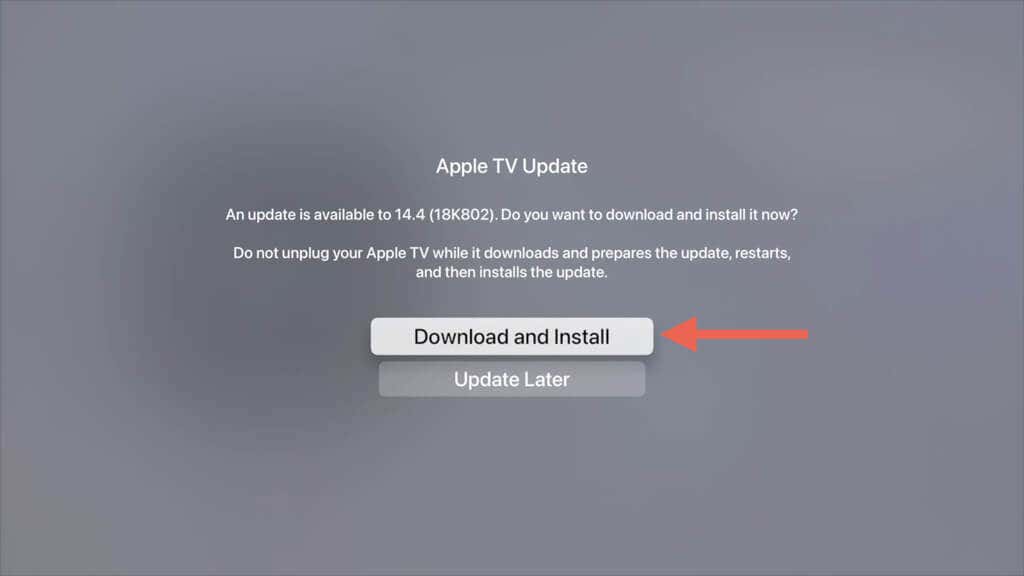
- Select Download and Install .
Enable the Update Automatically option on the previous screen to activate automatic system software updates.
Update App Store Apps on Apple TV
To update Apple TV apps you download off the App Store, you must:
- Open the App Store on your Apple TV.
- Select the Search icon and search for the app you want to update.
- Select Update .
Enable Automatic Apple TV App Updates
To enable automatic app updates on your Apple TV, you must:
- Open the Settings app.
- Select Apps .
- Activate the Automatically Update Apps option.
Keep Apps on Your Apple Devices Up-to-Date
Regularly installing app updates on your Apple devices ensures they are always up-to-date, bug-free, and compatible with the latest software. While it is true that updates can occasionally cause issues, running outdated apps can cause far more trouble. Remember to set up automatic app updates if you hate the monotony of updating apps manually.
- How to Change Your Game Center Nickname (iPhone, iPad, and Mac)
- What Happens When You Reset End-to-End Encrypted Data on Apple Devices
- How to Turn On AirDrop on iPhone, iPad, and Mac
- How to Check FaceTime Call Duration on iPhone and Mac
- How to Change Autofill Addresses on iPhone, iPad, and Mac
