Microsoft Outlook isn’t just an email application—it’s designed to help users manage their important messages, calendars, and contacts efficiently in one place. Keeping your Outlook application up-to-date is essential to ensure the latest security and bug fixes are installed.
Thankfully, updating Outlook on your Mac is a simple process. You can use the built-in Microsoft AutoUpdate tool or the Apple App Store to update automatically, or you can update manually via the Microsoft website.

To update Microsoft Outlook on your Mac, follow the steps below.
How to Update Outlook on Mac Using Microsoft AutoUpdate
Microsoft AutoUpdate is a tool that ensures your Microsoft Outlook and other Office applications are always up-to-date on your Mac. If you’re unsure whether or not Outlook is updating, you can manually check for updates using the AutoUpdate tool.
To update Microsoft Outlook on your Mac using Microsoft AutoUpdate, follow these steps.
- Open Outlook on your Mac.
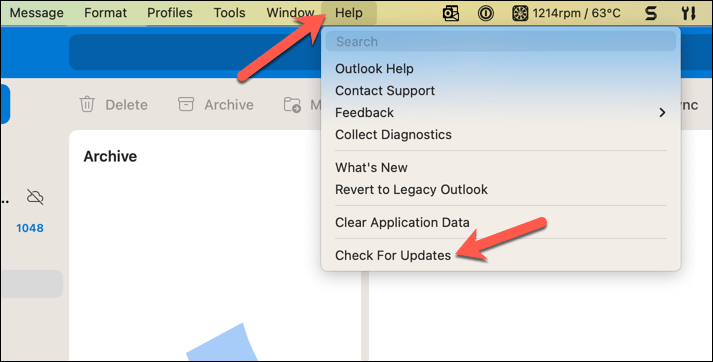
- From the top menu, click Help and select Check for Updates .
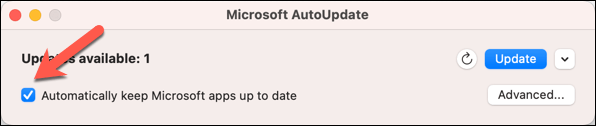
- The Microsoft AutoUpdate window will open—make sure that the Automatically keep Microsoft apps up to date checkbox is enabled.
- Microsoft AutoUpdate should automatically begin to search for new updates when it’s launched. If it doesn’t, click the Check for Updates button.
- If any updates are available, click Update to begin the update process.
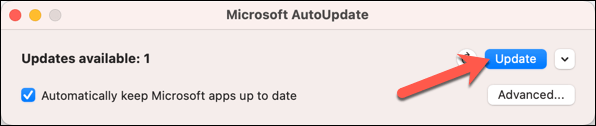
- The updates will begin to download and install automatically. Follow any additional on-screen instructions to complete the update process.
Once you’ve followed the instructions, Outlook (and your other Microsoft applications) should update to the latest version.
You can also stop Microsoft AutoUpdate on your Mac, if you prefer. If you decide to stop Microsoft AutoUpdate at any point, you’ll need to begin manually checking for and installing updates. This will ensure that you keep your Microsoft Outlook and other Office applications up-to-date in the future.
How to Update Outlook on Mac Using Mac App Store
Depending on how you installed it in the first place, Microsoft Outlook on your Mac can be updated through the Mac App Store. If you installed Outlook separately through the App Store (rather than as part of a Microsoft 365 subscription), you’ll need to update it using the App Store.
To update Outlook on your Mac using the Mac App Store, follow these steps.
- Open the App Store on your Mac by clicking on the App Store icon in your dock or by searching for it in Spotlight .

- Sign in with your Apple ID, if prompted.
- Next, click the Updates tab located in the left-hand menu.
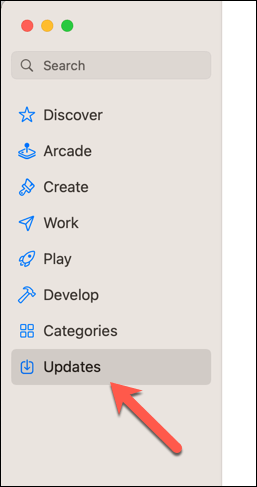
- Look for any available updates for Microsoft Outlook. If it’s not listed in the available updates, it means your Outlook application is already up to date.
- If there is an update available, click the Update button next to the Microsoft Outlook app to begin the installation. The App Store will automatically download and install the update.
If you’re experiencing issues with the Mac App Store not downloading apps or updating apps like Outlook properly, you’ll need to troubleshoot that problem first before you try the steps above again.
How to Manually Update Outlook on Mac
Although automatic updates are preferable to ensure you don’t miss the latest updates, you might prefer to manually update Outlook on your Mac.
To manually update Outlook on your Mac, follow these steps.
- Open the Office website in your web browser and sign in.
- Select the Apps icon in the menu on the left.
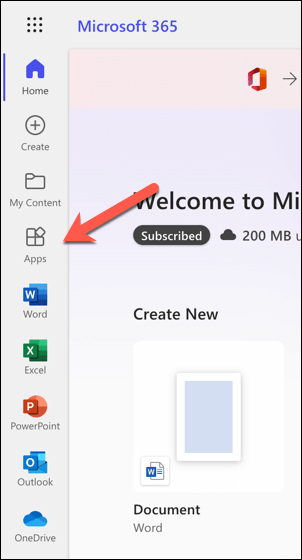
- On the Apps page, select the Install apps button in the top-right corner.
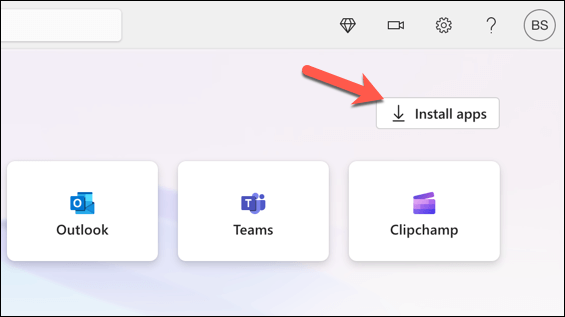
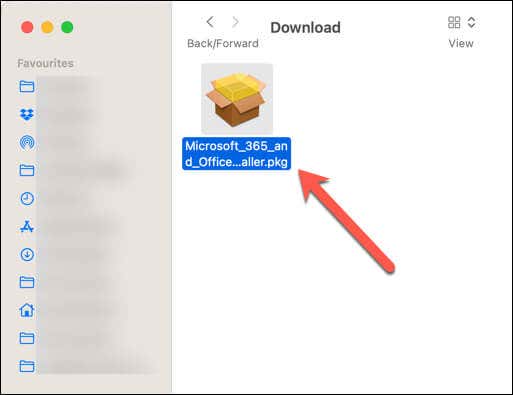
- Accept the download for the Office installation file and wait for it to complete.
- Once the file has downloaded, launch it via your web browser or by double-clicking the file in your Mac Download folder to begin the installation.
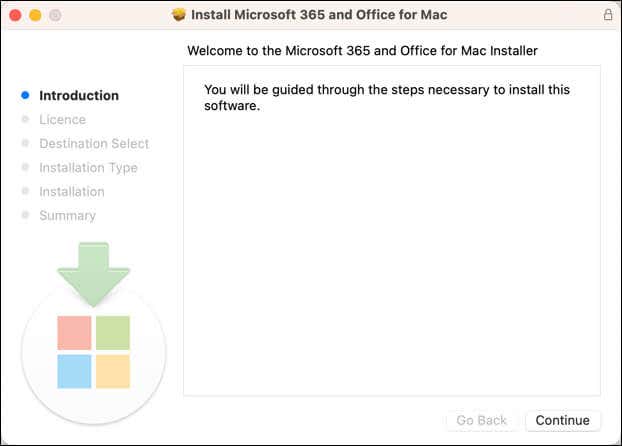
- Follow the on-screen prompts and instructions to install the latest version of Office on your Mac. This will overwrite your existing version of Outlook while retaining your data.
- When the installation is complete, restart your Mac to ensure that the update is applied successfully.
If you decide to update Outlook manually in the future, remember to check for new updates periodically. Microsoft continuously releases patches and enhancements for their products, so you’ll want to make sure you don’t miss an important bug fix or feature update.
Using Outlook on your Mac
Thanks to the steps above, you can quickly update Microsoft Outlook on your Mac and take advantage of the latest bug fixes, security updates, and feature releases. This should help you resolve problems with Outlook, such as Outlook not responding properly.
Want to customize your Outlook experience? You can change the view in Outlook to suit your preferred style of working.
- How to Connect Xbox Controllers to Your Mac
- How to Chromecast From Mac to Your TV
- How to Install and Run Linux on Mac
- How to Turn Off or Delete Siri Suggestions (iPhone and Mac)
- How to Take Pictures on Mac
