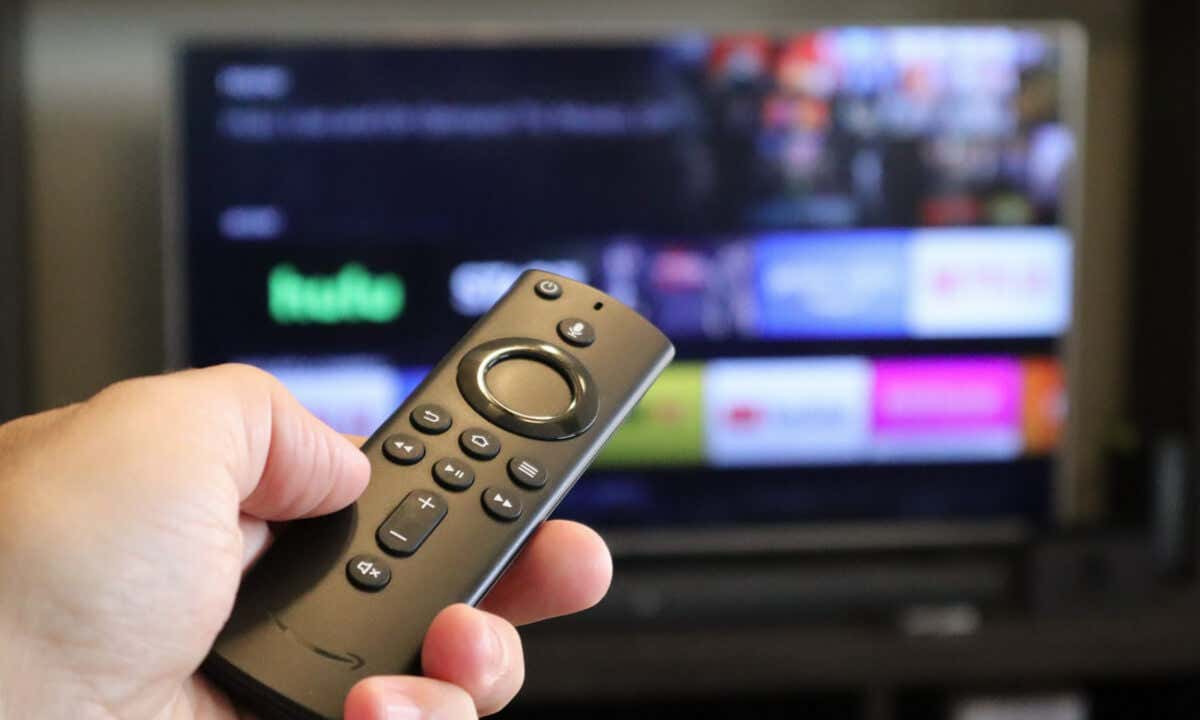
How to Update Your Fire TV
You can manually download and install software updates in the Fire TV settings menu. Connect your Fire TV device to a Wi-Fi or Ethernet network and follow the steps below to update its software.
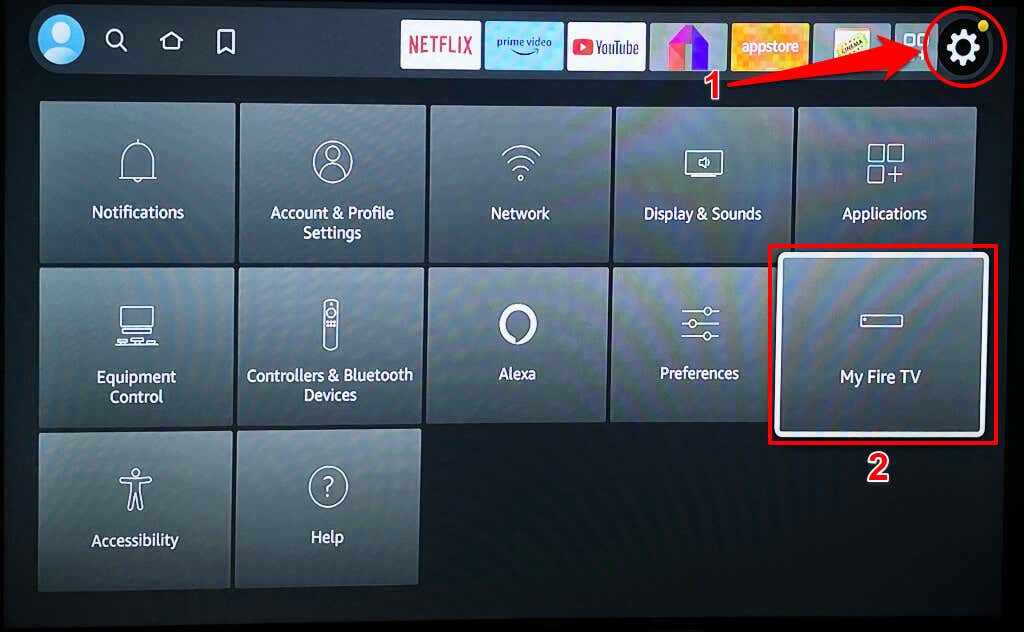
- Select the gear icon in the top-right corner of your Fire TV home screen.
- Select My Fire TV on the settings page.
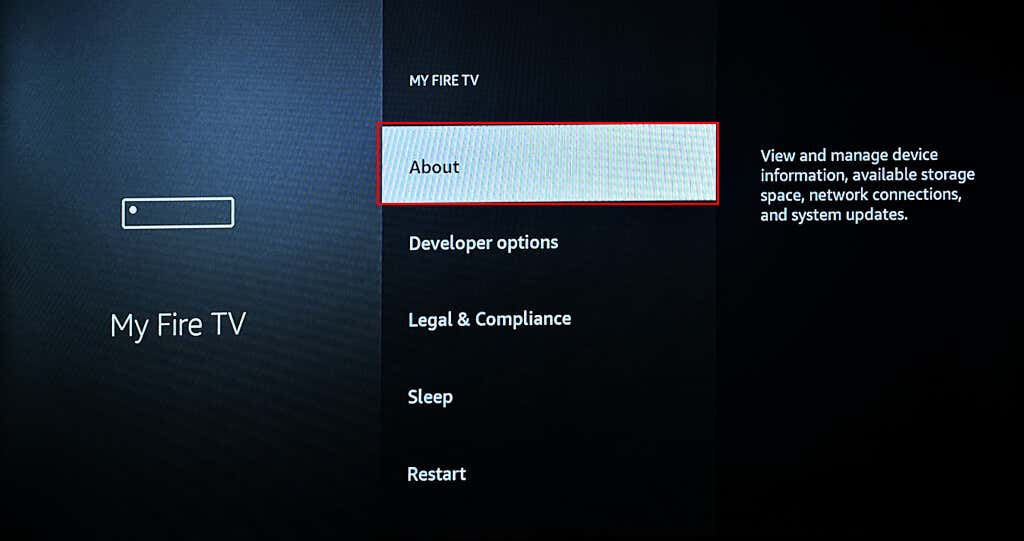
- Next, select About on the “My Fire TV” page.
- Scroll down the “About” page and select Check for Updates .
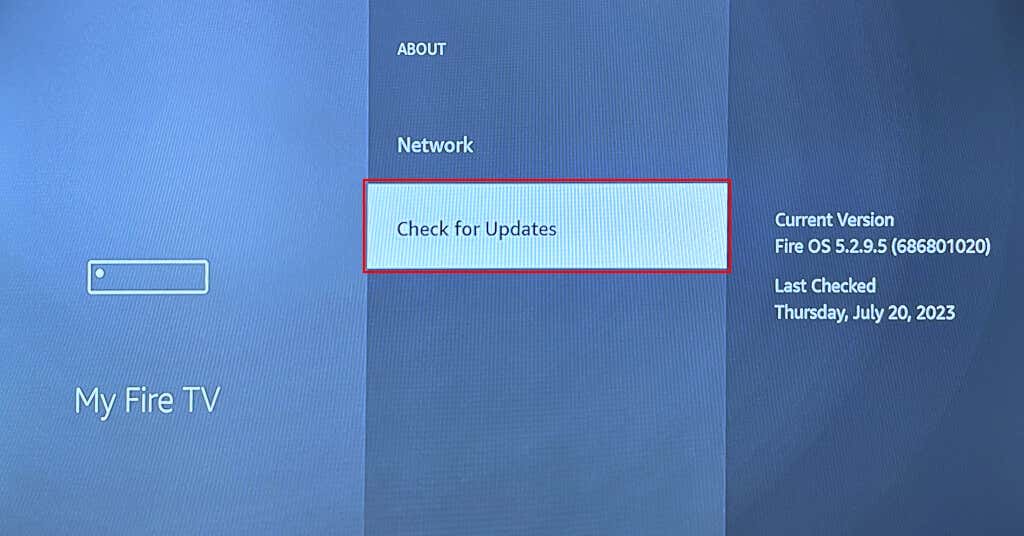
Your Fire TV should start downloading an update if its software is out-of-date.
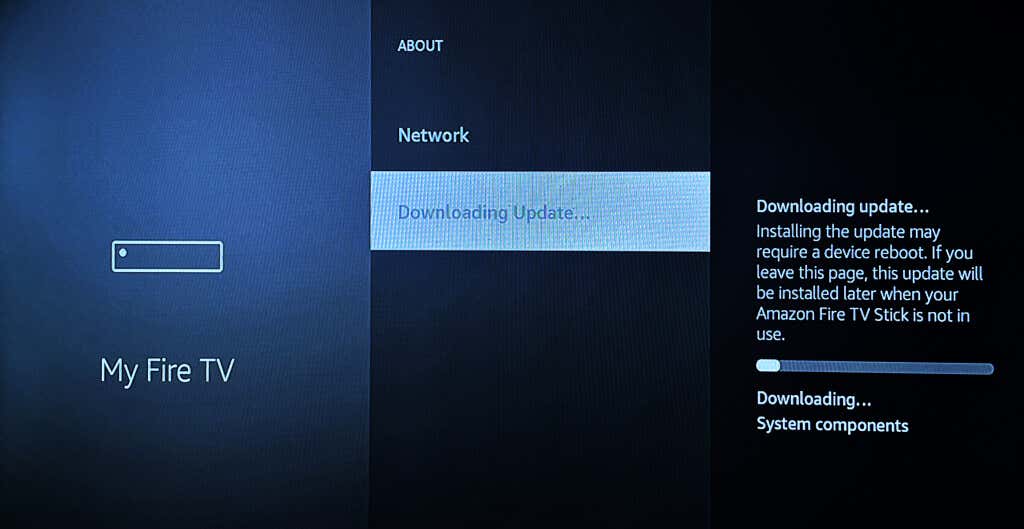
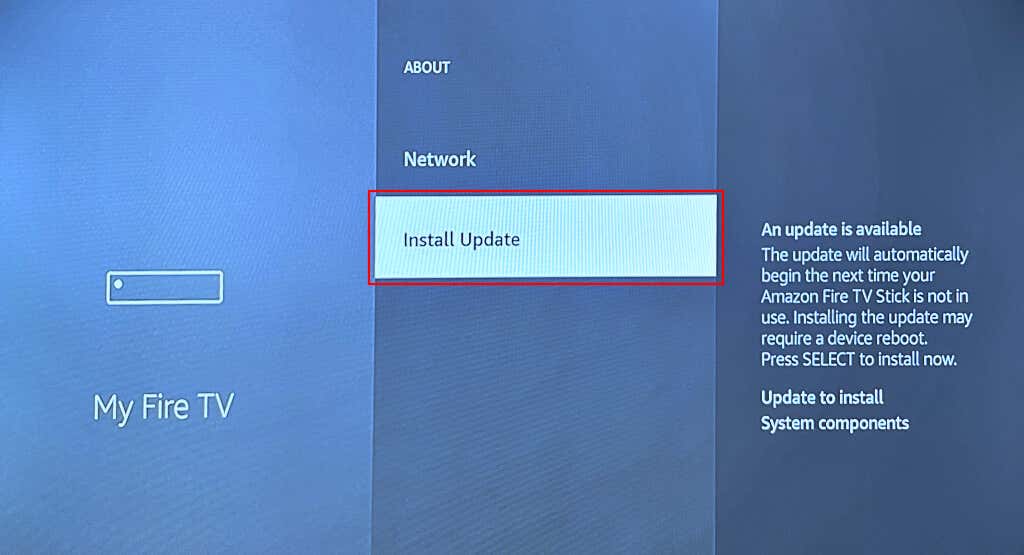
If your Fire TV downloaded an update in the background, you’ll find an Install Update option on the screen. Select Install Update to start the software update process.
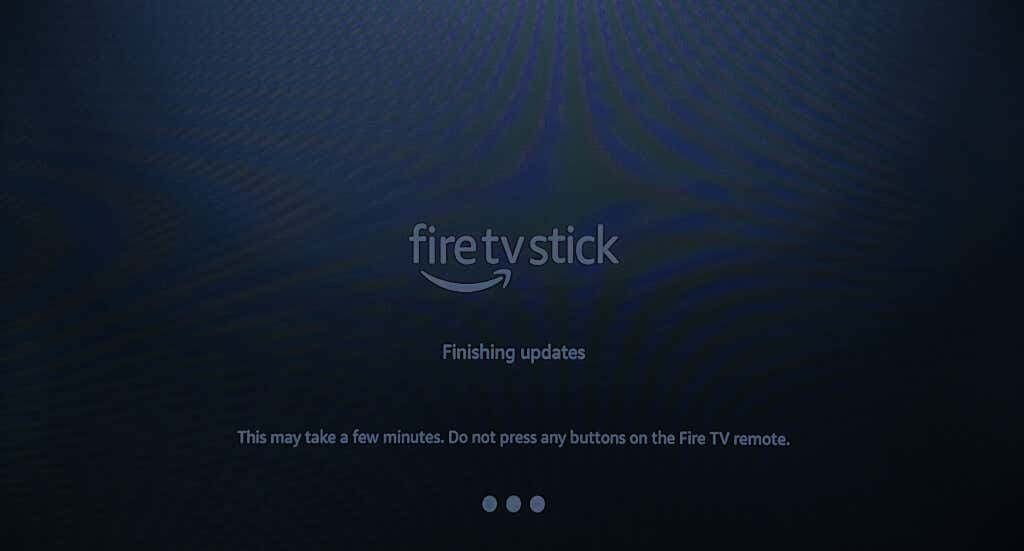
The installation could take up to 30 minutes, depending on your Fire TV device and internet connection speed. Don’t press any button on your Fire TV remote while the update installs.
Update Your Fire TV Remote
Does your Fire TV Remote occasionally malfunction ? Updating its software might fix the issue and get it working correctly again. You can update your Fire TV Remote’s software in the Fire OS Settings menu.
- Open your Fire TV Settings and select Controllers and Bluetooth Devices .
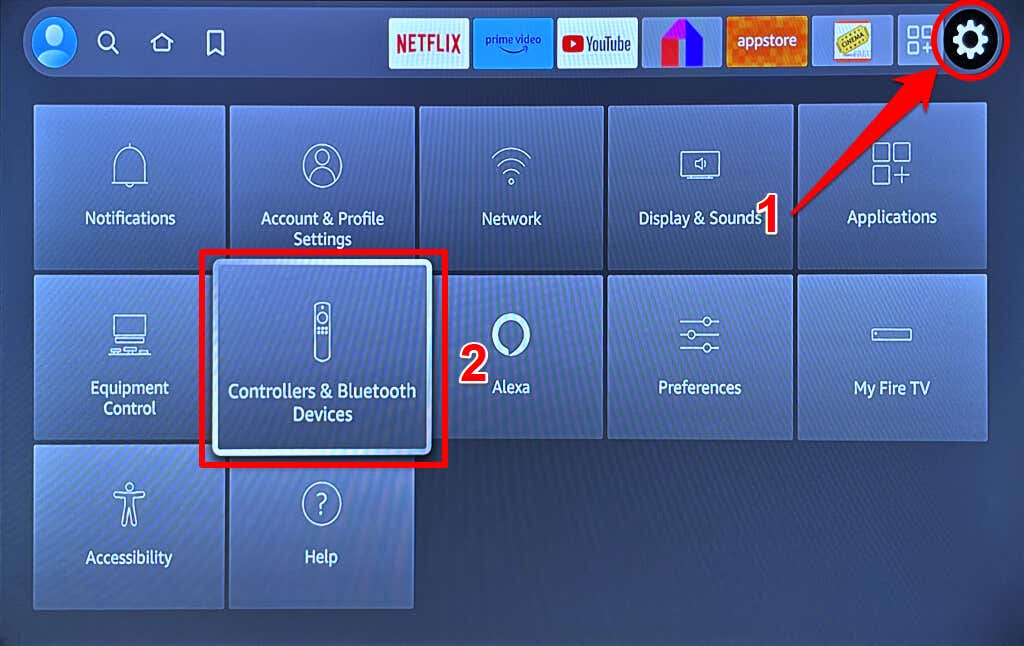
- Select Amazon Fire TV Remotes .
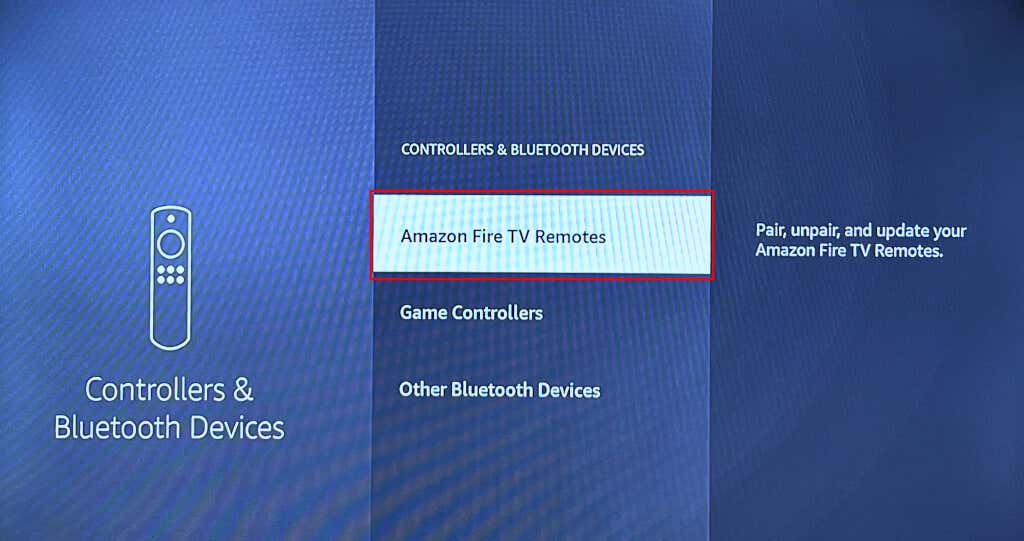
- Navigate to your Amazon Fire TV Remote . You’ll find an option to update your Fire TV Remote if there’s an update available for the remote control.
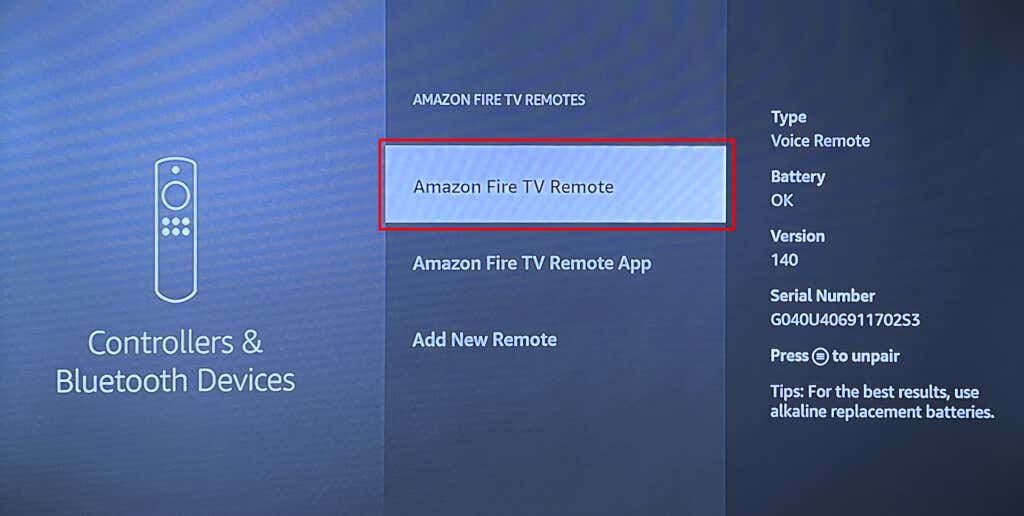
Keep your Fire TV Remote paired or connected to your Fire TV during the update. Also, don’t move your Fire TV Remote when updating its software to avoid dislodging the batteries and interrupting the update.
Can’t Update Your Fire TV? Try These Fixes
Here are some troubleshooting steps to take if you have trouble updating the software on your Fire TV.
1. Check Your Internet Connection
Problems with your internet connection can interrupt or prevent the download and installation of software updates. Check your network connection status if you have trouble updating your Fire TV device.
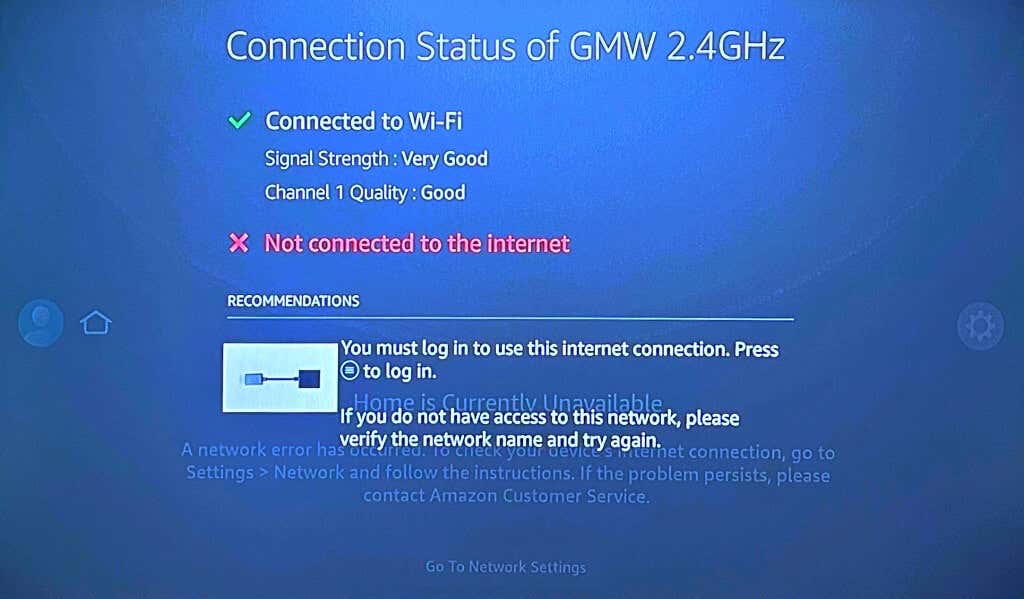
Go to Settings > Network , navigate to the internet network, and press the Pause/Play button on your Fire TV Remote.
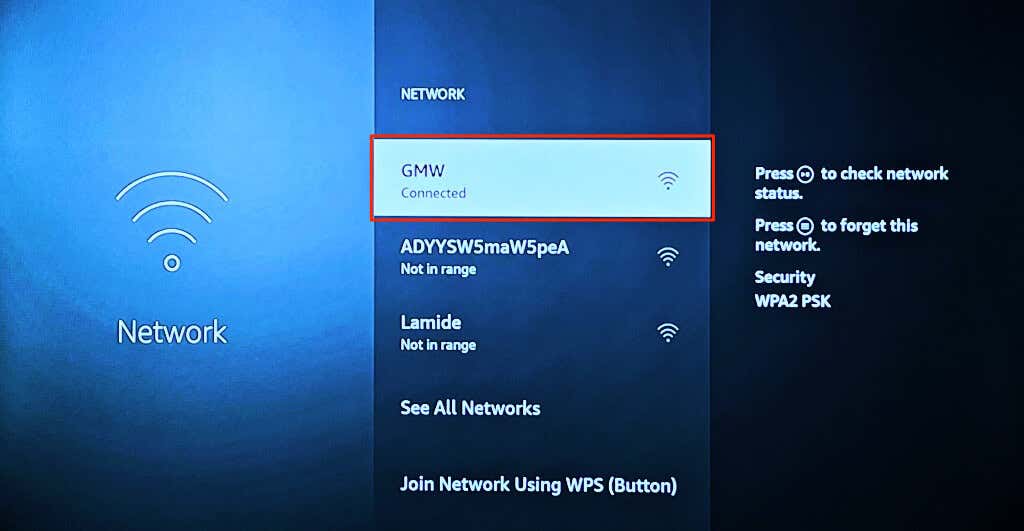
You’ll see “Connected to Wi-Fi” and “Connected to the internet” messages if your Fire TV has an internet connection.
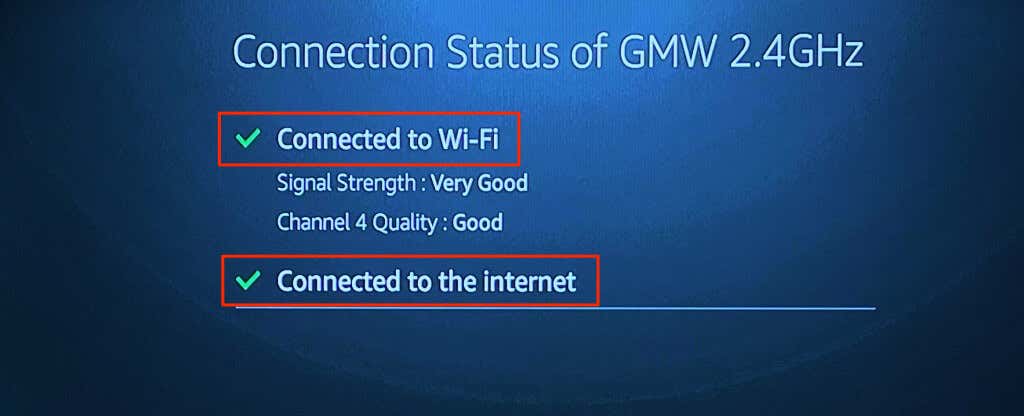
Reboot or reset your router if the Connection Status page displays a “Connected with problems” or “No network connection” message. Contact your internet service provider if the issue persists.
2. Restart Your Fire TV
Does your Fire TV fail to download or install software updates despite having an internet connection? Restart the streaming device and try reinstalling the update.
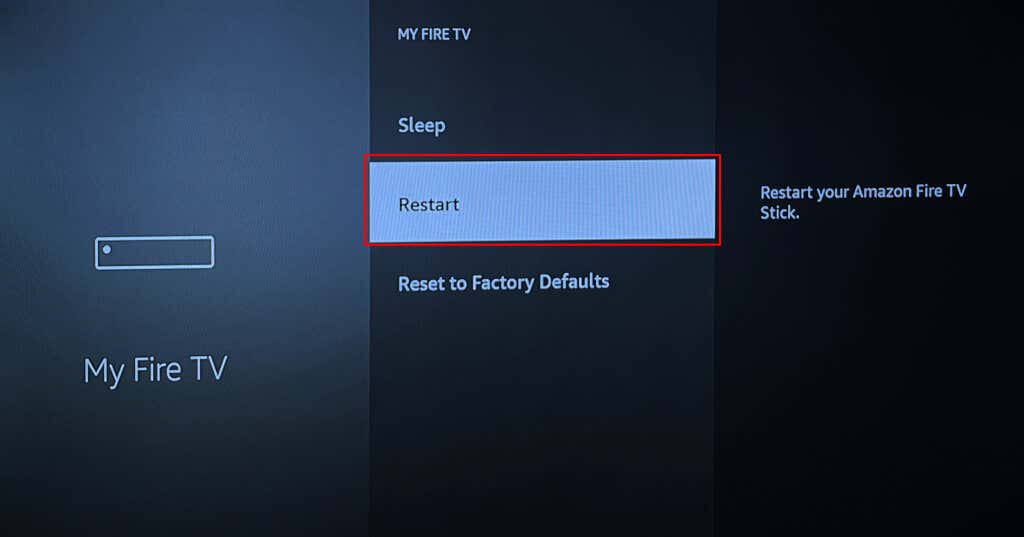
Head to Settings > My Fire TV , select Restart , and wait for your Fire TV to reboot.
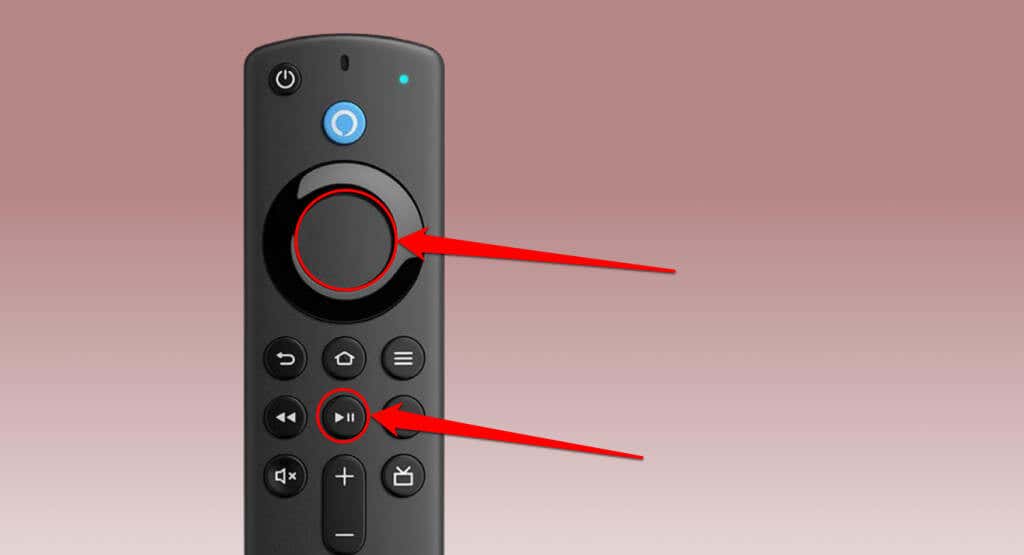
Alternatively, press and hold the Select and Pause/Play buttons on your Fire TV Remote for at least five seconds.
Perform a hard reboot if your Fire TV or Fire TV Remote is unresponsive. Unplug your Fire TV power cable from the wall outlet and plug it back in after 10-15 seconds.
3. Factory Reset Your Fire TV
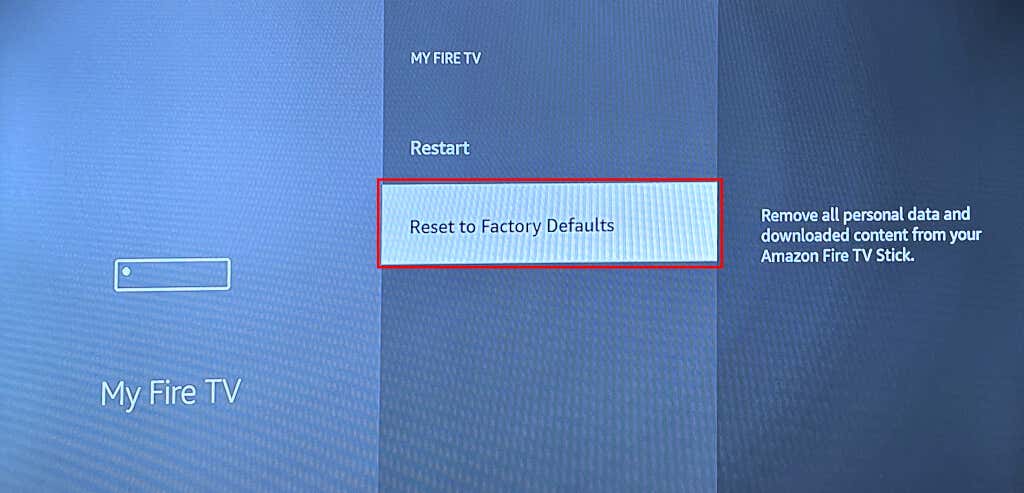
Reset your Fire TV to factory default if you still can’t update the software on the streaming device. Note that performing a factory reset deletes your account information and downloaded content (apps, in-app purchases, etc.) on your Fire TV.
Go to Settings > My Fire TV > Reset to Factory Defaults and select Reset on the confirmation prompt.
Get Your Fire TV Updated
- How to Close Apps on Your Fire TV
- Is Your Fire TV Slow? Here Are 10 Ways to Speed It Up
- Fire TV Keeps Restarting? 8 Fixes to Try
- How to Connect Bluetooth Devices to Your Fire TV
- Amazon Fire TV Remote Not Working? Try These 7 Fixes
