Is Zoom malfunctioning on your Chromebook? Does Zoom freeze/crash at random intervals? Are you unable to join meetings , or do some features (screen sharing, virtual background , etc.) fail to work? Updating Zoom to the latest version might resolve these issues.
Zoom updates sometimes ship with new functionalities and fixes for bugs and other performance malfunctions. This tutorial will show you how to update Zoom on Chromebooks to the latest version.

POZNAN POL SEP 23 2020 Laptop computer displaying logo of Zoom videotelephony and online chat services through a cloud based peer to peer software platform
Types of Zoom Updates
Three update categories are available for the Zoom app on Android, iOS, Windows, and Mac/macOS devices.
- Mandatory Updates: You must install these updates before using Zoom on your device. They usually contain crucial security patches and bug fixes. If there’s a mandatory update for your device, you’ll get a prompt to install the update before using Zoom.
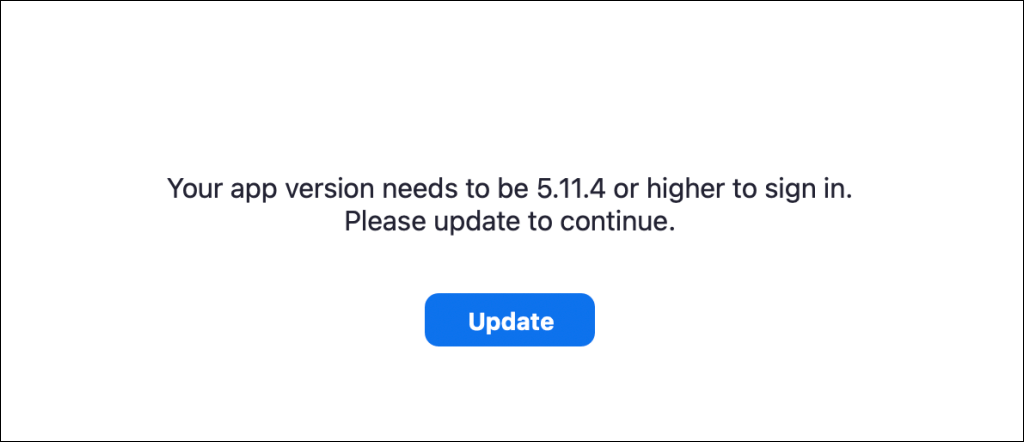
- Optional Updates: These updates fix minor bugs and other performance issues. You can use Zoom on your device without installing an optional update.
- Web-only Updates: These are updates with impending bug/performance fixes and beta features. Web-only updates are only available on Zoom’s website.
Update Zoom PWA for Chrome OS
Zoom has a progressive web application (PWA) for Chromebooks. It works like every other app installed from the Google Play Store but runs on the web. Progressive web apps are usually faster, more functional, and consume less storage than native apps.
You can only update the Zoom PWA through your Chromebook’s Play Store. Open this Zoom for Chrome page or search “Zoom PWA” in the Play Store and select the Update button.
Another way to update the Zoom PWA is to configure the Play Store to auto-update outdated applications. That way, your Chromebook automatically updates the Zoom PWA when there’s a new version in the Google Play Store.
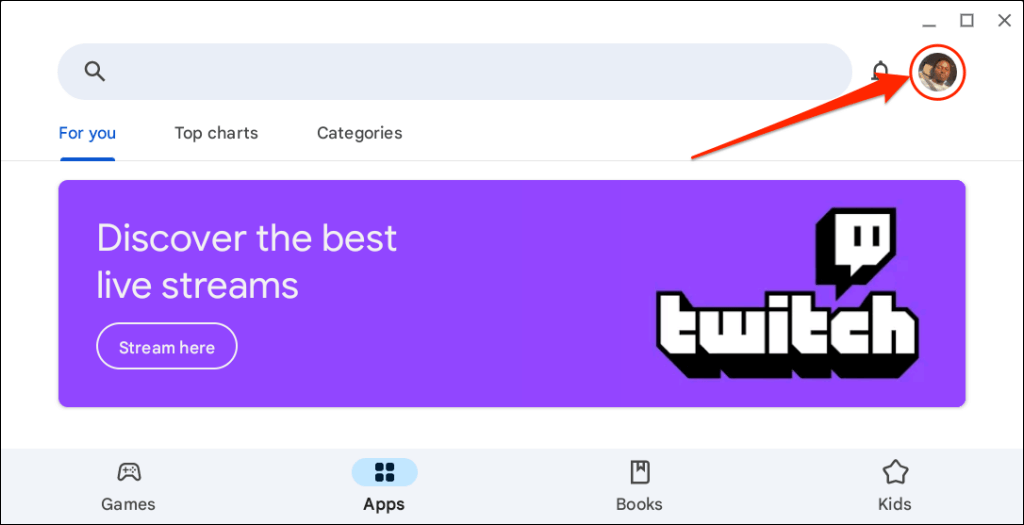
- Open the Play Store and select your profile picture in the top-right corner.
- Select Settings at the bottom of the settings menu.

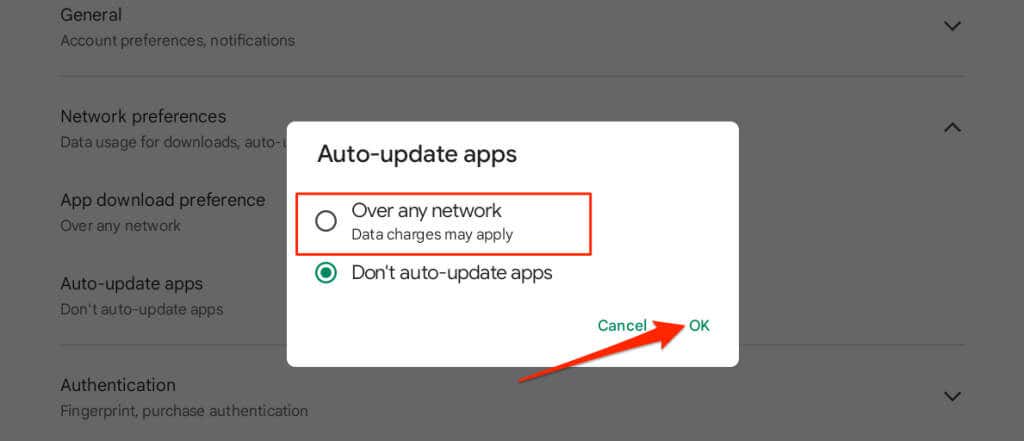
- Expand the Network preferences drop-down menu and select Auto-update apps .
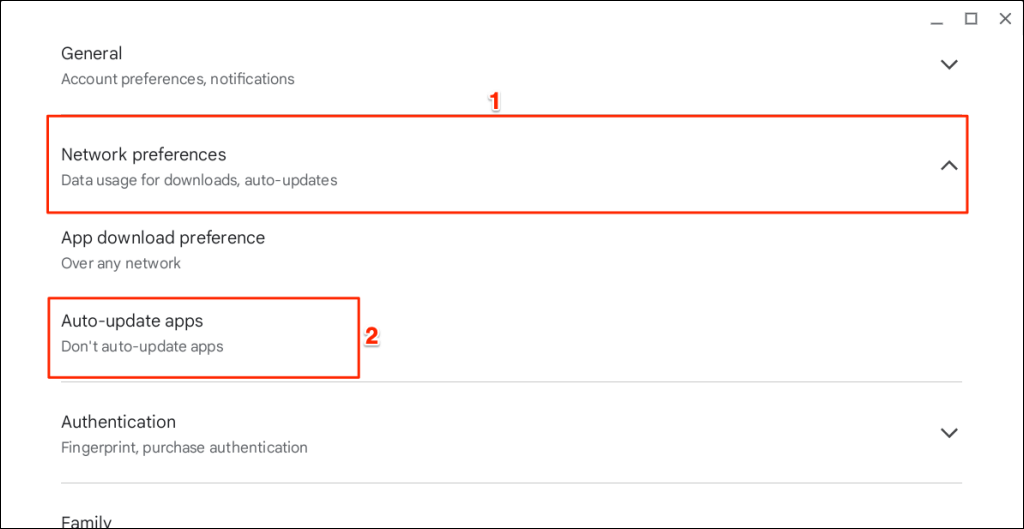
- Choose Over any network and select OK .
How to Update Zoom Chrome Extension
If you installed Zoom on your Chromebook through the Chrome Web Store, follow the steps below to update the extension.
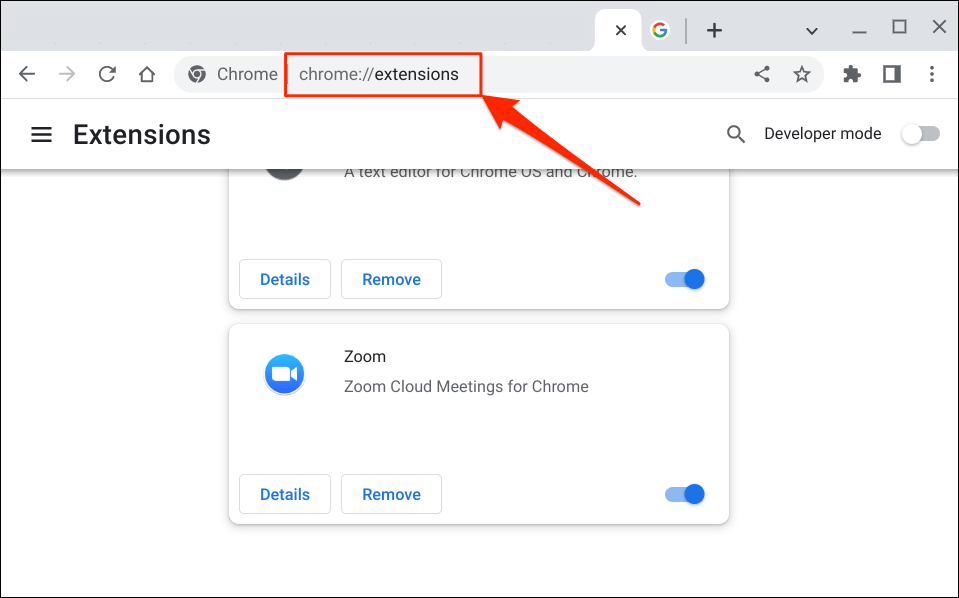
- Close the Zoom app and open the Google Chrome browser. Type or paste chrome://extensions in the address bar and press Enter on your Chromebook’s keyboard.
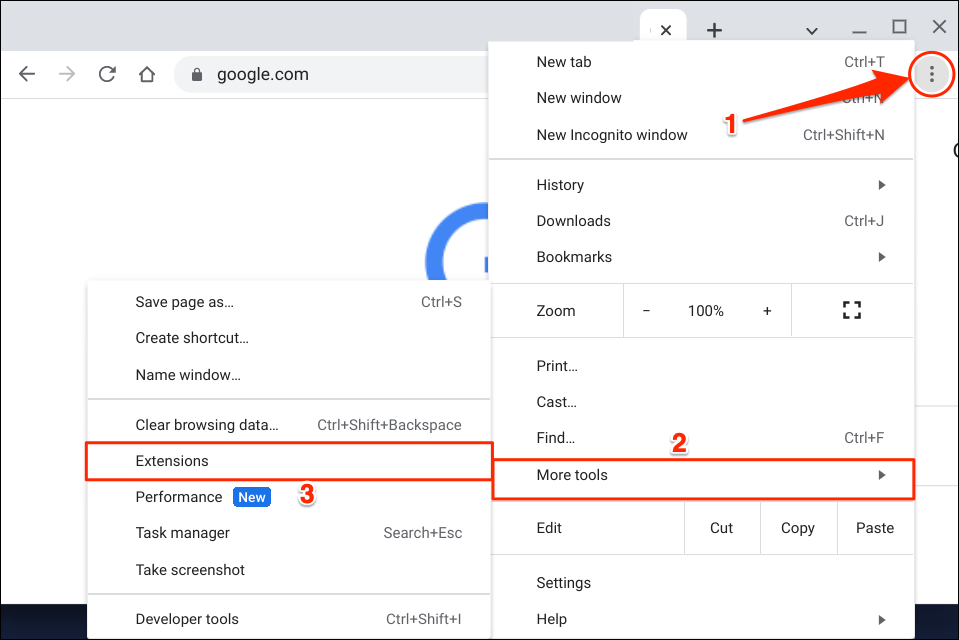
Alternatively, select the three-dot menu icon in the top-right corner, select More tools , and choose Extensions .
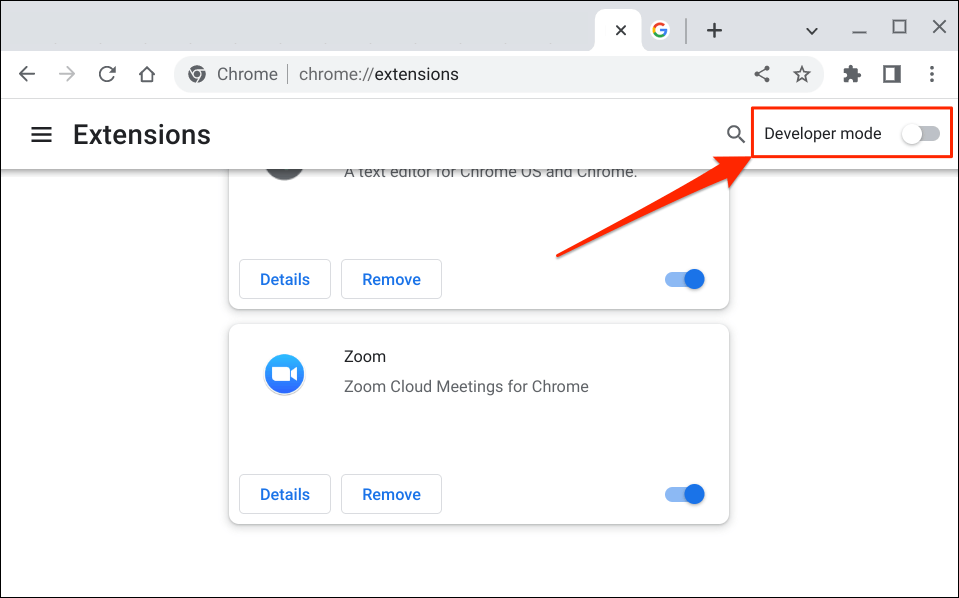
- Toggle on Developer mode in the top-right corner.
- Next, tap the Update button on the top menu to continue. That will update all your Chrome extensions , including Zoom.
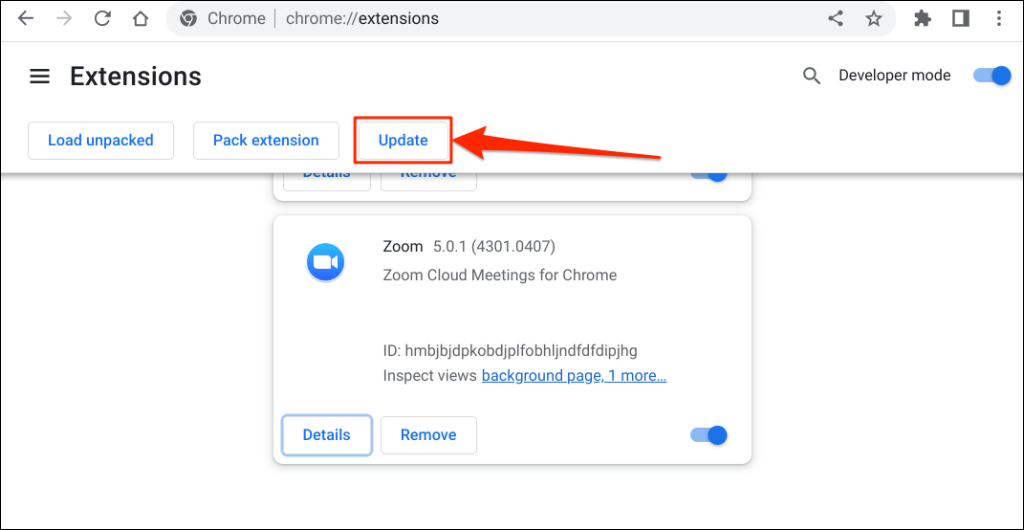
You should see an “Updating…” pop-up in the bottom-left corner while Chrome updates your extensions.
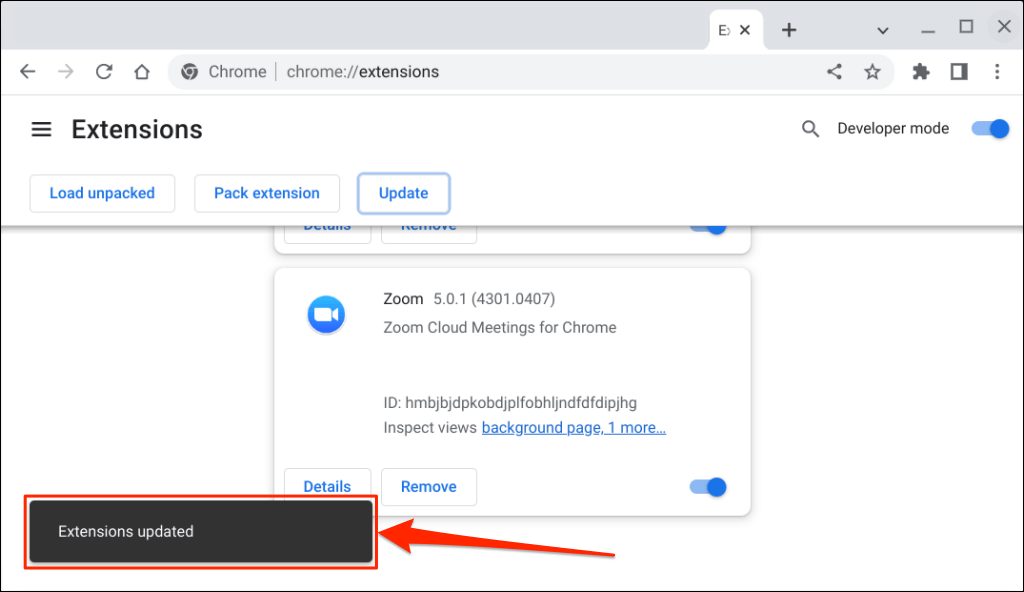
The operation might take a couple of seconds or minutes, depending on the number of extensions installed in Chrome.
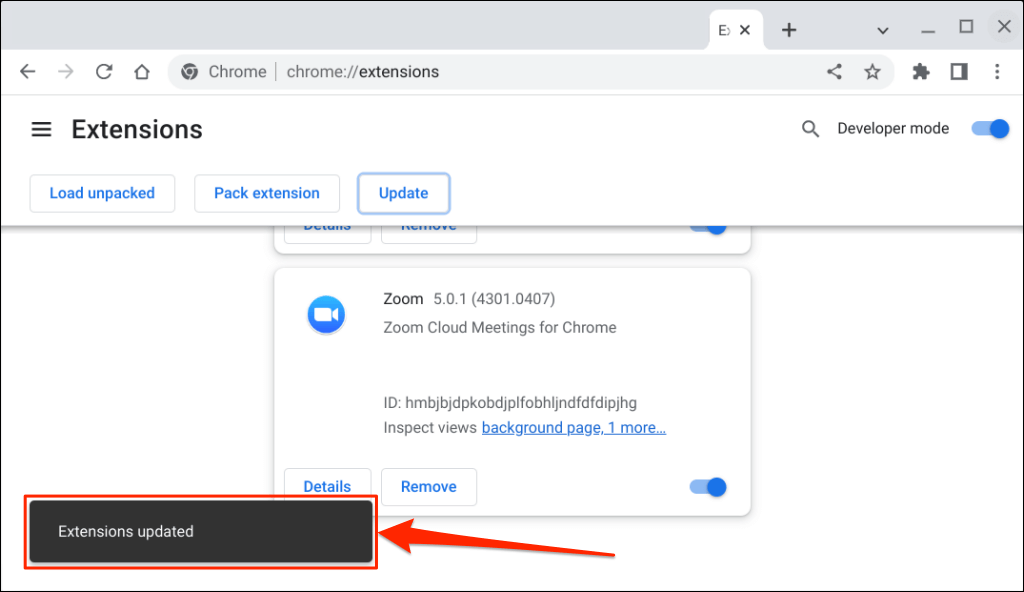
- Open Zoom when you see an “Extensions updated” success message in the bottom corner.
Use the Latest Version of Zoom
Use the Zoom web client (sign in to Zoom in your web browser) if you still have trouble using or updating the Zoom app. Reboot your Chromebook or update its operating system and try updating Zoom again. Contact Zoom Support or uninstall and reinstall Zoom on your Chrome OS device if the issue persists.
- How to Use Zoom on Chromebook
- Top 4 Ways to Fix Chromebook White Screen Issues
- Chromebook Keeps Turning Off? 9 Fixes to Try
- How to Install and Use VirtualBox on Your Chromebook
- How to Install and Run Windows Apps on Your Chromebook
Sodiq has written thousands of tutorials, guides, and explainers over the past 4 years to help people solve problems with Android, iOS, Mac, and Windows devices. He also enjoys reviewing consumer tech products (smartphones, smart home devices, accessories, etc.) and binge-watching comedy series in his spare time. Read Sodiq’s Full Bio
