One of the most useful new features added to the Android operating system is the ability to unlock the mobile device just by having a trusted device nearby.
What is a “trusted device”? This can be anything that connects to the Android device via Bluetooth. This includes smart watches, earbuds, other computers, or even smart home devices. The only requirement is that the device needs to be Bluetooth capable, and it can connect to the Android device.
In this article we’ll explore how you can configure Android trusted devices, as well as related security settings to unlock your device in creative, yet secure, ways.
Configuring Android Trusted Devices
Setting up Android trusted devices is pretty easy. You’ll just need to decide which device or devices you want to use to unlock your phone.
Make sure you’ve connected the Bluetooth device to your Android device already. This will help with selecting it as a trusted device later.
Here’s how to use trusted devices to unlock your Android device automatically.
- Open Android Settings. Scroll to and select the Lock screen option.
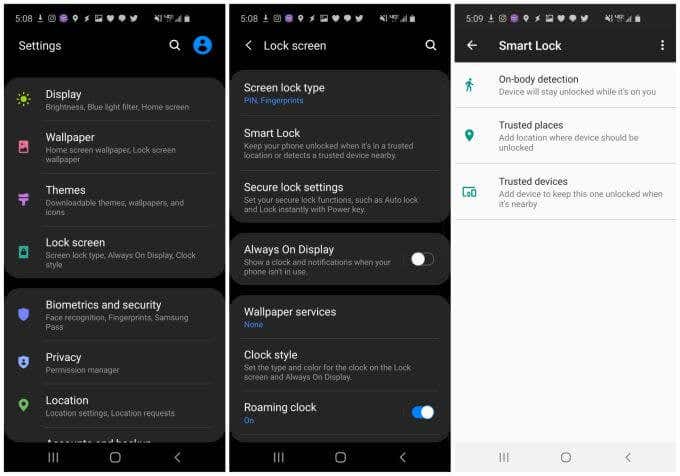
- On the Lock screen menu, select Smart Lock .
- In the smart lock menu, select Trusted devices .
Note : The menus may look slightly different depending which version of Android you’re using. Just search settings for Smart Lock to find the Smart Lock menu.
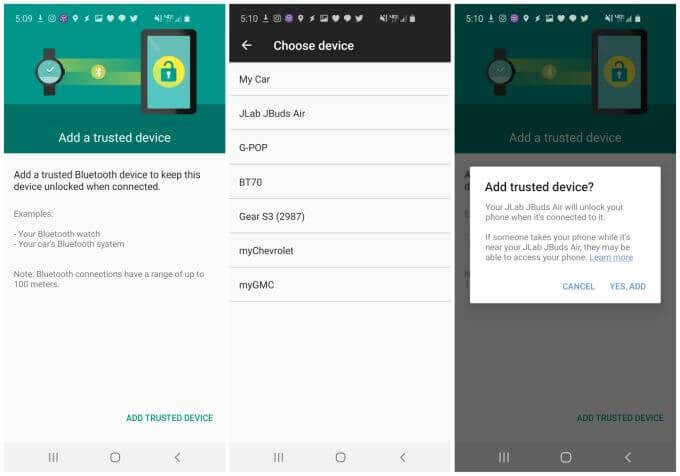
Here, you’ll see a screen where you can add a new trusted device that you can use to automatically unlock your Android device any time your phone is connected to that device.
- Select Add Trusted Device to see devices you’re currently connected to via Bluetooth, or devices you’ve connected to in the past.
- Select the device from the list that you want to use as a “trusted device”.
- Once you select it, you’ll see a confirmation window to approve using that device as a trusted device. Select Yes, Add to finish.
Android Trusted Devices, Things to Consider
What does it mean when you’ve enabled a “trusted device” to unlock your Android phone? It means that whenever you’re in range and connected to that device, anyone can bypass the lock screen on your phone to get access to it.
There are a few things you should think about before enabling this feature on your Android device.
- Bluetooth range is between 10 meters and 400 meters (Bluetooth 5). Remember that inside this range, if the trusted device is connected, no one will need to use the lock screen to access your phone.
- If you have a trusted device like Bluetooth earbuds or a computer in range of your phone in your office or any other location, the phone will remain unlocked and anyone can access it.
- This feature could introduce a security vulnerability since you may not be present when your trusted device and your Android phone are together in the same location.
- The best approach to using the Android Trusted Devices feature is to choose Bluetooth-connected devices that you always have with you, like a smart watch.
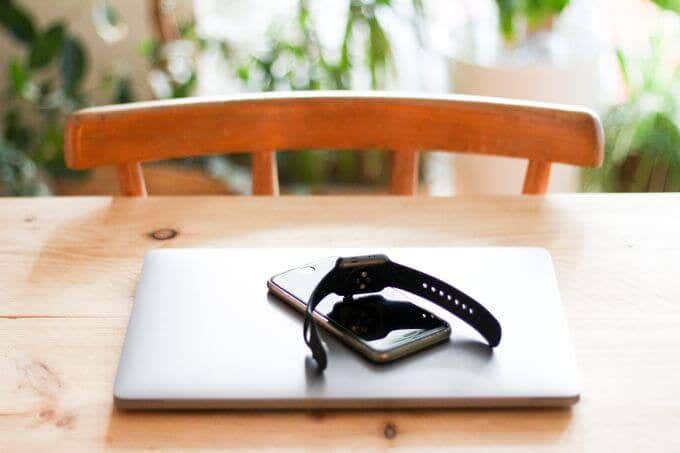
Android “Trusted Devices” is exactly that, devices that you know if they’re within range of your phone, should signal the fact that you’re currently present and in possession of your own phone. It’s your responsibility to make sure that the Trusted Devices you add to this list are devices you trust to show that you’re in possession of your own phone.
Don’t add devices like smart home devices or computers that might be near your phone even when you aren’t present. This could allow other people to access your Android device even when you’re not around.
On-Body Detection and Trusted Places
Beyond the Android Trusted Devices feature, on the Smart Lock screen you might have noticed a couple of other interesting features.
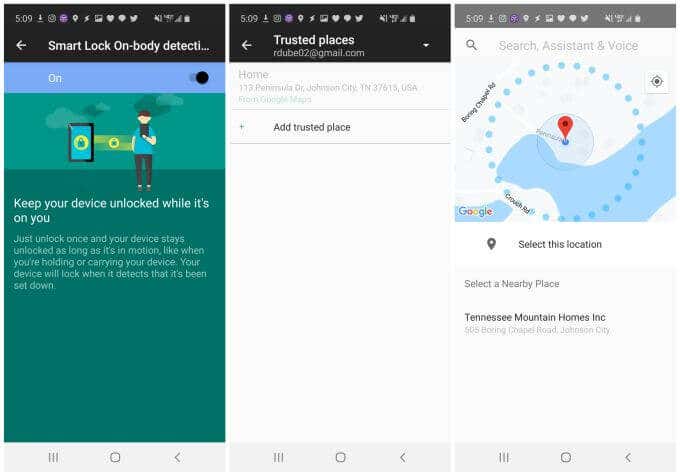
- On-body detection : Once you unlock your phone once, the Android device will remain unlocked so long as it senses that it’s in motion or if you’re carrying it.
- Trusted places : Set a location from a map where your phone is always unlocked no matter what. You can always turn this off to lock the phone again.
Setting Up On-Body Detection
You don’t have to do much to enable and configure on-body detection. Once you turn it on, it just works.
No matter where you are or what you’re doing, so long as you have your phone in your hand, your pocket, or your purse, you won’t have to worry about the annoyance of having to unlock your phone every time you want to use it.
- Open Android Settings and tap Lock screen .
- On the Lock screen menu, select Smart Lock .
- In the smart lock menu, select On-body detection .
- Just change the toggle switch at the top to On .
Now, so long as your phone is on you and senses your movements, you can pull out your phone and use it without having to deal with the lock screen.
Just keep in mind that if the phone is unlocked while on you and then someone else gets a hold of it, the phone will still think it’s on you. This is one reason you should never use this feature alone. It’s best to combine it with Trusted Devices so that you have a second line of security.
Setting Up Trusted Places
Trusted Places is one of the more useful smart lock features, because there are probably certain places where you can be confident there’s no risk of someone stealing your phone.
For example, if you’re not really that worried about anyone in your household using your phone (or don’t care if they do), then it makes sense to make your home location a trusted place.
To do this:
- Open Android Settings. Scroll to and select the Lock screen option.
- On the Lock screen menu, select Smart Lock .
- In the smart lock menu, select Trusted places .
- Select Add trusted place to mark a new location as trusted.
You’ll see a map that you can zoom in and out or scroll to move the red pointer over the location you want to mark as trusted.
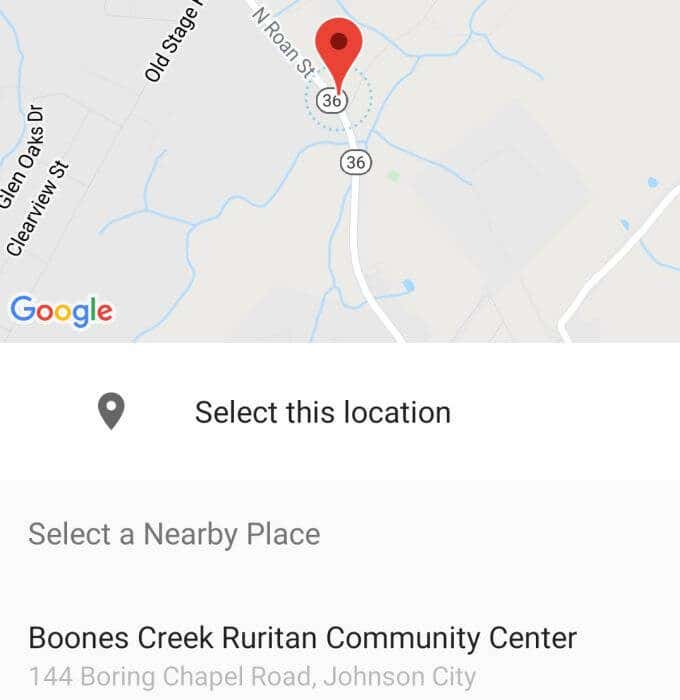
As you move the marker over businesses or other locations Google can recognize, you’ll see the name of that place at the bottom of the window.
Once you have the pointer over the location, just tap Select this location to mark it as a trusted place.
Just remember you’ll need to keep your Android’s GPS sensor turned on for this feature to work correctly.
Using Smart Lock Security on Android
All Smart Lock features are available to use if you’re running the latest version of Android.
Android Trusted Devices is the most secure Smart Lock feature because it ensures your phone is near a device you know you’ll always have on yourself, like a smart watch. The other features like Trusted Places or On-Body Detection aren’t quite as secure, but they’re useful if you’re careful about how and where you choose to enable them.
Combined with fingerprint or face biometrics (if your Android device supports it), the lock screen doesn’t have to be an annoyance at all.
- What Is Android System Intelligence?
- How to Rename Bluetooth Devices in Windows, Android, iOS, and Mac
- Facing a Synchronization Error in Google Drive for Android? Here’s How to Fix It
- 5G Not Showing Up on Android or iPhone? 12 Fixes to Try
- Why Does My Android Hotspot Keep Turning Off? 7 Fixes
Ryan has been writing how-to and other technology-based articles online since 2007. He has a BSc degree in Electrical Engineering and he’s worked 13 years in automation engineering, 5 years in IT, and now is an Apps Engineer. Read Ryan’s Full Bio
Windows Hello is a more secure way of logging into your Windows 10 device without struggling to remember your password . The futuristic login technology uses biometric authentication that’s faster, more secure and easier to access your computer using fingerprint or facial recognition, with enterprise-grade security to boot.
These biometric markers allow you to sign into online devices, apps or networks, plus you can pair a Bluetooth device like your smartphone to your computer and use the Dynamic Lock feature in Windows Hello to lock your computer automatically.
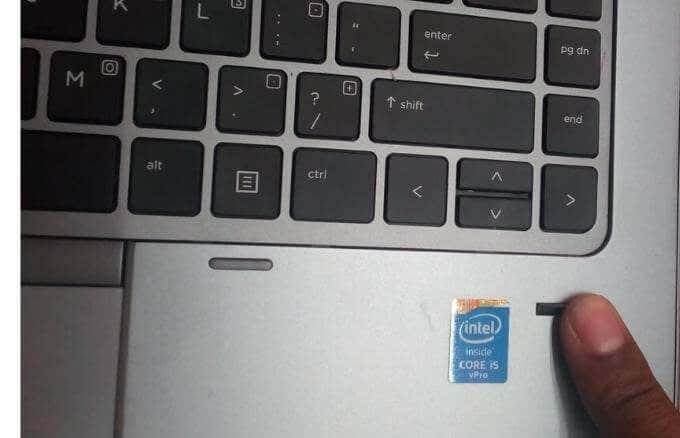
As great as this service sounds, you may sometimes find that the Windows Hello fingerprint is not working because of hardware issues, system corruption, software conflicts, incorrect settings, or faulty, obsolete and incompatible drivers.
If your computer’s fingerprint sign-in with Windows Hello isn’t working, maybe after an update or other changes on your computer, try some of the workarounds in this guide to help you restore the function.
Fixes For Windows Hello Fingerprint Not Working In Windows 10
- Install updates manually.
- Run Hardware & Devices troubleshooter.
- Reset fingerprint & facial recognition options.
- Enable Biometrics in Group Policy Editor.
- Modify Windows Hello Group Policy settings.
- Update System Drivers.
- Perform a Windows Reset.
- Turn off Fast Startup.
- Check for & uninstall updates that caused the problem.
- Reset fingerprint login.
- Reinstall fingerprint software.
- Repair System Files.
- Restart Credentials Manager Service.
How To Fix Windows Hello Not Working In Windows 10

Many reported cases of fingerprint malfunction in Windows Hello are experienced after installing Windows updates, like the 1809 version that caused many issues like system crashes, data loss, failure to boot up, and application crashing among other problems.
Before you use any of the fixes below, check for the following:
- Your device is running Windows 10 and not another version of the operating system; otherwise you can’t use Windows Hello. Consider upgrading to Windows 10 in this case.
- Check that your device has a fingerprint sensor or reader. Some machines may have but they’re probably too old and there’s no available Windows 10 driver for it so the service won’t work.
- Check that your device is compatible with Windows Hello service.
- Check that your internet connection is strong and your device is connected, otherwise Windows Hello won’t work.
- Check for any dust or dirt on the fingerprint scanner as this would affect the reading. If it has any scratches on the sensor, get the machine repaired.
- Use the same finger and position you used when registering your fingerprint with Windows Hello to sign in.
Install Updates Manually
With the Windows Hello fingerprint sign-in not working, you’ll need to revert to using your password or PIN to login and check for Windows Updates manually.
- Once signed in, go to Settings > Update & Security > Windows Update
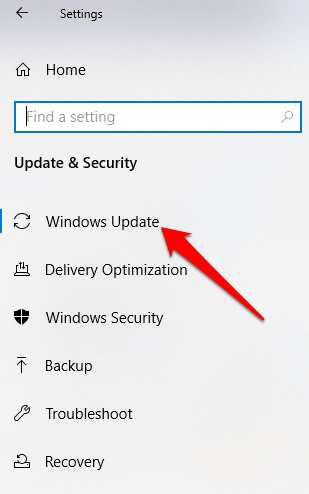
- Install all pending and detected updates, and restart your computer. Try signing in with fingerprint authentication again.
Run Hardware & Devices Troubleshooter
This will scan and detect any possible hardware and devices issue in the system.
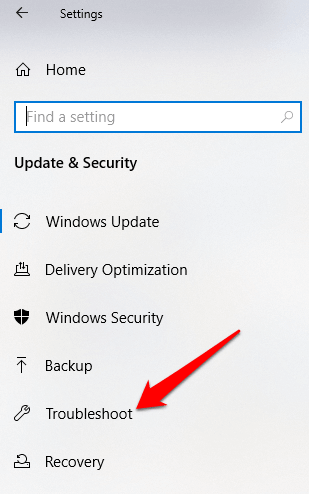
- Click Start > Settings > Update & Security > Troubleshoot .
Reset Fingerprint & Facial Recognition Options
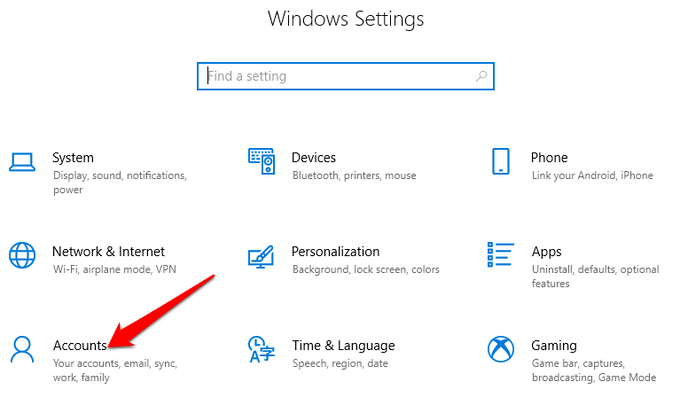
- Click Start > Settings > Accounts .
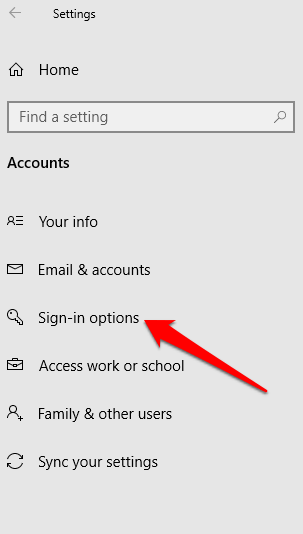
- Click on Sign-in options .
- Find Facial Recognition or Fingerprint options, and click on the Fingerprint option.
- Select Remove , and do the same for Facial Recognition .
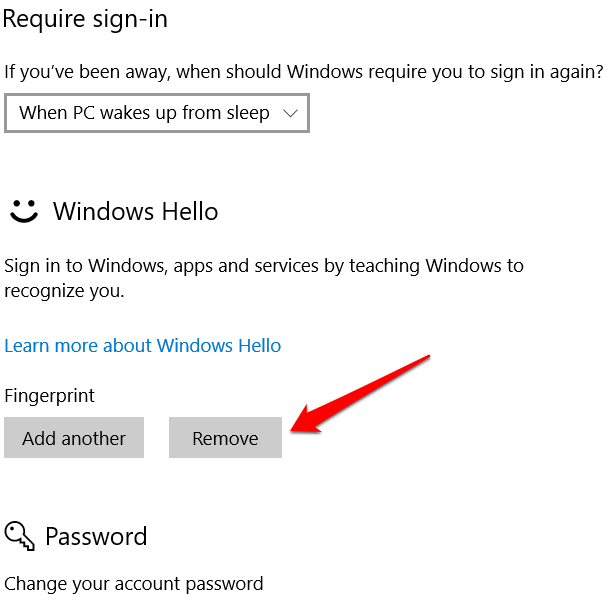
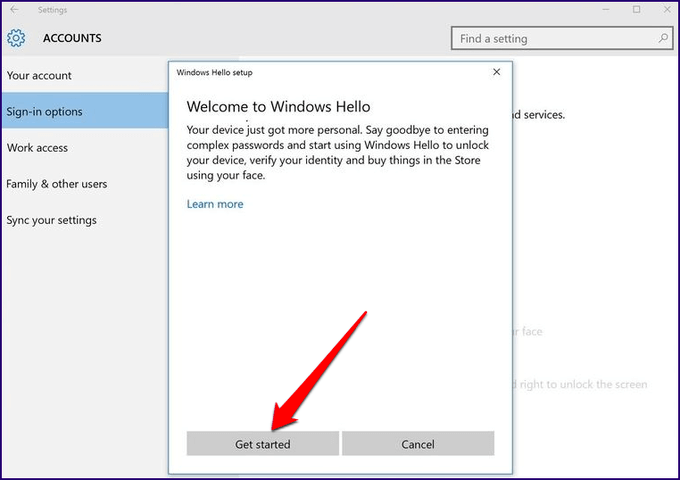
- Next, click Get Started and follow the instructions to reset the Facial Recognition and Fingerprint sign-in options, and then restart your computer.
Enable Biometrics In Group Policy Editor
- Type gpedit in the search box and click Edit Group Policy .
- Click Computer Configuration > Administrative Templates .
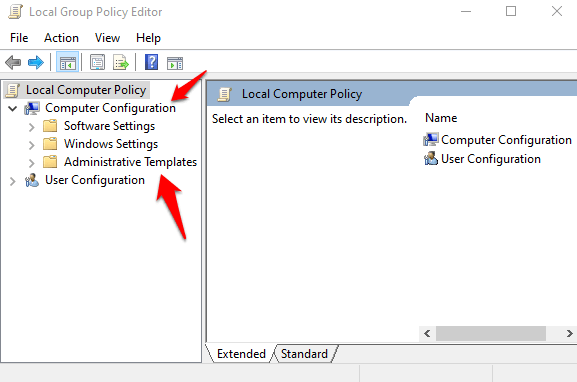
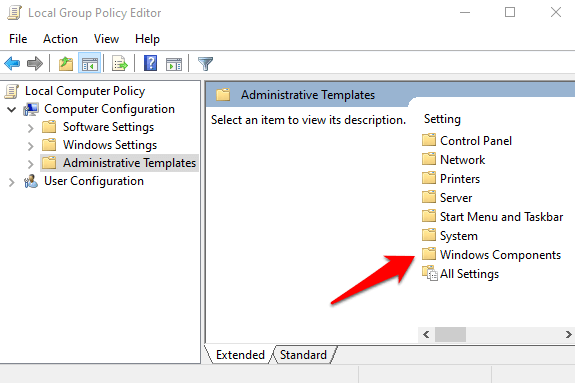
- Double-click Windows Components .
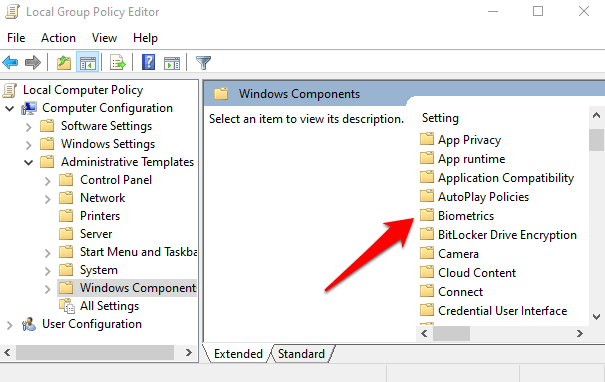
- Double-click Biometrics in the right pane and check whether all its settings are configured.
- If they show Not Configured , this is probably why the Windows Hello fingerprint sign-in isn’t working.
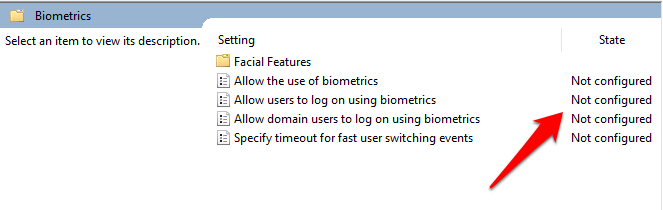
- Right-click each Biometric setting, select Enabled and then click Apply > OK .
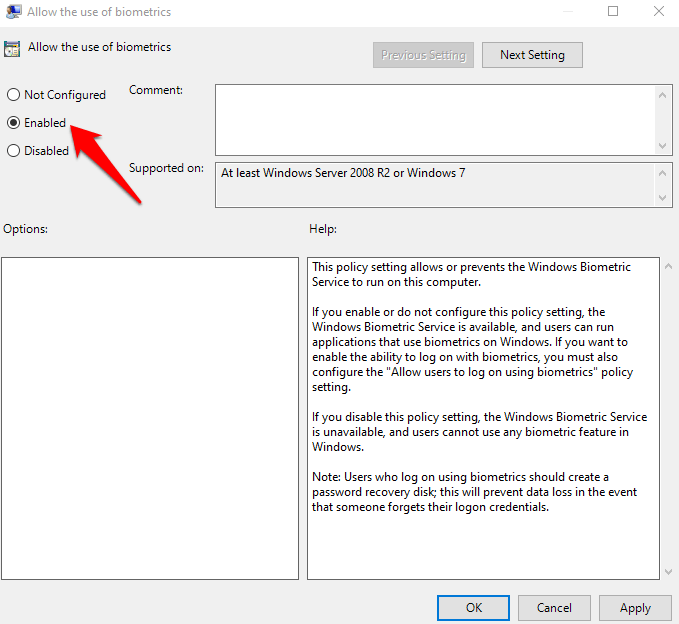
- Double-click Allow user to login using biometrics and select Enabled .
- Click Apply > OK .

Modify Windows Hello Group Policy Settings
A Windows Update may have made some changes to some important Group Policy settings, so you may want to check Windows Hello settings in the Group Policy Editor. The first four steps are the same as the example above.
- Right-click Start > Run . Type gpedit and press Enter .
- Click Computer Configuration > Administrative Templates .
- Next, double-click Windows Components .
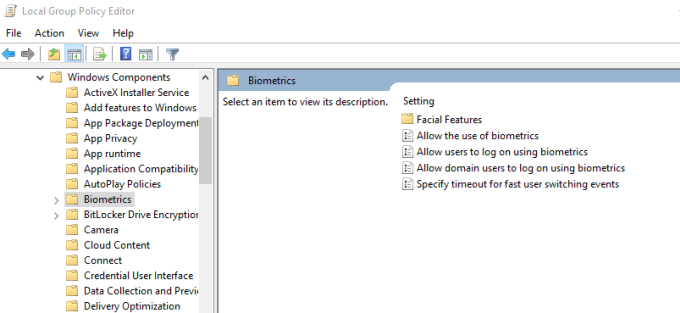
- Double-click Biometrics .
- Double-click Facial Features .
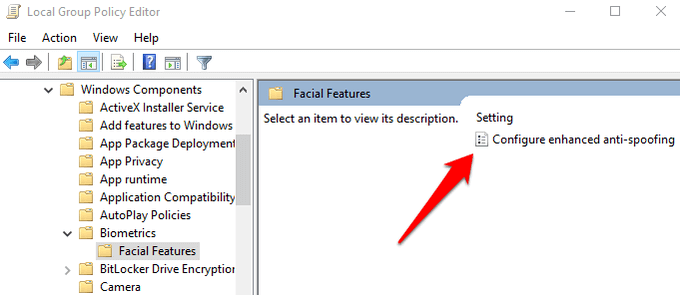
- Right-click Configure enhanced anti-spoofing and select Edit .
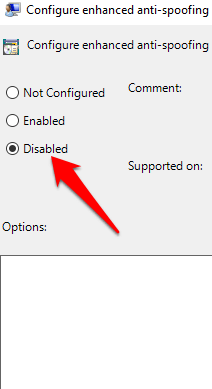
- Disable Configure enhanced anti-spoofing and restart your computer to see if it resolves the Windows Hello fingerprint sign-in problem.
Update System Drivers
Some drivers, in this case the fingerprint reader driver, may have been corrupted at some point, either during an update or other process, causing the fingerprint sign-in to malfunction.
- To resolve that, you can update the drivers by right-clicking Start > Device Manager .
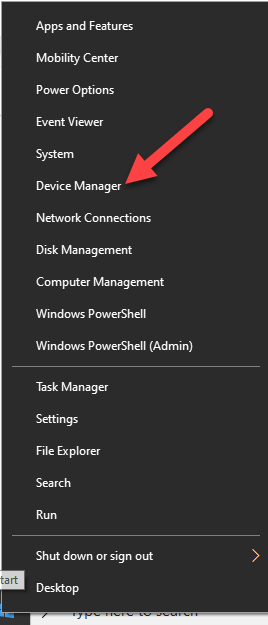
- Find the relevant drivers under Biometric devices , right-click your device and select Remove driver software .
- Do this for all drivers related to Windows Hello and restart your device.
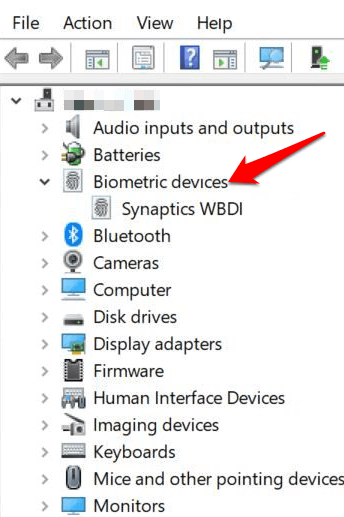
- Right-click and select Scan for hardware changes and the system will detect and install the drivers again.
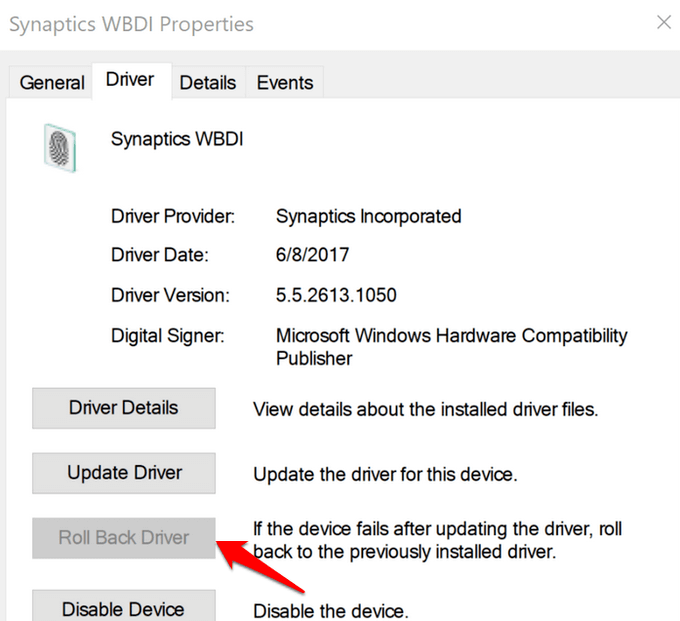
- You can also roll back the corrupted or outdated driver to its previous version by double clicking Biometric Devices and select Roll Back Driver in the properties section.
- Click OK once it’s done.
Perform a Windows Reset
When you reset your Windows device, it repairs damages to all the system files so that Windows Hello can work normally again. It also resets your device settings to the default Windows settings.
- To refresh the device, go to Settings > Update & Security > Recovery > Reset this PC and click Get Started .
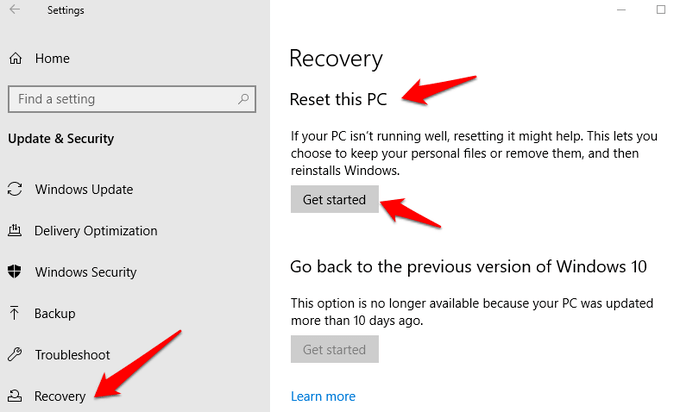
Note: This action will permanently erase your computer data so ensure you backup or copy your data to external or cloud storage before doing anything.
Turn Off Fast Startup
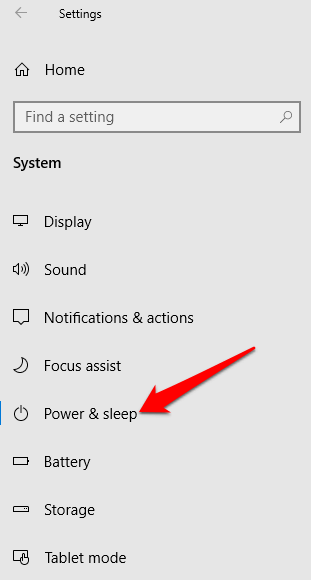
- Click Start > Settings > System > Power & Sleep
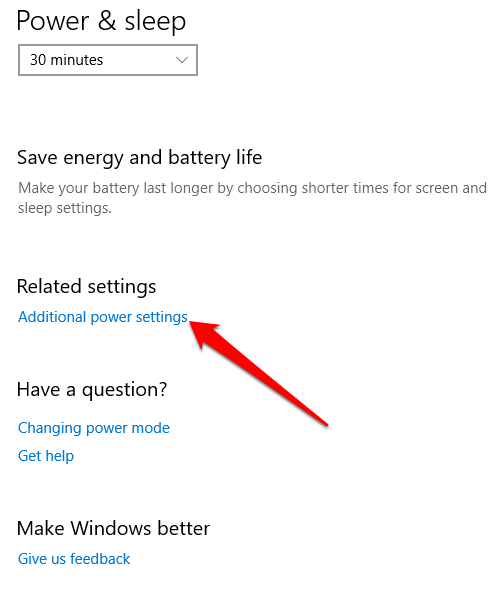
- Click Additional Power Settings .
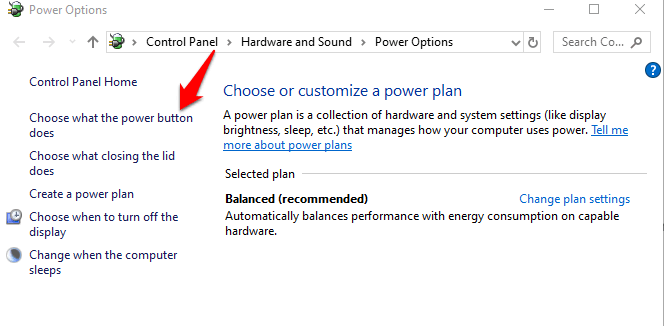
- Next, click Choose what Power button does .
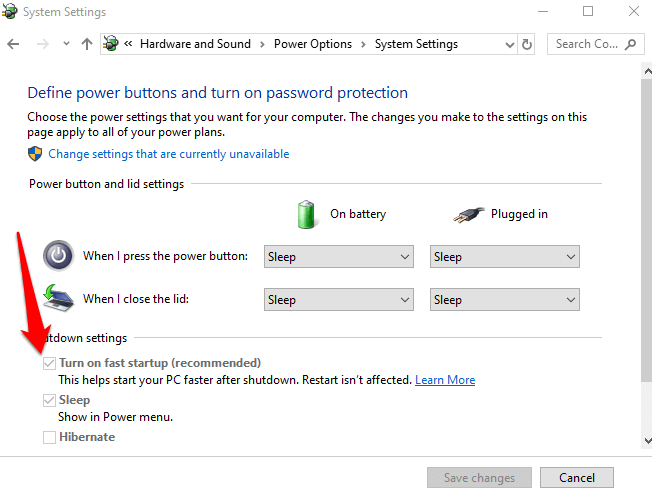
- Click Change Settings that are unavailable and uncheck the Fast Startup box if it’s selected, and click Save changes .
Check For & Uninstall Updates That Caused The Problem
If the fingerprint sign-in issues first started after installing Windows Updates, check for the installed updates and uninstall them.
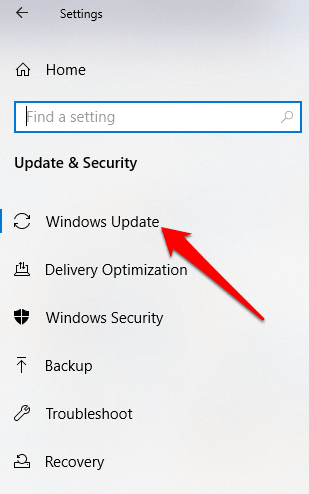
- Click Settings > Update & Security > Windows Updates .
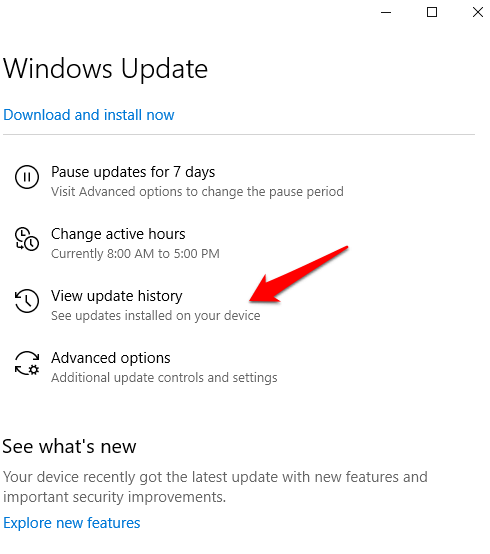
- Go to View Update History .
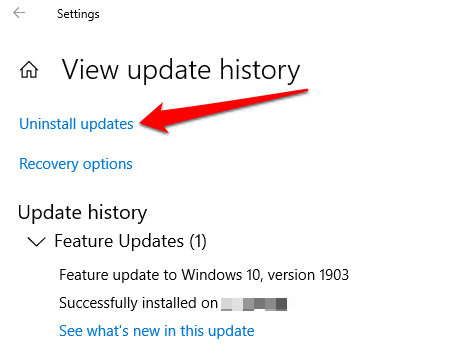
- Click the Uninstall Updates link.
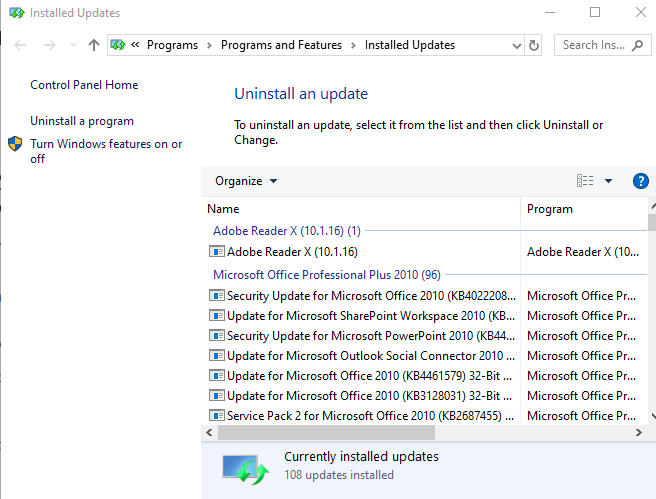
- A new screen will open showing the Installed Updates . Right-click each and select Uninstall .
- Restart your computer and check if Windows Hello fingerprint sign-in works again.
Reset Fingerprint Login
If the issue persists, you can reset your fingerprint login and see if that helps.
- In the search box, type sign-in and press Enter to open the Accounts menu.
- Go to Sign-in options and click Set up under the Windows Hello Fingerprint section.
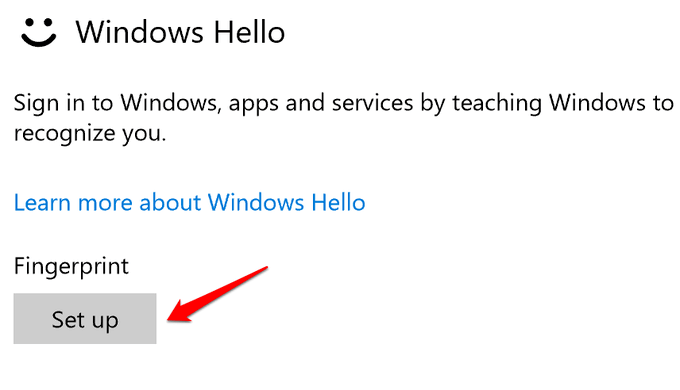
- Click Get Started and follow the instructions to set up your fingerprint sign-in again.
Reinstall Fingerprint Software
- Click Start > Settings > Apps . In Apps and Features .
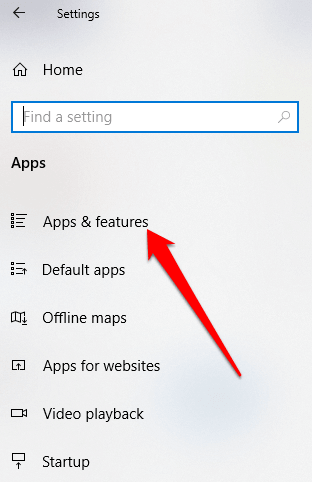
- Find your fingerprint reader and click on it. Click Uninstall and confirm the action.
- Right-click Start > Device Manager and expand the Biometric devices category.
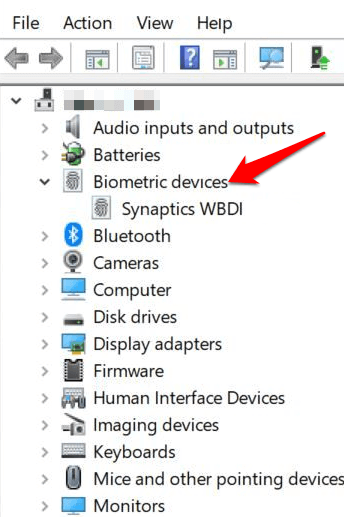
- Find your fingerprint reader, right-click, then select Uninstall device, and confirm the action.
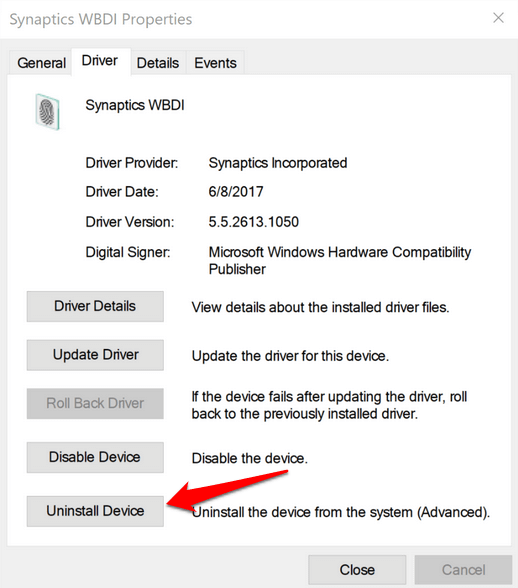
- Restart your computer to apply the changes and check if fingerprint works again.
- You can prevent your computer from disabling the fingerprint reader by going to Device Manager > Universal Serial Bus Controllers category and find the USB Root Hub .
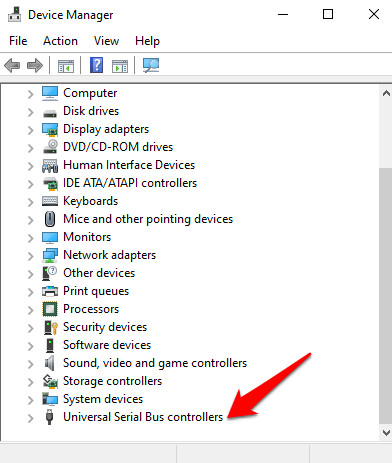
- Double-click USB Root Hub to open its Properties .
- Uncheck the Allow the computer to turn off this device to save power option box under the Power Management tab. Repeat for all USB Root Hub entries.
Repair System Files
File corruption is one of the causes of the fingerprint reader malfunctioning when you’re trying to sign in using the Windows Hello service. you can use the built-in System File Checker to rectify things.
- Type CMD in the search box and select Command Prompt>Run as administrator.
- In the Command Prompt dialog box, type sfc /scannow and press enter to run the command.
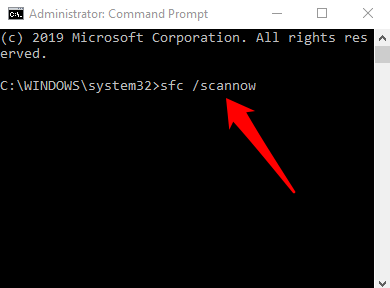
The system files will be scanned, after which you can restart your computer and see if the fingerprint issue is resolved.
Restart Credentials Manager Service
- Right-click Start > Run and type services.msc. Press Enter to open the Services window and search for the Credential Manager Service .
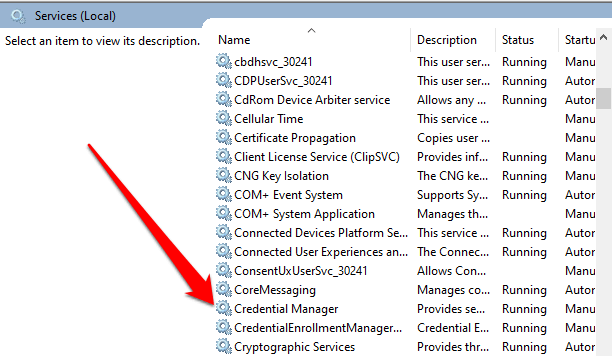
- Double-click the Credential Manager Service to open the Properties window and go to Service Status .
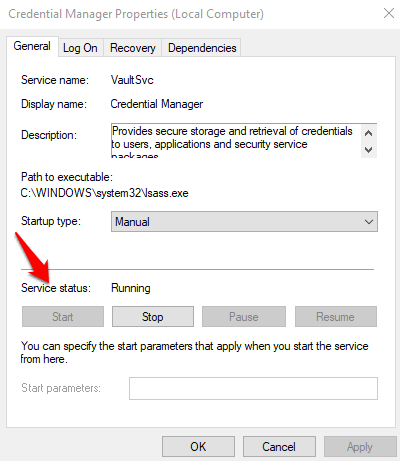
- Click Stop , and then click the Start button again to restart the service.
- Click Apply>OK and check if the fingerprint works again.
If nothing else works, you can switch to a different fingerprint reader.
- Preparing for Windows 10 End of Support: Upgrading to Windows 11
- How to Fix a “This file does not have an app associated with it” Error on Windows
- How to Fix an Update Error 0x800705b4 on Windows
- How to Resolve “A JavaScript error occured in the main process” Error on Windows
- How to Fix the Network Discovery Is Turned Off Error on Windows
Elsie is a technology writer and editor with a special focus on Windows, Android and iOS. She writes about software, electronics and other tech subjects, her ultimate goal being to help people out with useful solutions to their daily tech issues in a simple, straightforward and unbiased style. She has a BCom degree in Marketing and currently pursuing her Masters in Communications and New Media. Read Elsie’s Full Bio
