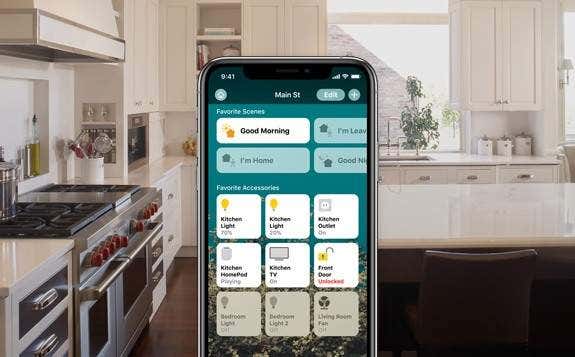
For iOS 10 and up, Apple users have access to an application, Apple Home , that gives you the ability to control a slew of smart-home appliances on a framework called HomeKit. What’s more, HomeKit can be controlled with Siri through your iPhone, iPad, Apple Watch, Apple’s smart speaker–Apple HomePod–as well as Apple TV.
Use the Home App Anywhere
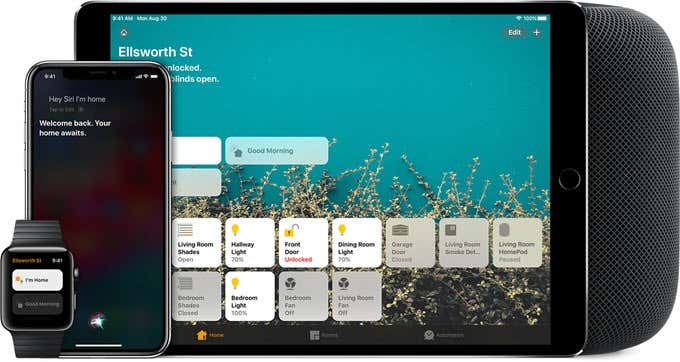
Whether it’s from your iPhone, iPad, MacBook, or Apple Watch–you can use the Home app to manage your HomeKit from any Apple device. This makes it easy to gain complete control over the smart-home accessories you purchase and connect as a HomeKit.
And you don’t just have to be sitting at home to turn on a light or make sure a door with a smart lock is, in fact, locked. You can manage things away from home through Apple TV, HomePod, or your iPad.
Apple Home is now one of the pre-installed apps users of newer iPhones get when they first power up their new device. It’s simple to set up and essentially ready to go when it comes to purchasing HomeKit appliances to control with it.
Set Up Your HomeKit
You can’t just hook up any smart appliance to your Apple HomeKit. It has to have the “Works with Apple HomeKit” label. But there are hundreds of available appliances to build a HomeKit with, from speakers to lights to thermostats and air purifiers, so no need to worry about limitations.
Hooking up these smart-home appliances to your HomeKit and controlling them with the Home app or by issuing commands through Siri from any device is simple. You can either hold your iPhone near the appliance or scan the setup code on the appliance or in its instructions. The appliance will then be paired with the device and available in your Home app.
Once the appliance is added you can edit its information, including its name and the room it’s used in. In fact, this is how the Home app organizes your smart-home appliances–by room–making it easy to control them based on where they’re located in your home.
Not only does the Home app allow you to keep track of your appliances as you build a network, but you can also list them as favorites if you often use them; create automated orchestrations of appliance functions; create device groups to control multiple appliances together (such as turning on several light fixtures); and even live stream a video feed of what’s going on at home (if you have security cameras, that is).
The HomeKit is a legitimate connected framework that you control or automate with one app, one virtual assistant, accessible from multiple Apple devices.
Orchestrate Scenes
Controlling your appliances is one thing, orchestrating them is another. The Home app lets you do both. Regarding the latter, you can use the Home app–you can also do this through Apple TV, HomePod, or your iPad–to automate the function of an appliance, or what Apple calls a “scene.”
A scene is multiple tasks and/or instances that are executed based on time, location or sensor detection, e.g. lights dimming and jazz kicking on through your HomePod at 7 p.m.
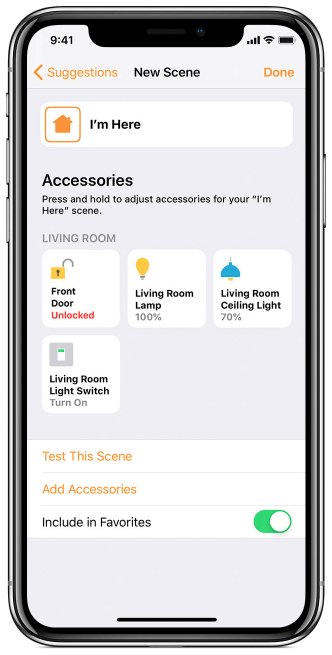
By issuing a single command through the Home app or Siri to kick off multiple appliance functions simultaneously, you don’t have to worry about things like turning off all the lights before you leave for the day or making sure every door is locked.
Simply pressing a button in the Home app or commanding Siri to do this ensures these tasks are taken care of for you. And before you save any scenes you create, you can test them to ensure they go as planned.
Get Smarter About Your Home
The way things are going, digitizing your home with smart-home devices is becoming the norm. But these frameworks can become expensive and intricate over time, which makes deciding which provider you enable your home with pretty important.
For Apple users, that decision might be a little easier knowing they already have the base capabilities for this kind of setup right at their fingertips with Apple Home.
- How to Reset Your HomePod or HomePod mini
- How to Set Up and Use Apple Home Sharing on Your Mac or PC
- How to Set Up and Use Home Sharing on Your Apple TV
- How to Attach an External USB Hard Drive to your AirPort Extreme
- Fix Apple Watch Charging Problems (All Models)
