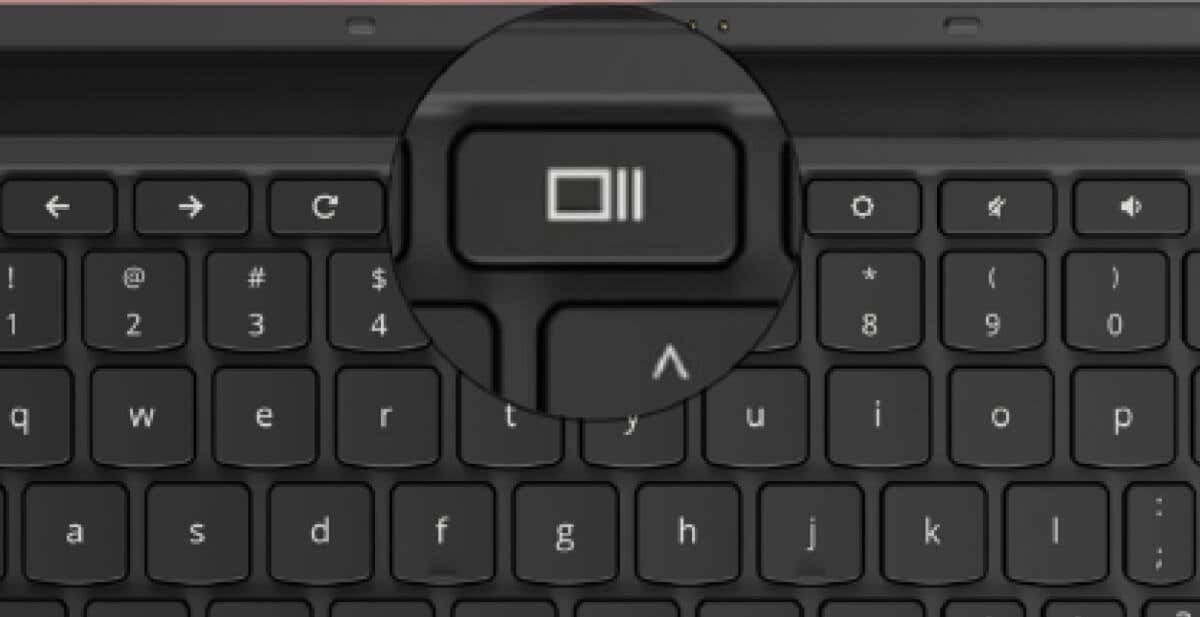
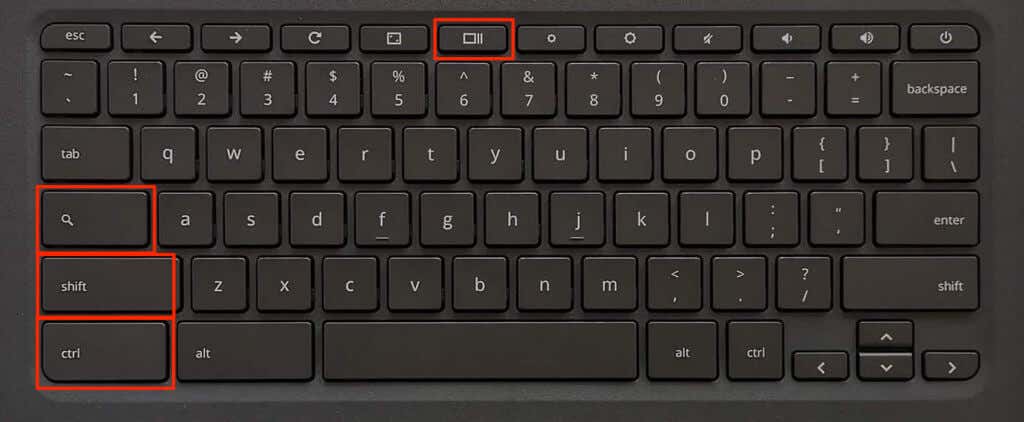
The “Show Windows” key has a rectangle and two vertical lines to the right. The key is on the top row of your Chromebook’s keyboard , between the full-screen and brightness reduction keys.
It doubles as the F5 or Refresh key and is sometimes called the Windows Switcher, Overview, or Launcher key. This tutorial covers everything you can do with the Show Windows key on your Chromebook.
What Does the Show Windows Button Do?
The primary purpose of the “Show Windows” key is to provide a bird’s-eye view of all open applications or windows on your Chromebook.
When you press the Show Windows button, ChromeOS displays a thumbnail view of active applications or windows. Press the Show Windows key again to close the overview screen.
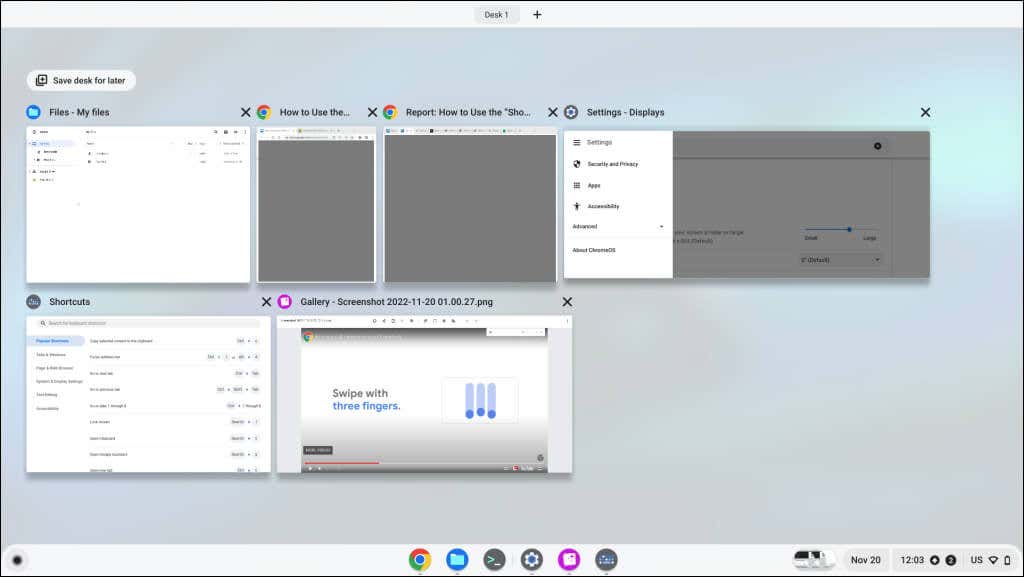
From the overview screen, you can:
- Create and manage virtual desktops (desks) .
- Drag apps into split-screen mode.
- Close unneeded applications: Select the X icon in the top-right corner of an app’s thumbnail to close the app.
- Switch between applications: Select an app or window thumbnail to bring it to the foreground.
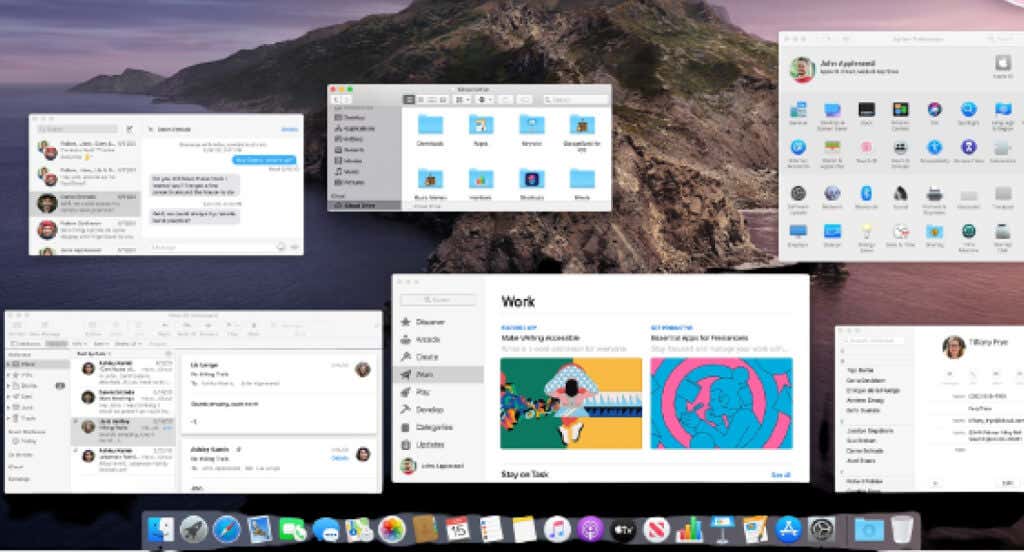
The Show Windows key performs the same function as the Mission Control key on Apple keyboards and MacBook Touch Bars. The Task View icon is the Windows equivalent of the Show Windows key.
Alternative Ways to Show All Windows on Chromebooks
Pressing the Show Windows key is the quickest way to view all open applications. However, you can also open the overview screen by swiping your Chromebook’s touchpad or touchscreen.
Use Your Chromebook’s Touchpad
Place three fingers on your touchpad and swipe up in a single motion. Chrome OS will display all open Windows on your screen. Swipe down three fingers on the touchpad to close the overview screen.

Use Touchscreen Gestures
On touchscreen-enabled Chromebooks, swipe up from the bottom of the screen and hold in the middle of the screen.
Capture Screenshots Using the Show Windows Key
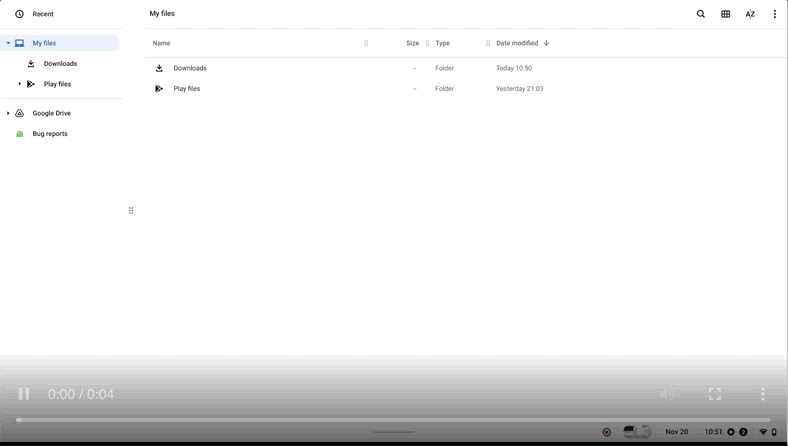
You need the Show Windows key to capture full screenshots and launch the screen capture tool using your keyboard.
Press the Ctrl + Show Windows keys to capture a full screenshot.
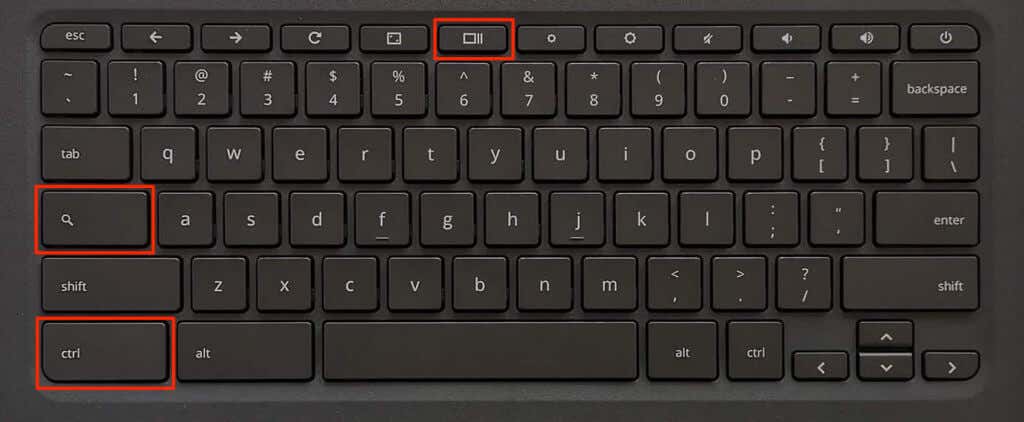
Press Shift + Ctrl + Show Windows key to open the screen capture tool.
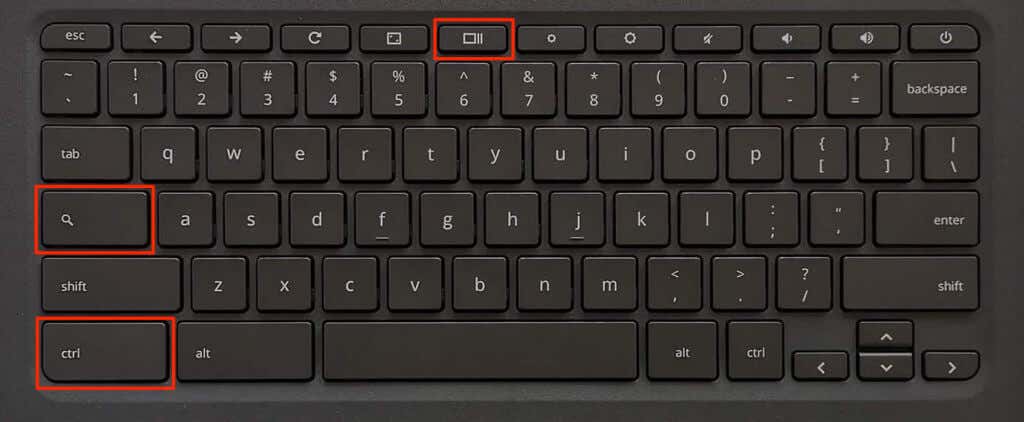
You can capture partial screenshots, window screenshots, and record your screen from the screen capture tool. Refer to this Chromebook Help Center webpage to learn about the screen capture tool.
Show Windows Key Not Working? Try These Tricks
The Show Windows key won’t work if ChromeOS treats the top row as function keys. To get the key working again, you can either disable the function keys or alternate the behavior of the top-row keys.
Disable Function Keys on Your Chromebook
Go to Settings > Device > Keyboard and toggle off Treat top-row keys as function keys .

Your Chromebook should now display the overview screen when you press the Show Windows key.
Alternate Your Chromebook’s Top-Row Keys
Holding the Search key switches the behavior of the top-row keys. That allows you to use the unique keys on your Chromebook keyboard without disabling the function keys.
With the top-row acting as function keys, hold the Search key and press the Show Windows key to open the overview screen.
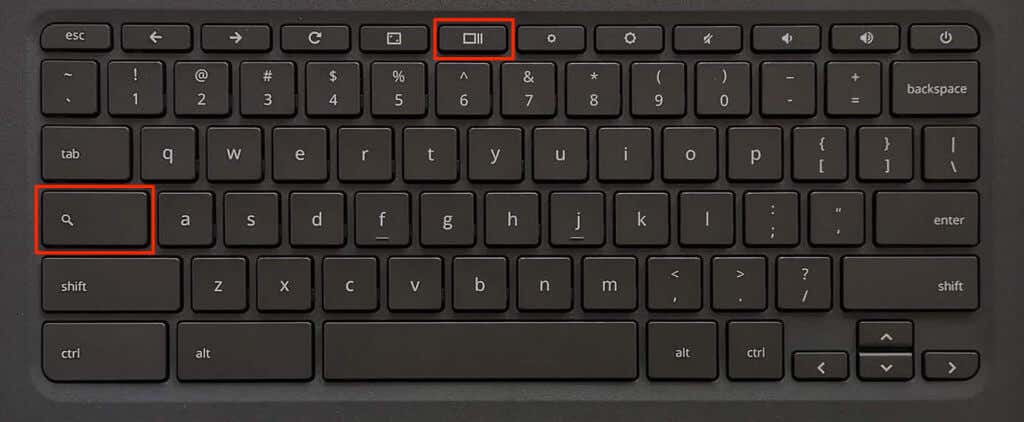
Hold the Search key and press Ctrl + Show Windows to take a full screenshot.
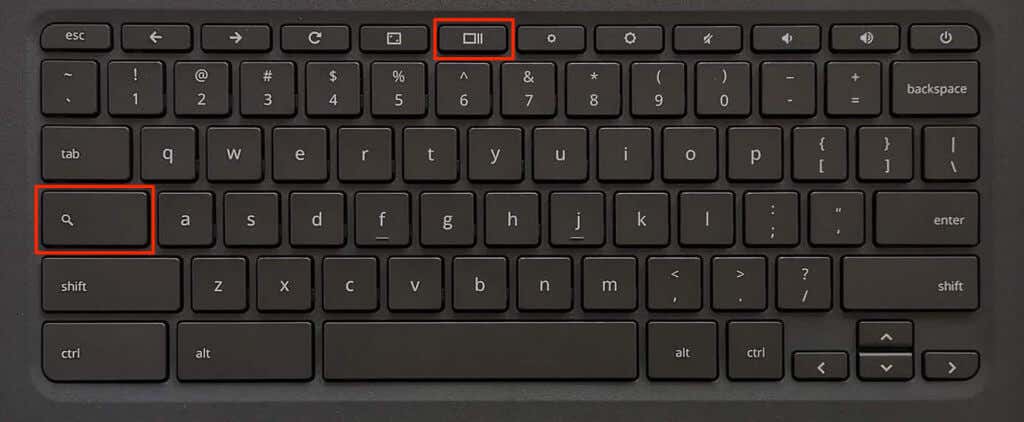
To open the screen capture tool, hold the Search key and press Ctrl + Shift + Show Windows .
Pro Tip: Press Ctrl + Alt + / (forward slash) to see all Chromebook keyboard shortcuts.
Reboot your Chromebook or update its operating system ( Settings > About ChromeOS ) if the Show Windows key still doesn’t work. Contact your device manufacturer or powerwash (factory reset) your Chromebook as a last resort.
Do More With Show Windows
That’s all there is to know about the Show Windows key on your Chromebook. Get the hang of the Show Windows key, and you’re one step closer to becoming a power Chromebook user .
- Top 4 Ways to Fix Chromebook White Screen Issues
- Chromebook Keeps Turning Off? 9 Fixes to Try
- How to Install and Use VirtualBox on Your Chromebook
- How to Install and Run Windows Apps on Your Chromebook
- How to Play Videos on Chromebooks (And the Best Video Players to Use)
Sodiq has written thousands of tutorials, guides, and explainers over the past 4 years to help people solve problems with Android, iOS, Mac, and Windows devices. He also enjoys reviewing consumer tech products (smartphones, smart home devices, accessories, etc.) and binge-watching comedy series in his spare time. Read Sodiq’s Full Bio
