One of the most common printing issues that HP printer users report is that their printer will not print black ink. There are a few reasons this might occur, including incorrect printhead alignment, faulty or empty black color printer cartridges, and more.
In this article, we’ll cover ten common printer errors that can cause your HP Printer to stop printing black and explain how to fix them. These methods might also help with color ink or color cartridge issues.
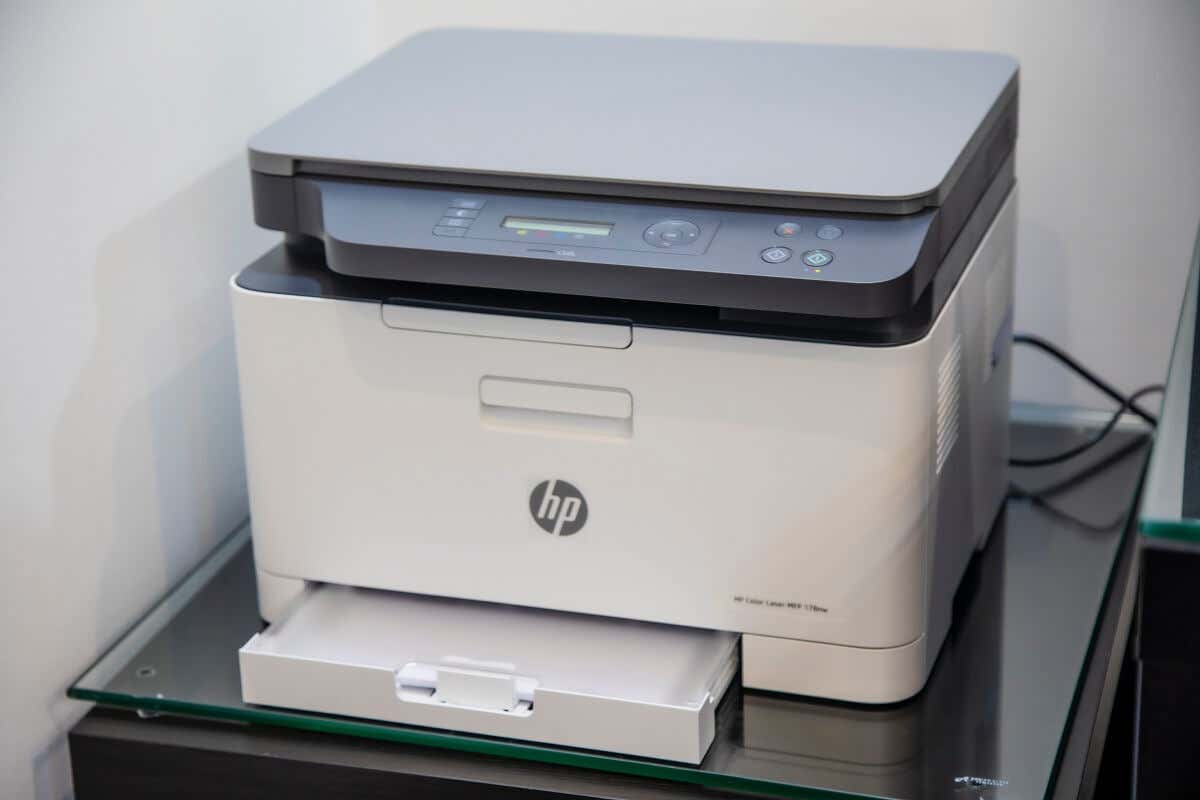
10 Ways to Fix Your HP Printer When It’s Not Printing Black
Below, we cover 10 different methods to troubleshoot your HP color printer. We begin with the easiest and most probable fixes, so start at the top and work your way down.
Note: Your printer problems might be associated with a specific error message. If so, check out our troubleshooting guides for “ Printer Status Unknown ” and “ Driver Is Unavailable .”
1. Make Sure You Have Ink or Toner
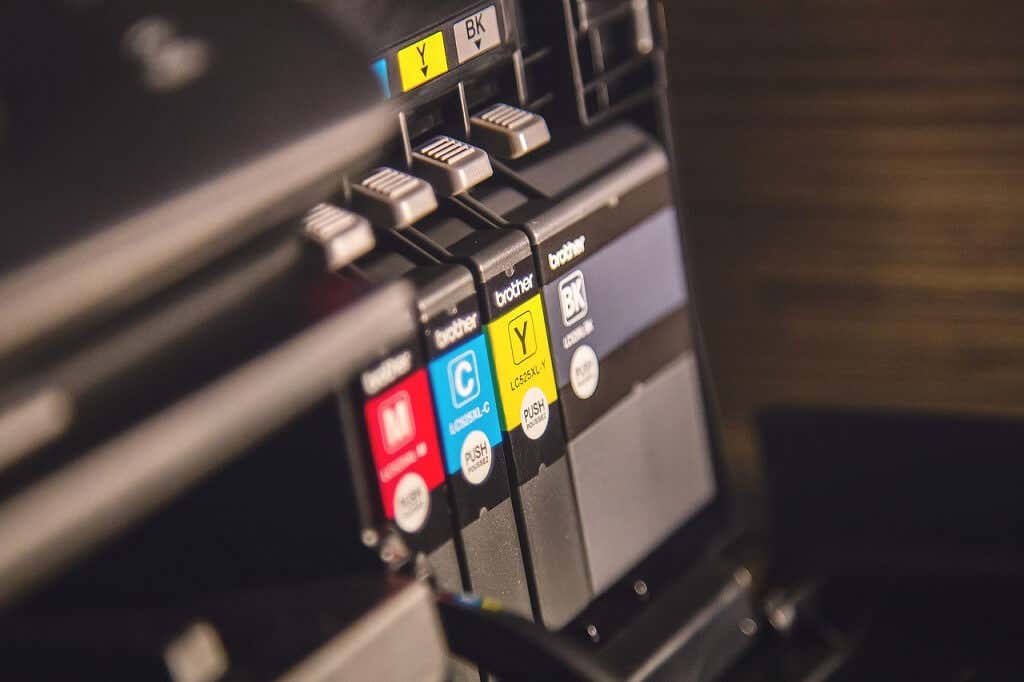
This may seem obvious, but if your HP Printer won’t print black, it might be low on ink or toner. Whether your printer requires ink or toner will depend on the model. HP DeskJet, HP Envy and HP Officejet, and HP InkJet Printers all use ink. HP LaserJet printers use toner.
The first thing to do is check your ink levels. Your printer cartridge doesn’t need to be completely out of ink to stop printing in that color—just very low. If there’s an exclamation mark beside the ink level indicator for black, you need to insert a new cartridge.
Keep in mind that if your printer sensors are faulty, they may show that you have ink even when you don’t. So, even if your printer says it has ink, insert a new printer cartridge to test whether it’s an empty cartridge at fault.
2. Clean the Printhead
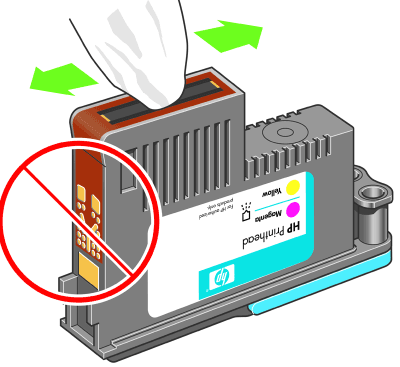
A clogged printhead nozzle can prevent your printer from printing black ink. Fortunately, this is an easy fix. Printhead cleaning is available in the Printer Maintenance menu or HP printer’s control panel under Deep Cleaning or Clean Printhead .
Select the appropriate option on your printer and allow the cleaning process to take place. This may take a while. The printer will then usually print a test page to see if the issue has been resolved. You may need to do this a few times to restore print quality fully.
To prevent clogging in the future, avoid going for long periods of not using your printer, and do not use third-party black ink cartridges.
Note: Another common error HP users get is that they have “Missing or Failed Printheads.” See how to fix this error if it occurs .
3. Clean the Cartridges
If you have cleaned the printhead a few times and are having no luck, it may be worth cleaning the cartridges themselves. Printer cartridges can become clogged or dry out, causing that color to fail.
The easiest way to clean cartridges is to wipe the nozzle plate (where the ink comes out) with some isopropyl alcohol. If this doesn’t work, your cartridge may be dry. Pour some boiling water into a container and submerge about a quarter of the cartridge face down. Leave until the water cools. Dry the cartridge and reinsert it into the printer as normal.
4. Use the HP Smart App
The HP Smart App is available for some HP users and can be used to troubleshoot various printing issues. Most Wi-Fi-enabled HP printers manufactured after 2010 are compatible with this app.
- Open the HP Smart app on your device.
- Select the three bars on the left-hand side to open the home menu.
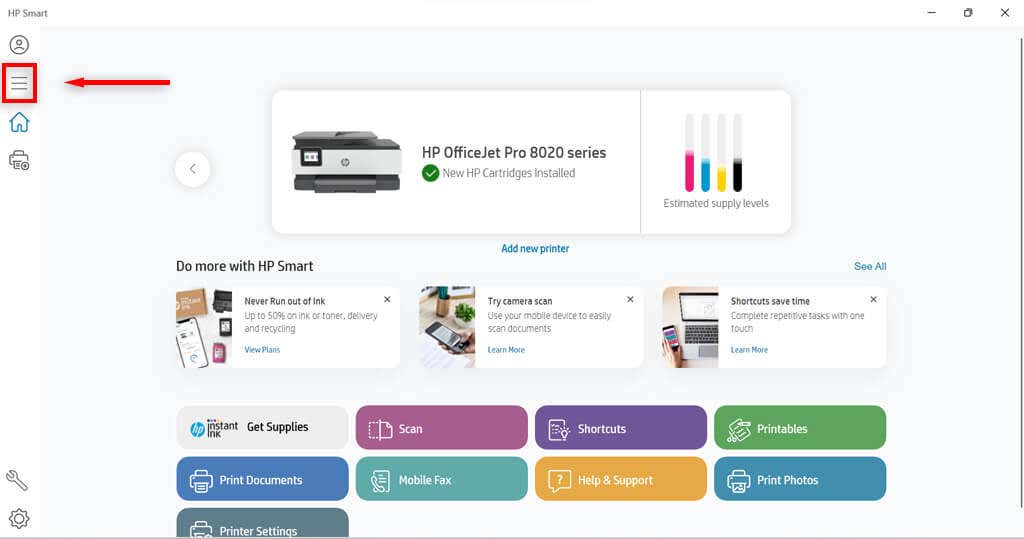
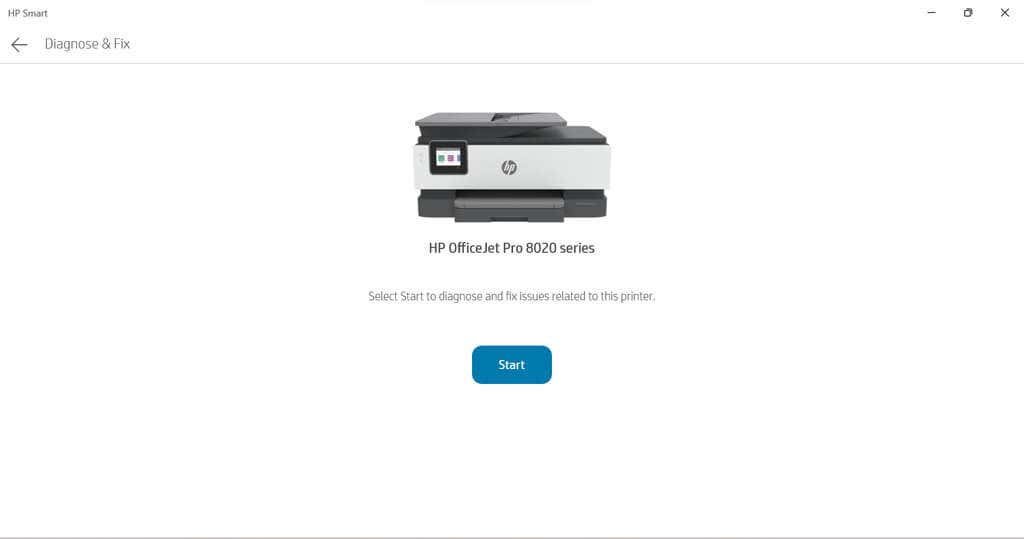
- Select Diagnose and Fix.

- Select Start . Follow the instructions from the troubleshooter.
5. Use the Windows Printer Troubleshooter
Windows users can also use the Printer Troubleshooter to see what may be causing the issues.
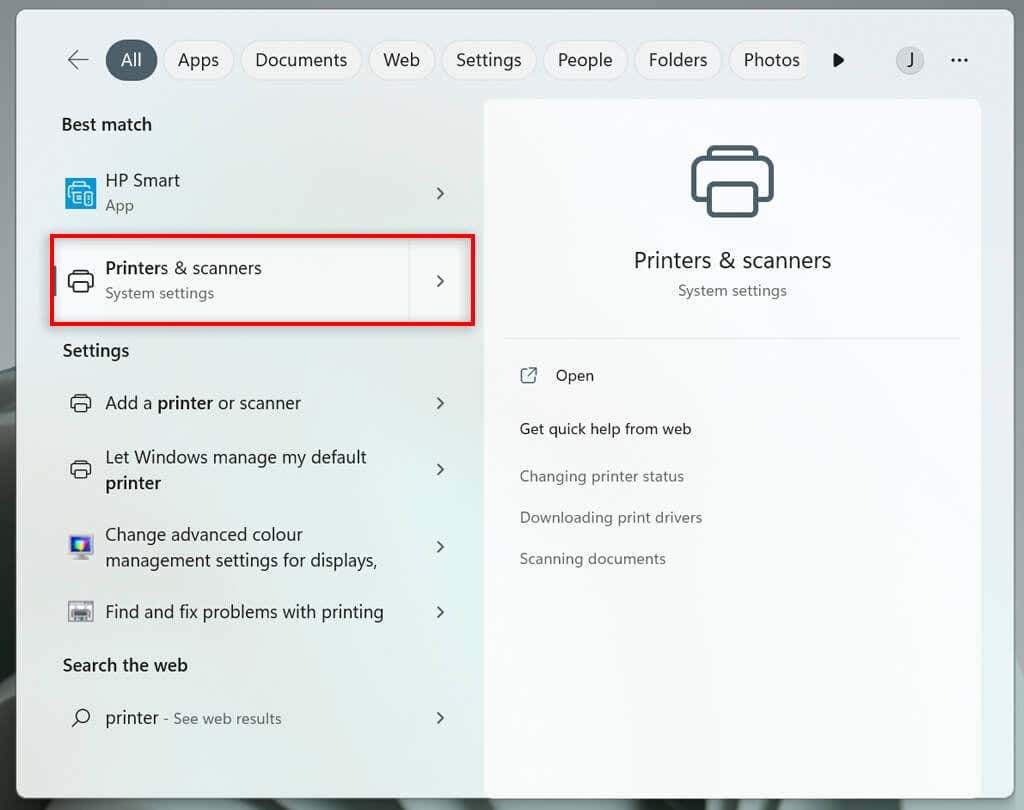
- Type Printers and scanners into the taskbar and select Printers & scanners .
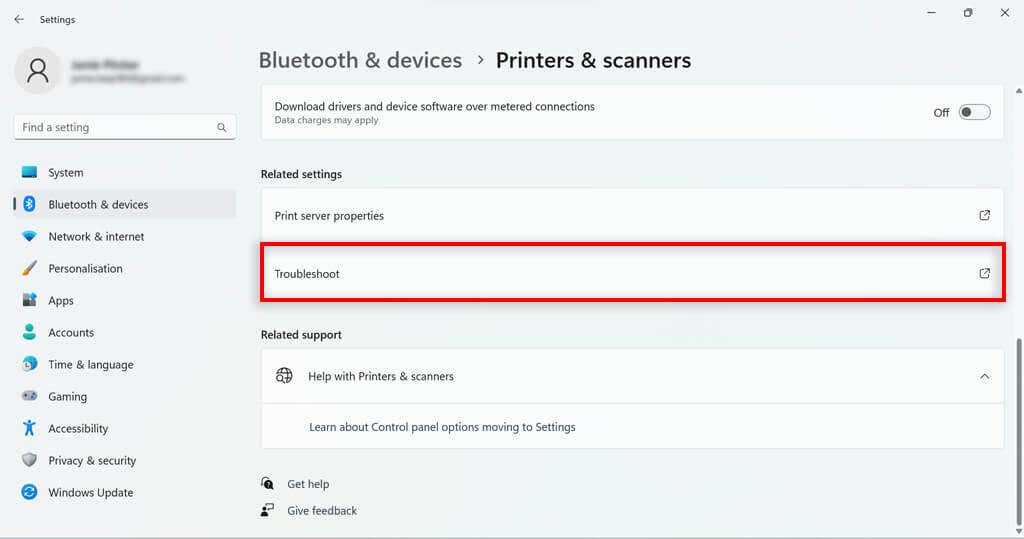
- Under related settings, select Troubleshoot .
- Choose your HP printer model . This should be listed in the troubleshooter’s window.
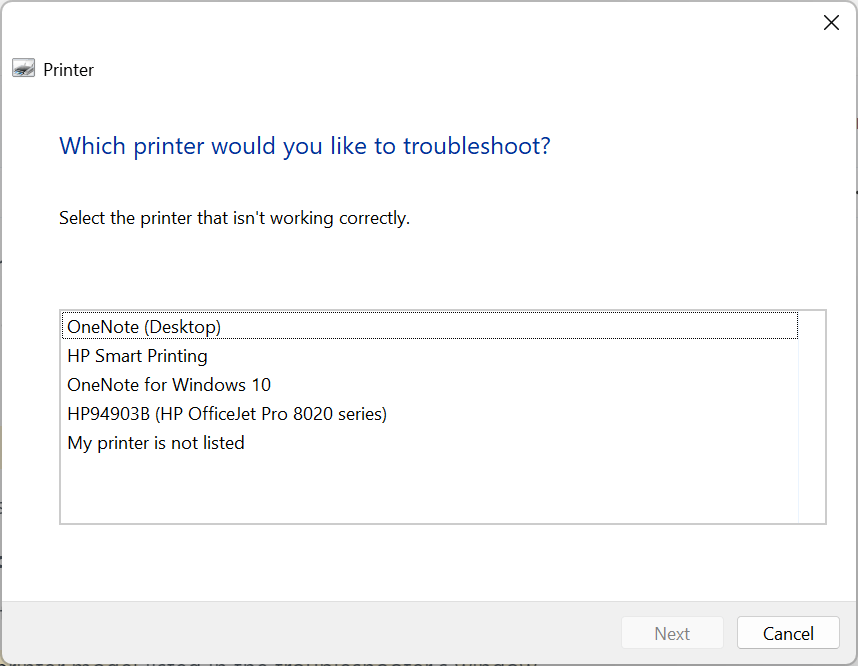
- Select Next .
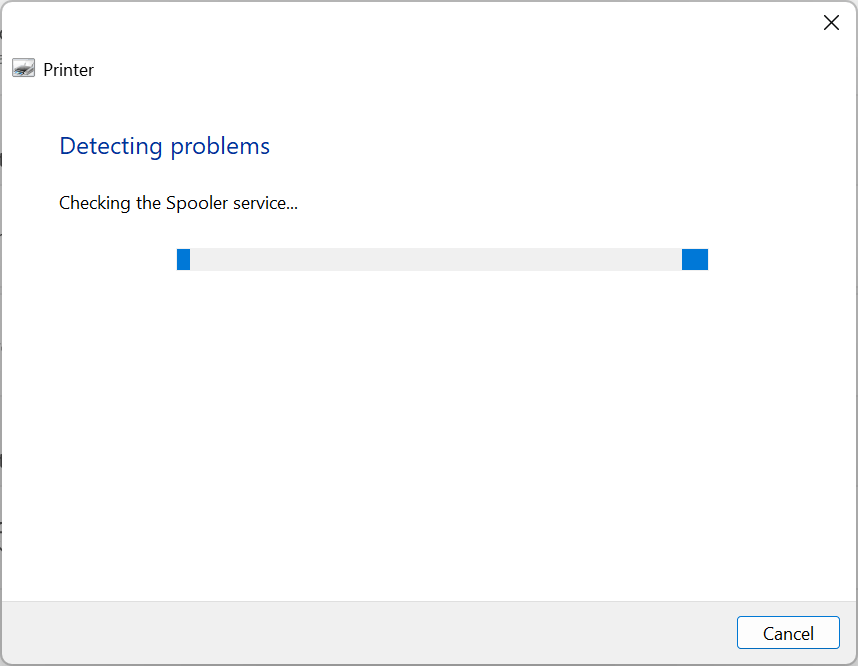
- Follow any instructions in the diagnostic report.
If Windows identifies any problems with the software or printer driver, it will fix them or recommend actions for you to take.
6. Use the HP Print and Scan Doctor
For those with models that aren’t compatible with HP Smart, there is another piece of software that may be helpful. If you don’t have it already, you can download the HP Print and Scan Doctor software here .
- Open the HP Print and Scan Doctor software.
- Select Start to choose your HP printer, and then select Next .
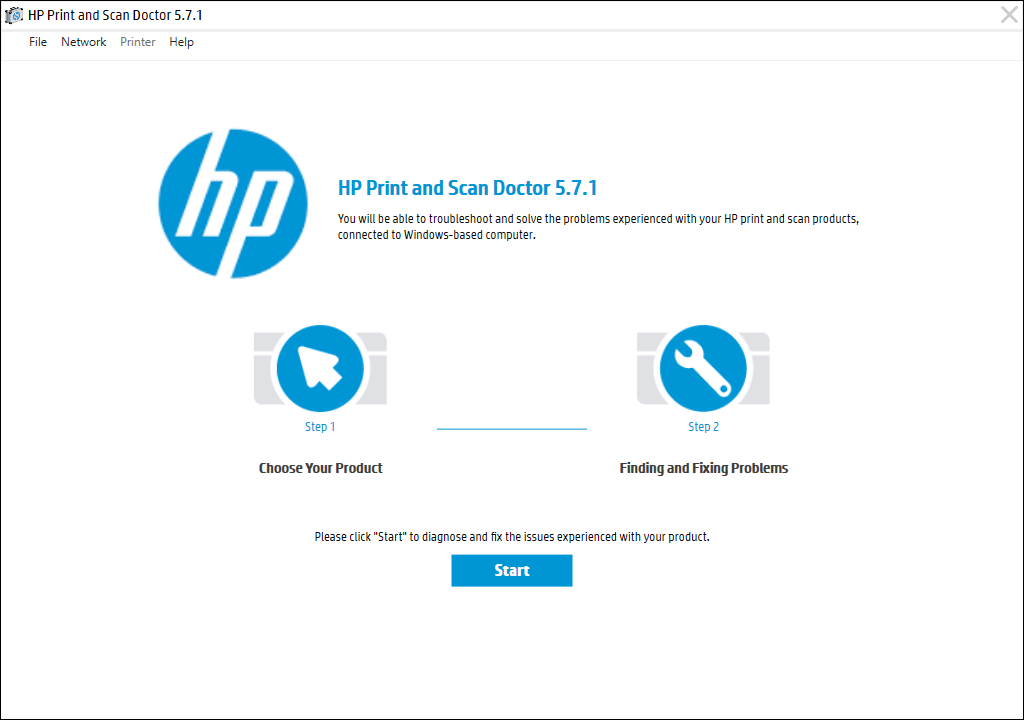
- Select the Fix Printing option.
- Follow the troubleshooting instructions.
7. Use Genuine Hewlett-Packard Cartridges
Third-party ink cartridges, while usually cheaper, don’t always work so well on HP printers. Sometimes the cartridge is faulty, other times it is not compatible with the HP software.
If you’re using a third-party ink cartridge, and having printing problems, try replacing it with an official HP ink cartridge.
8. Align the Printhead
A printer might not print black ink if it has not been calibrated properly. Calibrating your HP Printer by aligning its printhead may fix these issues.
HP printers have an Align Printhead option in their Printer Maintenance menu or within the Control Panel menu that can be used to calibrate the printer.
When you select the Align Printhead option, the printer will print an alignment page and prompt you to make changes based on the outcome of the alignment printout. The actual process will depend on your model. Refer to your HP printer manual for specific printhead alignment guidelines.
9. Check the Paper Type

If you’re printing in black and white and getting blank pages (or it won’t print at all ), the issue may not be the ink but the paper. Try inserting plain paper rather than any specialty paper and see whether the issue is resolved.
If the printer prints fine on normal paper, you might need to adjust your paper settings. Make sure that the paper selected in your printer settings for the print job matches the paper type you’re trying to print on.
10. Contact HP Support
If all else fails, it’s time to contact customer service. You can access HP Support here . Select Contact Us to get in contact with an HP staff member that can hopefully talk you through your printer problems.
Print it Black
Hopefully, the above solutions have helped you fix your HP printer so that it prints in black once again. If they don’t help and HP support is unable to identify the problem, the printer itself might need repairing.
Users can return HP printers within their warranty periods to the manufacturer for repairs. So check the warranty period of your printer to see if you can return it.
- How to Fix the “Error – Printing” Status Error in Windows
- How to Fix Missing or Failed Printhead Error on HP Printers
- How to Add a Printer to Your Chromebook
- How to Fix the Printer Error “0x0000011b” on Windows
- How to Fix HP “Printer Status Unknown” Error
Jake Harfield is an Australian freelance writer whose passion is finding out how different technologies work. He has written for several online publications, focusing on explaining what he has learned to help others with their tech problems. He’s an avid hiker and birder, and in his spare time you’ll find him in the Aussie bush listening to the birdsong. Read Jake’s Full Bio
When HP Smart displays the “Printer status unknown” error, the app can’t communicate with your printer. Issues with your printer connection, firmware, or driver are often responsible for this error message. However, several other factors could also trigger it.
This tutorial covers seven ways to fix the “Printer status unknown” error in the HP Smart app for Windows.
Before you proceed, verify that your printer is compatible with the HP Smart app. Most wireless printers manufactured in 2009 or earlier aren’t supported. Visit this MyHPSupport webpage to check if the HP Smart app supports your printer model.
Reboot Your Devices
Restarting your printer and computer can set things right with the HP Smart application. Unplug the printer’s power cable and plug it back after a few seconds.
Power on the printer and check if the HP Smart app identifies your printer. Reboot your computer if the error message persists.
Use HP Diagnostics Tools
The “Print and Scan Doctor” app can diagnose and fix common problems with HP printers and scanners in minutes. Download and run the HP Print and Scan Doctor app, connect your printer to your PC and follow the diagnostic instructions.
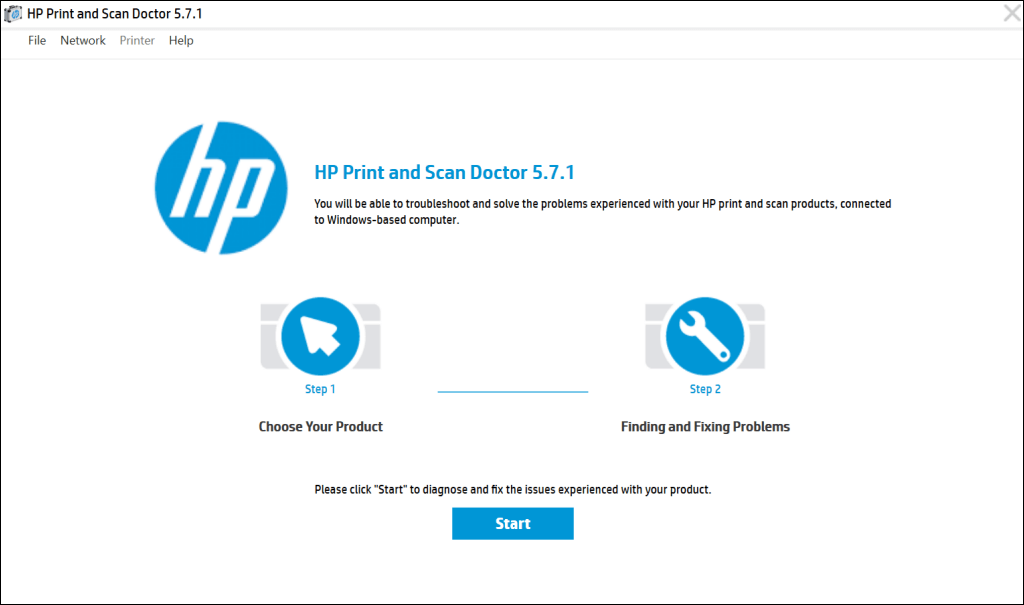
HP Support Assistant is another diagnostic tool for troubleshooting HP printers in Windows and ChromeOS. The app is pre-installed on new HP notebooks and desktop computers. If you have a non-HP PC, download the HP Support Assistant tool from HP’s website.
Get Your Printer Online
HP Smart app might display the “Printer status unknown” error message if your printer is idle or offline. If your printer goes into sleep or standby mode after a period of inactivity, press the power button to “wake” it. Depending on your printer model, starting a print job from your computer will also wake it from sleep mode.
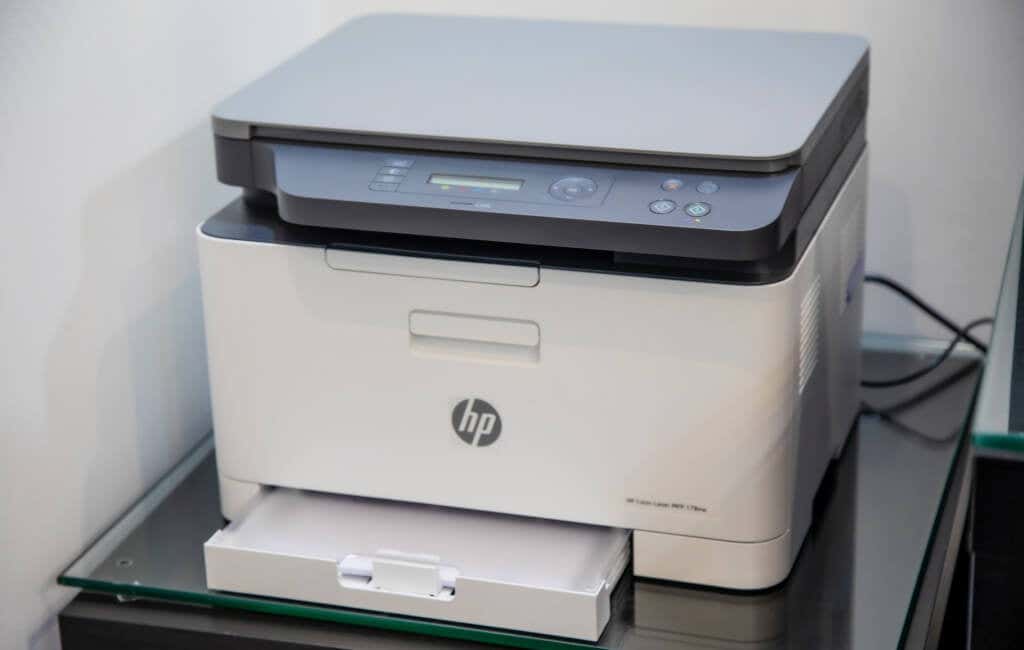
Additionally, ensure your printer and computer are on the same network (Wi-Fi or Ethernet) as your computer. Interference from nearby devices (microwave, telephones, etc.) and network issues can cause your printer to go offline. Reboot your router and disable any firewall or virtual private network (VPN) on your computer to get your printer online.
Refer to our tutorial on getting an offline printer back online for more troubleshooting solutions. Also, try these troubleshooting fixes for common printer problems in Windows 10 and 11.
Update Your Printer’s Firmware
HP releases periodic firmware updates for its printers. These updates help fix malfunctions and help you get the most out of your HP printer.
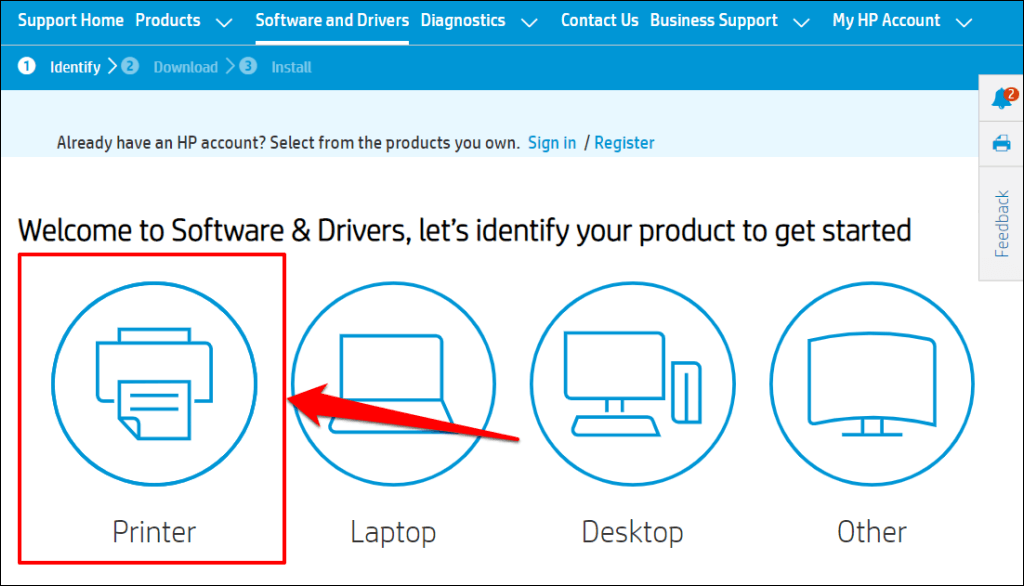
- Head to the Software and Driver Downloads page on HP’s website and select Printer .
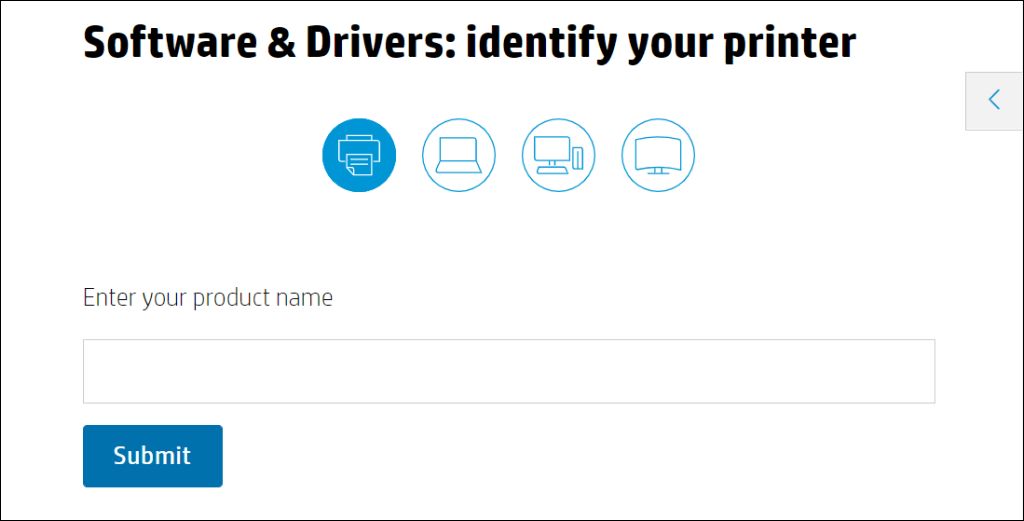
- Enter your printer’s name or model in the dialog box and select Submit .
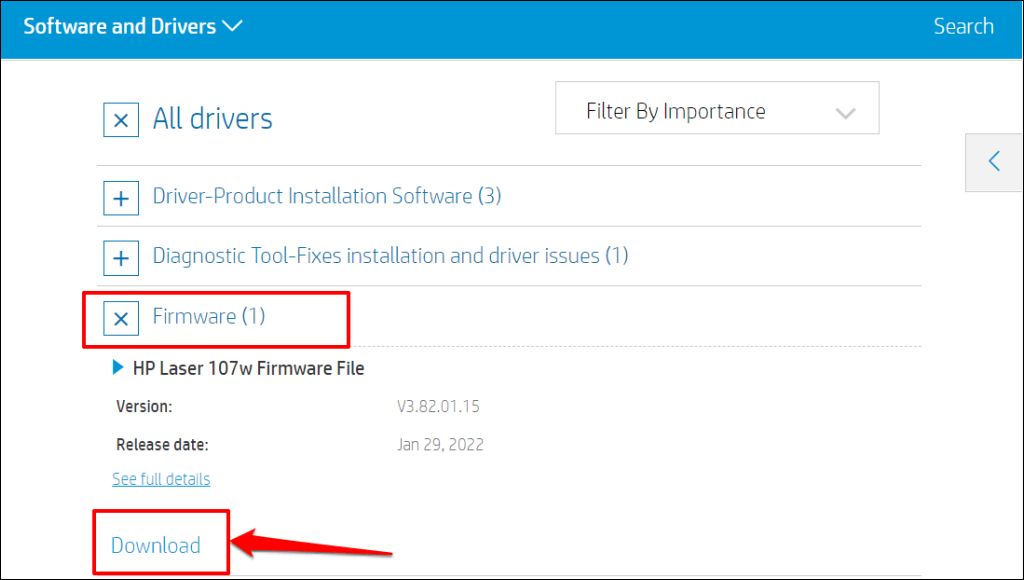
- Expand the “Firmware” section and download the latest version available for your computer.
- Unzip the downloaded file and open the attached PDF file to learn how to install the firmware upgrade.
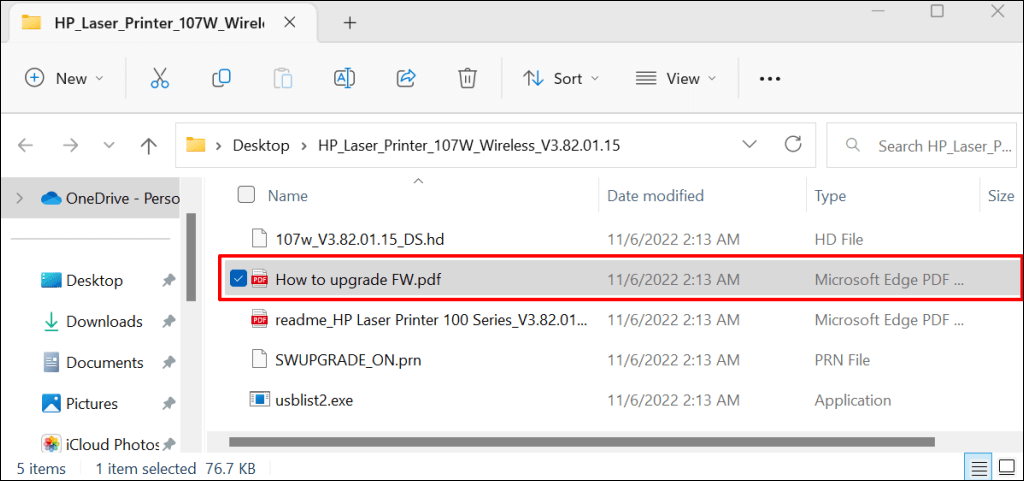
Refer to this HP Support tutorial to learn other ways to update the firmware on your HP printer.
Repair and Reset the HP Smart App
Windows has a built-in repair tool that diagnoses and fixes apps that aren’t working right. Repair the HP Smart app if it doesn’t recognize your printer. Reset the app if the “Printer status unknown” persists after the repair operation.
Close the HP Smart app and follow the steps below to repair or reset the app.
- Go to Settings > Apps > Installed apps , select the three-dot icon next to the HP Smart app, and select Advanced options .
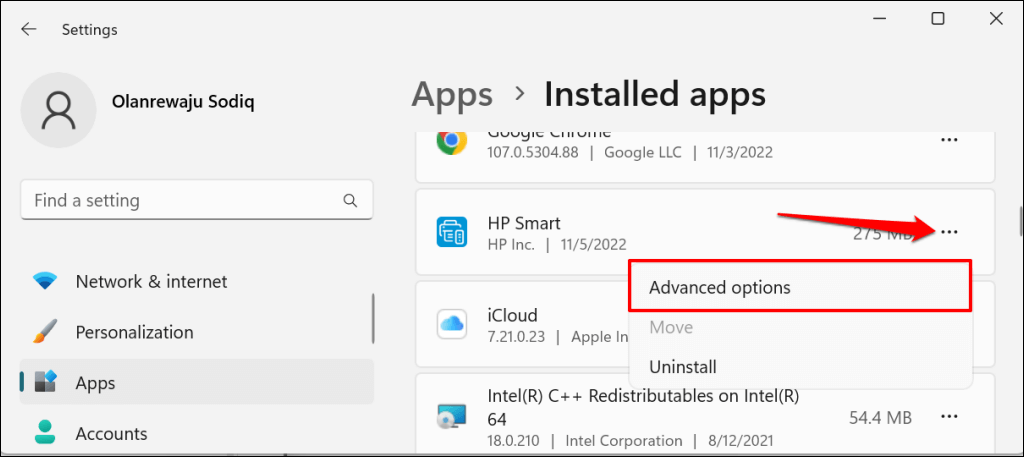
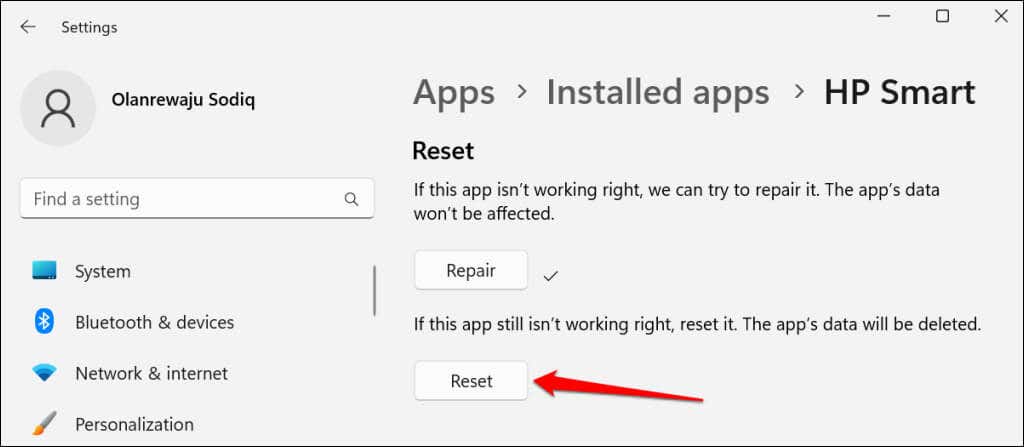
- Scroll to the “Reset” section and select the Repair button.
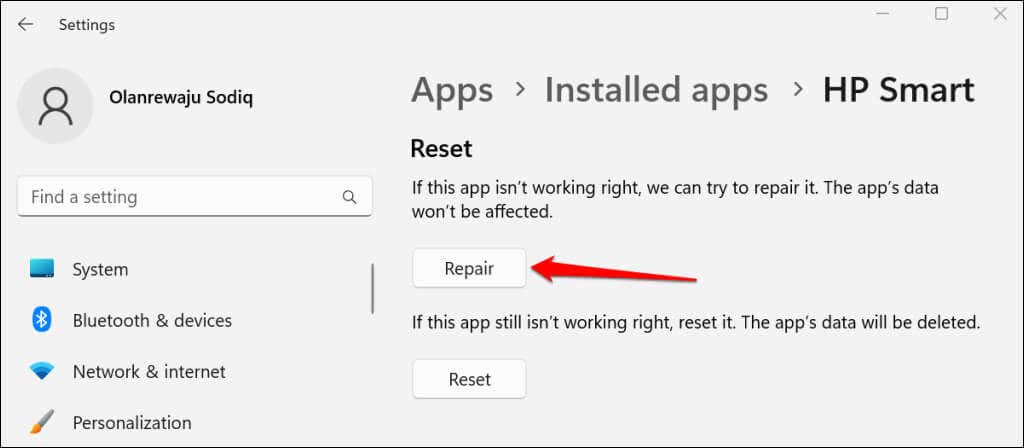
When the repair operation is complete, you’ll see a checkmark next to the Repair button. Relaunch the HP Smart app and check if the app now detects your printer.
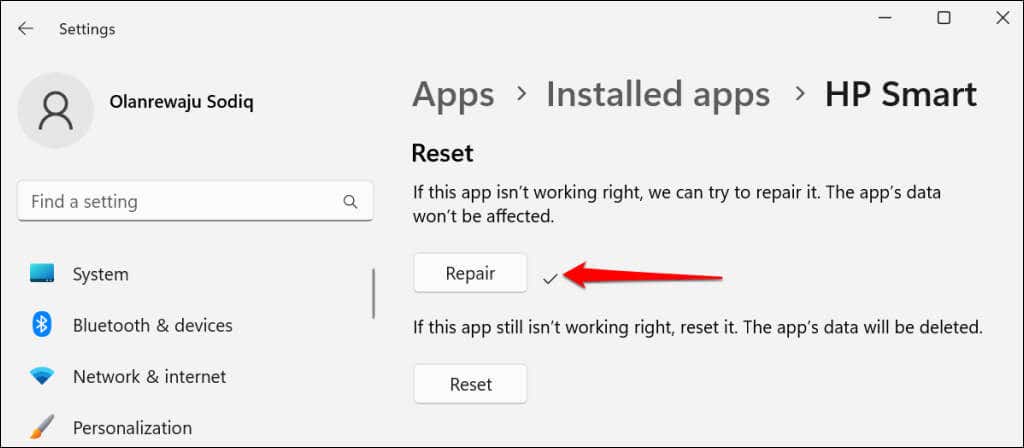
Close and reset the app if it still displays the “Printer status unknown” error. Resetting HP Smart deletes the app’s data, so you’ll need to set up your printer from scratch.
- Select the Reset button to reset the HP Smart app to its default settings.
- Select Reset on the pop-up to continue.
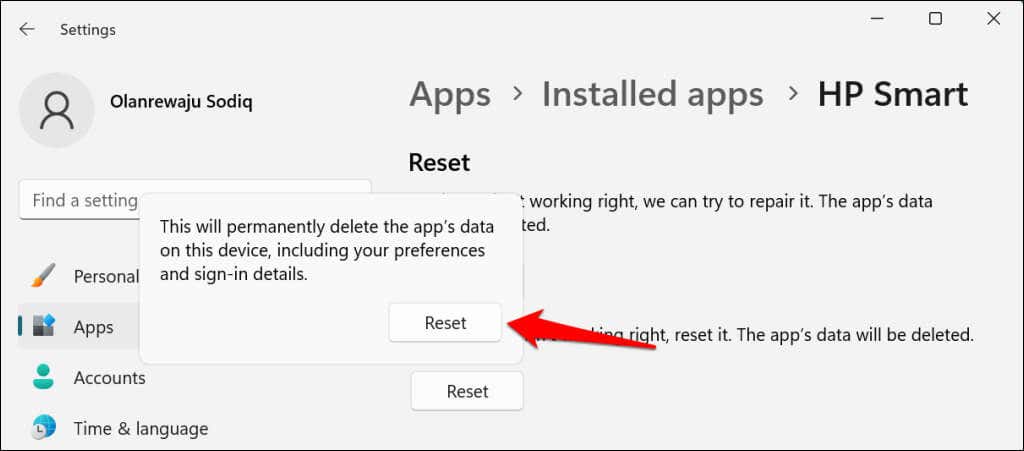
Relaunch HP Smart when you see a checkmark next to the reset button. Delete and reinstall the application if the issue persists.
Reinstall the HP Smart Application
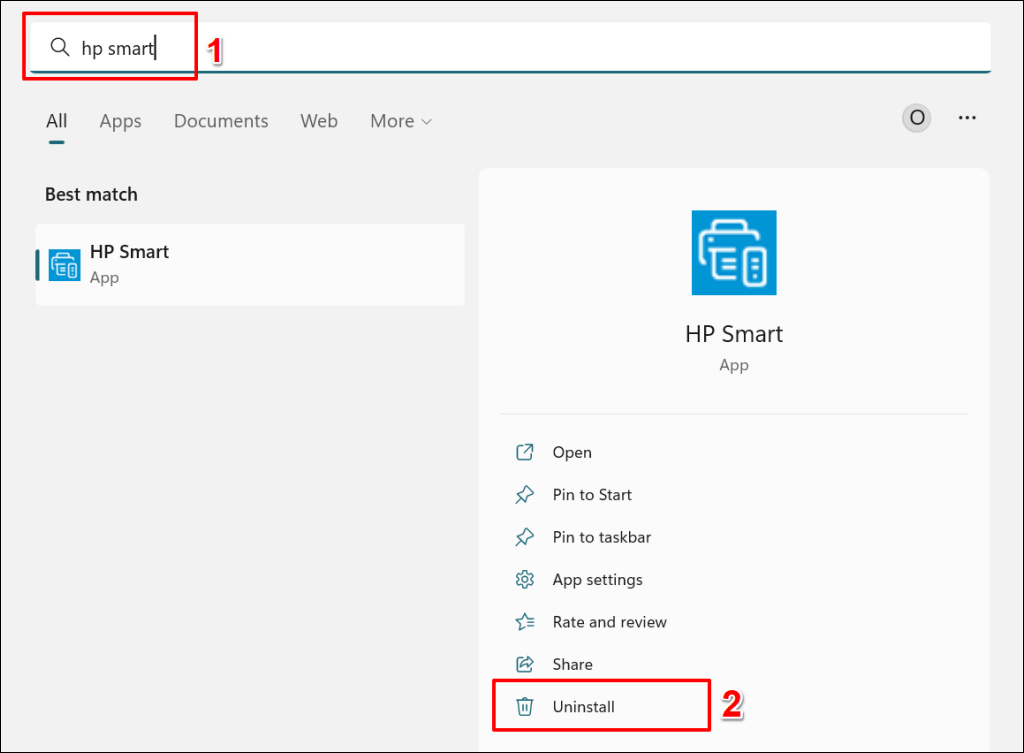
Open the Start menu , type hp smart in the search bar, and select Uninstall below the HP Smart application.
Select Uninstall on the pop-up to remove HP Smart and its data from your computer.
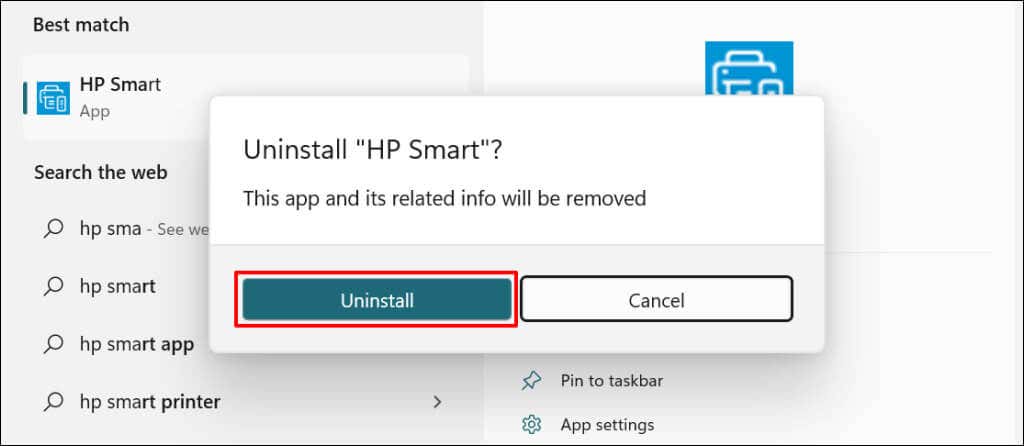
Reboot your computer, download the HP Smart setup file, and reinstall the app on your PC. Add your printer to the HP Smart app again and check if that resolves the “Printer status unknown” error.
Remove and Reinstall Your Printer
The HP Smart app may malfunction if your printer drivers are corrupt or obsolete. Delete the printer and its driver from your computer and set up the printer from scratch.
- Go to Settings > Bluetooth & devices > and select Printers & scanners .
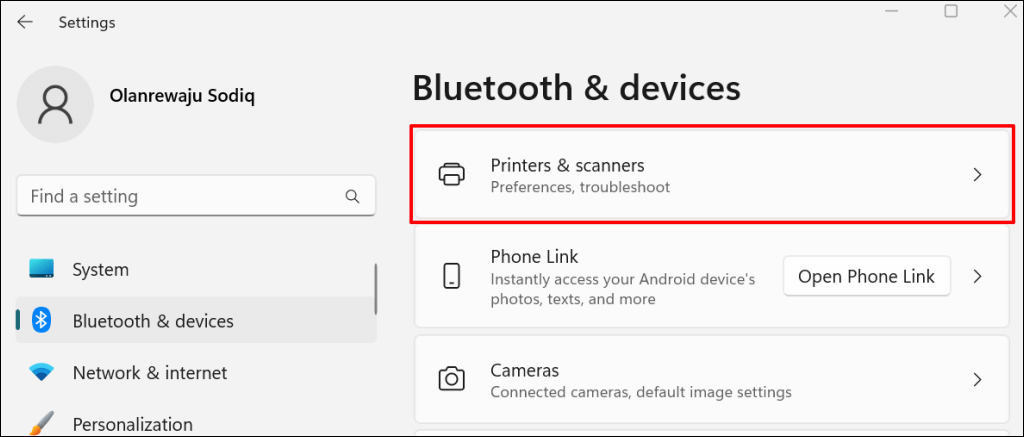
- Select the affected printer.
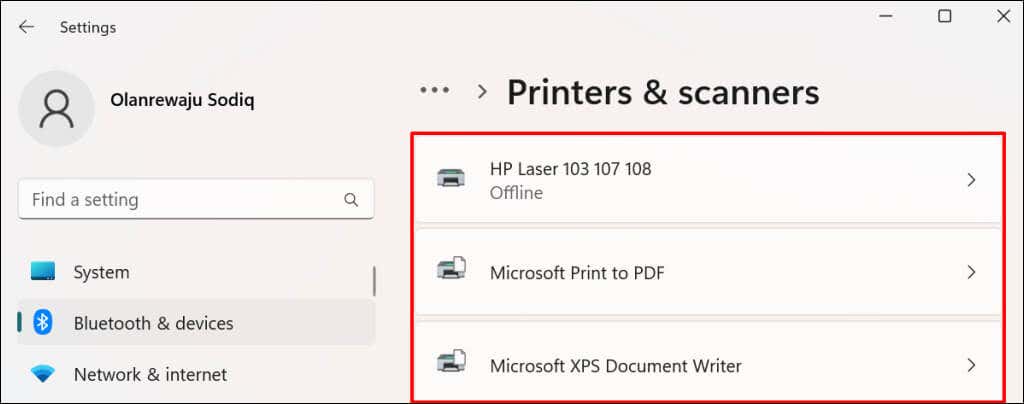
- Select Remove and select Yes on the confirmation prompt.
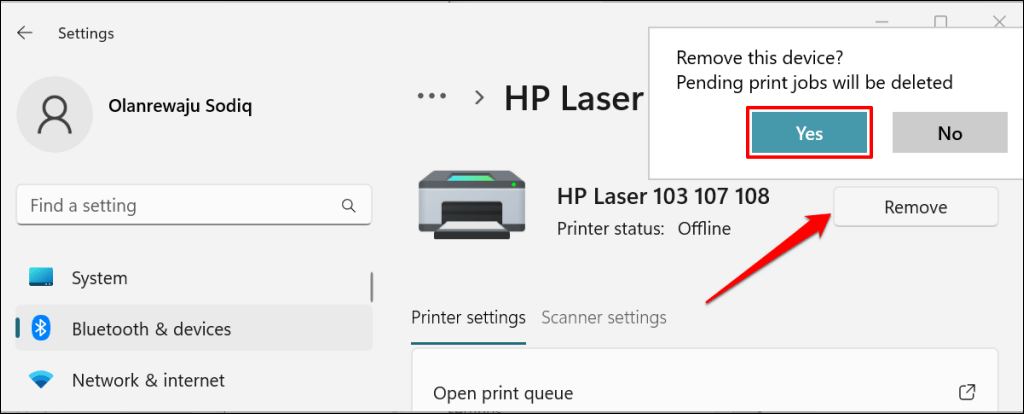
The next step is to remove the printer’s driver from your computer.
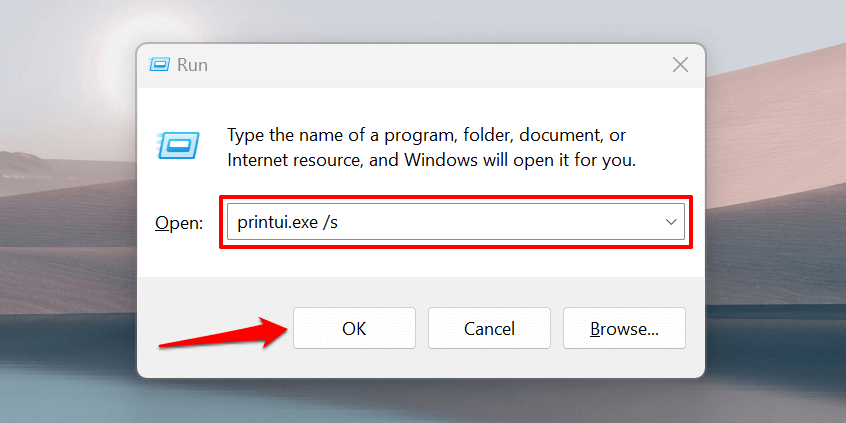
- Press the Windows key + R to open the Windows Run box . Type or paste printui.exe /s in the dialog box and select OK .
- Head to the “Drivers” tab, select the printer’s driver, and select Remove .
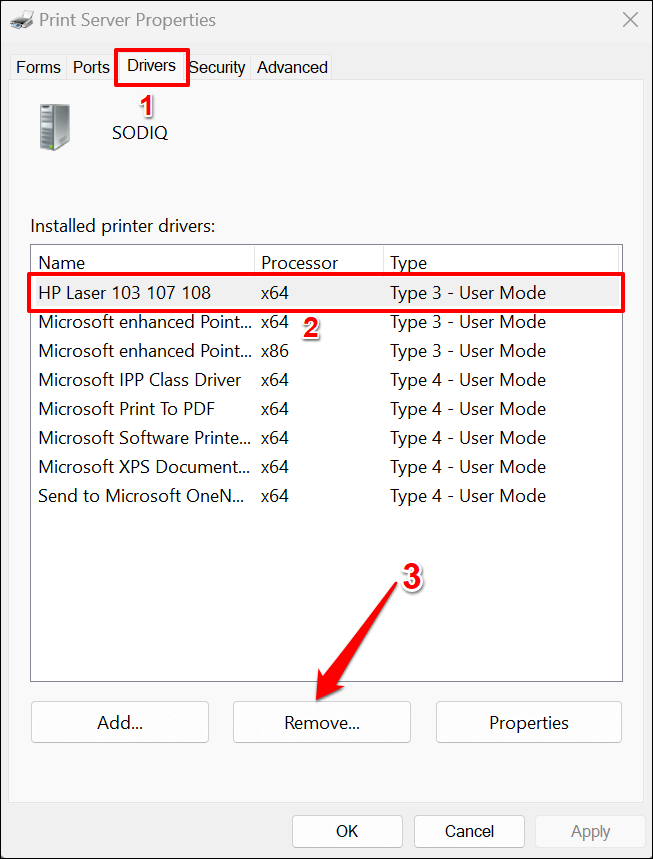
- Choose Remove driver and driver package and select OK .
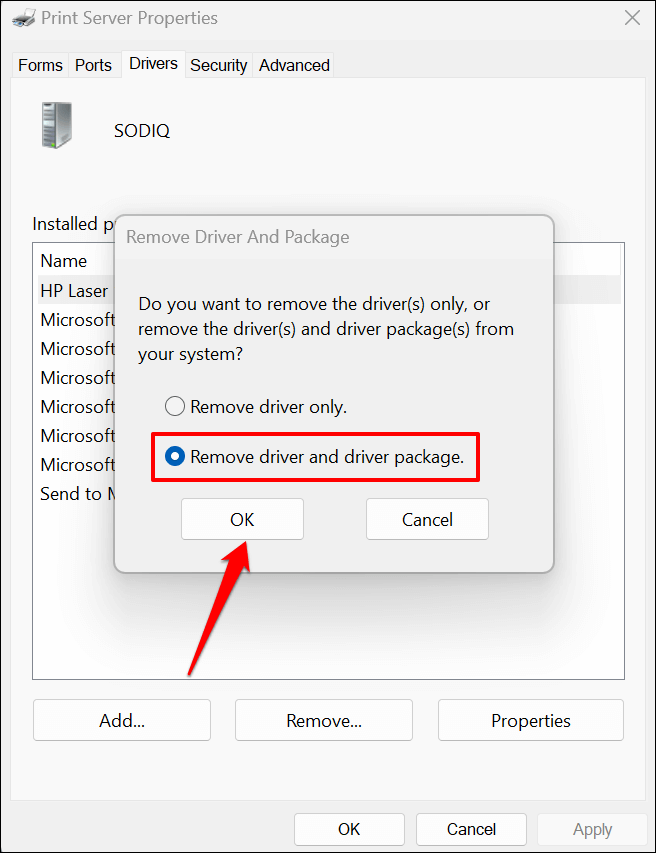
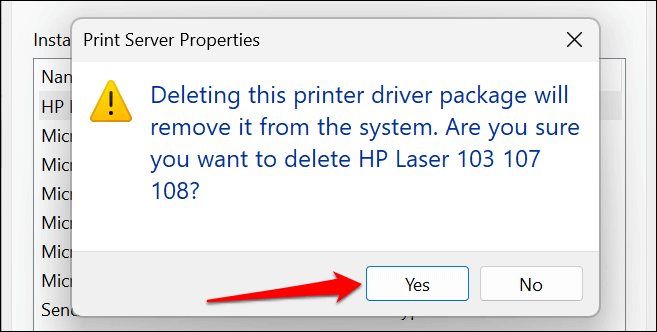
- Select Yes on the pop-up to remove the printer’s driver and driver packages from your computer.
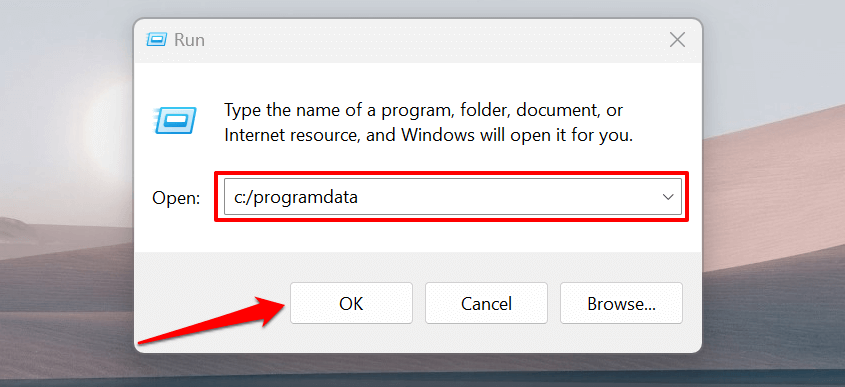
- The final step is deleting the printer’s leftover files. Open the Windows Run box ( Windows + R ), paste c:/programdata in the dialog box, and select OK .
- Locate and open the HP or Hewlett-Packard folders.
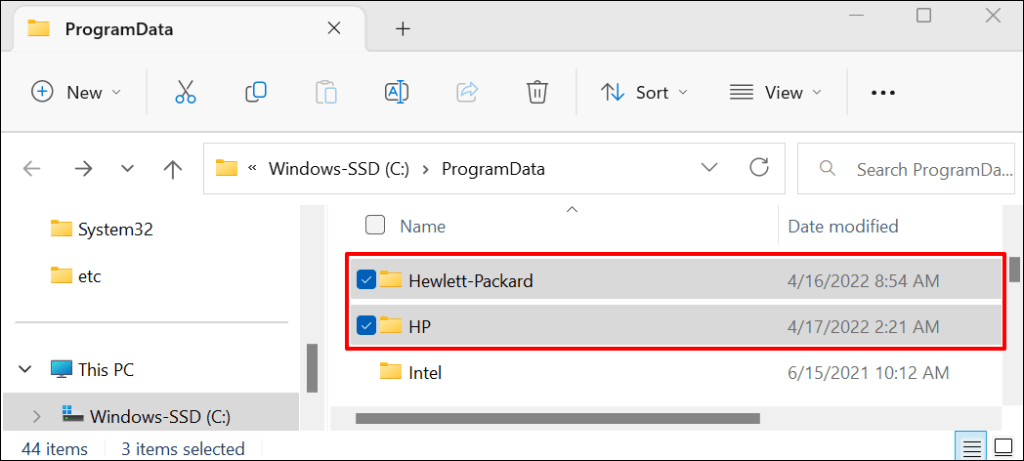
- Delete the Printer subfolder and any printer-related file or folder.
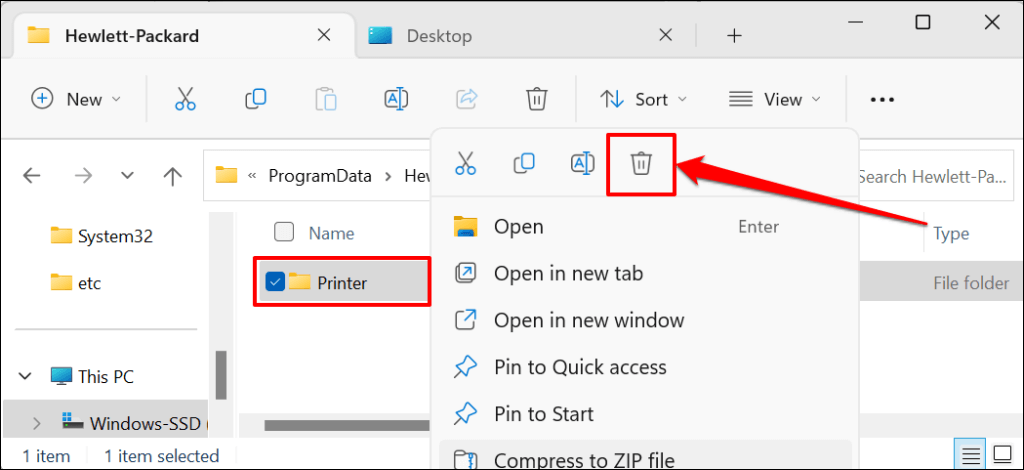
Reboot Windows and reconnect the printer to your computer . The printer should automatically install its driver when connected to your PC. Otherwise, download and reinstall the latest driver for your printer model from HP’s website .
Printer Status Still Unknown? Contact HP Support
Get in touch with an HP agent or visit an authorized HP service center near you if the HP Smart app still doesn’t recognize your printer.
- How to Fix the “Error – Printing” Status Error in Windows
- HP Printer Not Printing Black? 10 Fixes to Try
- How to Fix Missing or Failed Printhead Error on HP Printers
- How to Add a Printer to Your Chromebook
- How to Fix the Printer Error “0x0000011b” on Windows
Sodiq has written thousands of tutorials, guides, and explainers over the past 4 years to help people solve problems with Android, iOS, Mac, and Windows devices. He also enjoys reviewing consumer tech products (smartphones, smart home devices, accessories, etc.) and binge-watching comedy series in his spare time. Read Sodiq’s Full Bio
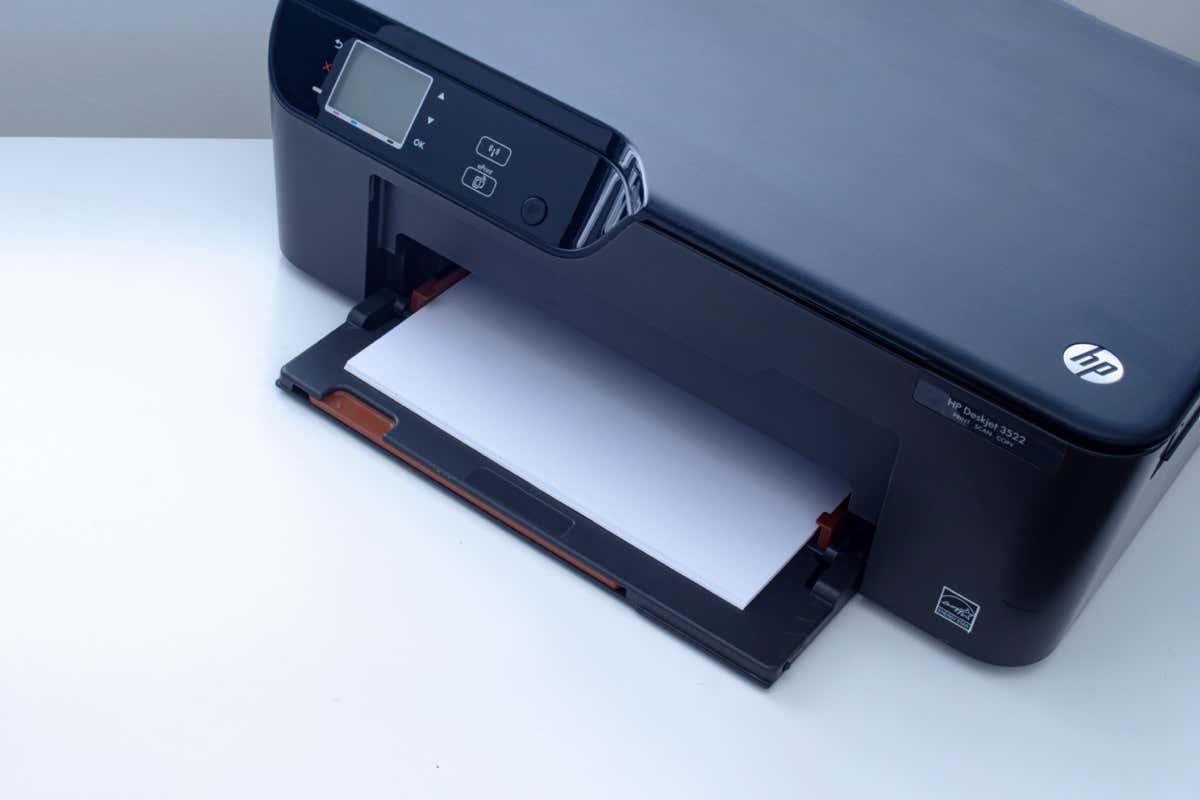
Do you see a “Driver is unavailable” error for your HP printer in the Windows Settings app or Control Panel? This occurs when Windows encounters a corrupt or incompatible HP printer driver. We’ll show you how to fix that.
When Does the “Driver Is Unavailable” Error Happen?
The “Driver is unavailable” error shows up for an HP printer in instances where Windows has trouble loading the relevant printer driver. Various reasons—such as outdated driver software or an incomplete printer setup—often cause that. Work through the fixes below to resolve the HP printer issue in Windows 10 and 11.
1. Run the Printer Troubleshooter
Windows has a built-in Printer troubleshooter that can fix most printer driver issues and other common printer problems . Run it before moving on to the rest of the fixes.
- Press Windows Key + S , type Troubleshoot Settings , and press Enter . On the Settings window that shows up, select Other / Additional troubleshooters .
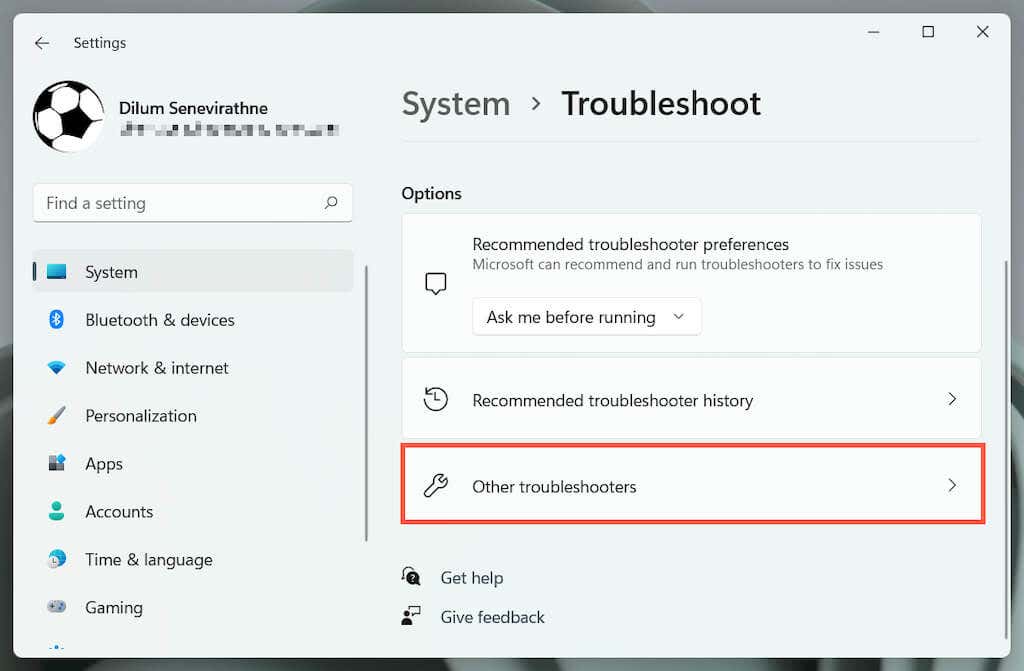
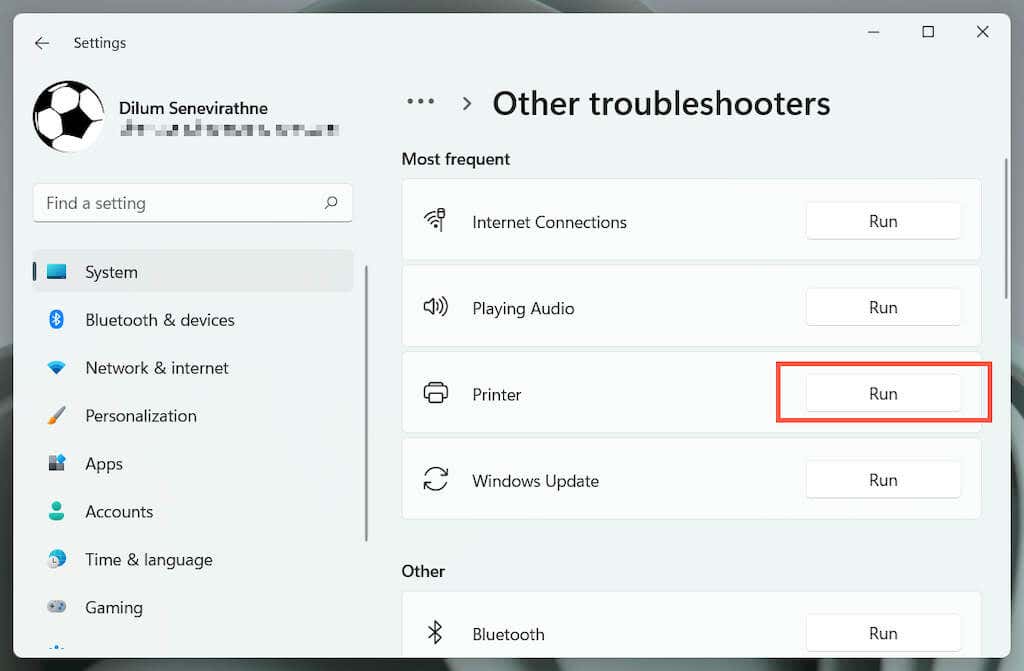
- Locate the Printer troubleshooter and select Run / Run the troubleshooter .
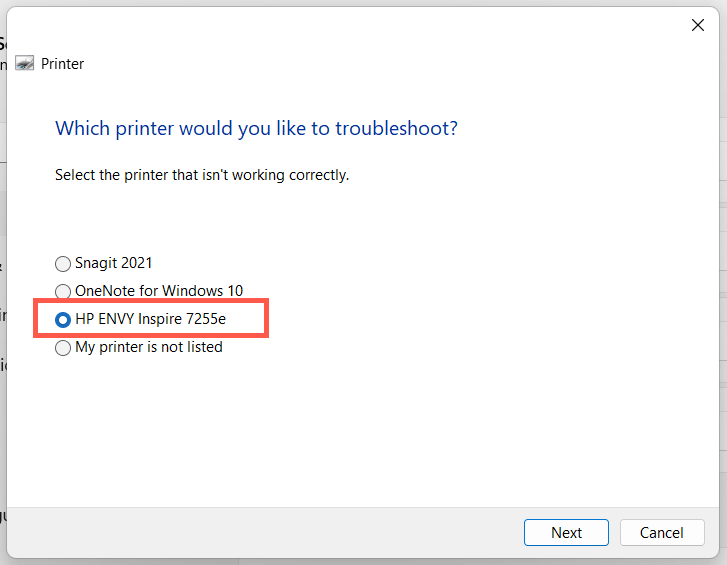
- Select your HP printer and follow the on-screen instructions to fix issues the Printer troubleshooter detects.
2. Run the HP Print and Scan Doctor App
Next, run the HP Print and Scan Doctor app on your PC. It’s a dedicated troubleshooter by HP that can diagnose and fix issues specific to HP printers. You can download the HP Print and Scan Doctor from the HP website.
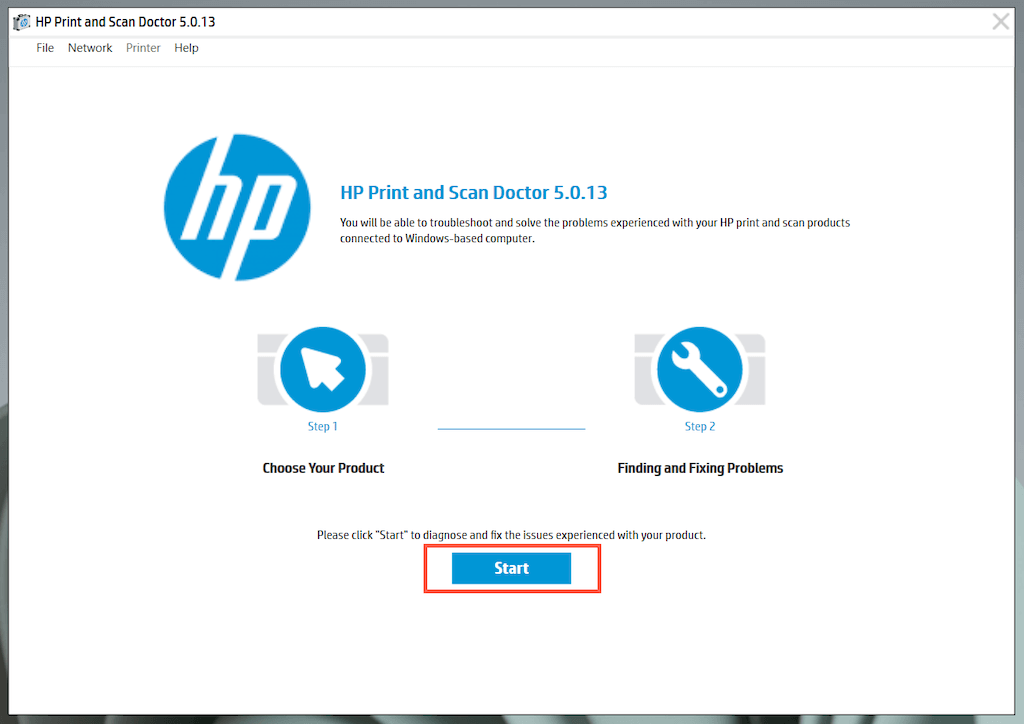
If the HP Print and Scan Doctor detects issues with your HP printer, let the tool automatically fix them for you or follow any suggestions to do that yourself.
3. Update Your HP Printer
Visit HP’s Software and Driver Downloads portal and search for your HP printer model. Then, download and install any recommended support software (e.g., HP Smart or HP Easy Start) that you don’t already have on your computer. Also, install any firmware or device driver updates.
If you have trouble installing device drivers via HP’s driver updater tool, try using the Device Manager in Windows instead. To do that:
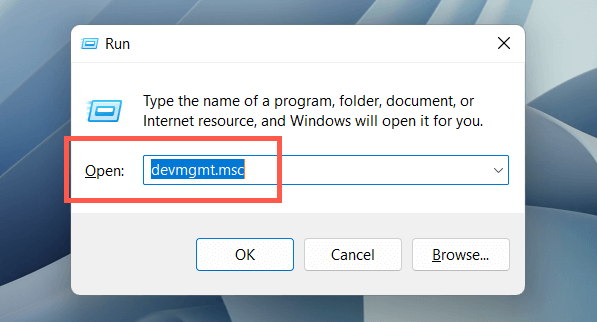
- Press Windows + R to open a Run box. Then, type devmgmt.msc and select OK to open the Device Manager.
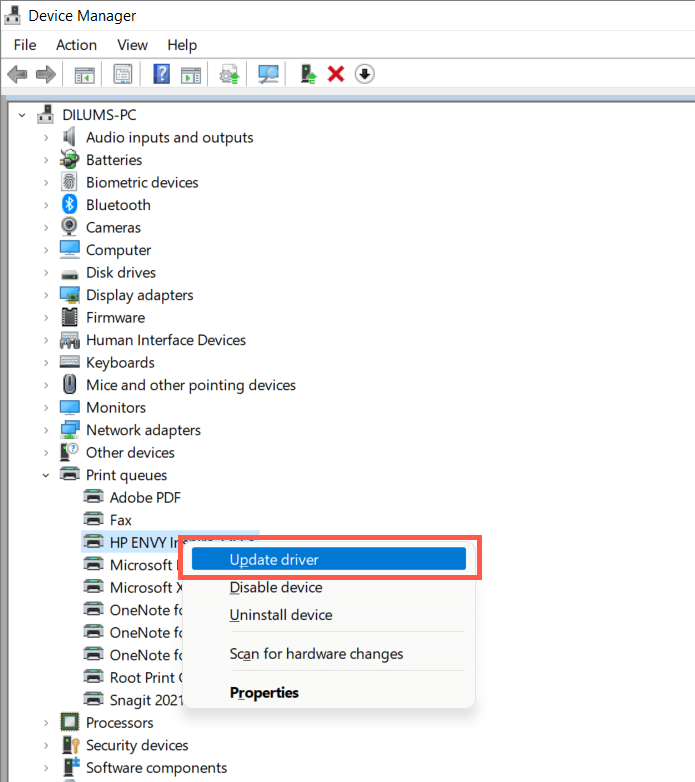
- Expand Print queues , right-click your printer hardware (e.g., HP ENVY ), and select Update driver .
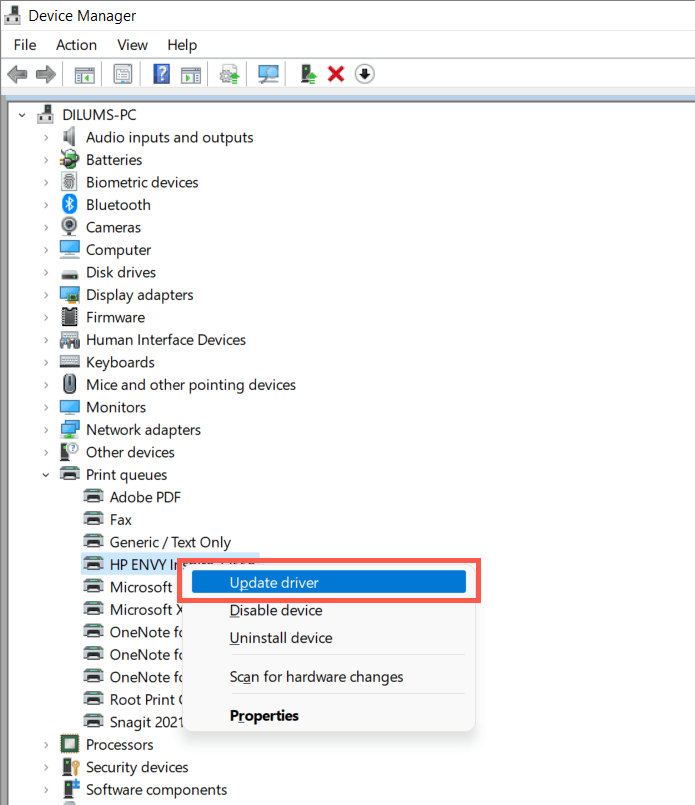
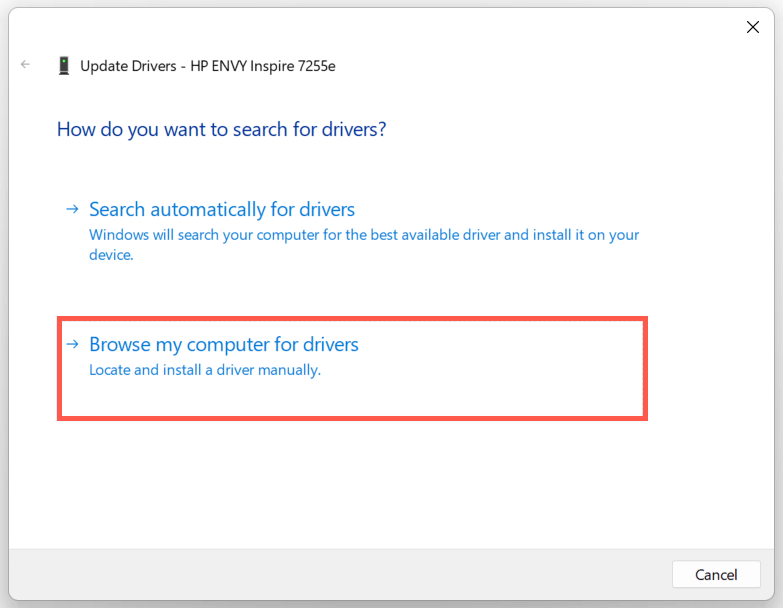
- Select Browse my computer for drivers on the Update Drivers dialog.
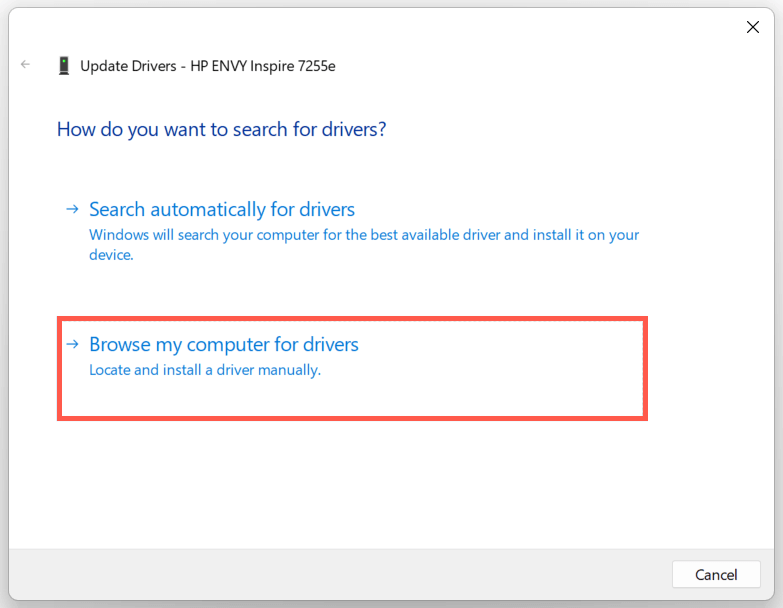
- Check the box next to Include subfolders . Then, select Browse and pick the downloaded driver file or folder.
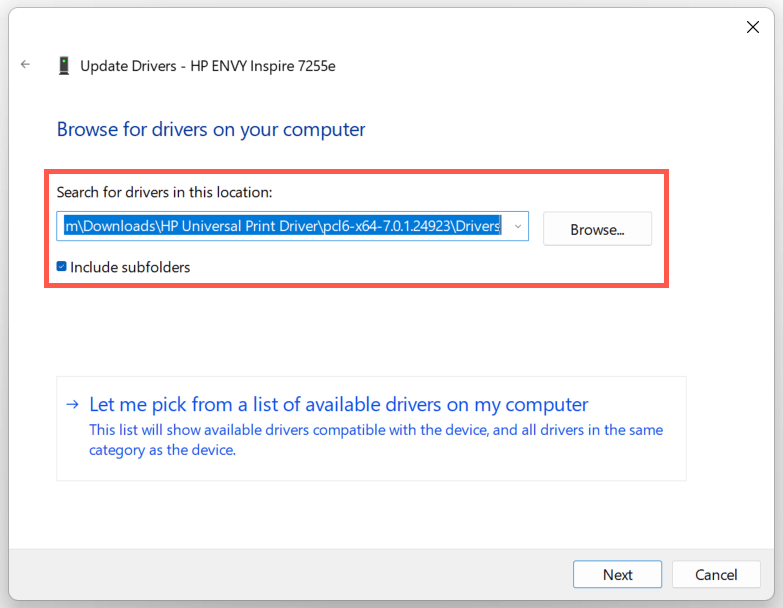
Note : If the driver file is in the ZIP format, Windows may not detect it unless you extract it first.
- Select Next to update the HP printer driver. Once that’s done, select Close to exit the Update Drivers window.
4. Install New Windows Updates
If your PC runs on an early build of Windows 10 or 11, your HP printer driver or support software may encounter compatibility issues unless you update the operating system .
To do that, open the Start menu and select Settings . Then, select Windows Update > Check for updates > Download and install to install available Windows updates.
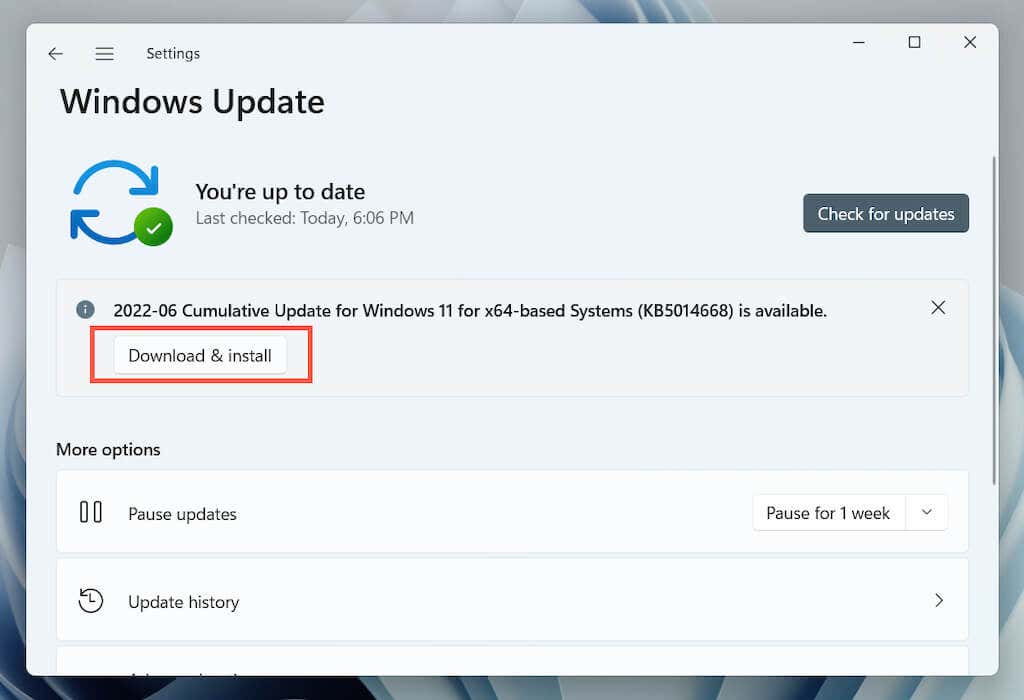
Also, select Advanced options > Optional updates or View optional updates within the Windows Update pane and install any Microsoft-verified printer updates if available.
5. Remove and Re-install Drivers for HP Printer
If the “Driver is unavailable” error persists, try removing and re-adding the printer to your computer. That also involves deleting and reinstalling the relevant HP drivers and support software.
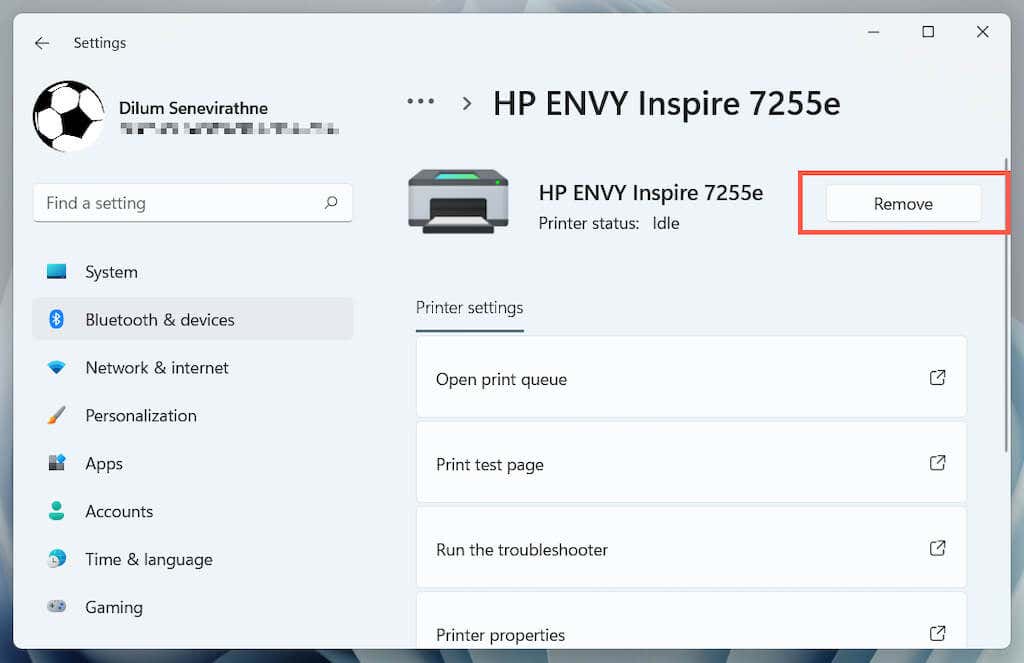
Open the Settings app and go to Bluetooth & devices > Printers & scanners .
Choose your HP printer and select the Remove button to confirm. Then, select Remove device on the pop-up to confirm.
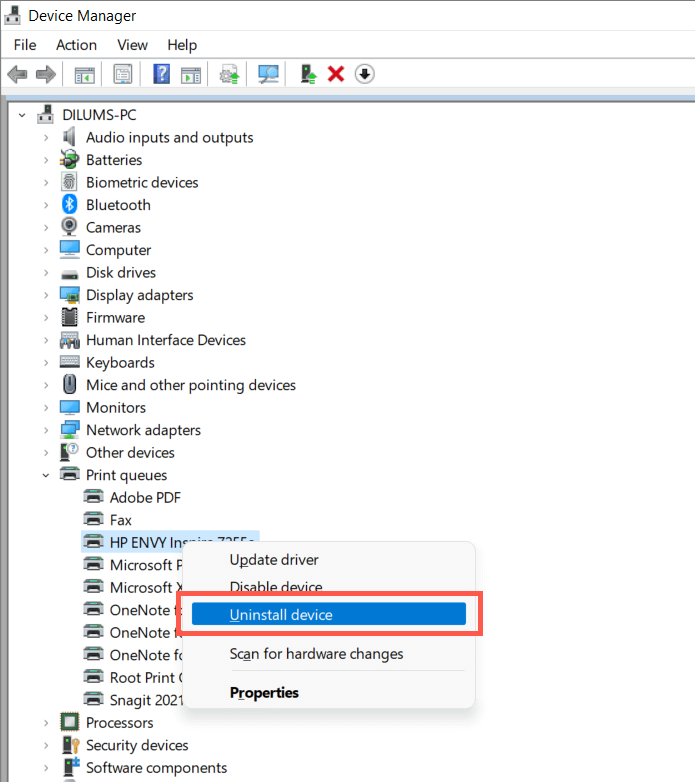
Open the Device Manager.
Expand Printer queues , right-click your HP printer, and select Uninstall device .
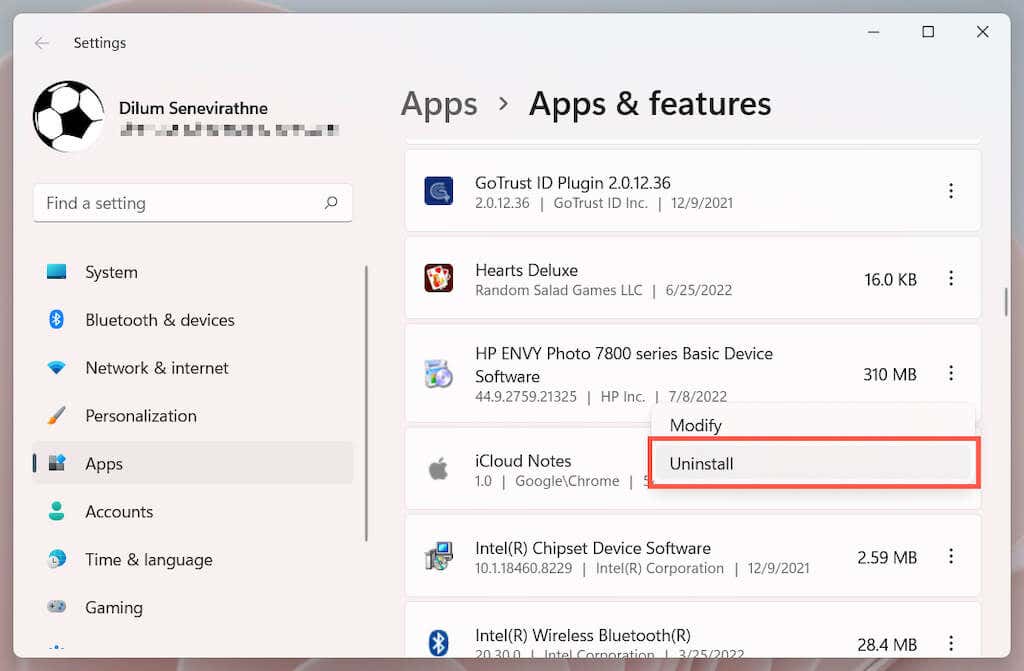
Right-click the Start button and select Apps and Features .
Locate and uninstall any HP drivers or support software.
Restart your computer.
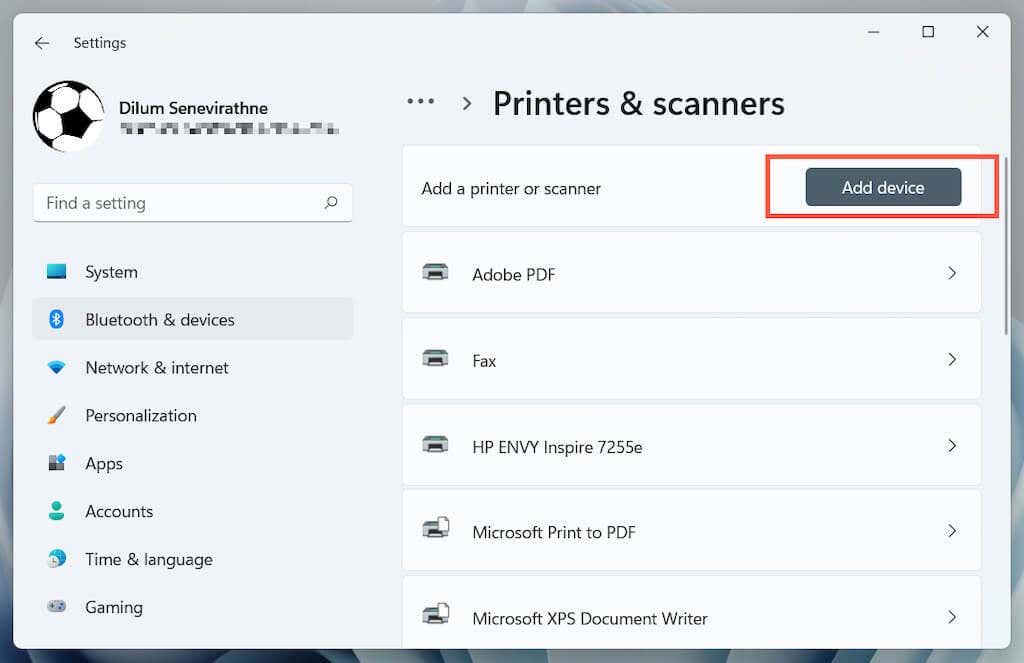
Re-open the Settings app and go to Bluetooth & devices > Printers & scanners .
Select Add device and set up the HP printer from scratch.
- Reinstall the latest drivers and support software for the device. Again, search for the printer model on HP’s Software and Driver Downloads portal to ensure you install everything.
6. Switch to the Generic Printer Driver
Switch to the generic printer driver in Windows. That will likely resolve the “Drive is unavailable” error but at the expense of losing various features specific to your HP printer. Regardless, it’s a good idea to try that if the issue persists.
- Open the Device Manager and select the problematic HP printer under Printer queues . Then, right-click and choose Update driver .
- Select Browse my computer for drivers.
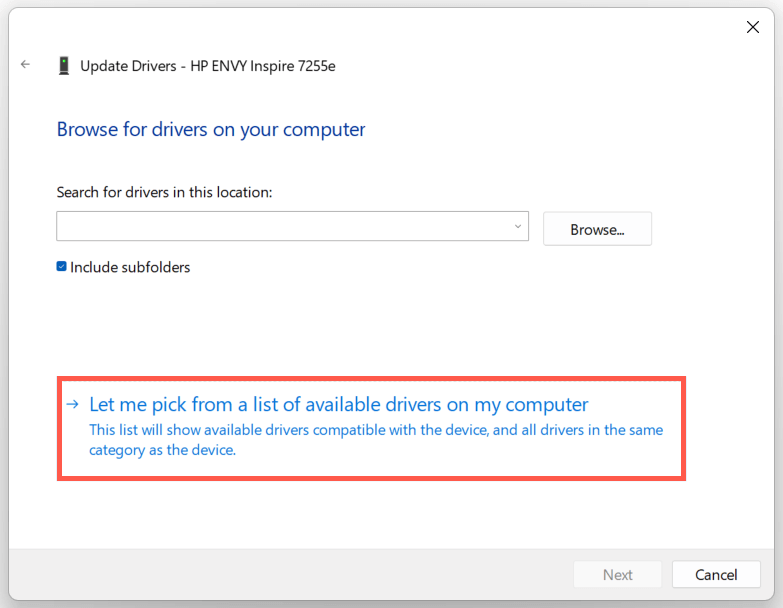
- Select Let me pick from the list of available drivers .
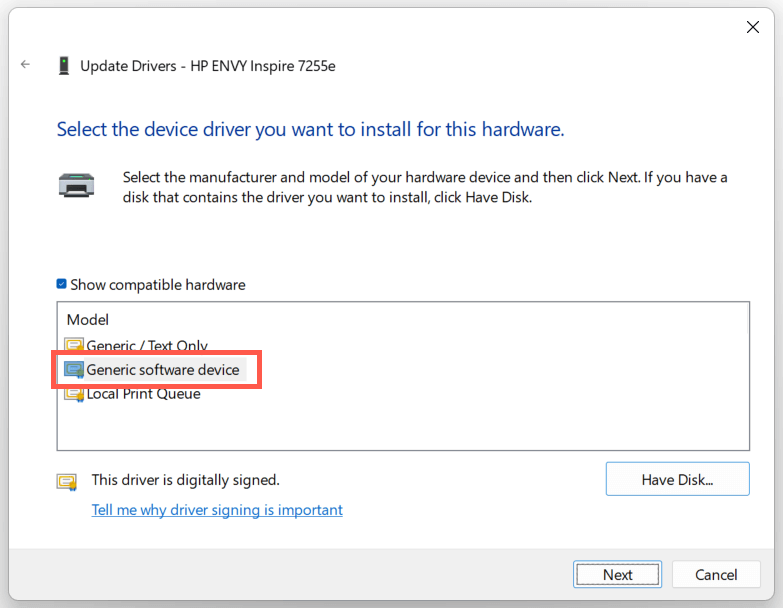
- Check the box next to Show compatible hardware . Then, select Generic software device > Next.
- Select Finish to install the generic printer driver for your PC.
7. Perform an SFC and DISM Scan
System file corruption can be another reason for your HP printer’s “Driver is unavailable” error. Running the SFC and DISM command-line tools usually helps fix that.
To initiate an SFC (or System File Checker) scan, right-click the Start button and select Windows PowerShell / Terminal (Admin) . Then, type sfc /scannow and press Enter .
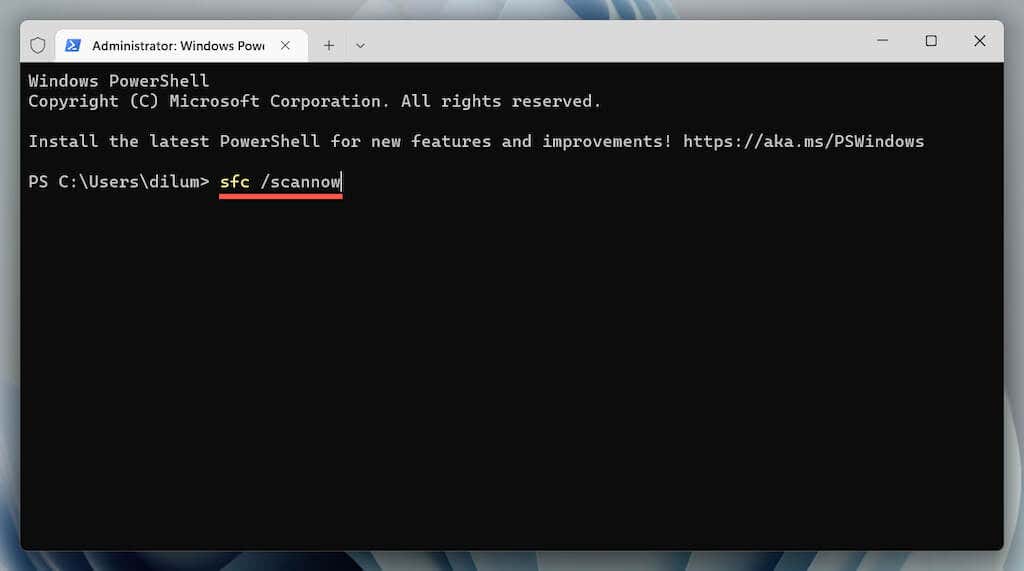
Once the System File Checker finishes scanning your computer, launch the DISM (Deployment Image Servicing and Management) tool with the following command:
DISM.exe /Online /Cleanup-Image /Restorehealth
The DISM tool takes a long time to complete and may appear to get stuck. However, keep the Windows PowerShell window open, and it should end eventually.
HP Printer Driver Unavailable Error Fixed
Did you manage to fix your HP printer’s “Driver is unavailable” error on your computer? If you did, try keeping the printer drivers and the operating system up-to-date to minimize the chances of running into the same problem going forward. If not, contact HP Support for model-specific fixes that could help resolve the driver issue.
- How to Fix the “Error – Printing” Status Error in Windows
- How to Fix Your Printer’s “Driver is unavailable” Error on Windows
- 7 Ways to Fix ”Windows Cannot Connect to the Printer”
- Print Job Won’t Delete in Windows? 8+ Ways to Fix
- Preparing for Windows 10 End of Support: Upgrading to Windows 11
Dilum Senevirathne is a freelance tech writer and blogger with three years of experience writing for online technology publications. He specializes in topics related to iOS, iPadOS, macOS, and Google web apps. When he isn’t hammering away at his Magic Keyboard, you can catch him binge-watching productivity hacks on YouTube. Read Dilum’s Full Bio
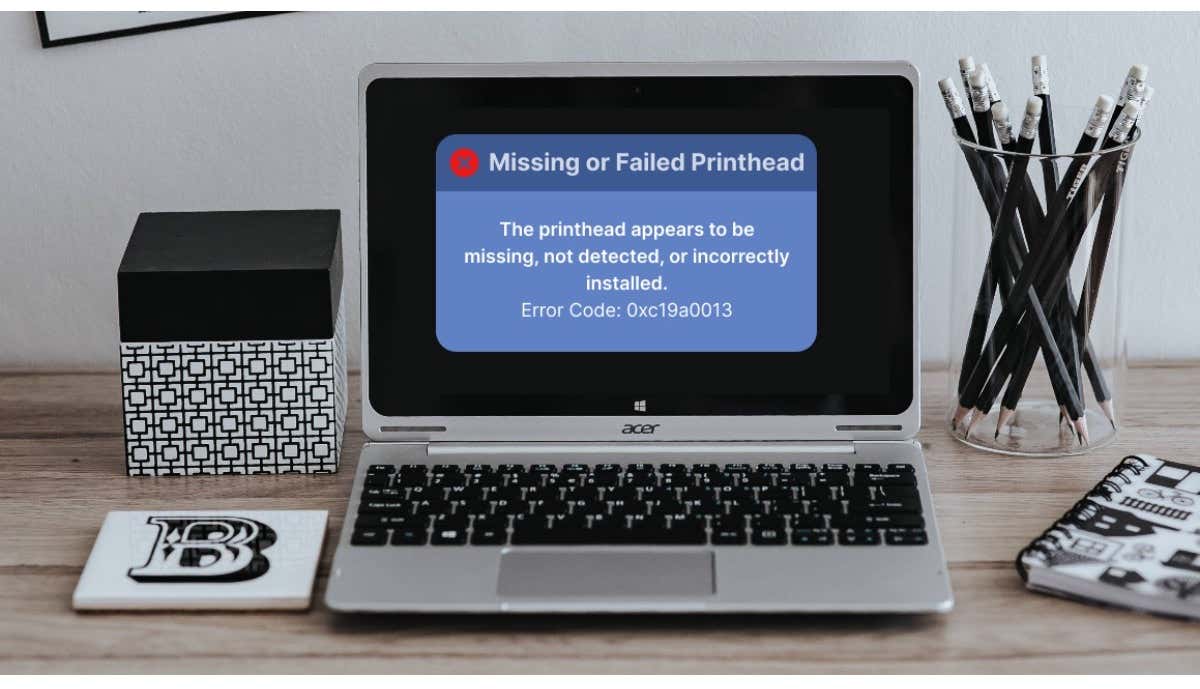
The printhead assembly is the compartment that houses your printer’s ink cartridges. Your printer displays the “Missing or Failed Printhead” error to signal a malfunctioning printhead. The issue could be due to clogged ink nozzles, dirty ink cartridges, internal paper jams, and more.
HP printers may also display this error if the printhead pulls air from ink cartridges. This tutorial covers troubleshooting fixes for the “Missing or Failed Printhead” error on HP printers .
Restart or Factory Reset Your Printer
Rebooting your printer will fix common printer problems , so will restoring its settings to factory default.
Note: Factory resetting your HP printer won’t reset its page count, language, or tray size.
- Turn off your printer and unplug its power cord from the wall outlet for at least 30 seconds.
- Reconnect your printer to its power source and turn it on. If your printer has a Resume button , press and hold it for 10-20 seconds while your printer boots.
- Release the Resume button when the yellow “Attention” light comes on. The “Attention” and “Ready” lights cycle while your preset resets to factory default.
Reseat your printer’s printhead if the missing printhead error message persists.
Reseat Your HP Printer Printhead
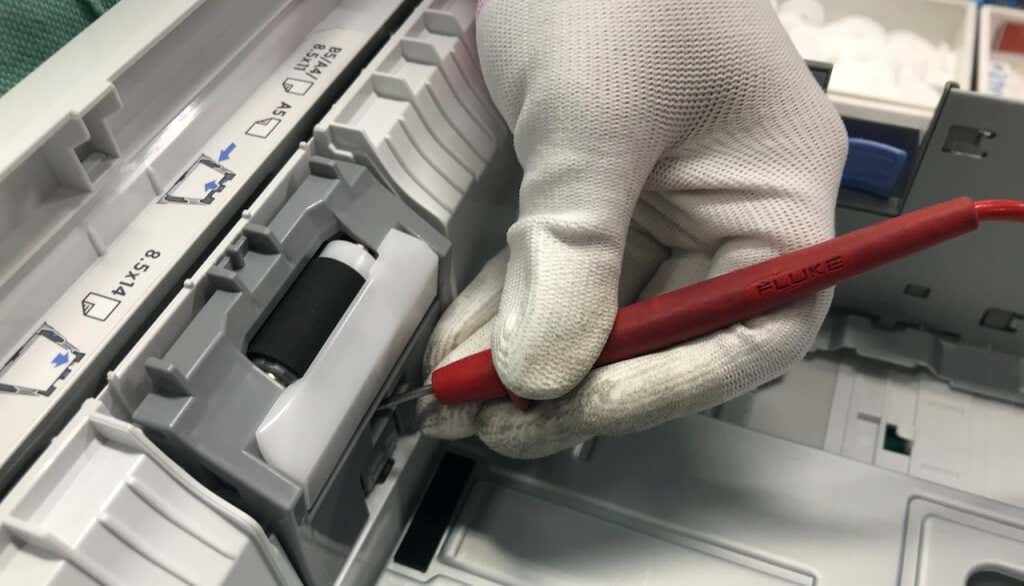
HP printers might malfunction if the printhead isn’t seated correctly in the carriage. Reseat your printer’s printhead and check if that stops the “Missing or Failed Printhead” error. Turn off your printer and unplug its power cable before reseating or realigning the printhead.
Open your printer’s cartridge access door, lift the latch on the carriage, and gently pull the printhead halfway out. Return the carriage latch to lock the printhead firmly.
Try the troubleshooting steps below if reseating the printhead doesn’t resolve the “Missing or Failed Printhead” error.
Check for Paper Jam
Paper jams inside your printer can prevent the detection of the printhead. Turn off your printer, disconnect its power cable, and check the ink or toner cartridge access area for jammed paper.
Examine the carriage path and other areas and remove torn pieces of paper inside your printer. Close the cartridge access door, and reconnect your printer’s power cable.
Clean or Replace the Ink Cartridges
Dirt, debris, or ink residue on your printer’s ink cartridges can also trigger printing errors. Remove your ink cartridges from the printhead and wipe off accumulated dirt or debris. HP recommends cleaning ink cartridges using a clean, dry, and lint-free cloth damped in distilled water.
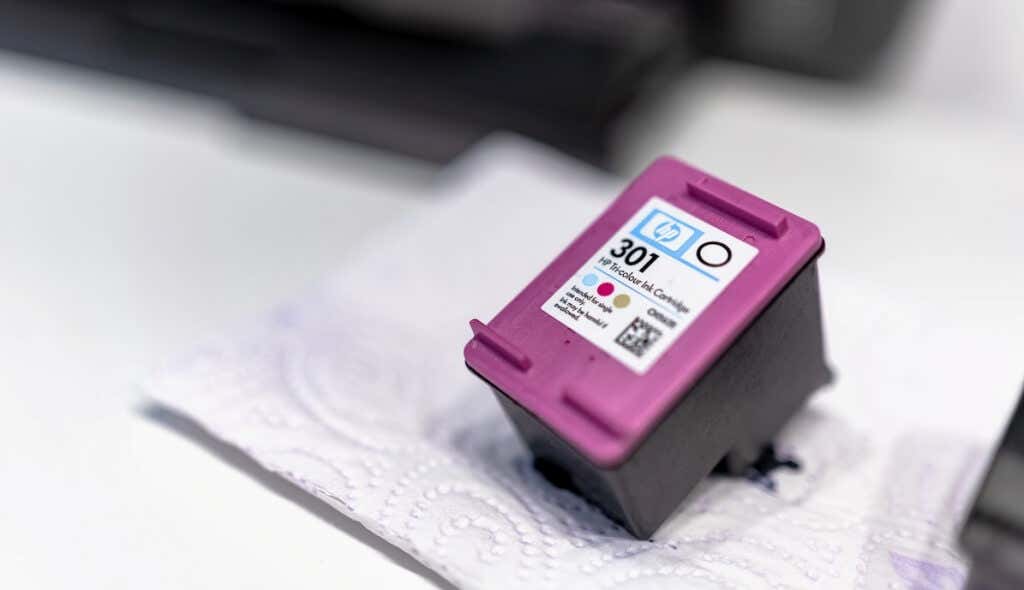
You should also gently wipe accumulated ink off the copper-colored electrical contacts on the printhead and carriage. Snap the ink cartridges into their color-coded slots, close the cartridge access area, and turn on your printer.
Touching the ink nozzles or cleaning past the electrical contacts can cause print quality issues and electrical failures. Likewise, leaving your ink cartridges or printhead outside the printer for an extended period (over 30 minutes) can damage the cartridges and printer.
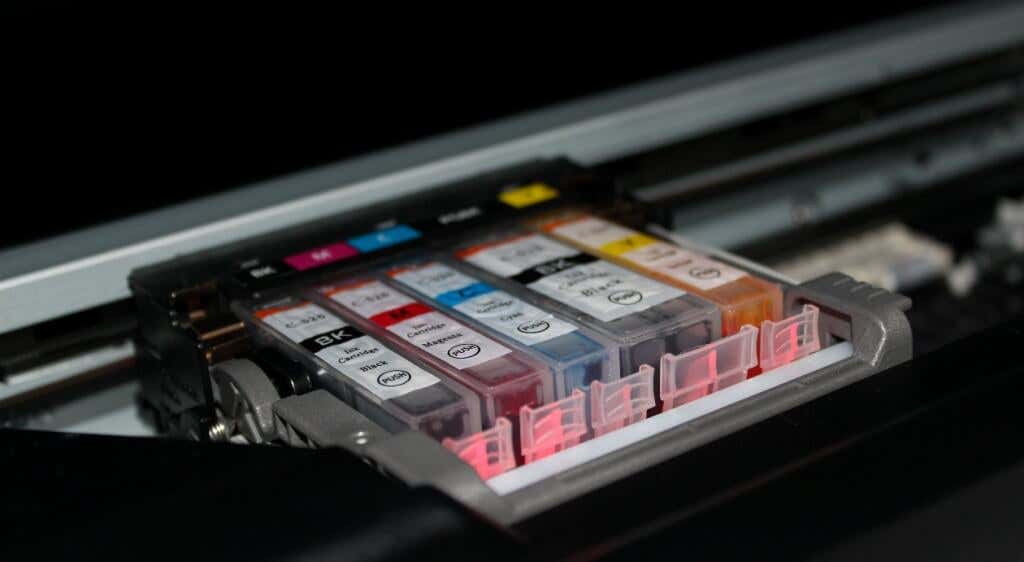
Clean the ink cartridges and printhead quickly (but carefully) and replace them immediately. Refer to this HP Support tutorial for more information on cleaning your printer’s ink cartridges and printhead.
Some HP Inkjet printers have a “Clean Printhead” function in their control panels. Depending on your printer model, you’ll find the cleaning option in the “Tools,” “Maintenance,” or “Printer Services” section of the control panel. Refer to your printer’s manual for instructions on accessing or using its cleaning tool.
Check for connectivity issues between the printer and cartridges if the printhead problem persists. Ensure the ink cartridges are connected correctly, and their plastic tabs align with the printhead.
Additionally, inspect the cartridge’s chip and ensure it’s properly fixed and in good condition. You might have to replace the entire cartridge pack, especially if using non-HP cartridges.
Update the Printer’s Firmware
Updating your printer’s firmware to the latest version sometimes resolves printhead errors and other printing malfunctions . You can update your printer’s firmware through HP’s website or the HP Smart app.
Update Your Printer from HP Website
- Visit HP’s website’s Software and Driver Download page and select Printer .

- Enter your HP printer model number or name in the dialog box and select Submit .
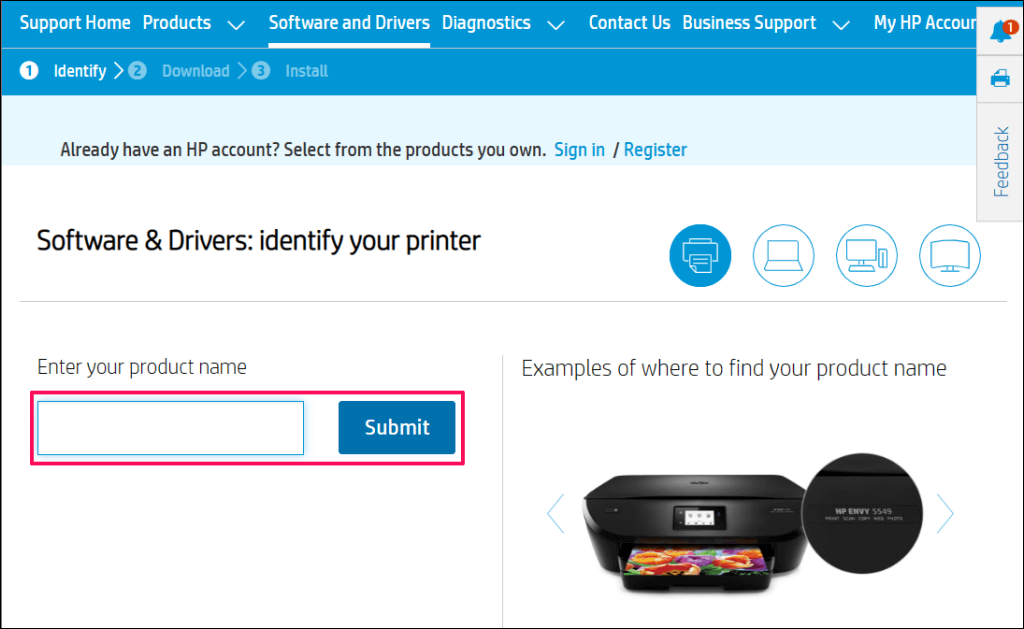
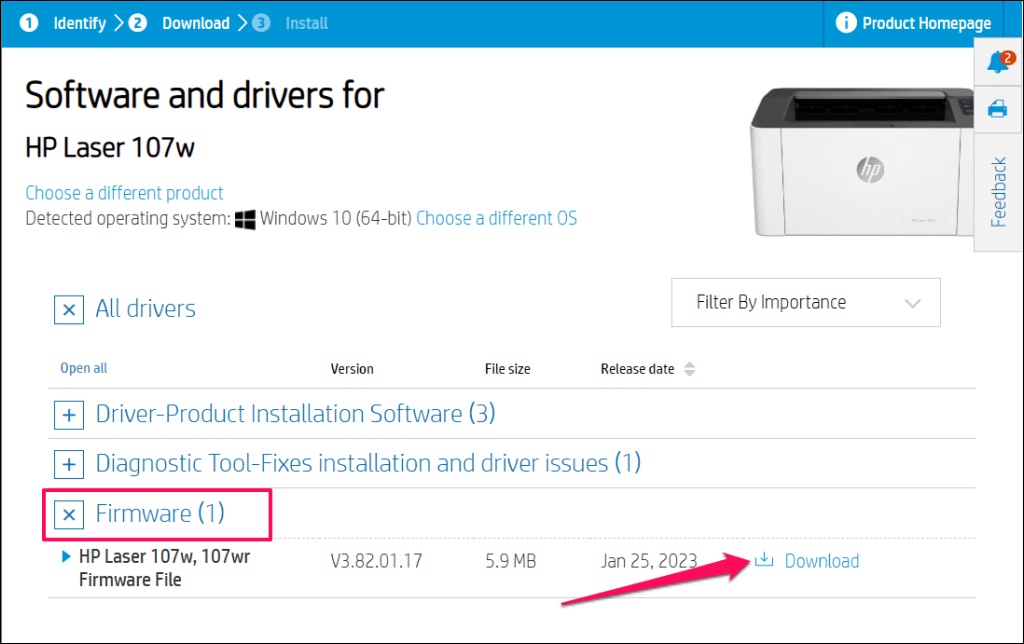
- Expand the “Firmware” category and select Download next to the latest firmware file.
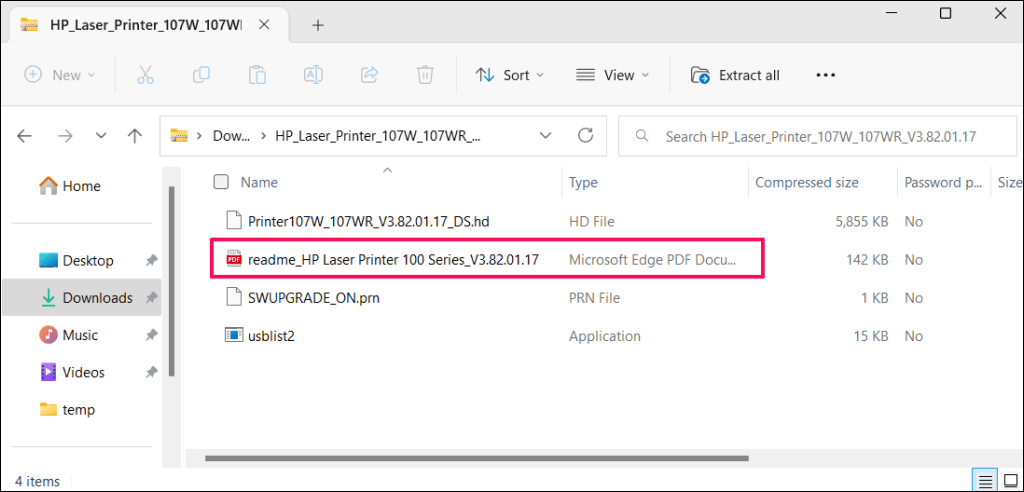
- Unzip the file and follow the instructions in the attached PDF document to install the firmware update.
Restart your computer and printer after installing the firmware update. Keep your printer powered on during the firmware update process. Power failure or turning your printer while updating its firmware can irreversibly damage the printer.
Update Your Printer via the HP Smart
The steps for updating your printer’s firmware may vary depending on the HP Smart app version and your printer model.
Select your printer on the HP Smart app home screen and select Advanced Settings or Printer Home Page ( EWS ). Next, head to Tools / Web Services > Printer Update (s) and select Check Now .
The HP Smart app will automatically download and install any available firmware update onto your printer.
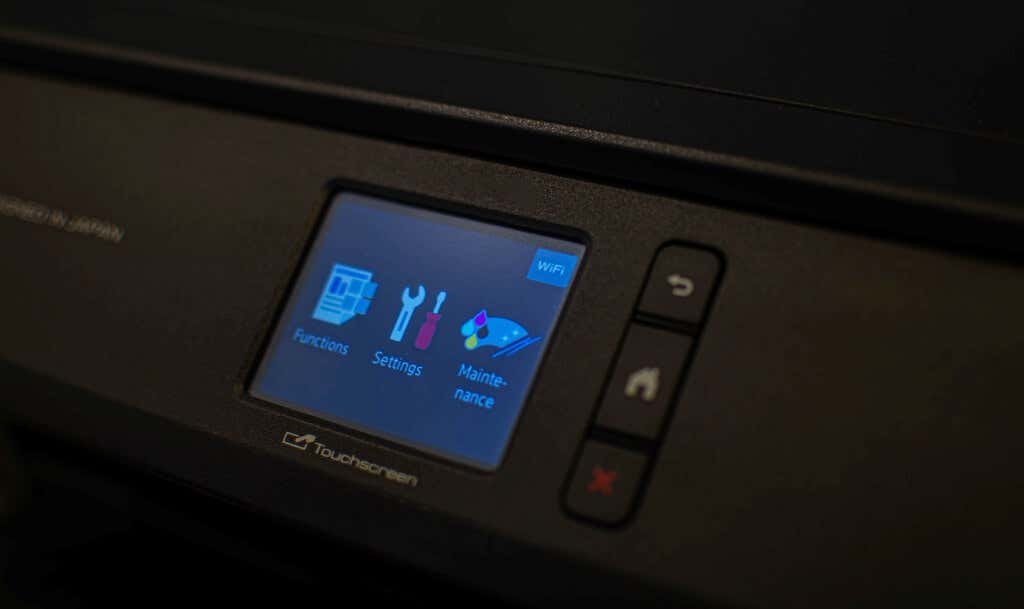
You can also install firmware updates from your printer’s control panel. This HP Customer Support document highlights different ways to install firmware or driver updates on your HP printer.
Fix HP Failed Printhead Error
Contact HP Support or a local service center if the printhead missing error persists. You’ll get a new printhead or replacement printer if your printer is defective and under warranty. Use HP’s Product Warrant Check tool to verify your printer’s warranty or service status.
Otherwise, HP will service or repair your printer for a fee if you have an out-of-warranty product.
- How to Fix the “Error – Printing” Status Error in Windows
- HP Printer Not Printing Black? 10 Fixes to Try
- How to Add a Printer to Your Chromebook
- How to Fix the Printer Error “0x0000011b” on Windows
- How to Fix HP “Printer Status Unknown” Error
Sodiq has written thousands of tutorials, guides, and explainers over the past 4 years to help people solve problems with Android, iOS, Mac, and Windows devices. He also enjoys reviewing consumer tech products (smartphones, smart home devices, accessories, etc.) and binge-watching comedy series in his spare time. Read Sodiq’s Full Bio
