We’ve all been there, haven’t we? Your iPhone or iPad alarm jolts you awake with the sonic force of a freight train, or worse, it whispers so softly that you sleep through your important morning plans. If you’ve ever found yourself grappling with the issue of your iPhone alarm being either too loud or too quiet, you’re not alone.
It’s essential that this wake-up experience suits your unique preferences so that you start your day just right. So, whether you’re an early riser who needs a gentle nudge or a heavy sleeper searching for a more effective wake-up call, let us help you fine-tune your iPhone alarm volume .
Before you dive into troubleshooting, you should know that the Do Not Disturb mode and the Ring/Silent physical switch on your iPhone don’t affect the alarm. Even if these settings are on, your alarm will ring at the set time.
1. Restart Your Device
Restarting our iPhone or iPad can result in many temporary glitches and bugs being fixed. Though not a permanent solution, it can help you with the alarm sound issues if there’s a system glitch. After restarting your device, check if your alarm sound is still too loud or quiet. If the problem persists, try other solutions described below.
2. Check Alarm Volume
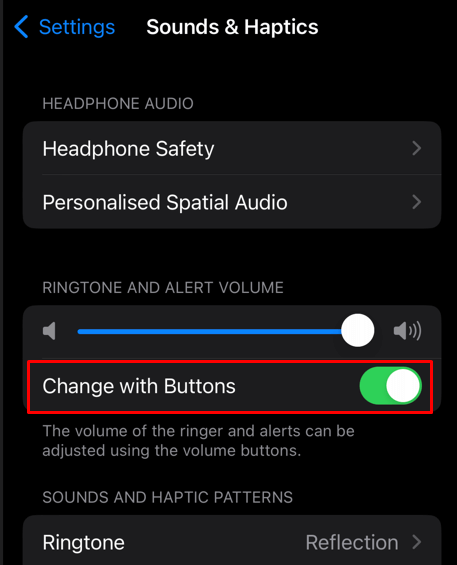
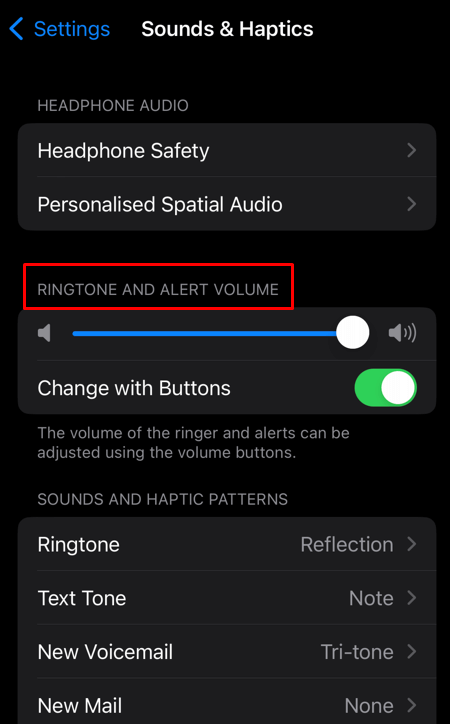
The ringer volume buttons on your device won’t affect the volume control of the alarm sound. But there’s an option in sound settings that, if enabled, can change this. Head to Settings and enable the Change with Buttons option, and you can control your alarm volume manually.
- Go to Settings .
- Select Sounds & Haptics .
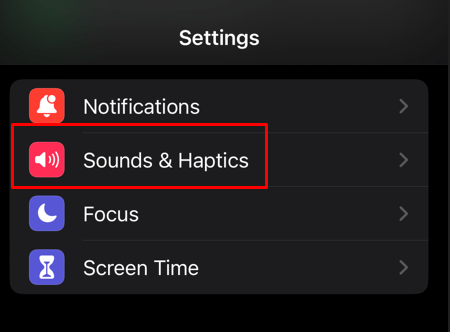
- Tap the slider next to Change with Buttons to enable this feature.
You can also set the alarm volume from the volume slider in Sound Settings.
- Go to Settings .
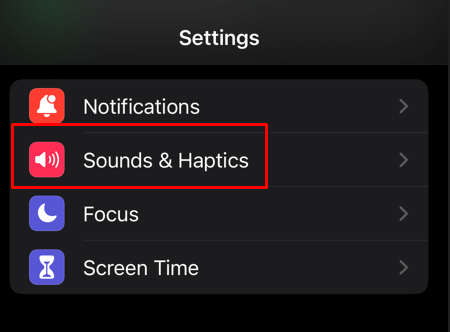
- Select Sound & Haptics .
- Use the slider under Ringer and Alerts (or Ringtone and Alert Volume ) to set the alarm volume.
3. Check Alarm Tone
Sometimes, the alarm tone you chose could be what’s causing the issue. That specific tone could simply be too loud or quiet. Selecting a different alarm tone is the only way to fix this issue. Here’s how:
- Open the Clock app on your iPhone or iPad.
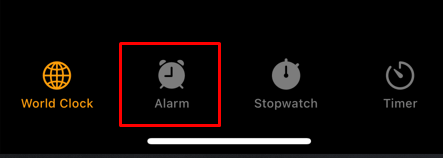
- Go to the Alarm tab.
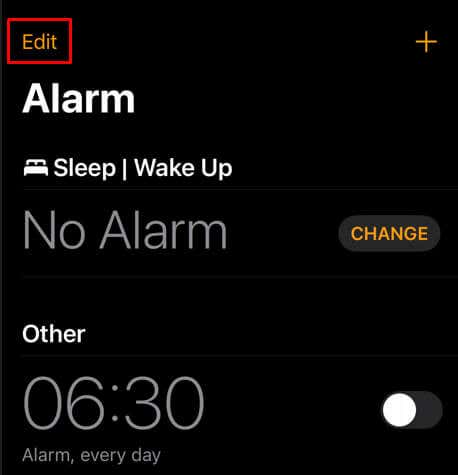
- Tap on Edit in the top-left corner of the screen.
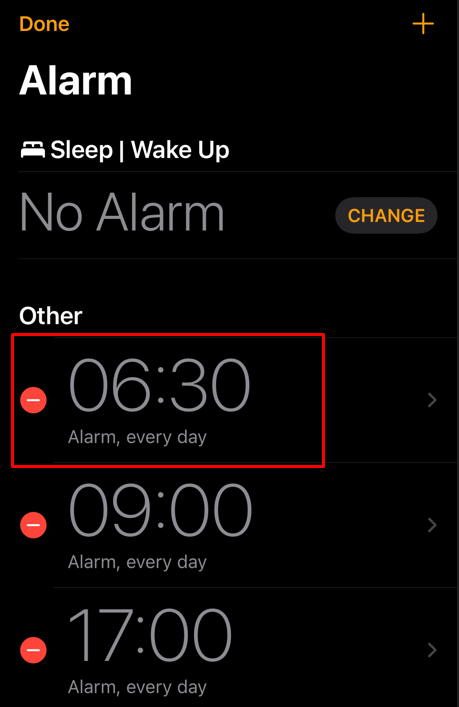
- Select the alarm you want to edit.
- Select Sound from the options.
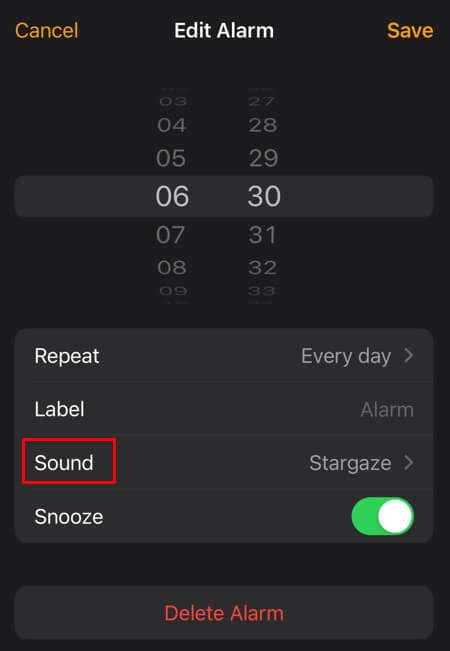
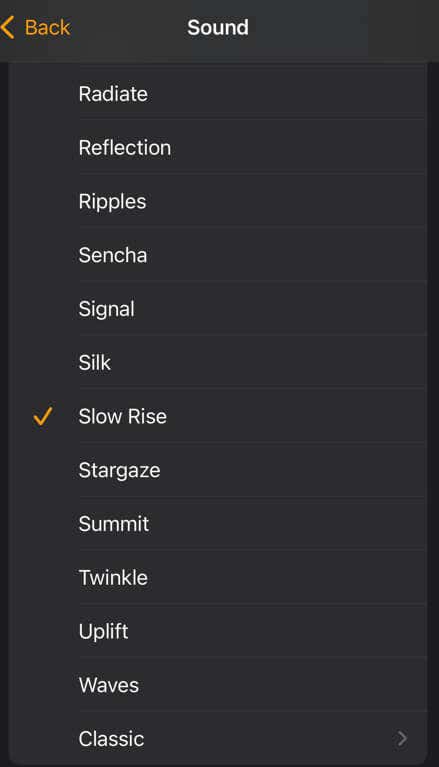
- Choose a different notification tone.
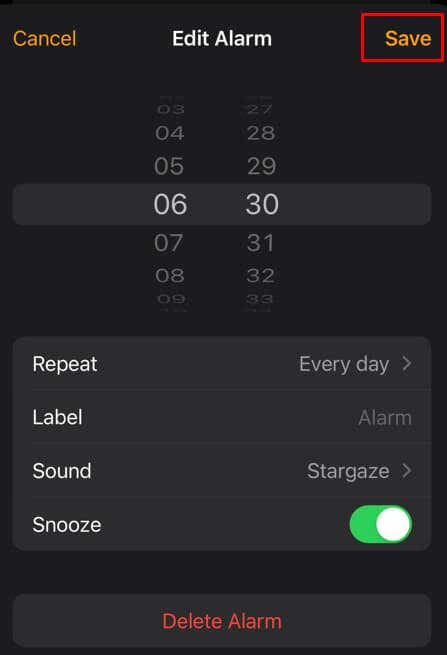
- Tap the Save button at the top-right corner.
4. Change the Alarm Volume in Sleep Mode
If you’re using the Sleep / Wake up mode on your iPhone (previously known as Bedtime), changing the alarm volume with the steps described in the previous section won’t work. That’s because this mode has its own volume settings. To change them:
- Go to the Clock app and select the Alarm tab.
- Tap on Change next to the time under Sleep/Wake up .
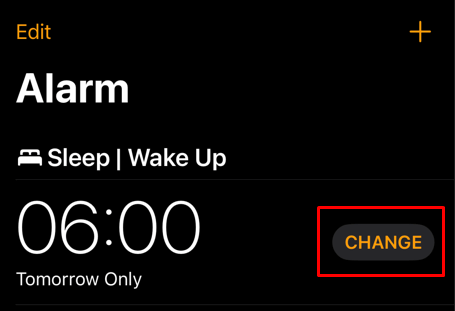
- Scroll down to find the volume slider under the Alarm Options .
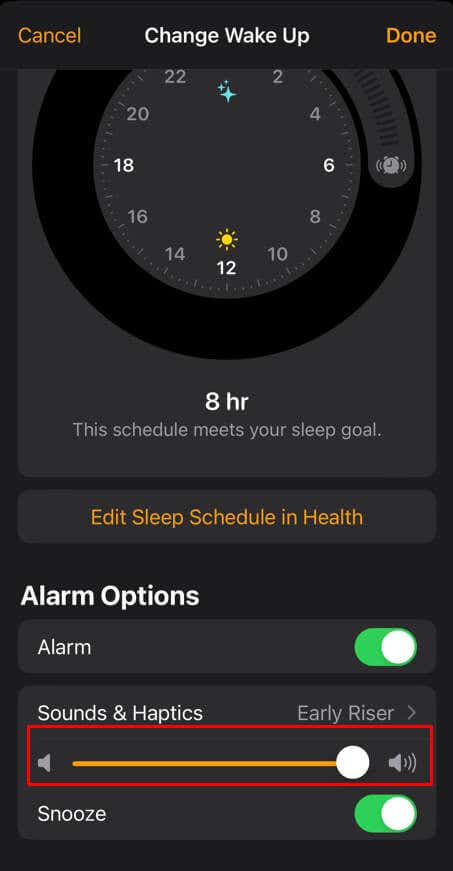
- Once you use the slider to set the iPhone alarm volume and are satisfied with the result, hit the Done button in the top right corner of the screen.
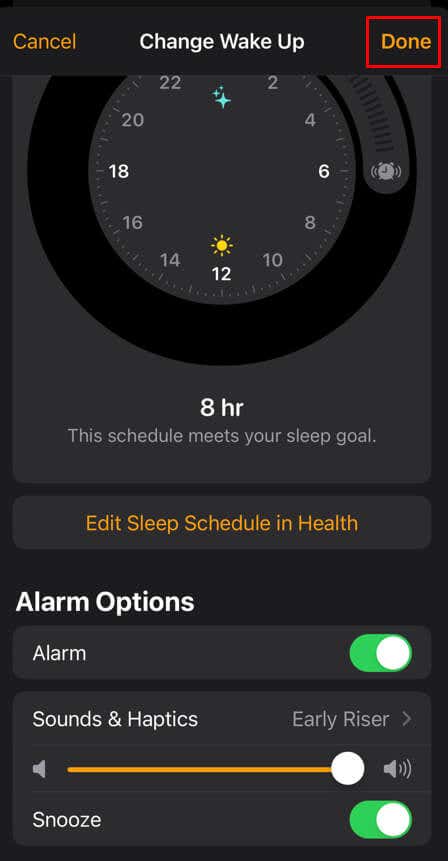
Note: You can also change the alarm volume in the Sleep Mode from the Health app on your iPhone.
5. Disable Attention Aware Feature
Some iPhone users reported that turning the Attention-Aware feature on their devices fixed the issue of the alarm being too loud or quiet. However, you should know that this feature is available only on iPhone X and later models.
To turn off the Attention-Aware feature:
- Open Settings .
- Select Face ID & Passcode .
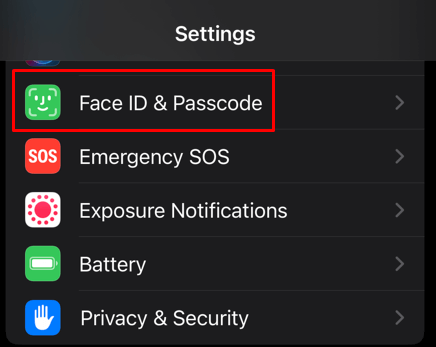
- Enter your passcode if prompted.
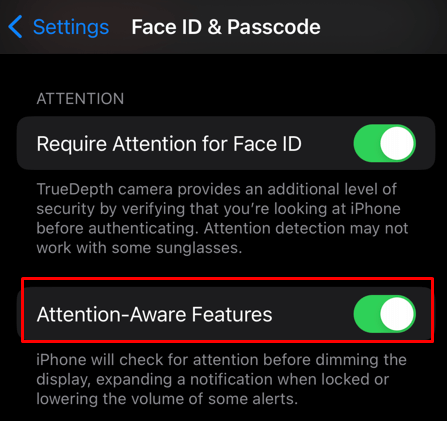
- Tap the toggle next to the Attention-Aware Features to turn it off.
6. Get Rid of Other Alarm Apps
If you installed third-party alarm apps , they might be the ones causing the problem with alarm sound volume. Simply uninstall them and see if this fixes the issue.
7. Delete the Alarm
If the problem with the alarm sound being too loud or quiet is happening only with one particular alarm, you should delete it and recreate it.
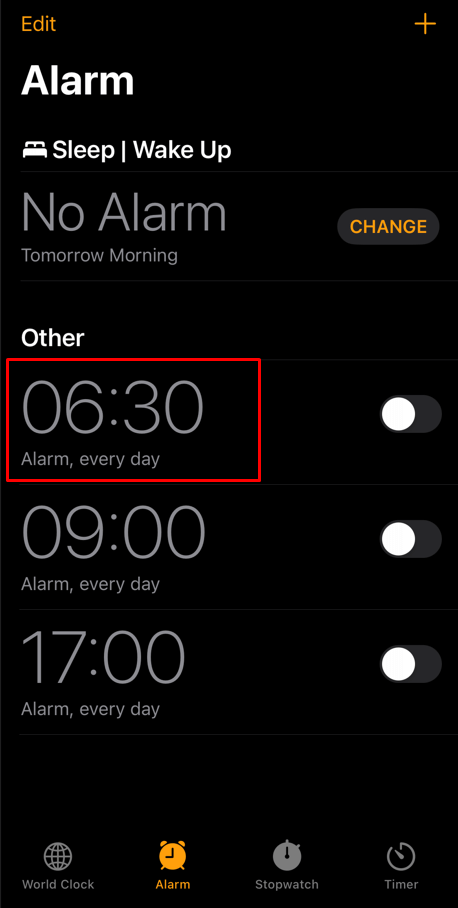
- Go to the Clock app and select the Alarm tab.
- Select the particular alarm that’s having sound volume issues.
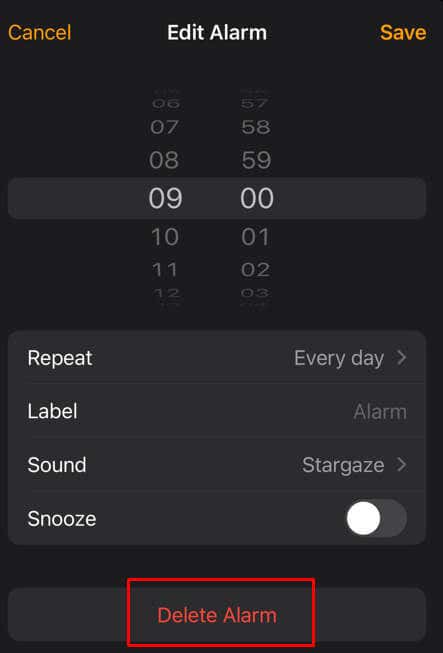
- Select the Delete Alarm button on the next screen.
To recreate and set the alarm:
- Go to the Clock app and select the Alarm tab.
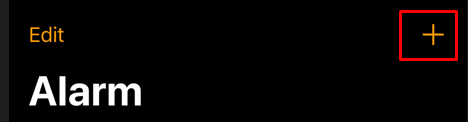
- Tap the plus icon in the top right corner of the screen.
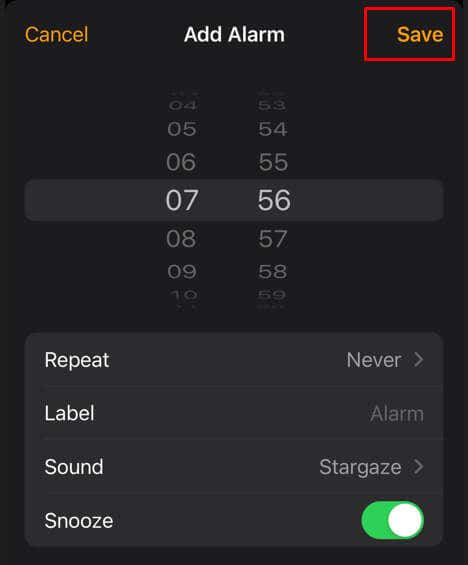
- Set the time of the alarm and select the tone and any other settings you want.
- Tap Save in the top-right corner.
8. Update iOS
It can be a software problem also. Typically, software issues are fixed with the next update, so you should check if a new iOS version is available. To check for updates:
- Go to Settings .
- Select General .
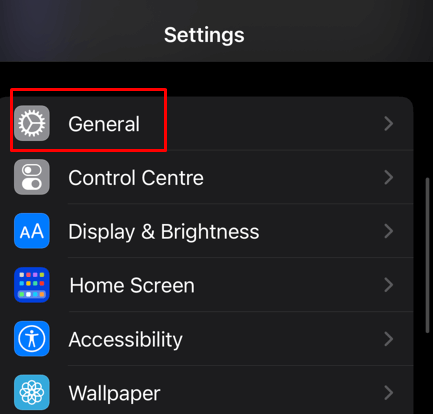
- Tap Software Update .
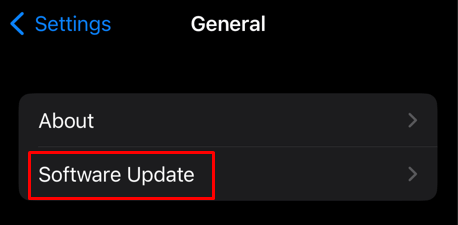
- If an update is available, select the Download and Install button.
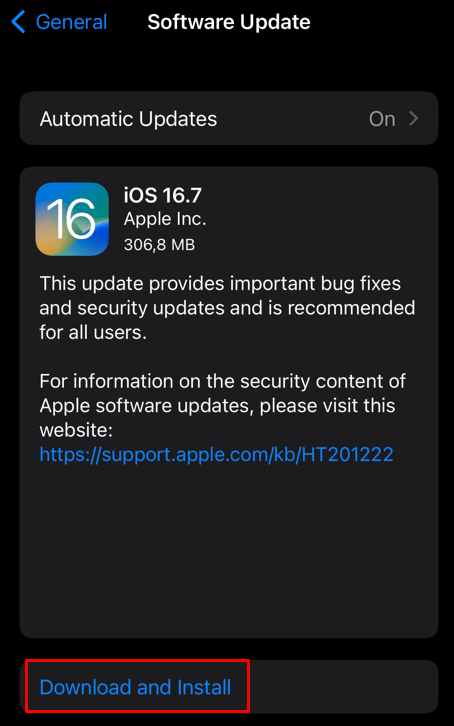
Once you have updated your iOS, recreate the alarm and see if this fixed the issue.
9. Reset All iPhone Settings
If you’re still having issues with the abnormal volume level alarm sounds, resetting all iPhone or iPad settings could help. Here’s how:
- Go to Settings app and select General .
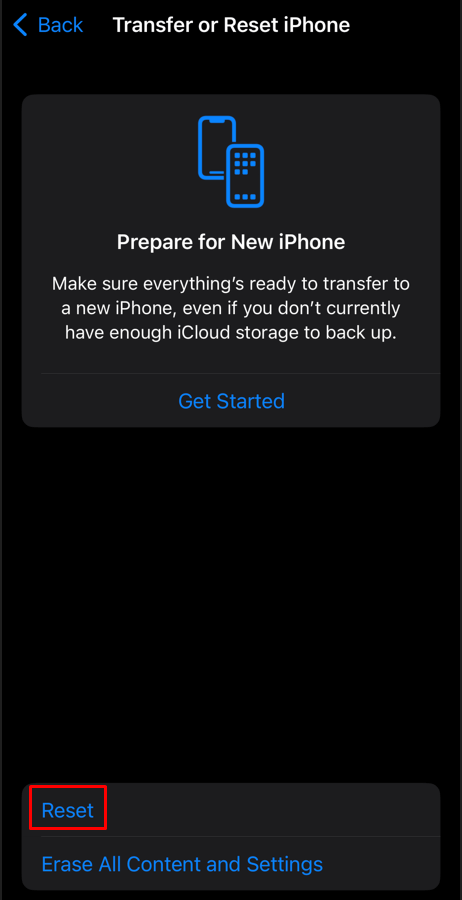
- Scroll down and tap Transfer or Reset iPhone .
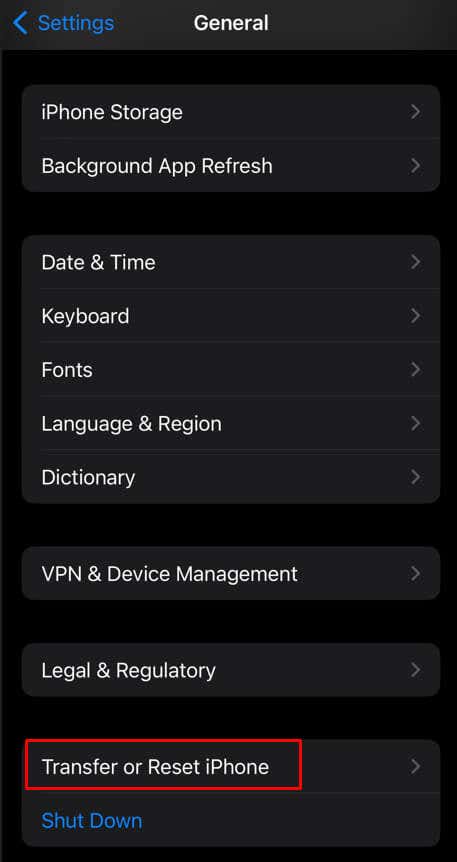
- On the next screen, tap Reset .
- Select Reset All Settings from the options.
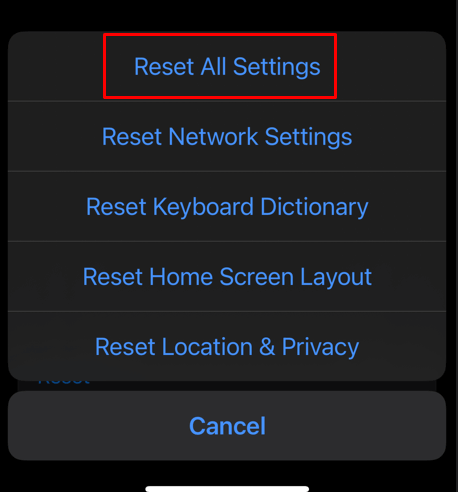
All custom iPhone or iPad settings will be reverted to defaults. However, you won’t lose any files you keep on your device. Resetting your device’s settings is a safe procedure.
10. Check Connected Devices
Finally, if none of the above fixes help you, check if any peripherals are connected to your device. If you have Bluetooth headphones or speakers connected, the sound will typically play through them instead of through your device. That might be the reason why you’re hearing the alarm sound quietly.
Sometimes, when a peripheral is connected to your device, a bug causes it to play the sound either too loud or too quiet. If this is the case, try turning the Bluetooth feature off and see if this helps with the issue.
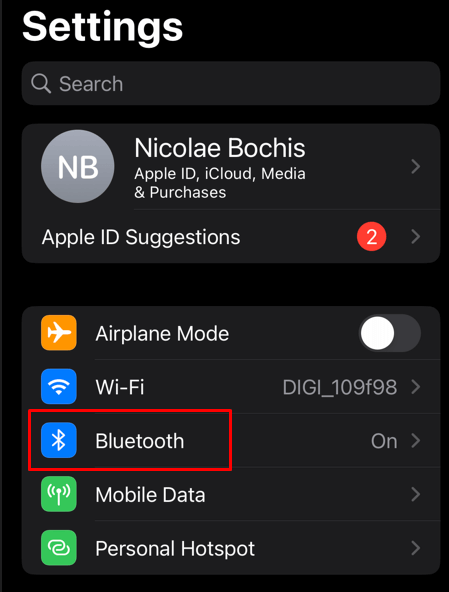
- Go to Settings .
- Select Bluetooth .
- Tap the slider next to the Bluetooth option to turn it off.
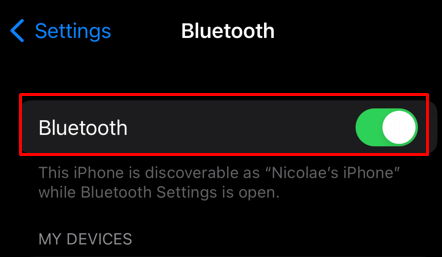
Check if your alarm sound volume returned to normal.
Your morning alarm clock is the soundtrack to the start of your day, and it’s crucial to get it right to ensure a smooth and pleasant wake-up routine. Whether you prefer a gentle nudge or a more energetic start, we hope these solutions provide the flexibility you need to tailor your alarm volume to your liking.
- How to Use Your iPhone as a USB Drive on Mac and PC
- How to Turn Off Password Suggestions on iPhone
- How to Accept Invite to Shared Album on iPhone
- How to Send Emails on iPhone
- iPhone Not Sending Emails? 10 Fixes to Try
