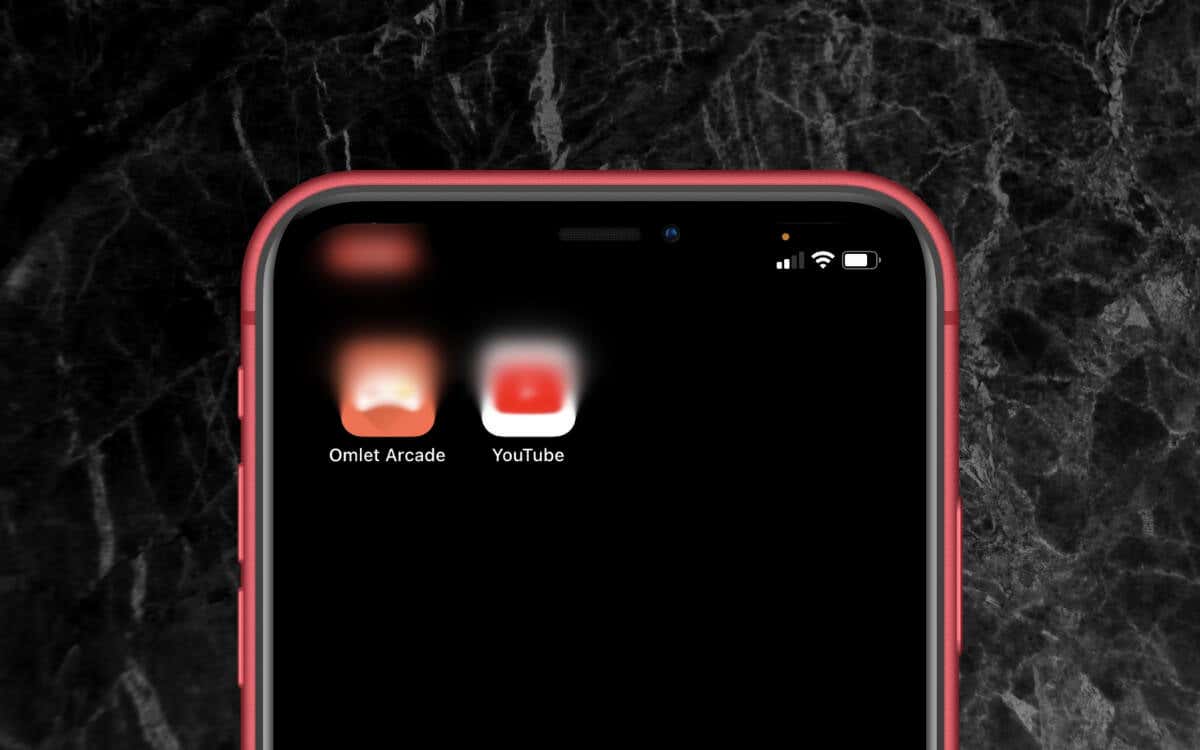
Is the top-left corner of your iPhone screen blurry? It’s a software problem that has been cropping up on various iPhone models since iOS 14. Fortunately, resolving this issue is relatively simple. All you’ve got to do is run through the quick fixes below.
1. Switch From Dark to Light Mode
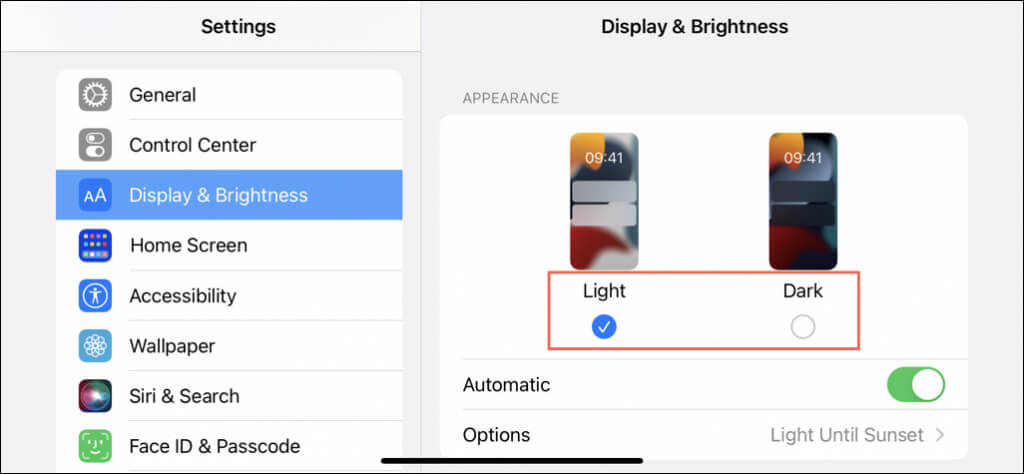
Usually, a blurry rectangle on the top-left iPhone screen stems from random glitches with the Light and Dark modes in iOS . Switching between the color profiles tends to fix the problem for many iPhone users. Here’s how:
- Open the Settings app via the Home Screen.
- Tap Display & Brightness .
- Switch from Light to Dark or vice versa and revert to your preferred color mode.
2. Toggle Bold Letters
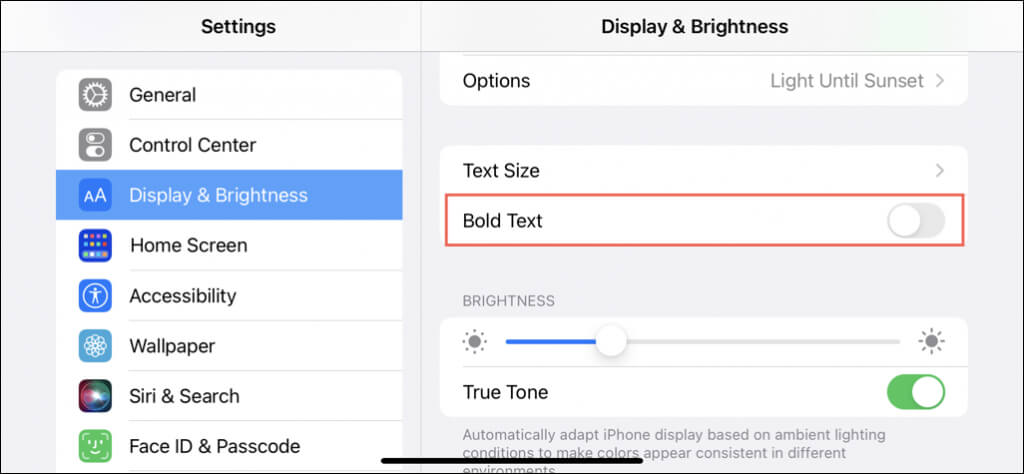
If switching between color profiles doesn’t help, bolding and unbolding the letters on your iPhone might. Just:
- Go to Settings > Display & Brightness .
- Turn the switch on and off next to Bold Text .
3. Toggle Display Zoom
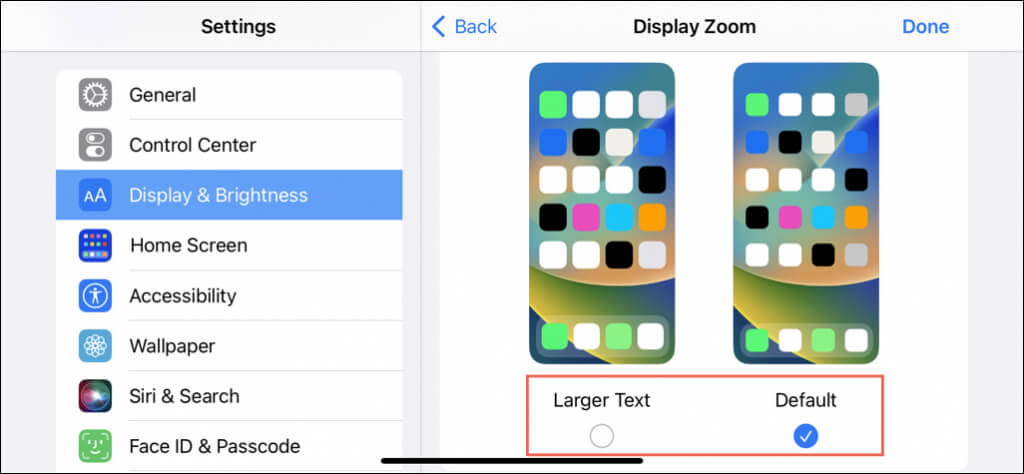
Display Zoom is another display-related setting that fixes blurry screen issues on the iPhone. Again:
- Go to Settings > Display & Brightness .
- Scroll down and tap Display Zoom .
- Switch from Default to Larger Text or vice versa and revert to your preferred zoom mode.
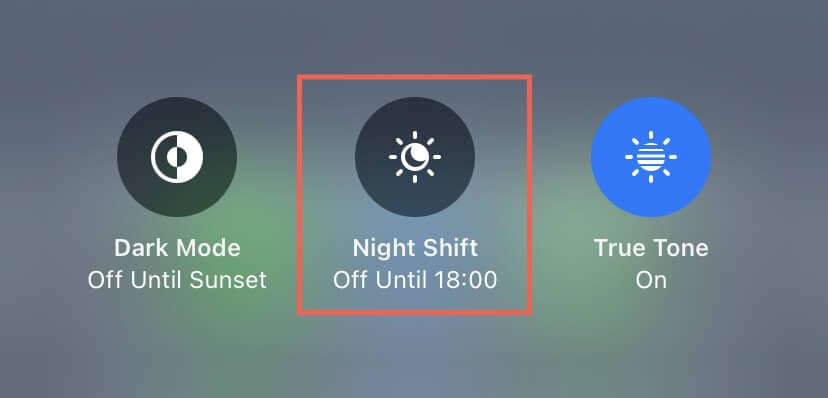
4. Toggle Night Shift
Follow by turning Night Shift on the iPhone on and off. To do that:
- Swipe down from the top-left of the screen to open the Control Center.
- Tap and hold the Brightness slider.
- Enable and disable Night Shift .
5. Shut Down and Reboot iPhone
Restart your iPhone if the blurry top-left corner of the screen issue persists. To do that:
- Press and release the Volume Up button.
- Press and release the Volume Down button.
- Press and hold the Side button.
- Drag the Power icon to the right.
- Wait 30 seconds and hold the Side button until the Apple logo appears.
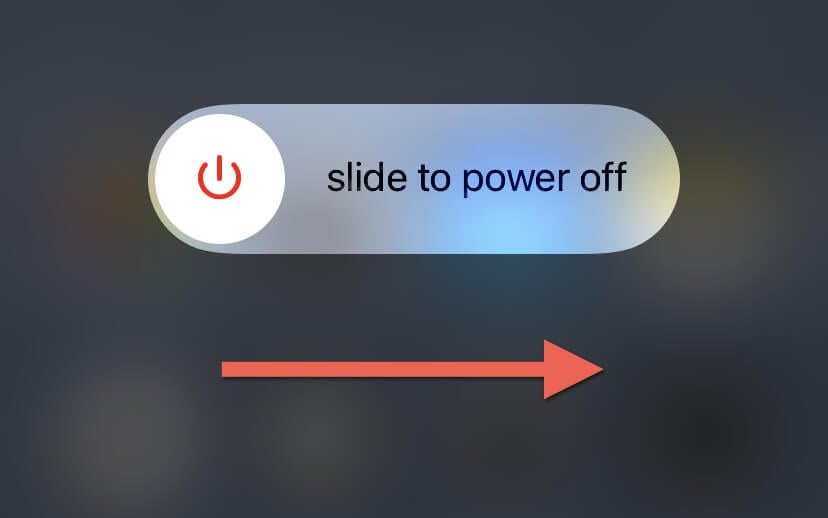
Note : If you use an iPhone 7 or 7s, hold the Volume Down and Side buttons to invoke the Slide to Power Off screen. On an iPhone 6 or older, hold the Home and Power buttons.
6. Install the Latest Version of iOS
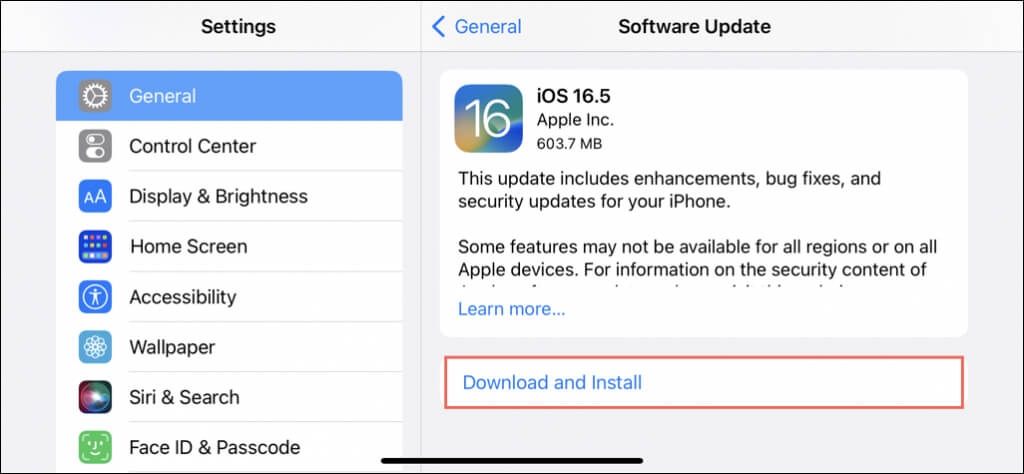
A blurry top-left iPhone screen has been a recurring issue with multiple iOS iterations (e.g., iOS 15.5, iOS 16.0, etc.), but it’s best to update your iOS device regardless. To do that:
- Open Settings and tap General .
- Tap Software Update .
- Tap Download and Install .
7. Update a Problematic App
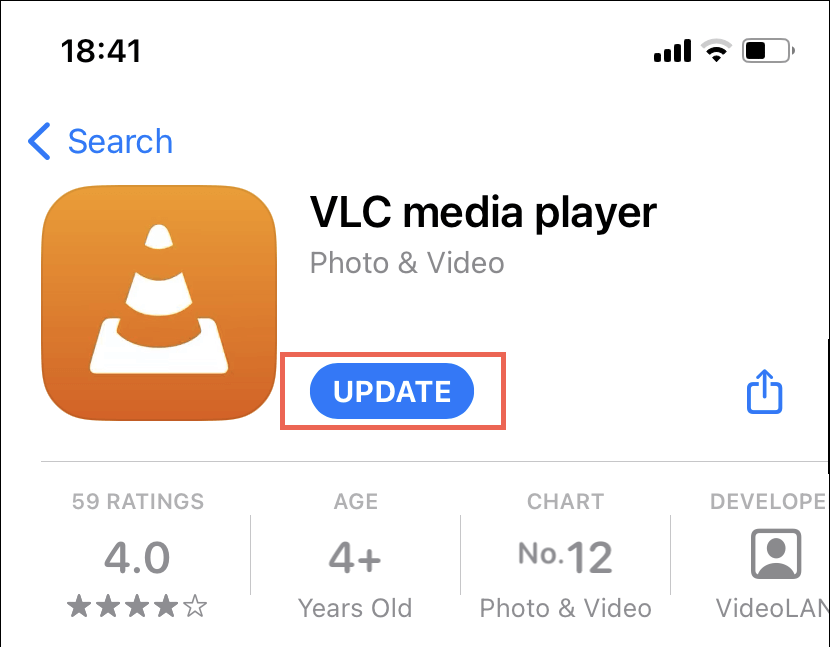
If the problem occurs with a specific app only, check if there’s a newer version available on the App Store. Here’s how:
- Open the App Store.
- Search for and visit the app’s store page.
- Tap Update if there’s a pending update.
Factory Reset iPhone or Call Apple
If none of the above fixes make the blurry top-left corner of your iPhone screen disappear, you’re likely dealing with a severe software or hardware issue. Your best shot at fixing the problem is to back up your data and restore iOS to factory settings . If that also fails, contact Apple Support or visit your nearest Apple Store .
- How to Use Your iPhone as a USB Drive on Mac and PC
- How to Turn Off Password Suggestions on iPhone
- How to Accept Invite to Shared Album on iPhone
- How to Send Emails on iPhone
- iPhone Not Sending Emails? 10 Fixes to Try
