Yes Windows 7 has some fancy eye-candy graphics and display options with the new Aero interface, but maybe you don’t want that? Maybe you’ve gotten accustomed to the classic Windows look which has been around since Windows 95?
If so, well there is an answer! Luckily, Microsoft is not crazy enough to completely cut out the old interface in Windows 7. On a side note, though, Windows 8/10 has a drastically different look and it’s not so easy to get the classic look there, but that’s another story.
Windows 7 Classic Theme
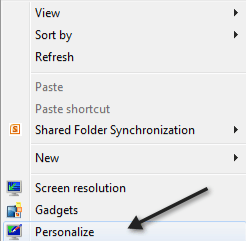
In Windows 7 you can revert back to the classic Windows look easily. In order to do this, go to your Desktop , right click and choose Personalize .
Next, you’re going to get a dialog showing a list of Aero themes. This is where you can switch back to the Classic view.
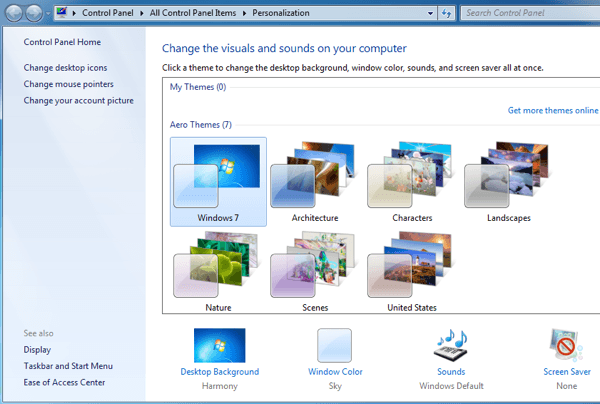
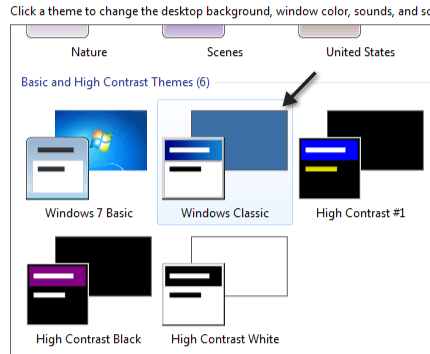
Scroll down the list until you see Basic and High Contrast themes. There should be one called Windows Classic .
Now your desktop will go from the fancy new Windows 7 look to the classic Windows 2000/XP look like below:
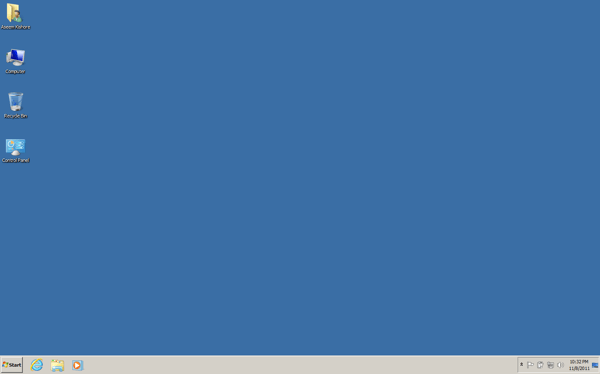
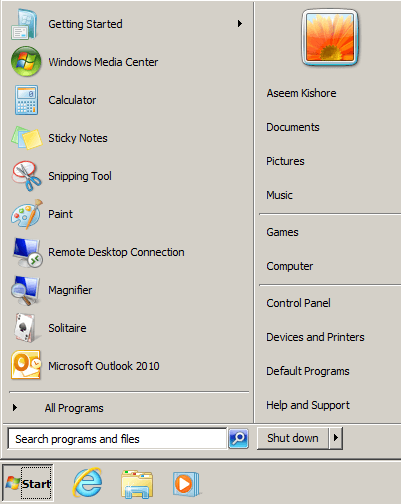
And, of course, the Start button and Start menu will look like the 2000/XP version:
That’s the quickest and easiest way to get Windows 7 to look like Windows 2000. There are some other programs that can make it even more realistic by changing the boot up image, the login screen, and other stuff, but it requires you to install the software, which will change a lot of files on your system. Enjoy!
- How to Use Event Viewer to Troubleshoot Windows Problems
- What Is ehprivjob.exe and Do You Need It?
- How to Boot into Safe Mode in All Versions of Windows
- How To Get Ready For Windows 7 End Of Life
- How To Change The Windows 7 Login Screen Background Image
Founder of Help Desk Geek and managing editor. He began blogging in 2007 and quit his job in 2010 to blog full-time. He has over 15 years of industry experience in IT and holds several technical certifications. Read Aseem’s Full Bio
