So now that Windows 8 is coming out, you’ll be happy to know you can join it to your existing Windows 7 homegroup if you like. Windows 7 introduced the whole homegroup feature, which basically simplifies the process of sharing files and printers with other Windows 7 machines. Up till now, you could only do this with Windows 7 machines, but now you’ll be able to share files and stream media between Windows 7 and Windows 8 PCs.
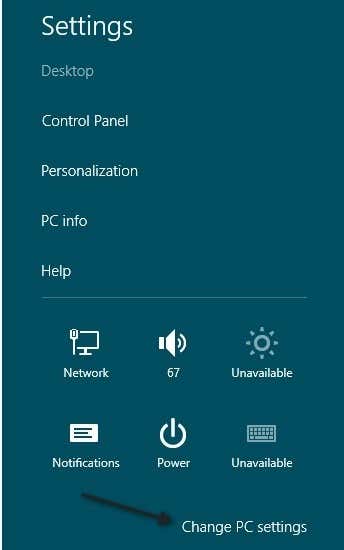
The process of adding a Windows 8 machine to a Windows 7 homegroup is pretty easy. First, open the Charms bar by pressing Windows Key + C or hovering the mouse over the top-right corner of the screen. Then click on Settings .

Next, click on Change PC Settings at the very bottom.
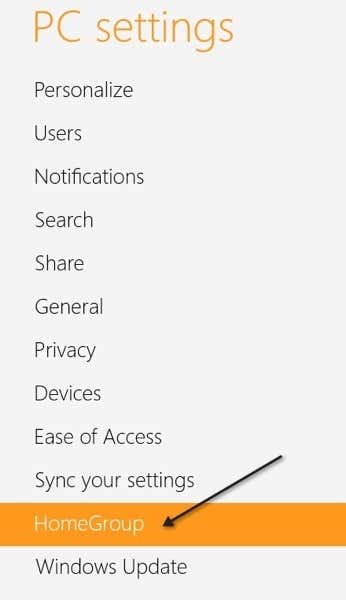
Now go ahead and click on HomeGroup in the left-hand pane:
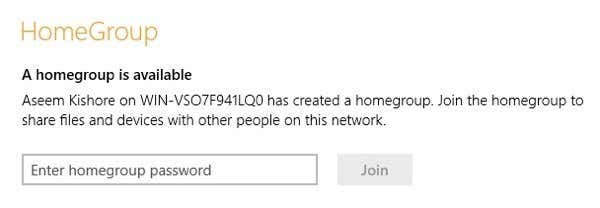
Now make sure that at least one Windows 7 computer is turned on that is joined to the homegroup. You also have to make sure that both of the computers are on the same network. In Windows 8, it will automatically search for a homegroup on the local network. You’ll see a screen like this saying “ A homegroup is available ” and a place to enter the homegroup password.
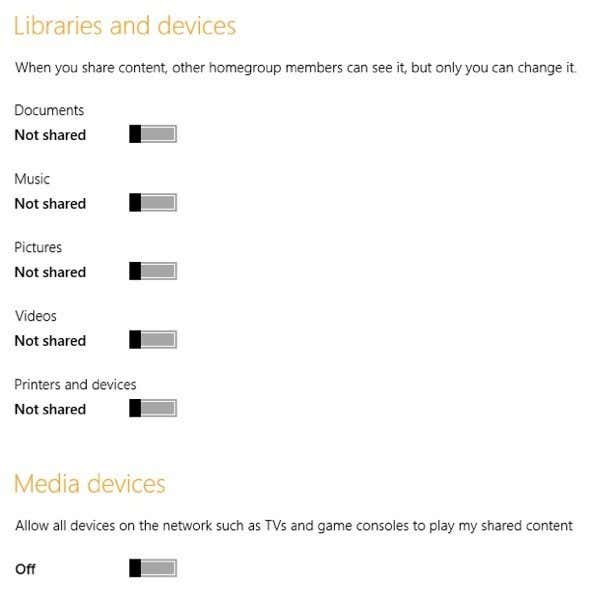
You can also choose whether or not you want your content to be streamable to TV’s or game consoles like the xBox and PlayStation. That’s pretty much it! Now you can easily access data between your Windows 7 and Windows 8 machines without any technical know-how. If you’re having problems connecting to a homegroup or the homegroup is not showing up, post a comment and I’ll try to help. Enjoy!
- How to Use Event Viewer to Troubleshoot Windows Problems
- How to Boot into Safe Mode in All Versions of Windows
- How to Reset Your Computer Password If You Lock Yourself Out
- 14 Command Prompt (CMD) Commands Windows Users Should Know
- Change from Public to Private Network in Windows
Founder of Help Desk Geek and managing editor. He began blogging in 2007 and quit his job in 2010 to blog full-time. He has over 15 years of industry experience in IT and holds several technical certifications. Read Aseem’s Full Bio
