Owners of Acer Aspire laptops can encounter a bothersome issue which is that their keypad suddenly stops working. Different Acer online communities have been harping about this issue including their official forum board .
But instead of visiting these sites for a solution, we are going to walk you through five troubleshooting steps that will help you when your Acer keypad is not working. This way, you can do something about the problem before you decide to throw away your laptop.
Disable Filter Keys
One cause could be the Filter Keys . This feature allows your keyboard to ignore repeated or brief strokes. This feature is helpful for people with involuntary tendencies to repeat keystrokes, but if this does not describe you, you need to disable the feature.
- Press the Windows key and launch Settings .

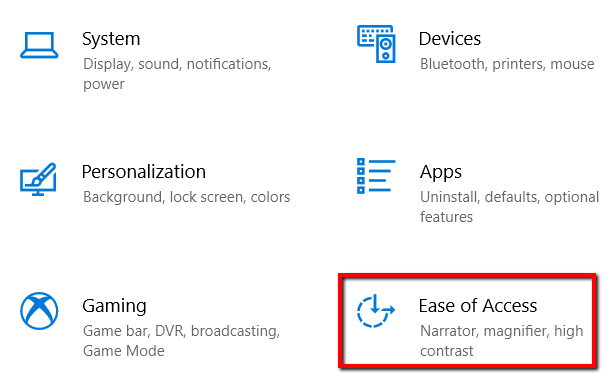
- Select Ease of Access from the options.
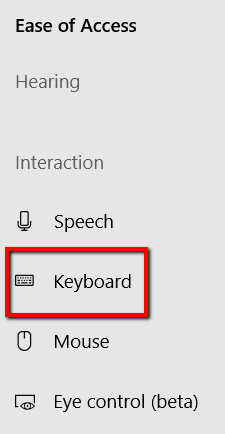
- There, go to the Interaction section and choose Keyboard .
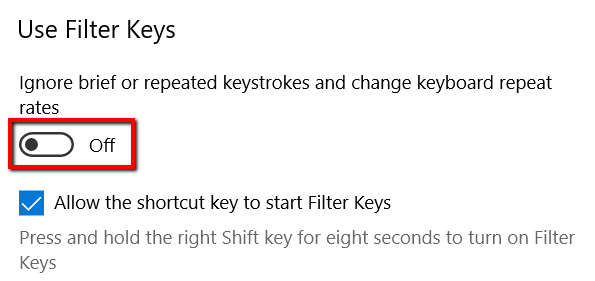
- Find the Use Filter Keys section. Then turn them off.
Update Keypad Driver
If you’re using an outdated keyboard driver, it shouldn’t come as a surprise that your keypad will eventually stop working. Therefore, a straightforward solution is to update them.
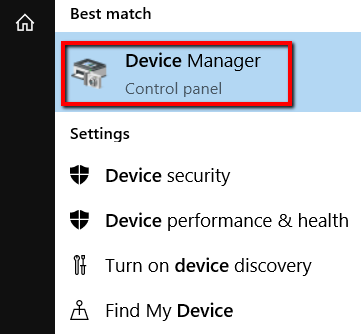
- To start the updates, press the Windows key and launch Device Manager .
- There, expand Keyboards .
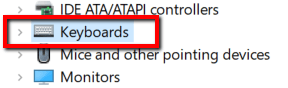
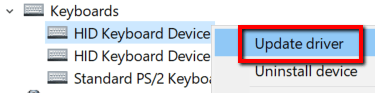
- Select a device. Right-click on it to reveal a menu. There, select Update driver .
- You can also do this with Driver Easy . Just download it from its website and set it up.

- Click Install Now and wait for it to finish the installation process.Then launch the program.

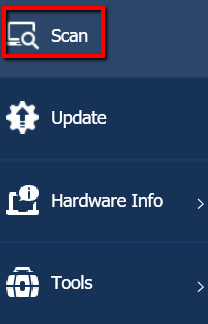
- First, allow it to do a Scan . This will make the program analyze your keyboard. Performing a scan is important to know if you’re using the right keyboard driver. If you have the wrong one, the program will uninstall the keyboard driver. Remember, even if your driver is up-to-date, a wrong keyboard driver can also be the cause of a non-responsive keypad.
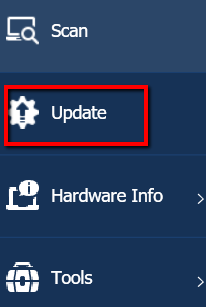
- Then click the Update button. This will automatically update your keyboard’s drivers for you.
Use Pinhole Reset
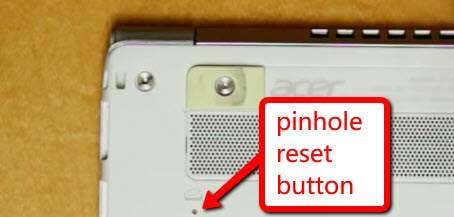
The root of a problematic keypad could also be something in your system. So a way to fix it would be to reset it.
- Find the pinhole reset button on your Acer laptop. On the S13 Core i7, it comes with a picture of what seems to be a battery from a cradle. For other Acer Aspire units, you might find it someplace else.
- Not every model is designed with a pinhole reset. So if it’s not there, don’t worry about it. But if you see it there, press this button. Then hold it for about 5 seconds.
- Pressing this button will start an internal battery reset .
Reboot Laptop
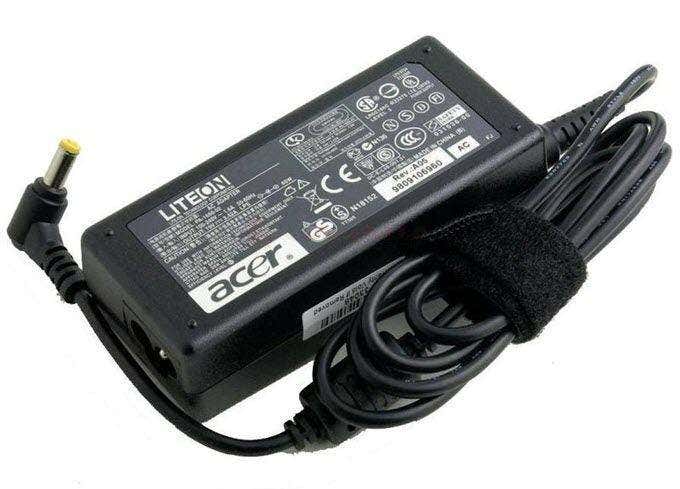
Rebooting the laptop is another easy fix to the problem.
- To start the process, just press and hold your laptop’s power button. Don’t let go until your laptop is completely off.
- Then unplug its power cable and remove its battery.
- For about five seconds, leave your laptop as it is. Then plug back in your laptop’s power cable and return its battery.
- Now turn on your laptop.
Check For Hardware Issues

It’s also possible that hardware issues are the culprit if your keyboard suddenly stops working. But it’s a problem you can resolve as long as you’re careful.
Just remove your laptop’s cover. Then adjust the screws in your laptop using a screwdriver. If you don’t think you can do this well, it’s recommended to let an expert come in.
Inform them of the problem. Tell them they need to thoroughly check for hardware issues too.
- Why Your GPU Fans Aren’t Spinning and 10 Ways to Fix
- What Are Ortholinear Keyboards (And Should You Get One)?
- Got a New Computer? Here Are The 10 Things You Should Do
- What Is Dual-Channel Memory (RAM)?
- Razer Mouse or Keyboard Not Showing Up in Razer Synapse? Try These 6 Fixes
Christopher Jan Benitez is a freelance writer for hire who provides actionable and useful web content to small businesses and startups. In his spare time, he religiously watches professional wrestling and finds solace in listening to ’80s speed metal. Read Christopher’s Full Bio
