Do you have trouble locating Microsoft Photos on your Windows PC? You can’t find it on the Start menu; Windows Search won’t bring it up; double-clicking an image fails to launch it. Frustrating, right?
If a Windows reboot didn’t help (try that if you haven’t already), the good news is that there are several ways to get the Photos app back in Windows.
This tutorial will guide you through the most effective methods to fix the Microsoft Photos app missing issue on Windows 11 and 10.
1. Make Sure the Photos App Is Installed
The first thing you must do is double-check if the Photos app is installed on your Windows computer. To do that:
- Open the Microsoft Store via the taskbar or Start menu.
- Search for Photos and select the app among the search results.
- If there’s a Get button, select it to install Photos.
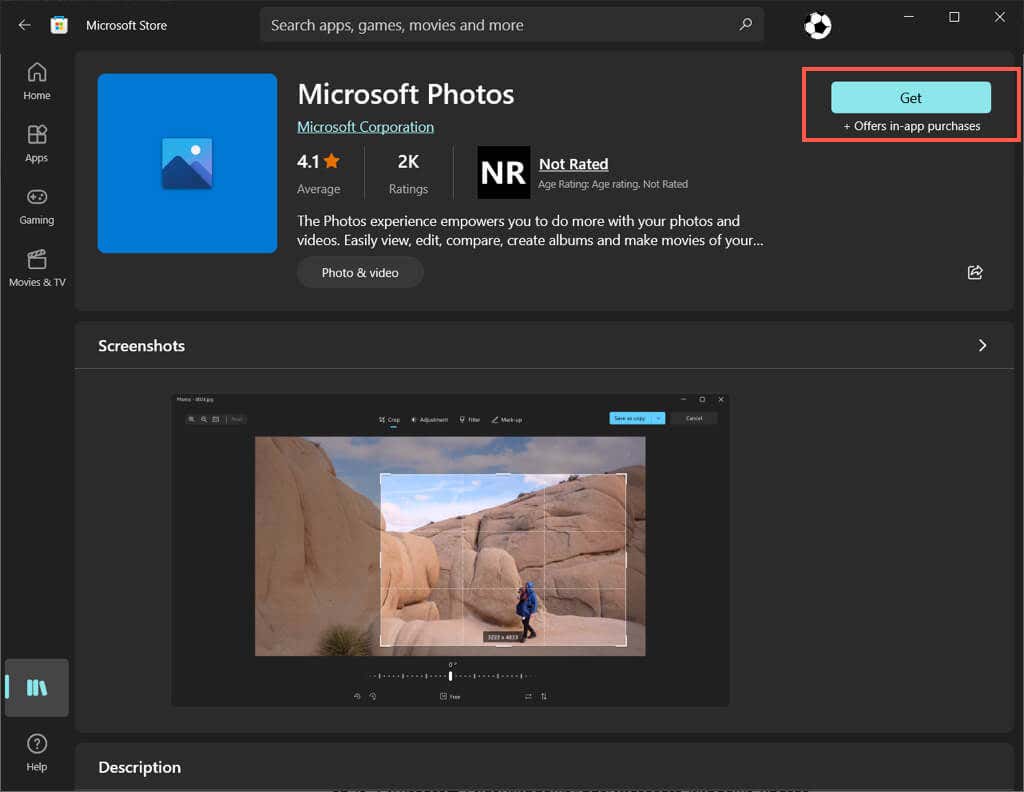
Photos is already installed if you see an Open button, but a software issue prevents you from locating or opening it. In that case, move on with the fixes below.
2. Re-register the Photos App
If the Photos app is installed but fails to appear throughout Windows, try re-registering the app with the operating system. That involves running a specific command through an elevated Command Prompt console. Here’s how:
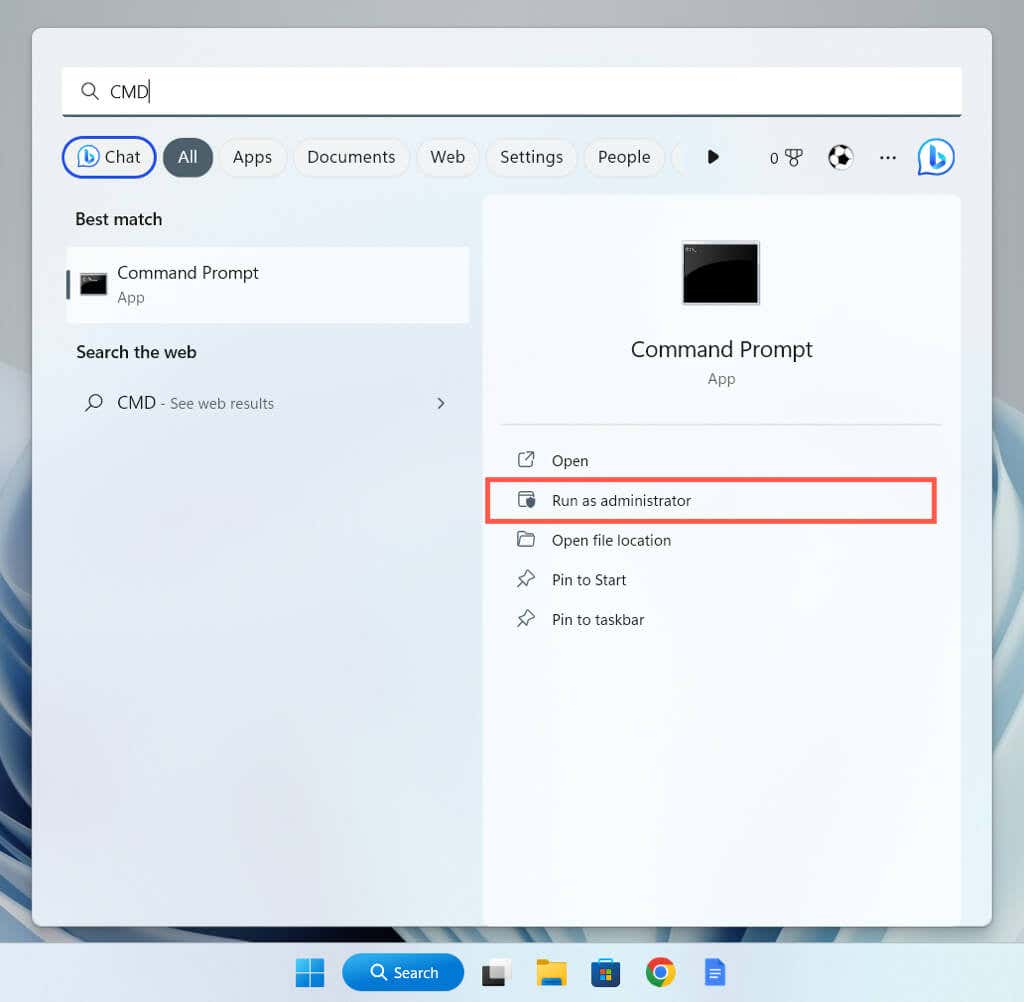
- Open the Start menu , type cmd , and select Run as administrator .
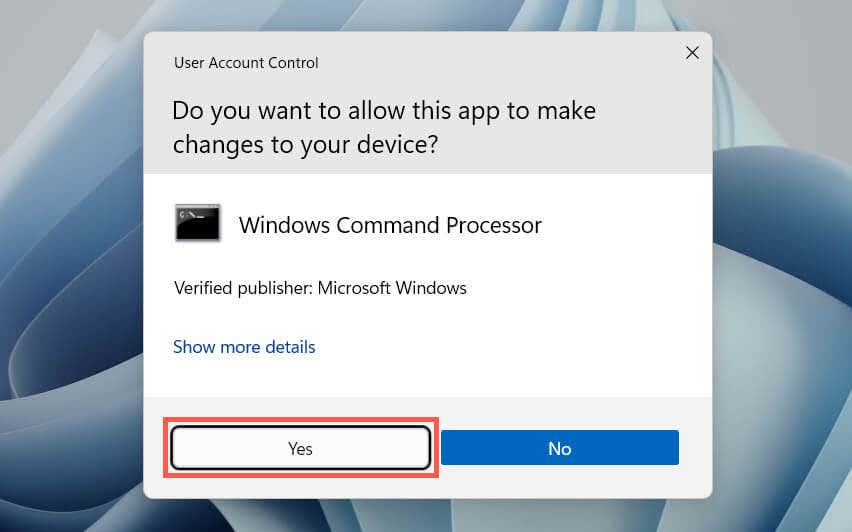
- Select Yes on the User Account Control pop-up.
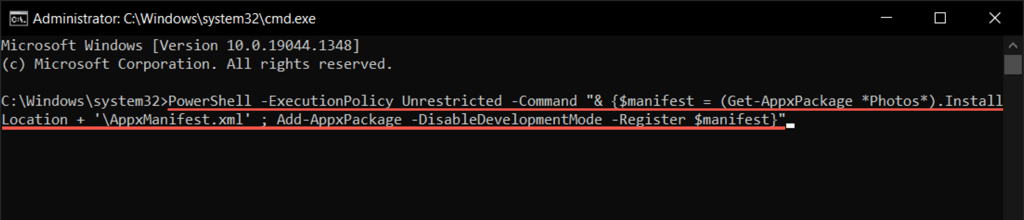
- Paste the following command and press the Enter key:
PowerShell -ExecutionPolicy Unrestricted -Command “& {$manifest = ( Get-AppxPackage Photos).InstallLocation + ‘ AppxManifest.xml ’ ; Add-AppxPackage -DisableDevelopmentMode -Register $manifest}”
3. Repair or Reset the Photos App
If you still have trouble locating and opening Photos, you should repair the app installation to fix issues with potential file corruption. To do that:
- Right-click the Start menu and select Install apps or Apps and Features .
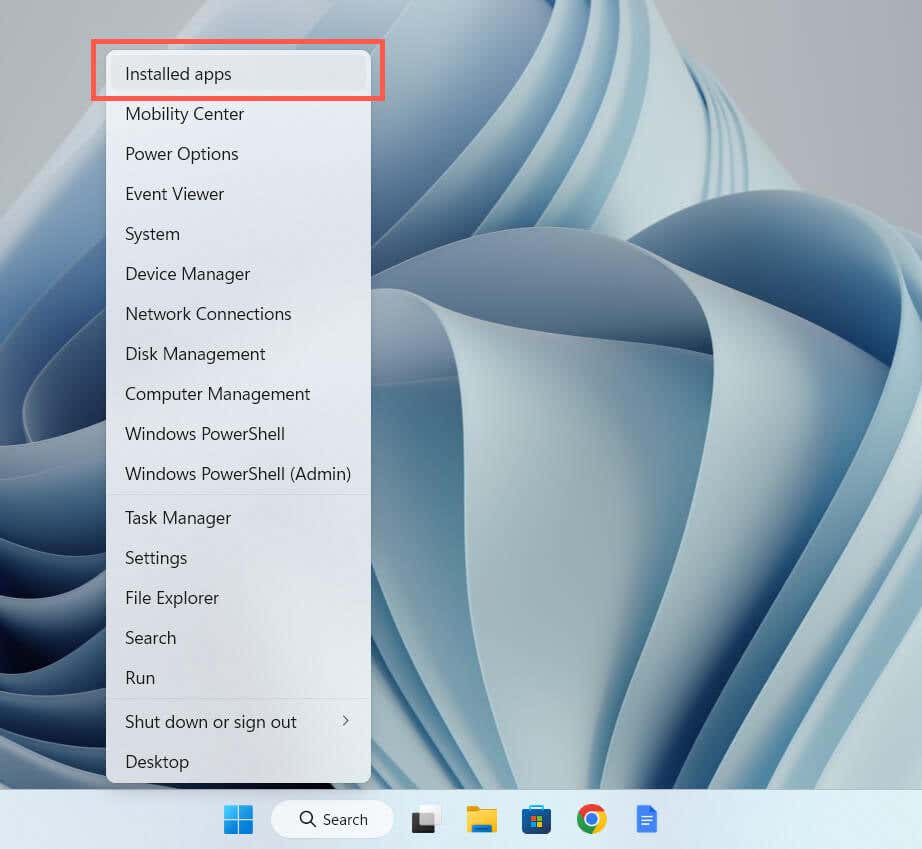
- Scroll down and select Microsoft Photos > Advanced options .
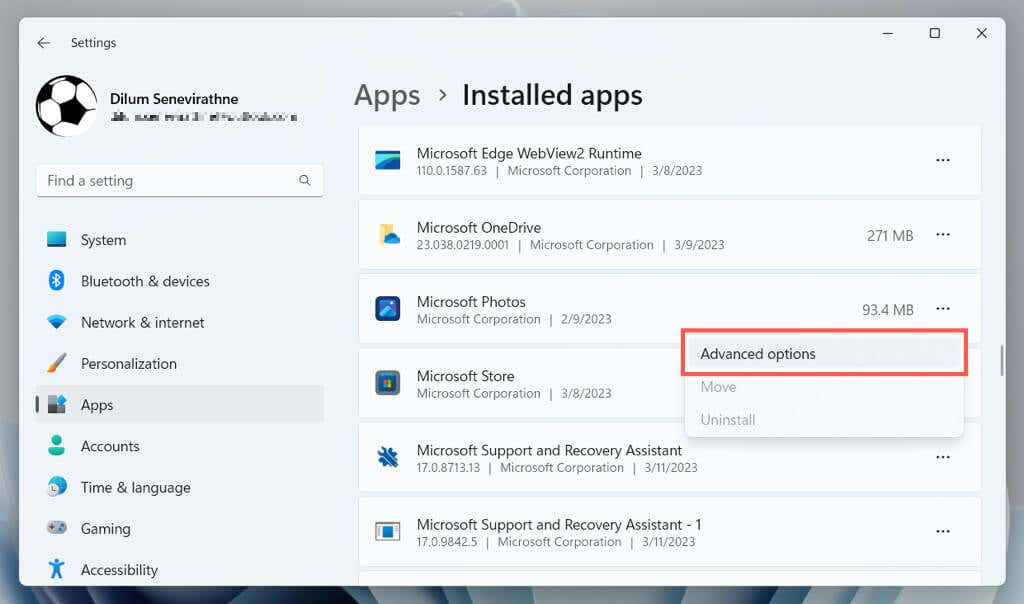
- Select Repair .
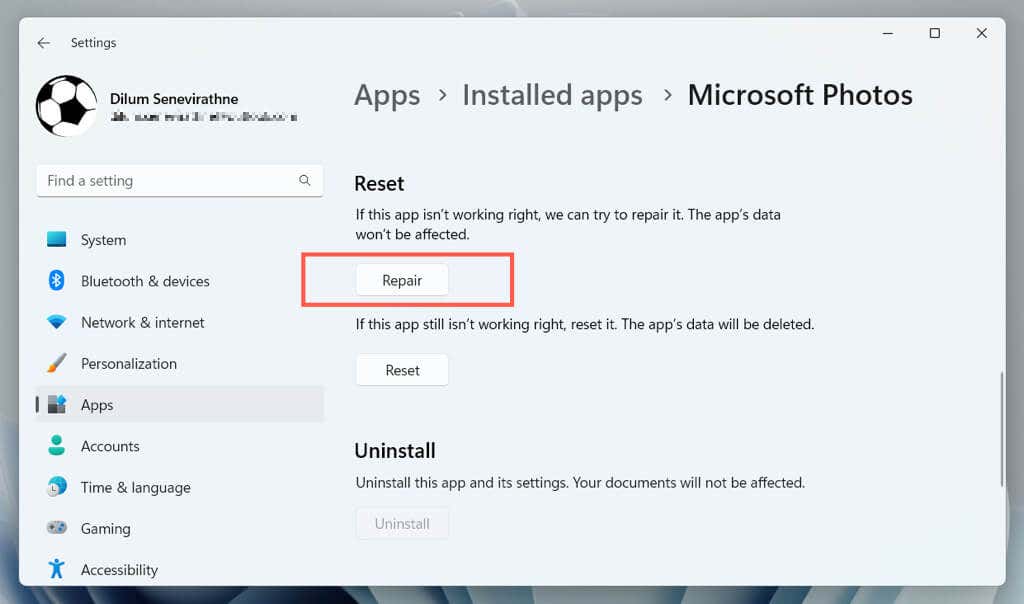
If repairing the app does not help, select Reset to restore Photos to its factory defaults.
4. Run Windows Store Apps Troubleshooter
The Windows Store Apps troubleshooter helps identify and fix issues with Photos and other apps from the Microsoft Store. If the problem persists, here’s how to run it:
- Right-click the Start menu and select Settings .
- Scroll down the System section and select Troubleshoot . If you’re troubleshooting the Windows 10 Photos app, choose Update & Recovery > Troubleshoot .
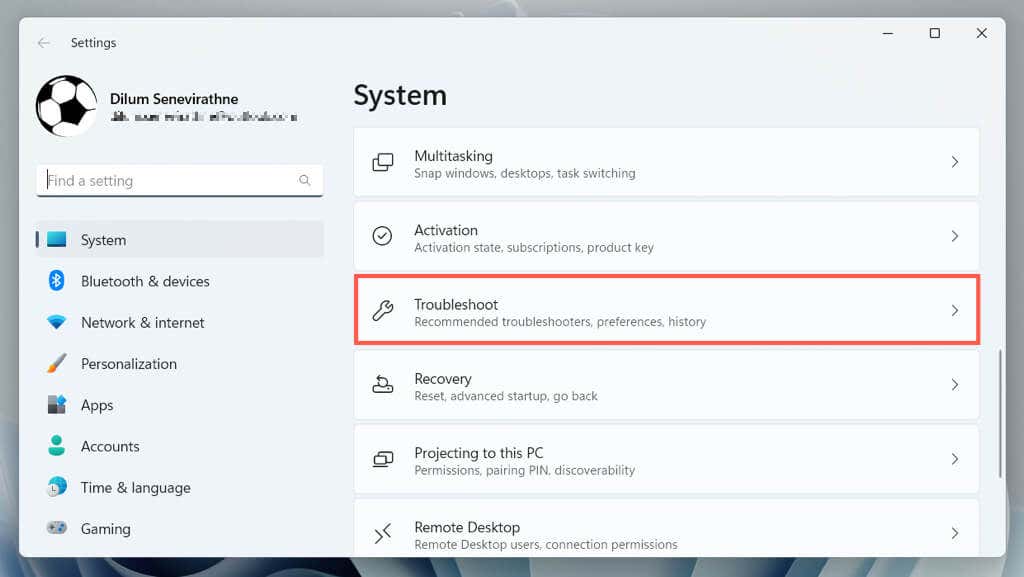
- Select Other / Additional troubleshooters .
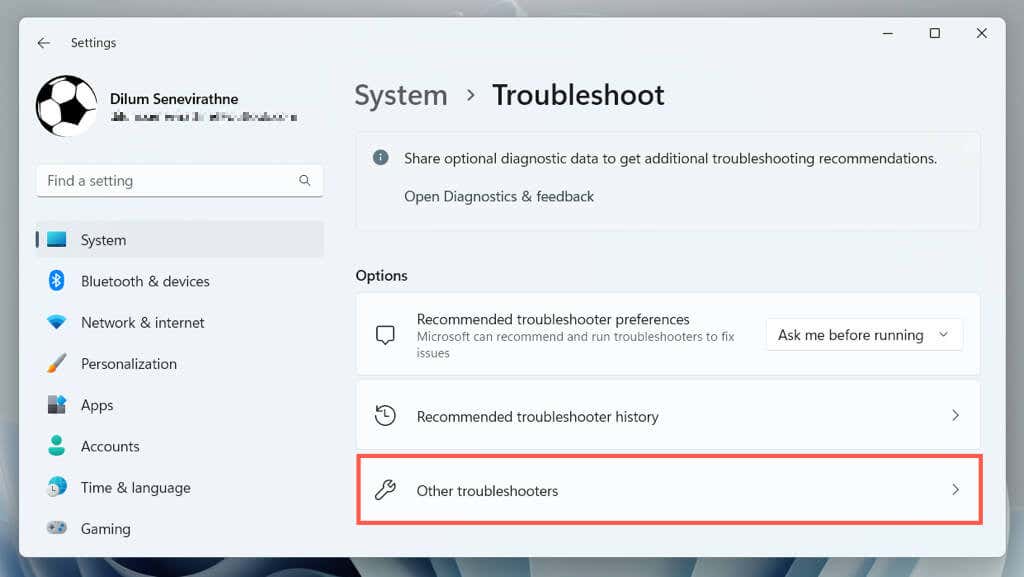
- Select Windows Store Apps and choose Run / Run the troubleshooter .
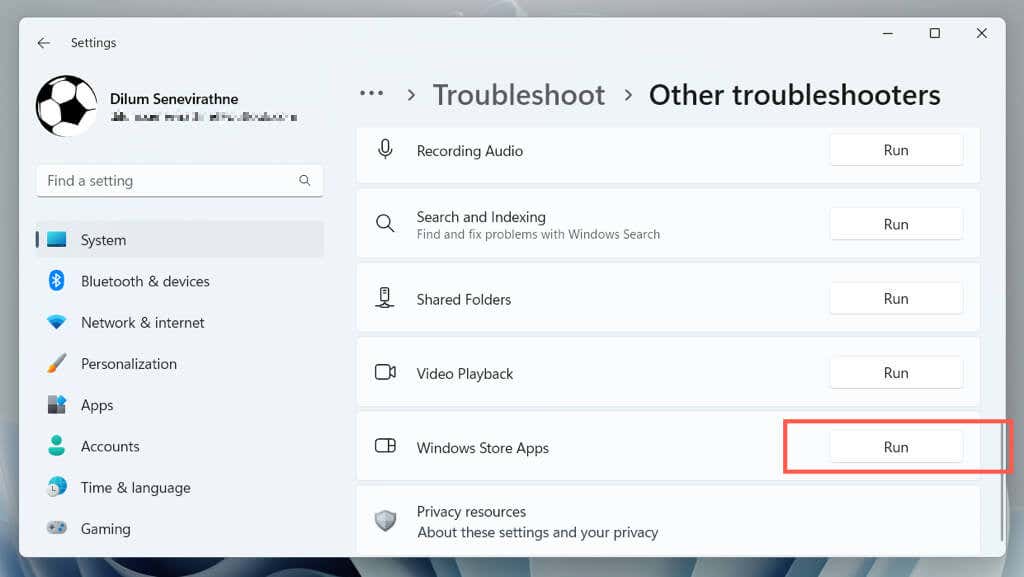
- Wait until the Windows Store Apps troubleshooter scans and fixes problems with Microsoft Store apps on your computer.
5. Clear the Microsoft Store App Cache
Microsoft Store cache corruption triggers various issues with native apps in Windows 10 and 11. If Photos is still missing after trying other fixes, run the WSReset tool to remove and rebuild the Store cache. To do that:
- Right-click the Start button and select Windows PowerShell (Admin) .
- Type wsreset.exe and press Enter .
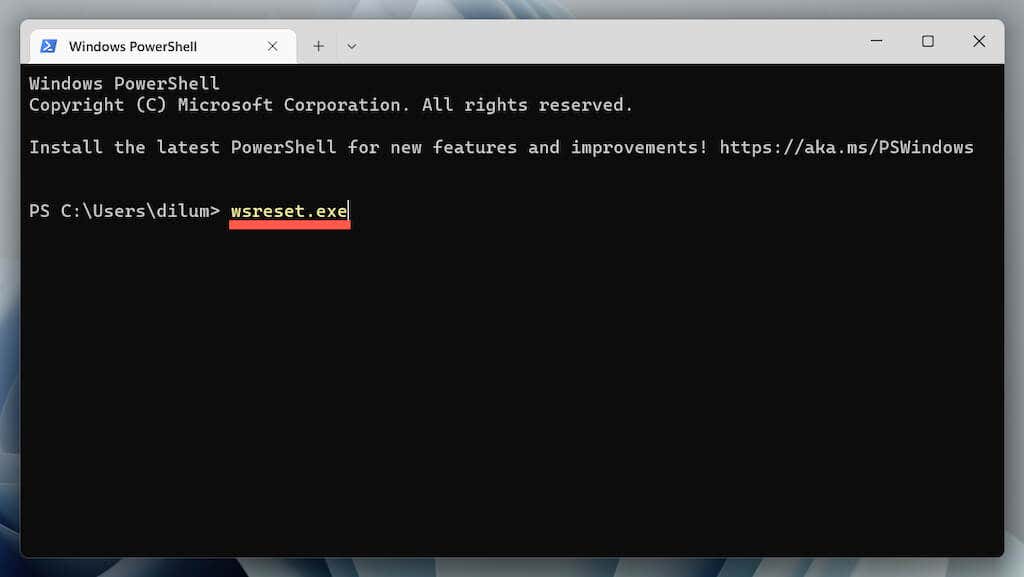
- Wait until the WSReset tool runs itself. The Microsoft Store should automatically open after that.
6. Uninstall and Reinstall the Photos App
The following fix involves completely removing and reinstalling the Photos app with the help of PsTools from Microsoft. Here’s how:
- Download PsTools from the Microsoft website.

- Extract the downloaded ZIP file (right-click and select Extract files ) and set C:/PSTools as the extraction destination.
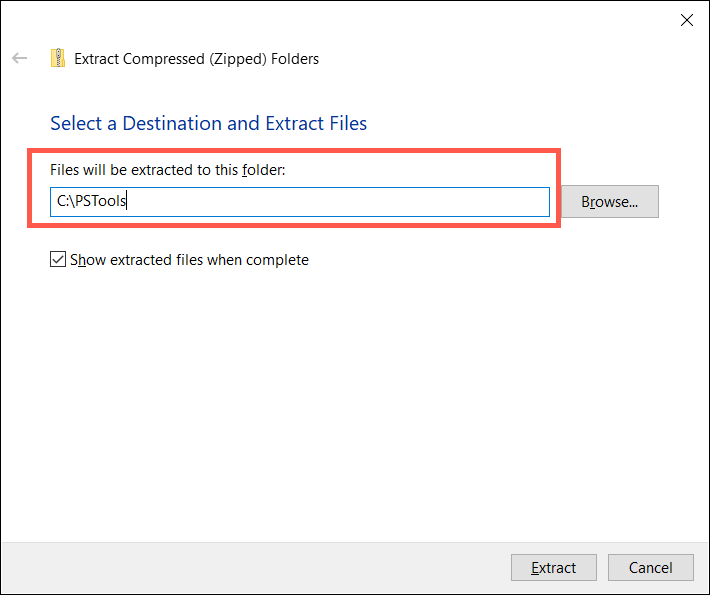
- Open an elevated Windows PowerShell window and execute the command:
Get-AppxPackage photos | Remove-AppxPackage
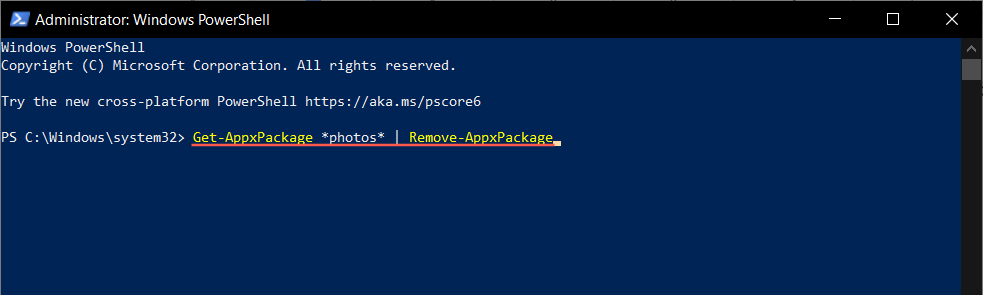
- Exit Windows PowerShell.
- Open a Command Prompt console with administrative privileges and run the command:
C:PSToolsPsExec.exe -sid C:WindowsSystem32cmd.exe
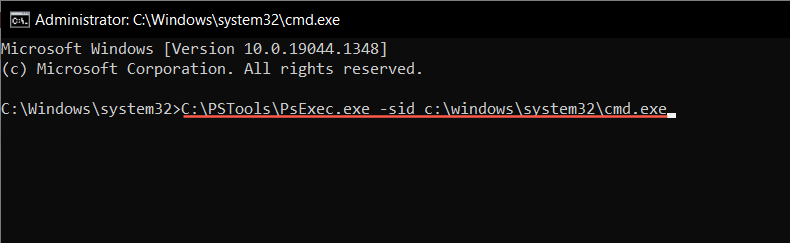
- The Command Prompt should automatically launch a new window. Type the following command and press Tab to complete it with the correct name for the Photos directory:
rd /s “C:Program FilesWindowsApps Microsoft.Windows.Photos _
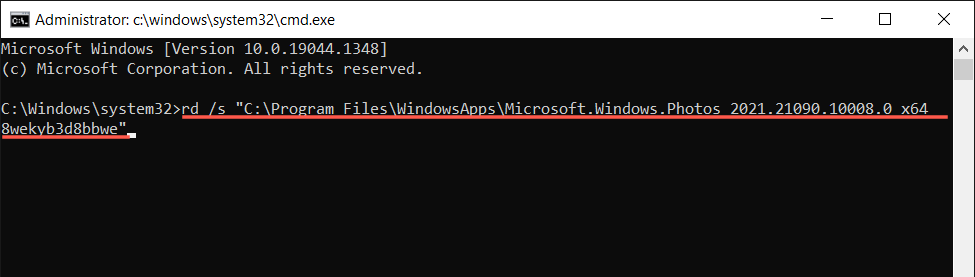
Note : You may have to press Tab repeatedly until you see x64 as part of the folder name, similar to what you see in the screenshot above.
- Execute the command and wait until PSTools removes Photos.
- Quit all Command Prompt windows and restart your PC.
- Search for and reinstall the Photos app via the Microsoft Store.
7. Run SFC and DISM Scan
Running an SFC (System File Checker) and DISM (Deployment Image Servicing and Management) scan can help identify and fix corrupt Windows system files preventing the Photos app from showing up.
To do that, open an elevated Windows PowerShell console, run the following commands one after the other, and wait until each tool scans the hard drive’s system partition for issues:
- sfc /scannow
- DISM.exe /Online /Cleanup-Image /Restorehealth
8. Update to the Latest Version of Windows
Installing the latest Windows updates resolves loads of bugs and glitches preventing applications from working correctly. If the Microsoft Photos app is still missing:
- Open Settings .
- Select Windows Update .
- Select Check for Updates .
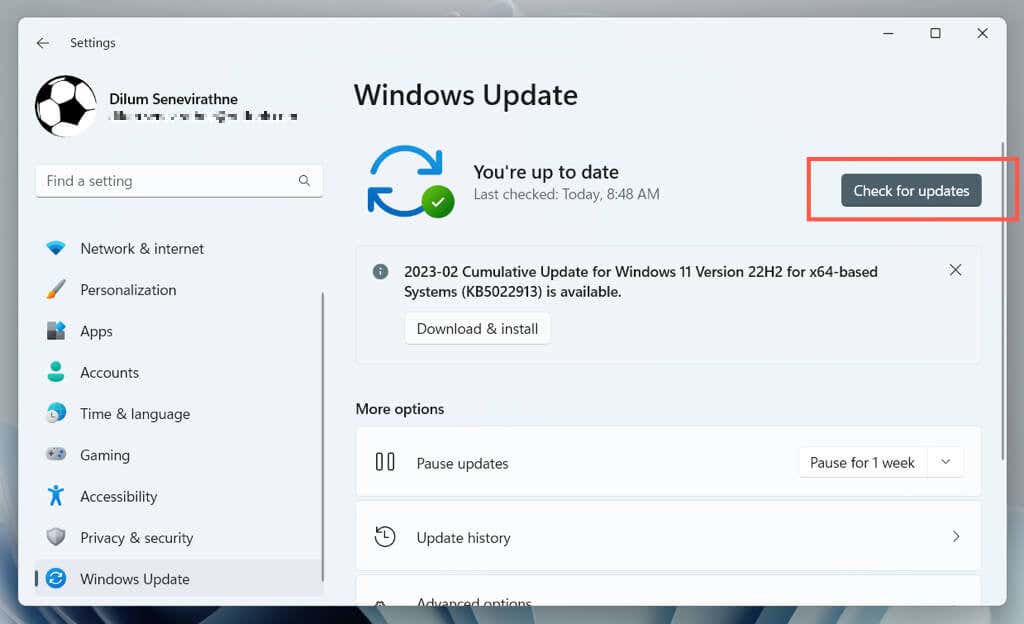
If there are pending Windows updates, select Download and Install to install them. You must restart your computer to finalize the updates.
9. Perform a System Restore
If all else fails and Photos is still missing or not working, you must perform a system restore to a point when the app is present and functioning correctly. The procedure removes updates, apps, and settings from the restore point, so you must create a backup of important files before proceeding.
When ready to move with a system restore, you must:
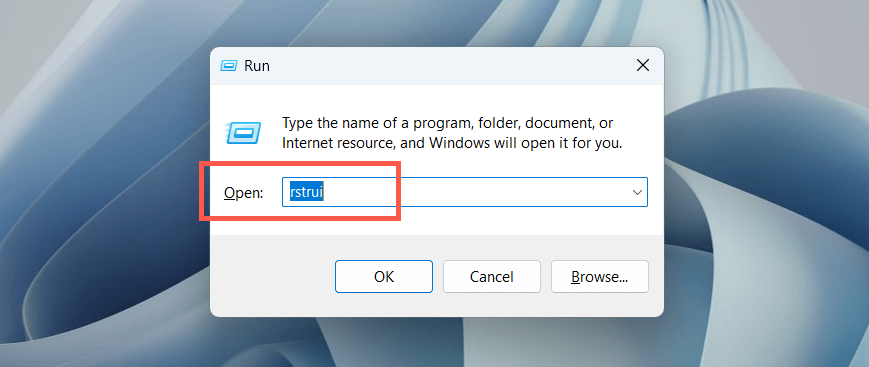
- Press Windows + R , type rstrui , and select OK .
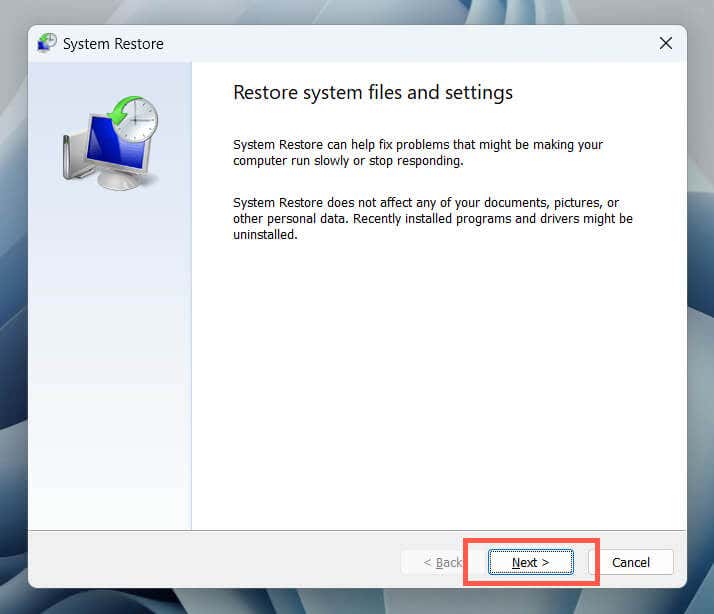
- Select Next on the System Restore dialog.
- Pick a restore point and select Next .
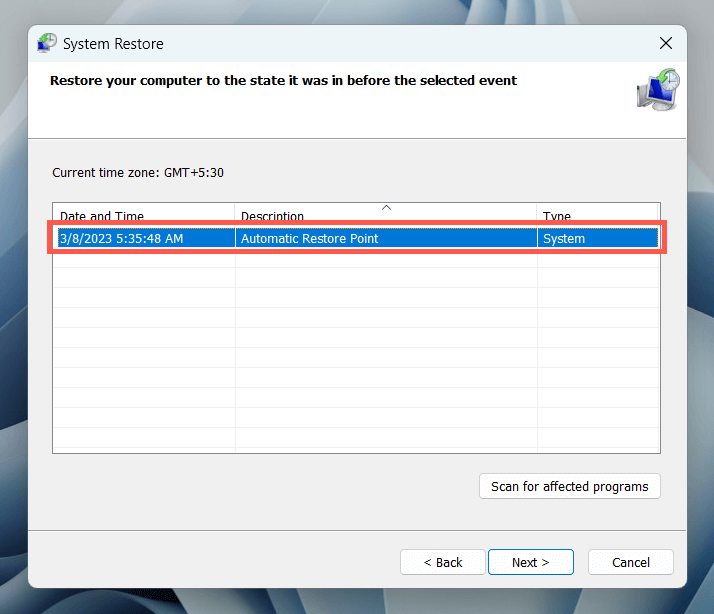
- Select Scan for affected programs (optional) to identify programs that will be affected during the restoration process, and choose Finish .
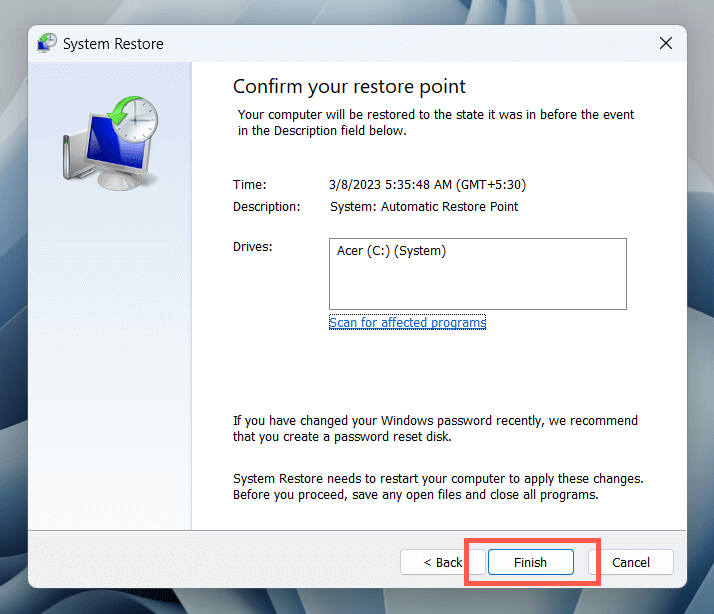
- Wait until Windows finishes rolling itself back to the restore point.
10. Create New User Account
Profile corruption issues in Windows are another factor preventing native programs like Photos from showing up. Create a new local account on your Windows PC and check if you can access the app that way.
- Open the Windows Settings app and select Accounts .
- Select Other users .
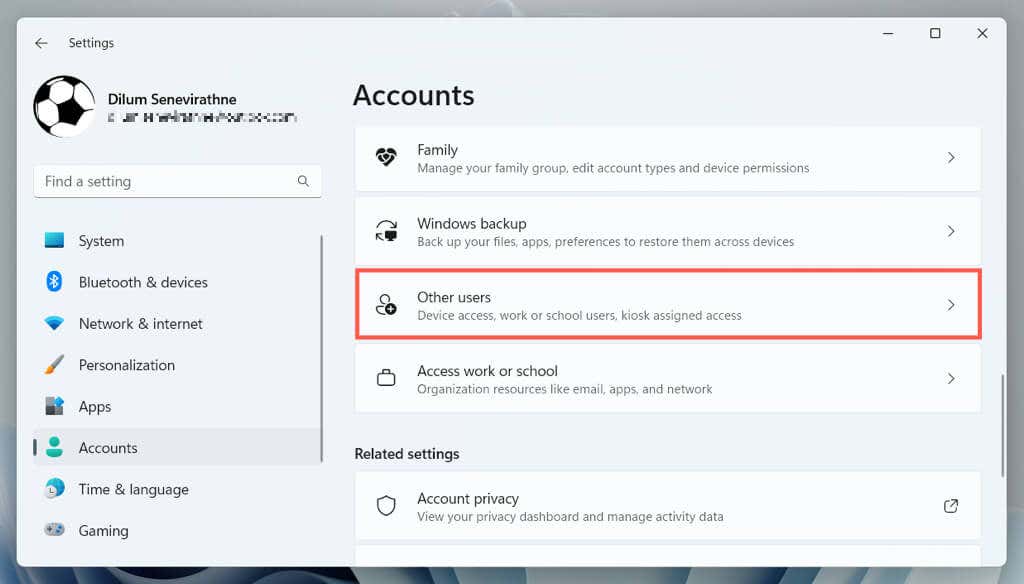
- Select the Add account button.
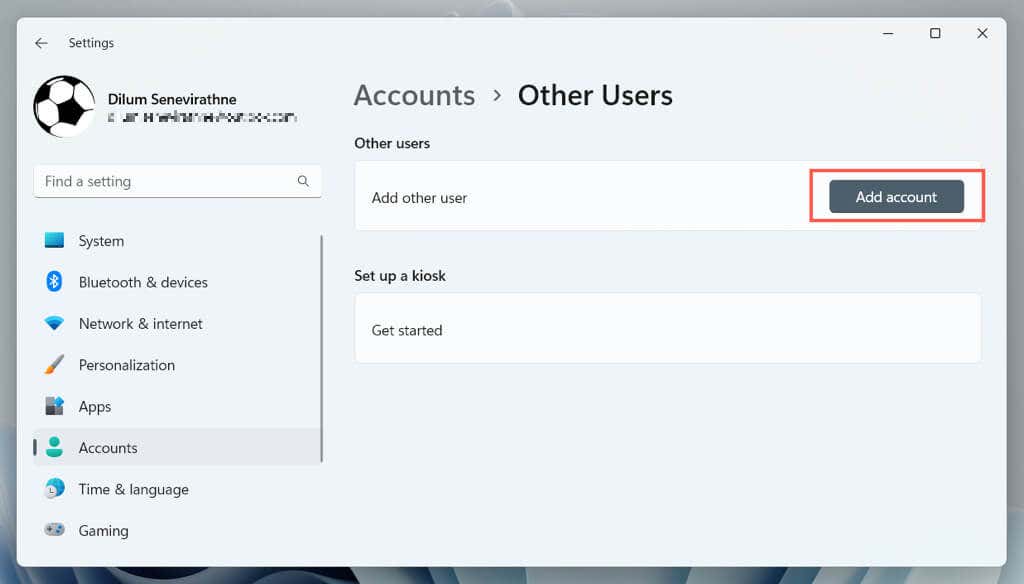
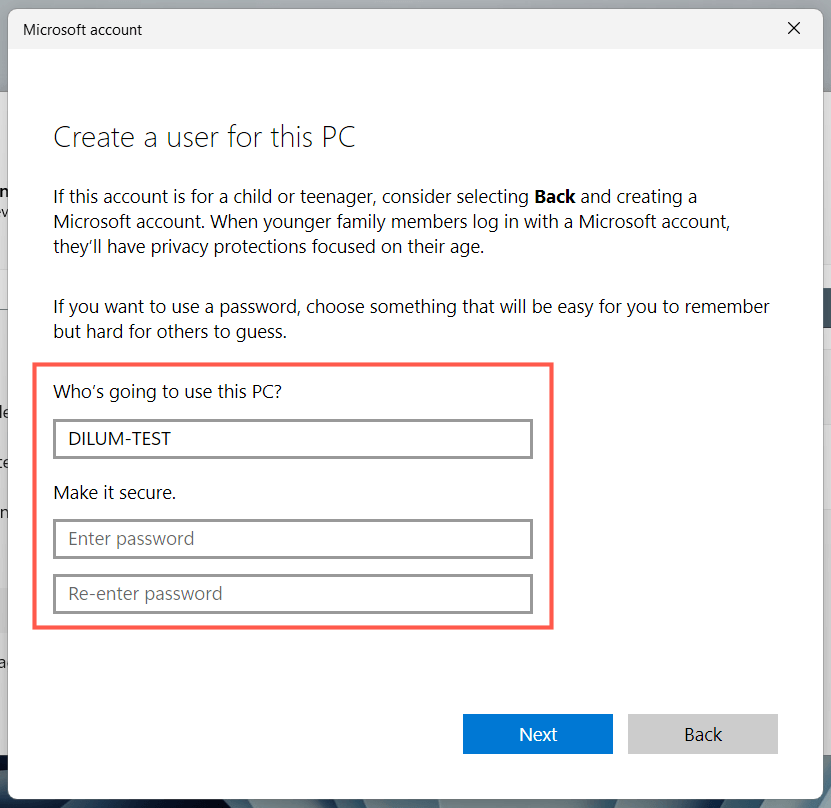
- Work through the prompts to set up the account—you do not have to enter an email address or sign in with a Microsoft Account.
- Open the Start menu , select your profile icon, and log into the new account.
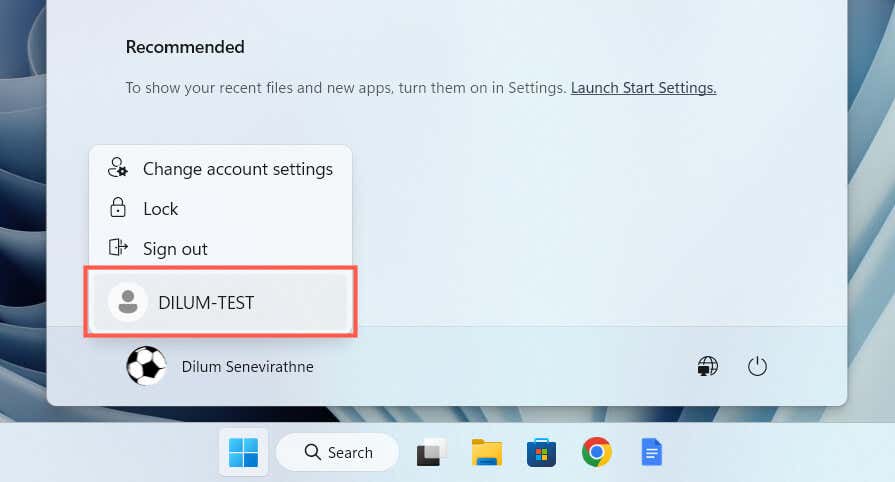
- Check if the Photos app is available within the new user account. If it is, consider migrating your old profile data to the new account . You can delete the corrupt profile after that.
Microsoft Photos App: Lost and Found
When you notice the Photos app has gone missing from your Windows computer, don’t panic. Whether it’s simply re-registering the app or performing advanced troubleshooting like a system restore or creating a new user account, there are plenty of options to get Photos back. Just be sure to back up important photos or files before attempting significant changes to your system.
If none of the solutions above work, your only remaining option is to factory reset Windows 11 or 10 to its default settings. Alternatively, check our list of third-party Windows photo viewers that are not only superior in terms of usability but also support a more comprehensive range of image formats.
- Sluggish Windows 11 PC? Try These 5 Windows 11 Tricks to Free up Virtual Memory
- How To Turn Off Notifications On Windows 11?
- How to Fix Windows 11 Boot Loops After Jan 2026 Update
- How to Remove Copilot AI in Window 11? New Update Available in Beta
- January 2026 Patch Tuesday: 7 Things Windows Users Should Do Before and After Updating
Dilum Senevirathne is a freelance tech writer and blogger with three years of experience writing for online technology publications. He specializes in topics related to iOS, iPadOS, macOS, and Google web apps. When he isn’t hammering away at his Magic Keyboard, you can catch him binge-watching productivity hacks on YouTube. Read Dilum’s Full Bio
