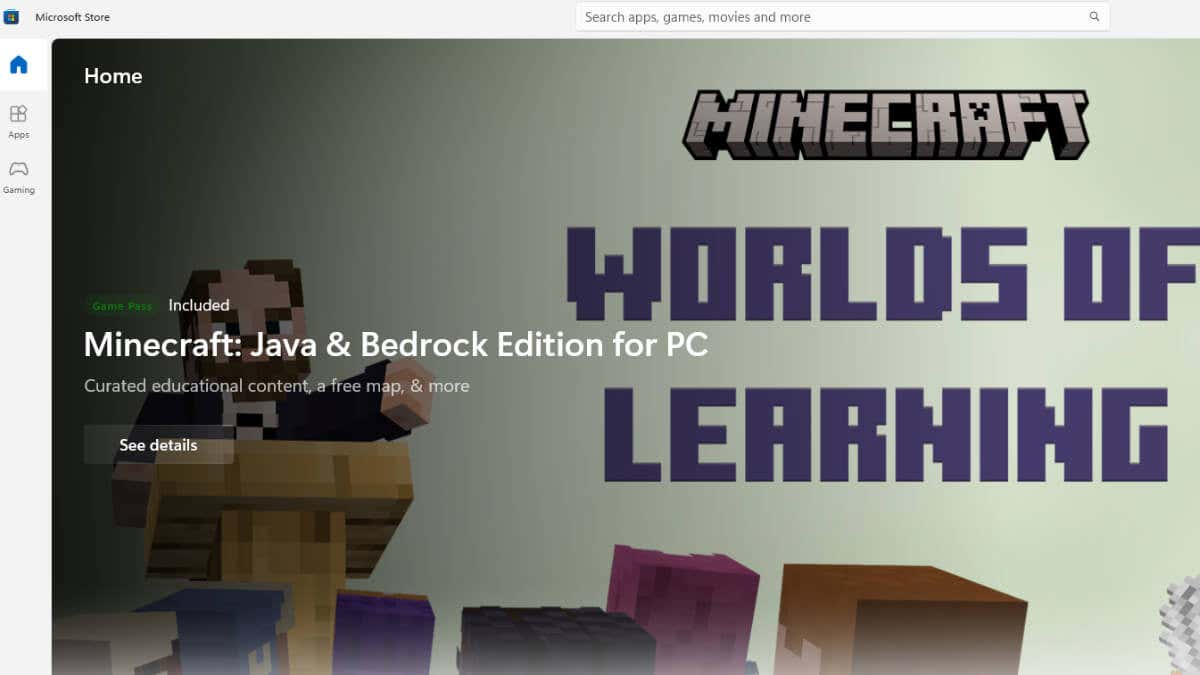
Like Apple’s macOS, the latest versions of Windows now have a store where you can buy apps and games. The Microsoft Store is a one-stop shop where you can buy apps, games, subscription services, and more. The store generally works fine, but many users have an issue where apps stop downloading and never finish, even if they try to resume or restart them.
There are several reasons why this could happen, so it’s best to try a few common troubleshooting steps that will likely clear up this temporary issue.
1. Check Your Internet Connection
You may think a problem with your internet connection wouldn’t only affect your Microsoft Store downloads. Still, there are many situations where internet configuration issues could prevent downloads from specific servers or websites without affecting other services.
Try turning your router off for a few minutes and then turning it on again, or try switching to a different internet connection to see if this unjams whatever is preventing your downloads from continuing.
2. Reboot Your Computer
Rebooting your computer is almost always the first thing you should do when you’re having problems, but it seems especially effective when you want to fix Windows Microsoft Store problems. It’s often the case that there’s an update that requires a reboot to finalize, but whatever the reason, a quick reboot is often enough to get the data flowing again.
3. Run a Malware Scan
It’s a rare cause, but some types of malware that mess with your internet connection or otherwise redirect your computer’s network traffic could interfere with Windows Store downloads. Run the malware scanning software of your choice and check if there’s anything fishy on your computer.

While this is almost certainly not the reason you’re having issues, it’s an easy problem to check for so it’s worth doing early in the troubleshooting process.
4. Check for Windows Updates
The Microsoft Store is an integral part of Windows, so checking to ensure that you’ve updated Windows itself to its latest version can ensure that the Store works as intended.
5. Check for Microsoft Store Updates
Speaking of updates, the Microsoft Store requires rather frequent updates, and if you’re using an older version of the app, you may need to update it first before downloads work again.
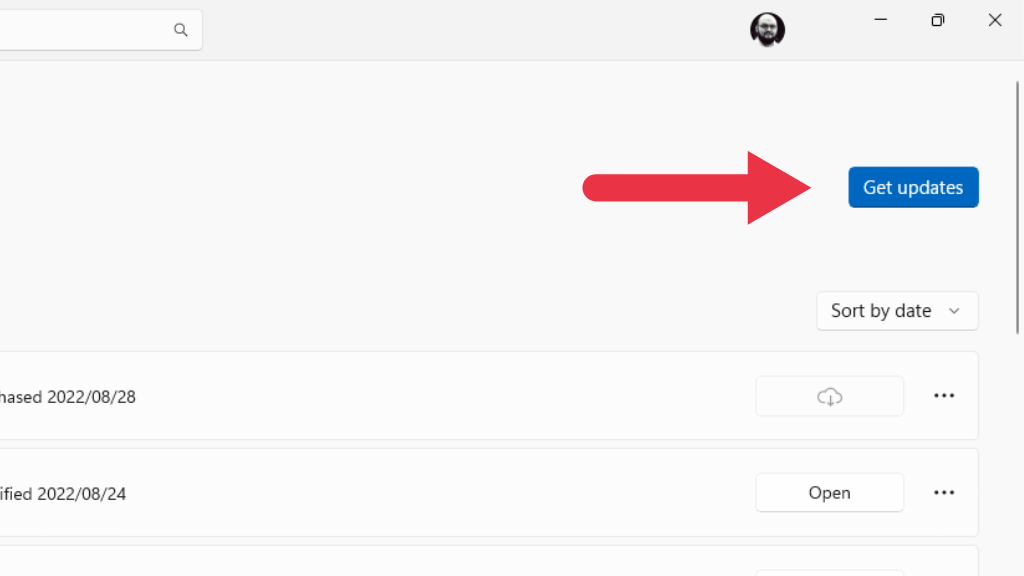
Any pending updates will install automatically, and you may want to restart the app or even the computer after the update is complete.
6. Log Out and Log Back In Again
Your Windows Store Apps are linked to your Microsoft Account, so if anything has gone wrong with your saved credentials, it’s worth refreshing them by logging out of the app and then logging in again.
To log out of the Microsoft Store, select your profile icon and then select Sign out .
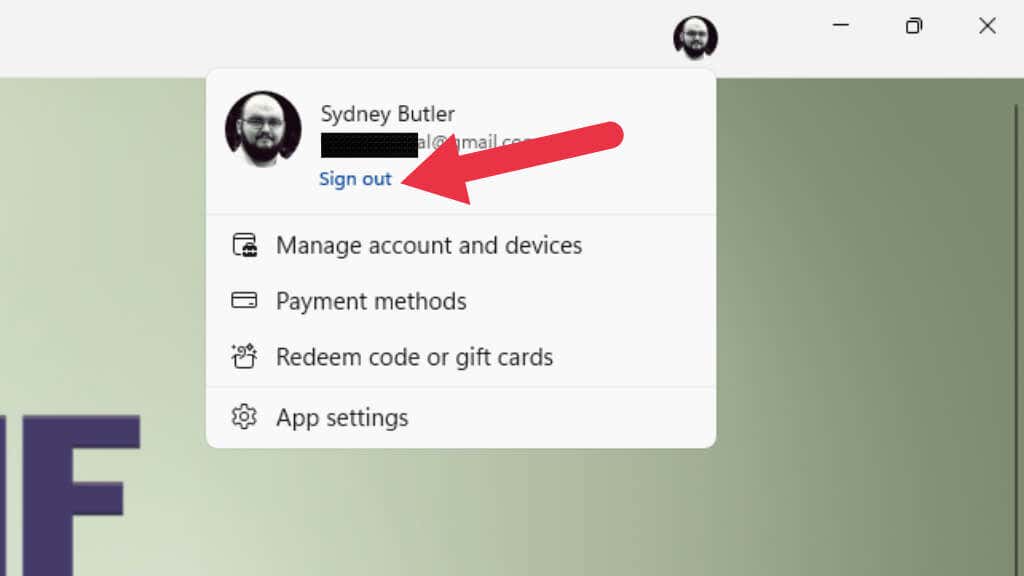
Once you’ve signed out, sign back in again and check if your downloads are working correctly.
7. Run Windows Store Apps Troubleshooter
Windows is packed with various dedicated troubleshooter apps that not only help detect what’s wrong, but can even fix the underlying problem without any further effort from you.
In Windows 11, you can access the Windows Store Troubleshooter via Settings App > System > Troubleshoot > Other Troubleshooters .
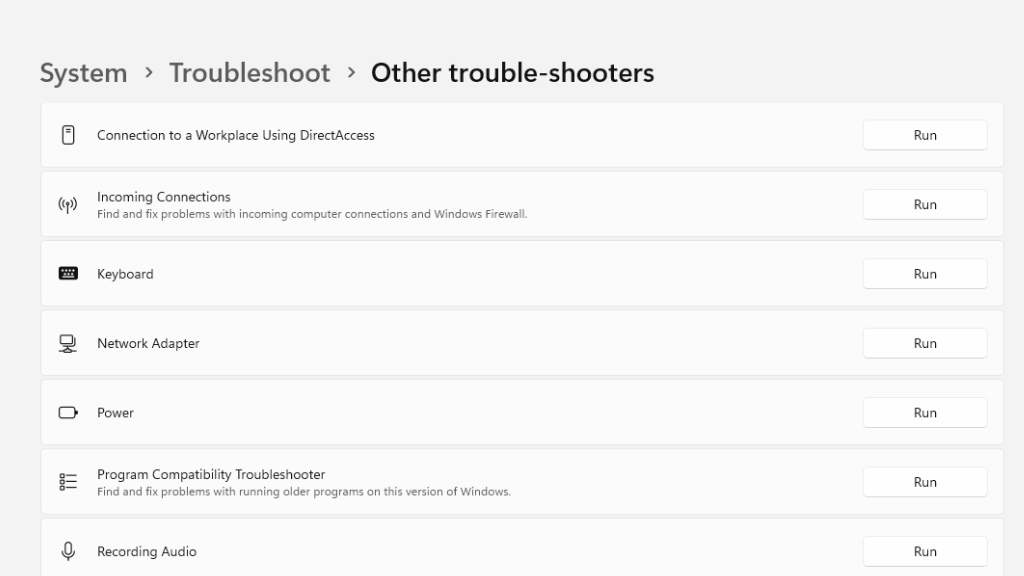
Then look for Windows Store Apps and select the Run button to start the troubleshooter.
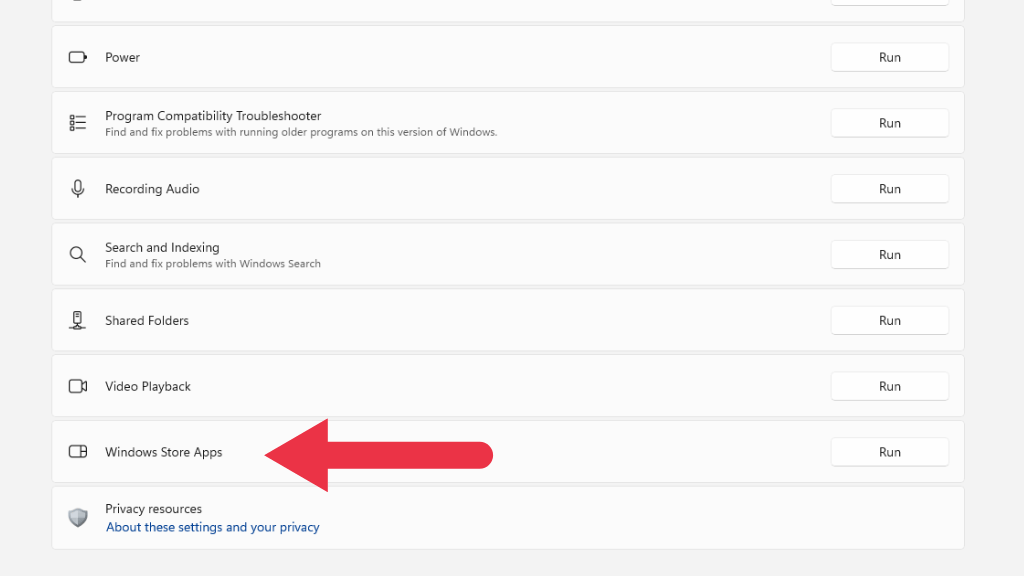
Follow the on-screen instructions.
8. Disable Third-party Antivirus and Firewall Programs
While the Windows Store plays nice with the Windows Firewall , as you might expect, if you use a third-party firewall or have an additional firewall in your network (such as in your router), that might be blocking Microsoft Store traffic.

To test this, temporarily disable that firewall and check if your downloads are working correctly again. If your downloads start working after turning off your firewall, you’ll have to add an exception for the Microsoft Store App as a permanent solution.
9. Repair or Reset the Microsoft Store
It may be that the Microsoft Store app itself or its settings have become damaged or corrupt. You can repair or reset the app using Windows Settings to eliminate this possibility.
- Open the Settings App from the Start Menu or by pressing Windows Key + I . Then select Apps > Installed Apps.
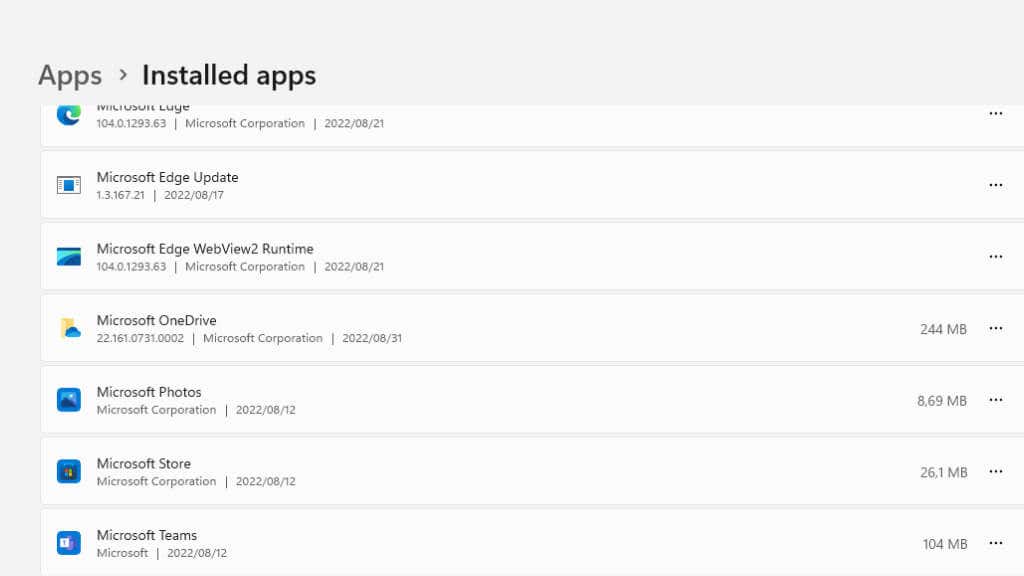
- Scroll down until you see the Microsoft Store app in the list. Select the three dots and choose Advanced Options .
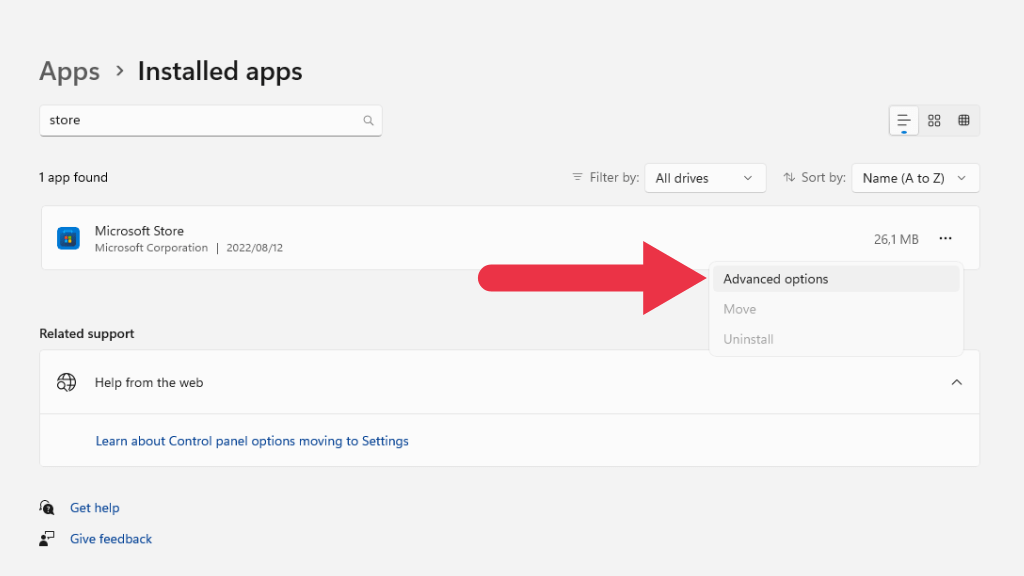
- Under Advanced Options , scroll down to the Reset section and then choose either Repair or Reset .
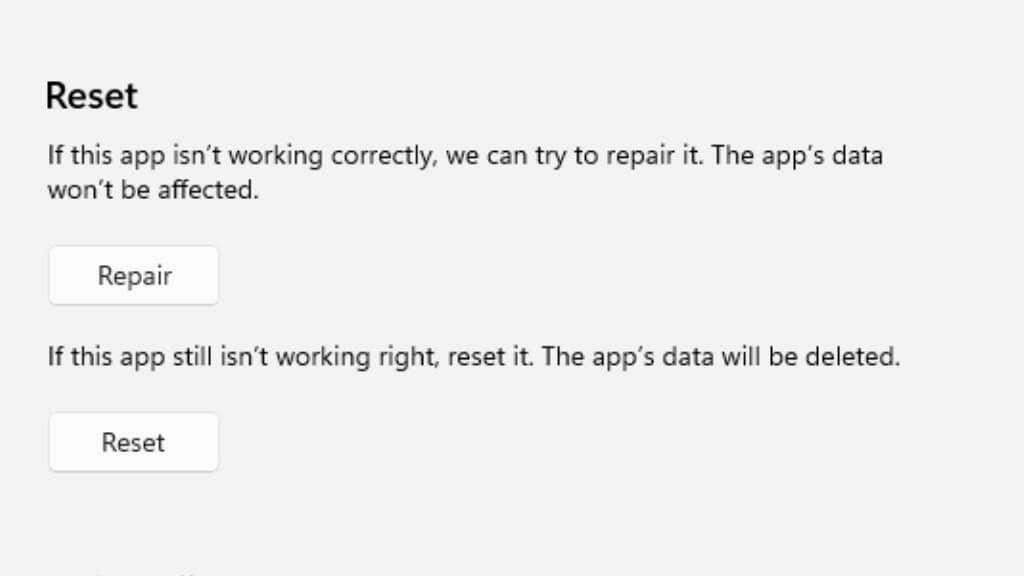
- In Windows 10, open the Settings App and then go to Apps > A pps and features . Search for the Microsoft Store , then choose Advanced options and the Reset button.
10. Clear the Microsoft Store Cache
Like many apps, the Microsoft Store app has a cache where it stores frequently accessed data. This cuts down on how often the app has to download online assets, such as the descriptions and images of apps in the store.
It seems that a busted cache can also cause download problems, most likely because the app’s cache plays a role in downloading applications.
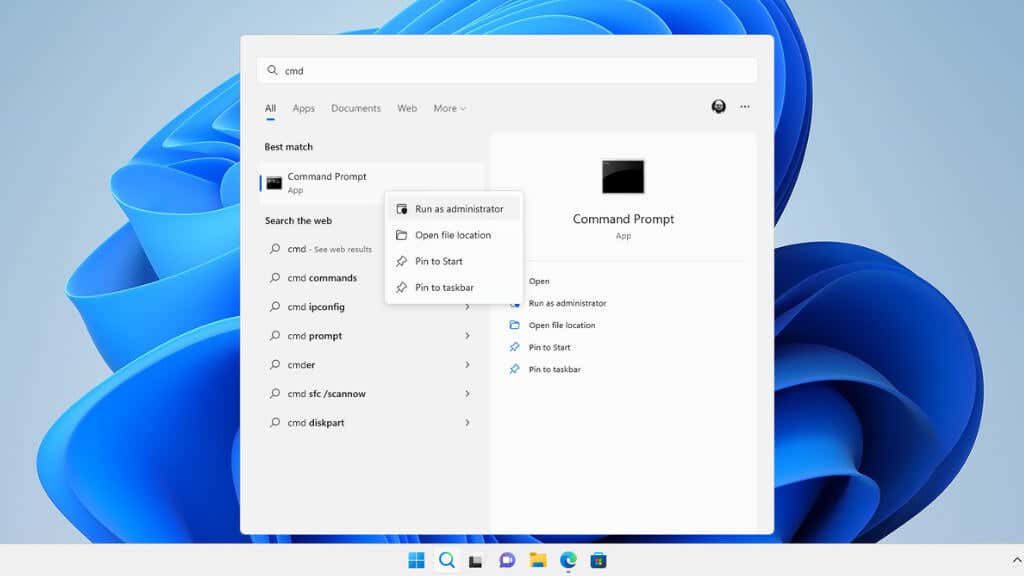
To clear the cache, you’ll have to use the Command Prompt . Open the Start Menu and type CMD, then right-click on Command Prompt when it pops up in the result. Select Run as administrator from the context menu.
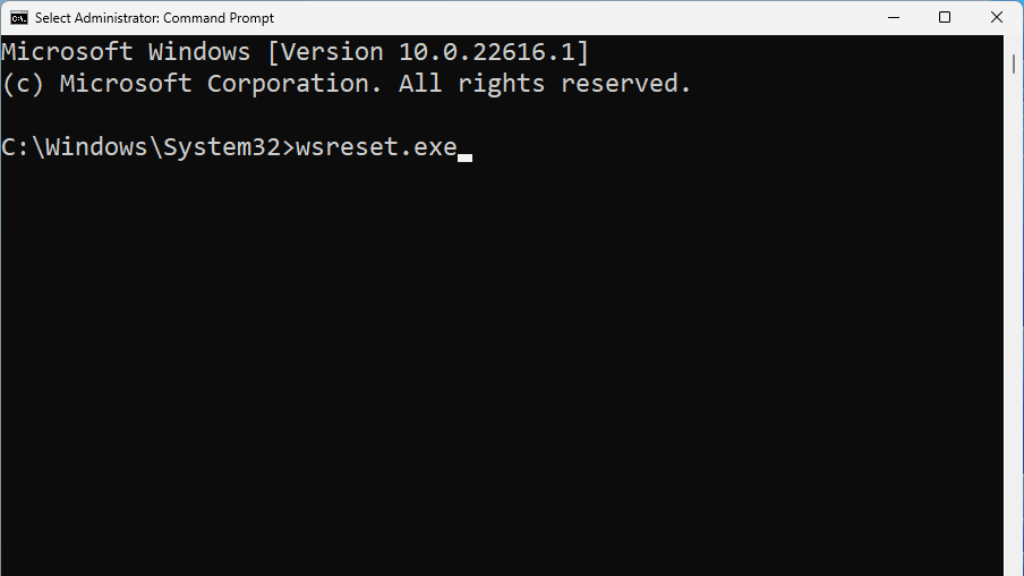
With Command Prompt open, type wsreset.exe and press Enter .
Alternatively, you can search for wsreset.exe directly from the Start Menu . Right-click on it and choose Run as Administrator .
11. Are You Out of Drive Space, or Has the Drive Disconnected?
If your computer has run out of disk space, or you’re installing the app to an external drive that has stopped working or become disconnected.
You’ll have to free up space for your new apps in the first situation. Either delete apps or games you don’t need anymore or get rid of large media files by deleting or moving them to another drive.
In the case of a drive disconnection, assuming the drive isn’t faulty, unplug and reconnect the drive and try again. Some USB drives have a tendency to disconnect under sustained transfers, such as fast downloads.
12. Run the System File Checker
The Windows Store app is included as part of Windows system files. This means you can use the System File Checker (SFC) to repair the app if something’s gone wrong, and using its repair option doesn’t help.
Running the SFC is easy. Open the Start Menu and search for the Command Prompt . Run it as an administrator and type sfc /scannow , and press Enter .
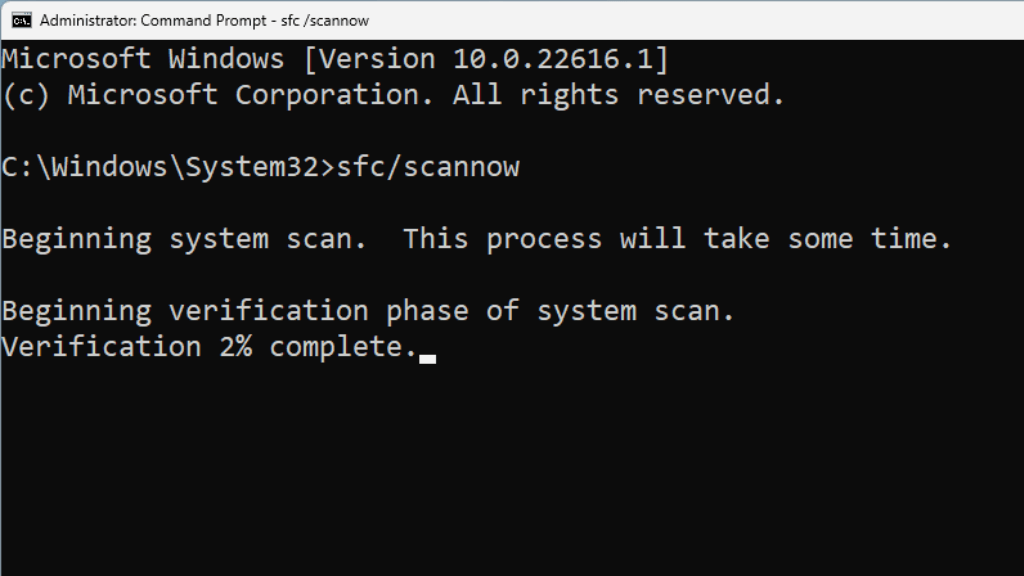
Then wait for the process to complete and try running the Windows Store App again.
How the Microsoft Store Affects the Xbox App
Most of the time, Xbox app downloads stall or fail to start simply because there’s something wrong with the Microsoft Store app. This means that any one of the potential fixes listed above could also solve your Game Pass download problems.
- How to Fix Microsoft Store Error Code 0x803F8001
- Can’t Sign Into the Microsoft Store? Try These 7 Fixes
- Top 7 Ways to Fix “Microsoft Store Is Blocked” Error
- How to Reinstall Microsoft Store in Windows
- 15 Ways to Fix Microsoft Store Error 0x80131500
Sydney Butler is a social scientist and technology fanatic who tries to understand how people and technology coexist. He has two decades of experience as a freelance computer technician and more than a decade as a technologies researcher and instructor. Sydney has been a professional technology writer for more than five years and covers topics such as VR, Gaming, Cyber security and Transhumanism. Read Sydney’s Full Bio
