There are several kinds of printer problems including paper jams or low ink but few are more annoying than when a print job won’t delete.
Often, simply canceling the print job can fix the problem, but there are certain instances that may require you to remove the offending items from the print queue using different solutions.
Whether you’re using a local or network printer, and it fails to delete one or more print jobs, we’ll show you some proven fixes that can help you delete the stuck print job and start over.
Why Your Print Job Won’t Delete in Windows
It’s bad enough when your printer is physically jammed up.
What’s more frustrating is if the document you’re printing gets stuck in the queue preventing further documents from being printed, or the printer continually prints the same job over and over. Whatever the case may be, you’d want to cancel or delete the print job to save on paper and ink.
However, the printing process works differently in Windows. When you send a print job to the print queue, the print files don’t go directly to your printer but arrive in the spooler, which manages all print jobs.
The spooler also lets you change the order of pending print jobs or remove them altogether. If a problem occurs, the print files remain in the queue as none of the files can be printed.
When that happens, the first solution would be to delete the print job to allow other print jobs that accumulated to print. But this won’t work if you can’t delete the print job.
To unglue the queue and get things going again, here are some fixes to try when conventional methods won’t work.
8 Fixes to Delete a Stuck Print Job in Windows
There are different methods you can use to delete a print job besides canceling the print job or restarting your printer and computer. We’ll walk you through the steps you need to take to fix a print job that won’t delete in Windows.
1. Delete a Print Job through Your Printer Settings or Buttons
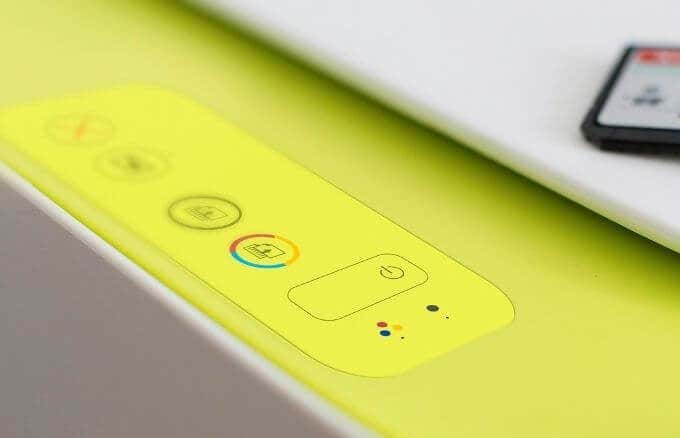
If a print job won’t delete from your PC, you can use your printer’s buttons or settings to do it. Most printers have a Cancel, Stop or Reset button, which if used in combination can help delete the print job or clear the queue.
You can also remove the paper tray to delay the print job and then delete it to avoid paper wastage. You can also power off your printer, unplug and let it reset fully before turning it back on again to clear the print job.
2. Use Windows Settings to Delete a Print Job
You can also access the print queue via Windows Settings to quickly delete a print job.
- To do this, select Start > Settings > Devices .
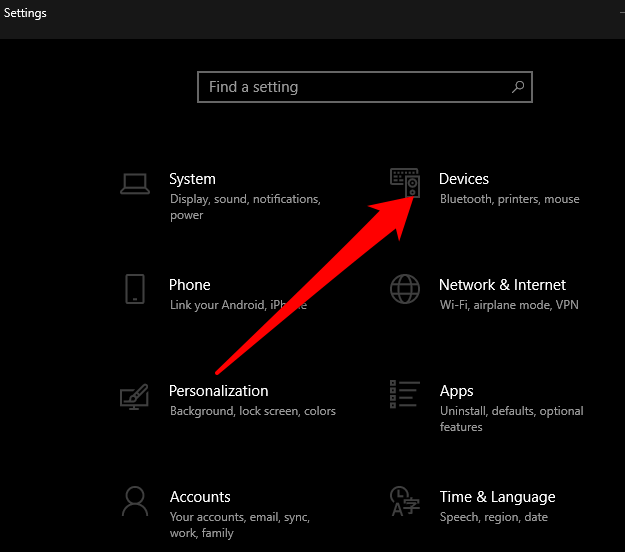
- Select Printers & Scanners on the left hand pane.
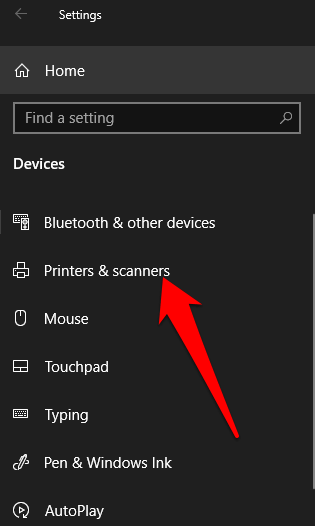
- Next, select the printer with the print job you want to delete and then select Open queue .
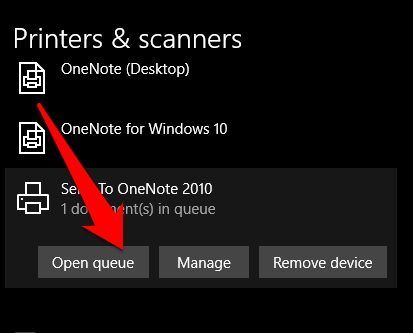
- You’ll see all the print jobs in the print queue for the printer you selected. Select the document you want to delete and then select Document > Cancel . Alternatively, right-click the print job and select Cancel . Select Yes and the print job will be removed.
Note : If you want to cancel all print jobs in the queue, select Printer > Cancel All Documents .
3. Use Control Panel to Delete a Print Job in Windows
The Control Panel isn’t very visible in Windows 10, but you can access it by selecting Start, enter Control Panel in the search box that appears and select Control Panel from the list.
- To clear or remove a print job that won’t delete from the Control Panel , select Hardware and Sound > Devices and Printers .
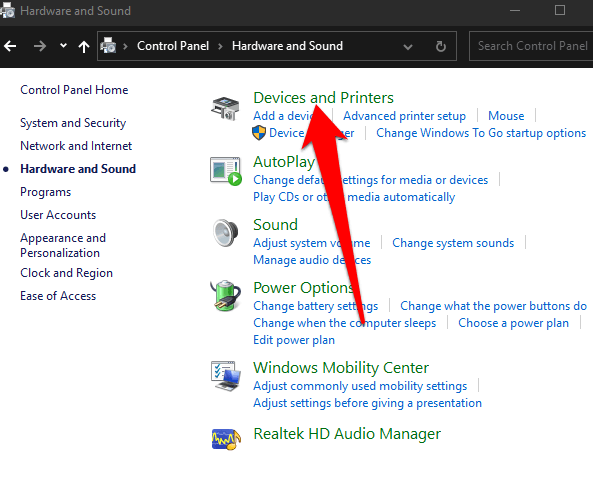
- Select the printer you want to clear or delete a print job from and then select See what’s printing . Alternatively, you can right-click the printer, select Open in a new window and then select See what’s printing .
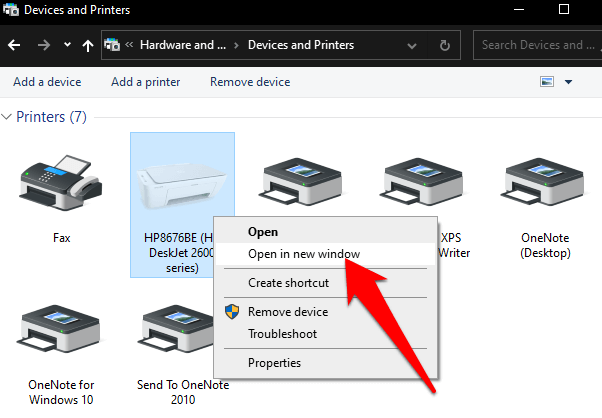
- Cancel the print job to clear the queue or delete it.
4. Use Command Prompt to Delete a Print Job
Command Prompt can help you stop and start the Print Spooler when you want to delete a print job.
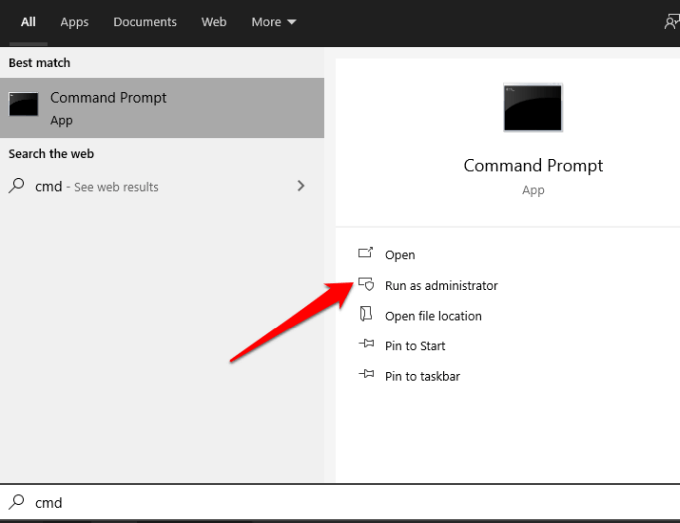
- To do this, select Start and enter CMD in the search box, and then select Run as administrator under the Command Prompt search result.
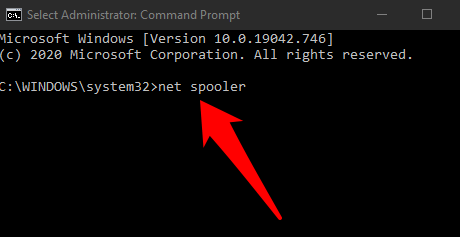
- In the Command Prompt box, enter this command: net spooler and press Enter .
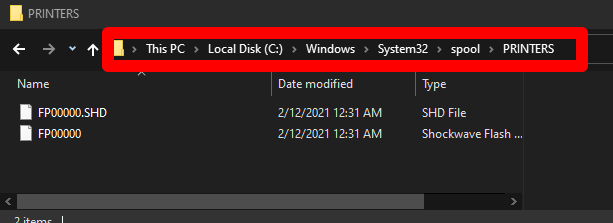
- Open File Explorer and click the address bar. Type C:WindowsSystem32SpoolPrinters and press Enter .
- Highlight the files, right-click on them and select Delete .
- Go back to Command Prompt , type net start spooler and then press Enter to restart the Print Spooler.
5. Use Windows Services to Delete a Print Job
You can also stop and start the Print Spooler in the Services window.
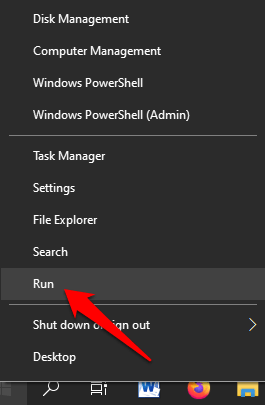
- To do this, right-click Start > Run and type services.msc in the run dialog box. Press Enter .
- Scroll down to find Print Spooler , right-click on it and select Stop .
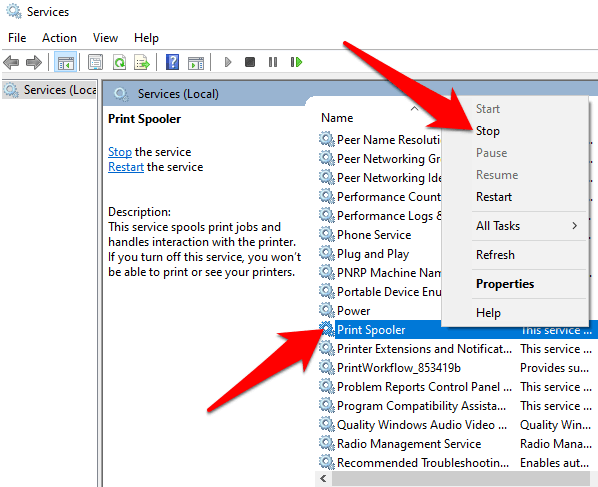
- With the Services window still open, go to the Printers directory and delete the files in it to remove the print job that won’t delete and any other pending print jobs in the queue.
- Next, open File Explorer , select the address bar and type C:WindowsSystem32SpoolPrinters . Press Enter .
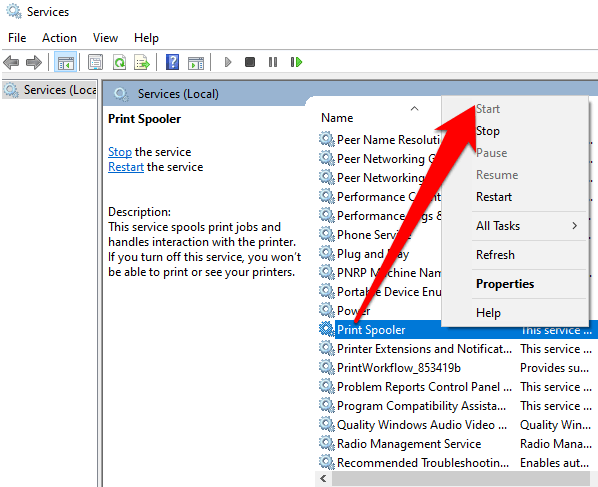
- Highlight and right-click the selected files, and then select Delete . Go back to the Services window and restart the Printer Spooler service to complete the process by right-clicking Print Spooler > Start .
6. Reset the Print Spooler
If all else fails, you can reset the Print Spooler when the print job won’t delete in Windows.
- To do this, right-click Start > Run and enter services.msc in the run dialog box.
- Find Print Spooler , right-click and select Stop .
- Right-click Print Spooler again and select Restart to restart the service.
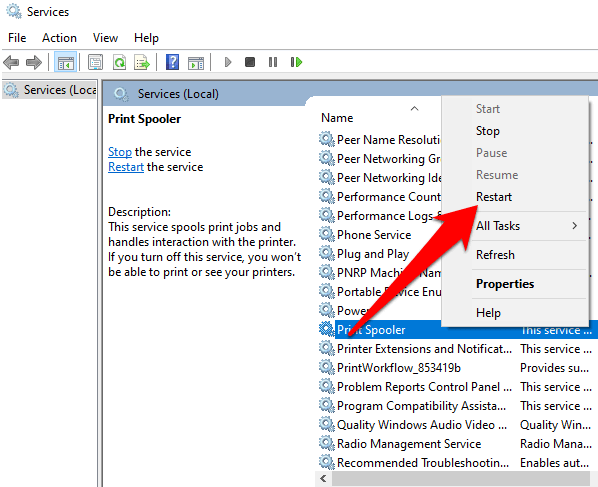
A dialog box will appear about restarting the service, meaning you’ve successfully reset the print spooler.
7. Reinstall the Print Driver
If you still can’t delete the print job in Windows, you can remove and reinstall the print drivers. Doing this will reset the printing software system.
- To reinstall the print driver, disconnect any cables from your printer, and then go to Control Panel > Hardware and Sound > Devices and Printers in Windows.
- Right-click your printer’s icon and select Remove Device to uninstall the printer software.
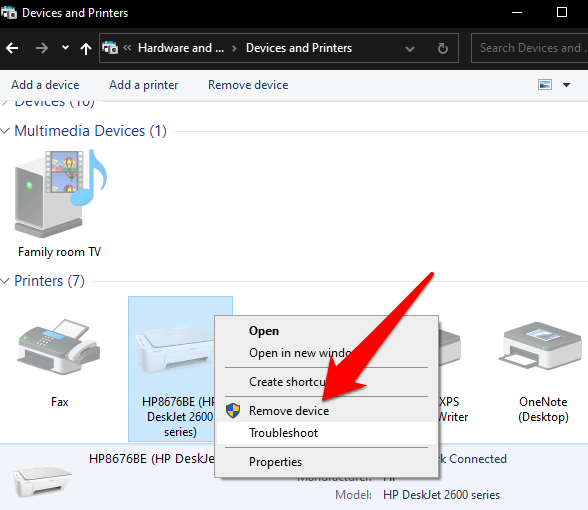
- Restart your computer, go to your device manufacturer’s website and download the printer driver for your printer’s model. Install it based on the instructions on the website. Once done, check if the print job is still there and try deleting it again.
8. Clear and Restart Print Spooler Manually
If you want to delete a print job because it’s affecting the rest of the items in the queue, you can manually clear and restart the print spooler to respool all documents and delete that print job.
- To do this, right-click Start > Run and enter services.msc in the run dialog box.
- Find the Print Spooler service in the Services window, double-click on it and select General tab in the Properties window.
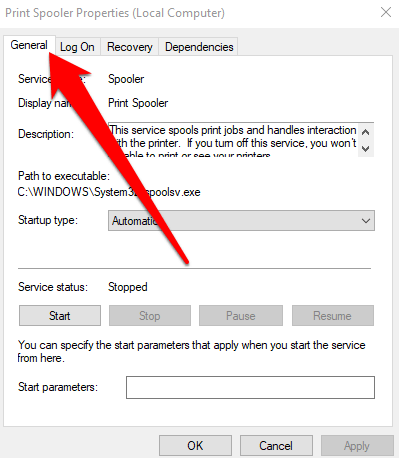
- Next, select the Stop button and then open File Explorer .
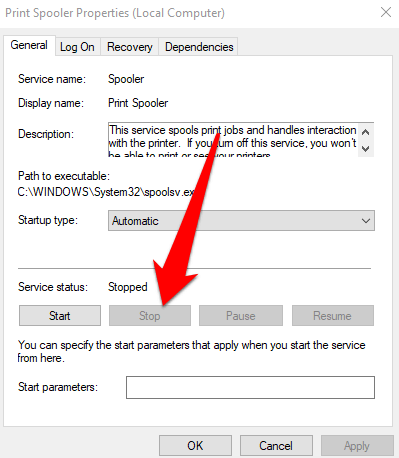
- Go to the address bar, type %windir%System32spoolPRINTERS and press Enter .
- Delete all the files and go back to the Services window. Select Start to restart the Print Spooler service and then select OK to close and exit the window.
All the print jobs in your queue will be re-spooled and sent to your printer and you can delete the print job you want.
Other Things to Try When Print Job Won’t Delete in Windows 10
- Check if the printer is offline or paused as this will keep the print jobs in queue until your printer is active again. You can check whether the Pause Printing or Use Printer Offline options are selected in the print queue window. If they are, clear the selection.
- Disable your firewall software temporarily. Your Windows firewall software may interfere with the print job but you can temporarily disable it to clear the print queue and see if the print job is deleted. If it’s not deleted, then the firewall isn’t the problem. However, if the print job is deleted, adjust the firewall settings to allow the print spooler service to access your computer’s system.
- Sign in with a different Windows account. If you’re still struggling with deleting a print job, restart your PC and sign in using a different user account. If you can delete the print job in the new account, check whether the old one is corrupted or has the required permissions to print.
- Scan your PC using System File Checker to determine whether there are any issues with system files and repair them. To do this, open a Command Prompt, enter SFC /scannow and press Enter .
- Confirm that the printer’s IP address in Windows port settings matches your printer’s actual IP address. If it doesn’t match, enter the correct IP address and try to delete the print job again.
Clear Stuck Print Jobs
Regardless of the printer you use, you’re likely to encounter situations where you need to delete a print job. Windows 10 makes it easy for you to do so, but if the print job is stuck in the queue, you may not be able to cancel or delete it altogether further preventing other print jobs from printing.
Try the fixes and tips in this guide and let us know in a comment what worked for you.
- How to Fix the “Error – Printing” Status Error in Windows
- 7 Ways to Fix HP Printers ”Driver Is Unavailable” Error on Windows PC
- How to Fix Your Printer’s “Driver is unavailable” Error on Windows
- 7 Ways to Fix ”Windows Cannot Connect to the Printer”
- Preparing for Windows 10 End of Support: Upgrading to Windows 11
Elsie is a technology writer and editor with a special focus on Windows, Android and iOS. She writes about software, electronics and other tech subjects, her ultimate goal being to help people out with useful solutions to their daily tech issues in a simple, straightforward and unbiased style. She has a BCom degree in Marketing and currently pursuing her Masters in Communications and New Media. Read Elsie’s Full Bio
As a Windows user, a non-working printer could be a simple fix or a time-consuming disaster. If you see the “Error – Printing” status error on Windows, you won’t have much to go on to try and troubleshoot the problem, which can be frustrating and inconvenient to resolve.
Several factors might cause the “Error – Printing” status error, but, in most cases, simple troubleshooting steps like restarting your printer or checking your printer connections may do the trick. To fix the “Error – Printing” status error on Windows, follow the steps below.
Understanding the “Error – Printing” Status Error on Windows
The “Error – Printing” status is a simple, catch-all error code that appears when your Windows PC can’t successfully print . It can be caused by several factors, such as missing paper, outdated or corrupted printer drivers, incorrect printer settings, or issues with the Print Spooler service on your Windows PC.
It can appear in a few different ways, such as “Error – Printing,” “Printer in error state,” or “Print Spooler service not running.” The message may differ, but the result is the same—your printer can’t process or complete the print job.
If you see this error, try some of the troubleshooting fixes below.
Restart Printer and PC
First, restart your devices to see if this resolves the problem.
It’s a good idea to turn off your printer and disconnect its power cord. Next, shut down your PC and unplug its power cable as well. Wait for at least 30 seconds before plugging everything back in.
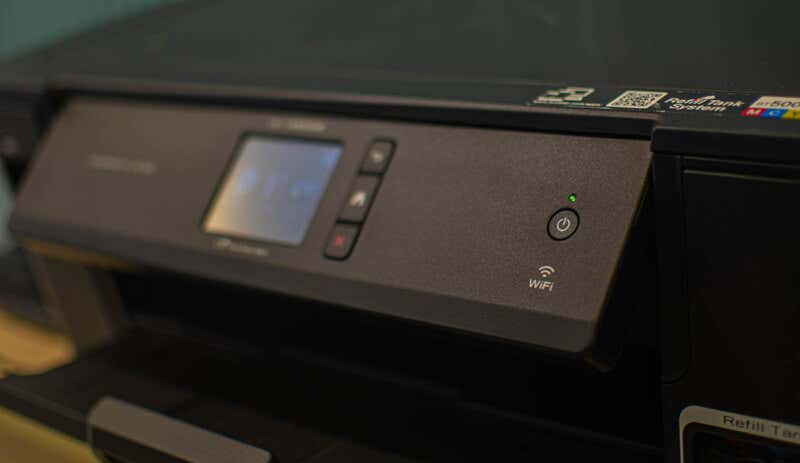
After the waiting period, reconnect the printer and PC’s power cords. Turn on your printer first, ensuring it’s up and running. Next, turn on your PC. Finally, try printing a test page to see if the “Error – Printing” status error has been resolved.
This restart process might seem obvious, but a clear shutdown and restart can often resolve minor (and unexpected) issues.
Check Printer Hardware and Connection
Printer still not working? It’s a good idea to look more closely at your printer hardware and its connection with your PC.
First, verify that your printer is turned on. Look for an LED or display indicating power, and ensure it’s connected to an electrical outlet. If you have a wired printer, inspect the USB cable connecting the printer to your PC. Make sure it’s properly secured at both ends.
If the USB connection isn’t recognized, try a different USB port or a new cable. Likewise, if the printer is connected over a network, ensure the ethernet cable is connected and the connection is active.
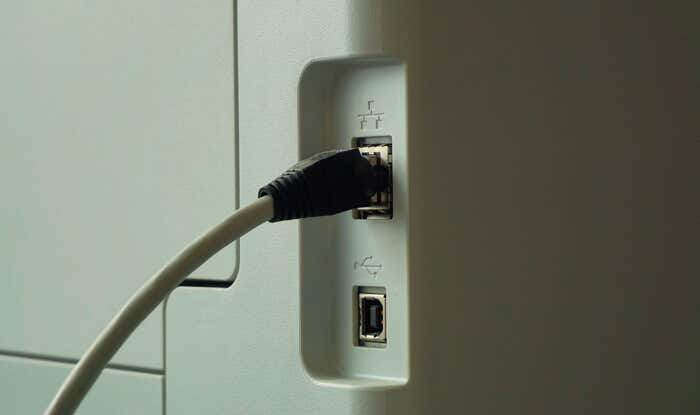
For wireless printers, double-check your Wi-Fi connection. Ensure that your printer connects to the same network as your PC. Most printers have a display or indicator light to show a successful wireless connection. If your wireless printer isn’t connecting , consult your printer’s manual for specific steps to connect to Wi-Fi.
Also, check your printer for issues such as low paper or ink. Without paper or ink, you can’t print, so replenishing the paper or ink should resolve the issue.
Clear Paper Jams
A paper jam may be causing the “Error – Printing” status message on your PC. If your printer can’t push through paper, it can’t continue the printing process.

To resolve this issue, you’ll need to clear any jams from your printer. Depending on your device, this might be difficult to do, so you may need to consult your manual first.
Start by checking the areas where paper enters and exits the printer, then remove any jammed paper. If your printer has an automatic document feeder, open the ADF cover (Automatic Document Feeder) and remove any jammed paper.
Restart Print Spooler Service and Clear Print Queue
After clearing a printer jam, it’s also a good idea to clear your print queue and restart the Print Spooler service (which your printer needs to be able to print). It’s a good idea to do this if your print queue won’t clear after an error occurs during printing.
You can also do this at any point to try and resolve printer errors like the “Error – Printing” message.
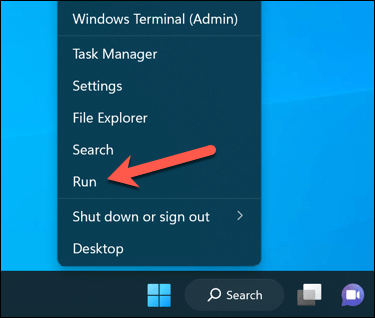
- To begin, right-click the Start menu, select Run, or press the Windows Key + R to open the Run command box.
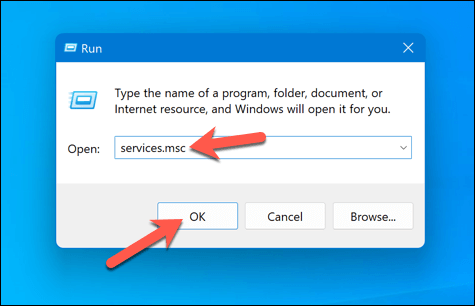
- In Run , type services.msc and press OK .
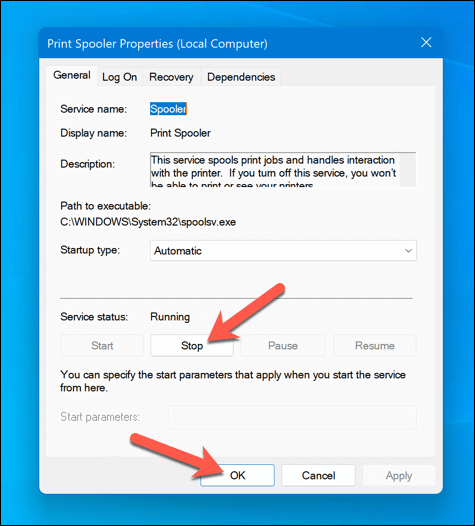
- In the Services window, look for the Printer Spooler service and double-click it.
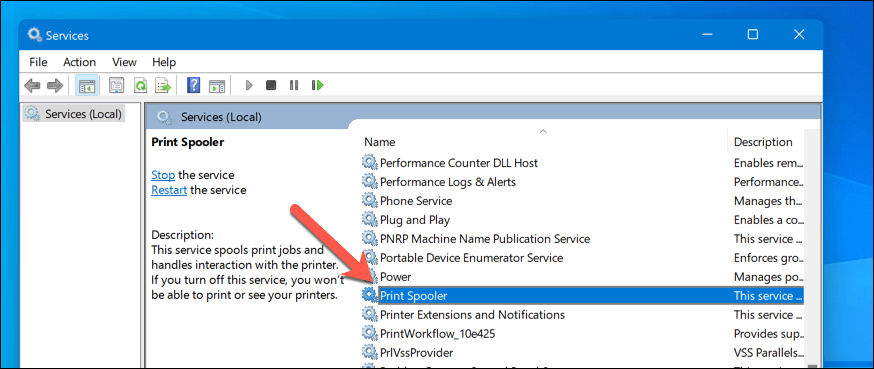
- Press Stop and OK . This will stop the print spooler service, allowing you to clear any leftover print jobs.
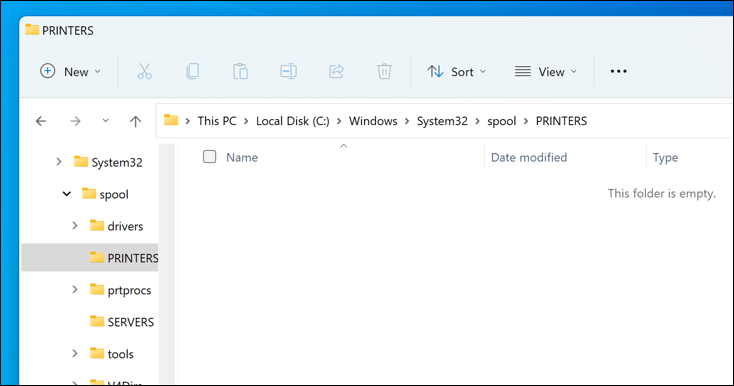
- Next, open File Explorer and navigate to the C:\Windows\System32\spool\PRINTERS folder using the address bar. Delete all files in this folder to completely clear the print queue.
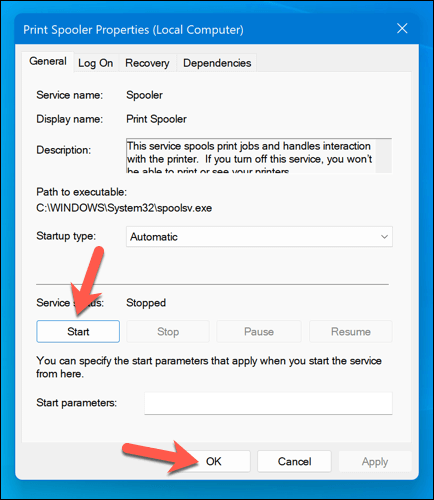
- Return to the Printer Spooler service in the Services window and click Start to restart the spooler.
With the paper jams cleared and the print queue emptied, your printer should now return to a ready state, and you can resume printing your documents without any errors.
Update or Reinstall Printer Drivers and Software
Outdated driver software can sometimes lead to the “Error – Printing” status error in Windows. To fix this issue, you should check for new printer software (including new printer drivers) from the manufacturer.
Follow these steps to ensure your printer driver and manufacturer software are up-to-date. It may be a good idea to uninstall existing printer software before proceeding.
- Visit the printer manufacturer’s website and search for your specific printer model in the support or downloads section.
- Find any available updates or new versions of the printer driver software. Ensure the software is compatible with your version of Windows.
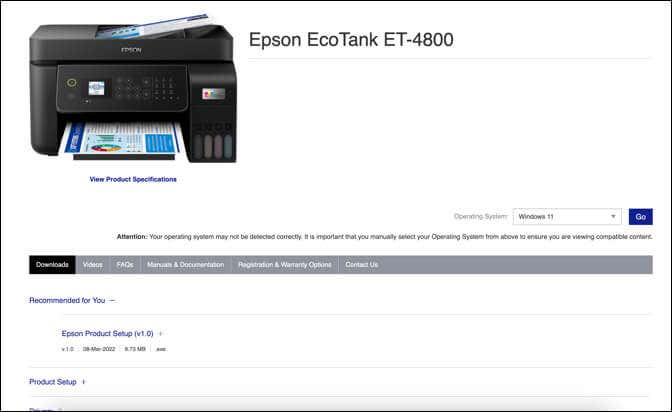
- Next, download the latest driver and printer software. If new software is available, download and save the installer to your computer.
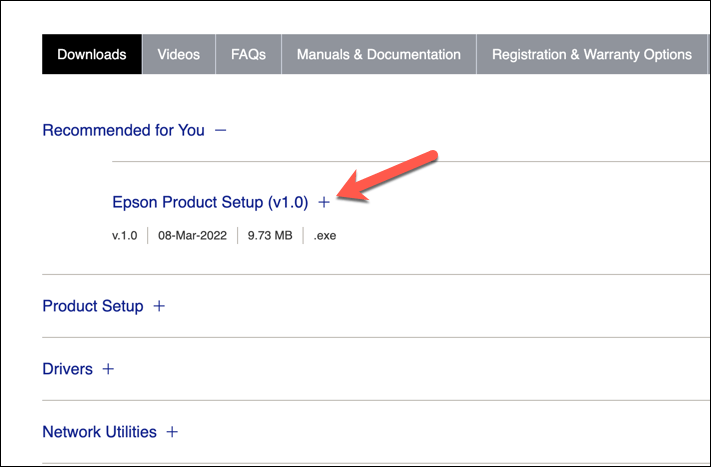
- Run the installer and follow the on-screen instructions to complete the installation.
After completing these steps, your printer should begin to start working. However, you may need to restart your PC for any changes to take effect.
Check for New Windows Updates
A new Windows update can fix bugs, and new updates can help resolve common printing issues. You can manually check for new Windows updates to try and resolve the “Error – Printing” status error on your PC.
To check for new Windows updates, follow these steps.
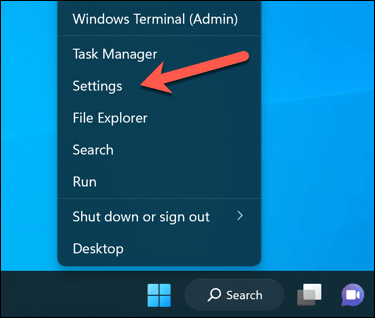
- Right-click the Start menu and select Settings .
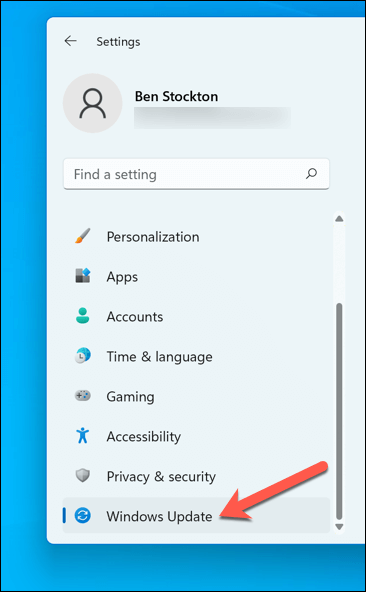
- In the Settings window, select Windows Update from the sidebar.
- Next, click the Check for updates button. If there are any pending updates, Windows will automatically start downloading and installing them.
- If it doesn’t, press Download Now to begin the installation.
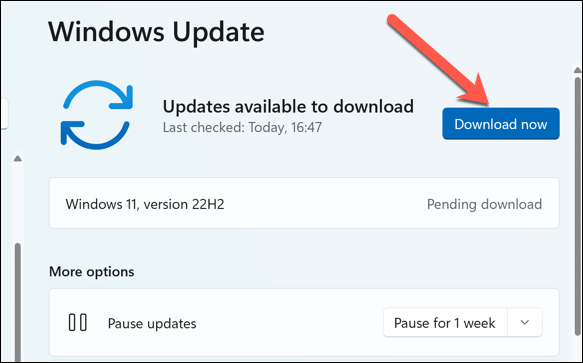
After updating your PC, restart your computer and try printing again to see if the error is resolved.
Use the Printer Troubleshooting Tool
If you’re still struggling to resolve the “Error – Printing” status error in Windows, you can use the Printer Troubleshooter . This built-in tool helps to identify and fix common hardware and device-related issues.
Follow these steps to run the troubleshooter on your Windows PC.
- Right-click the Start menu and select Settings .
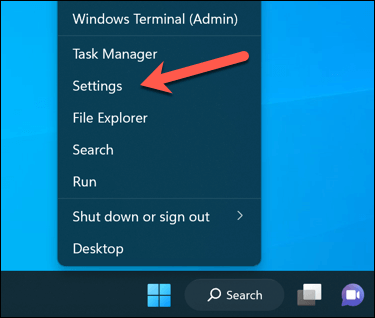
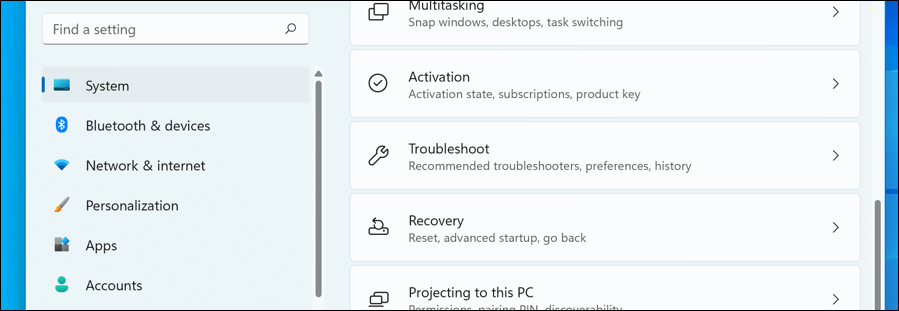
- In Settings , select System > Troubleshoot .
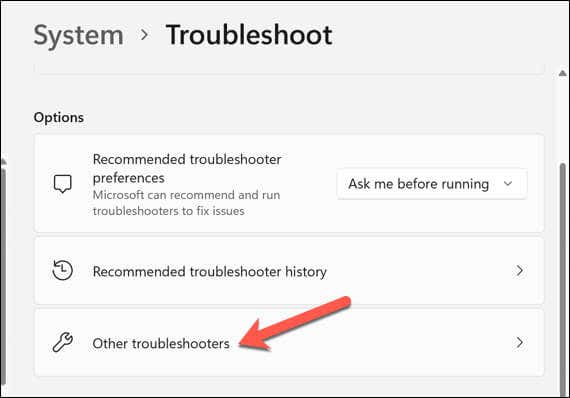
- Select the Other troubleshooters option.
- Next, select the Printer troubleshooter to begin running the printing troubleshooting tool.
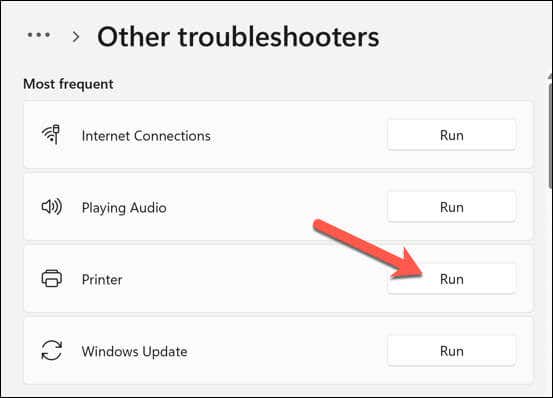
- Click Next and follow the on-screen instructions to detect and fix any problems.
After completing the troubleshooter and resolving any issues it detects, restart your computer, and then check if the “Error – Printing” issue is resolved.
Resolving Common Printer Issues on Windows 11
There isn’t a one-size-fits-all fix for resolving the “Error – Printing” status error on your Windows PC. Most of the time, however, one of the troubleshooting fixes above will resolve the problem.
However, there could be deeper problems with your printer, which means you can’t connect to your printer or print properly. For instance, if you see the error code “0x0000011b” on your PC, there could be a problem with your network that’s preventing you from printing—you’ll need to dig deeper to find and fix the problem.
- 7 Ways to Fix HP Printers ”Driver Is Unavailable” Error on Windows PC
- How to Fix Your Printer’s “Driver is unavailable” Error on Windows
- 7 Ways to Fix ”Windows Cannot Connect to the Printer”
- Print Job Won’t Delete in Windows? 8+ Ways to Fix
- Preparing for Windows 10 End of Support: Upgrading to Windows 11
Ben Stockton is a freelance technology writer based in the United Kingdom. In a past life, Ben was a college lecturer in the UK, training teens and adults. Since leaving the classroom, Ben has taken his teaching experience and applied it to writing tech how-to guides and tutorials, specialising in Linux, Windows, and Android. He has a degree in History and a postgraduate qualification in Computing. Read Ben’s Full Bio
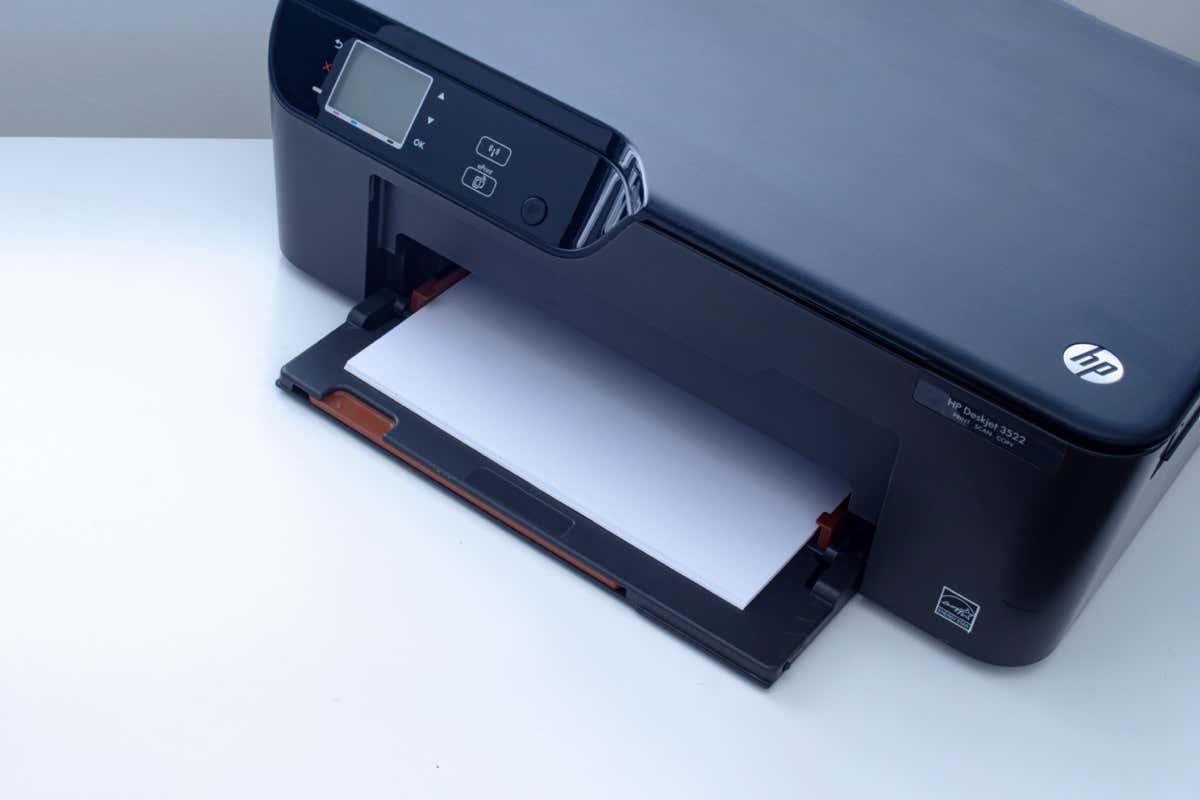
Do you see a “Driver is unavailable” error for your HP printer in the Windows Settings app or Control Panel? This occurs when Windows encounters a corrupt or incompatible HP printer driver. We’ll show you how to fix that.
When Does the “Driver Is Unavailable” Error Happen?
The “Driver is unavailable” error shows up for an HP printer in instances where Windows has trouble loading the relevant printer driver. Various reasons—such as outdated driver software or an incomplete printer setup—often cause that. Work through the fixes below to resolve the HP printer issue in Windows 10 and 11.
1. Run the Printer Troubleshooter
Windows has a built-in Printer troubleshooter that can fix most printer driver issues and other common printer problems . Run it before moving on to the rest of the fixes.
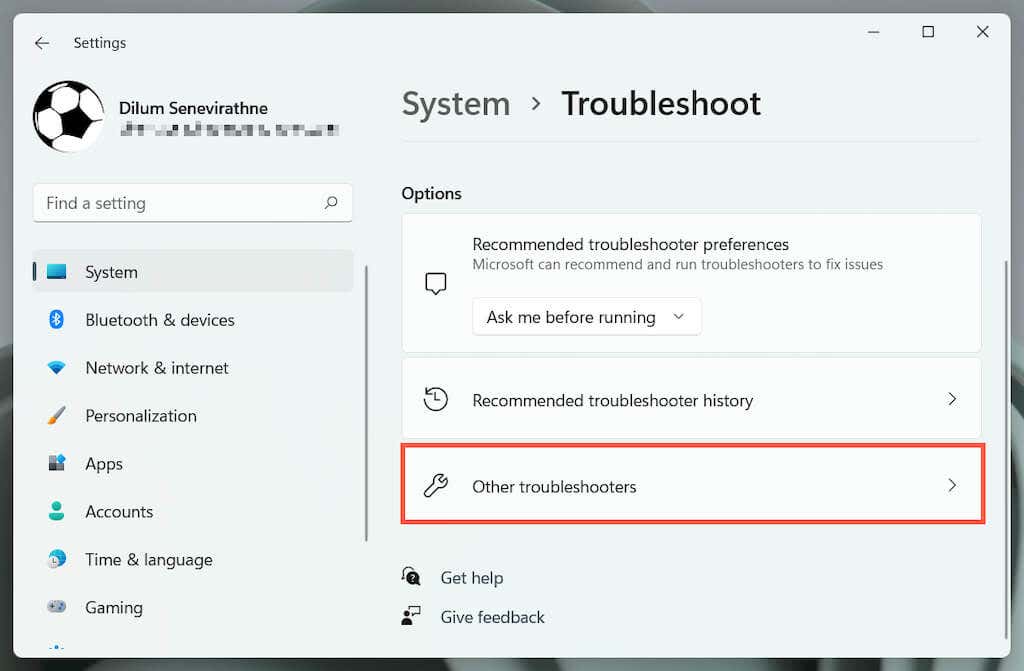
- Press Windows Key + S , type Troubleshoot Settings , and press Enter . On the Settings window that shows up, select Other / Additional troubleshooters .
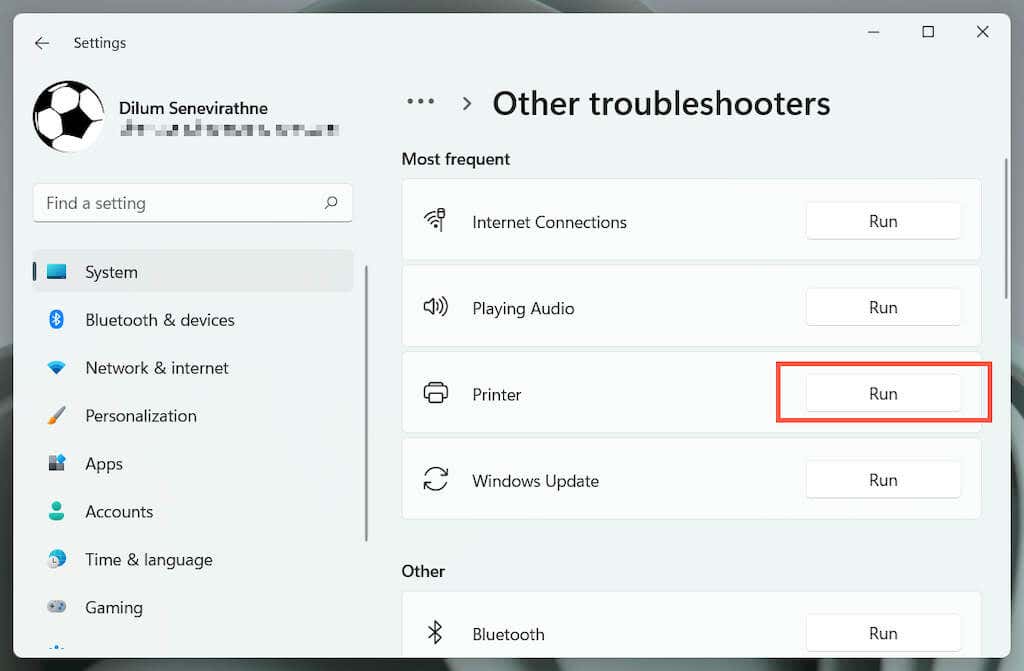
- Locate the Printer troubleshooter and select Run / Run the troubleshooter .
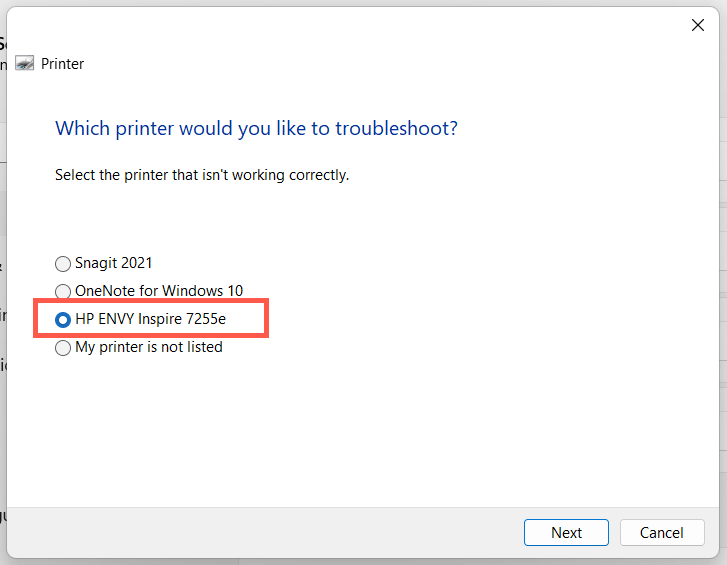
- Select your HP printer and follow the on-screen instructions to fix issues the Printer troubleshooter detects.
2. Run the HP Print and Scan Doctor App
Next, run the HP Print and Scan Doctor app on your PC. It’s a dedicated troubleshooter by HP that can diagnose and fix issues specific to HP printers. You can download the HP Print and Scan Doctor from the HP website.
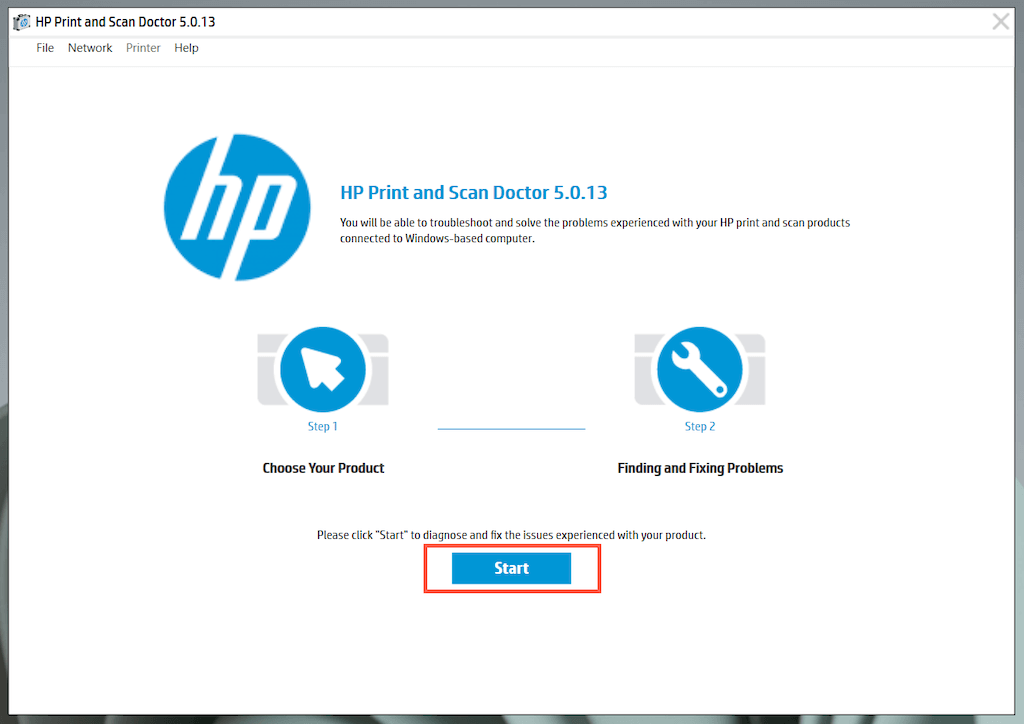
If the HP Print and Scan Doctor detects issues with your HP printer, let the tool automatically fix them for you or follow any suggestions to do that yourself.
3. Update Your HP Printer
Visit HP’s Software and Driver Downloads portal and search for your HP printer model. Then, download and install any recommended support software (e.g., HP Smart or HP Easy Start) that you don’t already have on your computer. Also, install any firmware or device driver updates.
If you have trouble installing device drivers via HP’s driver updater tool, try using the Device Manager in Windows instead. To do that:
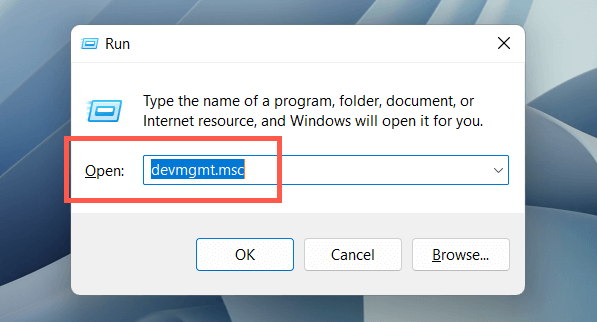
- Press Windows + R to open a Run box. Then, type devmgmt.msc and select OK to open the Device Manager.
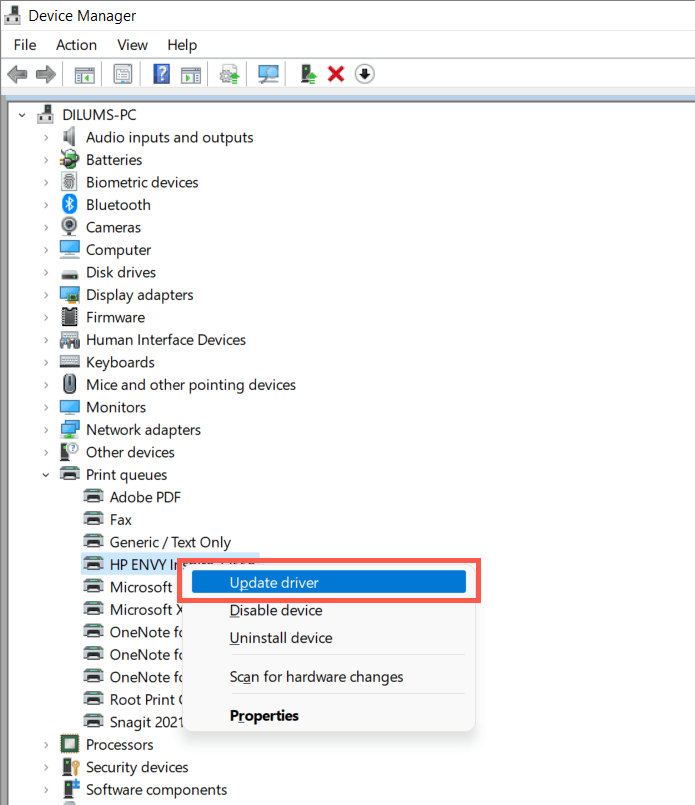
- Expand Print queues , right-click your printer hardware (e.g., HP ENVY ), and select Update driver .
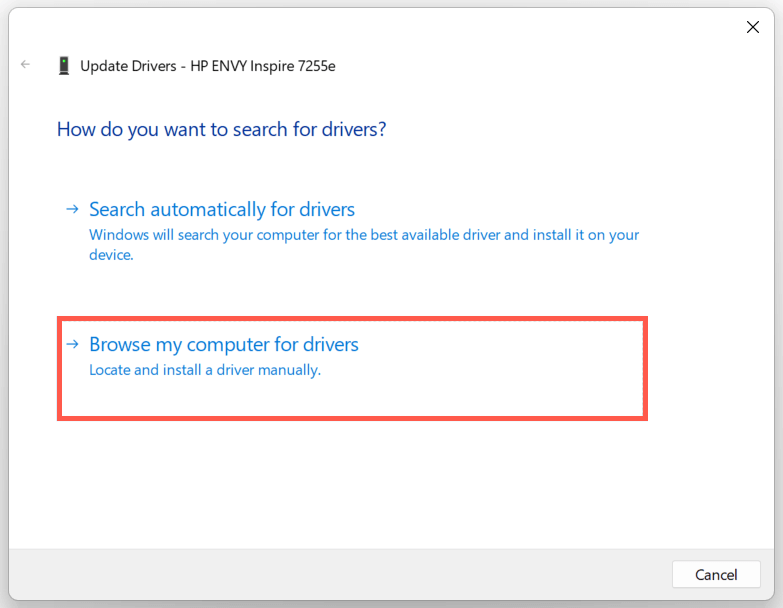
- Select Browse my computer for drivers on the Update Drivers dialog.
- Check the box next to Include subfolders . Then, select Browse and pick the downloaded driver file or folder.
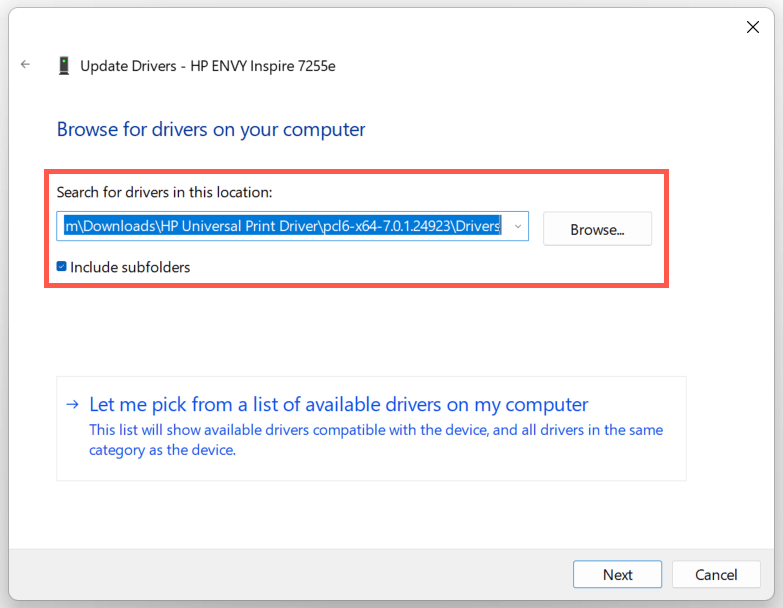
Note : If the driver file is in the ZIP format, Windows may not detect it unless you extract it first.
- Select Next to update the HP printer driver. Once that’s done, select Close to exit the Update Drivers window.
4. Install New Windows Updates
If your PC runs on an early build of Windows 10 or 11, your HP printer driver or support software may encounter compatibility issues unless you update the operating system .
To do that, open the Start menu and select Settings . Then, select Windows Update > Check for updates > Download and install to install available Windows updates.
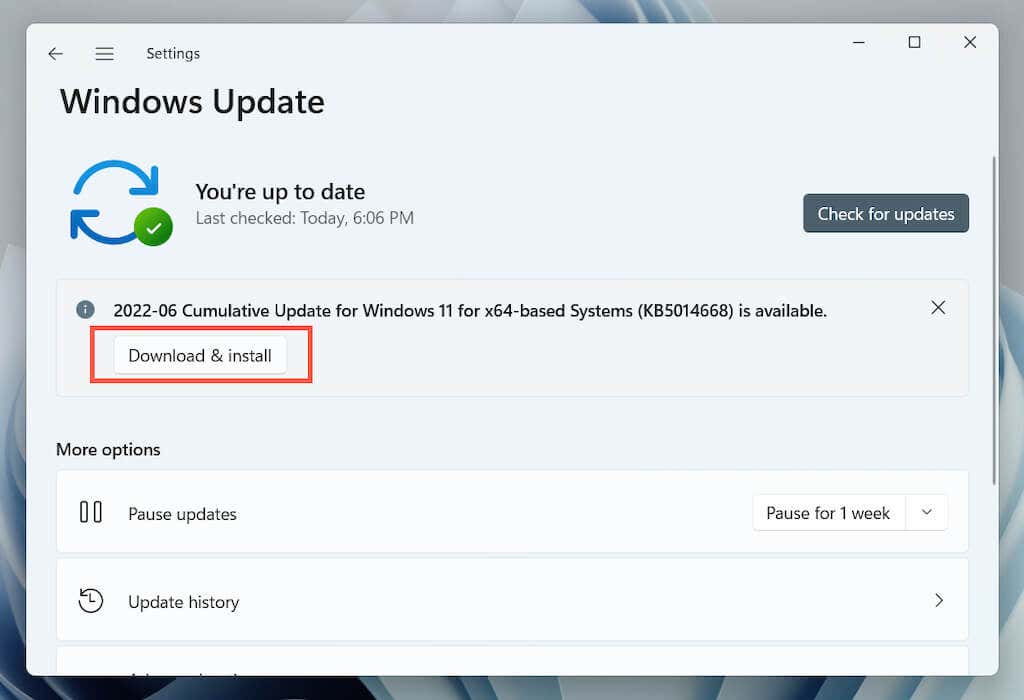
Also, select Advanced options > Optional updates or View optional updates within the Windows Update pane and install any Microsoft-verified printer updates if available.
5. Remove and Re-install Drivers for HP Printer
If the “Driver is unavailable” error persists, try removing and re-adding the printer to your computer. That also involves deleting and reinstalling the relevant HP drivers and support software.
Open the Settings app and go to Bluetooth & devices > Printers & scanners .
Choose your HP printer and select the Remove button to confirm. Then, select Remove device on the pop-up to confirm.
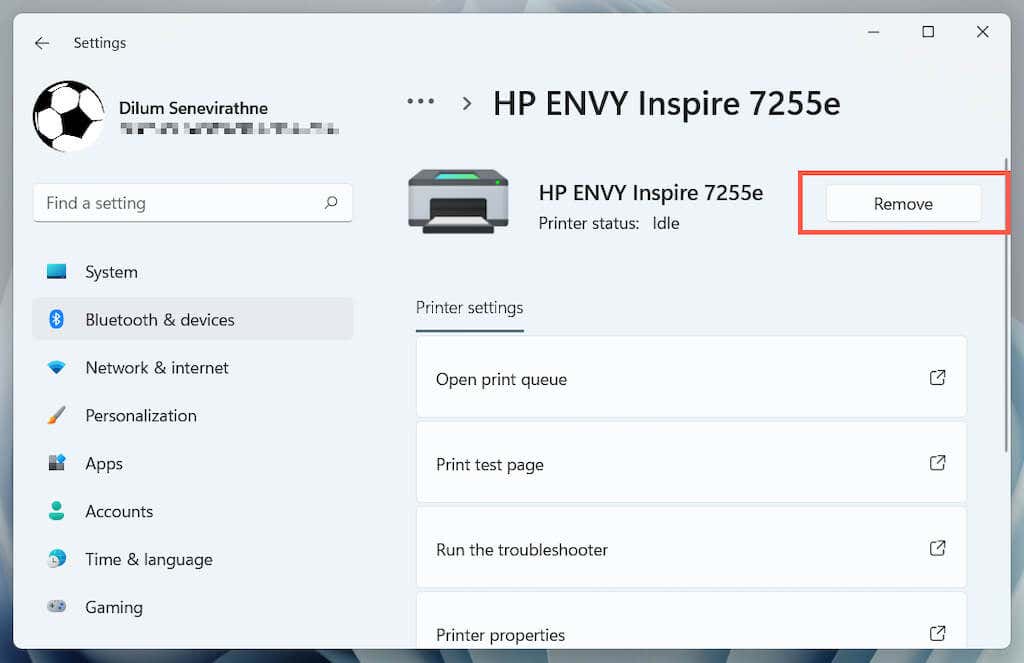
Open the Device Manager.
Expand Printer queues , right-click your HP printer, and select Uninstall device .
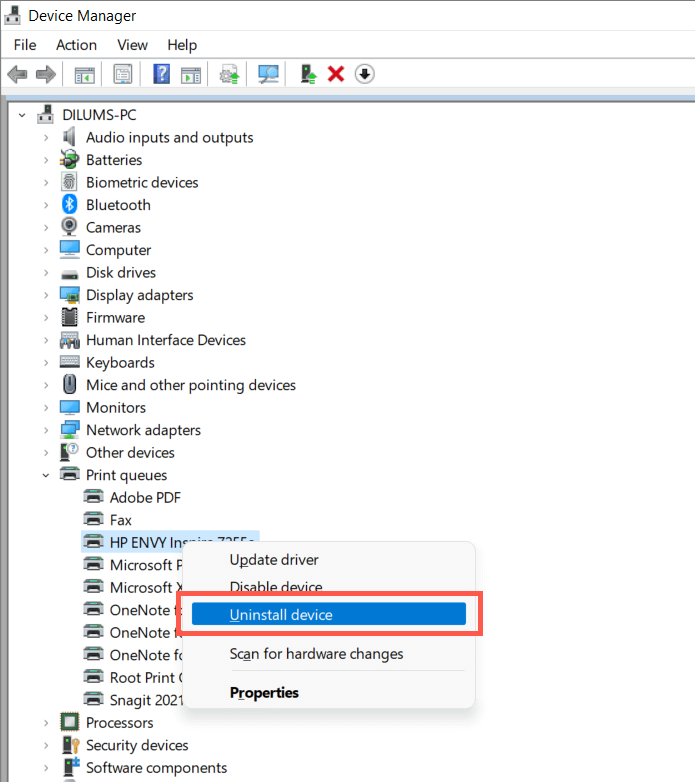
Right-click the Start button and select Apps and Features .
Locate and uninstall any HP drivers or support software.
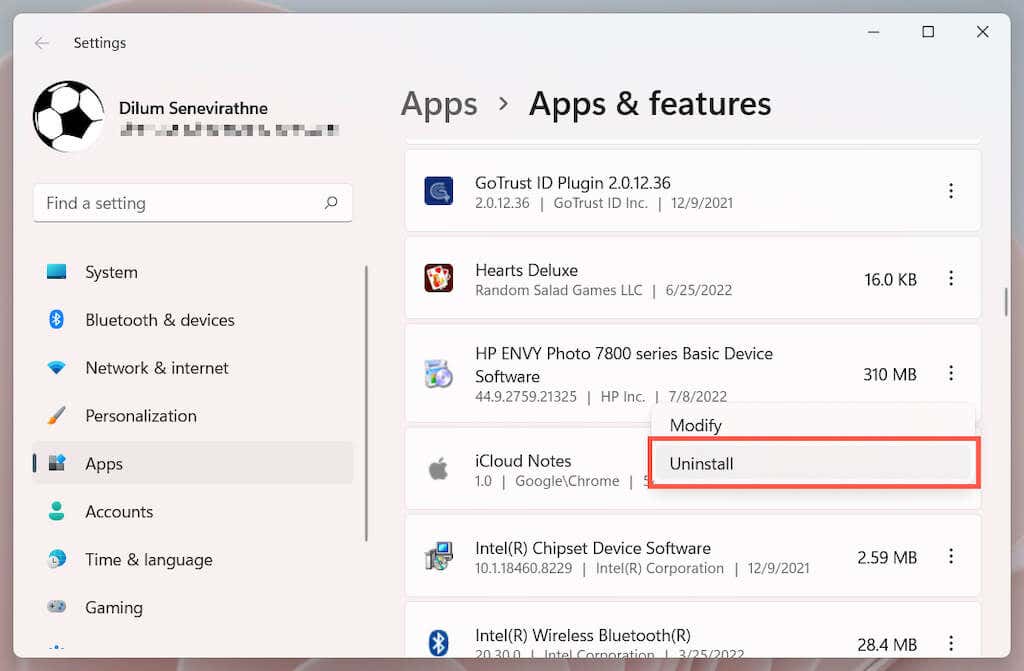
Restart your computer.
Re-open the Settings app and go to Bluetooth & devices > Printers & scanners .
Select Add device and set up the HP printer from scratch.
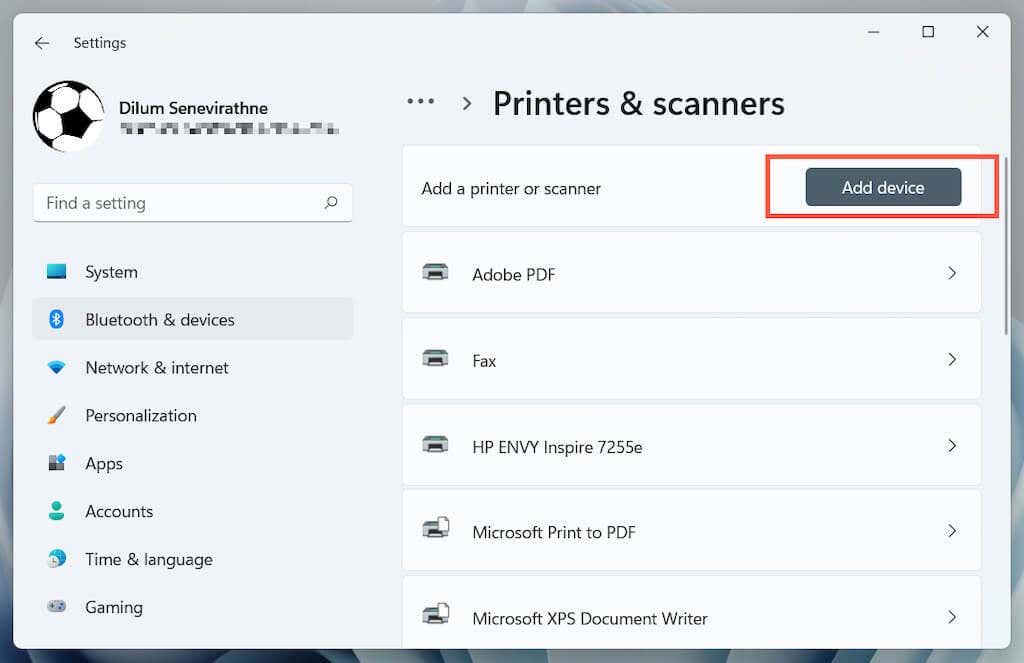
- Reinstall the latest drivers and support software for the device. Again, search for the printer model on HP’s Software and Driver Downloads portal to ensure you install everything.
6. Switch to the Generic Printer Driver
Switch to the generic printer driver in Windows. That will likely resolve the “Drive is unavailable” error but at the expense of losing various features specific to your HP printer. Regardless, it’s a good idea to try that if the issue persists.
- Open the Device Manager and select the problematic HP printer under Printer queues . Then, right-click and choose Update driver .
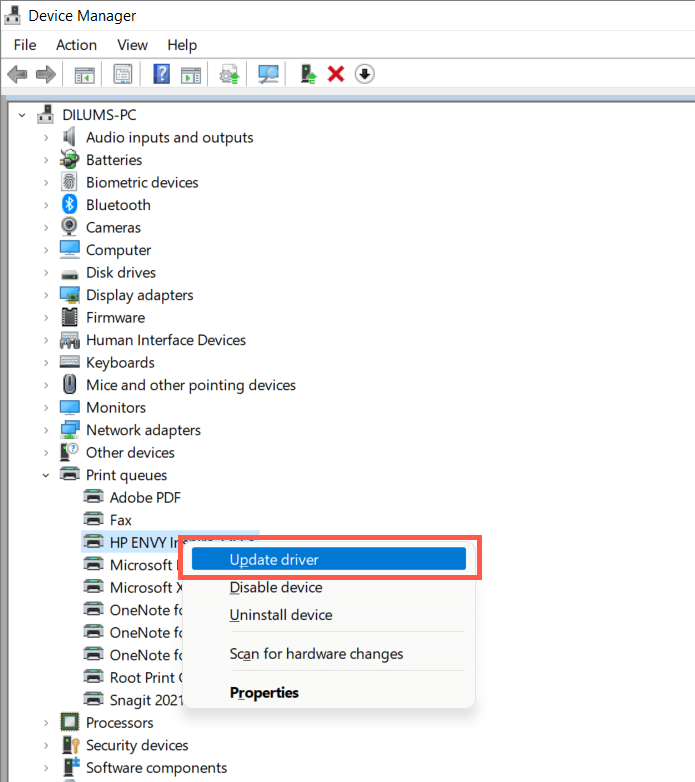
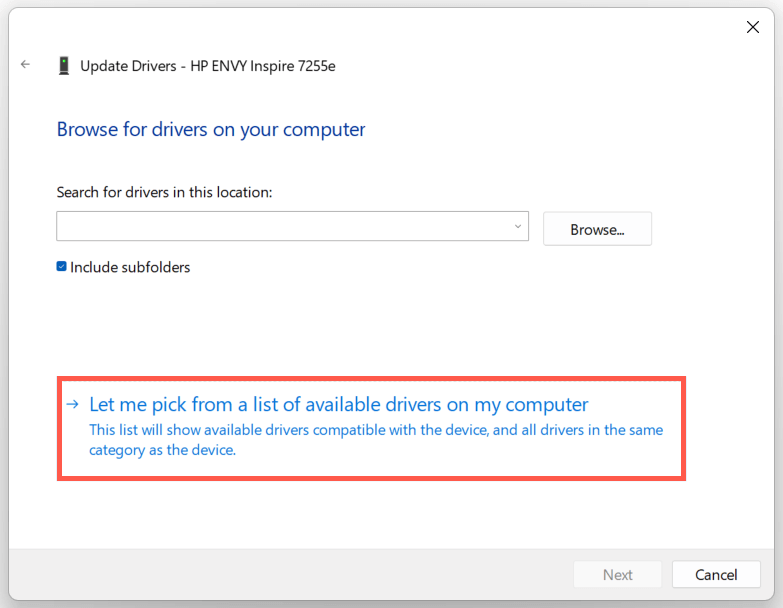
- Select Browse my computer for drivers.
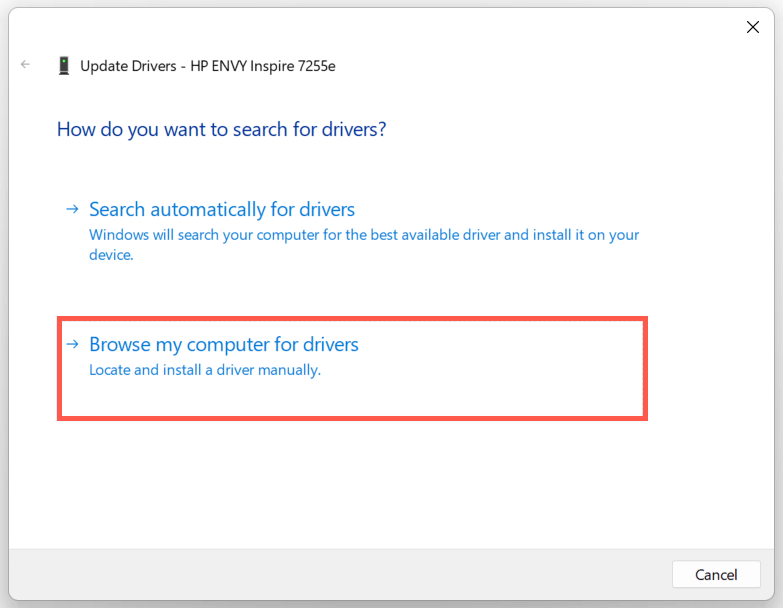
- Select Let me pick from the list of available drivers .
- Check the box next to Show compatible hardware . Then, select Generic software device > Next.
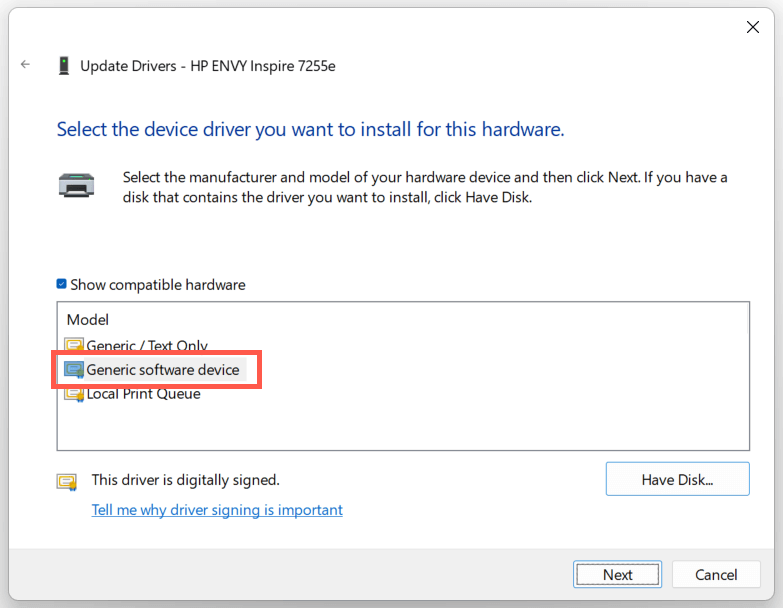
- Select Finish to install the generic printer driver for your PC.
7. Perform an SFC and DISM Scan
System file corruption can be another reason for your HP printer’s “Driver is unavailable” error. Running the SFC and DISM command-line tools usually helps fix that.
To initiate an SFC (or System File Checker) scan, right-click the Start button and select Windows PowerShell / Terminal (Admin) . Then, type sfc /scannow and press Enter .
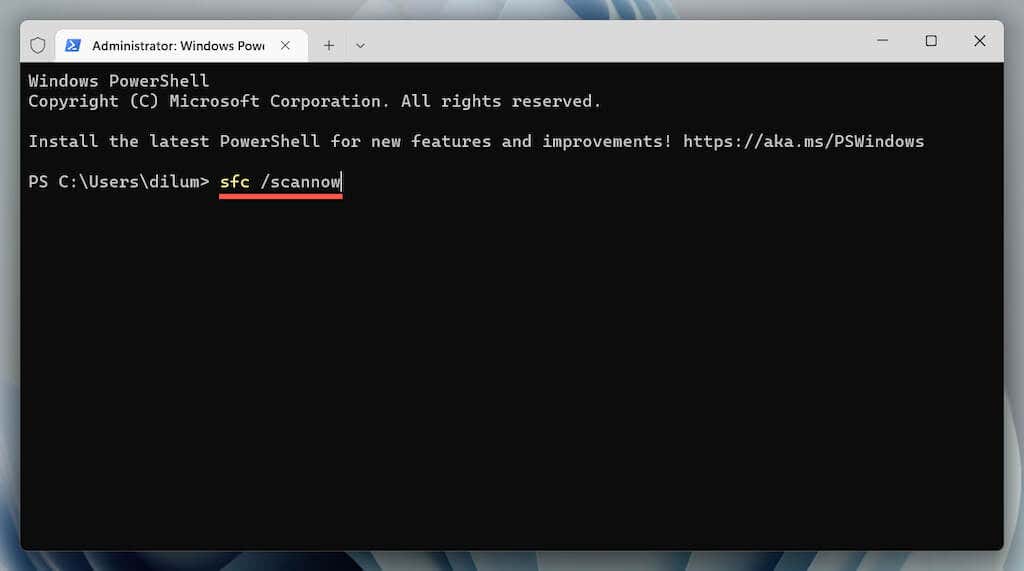
Once the System File Checker finishes scanning your computer, launch the DISM (Deployment Image Servicing and Management) tool with the following command:
DISM.exe /Online /Cleanup-Image /Restorehealth
The DISM tool takes a long time to complete and may appear to get stuck. However, keep the Windows PowerShell window open, and it should end eventually.
HP Printer Driver Unavailable Error Fixed
Did you manage to fix your HP printer’s “Driver is unavailable” error on your computer? If you did, try keeping the printer drivers and the operating system up-to-date to minimize the chances of running into the same problem going forward. If not, contact HP Support for model-specific fixes that could help resolve the driver issue.
- How to Fix the “Error – Printing” Status Error in Windows
- How to Fix Your Printer’s “Driver is unavailable” Error on Windows
- 7 Ways to Fix ”Windows Cannot Connect to the Printer”
- Print Job Won’t Delete in Windows? 8+ Ways to Fix
- Preparing for Windows 10 End of Support: Upgrading to Windows 11
Dilum Senevirathne is a freelance tech writer and blogger with three years of experience writing for online technology publications. He specializes in topics related to iOS, iPadOS, macOS, and Google web apps. When he isn’t hammering away at his Magic Keyboard, you can catch him binge-watching productivity hacks on YouTube. Read Dilum’s Full Bio
If your Windows PC displays a “Driver is unavailable” error, that means your system can’t find the correct drivers for your printer. You can’t print your documents or other items when this issue occurs. However, you can fix the problem by tweaking a few driver options on your PC.
The most common reason for the above error is outdated driver software. Other reasons include faulty drivers, corrupt Windows system files, and more. We’ll show several options to fix these problems so your printer starts working again.
Update Printer Drivers
The first solution to try when your PC displays a “Driver is unavailable” error is to update your printer drivers. Doing so updates the files that help your printer communicate with your computer.
You can use Windows’ Device Manager to perform the update process.
- Open the Start menu, search for Device Manager , and select the tool in the search results.
- Expand Print queues , right-click your problematic printer, and choose Update driver .
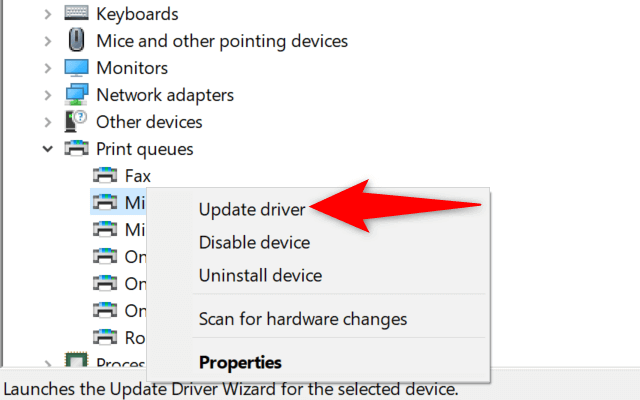
- Select Search automatically for drivers on the window that opens.
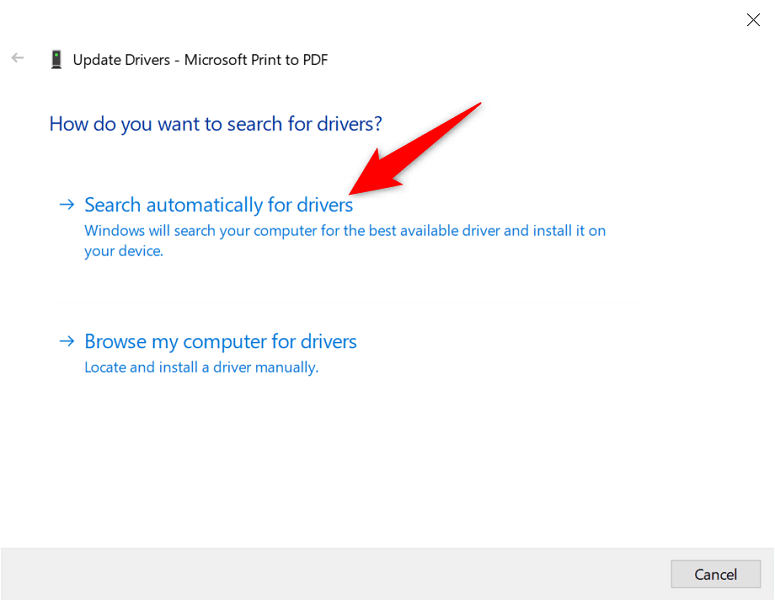
- Let Windows find and install the latest drivers.
- If no drivers are available, Device Manager will say that you already have the best drivers installed. In this case, quit the window by selecting Close .
Automatically Reinstall Printer Drivers
If the above method didn’t work, try completely removing and reinstalling your printer’s driver. This removes the problematic files that may be causing the “Driver is unavailable” error.
Again, use the Device Manager utility to perform the process.
- Launch the Start menu, search for Device Manager , and select the app in the search results.
- Expand Print queues , right-click your printer, and choose Uninstall device .
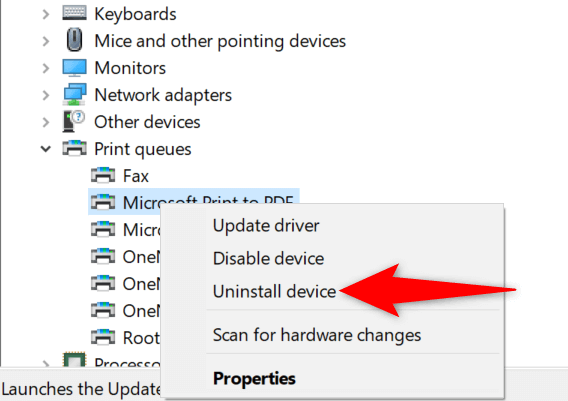
- Enable Delete the driver software for this device and select Uninstall .
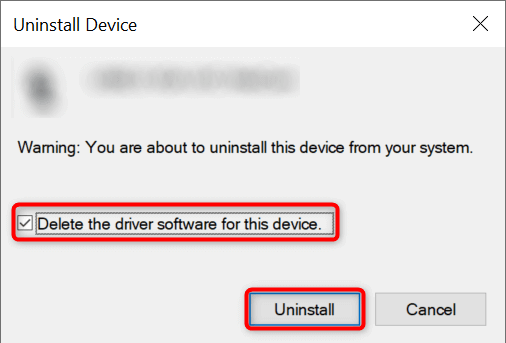
- Unplug the printer from your PC.
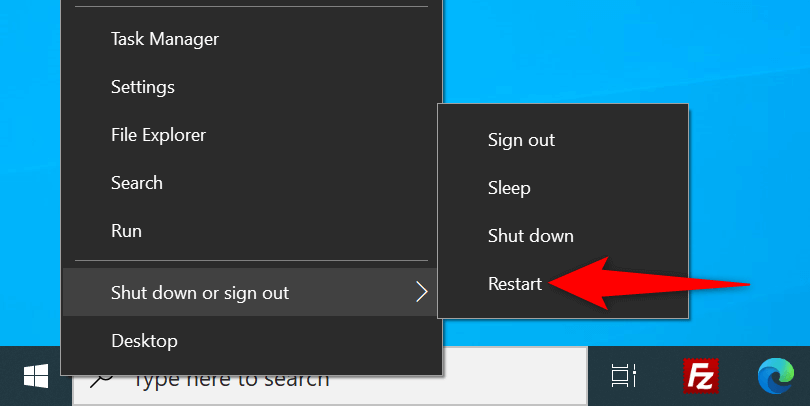
- Restart your PC by right-clicking the Start menu icon and choosing Shut down or sign out > Restart .
- Plug your printer back into your PC.
- Follow the on-screen instructions to reinstall the printer drivers.
Manually Reinstall Printer Drivers
Windows’ default printer drivers may not always work. If this is the case with you, manually download the drivers from your printer manufacturer’s website and install them.
Here’s how to do that.
- Launch Device Manager , right-click your printer in Print queues , and select Uninstall device .
- Enable the Delete the driver software for this device option and choose Uninstall device .
- Unplug your printer from your PC and reboot your PC.
- Connect the printer to your PC.
- Launch a web browser, access your printer manufacturer’s website, and download the latest drivers.
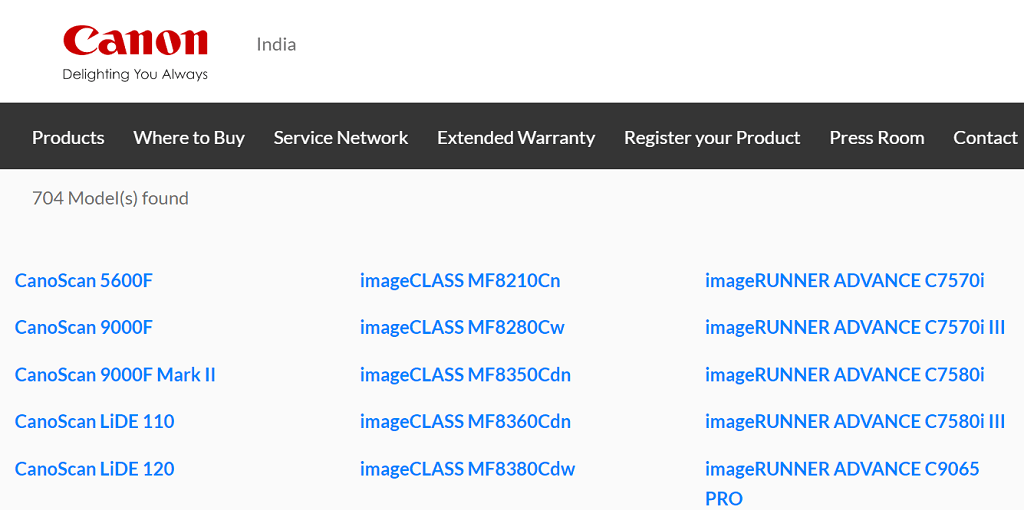
- Double-click the downloaded file to begin the installation process.
Update Windows 10 or Windows 11
Windows’ core updates sometimes help fix many device issues. You may be able to resolve the “Driver is unavailable” error by updating your Windows 10 or Windows 11 computer.
- Launch the Settings app by pressing Windows + I at the same time.
- Choose Update & Security on the Settings window.
- Select Windows Update from the sidebar on the left.
- Choose Check for updates in the pane on the right.
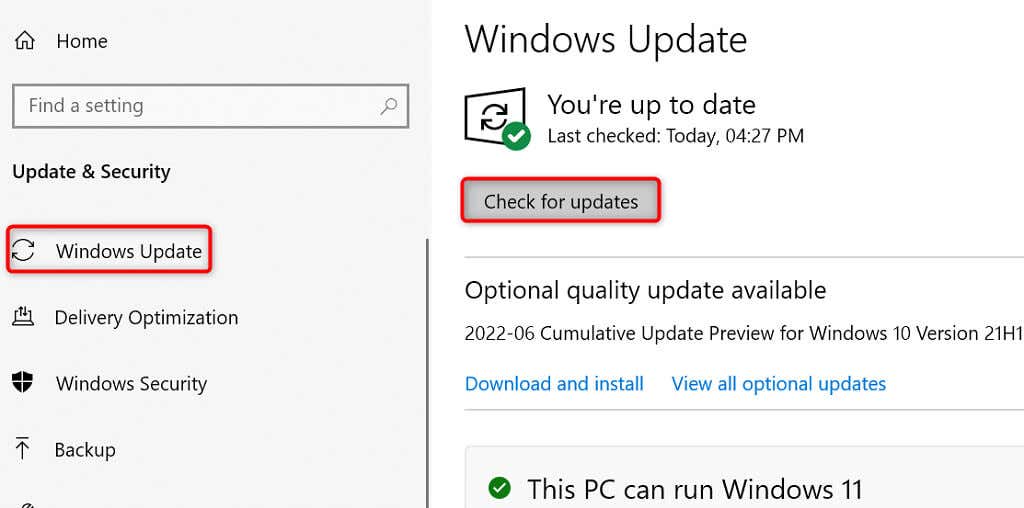
- Install the available updates.
- Reboot your PC.
Prevent a Faulty Driver Update From Installing
Both Windows 10 and 11 automatically update your device drivers via Windows Update. Sometimes, these updates are faulty, causing random issues with your devices.
If you’ve been experiencing the “Driver is unavailable” only recently, your driver update might be the culprit. In this case, roll back the update and prevent Windows from installing the same update again.
- Download Microsoft’s Show or hide updates tool.
- Launch the newly downloaded wushowhide.diagcab file.
- Select Next on the tool’s first screen.
- Choose Hide updates .
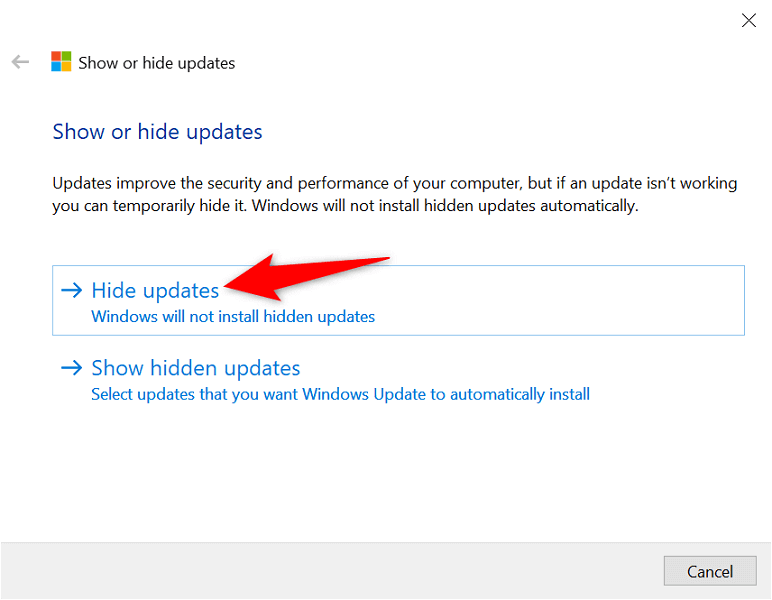
- Enable the box beside your printer update. Then, select Next at the bottom.
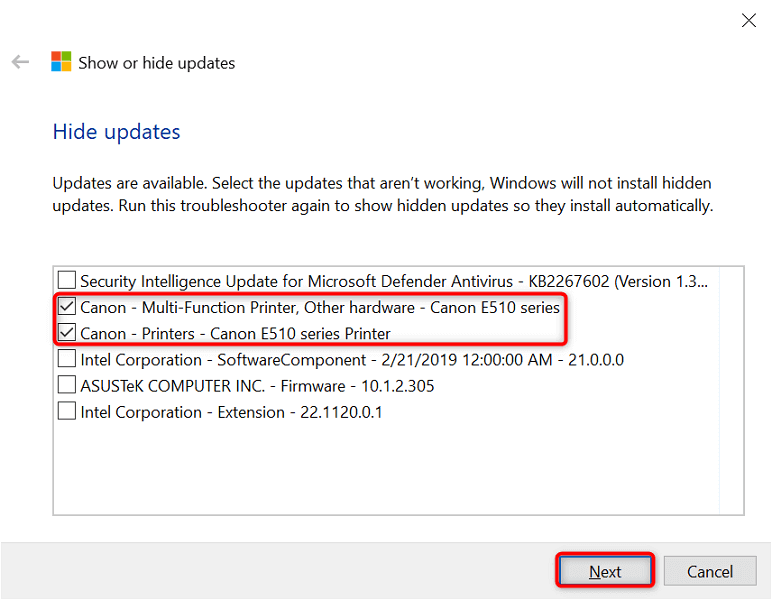
- Select Close the troubleshooter .
Windows will now block the printer driver updates from installing.
Later, you can re-enable those updates by choosing Show hidden updates and activating your printer’s option.
Use Generic Printer Drivers
Microsoft offers generic printer drivers to use when your actual ones don’t work. You may want to use these to temporarily fix the “Driver is unavailable” error and print your documents.
- Right-click the Start menu and choose Device Manager .
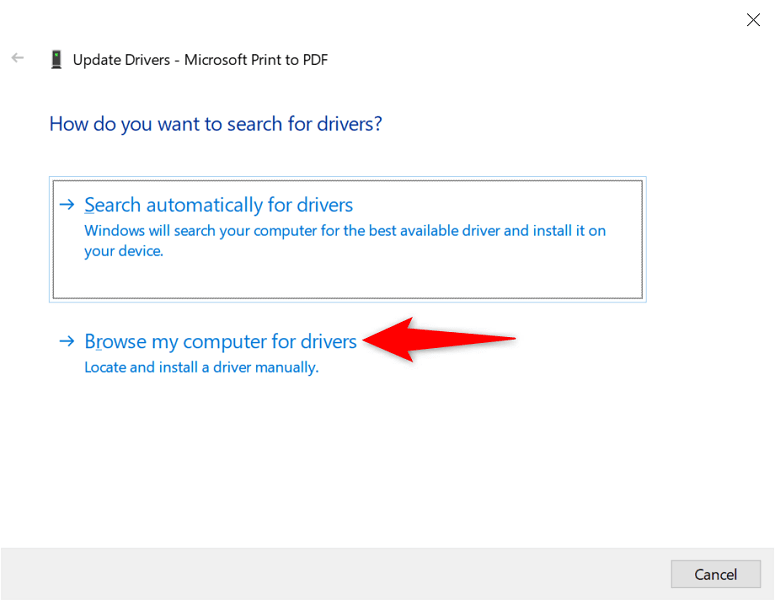
- Expand Print queues , right-click your printer, and choose Update driver .
- Select Browse my computer for drivers .
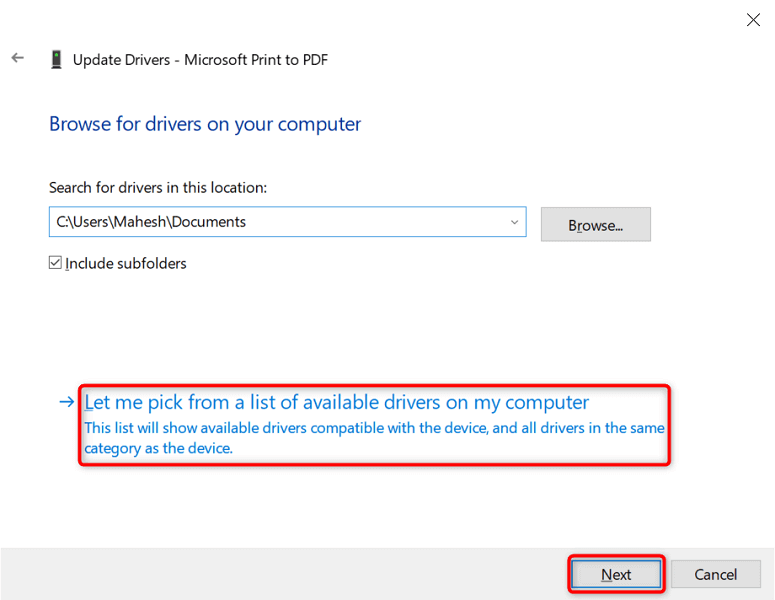
- Choose Let me pick from a list of available drivers on my computer .
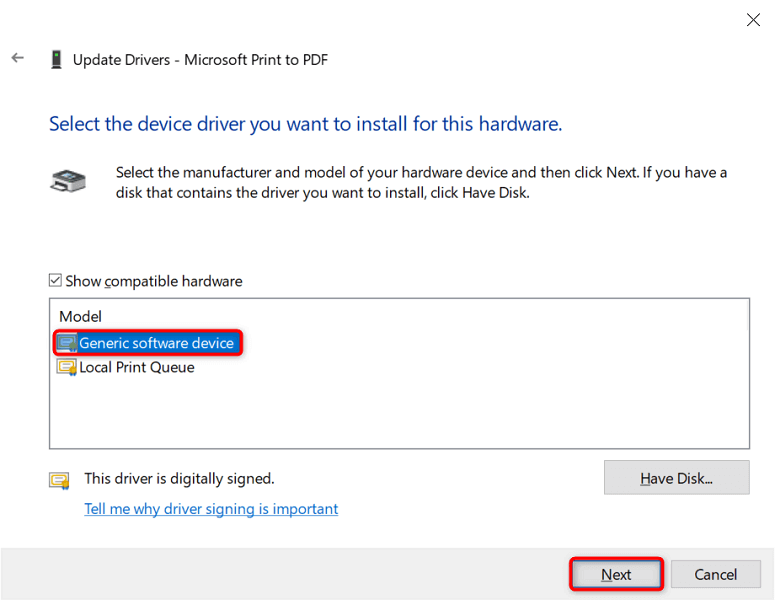
- Select Generic software device and choose Next .
- Restart your PC.
Fix Corrupt Windows Files
Corrupt Windows system files can make your devices go haywire. Your “Driver is unavailable” issue may be the result of a faulty core file. Luckily, you can fix the issue by checking and repairing all your problematic system files .
- Open the Start menu, search for Command Prompt , and select Run as administrator .
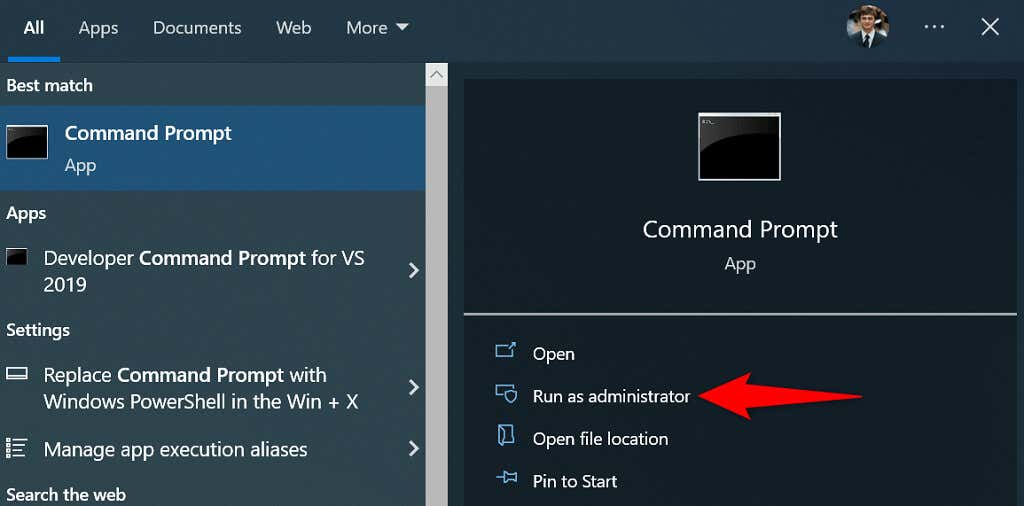
- Select Yes in the User Account Control prompt.
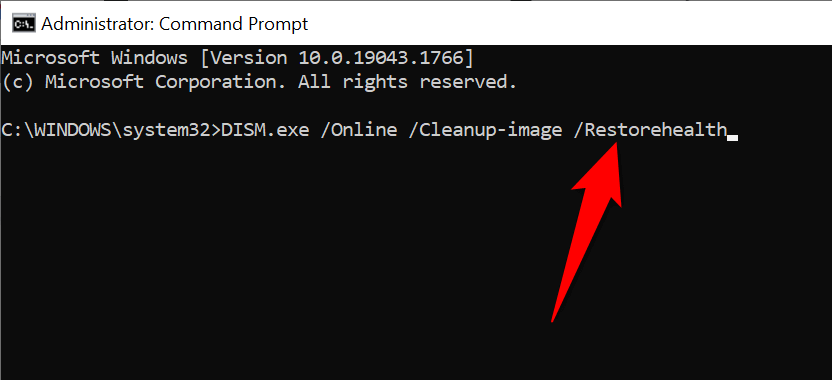
- Type the following on the Command Prompt window and press Enter . Wait for the command to finish executing: DISM.exe /Online /Cleanup-image /Restorehealth
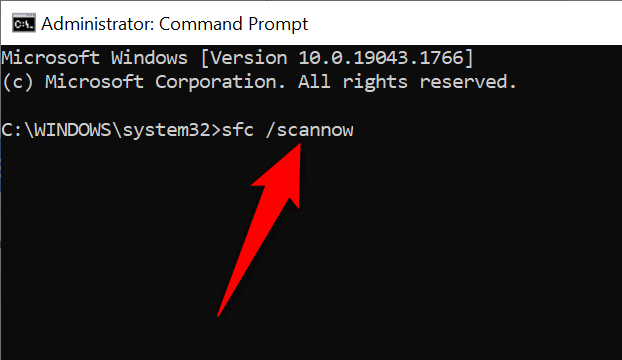
- Next, run the following command: sfc /scannow
- Wait for the tool to find and fix faulty files on your machine.
Making “Unavailable” Printer Drivers Available in a Few Easy Ways
Windows’ “Driver is unavailable” error makes your printer unusable, but not for long if you follow the methods outlined above and resolve the underlying problems. Once you’ve done that, you can print all your documents as well as configure various options for your printer on your Windows PC. Enjoy!
- How to Fix the “Error – Printing” Status Error in Windows
- 7 Ways to Fix HP Printers ”Driver Is Unavailable” Error on Windows PC
- 7 Ways to Fix ”Windows Cannot Connect to the Printer”
- Print Job Won’t Delete in Windows? 8+ Ways to Fix
- Preparing for Windows 10 End of Support: Upgrading to Windows 11
Mahesh has been obsessed with technology since he got his first gadget a decade or so ago. Over the last few years, he’s written a number of tech articles on various online publications including but not limited to MakeTechEasier and Android AppStorm. Read Mahesh’s Full Bio
When your Microsoft Windows PC fails to connect to your printer, you get an error message: ”Windows Cannot Connect to the Printer.” You can’t print your documents or perform printer-related tasks when this happens.
Some common reasons you get this error is that your printer is turned off, you don’t have the correct printer drivers installed, or your PC has a minor glitch. Once you fix these issues, your PC successfully connects to your printer, allowing you to print your documents.
1.Turn On Your Printer
One commonly overlooked reason your PC can’t make a connection with your printer is that your printer is turned off. Check that the printer is plugged in and turned on, and if you’re using a power strip, make sure that’s turned on, too.
2.Use the Windows 10/11 Printer Troubleshooter
Windows includes many troubleshooters to help you find and fix problems. One is a printer troubleshooter that helps identify and resolve any printer-related issues .
This troubleshooter detects and resolves most issues on its own, requiring minimal interaction from you.
- Open Settings by pressing Windows + I at the same time.
- Select Update & Security in Settings.
- Choose Troubleshoot in the sidebar on the left.
- Select Additional troubleshooters on the right.
- Select Printer and choose Run the troubleshooter .
- Wait for the troubleshooter to find and fix your printer issues.
3.Restart the Print Spooler Service
Windows’ print spooler service stores your print jobs until your printer is ready to print them. It’s worth stopping and restarting this service when you experience issues like ”Windows Cannot Connect to the Printer.”
It only takes a minute to turn this service off and back on.
- Launch Run by pressing Windows + R at the same time.
- Type the following in the Run box and press Enter : services.msc
- Double-click Print Spooler on the right to open the Properties menu.
- Select Stop to temporarily stop the spooler service.
- Wait for about ten seconds.
- Reactivate the service by selecting Start .
4.Update Your Printer’s Drivers
When you install a printer on your PC, Windows installs the required drivers to allow your printer to communicate with your machine. Over time, these drivers become outdated and cause various issues with your printer.
Your ”Windows Cannot Connect to the Printer” error may result from outdated printer drivers. In this case, you can fix the issue by updating the installed drivers. Windows’ Device Manager automates the process, so you don’t have to find and install the latest drivers manually.
- Open Device Manager by right-clicking the Start menu icon and choosing Device Manager .
- Expand the Print queues section, right-click your printer, and choose Update driver .
- Select Search automatically for drivers to let Windows find the latest printer drivers.
- Wait for Windows to find and install the updated drivers.
- If newer drivers aren’t available, you’ll see a message saying the best drivers for your device are already installed. In this case, you can still force your system to check for the latest drivers by selecting Search for updated drivers on Windows Update .
5.Remove and Reinstall Your Printer
If you continue to see the ”Windows Cannot Connect to the Printer” error message, your printer may not be properly installed on your PC. This usually happens if you had minor issues when you installed the printer.
You can get around this printer error by removing and reinstalling the printer.
- Access Settings by pressing Windows + I at the same time.
- Select Devices on the Settings window.
- Choose Printers & scanners from the sidebar on the left.
- Select your printer name on the right pane and choose Remove device .
- Select Yes in the prompt to uninstall your printer.
- Unplug and replug your printer into your PC.
- Follow your printer’s driver installation wizard.
6.Make Your Problematic Printer the Default Printer
If you’ve installed multiple printers on your PC, make your faulty printer the default and see if that fixes the ”Windows Cannot Connect to the Printer” issue.
Later, you can make any other printer the default if you want.
- Open Settings by pressing Windows + I .
- Select Devices .
- Choose Printers & scanners on the left.
- Disable the Let Windows manage my default printer option on the right.
- Select your printer on the list and choose Manage .
- Select Set as default to set the selected printer as the default.
7. Fix Windows Issues by Installing Software Updates
When you update your Windows PC, you get various bug fixes that help you resolve problems on your computer. Your ”Windows Cannot Connect to the Printer” error may be a system error, and updating Windows should likely fix that for you.
It’s free and easy to install Windows updates, as explained below.
- Launch Settings by right-clicking the Start button and choosing Settings .
- Select Update & Security .
- Choose Windows Update in the sidebar on the left.
- Select Check for updates in the pane on the right.
- Download and install the latest updates.
- Restart your PC when you’ve installed the updates.
The ”Windows Cannot Connect to the Printer” error is usually the result of a technical glitch, which you can fix by following the methods outlined above. Once you’ve applied those fixes, your printer should work with your PC, allowing you to resume your pending print jobs .
- How to Fix the “Error – Printing” Status Error in Windows
- 7 Ways to Fix HP Printers ”Driver Is Unavailable” Error on Windows PC
- How to Fix Your Printer’s “Driver is unavailable” Error on Windows
- Print Job Won’t Delete in Windows? 8+ Ways to Fix
- Preparing for Windows 10 End of Support: Upgrading to Windows 11
Mahesh has been obsessed with technology since he got his first gadget a decade or so ago. Over the last few years, he’s written a number of tech articles on various online publications including but not limited to MakeTechEasier and Android AppStorm. Read Mahesh’s Full Bio
