If you connect to different printers across several locations all the time, you’ll probably not use all of the printers installed on your device – probably just once or twice. However, your device ends up with many printers installed on it without you realizing it.
Thankfully, you can remove any printer you’re no longer using, except it doesn’t completely get erased from your device – the printer driver remains in your device’s inventory in case you need it again.
If you’re sure you won’t need it, you can remove or uninstall old, obsolete or uninstalled printer drivers , and leftover driver packages or registry entries from your device.
We’re going to walk you through five ways to completely uninstall printer drivers in Windows 10.
How To Remove Or Uninstall Printer Drivers In Windows 10
These are a few of the ways you can remove printer drivers in Windows 10:
- Uninstall printer software using Settings.
- Remove printer driver from Print Server Properties.
- Uninstall printer driver using Control Panel.
- Use Print Management to remove old printers.
- Delete old printers via Registry Editor.
- Uninstall printer using Command Prompt.
- Remove a printer using PowerShell.
- Delete remnants from Windows driver store.
Uninstall Printer Software Using Settings
If you don’t need a particular printer anymore, you can follow the usual steps to uninstall a printer from Settings and then uninstall its software, especially if using a third-party utility.
If the Settings app installed other tools to manage your printer automatically, you’ll have to manually remove the leftover software.
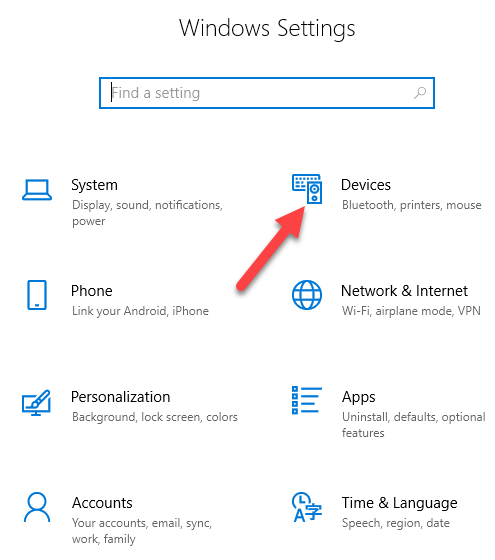
- Open Settings>Devices.
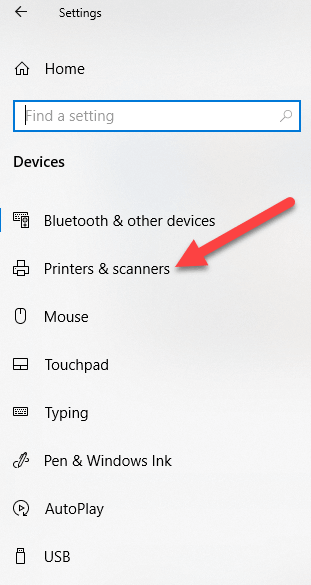
- Click Printers & Scanners .
- Select your printer, click Remove device , and click Yes when asked to confirm the deletion.
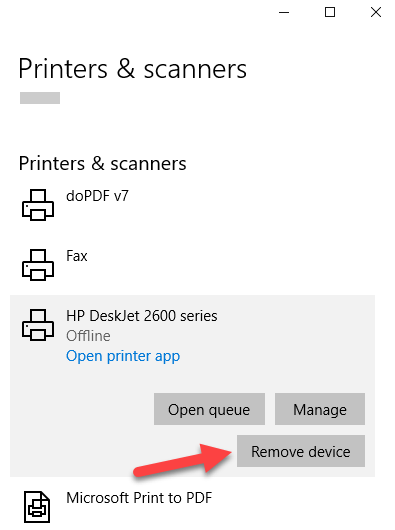
Note: The steps above only remove the printer from the list, so you’ll need to remove any leftover printer software or related applications.
- Open Settings>Apps .
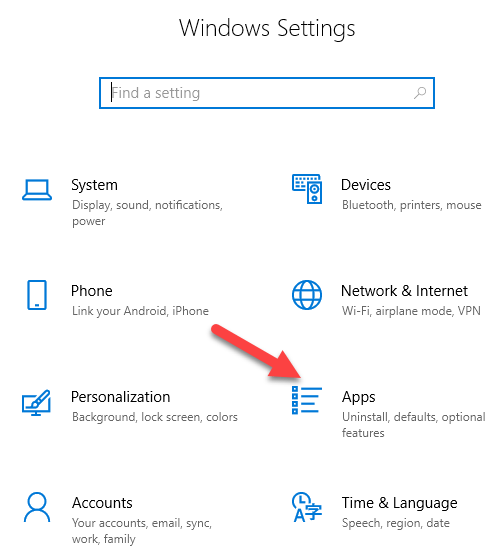
- Click Apps & Features and select the printer software you’d like to remove.
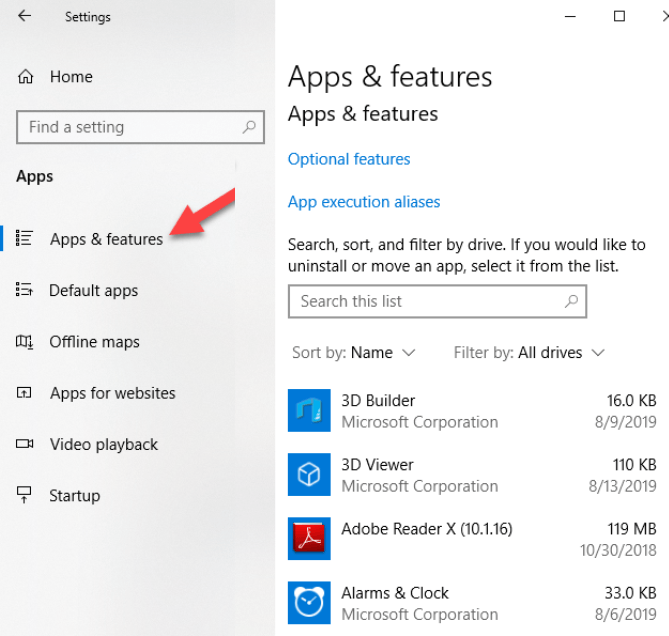
- Click Uninstall and follow the steps to completely remove any leftover printer-related applications.
Remove Printer Driver From Print Server Properties
If you’re still seeing an old printer, or one that you previously uninstalled, appearing on the Printers & Scanners page, you can remove or uninstall the printer driver and driver packages.
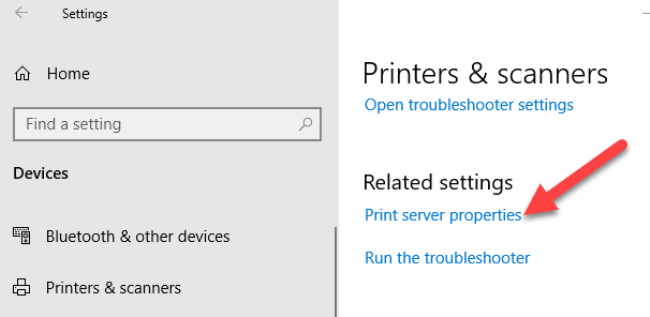
- Open Settings>Devices>Printers and Scanners on the left pane.
- Scroll down to Related settings and click Print Server Properties . Alternatively, you can right-click Start>Run and type printui /s /t2 to go to the Print Server properties page directly.
- Select the Drivers tab. From the list, click on the old printer entry and select Remove .
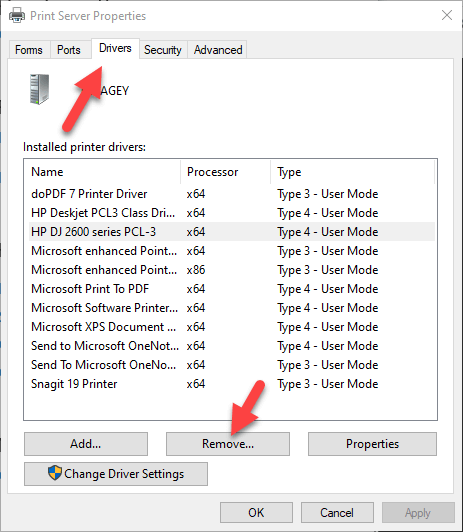
- You’ll get two options in a popup – Remove driver or Remove driver and driver package . Select the latter and click OK .
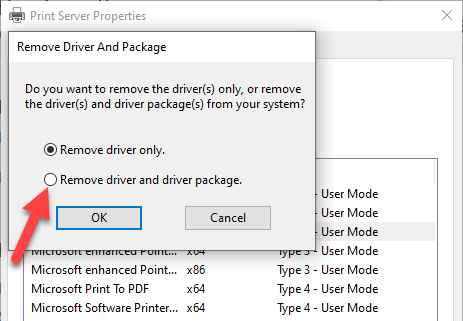
- If you get a confirmation prompt to Remove Driver Package , click Delete .
Uninstall Printer Driver Using Control Panel
You can remove and uninstall your printer and leftover printer driver or related apps from Control Panel using these steps.
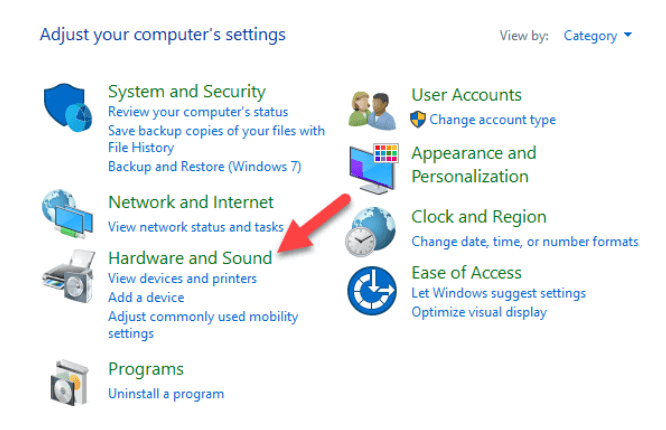
- Open Control Panel>Hardware and Sound .
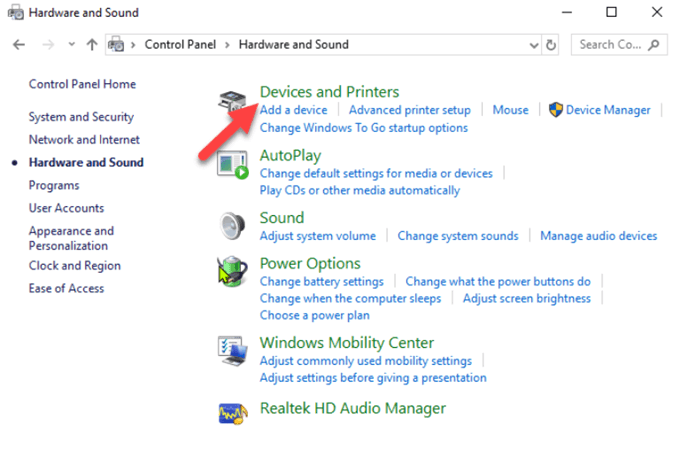
- Click Devices and Printers .
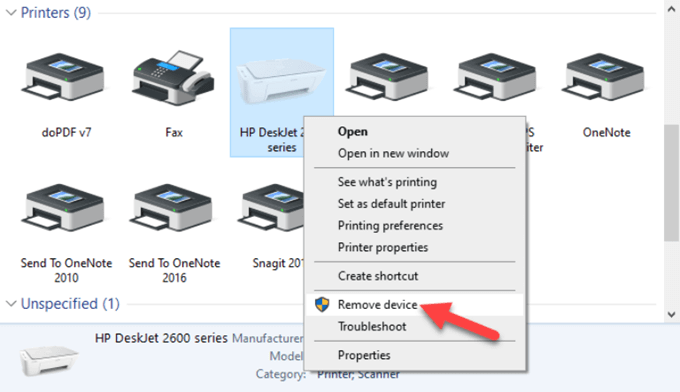
- Under Printers , right-click your device and click Remove device . Click Yes to confirm the action.
- Next, go to Settings>Apps>Apps & Features and select the software you want to remove.
- Click Uninstall and follow the on-screen steps to completely remove the printer software.
Use Print Management To Remove Old Printers
Ideally, if you used the Print Server properties method above, it should remove and uninstall the printer driver. However, you can use the Print Management console to completely remove printers you no longer use, and their drivers.
The Print Management dialog shows you the printers and current print jobs on your device. Before you delete the old printer driver though, make sure it’s not being used by any other printer.
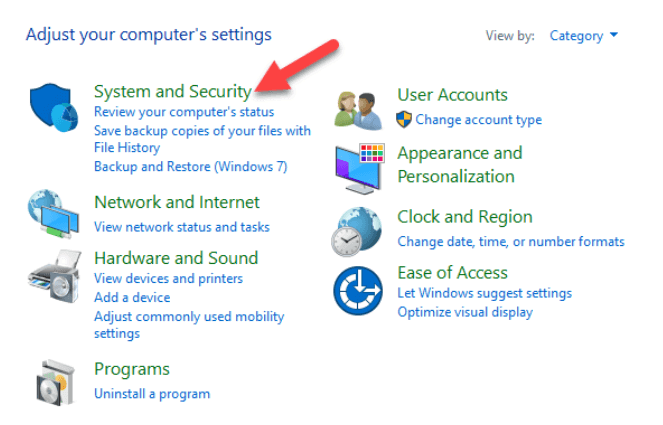
- Open Control Panel>System and Security .
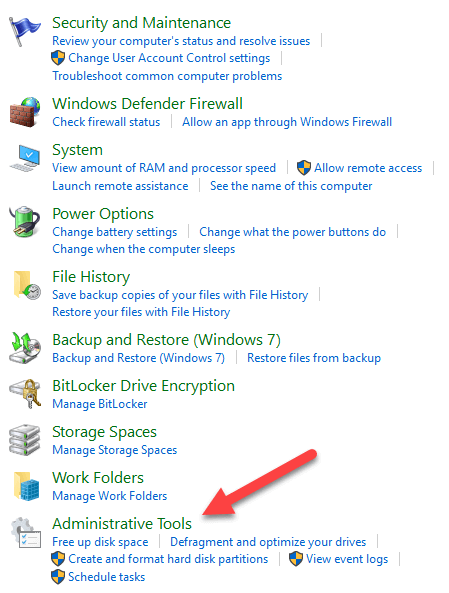
- Click Administrative Tools .
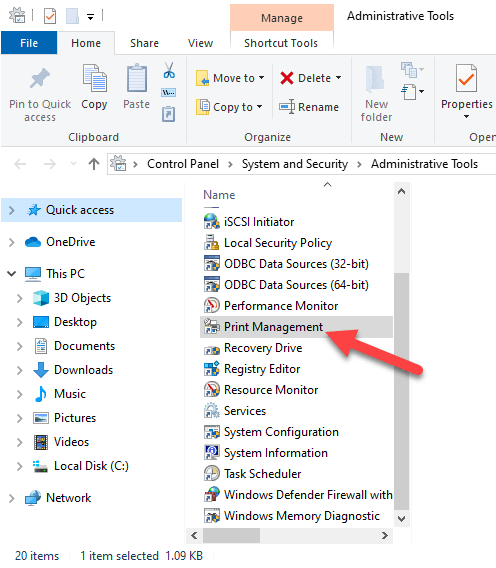
- Double-click the Print Management shortcut.
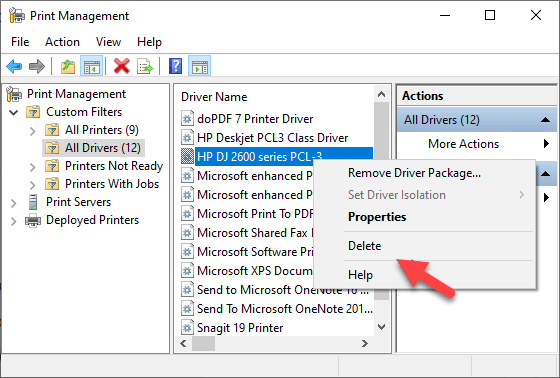
- Under Custom Filters , select All Printers .
- Right-click the printer you want to remove.
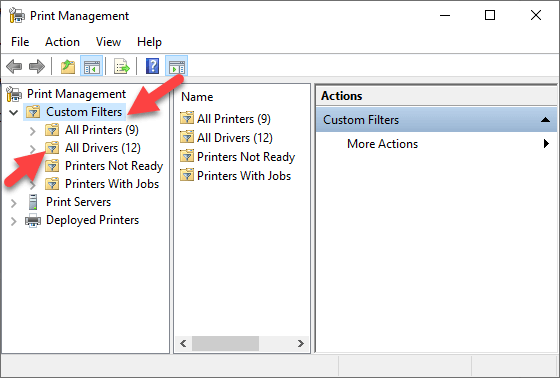
- Click Delete and Yes to confirm the action.
- Open Settings>Apps>Apps & Features and click the printer software you want removed.
- Click Uninstall and follow on-screen instructions to completely remove the printer driver.
Delete Old Printers Via Registry Editor
If you open the Add a printer page and find old printers still listed there, edit the registry to remove leftover entries. To do this, start by creating a system restore point, and then follow the steps below.
- Right-click Start>Run .
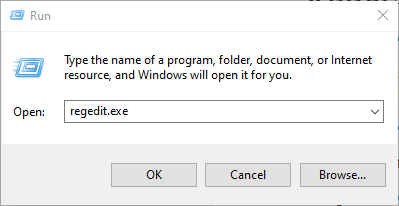
- Type regedit.exe and click OK (or press Enter on your keyboard) to open the Registry Editor.
Find the registry key:
HKEY_CURRENT_USERSOFTWAREClassesLocal SettingsPrintersRoamed
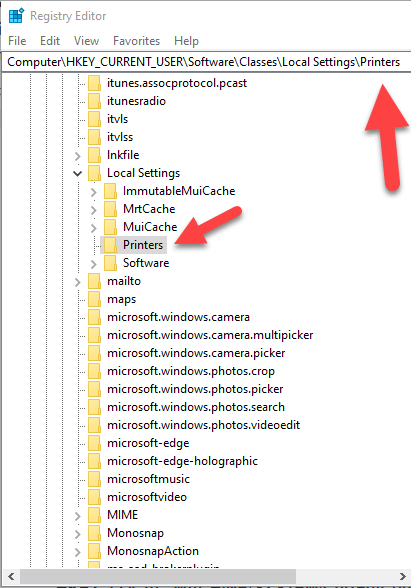
- Right-click the printer from the right pane, and select Delete .
- Check printer entries and delete unwanted items by going to this key: HKEY_CURRENT_USERPrintersConnections
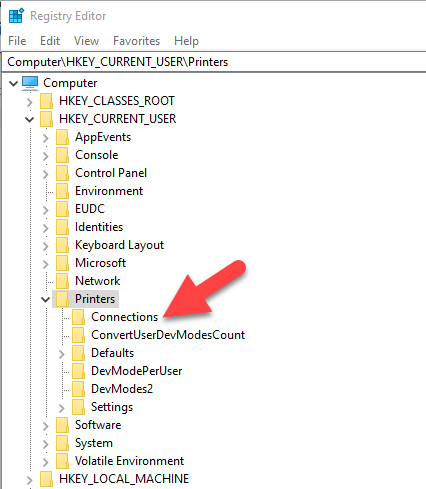
Next, go to this key:
HKEY_LOCAL_MACHINESYSTEMCurrentControlSetControlPrintPrinters
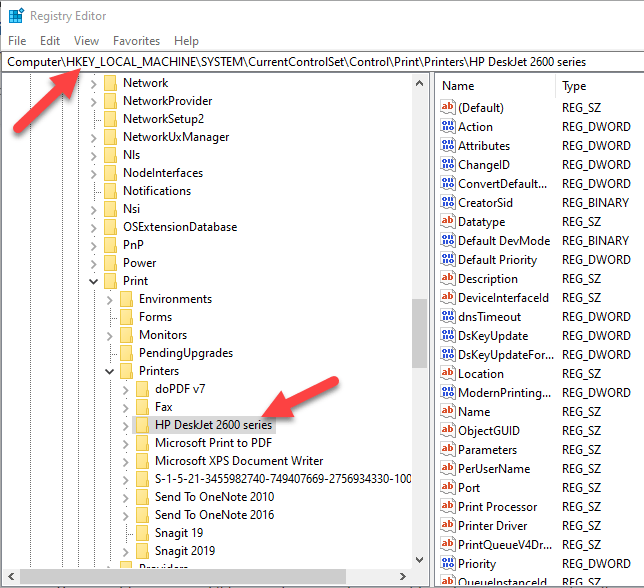
- Click to expand the key, right-click your printer and select Delete .
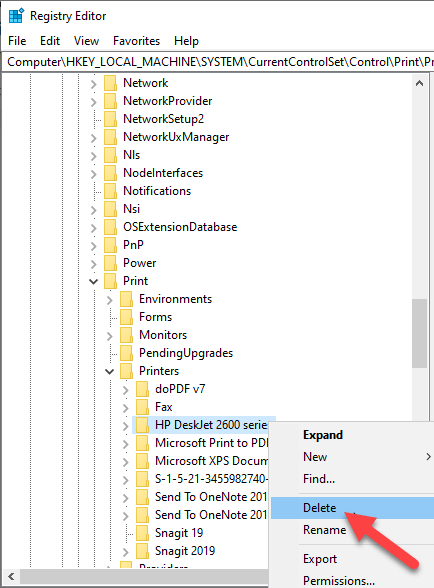
Some subkeys may still have references to your old printer, so you can clear the following as well:
HKEY_LOCAL_MACHINESYSTEMCurrentControlSetControlPrintEnvironmentsWindows NT x86DriversVersion-3 HKEY_LOCAL_MACHINESYSTEMCurrentControlSetControlPrintEnvironmentsWindows x64DriversVersion-3 HKEY_LOCAL_MACHINESYSTEMCurrentControlSetControlPrintEnvironmentsWindows x64DriversVersion-4
Once this is done, exit the Registry Editor.
Uninstall Printer Using Command Prompt
If you’re a fan of command lines, the Command Prompt is another tool you can use to delete a printer and remove related drivers and apps.
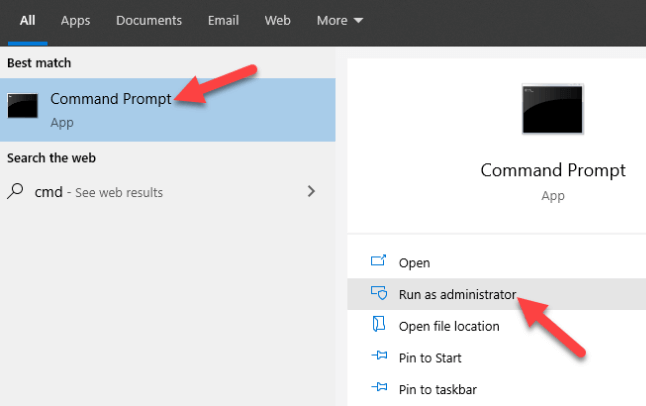
- Click Start and type CMD in the search bar.
- Click Command Prompt and select Run as administrator from the right pane.
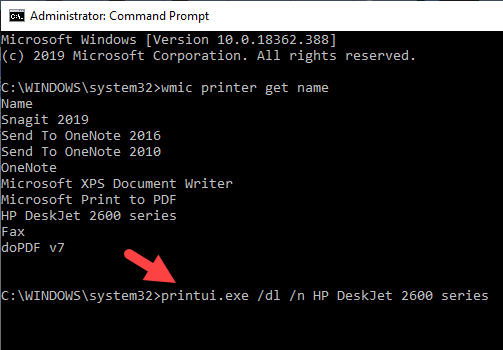
- In the Command Prompt window, type this command: wmic printer get name and press Enter to see the list of printers on your device.
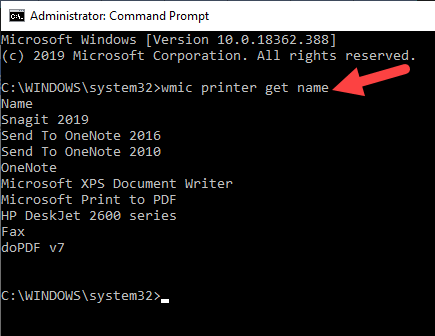
- To uninstall the printer, type printui.exe /dl /n “YOUR-PRINTER-NAME” and press Enter. Remember to replace YOUR-PRINTER-NAME with your printer’s full name. For example, printui.exe /dl /n HP DJ 2600 Series CL3 .
- To uninstall the printer software, open Settings>Apps>Apps & Features and select the printer software you want to remove. Click Uninstall and follow the on-screen instructions to complete the process.
Remove a Printer Using PowerShell
If you prefer PowerShell over Command Prompt, here are the steps to take to remove the printer and related software.
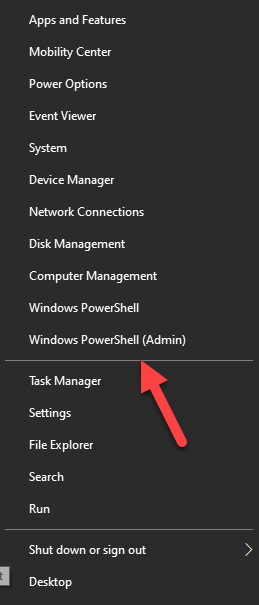
- Right-click Start > Windows PowerShell (Admin) .
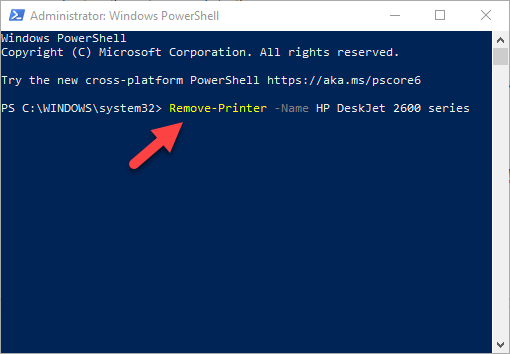
- Type this command: Remove-Printer –Name “YOUR-PRINTER-NAME” .
- Open Settings > Apps > Apps & Features , and click the software you want removed.
- Click Uninstall and follow the directions to remove it completely.
Delete Remnants From The Windows Driver Store
This solution is meant to remove any remnants of drivers that may still be on your device even after deleting driver packages.
In the driver store, you’ll find inbox and third-party driver packages, which were installed and stored in the folder even before the driver itself got installed.
Each of the subfolders in the store holds a driver package and corresponding .inf file , but it’s a bit difficult to find the specific driver package you’d like to remove.
The good news is you can use a third-party tool to explore the Windows driver store and completely remove the old printer driver once for all. It’ll also save you lots of space that would otherwise have been occupied by junk files.
What Happens When Drivers Are Deleted?
A device driver is a piece of software that tells your computer’s operating system how to communicate with the device it’s connected to.
For example, to connect to your printer and execute the print command, a printer driver is needed to bridge the gap between the two devices, and deliver the print job to you.
Without the printer driver, your printer is just hardware that doesn’t work. Similarly, deleting the printer driver after deleting the printer from your computer renders it inoperative.
However, if you delete the driver, you can undo the deletion using System Restore , from the previous restore point created when you deleted the driver from your computer.
Alternatively, Windows will automatically install the driver on your operating system by searching for it from its extensive library of drivers. If it doesn’t find a suitable driver, it’ll search for a driver online through Windows Update. Otherwise, you can visit the device manufacturer’s website to find the specific driver for your printer.
- Preparing for Windows 10 End of Support: Upgrading to Windows 11
- How to Fix a “This file does not have an app associated with it” Error on Windows
- How to Fix an Update Error 0x800705b4 on Windows
- How to Resolve “A JavaScript error occured in the main process” Error on Windows
- How to Fix the Network Discovery Is Turned Off Error on Windows
Elsie is a technology writer and editor with a special focus on Windows, Android and iOS. She writes about software, electronics and other tech subjects, her ultimate goal being to help people out with useful solutions to their daily tech issues in a simple, straightforward and unbiased style. She has a BCom degree in Marketing and currently pursuing her Masters in Communications and New Media. Read Elsie’s Full Bio
Are you trying to install a printer on your Ubuntu system? Luckily, Ubuntu now recognizes most printer brands and will automatically install the related drivers when connected.
Many printer manufacturers such as Brother and HP support Linux distributions and release their own printer drivers. But before installing a printer from another brand, you should look at their website to see if they support Linux.
Keep in mind that your desktop environment is what dictates the configuration tool you need to use to set up your printer, not the Linux distribution.
Is It Already There?
Many modern printers have powerful network capabilities. What this means is that when you go the add printer area, your printer will already be listed.
How can you find out if it is? Note that you will need administrative privileges on the system to set the default printer.
- Type Printers in the Activities overview. Moving your mouse to the top-left corner of your screen will show Activities .
- Or you can press the Super key on your keyboard. The super key is the one that looks like the Windows logo on most computers.
- Go to system settings . You can find it on your toolbar or Ubuntu dock.
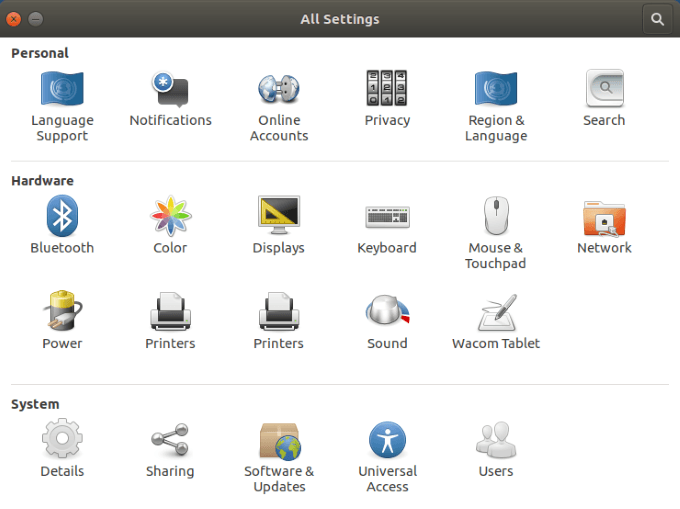
- Click on Printers to see which – if any – printers are listed.
Your Printer Is Listed
If you see your printer listed under devices , the following steps will help you finish the printer installation.
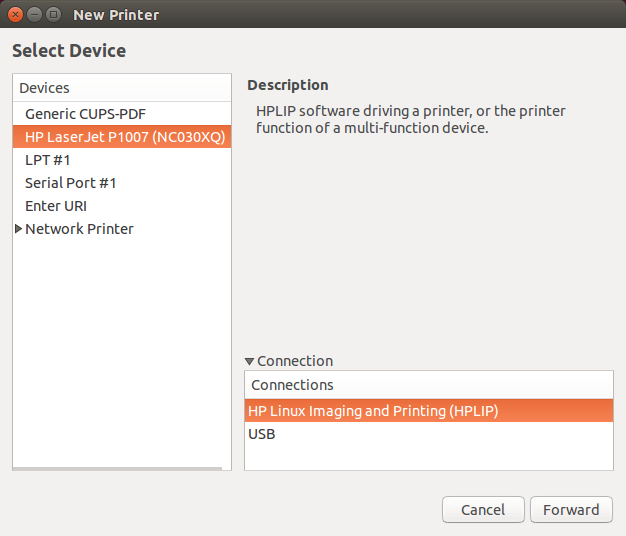
- If your printer is listed, it is because you have a network-savvy printer. Select it and then click on properties.
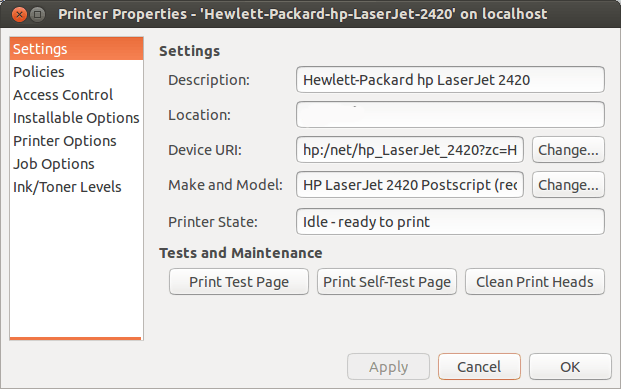
As you can see in the image above, you can:
- Change the name of the printer.
- Print a test page to make sure it is working properly.
- Troubleshoot your issues if you have a problem.
You should also check the Printer Options to make sure the default settings are consistent with the capabilities and features of your printer.
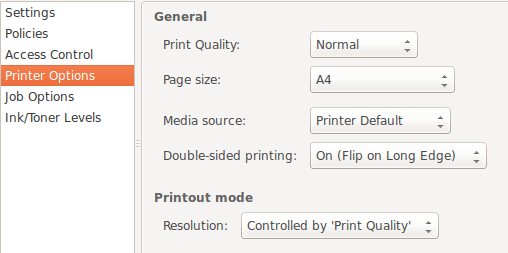
Keep in mind that every printer is going to be slightly different. However, the main principles are the same across all printers.
Pay attention to the Output Mode in the image above. If you are looking to save money because print cartridges can be expensive, you might want to only use Color when necessary.
When you don’t need a color copy, you can change that option to Black and White or Grayscale .
What If Your Printer Is Not Listed?
There will be times when your Ubuntu OS won’t find a connected printer. There are various reasons for this that range from simple to complex.
You can either look at the printer manufacturer documentation or follow the steps below.
Check Your Printer Hardware
One of the simplest things to check is the connection. Did you properly connect the power cables and USB (if the printer is not using wireless)?
If you have an older printer or have moved it from one location to another, you could have a loose connection. Check both ends of the USB cable to make sure the connection is secure.
Ubuntu Drivers
Some older printers were not designed to work with the open-source operating system or the latest version of Ubuntu.
Alternatively, if your printer is very new, it might not have been added yet to Ubuntu’s database. So, what can you do?
Download Your Driver
You can go to the printer manufacturer’s official website to find and download the appropriate driver based on the model number.
Each printer’s brand installation will vary so be sure to follow the directions carefully.
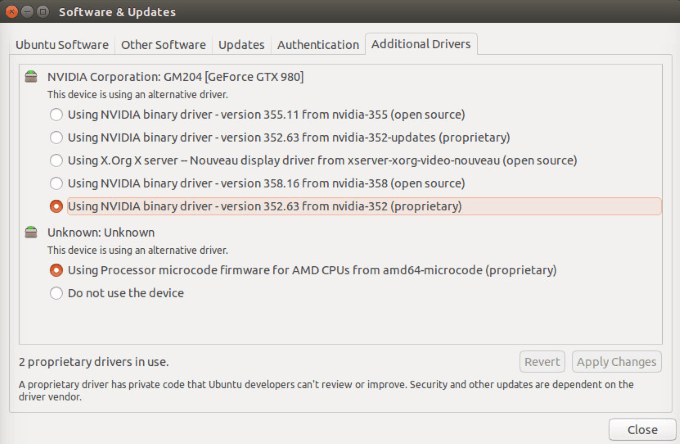
Use The “Additional Drivers” Tool
Some printer manufacturers have their own proprietary and closed-source drivers. This means that that Linux distributions won’t be able to automatically enable them for you.
- Ubuntu-based distributions have an Additional Drivers tool to enable you to install proprietary drivers. First, open your dash.
- Then do a search for Additional Drivers and launch it.
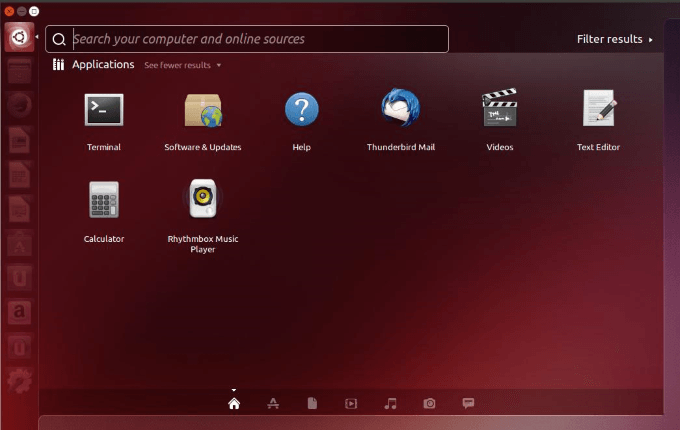
- Your system will detect the proprietary drivers you need for your printer and let you install them.
Configure Manually Using CUPS (Common Unix Printing System)
Developed by Apple, CUPS enables your system to detect your printer if it isn’t automatically found. You can use it with a single computer or a group of networked computers.
- If you don’t already have CUPS installed, you can install from Terminal with the following command:
sudo apt install cups
- Now you need to enable CUPS:
sudo systemctl enable cups
- Use the following command to start CUPS:
sudo systemctl start cups
- After you authenticate with your user password, the CUPS server will start automatically .
- Now that you have enabled and started the CUPS service, exit Terminal. Launch into CUPS in local host:
CUPS Setup - localhost:631
- Add your printer from the CUPS for Administrators .
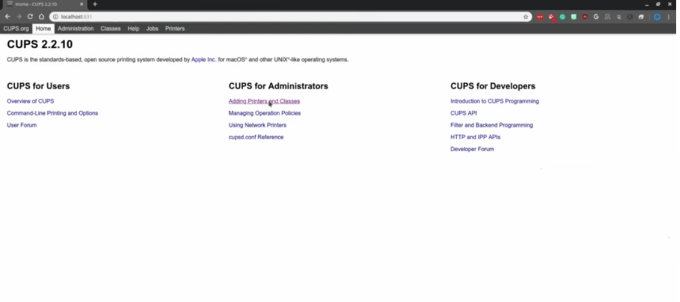
- From the Administration section, under Printers , click Add Printer .
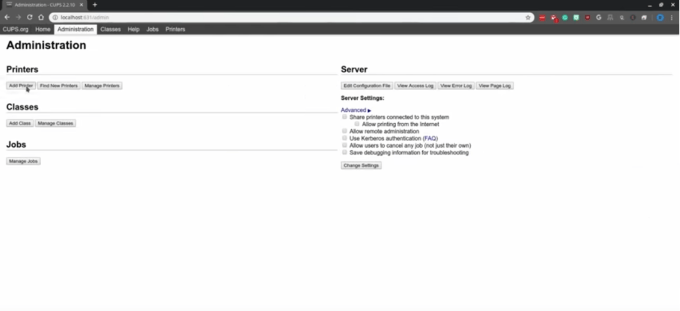
- Find your printer from the locally installed printer.
Keep in mind that CUPS is specifically for printing and not scanning or other functions some printers might perform.
Unless your printer is very new or old, most of the time, setting up a printer on Ubuntu is not that difficult.
- What Version of Ubuntu Do I Have?
- Linux Mint vs Ubuntu: Which Is Better?
- Fedora vs Ubuntu: Which Linux Distribution Is Better?
- A Beginner’s Ubuntu Linux Guide
- Forcefully Close a Program in Ubuntu
David has a background in small business and lives in Australia. He is a WordPress and Ubuntu Developer who enjoys design, CSS and tech tool integration. Read David’s Full Bio
