If you want to simplify the display of icons on your Windows 7/8/10 desktop, you can “remove” the labels from desktop icons.
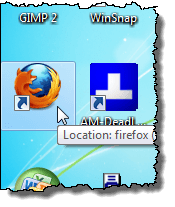
Before showing you how to remove the labels on your desktop icons, you should know that there are two kinds of desktop icons. There are the standard shortcut icons that you can create for programs you install, and there are desktop icons you can place on your desktop for common features like Computer and Recycle Bin. You can tell an icon is a shortcut if there is an arrow in the lower, left corner of the icon, as pictured below.
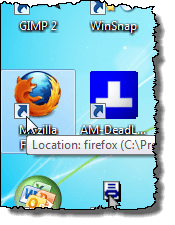
The method for removing the text from each of these types of icons is different.
Remove Text from a Desktop Icon
To remove the text from desktop icons such as Computer and Recycle Bin, right-click on the desktop icon and select Rename from the popup menu.
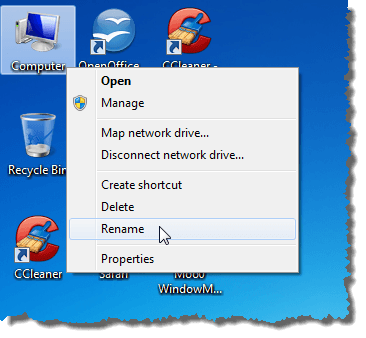
Press the space bar to type a space where the text was and press Enter .
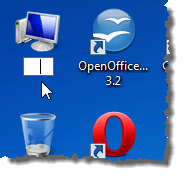
The desktop icon now looks as if there is no text under it.
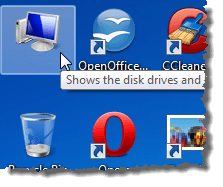
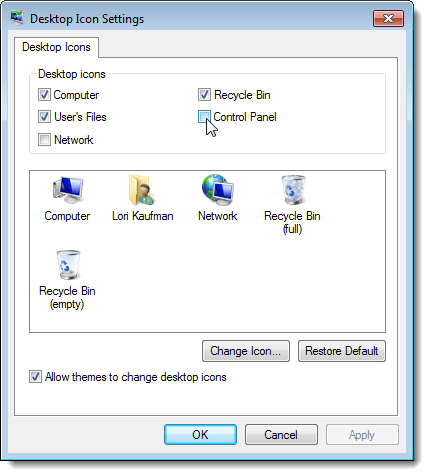
NOTE: You can add and remove desktop icons by right-clicking on the desktop, choosing Personalize from the popup menu, and clicking on the Change desktop icons link on the Personalization screen. The Desktop Icon Settings dialog box displays, allowing you to turn on and off the desired desktop icons.
Remove Text from a Shortcut
To remove text from a shortcut, right-click on the shortcut icon and select Rename from the popup menu.
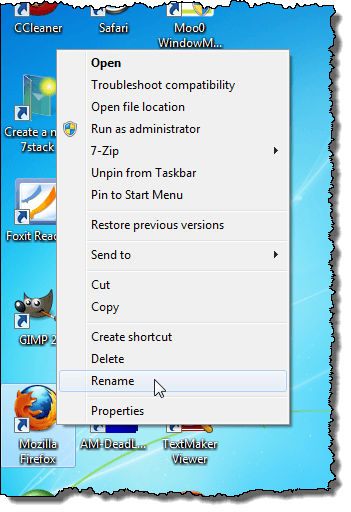
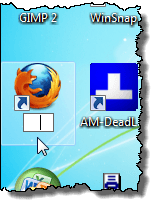
This time, instead of typing a space, hold down the Alt key and type 255 on the numeric keypad. Press Enter . Note that you need to use the number keypad on the right-hand side of the keyboard, not the one that is located above the letter keys. Not sure why, but it only works when you use the keypad on the right.
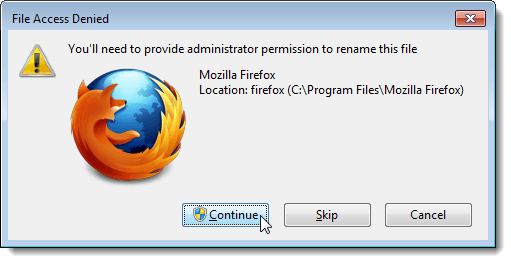
For some shortcuts, you may see the File Access Denied dialog box display. If so, click Continue to finish renaming the shortcut.
The shortcut now appears to have no text under it.
The second thing to note about this method is that it will only work for one desktop icon. If you try to use ALT + 255 for a second icon, it will say that there is already another icon with that same name. In this case, you have to use ALT + 255 multiple times.
For example, for the second desktop icon, you would type ALT + 255, ALT + 255 and then press Enter. For a third icon, you would do it three times, etc., etc.
NOTE: We recommend only removing text from desktop icons and shortcut icons if the icons are easily identified without text. Enjoy!
- How to Use Event Viewer to Troubleshoot Windows Problems
- How to Boot into Safe Mode in All Versions of Windows
- How to Reset Your Computer Password If You Lock Yourself Out
- 14 Command Prompt (CMD) Commands Windows Users Should Know
- Change from Public to Private Network in Windows
Founder of Help Desk Geek and managing editor. He began blogging in 2007 and quit his job in 2010 to blog full-time. He has over 15 years of industry experience in IT and holds several technical certifications. Read Aseem’s Full Bio
