Excel is an incredibly powerful piece of software that can do almost any mathematical or logical calculations you could want. Excel gurus can create spreadsheets that automate complex processes, essential for many businesses to operate well.
The only problem is that data entry can be a bit of a chore and a major time sink. Especially if your calculations depend on information that changes regularly. Do you really have to manually check and type changing information manually every time?

It turns out that the folks at Microsoft have thought of this and Excel has the ability to pull information from websites directly. Which means if there’s a site that keep track of a particular value in a web table of some sort, you can plug it in to your spreadsheet, ensuring that your calculations are up to date whenever that Excel file is opened on an internet-connected computer.
Even better, you can set up a website table of your own, perhaps using a free website creator such as Google Sites, providing an easy way to keep Excel sheets you share automatically updated. Sound pretty good, right? So let’s get down to how it works.
Pulling Data From a Website in
Excel
We’re going to use the latest Office 365 version of Excel as of March 2019 for this tutorial.
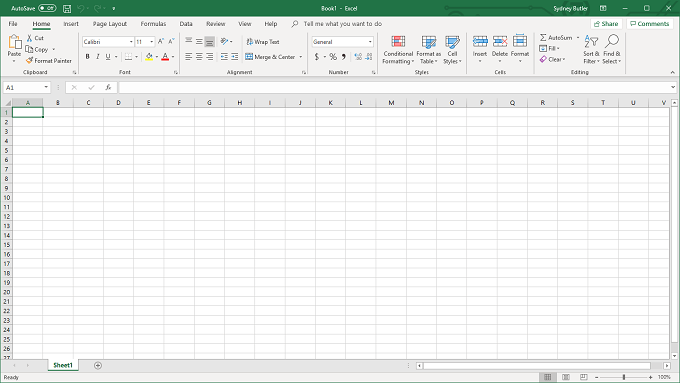
First, open Excel and create a blank worksheet.
Now, switch to the Data toolbar .
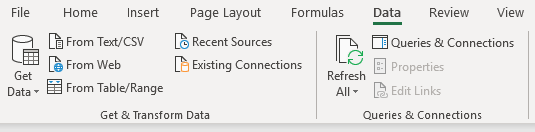
On this toolbar under Get and transform data click From Web . 3

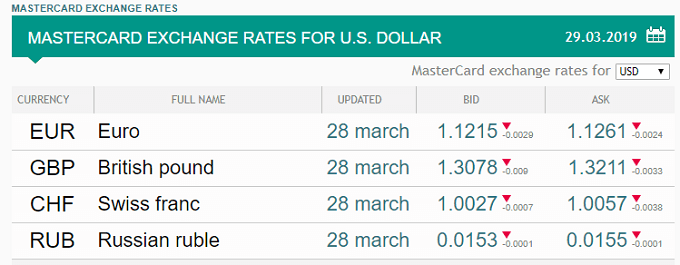
You can paste the site address for the web table you want here. In this case we are going to use a site called ferates.com , which lists current tables of Mastercard exchange rates.
Specifically, we’ll use the URL https://ferates.com/mastercard/usd , which displays this table of exchange rates for the US Dollar. The table from the site looks like this:
Paste the URL into the appropriate field and click OK .

This will bring up the navigator, a tool that shows you the various components of the website you have selected.
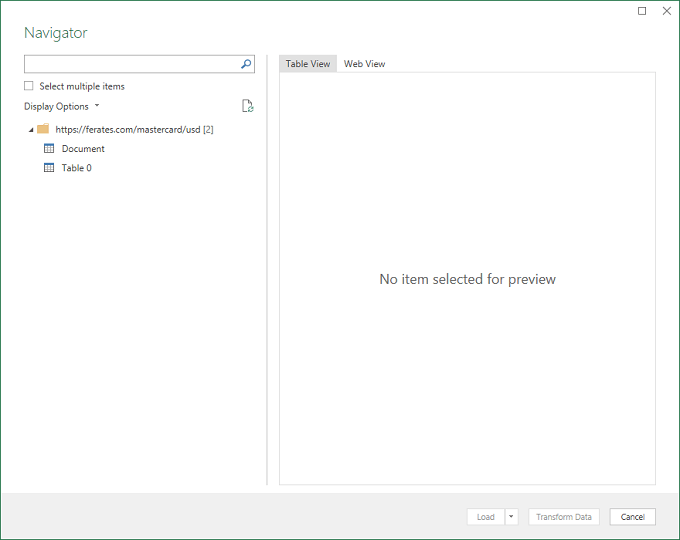
The tool has identified a table on the page, select it to see if it is what we want.
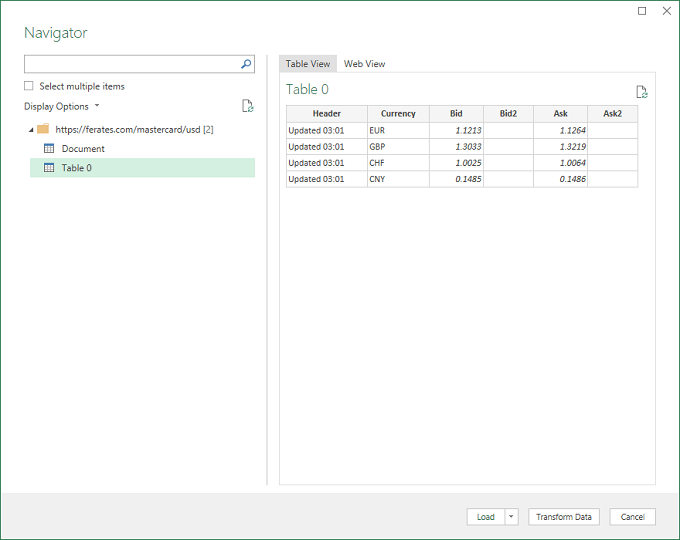
Yes! This is exactly what we wanted, so now all you have to do is click Load .
Lo and behold!
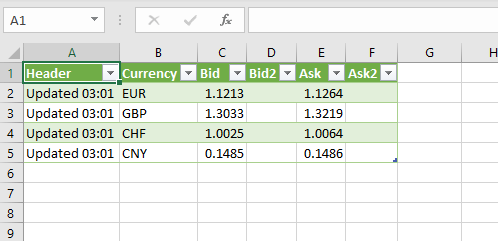
The table is now in your spreadsheet with live data. You can use the contents of it just as you would any other table, with the difference being the figures will always be up to date.
- How to Find Circular References in Microsoft Excel
- Name Box in Excel: All You Need to Know
- How to Remove Unwanted Spaces from Excel Spreadsheets
- How to Unhide the First Column or Row in Excel Worksheets
- How to Use the Square Root (SQRT) Function in Excel
Founder of Help Desk Geek and managing editor. He began blogging in 2007 and quit his job in 2010 to blog full-time. He has over 15 years of industry experience in IT and holds several technical certifications. Read Aseem’s Full Bio
