Running out of hard disk space because of the virtual machines you created for running other operating systems? There is a solution that does not require increasing your internal hard disk space.
Previously, we have written about how to How to install Ubuntu in VirtualBox . We have now discovered that VirtualBox is available in a portable version that you can install on a USB Drive. Download Portable-VirtualBox from vbox.m e. The file is a self-extracting .zip file.
Install Portable VirtualBox
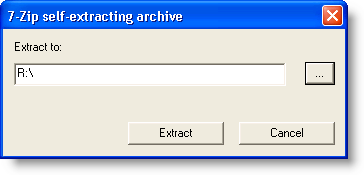
Run the executable you downloaded and extract the contents of the file to your external USB drive.
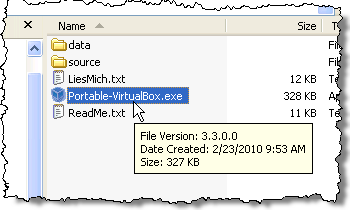
A Portable-VirtualBox folder is created on your USB drive. Navigate to the Portable-VirtualBox folder and double-click the Portable-VirtualBox.exe file.
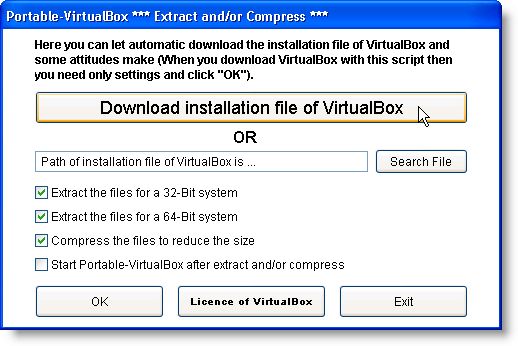
The Portable-VirtualBox dialog box displays. Select the options you want (the four check boxes) and click the Download installation file of VirtualBox button.
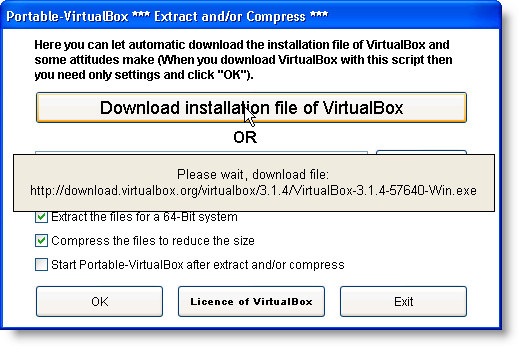
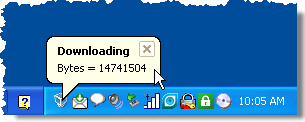
A notification displays over the dialog box…
as well as in the System Tray at the bottom of the screen.
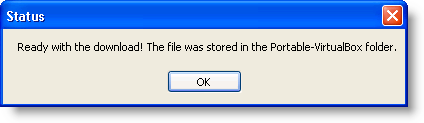
Once the download is finished, a dialog box displays informing you where the downloaded file is located.
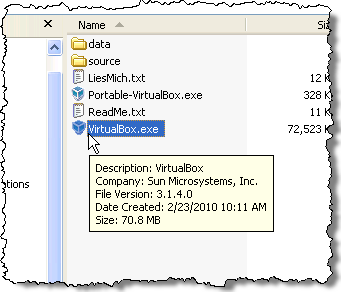
In the Portable-VirtualBox folder, you will see a VirtualBox.exe file. However, do not run this file.
Double-click on the Portable-VirtualBox.exe file again. The Portable-VirtualBox dialog box displays again. Select the desired options. However, this time, click the Search File button and select the VirtualBox.exe file. Click OK .
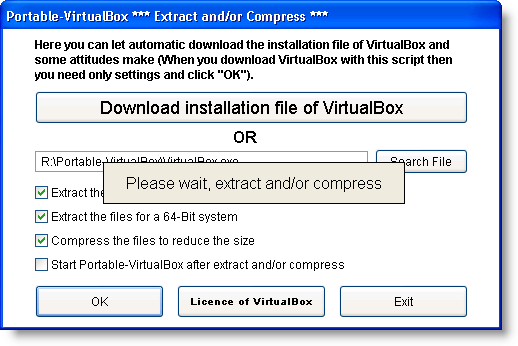
The program files and folders are extracted to the Portable-VirtualBox folder.
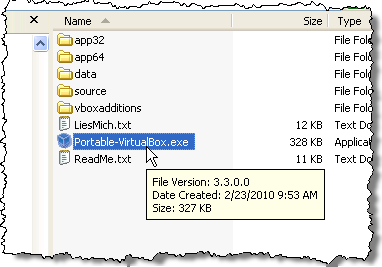
Double-click on the Portable-VirtualBox.exe file again. The main VirtualBox window displays.
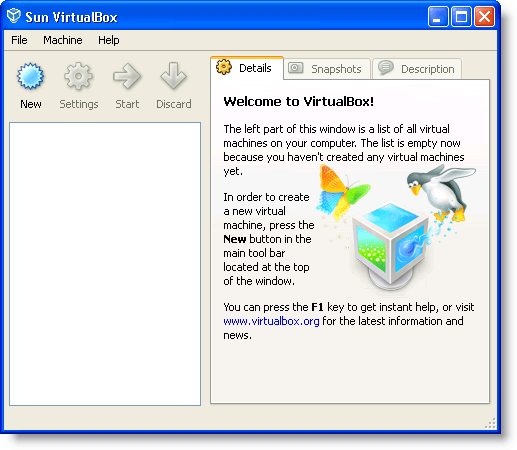
NOTE: You may see a registration screen first. You don’t have to register, but the screen will display every time you open VirtualBox until you register. There does not seem to be an option to stop VirtualBox from asking you to register.
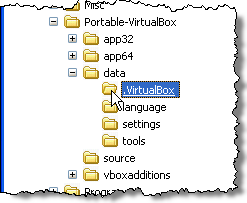
When you create new virtual machines they are automatically stored in the data folder in the Portable-VirtualBox folder on your USB drive.
Now you can create virtual machines on your USB drive just like you would on your internal hard drive. Enjoy!
- How to Backup an iPhone Without iCloud?
- Sluggish Windows 11 PC? Try These 5 Windows 11 Tricks to Free up Virtual Memory
- macOS Tahoe Privacy Settings You Need to Secure Your Mac
- How To Turn Off Notifications On Windows 11?
- How to Recover Lost Files After Windows Update?
Founder of Help Desk Geek and managing editor. He began blogging in 2007 and quit his job in 2010 to blog full-time. He has over 15 years of industry experience in IT and holds several technical certifications. Read Aseem’s Full Bio
