Have you noticed that when you try to use some of those free SMS online services, half the time they don’t work? Well, most of them never worked for me when all I tried to do was send a text message from my computer at home to my Verizon cell phone! Not only that, but some of them start to spam the phone number with text message ads.
So in this article, I will mention the free SMS texting sites last, as you really should avoid using them unless you have no other option. Luckily, there are some legitimate ways to send a text message from your computer without having to use shady websites who might sell your data and spam you.
Send SMS via Carrier Websites
A lot of the wireless carriers let you send text messages directly from their websites. The big caveat to this method is that you can normally only send text message via their website to other people using the same carrier. For example, if you are an AT&T customer, you will only be able to send text messages to other AT&T customers via the website.

Here are a couple of links that walk you through the process of sending a text message via the carrier’s website:
https://www.att.com/esupport/article.jsp?sid=57834&cv=820#fbid=90Ch0SHOfqd
http://www.verizonwireless.com/news/article/2013/06/computer-to-phone-text-messaging.html
Send Emails to Phone Numbers
Another feature that most carriers have that a lot of people don’t know about is an email address that is associated to your phone number. You can send an email to this special email address and that phone number will receive a text message.
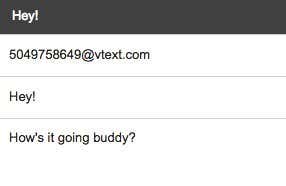
The format is basically the nine digit number @ whatever domain the carrier has chosen. Here are all the ones I could find online:
AT&T – @txt.att.net (SMS), @mms.att.net (MMS)
Verizon – @vtext.com (SMS), @vzwpix.com (MMS)
T-mobile – @tmomail.net
Sprint – @messaging.sprintpcs.com
Alltel: @message.alltel.com
Boost Mobile – @myboostmobile.com
Cricket – @sms.mycricket.com, @mms.mycricket.com
Metro PCS – @mymetropcs.com
Nextel: @messaging.nextel.com
SunCom: @tms.suncom.com
US Cellular – @email.uscc.net
VoiceStream: @voicestream.net
Google Voice via Google Hangouts
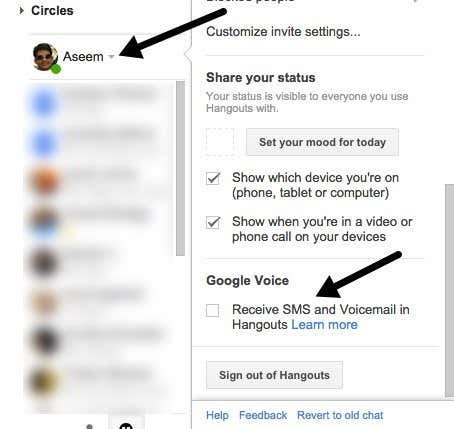
Once you check that box, all your SMS messages will go through Google Hangouts rather than thru Google Voice. Since Google seems to be moving everything over to Hangouts now, I would suggest you set it up this way. Now go ahead and restart Chrome and log back into your Gmail account. Search for a contact by clicking on the little magnifying glass icon next to your name in the chat section and make sure the number is a US phone number. As of now, you can only send SMS messages to US numbers.

You’ll notice a new icon with the letters SMS written on it at the top when the chat window opens. Click on that and it will open a new windows to the left and the text box says Send an SMS message . You can send text messages to any phone number as long as it’s a phone number in the US or Canada.
MightyText for Android
If you have an Android phone, then you have another option available to your for sending text messages from your computer. The way it works is that you install the MightyText app on your Android phone, which will then link your phone number to your Google account. You then log into the MightyText website on your computer and it will sync all the text messages from your phone.

When you send a message from the web interface, it gets sent back down to your phone and then app will send out the message like a normal text message. When you get a reply, the app will forward it to the web interface. From the reviews, it seems to work very well, so if you’re an Android user, it’s a great option.
Use a SMS Website
As I mentioned above, SMS sites are the last resort. I have tried a bunch and have tried to only list the ones that actually worked for me.
- txt2day.com – Easy as heck to use, simply enter you 10 digit number, email (optional), your provider, and the text message. The reason this service is one of my favorite is for two reasons: first, if you’re sending a message to someone and you don’t know their wireless provider, you can lookup the provider based on the phone number and secondly, if someone starts to spam you using the service, you can have your number blocked so you don’t get any messages from that number.
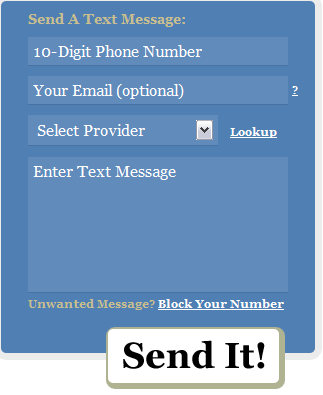
- SMS Everywhere (http://smseverywhere.com/) – This is by far the simplest of all the text message sending services. All you have to fill out is the number and a message! The cool thing about this service, which is an advantage over the other two, is that you don’t have to know the provider at all, it figures it out for you! That’s pretty great in my book! Simply put in the number, type your message and you’re done!

- Text’em (http://www.textem.net/) – This service has no clear advantage over the other services and actually requires more steps, i.e. provider, email address, security code, etc, but at least it works!
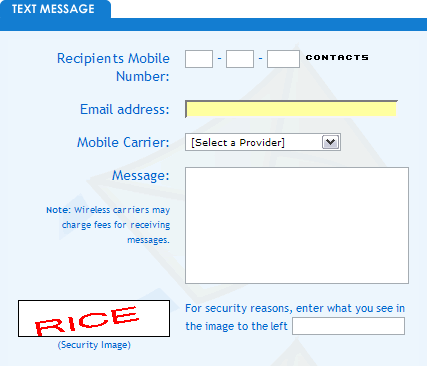
All of these services are for the United States only, meaning you can only send text messages to US cell phones. Of course, you can only SEND for free, the person who receives them will be charged for incoming text messages depending on their plan.
So if you’re looking for a quick and easy way to send free SMS text messages from your PC to cell phones, hopefully this article helped. If you have any questions, feel free to post a comment. Enjoy!
- Amazon Fire Stick Home Screen Not Loading? 9 Ways to Fix
- 10 Best Web Browsers for Privacy
- What Is DashPass and Is It Worth It?
- Where to Listen to Video Game Soundtracks Online
- Which Search Engine Returns the Most Alarming Results?
