The Settings app is the graphical control room for the Windows operating system. Without Windows Settings, it’s impossible to make specific changes or customization to your PC. Try the troubleshooting fixes and workarounds below if the Settings app crashes or won’t open on your Windows 11 PC.
1. Alternative Methods to Open Windows Settings
There are multiple ways to open the Settings app in Windows 11. Try these alternative methods of opening Windows Settings if the app won’t open from the Start menu or taskbar.
Use Keyboard Shortcut
Pressing the Windows key + I on your keyboard should open the Windows Settings app.
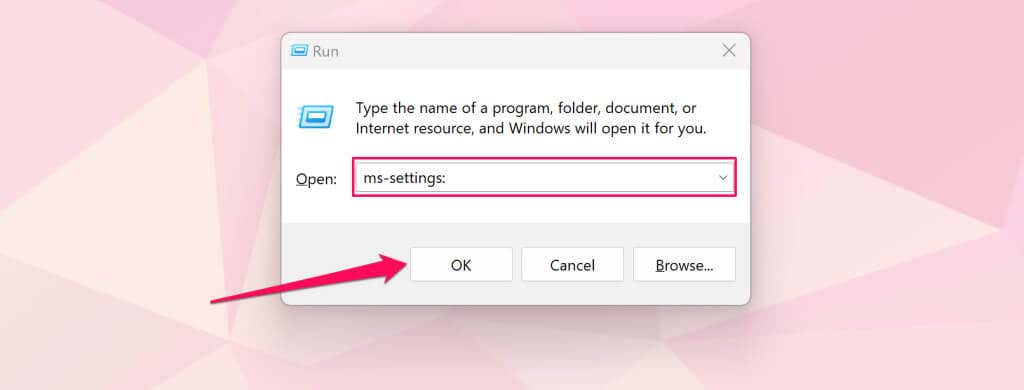
Use the Windows Run Command
Windows Run box is a system tool that lets you quickly open files, folders, apps, and other system tools/services.
Press the Windows key + R , type ms-settings in the dialog box, and select OK (or press Enter ).
From the Quick Link Menu
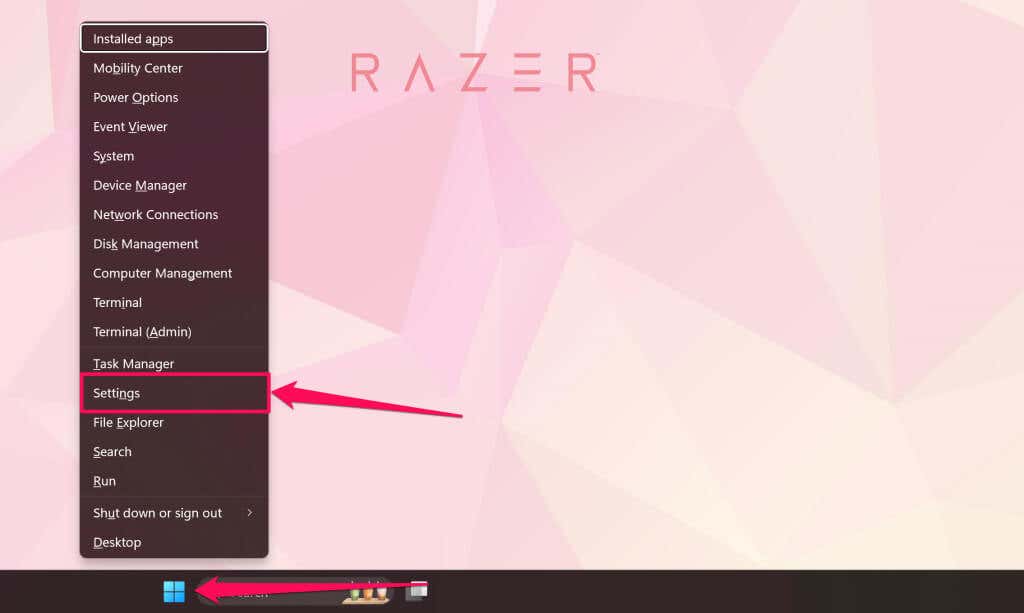
The Quick Link menu houses shortcuts to system tools, utilities, and built-in programs. There’s a shortcut to open the Windows Settings app in the Quick Link menu.
Right-click the Start menu or press the Windows key + X and select Settings .
From the Action Center
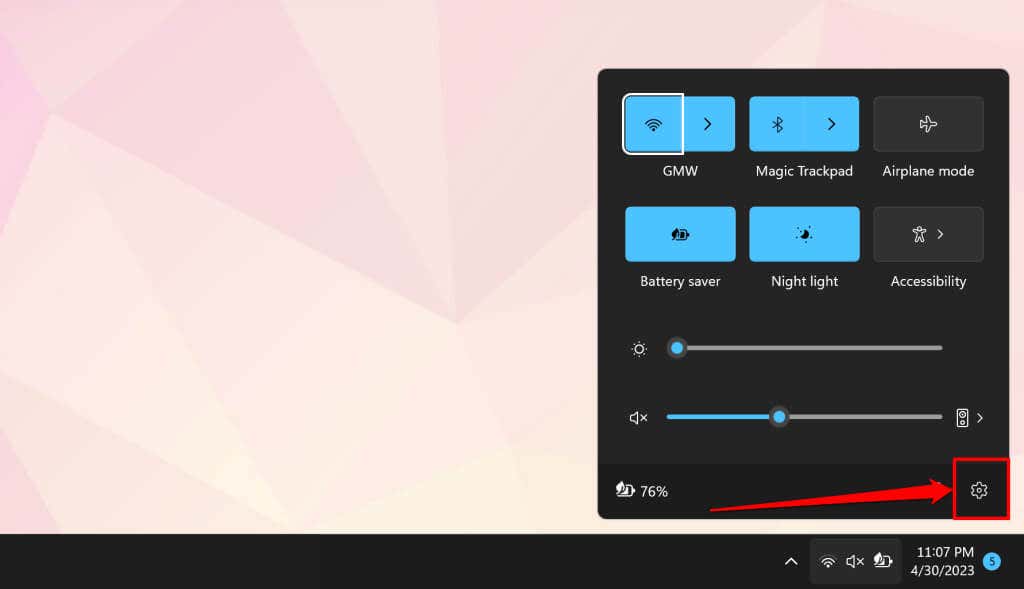
Press the Windows key + A and select the gear icon in the Action Center to open Windows Settings.
From the Control Panel
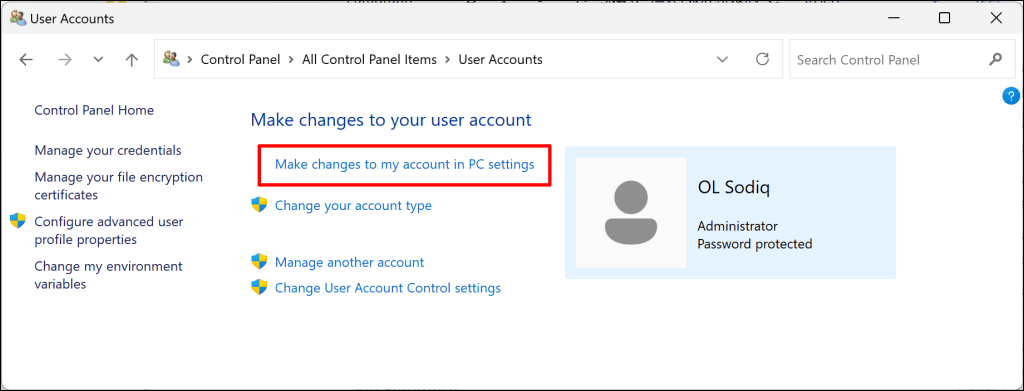
Open the Control Panel , select Users Accounts , and select Make changes to my account in PC settings .
2. Run the System File Checker
Some Windows programs, features, services, and utilities might crash or malfunction if your computer has missing or corrupt system files . Run the System File Checker (SFC) if your computer won’t open the Windows Settings app.
SFC checks your operating system for missing/corrupt system files and replaces them. Connect your computer to a Wi-Fi or Ethernet network and follow these steps to run an SFC scan.
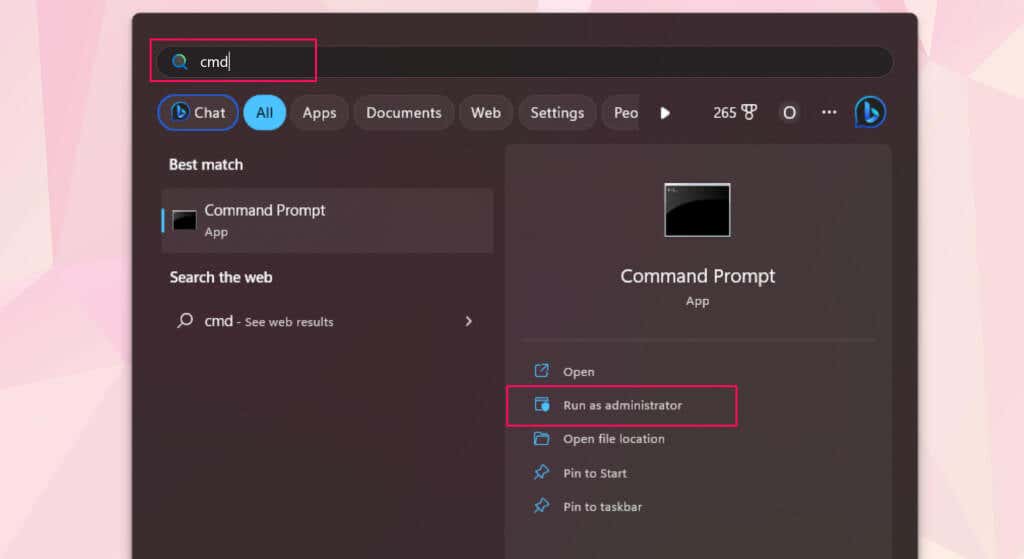
- Type cmd in the Windows Search box and select Run as administrator below the “Command Prompt” application.
- Paste sfc /scannow in the terminal and press Enter .
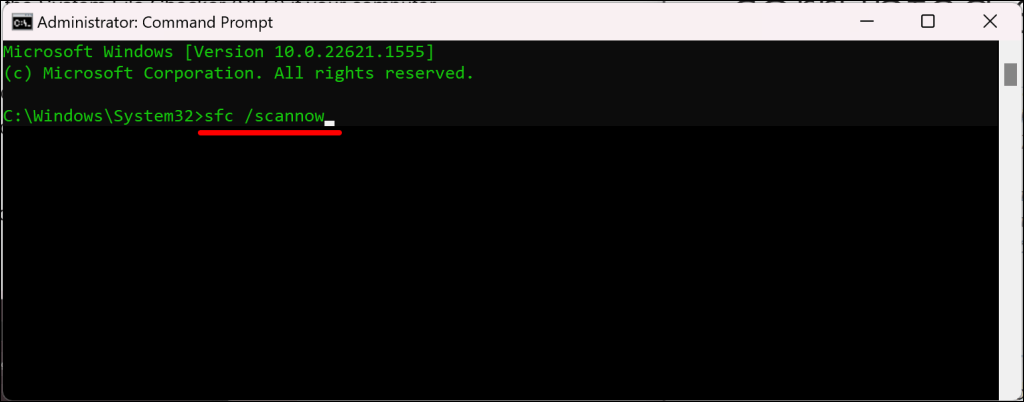
The System File Checker will perform several scans and replace any missing or corrupt system files it detects. Your computer has no corrupt/missing system file if SFC displays a “Windows Resource Protection did not find any integrity violations.” message.
3. Reset the Settings App via Windows Powershell
Windows 11 has a PowerShell command that resets the Settings app. Follow the steps below to reset your PC’s Settings app via Windows Powershell .
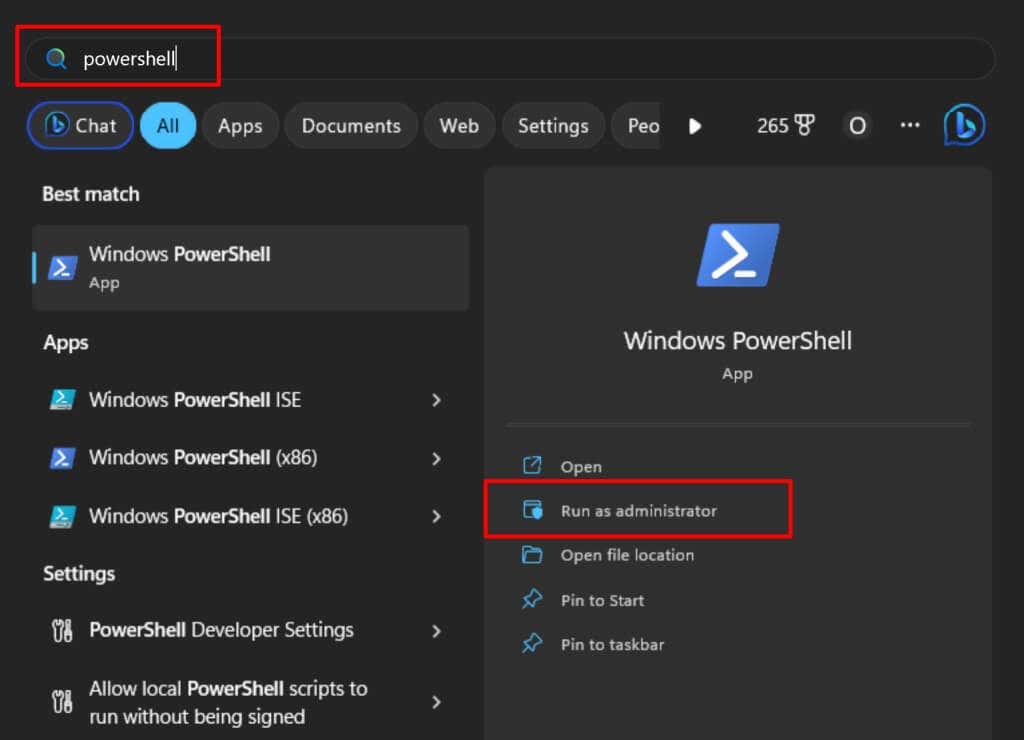
- Alternatively, type powershell in the Windows Search bar and select Run as Administrator to open Windows Powershell with admin privileges.
- Paste Get-AppxPackage Windows.ImmersiveControlPanel | Reset-AppxPackage in the PowerShell terminal and press Enter .
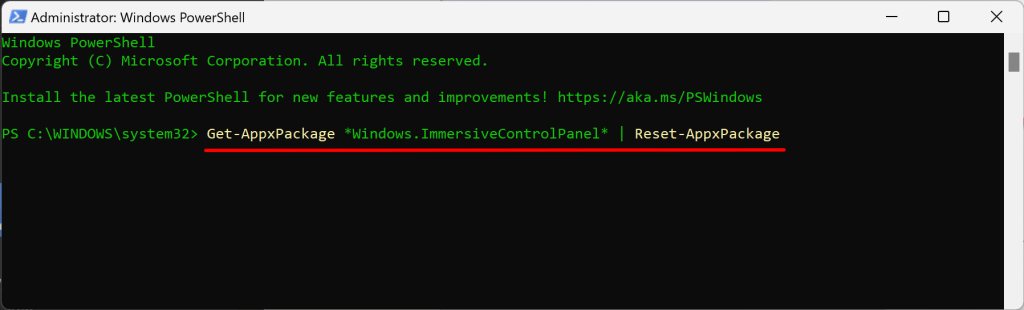
PowerShell runs the command in a twinkling and displays no success message. Close the PowerShell window and check if you can open the Settings app.
4. Enable Control Panel and PC Settings in Local Group Policy Editor
Are you unable to launch the Settings app from the Start menu or search results? That’s likely because a configuration in the Group Policy Editor prohibits access to Windows Settings from the Start menu.
Check your PC’s Local Group Policy Editor and ensure you’re allowed to open the Settings app.
Note: Local Group Policy Editor is only available in Windows 11 Pro and Enterprise.
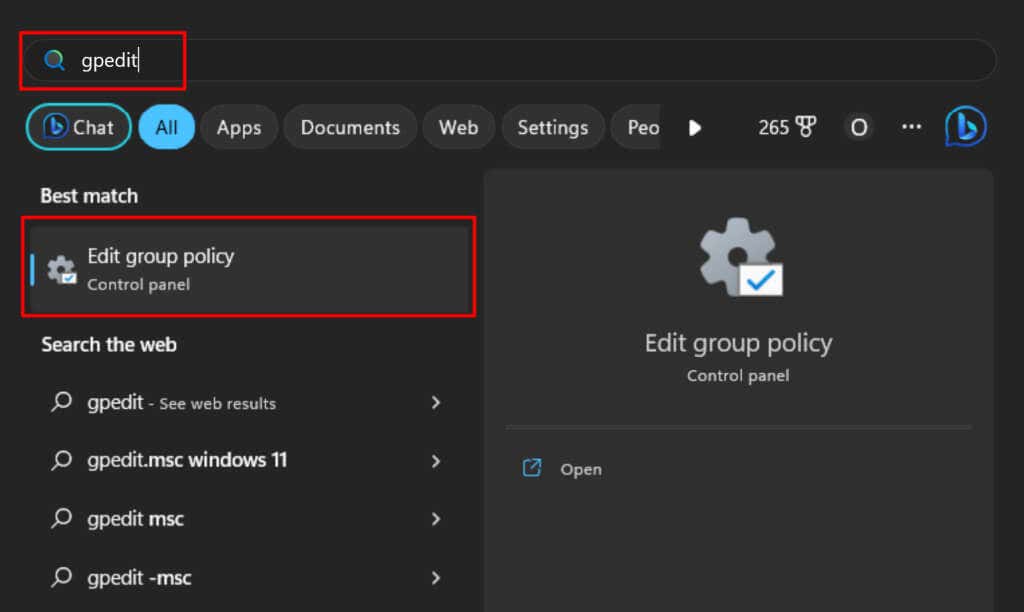
- Type gpedit in the Windows Search box and select Edit group policy .
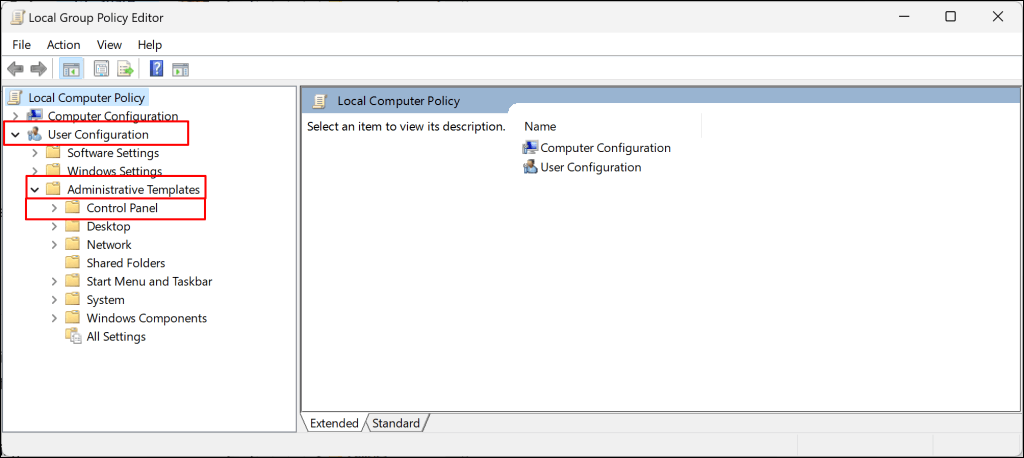
- Expand the User Configuration category, expand Administrative Templates , and select the Control Panel folder.
- Double-click Prohibit access to Control Panel and PC Settings .
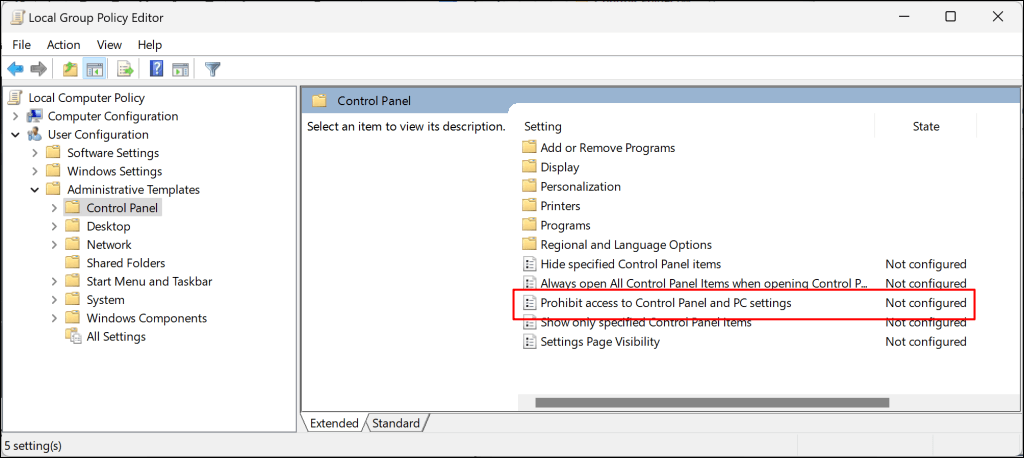
- Set the status to either Not Configured or Disabled . Next, select Apply and then OK to save the settings.
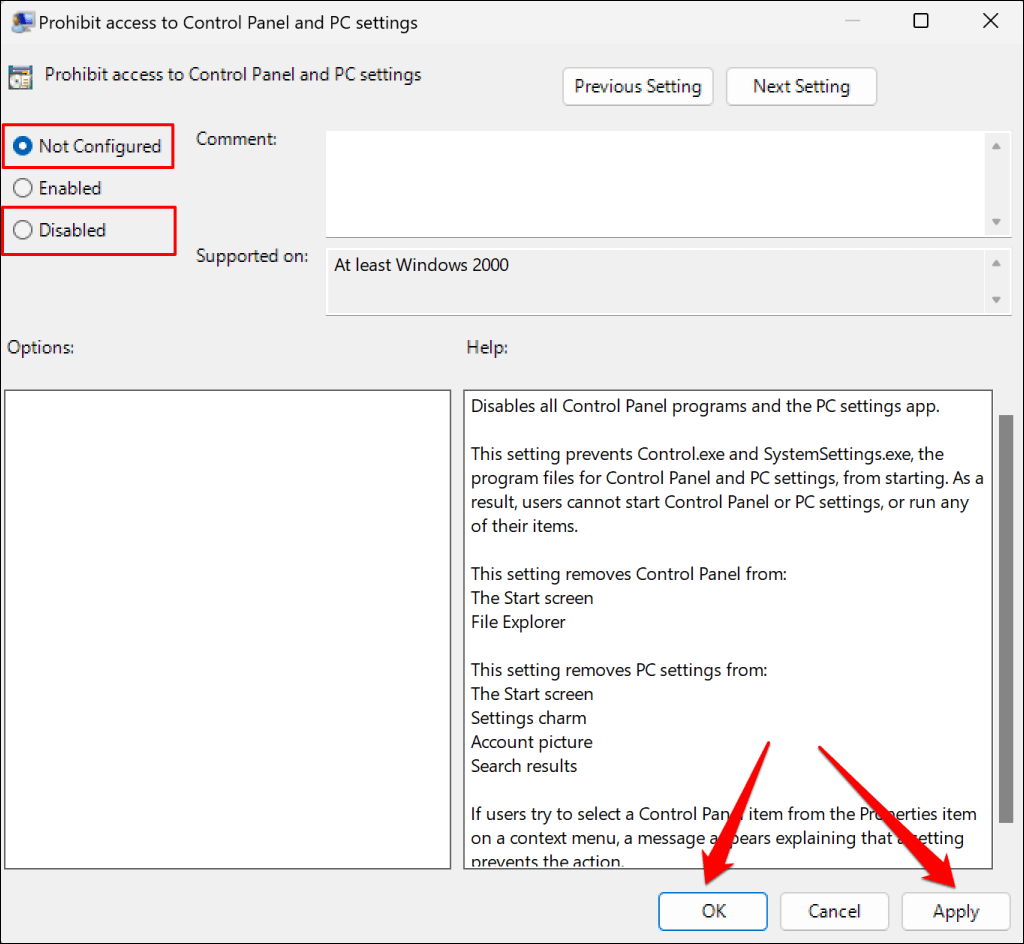
Close the Local Group Policy Editor and check if you can open Settings from the Start menu.
5. Reboot Your Computer
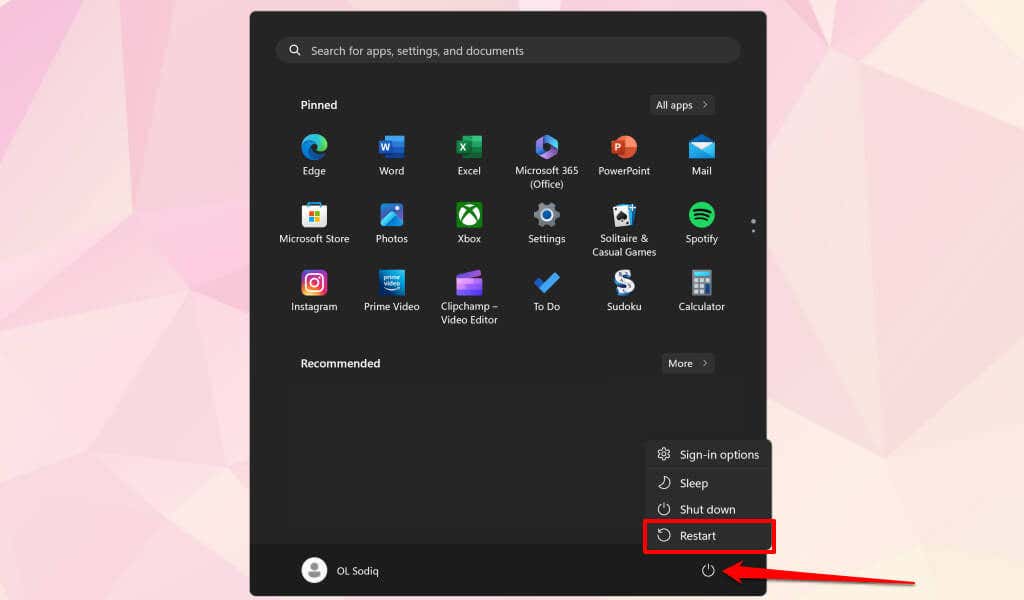
Reboot Windows if the Settings app still won’t open after trying the troubleshooting fixes above. Press the Window key, select the Power icon, and select Restart .
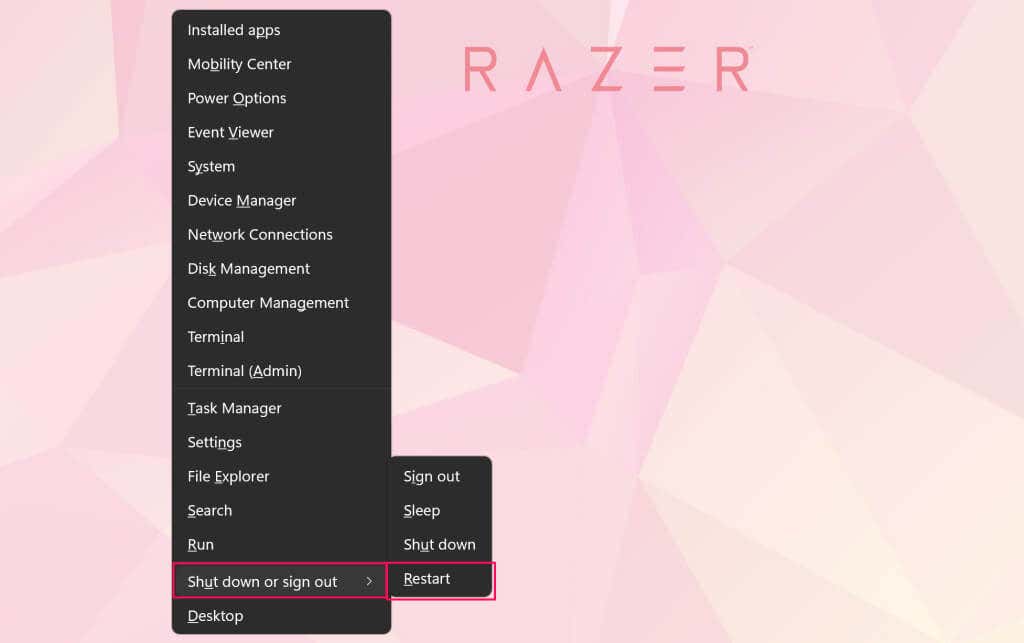
Alternatively, press the Windows key + X , select Shut down or sign out , and select Restart .
You can also try booting into Safe Mode or perform a clean boot . If the Settings app works in Safe Mode, your computer likely has bad drivers, malware, or conflicting third-party programs. Reboot your PC to exit Safe Mode and perform a system restore.
6. Perform a System Restore
Did the Settings app suddenly stop opening after installing an app, driver, or Windows update? Restoring your computer to its last functional point might get Windows Settings working correctly again.
You can only perform a System Restore if System Protection is enabled on your PC or if you’ve previously created a restore point.
- Type system restore in the Windows Search box and select Create a restore point .
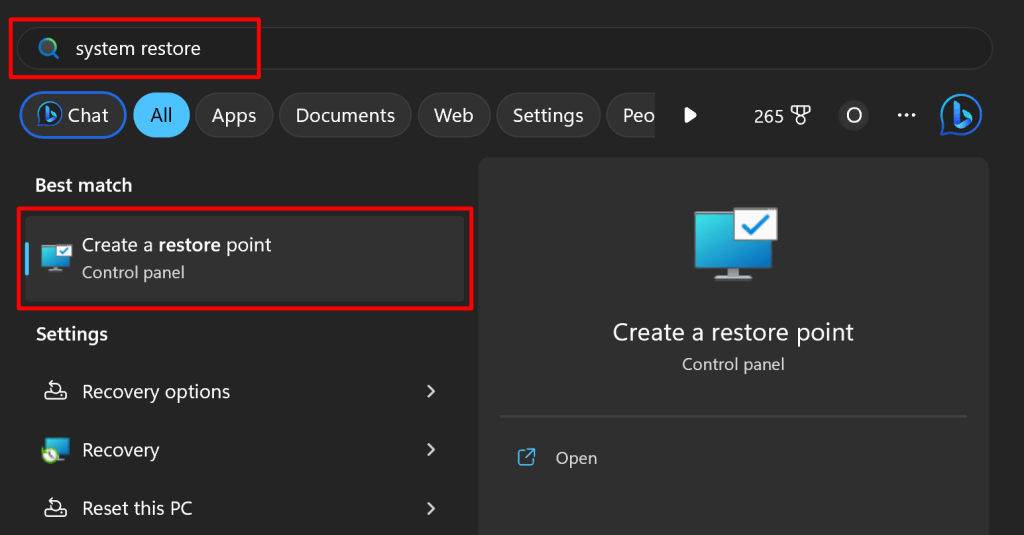
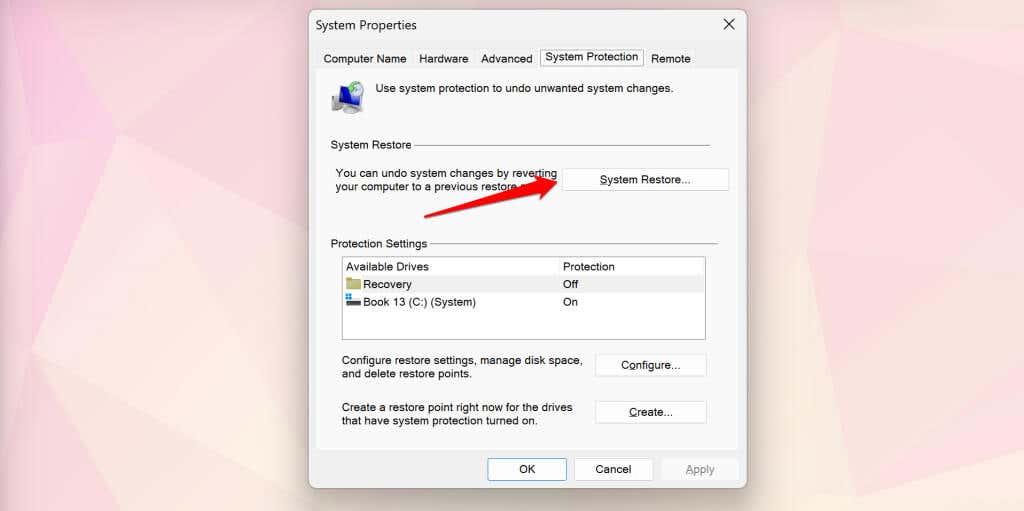
- Select the System Restore button.
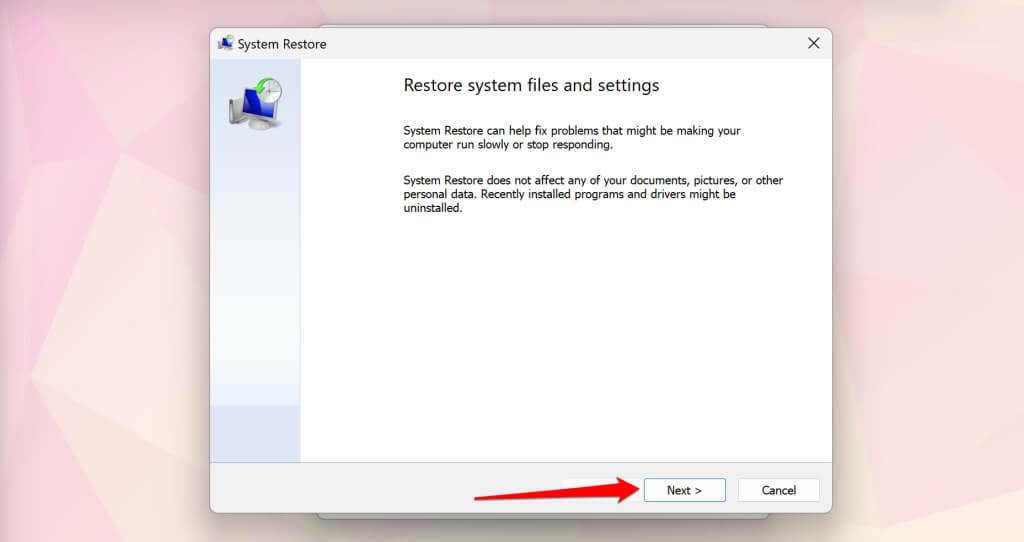
- Select Next to continue.
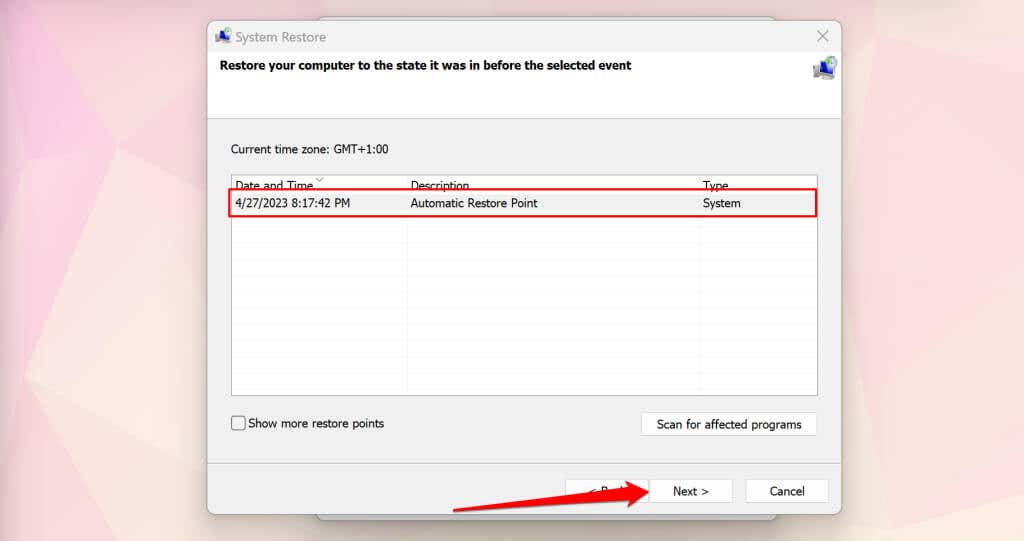
- Select the most recent restore point and select Next .
- Select Finish to start the system restore process.
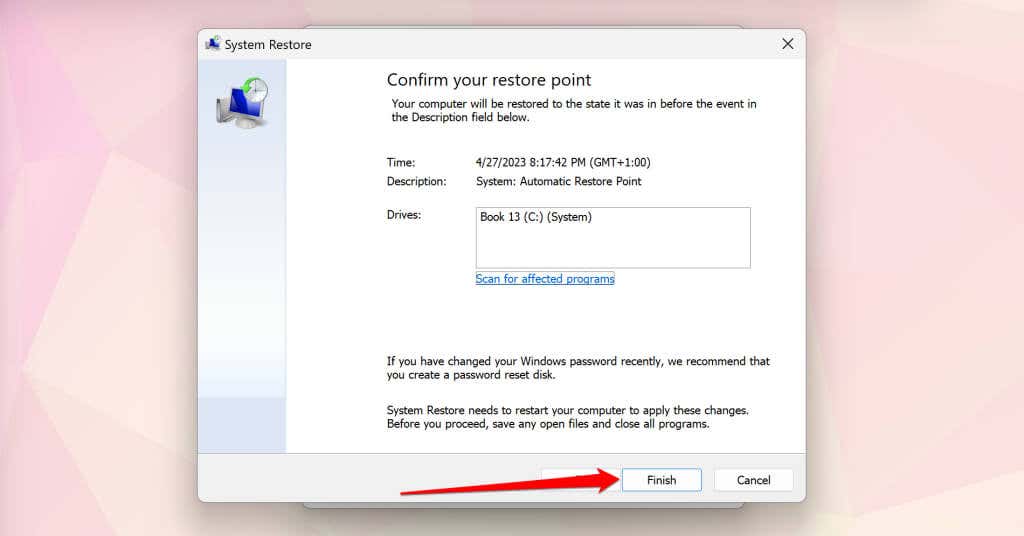
Windows will undo all changes made to your system files and settings after the restore point. System Restore doesn’t delete your personal files or documents. Sign in to your PC’s admin account and check if you can open and use the Settings app.
7. Run an In-Place Windows 11 Upgrade
The Settings app might not open if there’s an issue with the Windows 11 installation on your computer. Updating Windows to the latest version should fix the problem, but you’ll need to run an in-place upgrade since you can’t access the Settings app.
An in-place upgrade will update Windows, repair corrupt system files, replace missing drivers, and fix other system issues.
Connect your computer to the internet and unplug all external devices or accessories before running an in-place upgrade. Microsoft also recommends uninstalling any third-party antivirus software to prevent upgrade interference.
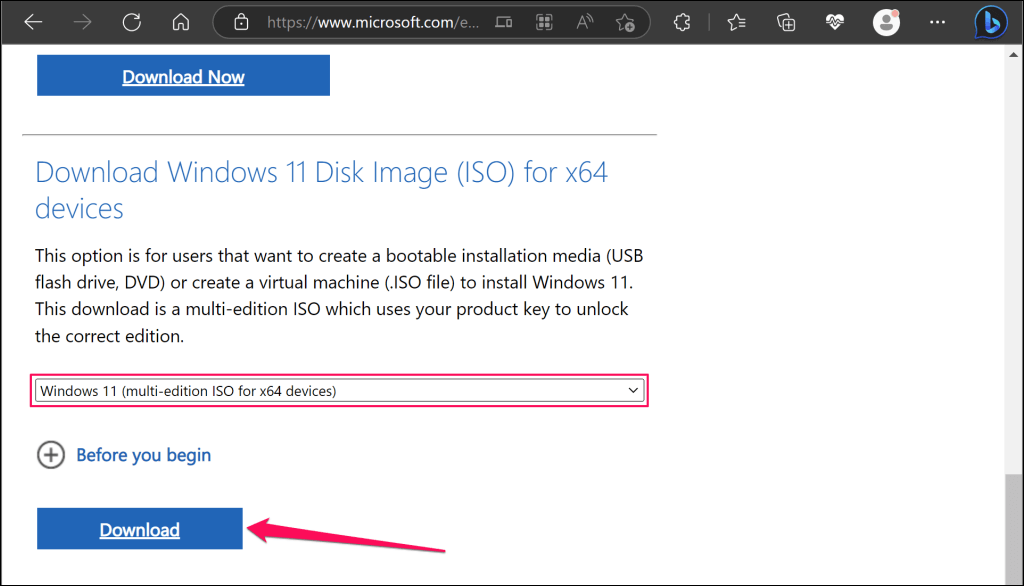
- Visit the Windows 11 download page on Microsoft’s website and scroll to the Download Windows 11 Disk Image (ISO) section. Choose Windows 11 in the “Select Download” drop-down menu and select Download .
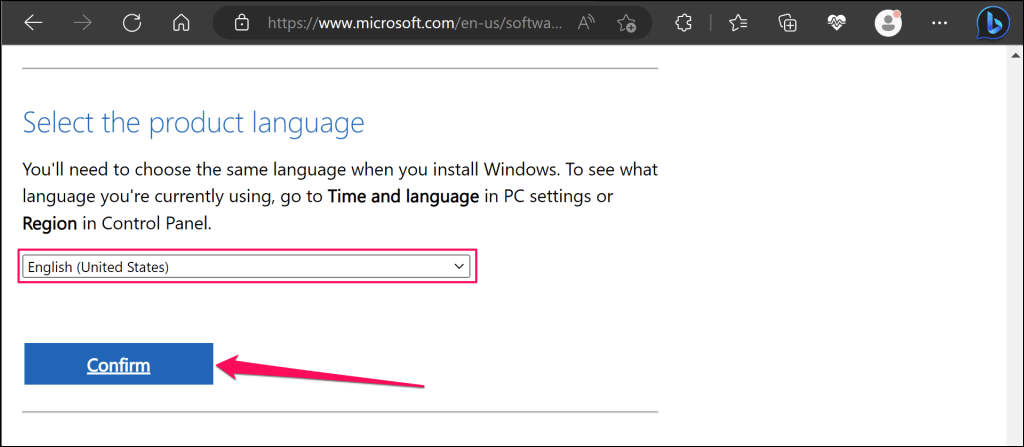
- Choose your device’s language and select Confirm to continue.
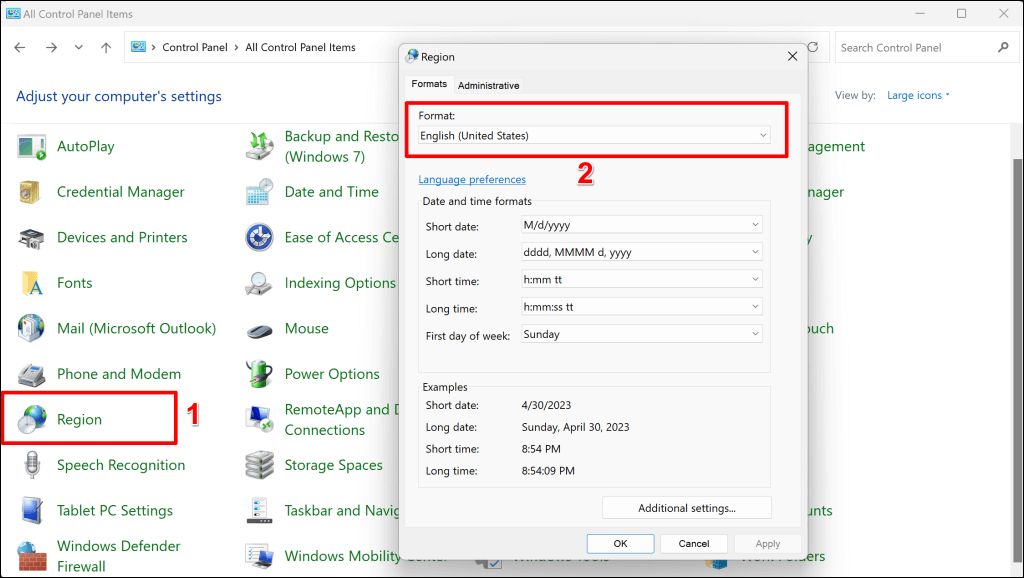
Open the Control Panel and select Region to check your computer’s language. Ensure you choose the same language when installing the upgrade.
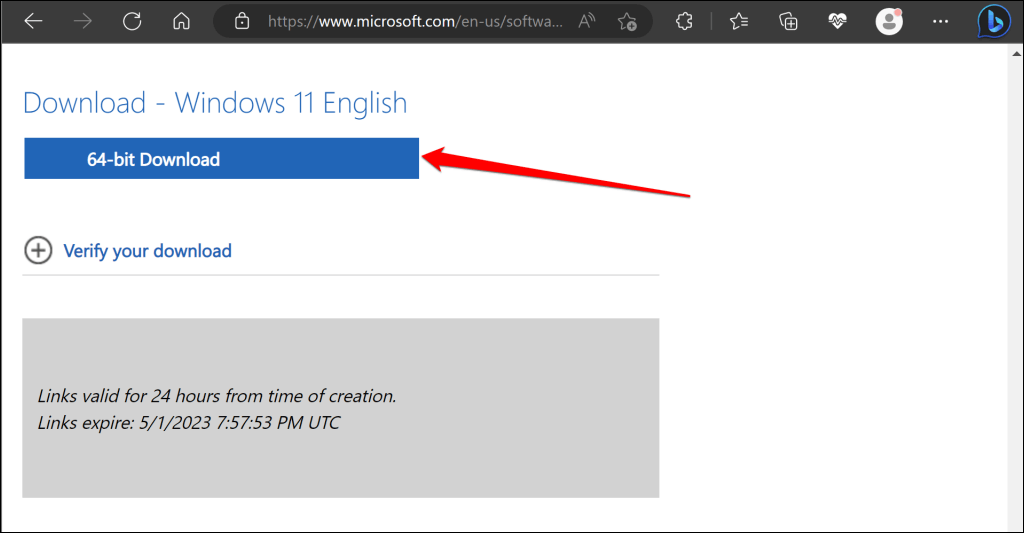
- Select the download link and save the Windows 11 disk image (ISO) file to your computer. Note that the download link is valid for 24 hours only.
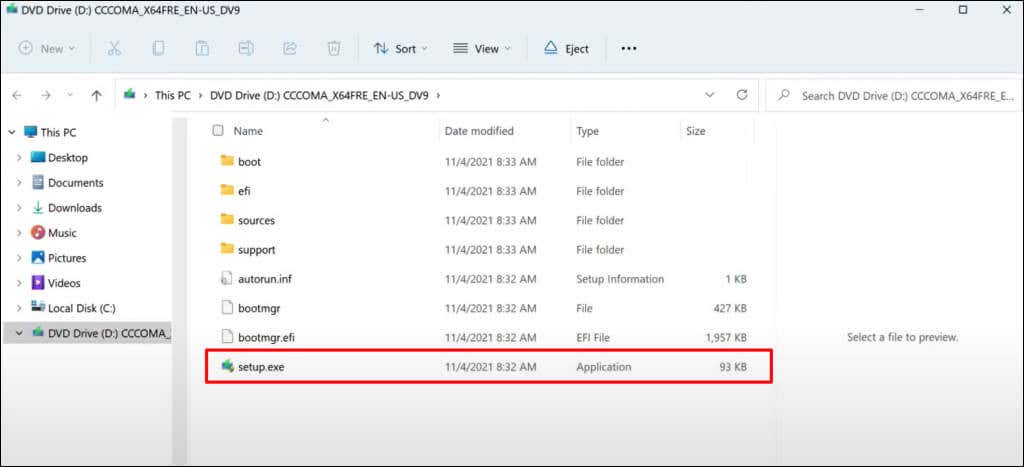
- Open the ISO file when the download is complete and double-click Setup.exe .
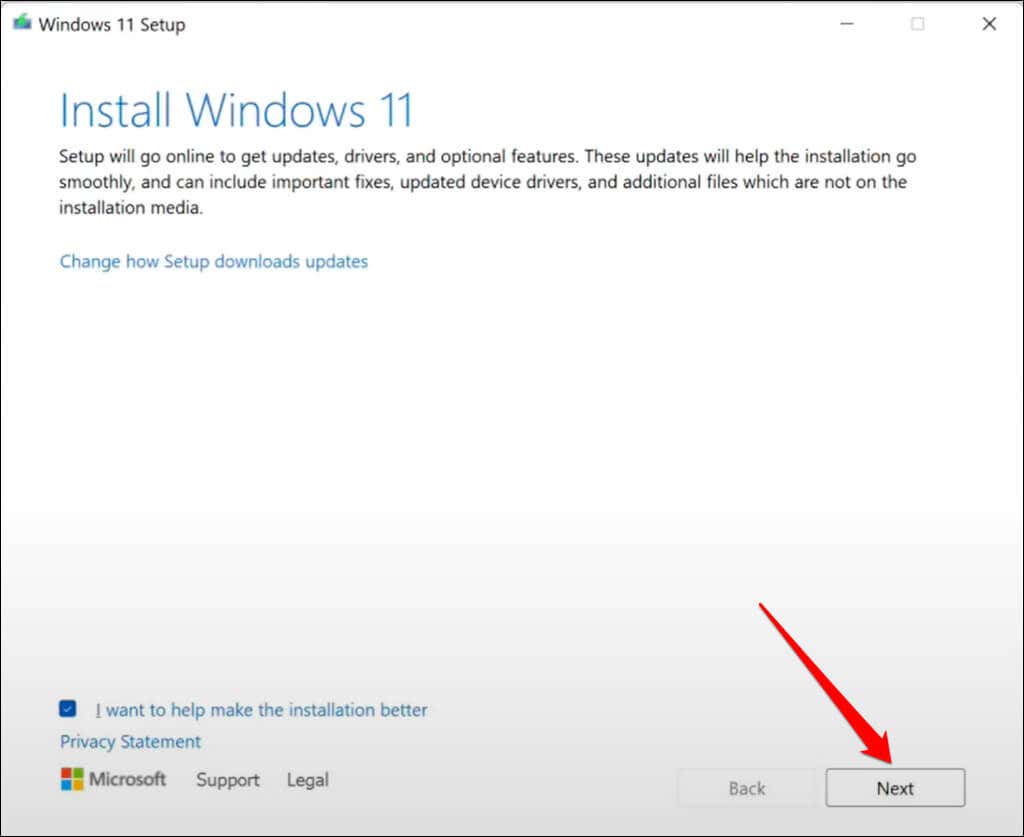
- Select Next to continue.
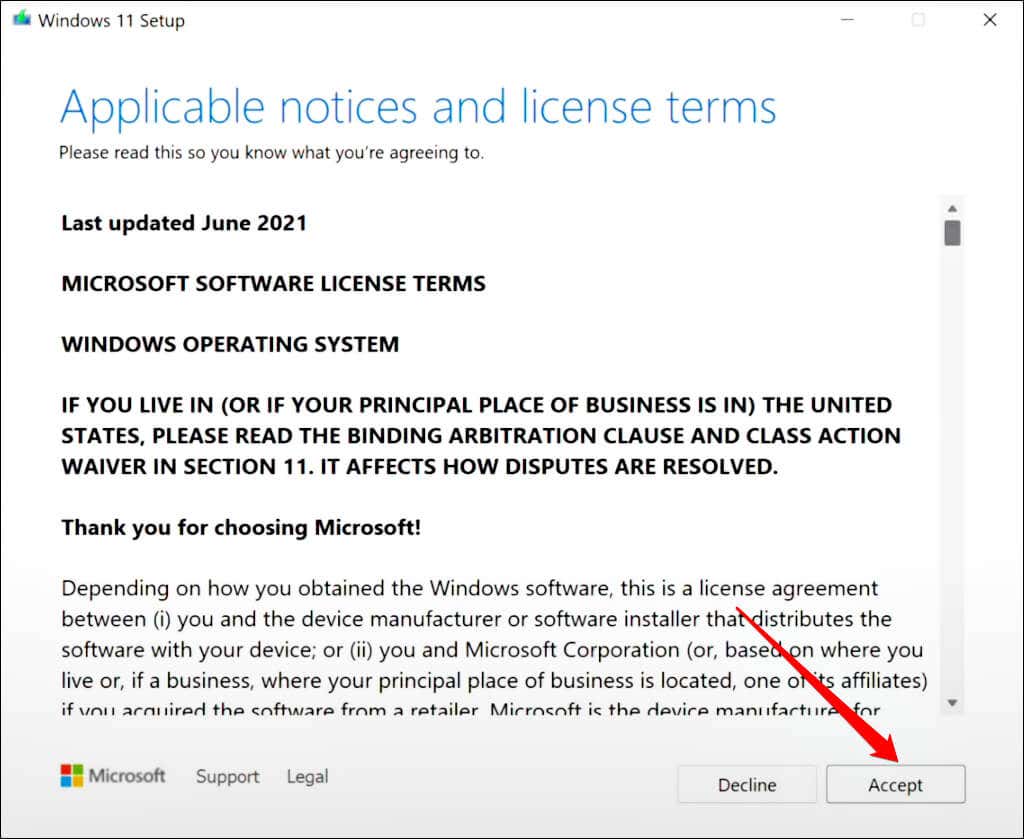
- Accept the license terms and agreement.
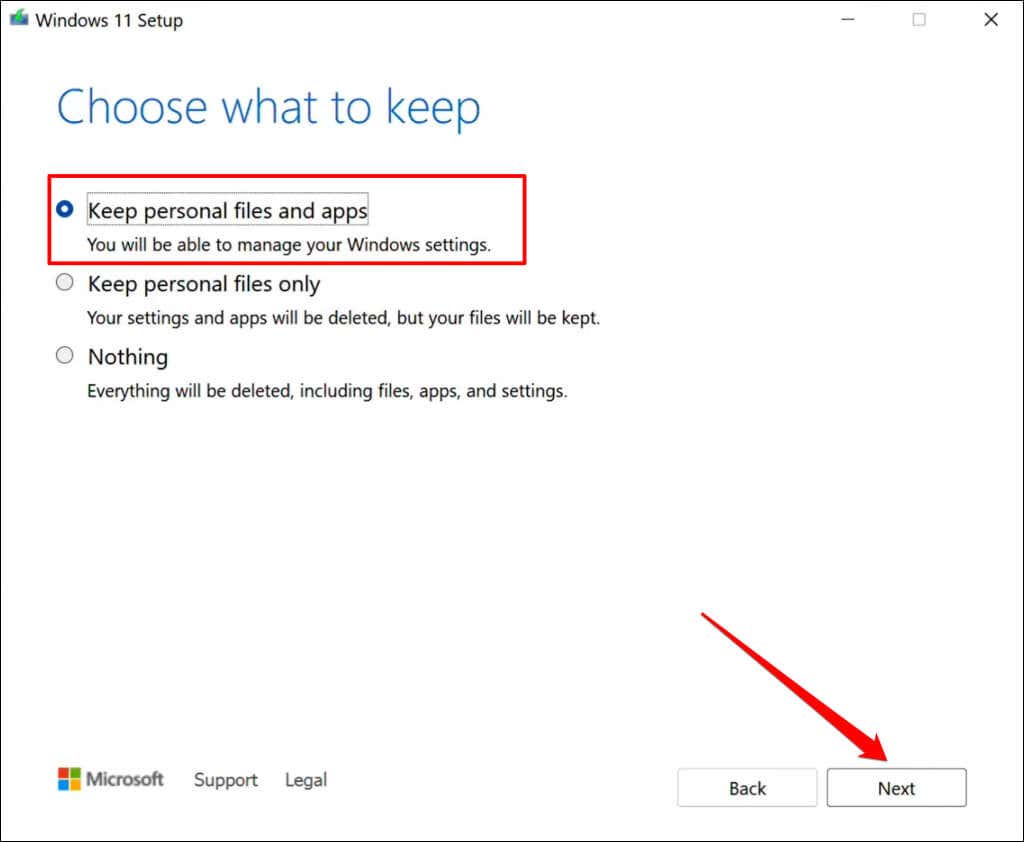
- The installer should automatically choose to keep your personal files and apps. Select Change what to keep if you don’t see “Keep personal files and apps” on the review screen.
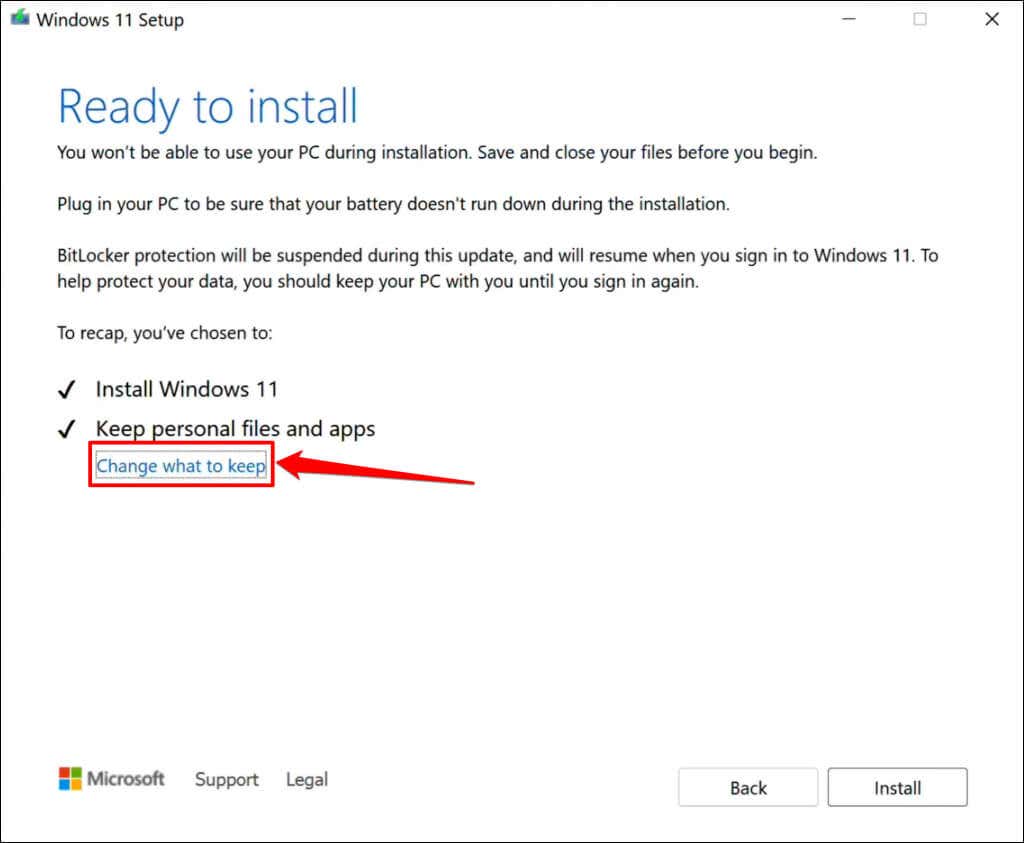
- Choose Keep personal files and apps and select the Next button.
- Select Install to start the upgrade.
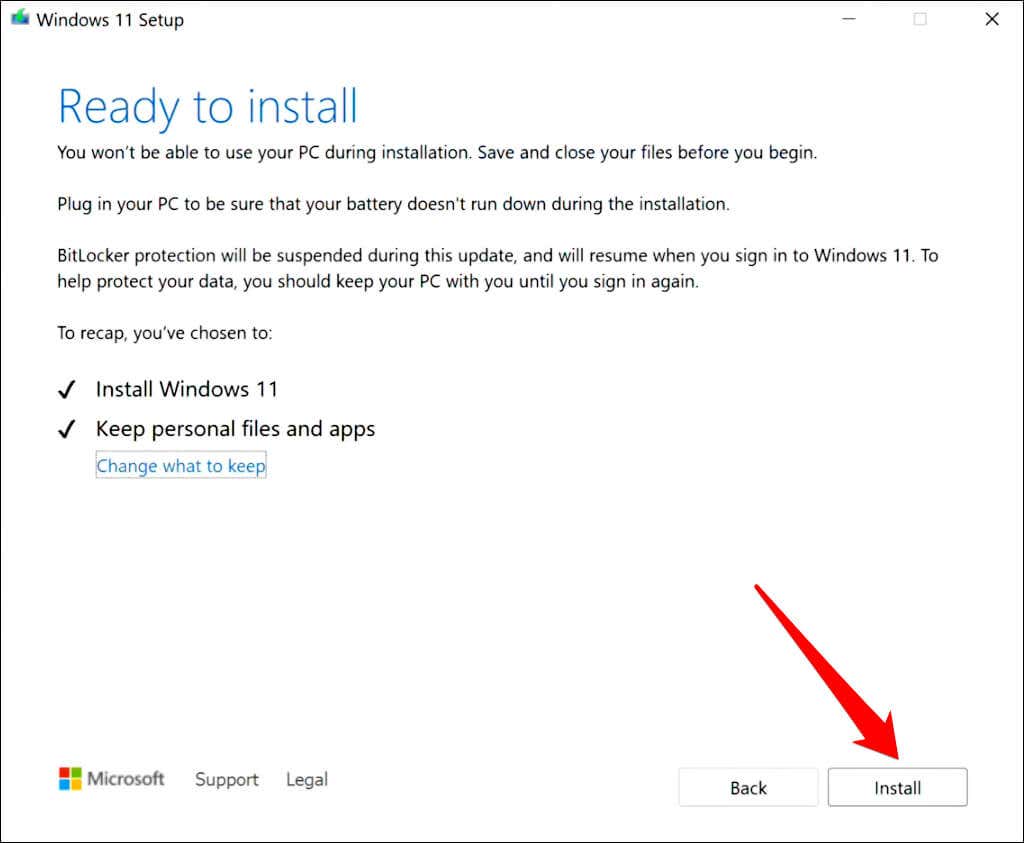
The duration of the upgrade will depend on your connection speed and your computer’s hardware configuration. Your PC will restart multiple times during the upgrade and display the login screen when complete. Sign in to your account and check if you can open the Windows Settings app.
Fix Windows Settings App
We’re confident that at least one of the troubleshooting recommendations above should get the Settings app working again on your PC. Use the Get Help app to contact a Microsoft Support agent if the Windows 11 Settings app still won’t open.
- Sluggish Windows 11 PC? Try These 5 Windows 11 Tricks to Free up Virtual Memory
- How To Turn Off Notifications On Windows 11?
- How to Fix Windows 11 Boot Loops After Jan 2026 Update
- How to Remove Copilot AI in Window 11? New Update Available in Beta
- January 2026 Patch Tuesday: 7 Things Windows Users Should Do Before and After Updating
Sodiq has written thousands of tutorials, guides, and explainers over the past 4 years to help people solve problems with Android, iOS, Mac, and Windows devices. He also enjoys reviewing consumer tech products (smartphones, smart home devices, accessories, etc.) and binge-watching comedy series in his spare time. Read Sodiq’s Full Bio
