One common problem I have run into with clients is trying to share a printer connected to a Windows XP machine with Windows 7/8/10. There are lots of people out there that have USB connected printers attached to one computer, sometimes even a Windows XP machine.
If you get a new laptop running Windows 7/8/10, it makes sense to share that printer so that any computer can print to it. Unfortunately, trying to print to a shared printer on XP from Windows 7/8/10 is not as simple as it should be!
In this article I will walk you through the steps for XP to Windows 7/8/10 printer sharing. I am assuming your printer is directly attached to a Windows XP machine and you want to print from a Windows 7/8/10 machine.
Setup Printer Sharing
Step 1 : First make sure that the printer on the XP machine is shared. You can do this by right-clicking on the printer and choosing Sharing .
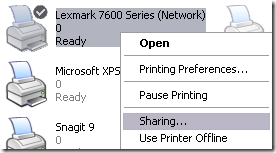
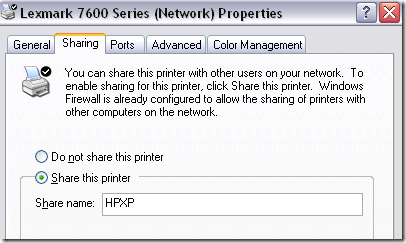
Step 2 : Make sure you can see the printer share from the network browsing area in Windows 7/8/10. You can do this by going to Control Panel and clicking on Network and Internet .
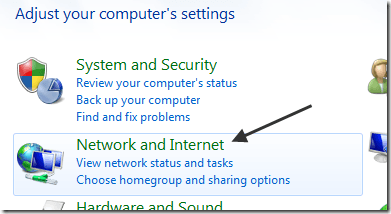
Then click on View network computers and devices under Network and Sharing Center.
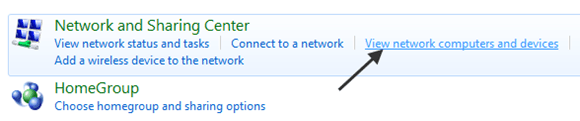
At this point, you should see the name of your XP computer in the list of computers. My XP machine is called Aseem.
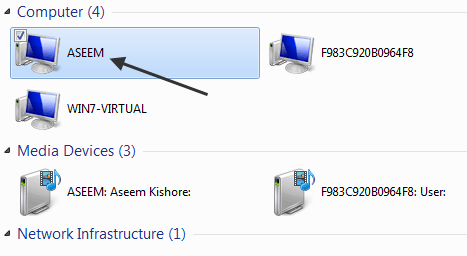
Double-click on the computer name and you should see your shared printer in the list. Here you can try to add the printer by right-clicking on it and choosing Connect .
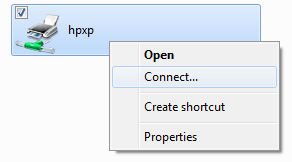
If everything goes perfectly, Windows 7/8/10 should automatically add the printer to your set of printers. However, if you get a message like “Cannot connect to printer”, follow the next steps.
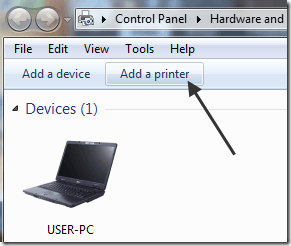
Step 3 : Click on Start and then click on Devices and Printers . At the top, click on the Add a printer link.
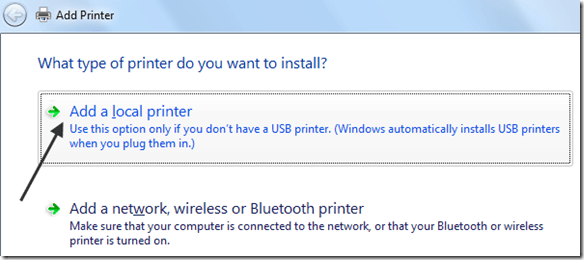
Step 4 : Next choose Add a local printer . Yes, that sounds counter-intuitive, but this is what you have to do!
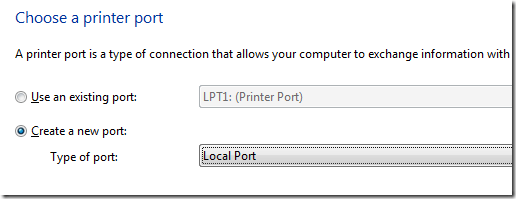
Step 5 : Next, click Create a new port and choose Local port from the list of options.
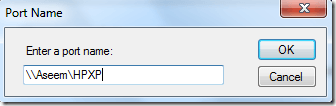
Step 6 : Click Next and in the Port name box, type in the path to the shared printer. It should be something like \Aseem\HPXP , where Aseem is the name of your XP machine and HPXP is the shared name of the printer.
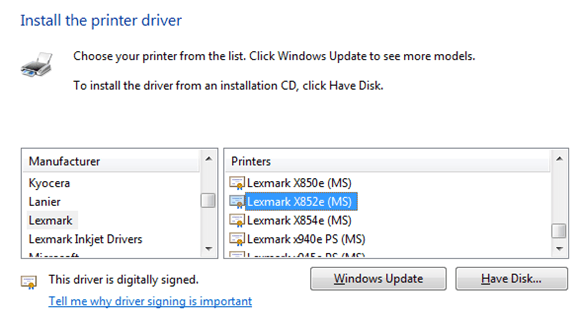
Step 7 : Now choose the printer driver from the list or download the latest driver for the printer and choose Have Disk . Note that if you printer is a little older, it’s a good idea to download the Windows 7/8/10 driver for the printer and before clicking Have Disk.
That’s it! Windows 7/8/10 will load the driver and you’ll be able to print to the XP machine from Windows 7/8/10! The main things to remember are sharing the XP printer and downloading the latest driver for the printer on the Windows 7/8/10 machine.
If you have any problems sharing your printer on XP and printing from Windows 7/8/10, post a comment here and I will try to help! Enjoy!
- How to Use Event Viewer to Troubleshoot Windows Problems
- How to Boot into Safe Mode in All Versions of Windows
- How to Reset Your Computer Password If You Lock Yourself Out
- 14 Command Prompt (CMD) Commands Windows Users Should Know
- Change from Public to Private Network in Windows
Founder of Help Desk Geek and managing editor. He began blogging in 2007 and quit his job in 2010 to blog full-time. He has over 15 years of industry experience in IT and holds several technical certifications. Read Aseem’s Full Bio
