Since I bought a PlayStation 4 last year as a gift to myself, I was quite excited to hear about the remote play feature coming in software update 3.50. I installed it immediately and tried it out on my Mac and PC to see how well it worked.
Overall, I would give the remote play feature a 4 out of 5 stars, docking one star for the lower-than-desired 720p resolution that the feature maxes out at. The setup is very easy and everything just worked well, which is surprising whenever you have to stream something across a network.
Just streaming a movie from my Synology NAS to my HDTV downstairs usually results in some sort of troubleshooting on my part, so I expected to run into at least a couple of issues. However, everything worked without a hitch.
I’ll first quickly go over how to setup remote play on a Windows PC and then talk about the performance, troubleshooting, etc. The setup procedure was pretty much identical on the Mac. You should also know that remote play doesn’t work with Windows 7, only Windows 8.1 and Windows 10. For Macs, it’s either OS X Yosemite or El Capitan.
Install PS4 Remote Play
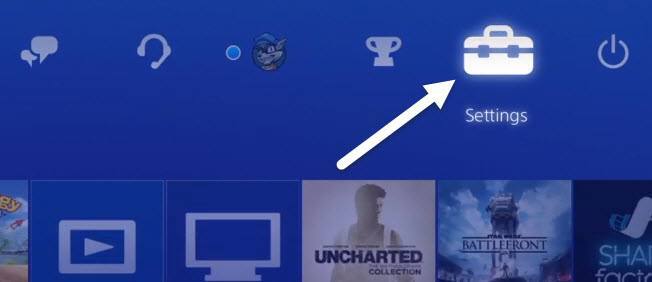
Obviously, the first step is to turn on your PS4 and make sure you have installed the latest system software, which should be 3.50 as of the time of this writing. To update the system software on your PS4, press up on the D-Pad and then over to the right until Settings is highlighted.
Now scroll down until you see System Software Update and press X on the controller.
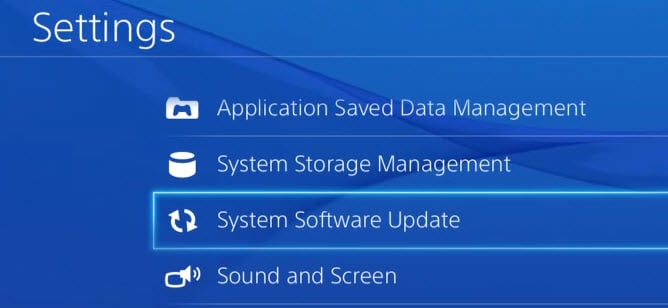
If an update is available, it will automatically be downloaded and installed. Once your system is up-to-date, you can now install the Remote Play software on your Windows or Mac machine.
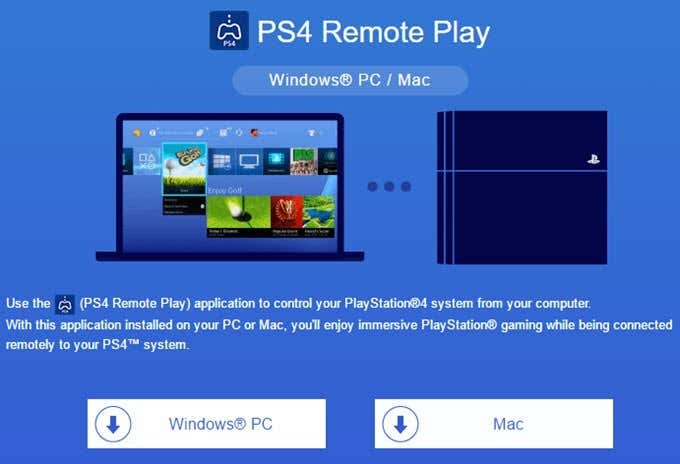
The installation is straight-forward and doesn’t require you to choose any settings, etc. Once completed, run the PS4 Remote Play program from your desktop.
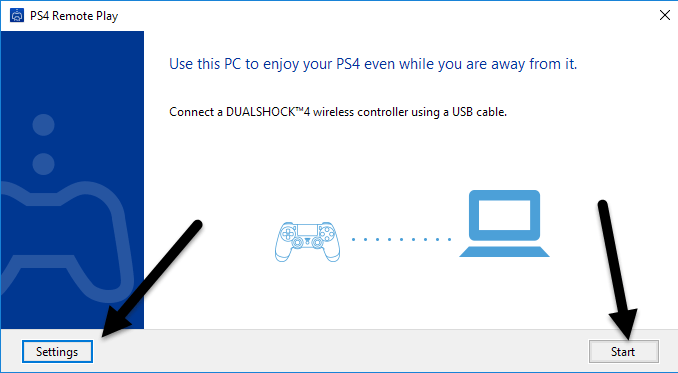
The first screen that will popup tells you to connect a DualShock 4 controller to your computer via USB. Once you have connected your controller, you can either click on Start or Settings . I suggest clicking on settings first to configure the resolution and frame rate.
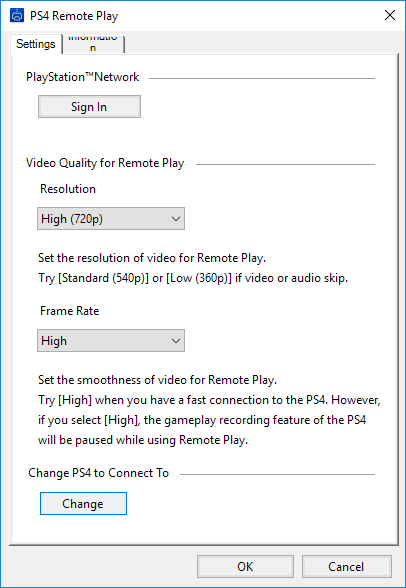
By default, the resolution is set to 540p and the frame rate is set to Standard . If you are streaming PS4 games over your home network and everything is gigabit, then you should be fine changing the resolution to 720p and the frame rate to High . Obviously, if you run into sound issues or choppy graphics, you can change these setting each time you run remote play.
Currently, remote play does not support 1080p or higher resolutions and may or may not in the future. If the PS4 doesn’t have the hardware to handle 1080p, then we’ll probably be stuck with 720p until the PS4.5 comes out.
It’s also worth noting that remote play will work across the Internet too, but the results will depend heavily on the Internet connection speeds at both locations. I didn’t get to try this out, so I can’t really comment on how it performs.
Finally, once you configure your settings, click on Start and you’ll first be asked to sign into the PlayStation network. You’ll obviously need a PSN account and it should be the same account that your PS4 is logged into.
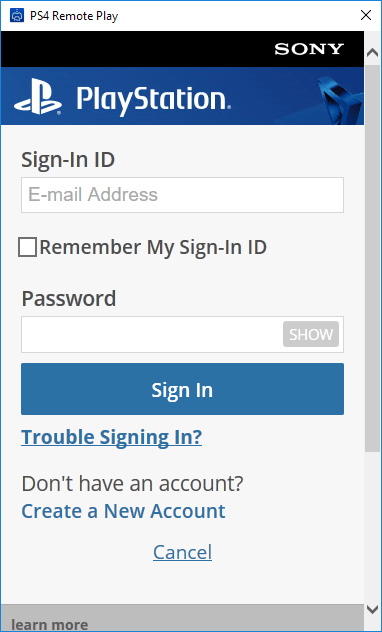
Once you have signed in, it will start searching for your PS4 automatically. It might take a minute or two while it searches for the console. If it doesn’t find your PS4, you can also click on the Register Manually button and try that method.
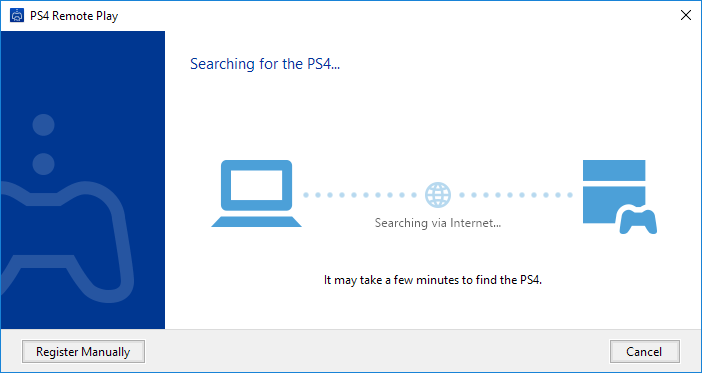
If all goes well, you should get a window with your PS4 steaming to your Windows or Mac machine!
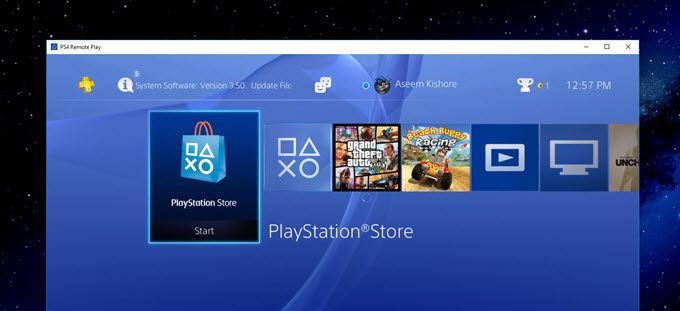
As I mentioned above, the performance and quality of the game streaming was superb over the local network. If you are using a 1080p display, you won’t be as disappointed as I was with the 720p resolution. I have a 2560×1440 monitor and so the window is fairly small on the screen. If you have a 4K monitor, it’s going to be really small unless you have everything scaled up.
Troubleshooting Tips
If you are having issues getting everything working, log onto your PS4 and check a couple of settings. Firstly, go to Settings , then PlayStation Network/Account Management and select Activate as Your Primary PS4 .
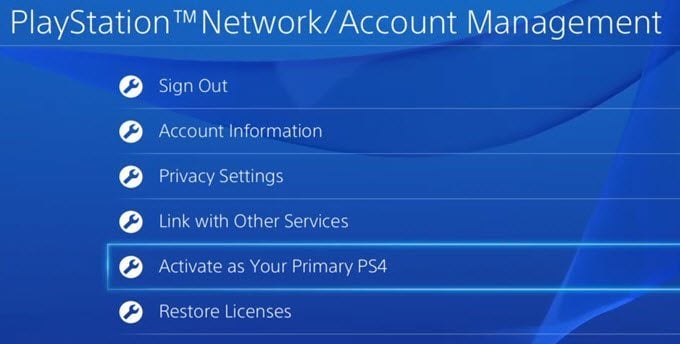
You really only need to do this if you have multiple setup under the same account. You can only stream games over remote play from the primary PS4. Once it is primary, go to Settings and then Remote Play Connection Settings .
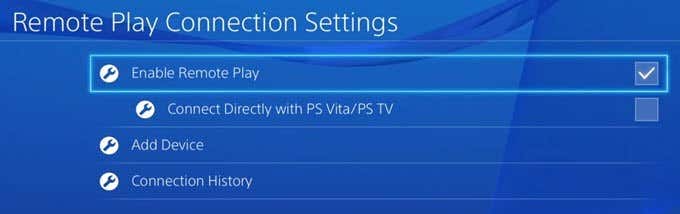
Make sure that Enable Remote Play is checked. Finally, so that you don’t have to keep going to your PS4 and manually turning it on before playing remotely, go to Settings , then Power Save Settings and select Set Features Available in Rest Mode .
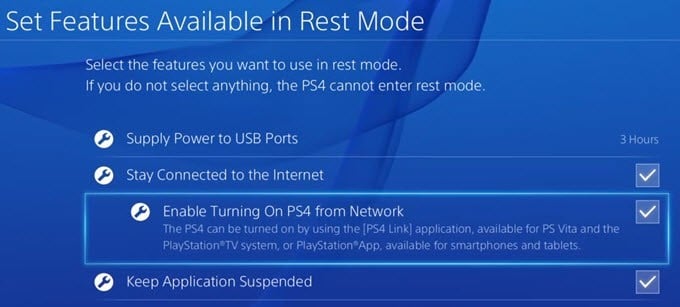
Make sure that Stay Connected to the Internet and Enable Turning On PS4 from Network are checked. Even if your PS4 is turned off or in rest mode, it will turn on when you start a remote play session.
That’s about it! Overall, it works well and it’s a nice feature to have if you own a PS4 system. Unlike the Xbox One, PS4 supports streaming to Macs and over the Internet, which are two excellent pluses. If you have any questions, feel free to comment. Enjoy!
- Tribit StormBox 2: The Under $70 Portable Speaker that Stands Out
- ENGWE L20 2.0 Review: The Best Budget-Friendly Foldable E-Bike?
- TopDon TC004 – a Thermal Imaging Camera That Will Give You Predator Vision
- Newyes Portable Wireless Thermal A4 Printer Review
- Eskute Star Folding Fat Tire Electric Bike Review
If you don’t have a full-sized printing machine at home and often need to print a document on the go, check out the Newyes portable printer . This wireless printer is lightweight and small enough to fit in your bag. Not to mention it’s environmentally friendly, since it uses thermal paper instead of ink.
Follow our review of the Newyes portable wireless thermal printer to see if it suits your printing needs.
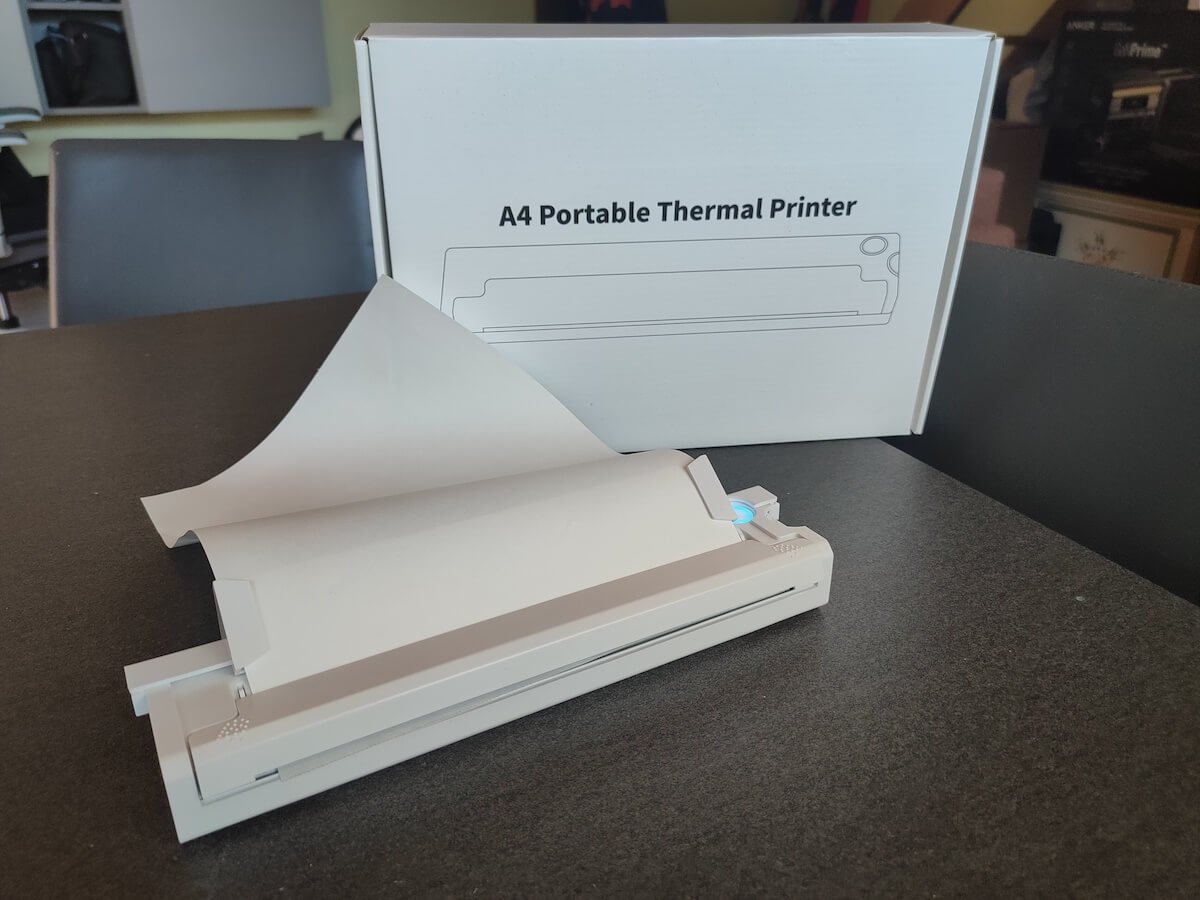
Newyes Portable Wireless Thermal A4 Printer: First Impressions & Specs
When I was a student, I remember my university always required hard copies of documents. Luckily, there was a print shop on campus where I could always pop in to print something.
Then I became a professional, and to my surprise many life spheres still required me to have printed versions of documents with me. Of course you can get your own full-sized machine to print things at home, but if like me you live in a small apartment, you value every extra bit of space and don’t want a massive printer to take it up.
One day, when I was looking for a neighbor with a printer to help me with my event tickets, they introduced me to the concept of a portable printer. Seeing how easy it is to use, I immediately wanted to get my hands on one of those. So here I am, reviewing one of the most useful gadgets I received recently – the Newyes portable thermal printer.
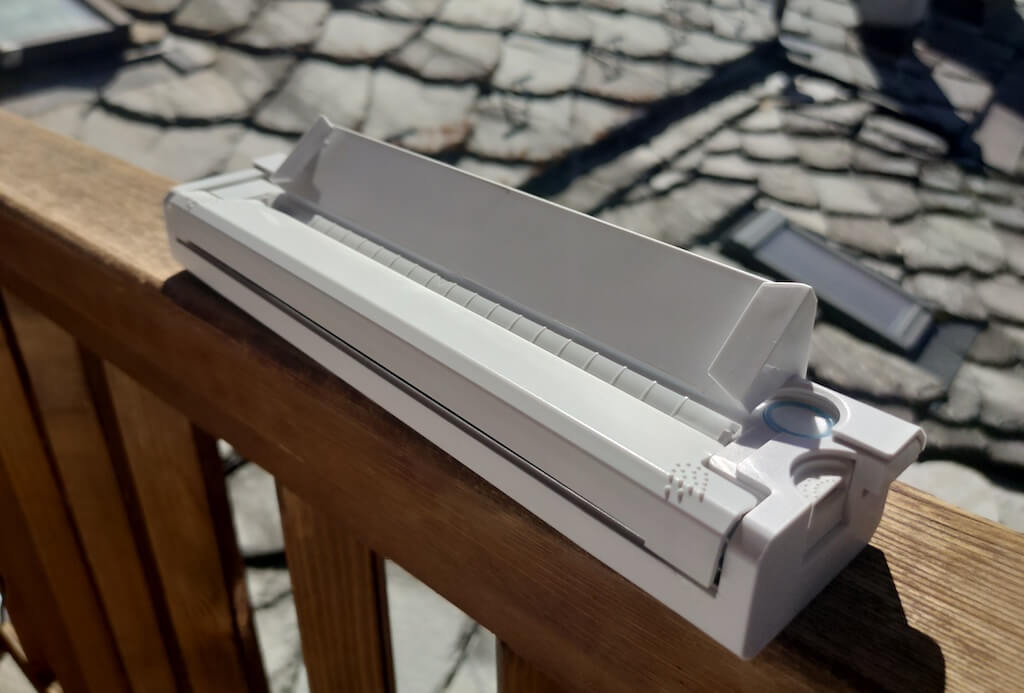
Before we continue with this review, here is the full list of specs of this printer.
- Model: Newyes LD0801
- Dimensions: 10.4 x 1.2 x 2.28 in (265 x 58 x 30.5 mm)
- Weight: 16.8oz (475g)
- Paper format: A4
- Paper width: 210mm or 218mm
- Printing Type: thermal paper
- Resolution: 203DPI
- Connectivity: Bluetooth
- Charging port: USB type-C port
- Input Voltage: DC 5V / 2A
- Battery: 1200mAh lithium battery
- Charging time: 75 min
- Automatic shut down: after 30 minutes
- Stand-by: about 30 days
- Extra features: LED light, reset, on / off switch button
- Color: white, black
- Warranty: limited one year warranty
- Price: $199 on the Newyes website
If you find yourself in need of hard copies of important documents while on the move, the Newyes portable wireless thermal printer will become your go-to gadget. Newyes calls it “the world’s smallest printer”, and with the weight of under 500g this seems plausible. This mini printer offers a handy solution for those moments when you need to quickly print an important document but don’t have access to an office setup.
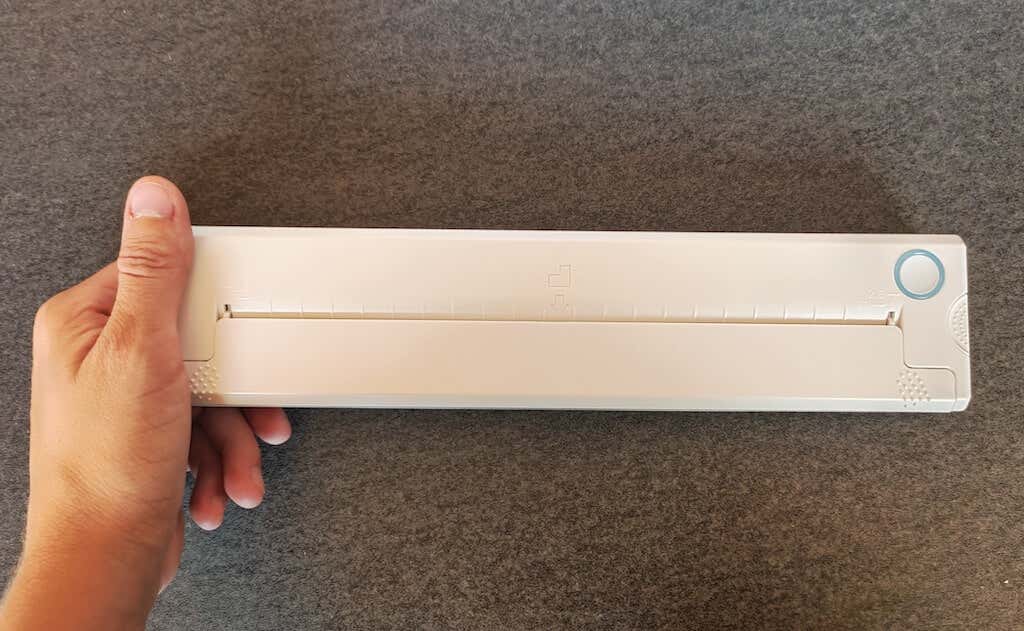
Operating this printer is a breeze – a simple Bluetooth connection is all that’s required. Once connected, just fire up the app, choose the file you want to print, and send it over. Efficiency is at the forefront, and you can easily print multiple sheets by inserting new pages back to back.
The only limitation this printer has is that it can only print in black. So even if your original file is in color, the printed document will still come out in black and white. Other than that – you can print a variety of file types including Excel, Word, PDF, JPG, PNG, and web pages – and it only takes seconds.
The Newyes portable wireless printer combines convenience, portability, and efficiency – all the things I appreciate in a modern gadget.
Design and Unpacking
Let’s have a closer look at the design and build of this smart printer, as well as what you get included in the package when you purchase it.
What’s in the Box
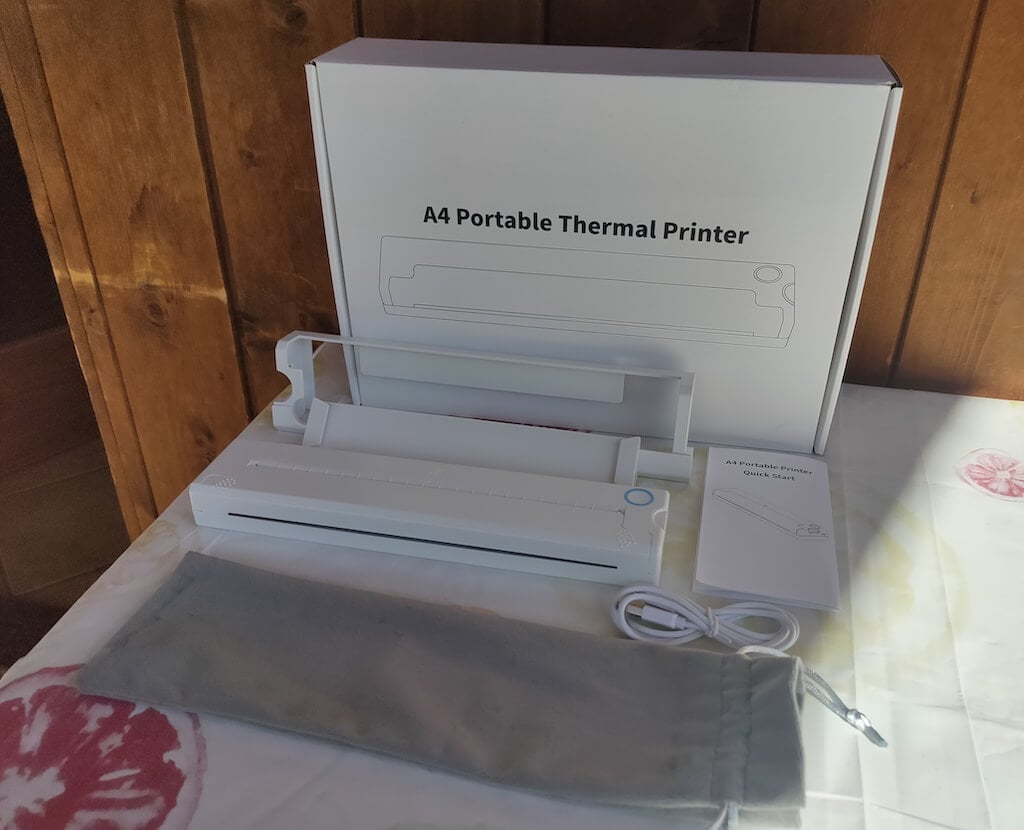
Here’s everything you’ll find when unpacking your Newyes portable thermal printer:
- The Newyes portable wireless thermal printer
- Bracket
- USB type-C cable
- Storage/carrying pouch
- 100pcs thermal printing paper
- User manual
You can use the Newyes portable printer right out of the box, as you’re all set with essential accessories. Aside from the printer itself, the package includes a bracket which will make printing more than one page smoother, a convenient storage bag for carrying your printer with you, a USB-C cable for charging, and a supply of 100 pieces of thermal paper to get you started.
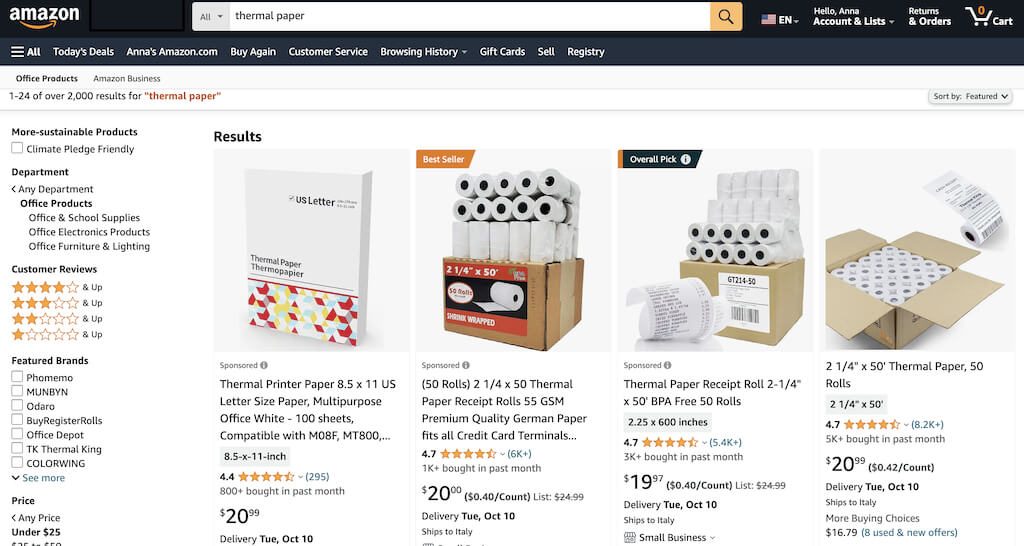
One important thing to remember is that this printer only works with thermal paper. While thermal paper is significantly more expensive than normal paper, this printer also uses inkless printing and works without a ribbon and toner. Since you don’t have to spend money on ink, carbon ribbons or toner cartridges, you ultimately end up saving money with thermal paper.
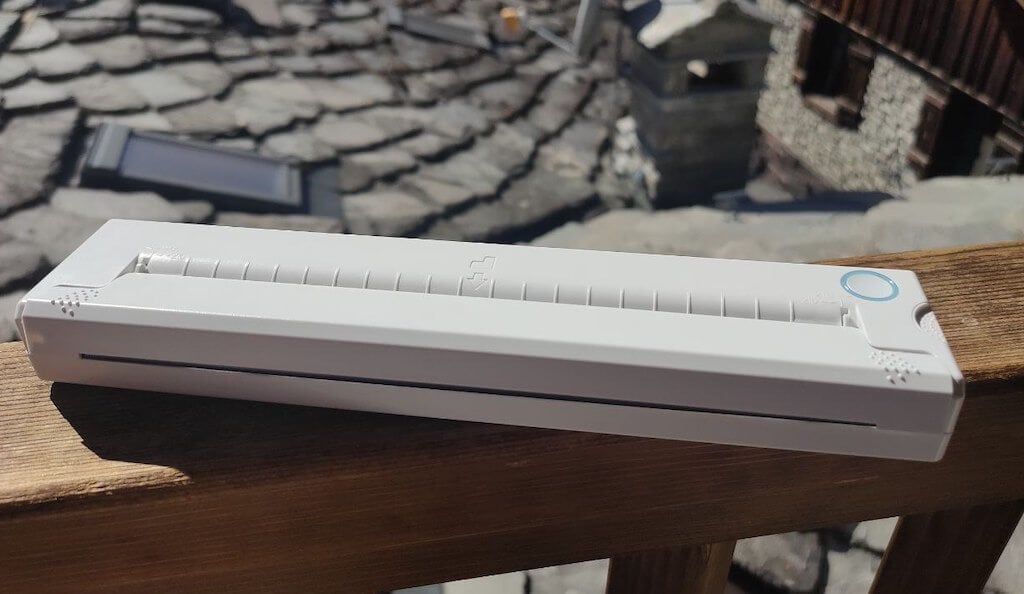
The Newyes LD0801 is a pocket-sized printer that features straightforward design. For the purpose of this review, I had a printer in white color. The printer looks like a small white brick with just two pressable buttons on top – one for switching it on and off, and another for opening the printer’s cover. You’ll also see the paper entry slot on top of the printer.
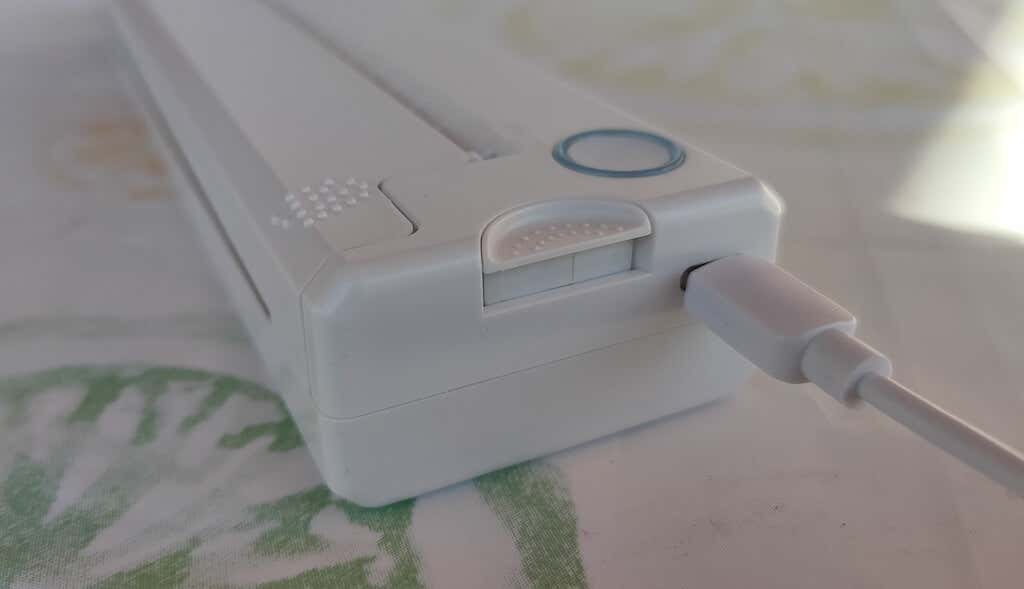
On the side of the printer, you’ll find a single charging port.
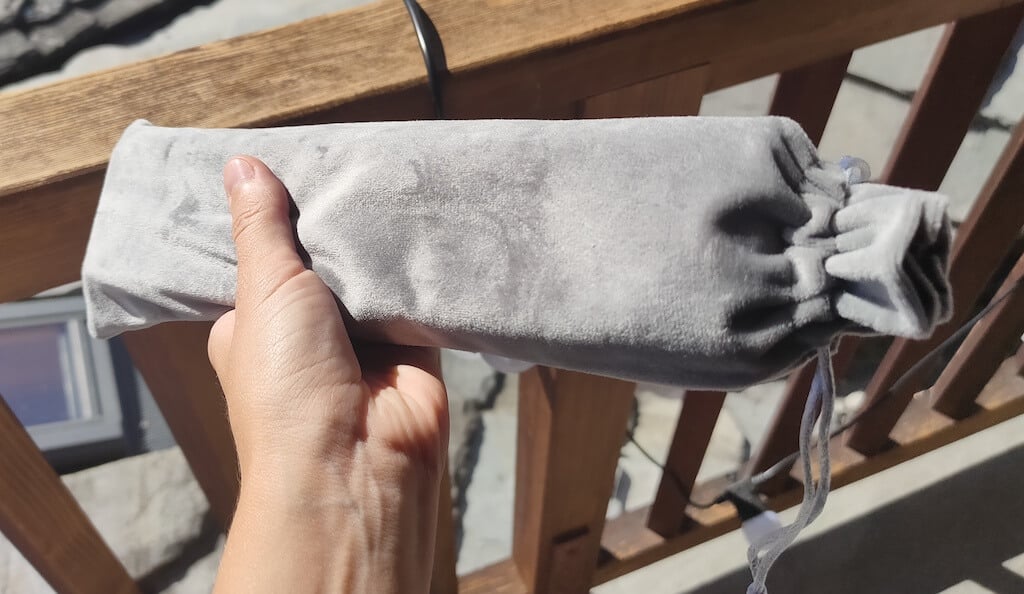
The printer is made of plastic, but the build feels sturdy. I never have to worry about throwing it into my bag or damaging it when traveling. Besides, you can use a nice carrying pouch included in the package for protection.
Performance & Features
According to Newyes, the portable printer has a “handheld size and two times the weight of an iPhone”. This can give you an idea of how portable and convenient this little gadget is. In a month of testing, I used it at home, in a store, and even in a car while on the road.
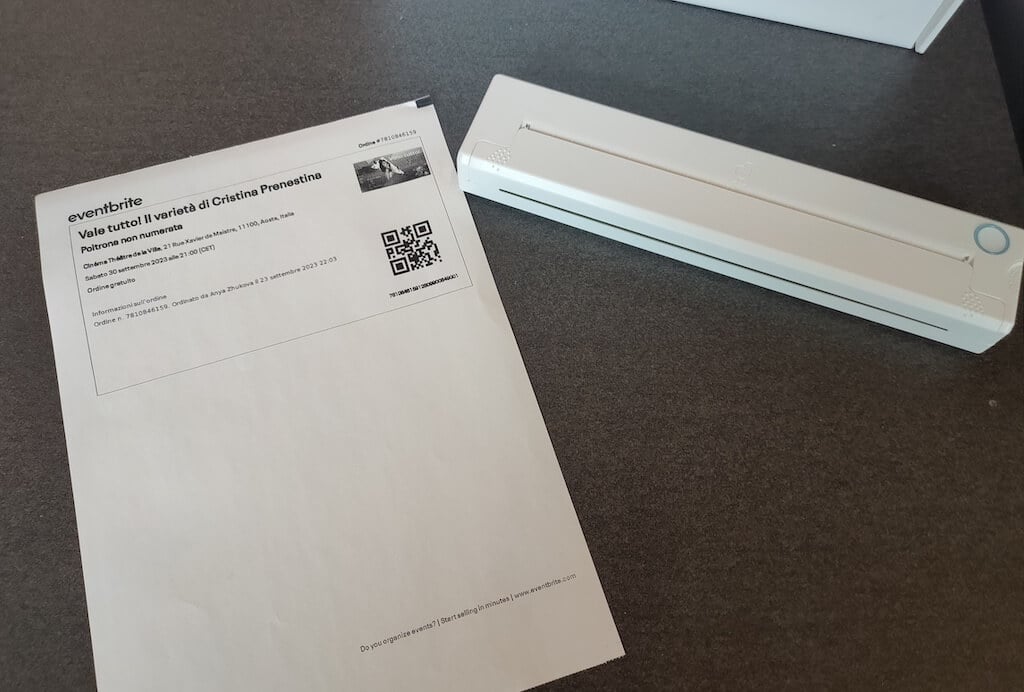
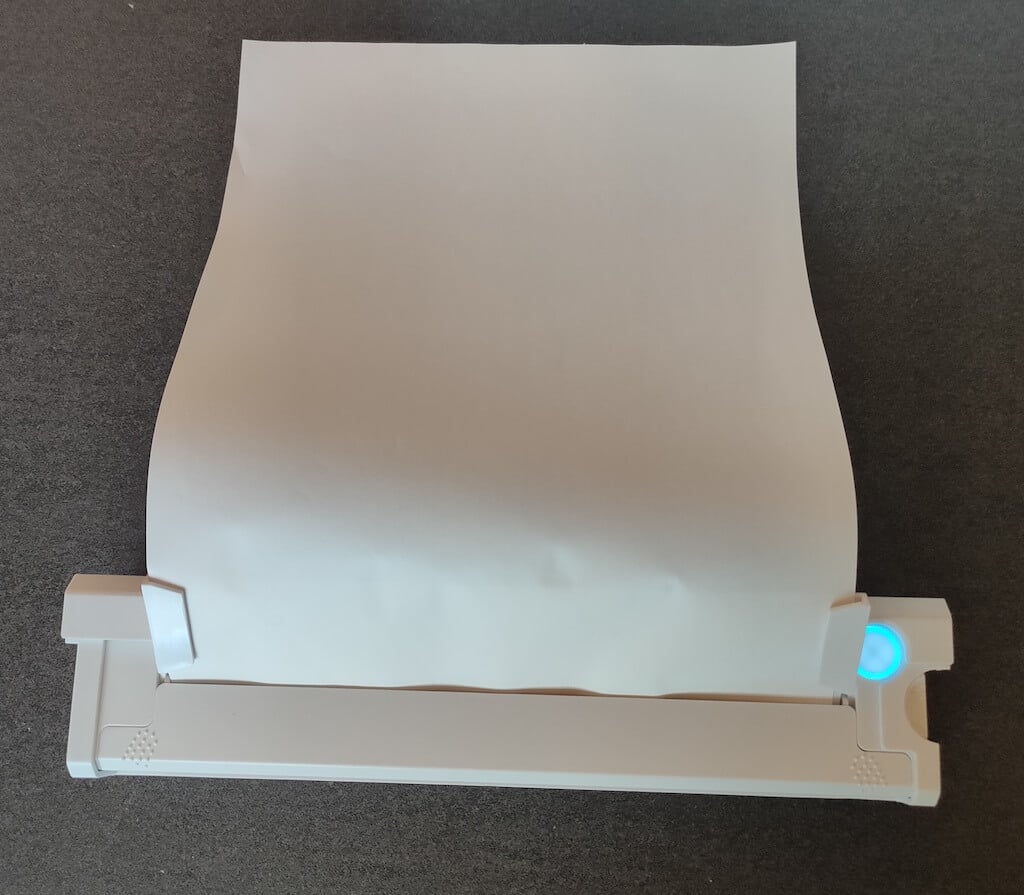
Using the printer is unbelievably easy. Connect it to your mobile phone via Bluetooth, press the button to turn the printer on and put a sheet of thermal paper into the paper entry slot. Make sure to use thermal paper and not standard paper, and put it with the black marks facing down. Bear in mind that the thermal printer can only print in black and white and only on one (marked) side of the thermal paper sheet.
Then open the iPrint app on your smartphone. If you’re printing an A4 document, you can select one of two options – Photo Printing and Document Printing . Then choose the document from your phone’s files and print it.
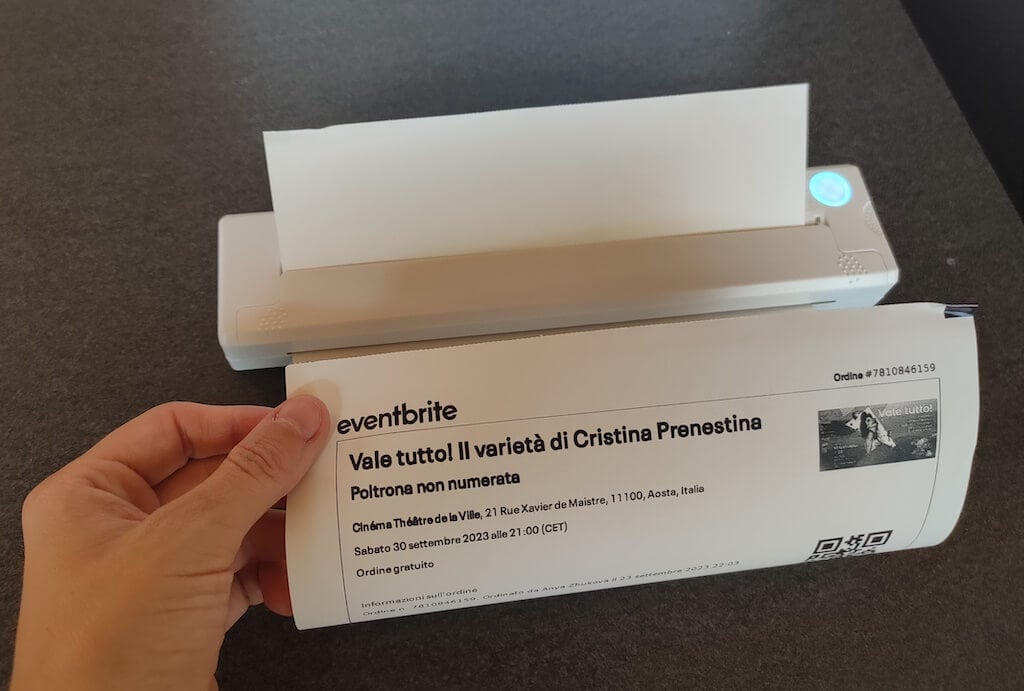
The printer is reliable and in the time that I used it the Newyes LD0801 never let me down. The printing quality will surprise you, as it’s sometimes better than what you get from a full-sized printer. The printer supports printing in various formats, and you can use it to print documents from your smartphone (Android and iPhone), iPad, and Android tablet.
When fully charged, the printer can support up to 90 pieces of paper continuously, which is very impressive for a gadget of such a small size.
Software
The Newyes portable printer requires an iPrint app to operate. The app is available for free on iOS and Android. You’ll need to download the app on your device from the App Store or Google Play before you begin printing your documents.
The app has a simple and user-friendly design. You’ll need to pair your device with the printer on the first use via Bluetooth.
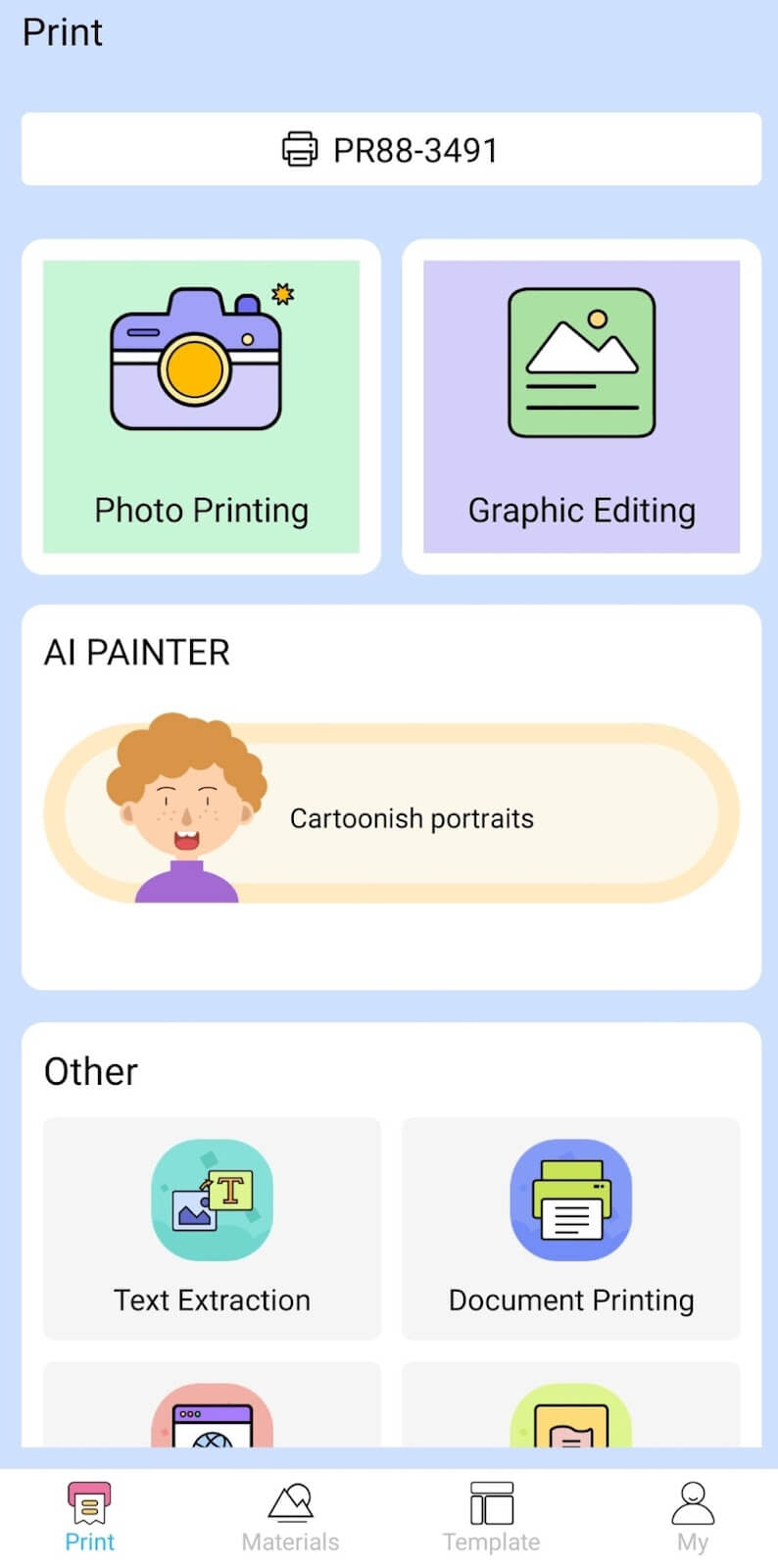
Depending on the type of document you want to print, you can choose different options from the app. There’s photo printing, document printing, web printing, and banner printing.
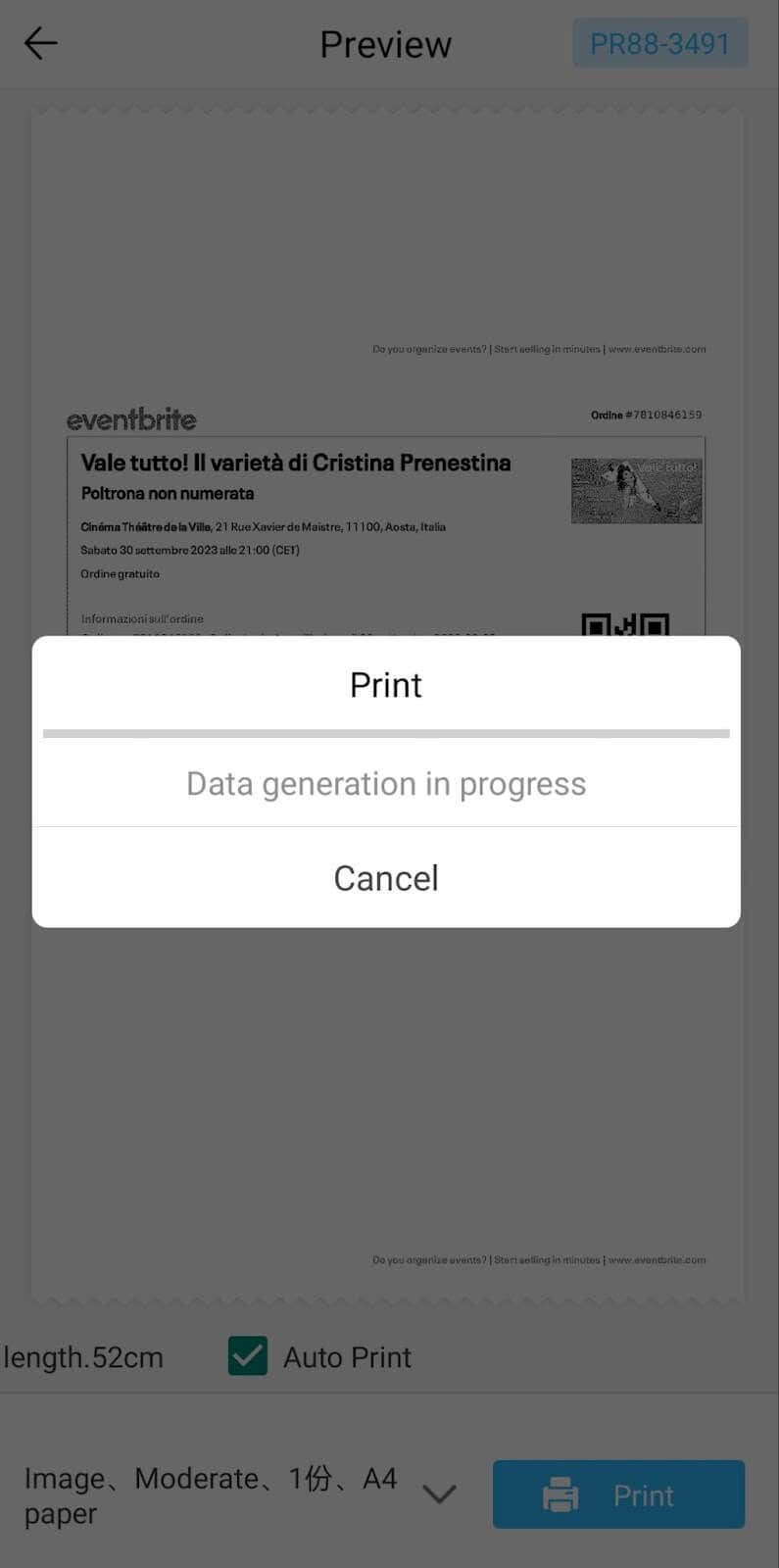
The app also has Materials and Template sections, where you can find various pictures and templates for printing to-do lists, post-its and holiday cards. You can also use the Newyes LD0801 as a label printer using these templates.
Battery Life
The Newyes portable wireless thermal printer is equipped with a decent 1200mAh lithium battery. This high-capacity battery allows you to print on the go without constantly worrying about running out of charge. When I received the printer, I charged it fully once, and it still hasn’t run out of battery after one month of use (I use it to print something almost every other day).
Charging this printer is quick and takes just over an hour to charge the printer from zero to full. The type-C charging cable facilitates a rapid charging experience. And if you run out of battery while on the go, you can quickly charge the printer from a portable power station or a power bank to continue printing.
The printer doesn’t support wireless charging, so I’d recommend always bringing the usb-c cable with you just in case.
Should You Buy the Newyes Portable Wireless Thermal Printer?
The Newyes portable thermal printer ensures high-quality wireless printing while on the go and easy operation. It’s not the most budget-friendly option, but this purchase will save you money and nerves in the long run thanks to its versatility and portable nature.
Personally, I can say that this printer made my life easier. So much that it’s probably my favorite smart gadget of the year. If you’re looking for a portable printer that won’t take any space in your house, I’d certainly recommend considering the Newyes LD0801 model.
- Tribit StormBox 2: The Under $70 Portable Speaker that Stands Out
- ENGWE L20 2.0 Review: The Best Budget-Friendly Foldable E-Bike?
- TopDon TC004 – a Thermal Imaging Camera That Will Give You Predator Vision
- Eskute Star Folding Fat Tire Electric Bike Review
- The 70mai Power Station Tera 1000 Review
