If you have an Android device and a PlayStation 4, you might be wondering what’s the best way to stream your photos and videos from your phone or tablet to the PS4? If you do a Google search, you’ll get all kinds of results with a whole bunch of different possible solutions.
I tried out most of them and was surprised to find that nothing really worked! The main solution was to download an app that would turn the Android device into a media server, but one app was no longer available (Skifta) and the other one worked, but it would not let me play any of my videos (iMediaShare)!
Instead of using apps I had never heard of, I decided to try out some familiar names in the media server business: Kodi, Plex, Tversity. While doing the research, I realized that Kodi doesn’t have an app for the PlayStation 4 and Tversity doesn’t have an Android app. This only left me with Plex, which has an app in both stores.
In this article, I’ll show you how to use Plex to stream your local photos and videos from your Android device to your PlayStation 4 for free. Plex has subscription plans and also a small one-time fee to “activate” your mobile app, but you don’t need any of that if you just want to stream local videos from your device to the PS4.
Install Plex App on PlayStation 4
To install the app on your PS4, you need to go to the PlayStation Store and then scroll down until you see the section called Apps . On the right-hand select, select Popular .
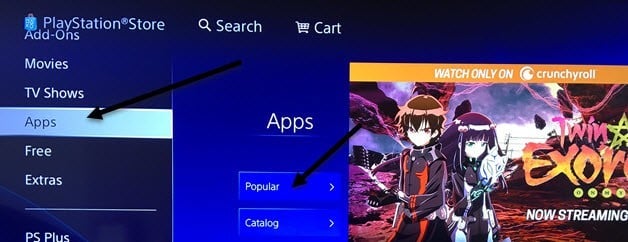
Scroll down until you see the Plex thumbnail. It will be several rows down before you see it.
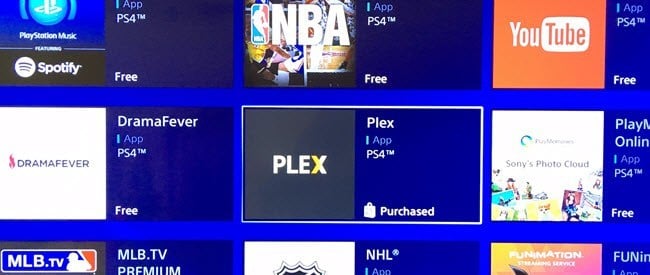
Select Download and wait for the app to install. Once complete, you can either select Start or you can go back to the Home screen, select TV & Video and then scroll down until you see the Plex icon.
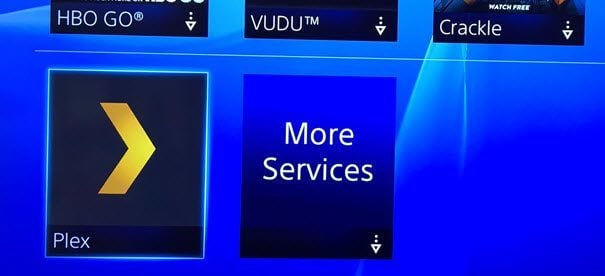
When you open the app on the PS4, you’ll need to select the Sign In button at the bottom right. If you didn’t create an account yet with Plex, you should do so now.
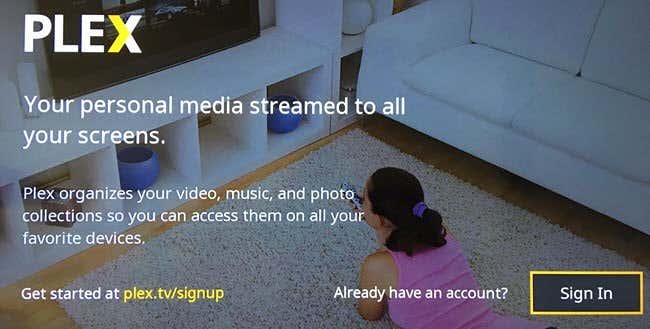
The next screen will show you a code and tell you to visit https://plex.tv/link to add your PlayStation to your Plex account.
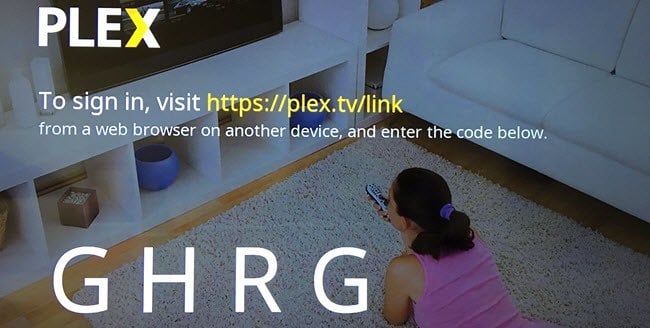
Visit the website and you’ll first have to sign into your Plex account. You’ll then have to enter the code that is showing on your TV into the text box.
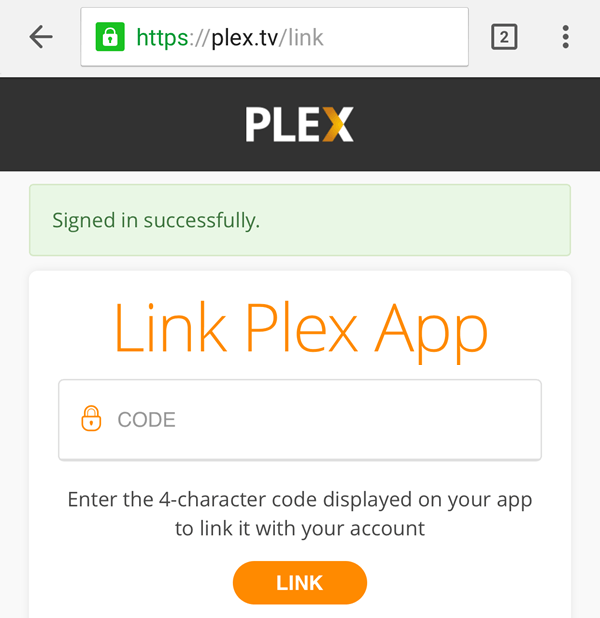
Finally, tap on Link and if everything went well, you should see a App Linked message.
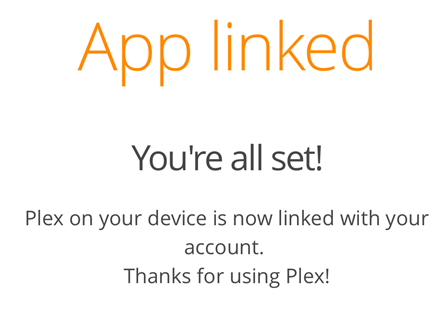
On your TV, you’ll see that Plex has been linked and that it will start looking for a Plex server immediately. You’ll then get a screen with a big error message.
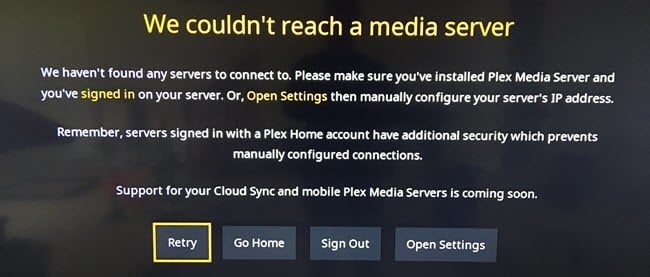
Don’t worry about this right now! We have to install the app on our Android device, configure it and then come back to this screen. Just so you know, once the app on the phone or tablet is setup, we’re going to select Go Home , not Retry .
Install Plex App on Android Device
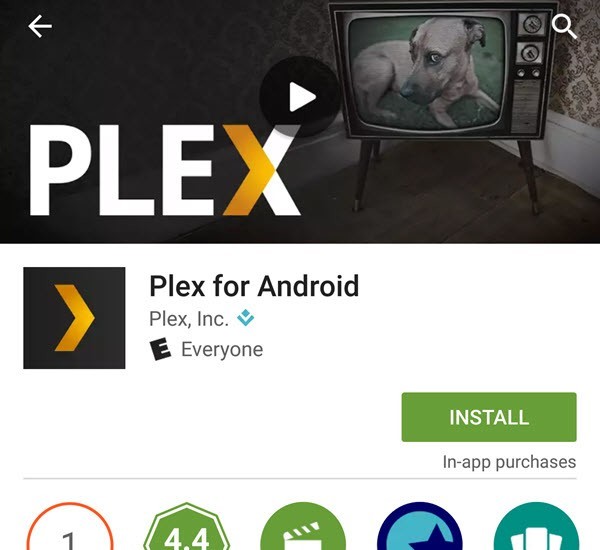
On your Android device, open the Google Play Store and search for Plex. Go ahead and install the app.
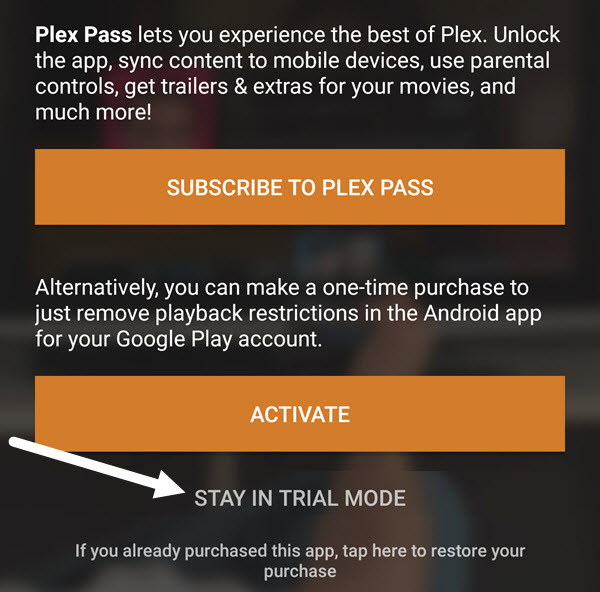
This will bring you to the Plex home screen, where you will see a message stating that no servers have been found. This is fine, again, because we do not need to setup a full-fledged Plex server. All we are going to do is make our app act as a server and the content will be the photos and videos stored on the phone or tablet.
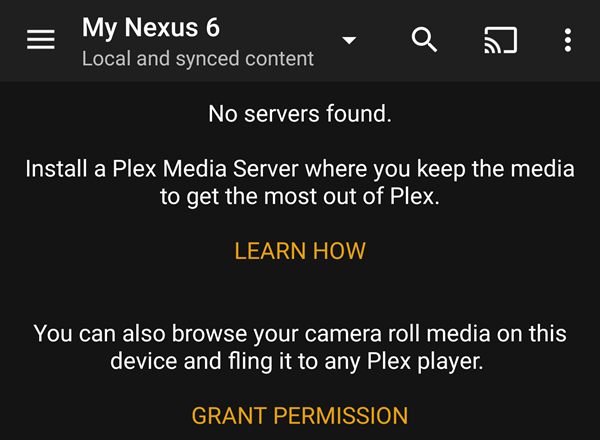
In order to setup the app properly, you have to first tap on Grant Permission so that other Plex apps can access the camera roll media. Once you have done that, you need to tap on the three horizontal lines at the top left and then tap on Settings .
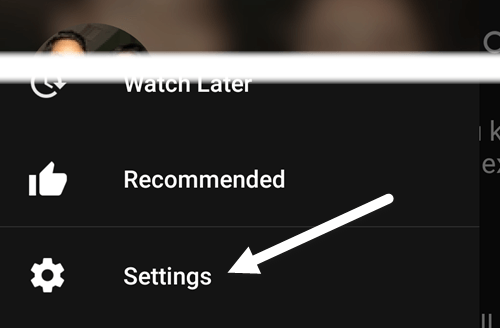
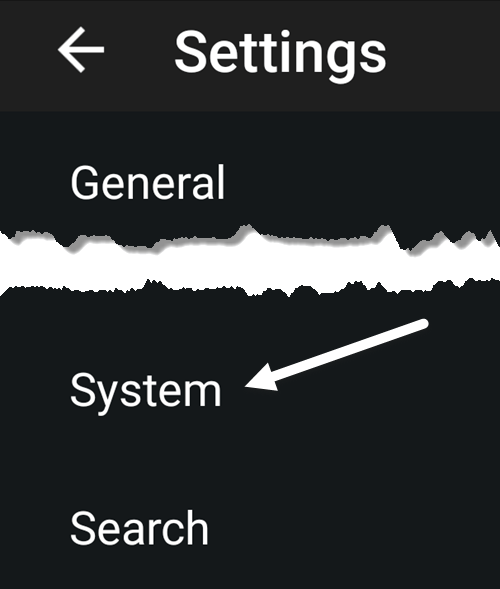
You’ll see another menu with more options. Here you have to tap on System .
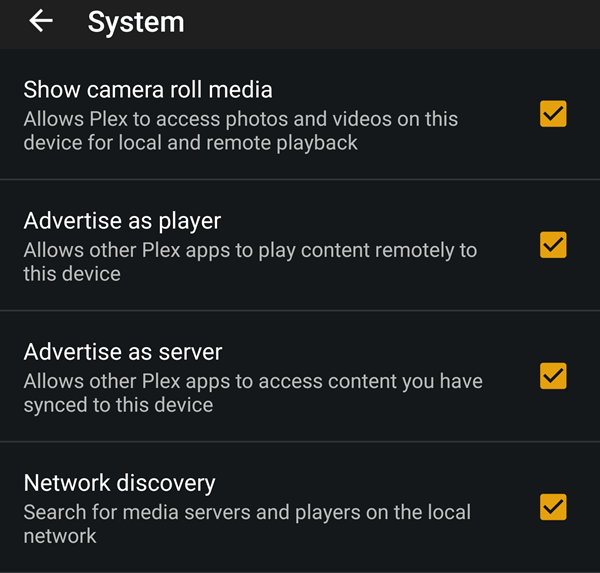
Finally, on the System settings screen, we have to make sure all of the items are checked. Most importantly, we need to check Advertise as server , Show camera roll media and Network discovery .
Access Media on PS4
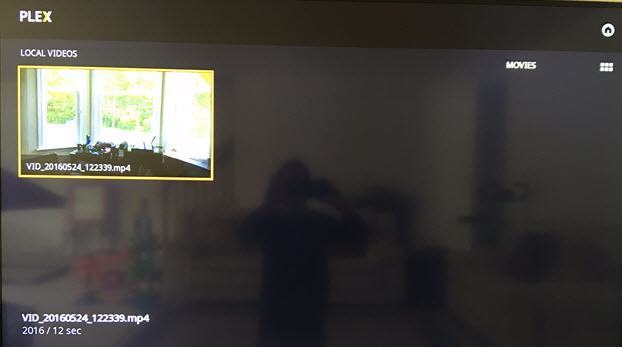
Now we can go back to the PS4 and select Go Home. If everything is setup properly and both of your devices are connected to the same network, you should see your Android device show up at the top right along with Local Photos and Local Videos .

If you select Local Videos, for example, you should get a list of all the videos that are currently saved on your Android device.
- Why Is My Phone Not Allowing Me to Make Calls Android?
- Mobile Data Not Working: How to Fix
- How to Fix Android “System UI Isn’t Responding” Error
- Android Back Camera Not Working? 10 Ways to Fix
- How to Use Microsoft Copilot on Android and iPhone
