The Kindle desktop app is free for you to use and is available for Windows and macOS devices. To help you decide whether the Kindle app is as good as the physical device, we’re going to talk you through some of the pros and cons behind the Kindle Desktop and answer a simple question—is it as good as a real Kindle?
Benefits Of Using The Kindle Desktop App
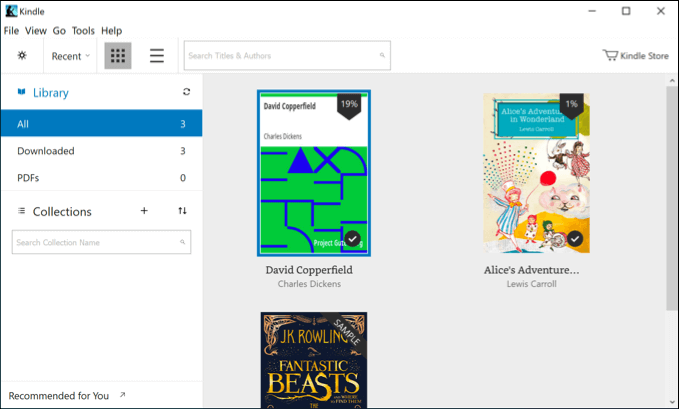
To save space, the Kindle desktop reader will automatically download any book you choose to open, rather than downloading hundreds of books at once. eBooks aren’t very big, so this is usually only an added delay of a few seconds.
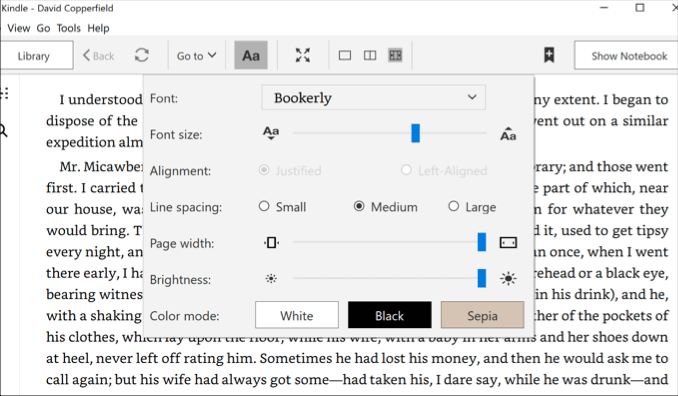
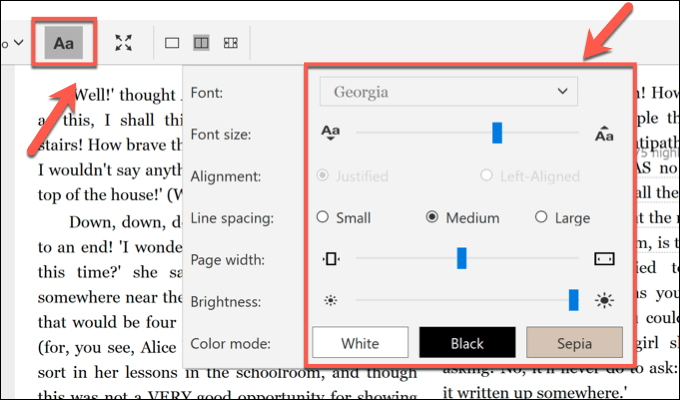
It has many of the features you’d expect to see from an eBook reader, including many seen on Kindle devices, offering the ability to change font and font sizes, alter page widths for better reading, as well as switch to an accessible viewing color mode.
You can also use a built-in text-to-speech mode to create auto-generated audiobooks you can listen to while you work, as well as annotate your books directly—perfect for students or academics.
Kindle Desktop vs. Kindle Mobile vs. Kindle Devices
While the Kindle desktop app isn’t designed to be portable, it does have one distinct advantage over Kindle mobile apps—size. The larger screens on desktop PCs and laptops allow you to view much more text at once, which could be useful for those studying books and those who want to catch up on reading from their PC.
This leads to another direct advantage that the Kindle desktop app over other Kindle products. Using it, you can open .mobi eBook files using the Kindle app natively with no additional fuss.
Otherwise, there really isn’t a huge amount of difference between the Kindle desktop app, Kindle mobile apps, or Kindle devices themselves. For instance, many of the accessibility features are common across all Kindle products, although the Kindle devices lack some of the more advanced features like text-to-speech.
You can also share the same collection, keep your saved position and sync it across your devices, and do the same with any book annotations you make across all Kindle products.
Alternatives To The Kindle Desktop Reader
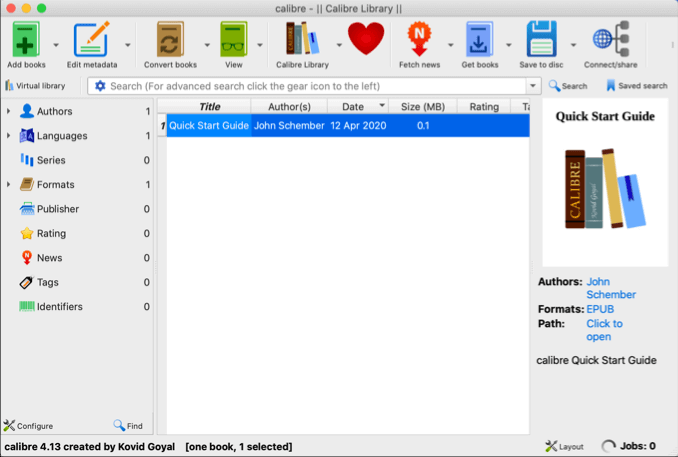
Like the Kindle desktop app, it allows you to read your eBooks, share your collection with others, sync it across multiple devices, and more. It’s free, open-source software that you can extend further (if you have the skills) by helping to develop it directly, or by creating additional plugins for others to use.
How To Download & Use The Kindle Desktop App
- To start, download the Kindle desktop app for your operating system and install it. Once you open the Kindle app, you’ll need to sign in using your Amazon account details—type your details in, then press Sign-In to begin.
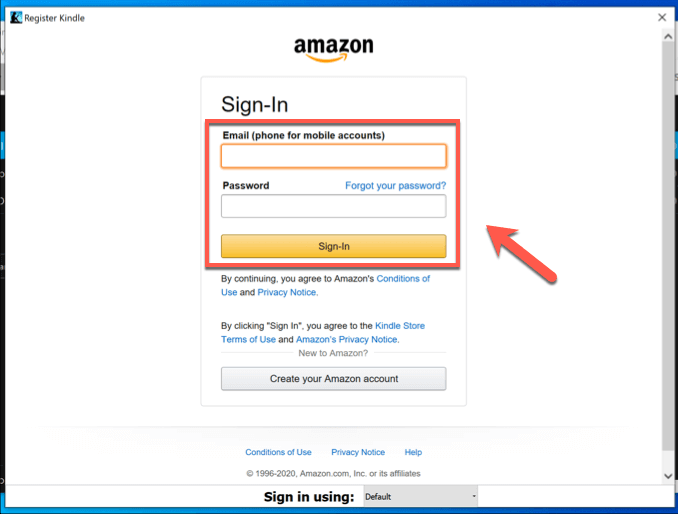
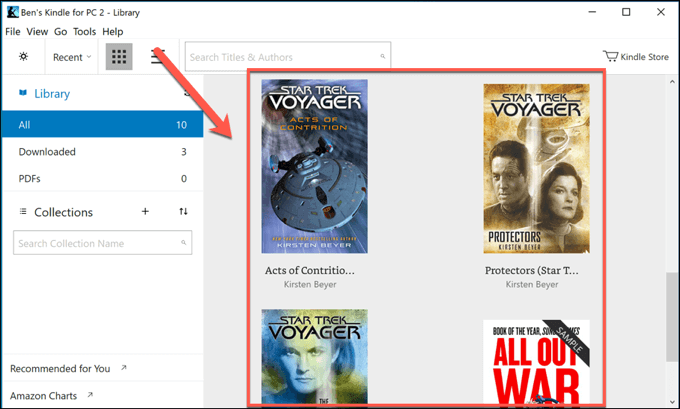
- Your Amazon Kindle eBook collection will automatically begin to sync to the Kindle desktop app once you sign in. To access any of the books in your collection, simply double-click on them—the book will download and open as soon as the download has completed.
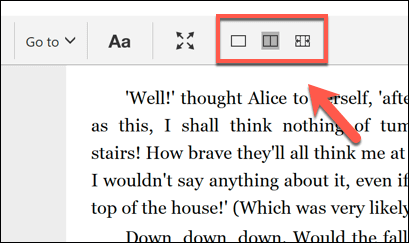
- By default, the Kindle desktop app will default to showing only a single page. You can change this by opening an eBook and clicking one of the page width options in the top menu bar.
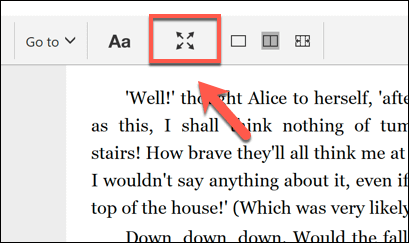
- To view your eBook in full screen without distractions, press the full-screen icon in the menu bar.
- To access the Kindle desktop app’s accessibility features to change font, font size, color scheme, and more, tap the Aa button in the menu bar. This will bring up the options menu, allowing you to change various font and style settings as desired.
- If you want to purchase any Kindle eBooks through the Kindle desktop app, tap the Kindle Store icon in the top-left. This will take you straight to the Kindle store, where any books you purchase will sync automatically to the app for you to download.
Reading eBooks On Desktop & Mobile
- GoodNotes vs Notability: Which Is Better?
- Microsoft Editor vs Grammarly: Which is Better and Which Should You Use?
- Google Keep vs Microsoft OneNote: What’s Different and Which Is Better?
- What Is Uber One and Is It Worth It?
- Lightroom vs Photoshop: Which One Should You Use
