iPhone users reported a peculiar error with the Photos app. Typically it works without problems. But sometimes, they get an error that says “Unable to Load Photo” or “ Error occurred while loading higher quality version of this photo.” These errors are common if you keep your photos on iCloud . There, you’ll see a lower-quality thumbnail, but when you open the photo it’ll download it on your phone in high-quality.
You might experience the “Unable to Load Photo” error for many reasons, and iCloud is just one of them. If you’re having trouble viewing images on your iPhone, don’t panic. Your iPhone photos are safe. This article will help you get some troubleshooting done and fix this issue.
1. Restart Your iPhone
Temporary system failure is the easiest to repair. A restart might fix it. System files can get corrupted and cause problems. One of them might be the “Unable to Load Photo” error.
Aside from resetting the system files, an iPhone restart will refresh your device’s random access memory (RAM). This can help your phone load images better and quicker.
2. Check Your iPhone Storage Space
If you’re not on iCloud+, you may have filled your iPhone storage with many photos and videos. This’ll happen even if you’ve regularly synced your photos to iCloud. The initial 5GB of free storage gets filled fast. If so, your device might have problems displaying images from the gallery or Photos app.
Here’s how to check your iPhone storage:
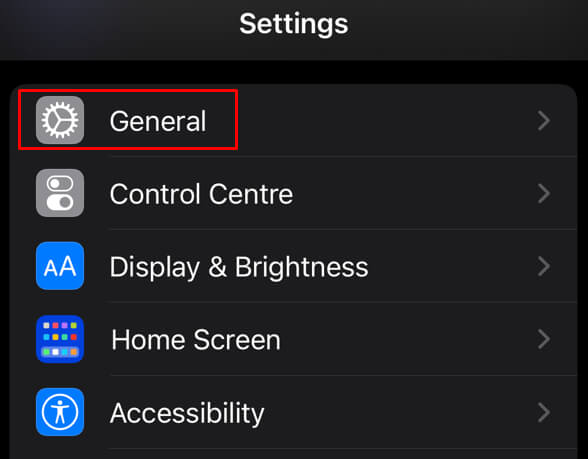
- Go to the Settings app and select General .
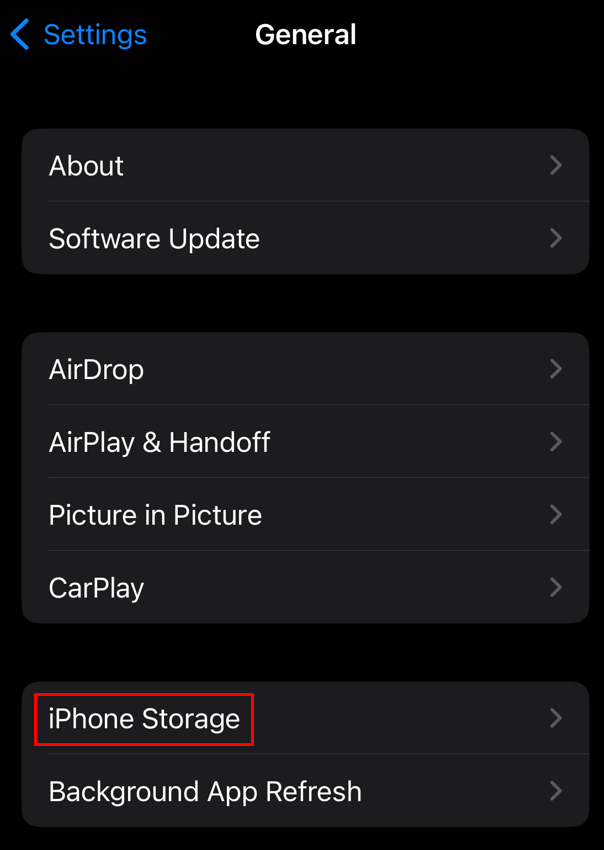
- Tap iPhone Storage .
- Look at the Storage Used at the top of the screen and see how much you have left.
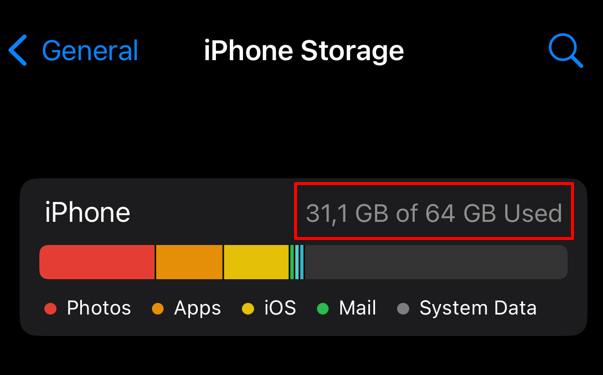
If you see that the iPhone’s local storage is full, delete some files and free up the space. This’ll help your device load images and other files.
3. Check the Internet Connection
If you’re trying to load photos from iCloud, your iPhone might fail to perform if your internet connection is weak or unstable. Switch to a different internet connection if you can. Perhaps Wi-Fi will perform better than your cellular data. If unable to connect to another network, try performing an internet speed test from your iPhone to check if the connection is good.
4. Force Quit and Reopen Photos App
Apps can crash no matter which smartphone you are using. It’s no different with iPhone. However, you can’t really know if the app is causing the problem. But if you receive an “Unable to load photo” error, the problem might lie in your Photos app. You can try force quitting and reopening the app to see if the issue will be gone.
To force close the Photos app, swipe up from the bottom to open the App Switcher. Tap the Photos app and swipe it up to close it.
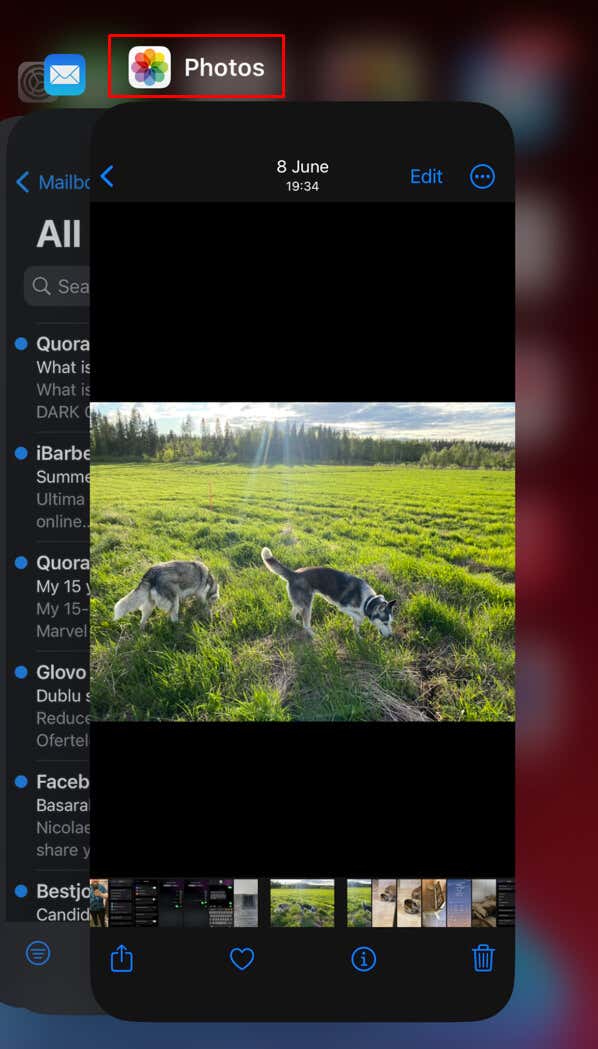
To reopen the app, simply find it on your home screen or in the App Library and tap it.
5. Turn Off Data Saver
The data saver is a neat function when you don’t want to use too much general data on your phone. But it can prevent your apps from loading the images, especially if downloading and syncing with iCloud is going on in the background.
You should toggle off the data saver to prevent the “Unable to load photo” issue. This will also boost your mobile internet experience.
To deactivate the data saver on your iPhone:
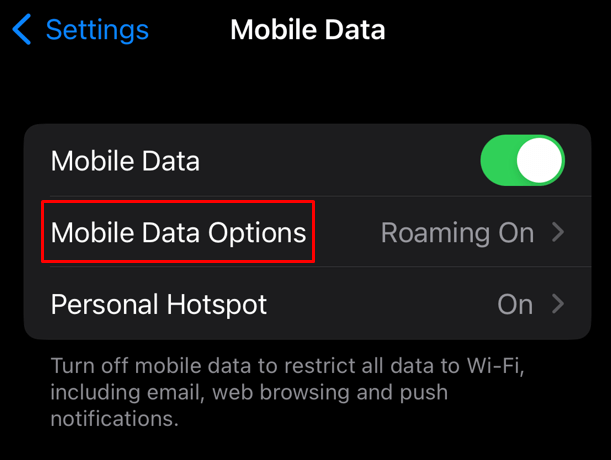
- Go to Settings and select Mobile Data .
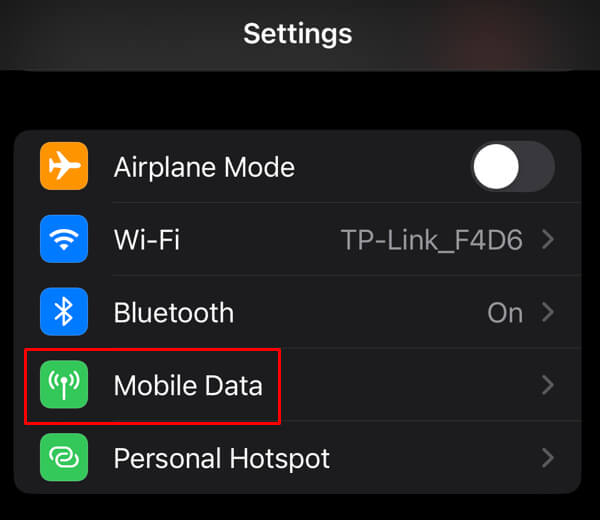
- Tap Mobile Data Options .
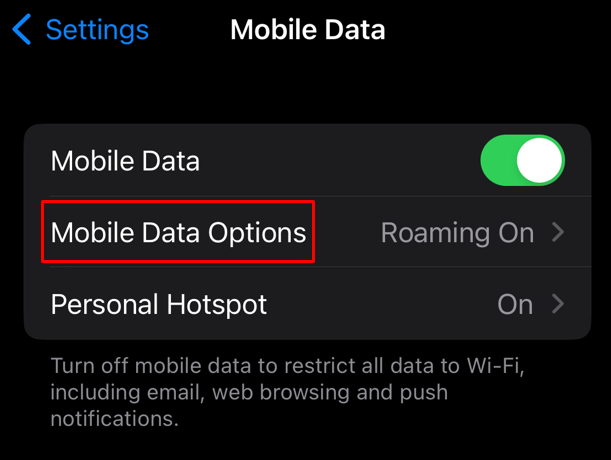
- Toggle the Low Data Mode off.
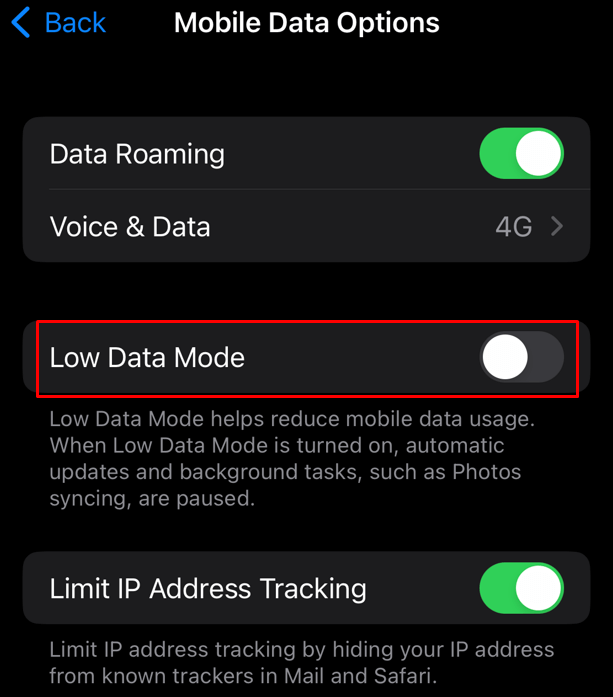
If you’re on a Wi-Fi network:
- Go to Settings and select Wi-Fi .
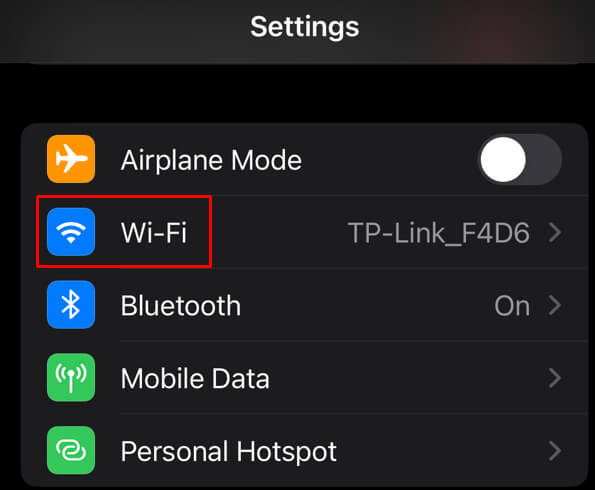
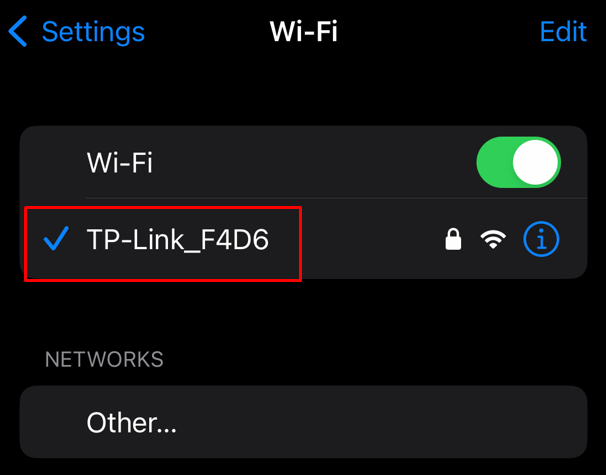
- Find and tap your router.
- Toggle off Low Data Mode .
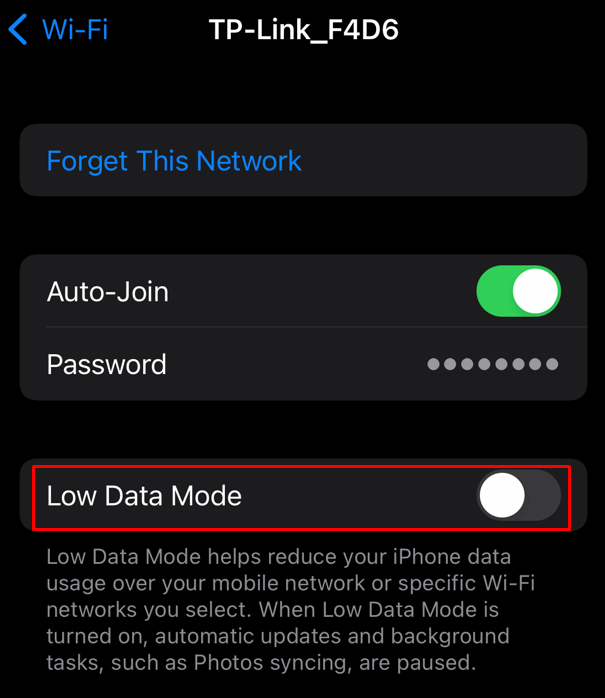
Try opening a photo now and see if the “Unable to Load Photo” persists.
6. Enable Cellular Data
If you’re using a Wi-Fi network to sync to iCloud, and you’re trying to open a photo stored in iCloud while a Wi-Fi connection is unavailable or slow, you might want to turn your cellular data on. Here’s how you can do it:
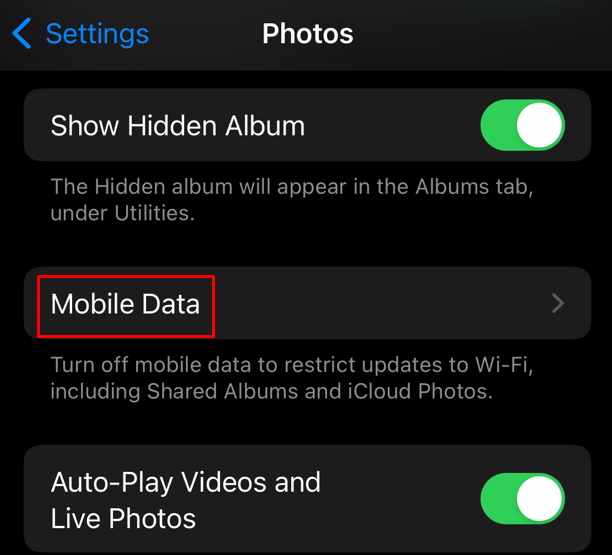
- Open Settings and select the Photos app.
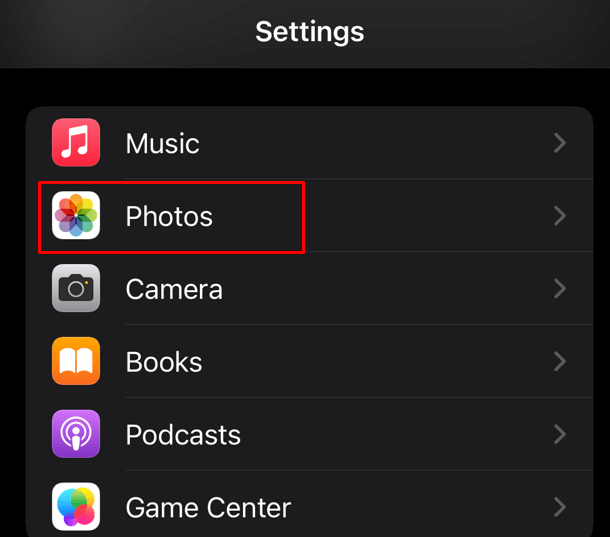
- Scroll down and find Mobile Data .
- Toggle the Mobile Data on.
7. Allow Unlimited Data for Syncing
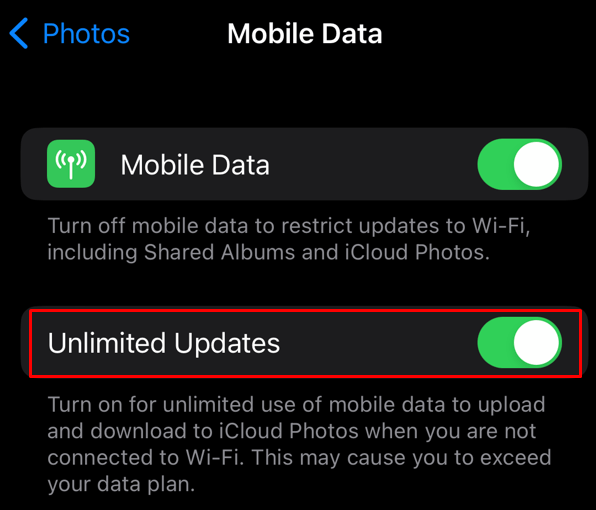
Allowing the Photos to use cellular data is necessary if you store your photos on iCloud. But you should also never set a limit on the data this app can use. If it reaches the data limit while syncing pics and videos, it will result in an “unable to load photo” or a similar error.
That’s why you should remove the data limit and allow iCloud Photos to use all the possible mobile network data to sync, upload, or download photos. But be warned, allowing unlimited data to iCloud Photos might drain all the available cellular data you have left.
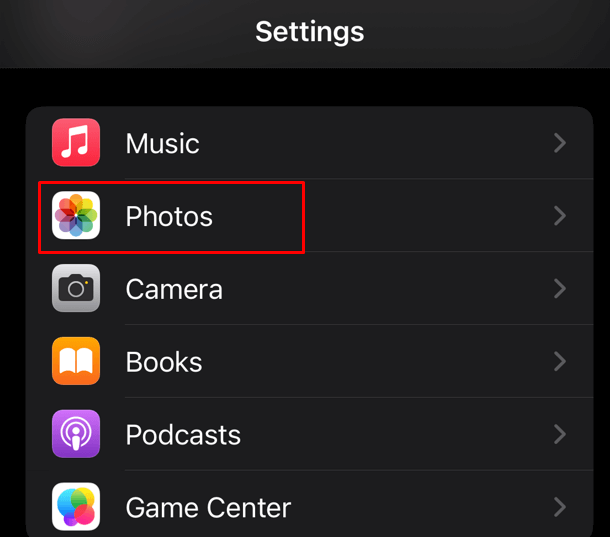
- Open Settings and select Photos .
- Tap Mobile Data .
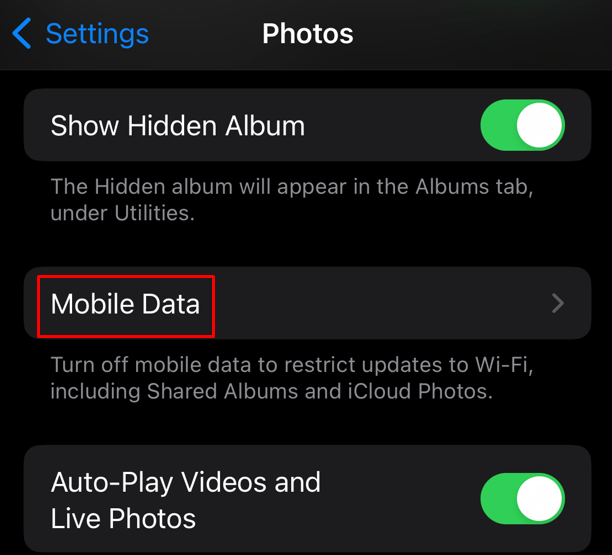
- Toggle the Unlimited Updates to on.
Try opening your images now and see if this fixed the problem.
8. Disable Power Saver
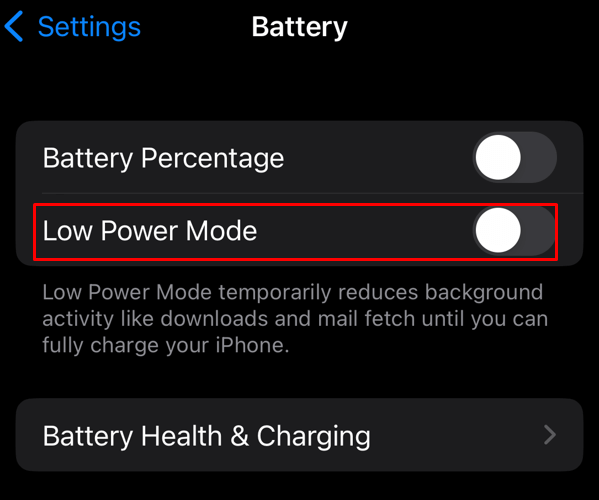
If you turn on battery saver mode on your iPhone, you should know this might restrict certain apps from working to their full potential. This may cause Photos not to display the images you are trying to access. Try disabling low power mode on your iPhone and see if this fixes the issue.
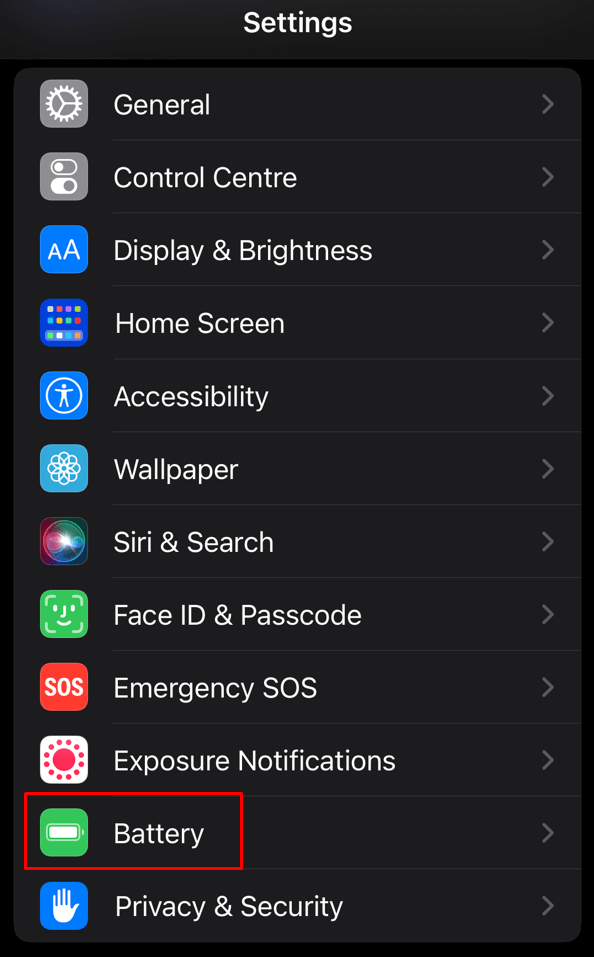
- Go to Settings and select Battery .
- Toggle the Low Power Mode off.
9. Sign Out of Your Apple ID and Sign Back In
If you’re still experiencing the issue of not being able to load photos, you can try signing out and back into your Apple ID. Maybe the problem is with your iCloud account, which can’t access the photos stored in the cloud. Logging out and back in might fix this issue. Here’s how:
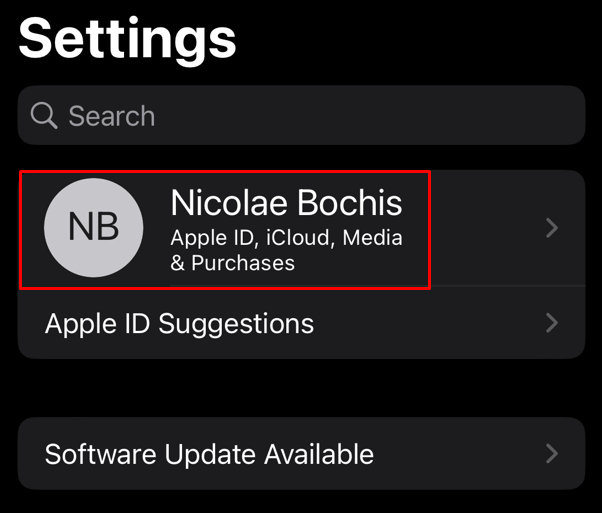
- Go to Settings and tap the Apple ID Banne r at the top. It should contain your name.
- Scroll to the bottom and tap Sign Out .
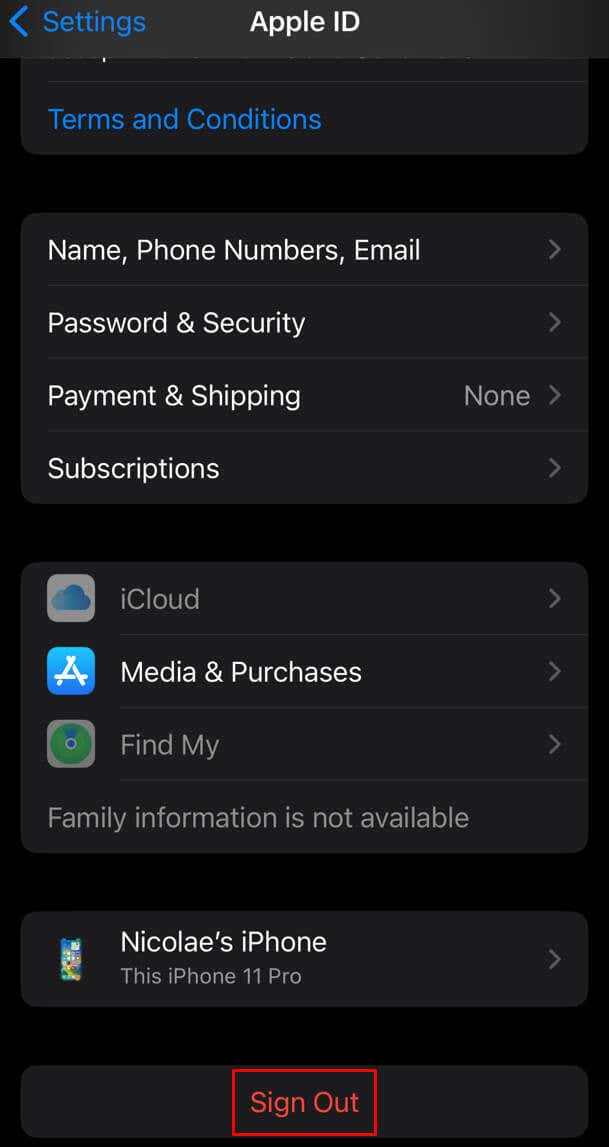
- The prompts will give you details on how to log out.
To log back in, tap the Apple ID Banner again and follow the prompts to log in.
10. Delete and Recover a Photo
If you’re getting the “Unable to load photo” error only when you try to open a specific image, try deleting it and recovering it. It could be that the image is broken because of an incomplete download, and the Photos app cannot display it properly.
To delete a photo:
- Find the photo thumbnail in the Photos app, long-press it, and select Delete .

- Select Delete Photo at the bottom of the screen.
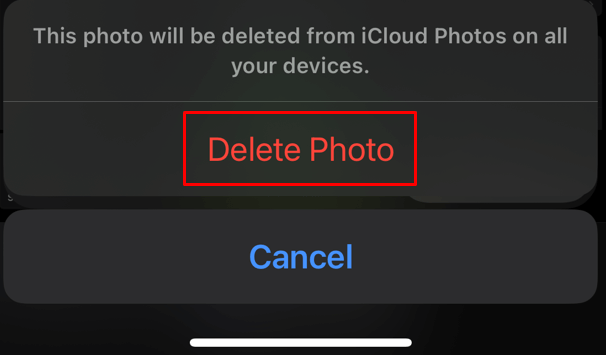
On older iOS versions, you’ll see the Delete from Library option instead of the Delete .
To retrieve the photo from iCloud:
- Open Photos and tap Albums , it should be towards the lower-right side of the screen.

- Scroll down and find Recently Deleted .
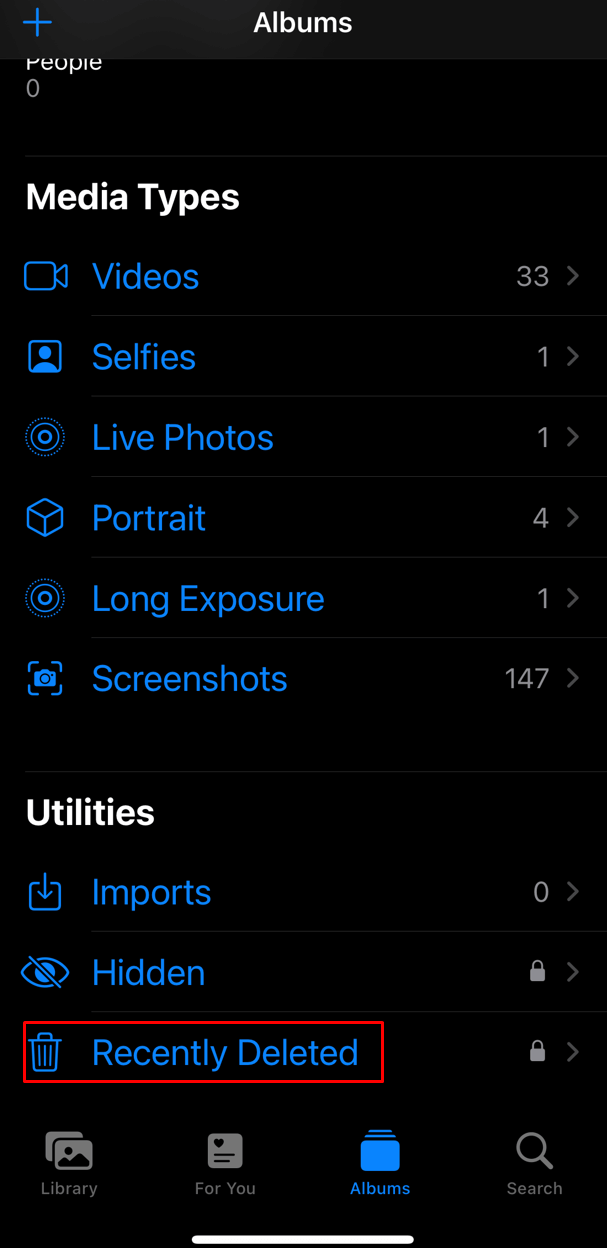
- Find the deleted photo and long-tap it.
- Select Recover .

11. Perform an iOS Update
If your iOS version is too old, it might be unable to sync the iCloud Photos. Try updating your iOS and see if this helps your issue.
- Go to the Settings app and select General .
- Tap Software Update .
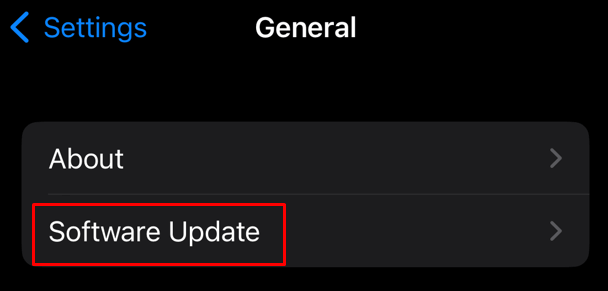
- If there is an update available, tap Download and Install .
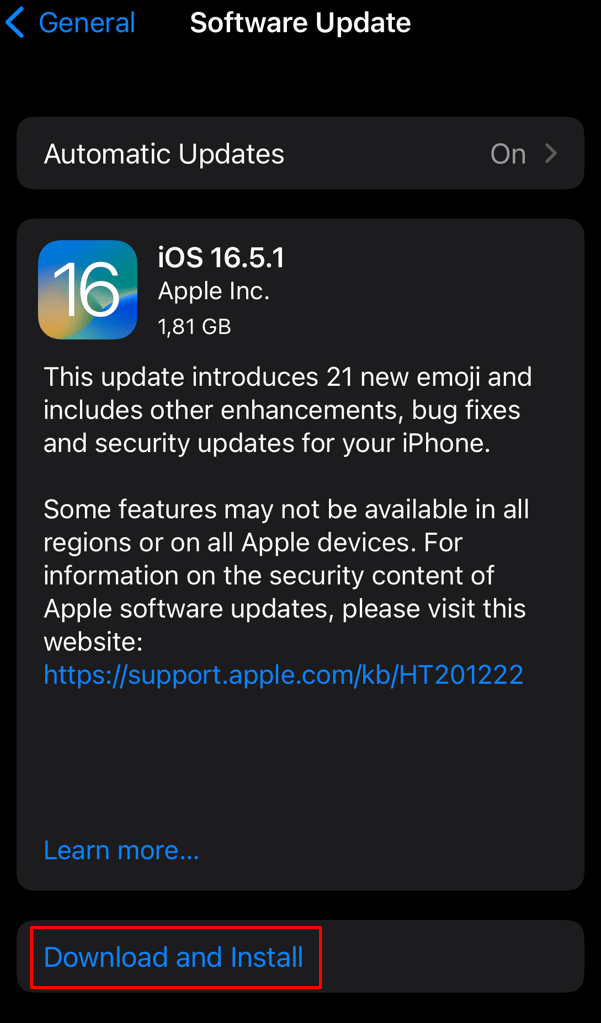
Note: If you see multiple update options, select the latest version.
12. Turn Off Optimize iPhone Storage Feature
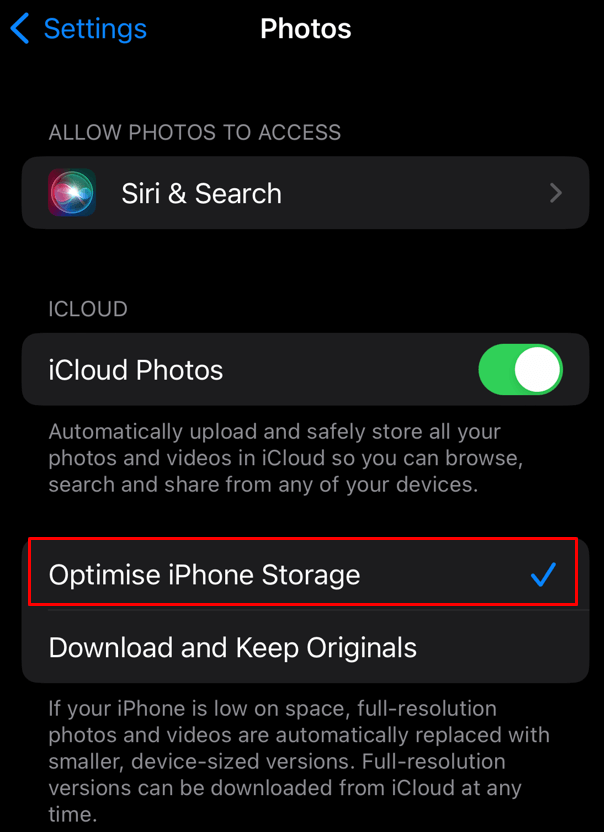
If you have Optimize iPhone Storage enabled, your smartphone will store all high-quality images and videos on iCloud automatically. Only the low-resolution photos and videos will be saved to your phone’s local storage. Downloading the high-resolution photo from iCloud will result in the “Unable to Load Photo” error.
To remove image storage optimization:
- Go to Settings and select Photos .
- If there’s a blue checkmark next to it, tap Optimize iPhone Storage to disable it.
13. Use Apple Support
If the above fixes didn’t help you, contact Apple Support . There can be another reason behind your “Unable to Load Photo” error, and you might need professional help. Tell the Apple Support agent all the steps you tried to fix the issue.
Now go forth and capture all those special moments and stories close to your heart because nothing is worth more than preserving the memories!
- How to Use Your iPhone as a USB Drive on Mac and PC
- How to Turn Off Password Suggestions on iPhone
- How to Accept Invite to Shared Album on iPhone
- How to Send Emails on iPhone
- iPhone Not Sending Emails? 10 Fixes to Try
