Have you switched to Google Chrome from Firefox ? If so, you probably want to transfer all your valuable bookmarks and possibly your well-organized Bookmarks toolbar to Chrome .
The process of transferring bookmarks between browsers is fairly straight-forward. You can pretty much follow the steps below for transferring bookmarks between any two browsers.
First, you have to export your bookmarks from Firefox to an HTML file. To do this, click on the Bookmarks button in the toolbar.
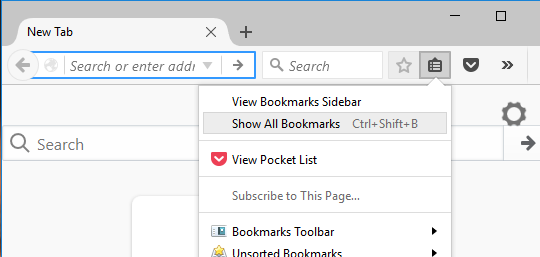
In the latest version of Firefox, you need to click on the new icon that looks like a set of books on a shelf and choose Bookmarks .
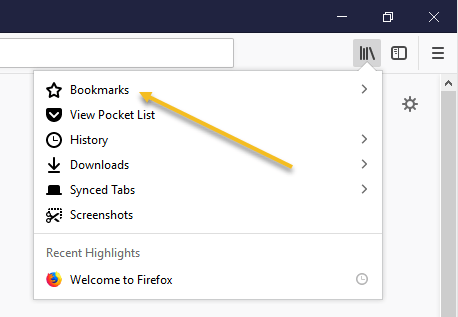
Then click on Show All Bookmarks at the bottom.
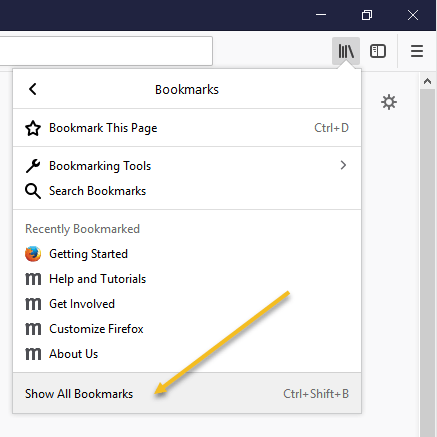
Note that you can also press the CTRL + SHIFT + B keyboard shortcut.
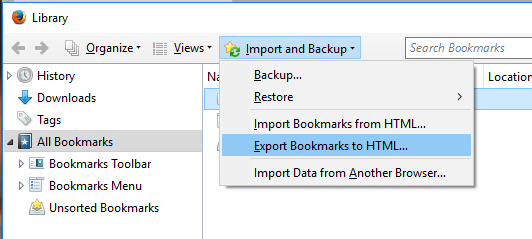
This will bring up the Library window with All Bookmarks selected. Click on Import and Backup and then select Export Bookmarks to HTML from the list.
The Export Bookmarks File dialog box displays. Specify a name for the HTML file in the File name edit box and select a location in which to save your file. Click Save .
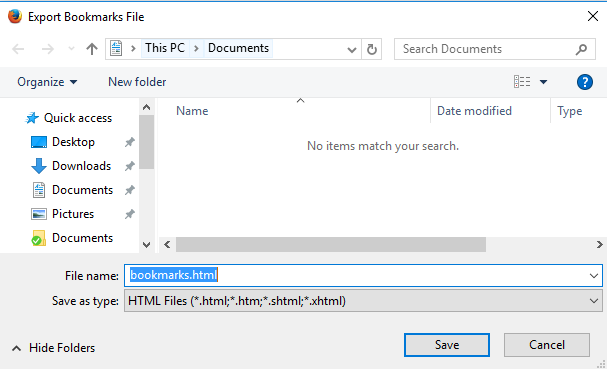
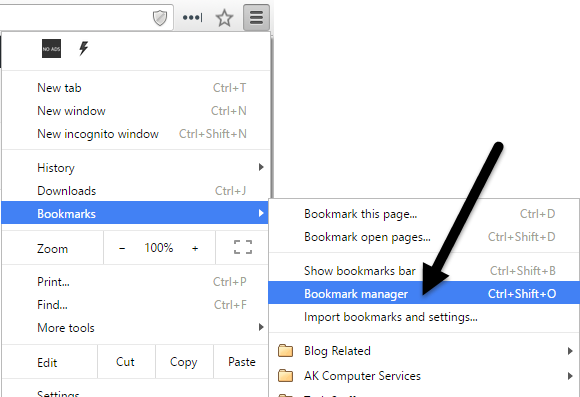
Close Firefox and open Google Chrome . Click the hamburger icon in the upper right corner of the Chrome window, click on Bookmarks and select Bookmark manager from the menu.
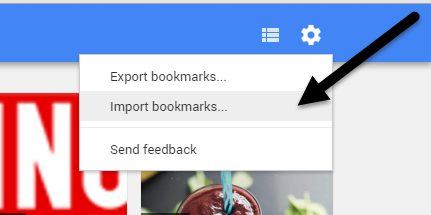
In the Bookmark Manager dialog box, click on the gear icon at the top right and then select Import bookmarks .
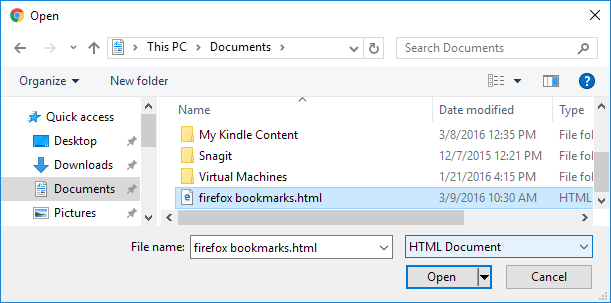
The Open dialog box displays. Navigate to the location in which you saved your Firefox bookmarks file. Select the HTML file and click Open .
The bookmarks from Firefox are imported into an Imported folder under Bookmarks Bar .
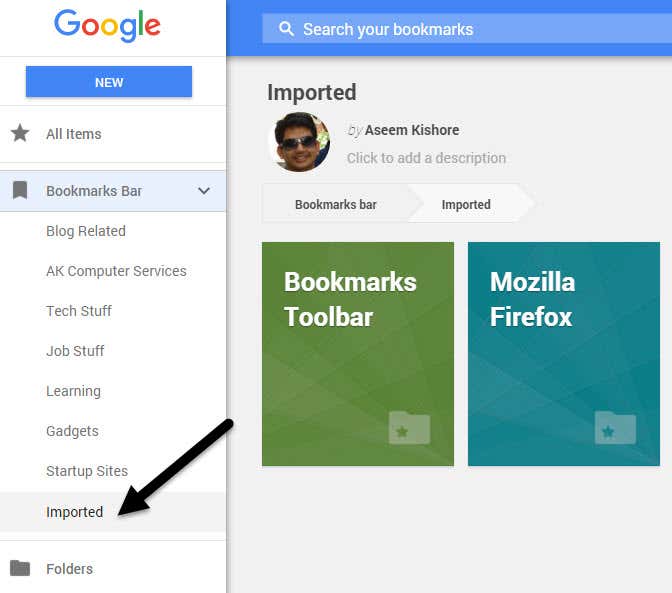
You can see the bookmarks on the right hand side when you click on Imported . The Bookmarks toolbar from Firefox is also imported under the Imported folder.
If you want these bookmarks on the Chrome Bookmarks toolbar directly, just drag and drop the folder to the Bookmarks Bar item in the list on the left.
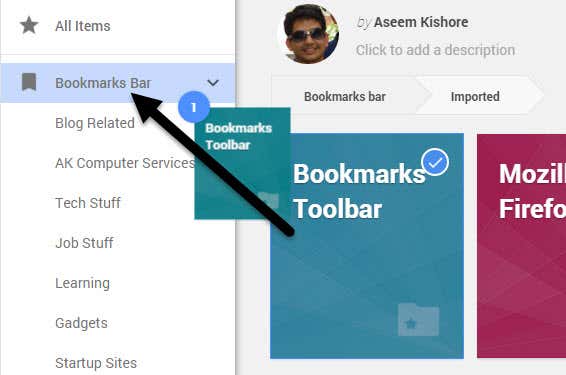
Your bookmarks from the Firefox Bookmarks toolbar are now available on the Chrome Bookmarks bar.
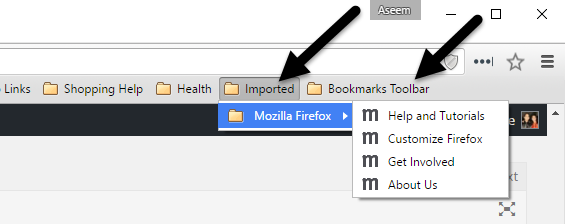
If you don’t have the bookmarks toolbar enabled in Chrome, you can click on the hamburger icon and then click on Bookmarks to see all of your bookmarks.
Now you have access to your Firefox bookmarks in Google Chrome . If you have any questions, feel free to comment. Enjoy!
- How to Turn off Hardware Acceleration in Chrome
- How to Remove a Google Account From Chrome
- How to Reduce Chrome High CPU Usage
- How to Fix a “Your clock is ahead” Error in Google Chrome
- Google Chrome Theme Keeps Changing? 3 Fixes to Try
