If you’re a new, or even experienced Linux user, chances are pretty good that no matter how hard you try, there is always that one Windows program you need. Maybe it’s for work. Often a business will mandate a certain format for documents, and no matter how good it is, or how comfortable you might be in a native Linux program, you still need the Windows application. So instead of installing Windows alongside Linux, you installed Wine (Wine Is Not an Emulator), which allows you to run Windows programs from within Linux.
It’s a pretty great thing. Unfortunately, it can also be more than a little ugly. Your Windows programs definitely don’t use your Linux themes, and to make it worse, they appear as if they came straight from Windows 95. Blocky, flat, and just all around ugly.
Fortunately, Wine can actually accept MSStyle themes, which means it’s not that difficult to get your Windows applications looking fairly nice, even if they don’t quite match the rest of your desktop.
The first step – after installing Wine and then your Windows application, which we’ll assume you know how to do, if you’re reading this article – is to find a theme you like. A good place to browse a lot of them is on this page at Deviantart.
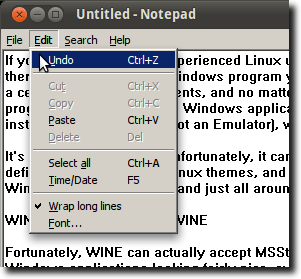
Let’s say, for instance, that you’re using Ambiance, the default Ubuntu theme. This is what a typical window looks like.
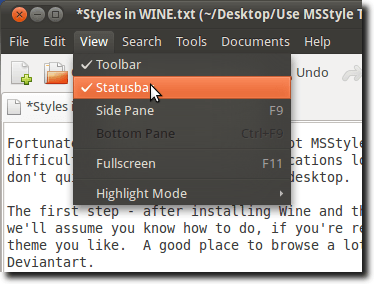
Again, here’s Notepad, the basic text editor for Windows, running in Wine.
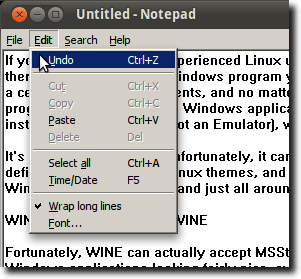
As you can see, it uses the Ubuntu window decorations, but the menus are blocky, the highlight color is wrong… it doesn’t blend well at all. But, if you took the Ubuntu Light for Windows XP theme, maybe it will.
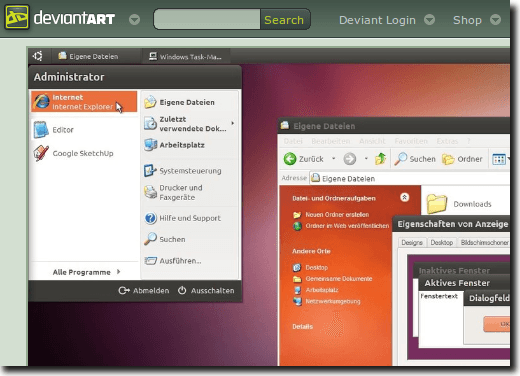
It’s a theme designed for Windows users who want to mimic the look and feel of Ubuntu on their Windows PC, but it will work just as well for us running Windows applications in Wine.
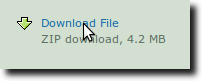
Go ahead and click the Download File link, and save it to your computer.
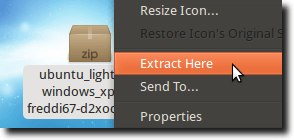
Once it’s finished downloading, extract the archive.
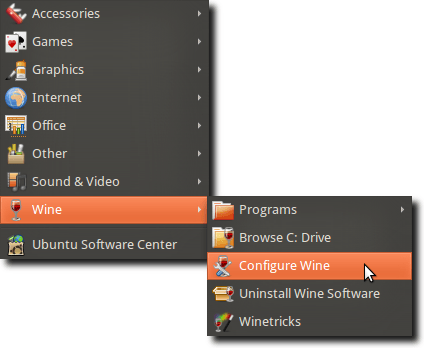
Inside the folder is another folder, called UbuntuLight. This is where the theme file is. To install it, we need to use the Wine Configuration program, which can be found in the Applications menu, under Wine .
Now navigate to the Desktop Integration tab.
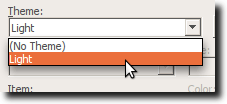
Now click the Install Theme button and navigate to, and select, the theme you downloaded. Once you’ve done this, simply choose it from the Theme menu.
Now, try out a new Windows program. Let’s use Notetab again.
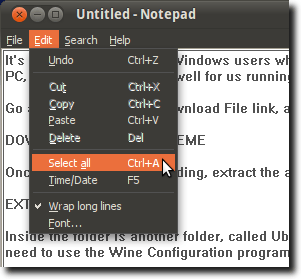
Now, suddenly, we have a closer match to our regular Ubuntu style. It’s not going to fool anyone (the menus are different, and some of the widgets are still firmly in the Windows world), but it’s close. Set the fonts to something a little closer (again in the Wine Configuration’s Desktop Integration tab), and you should feel a little more at home.
- How to Remove Linux from Your Chromebook
- How to Run a Virtual Machine in Linux
- 6 Best Linux Emulators for Windows
- How to Install KDE Plasma Desktop on Linux Mint
- How to Access and Use OneDrive on Linux
Founder of Help Desk Geek and managing editor. He began blogging in 2007 and quit his job in 2010 to blog full-time. He has over 15 years of industry experience in IT and holds several technical certifications. Read Aseem’s Full Bio
