Snapchat became popular as a way to socialize with people without leaving a permanent trail of information and without the public aspect of social media. However, if you choose, you can now make a public profile that makes it possible for other people to find you using a search. We’ll explain what a public profile is and how to create it in the Snapchat app.
What Is a Public Profile on Snapchat?
The traditional way to use Snapchat is by inviting a few close friends and then sharing text and multimedia content with only those friends.
However, social media platforms such as Instagram give content creators a chance to connect with their fans, show off their creativity, and share content using tools such as Snapchat’s Lens Studio .
A Snapchat public profile is a new feature that enables snapchatters to find you more easily. You can also share your public profile on other platforms, creating a place where people can see your content on Snapchat and get in touch.
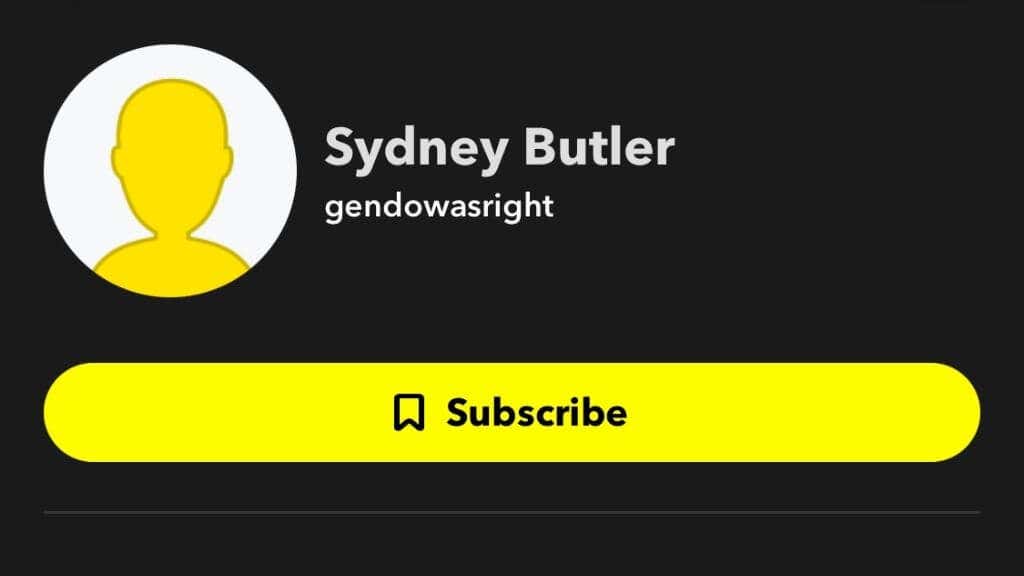
The headline feature of a public profile is showcasing content such as Lenses and Stories. You can put your unique content front and center so that other Snapchat users can discover you through your work.
Eligibility Requirements for a Public Snapchat Profile
When Snapchat first announced public profiles, only verified creators could create public profiles. As testing with this initial group came to an end, the company has opened public profiles up to all Snapchat users, as long as they comply with a few requirements:
- Users must be at least 18 years old.
- Your account must be older than 24 hours.
- You need at least one friend who has accepted your friend request.
- You must adhere to the community guidelines.
Sticking to Community Guidelines
Public profiles are for people who want to promote their content, such as the art of music.
The fastest way to lose your public profile is to violate your community’s guidelines. Snapchat’s community guidelines aren’t a long read, so we encourage everyone considering a public profile to read them carefully and become familiar with acceptable conduct on the platform. In general, Snapchat prohibits:

- Explicit content.
- Harassment and bullying.
- Threats, violence, and harm.
- Fraud, deception, impersonation, and spreading false information.
- Any illegal content.
- Hate speech.
In other words, be nice and keep it clean.
Going Public vs. a Public Profile
In your Snapchat settings, under “Who can,” you can set sections such as “Contact Me” and “View My Story” as “Everyone,” which means that anyone who knows your user name can search for it and see your content.
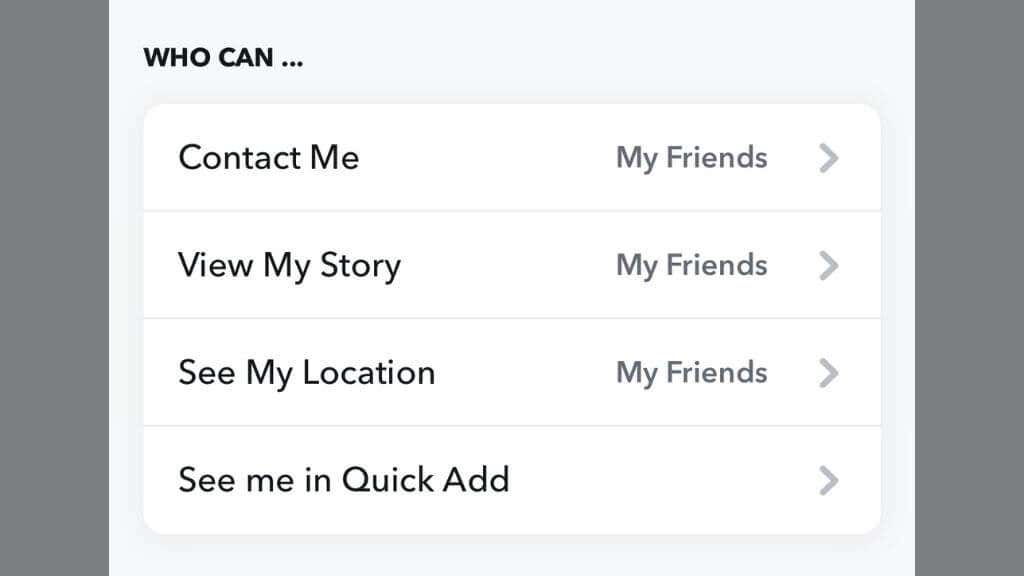
While this might sound like having a public profile, it’s pretty different. Suppose you set your contact settings to “Everyone,” users still need to know your username, even if they don’t have to be your friend on Snapchat. You also won’t access a public profile’s special tools and functions.
The “See me in Quick Add” option differs from a public profile. It means that people who you may already know can see you in the Quick Add section.
Creating a Public Profile on Snapchat
Creating a public profile in Snapchat is quick and easy:
- Open Snapchat .
- Select your Bitmoji (profile icon) from the camera screen on the top left of the screen or tap on your Story Icon .
- Scroll down and look for the Public Profile section under the Spotlight & Snap Map section.
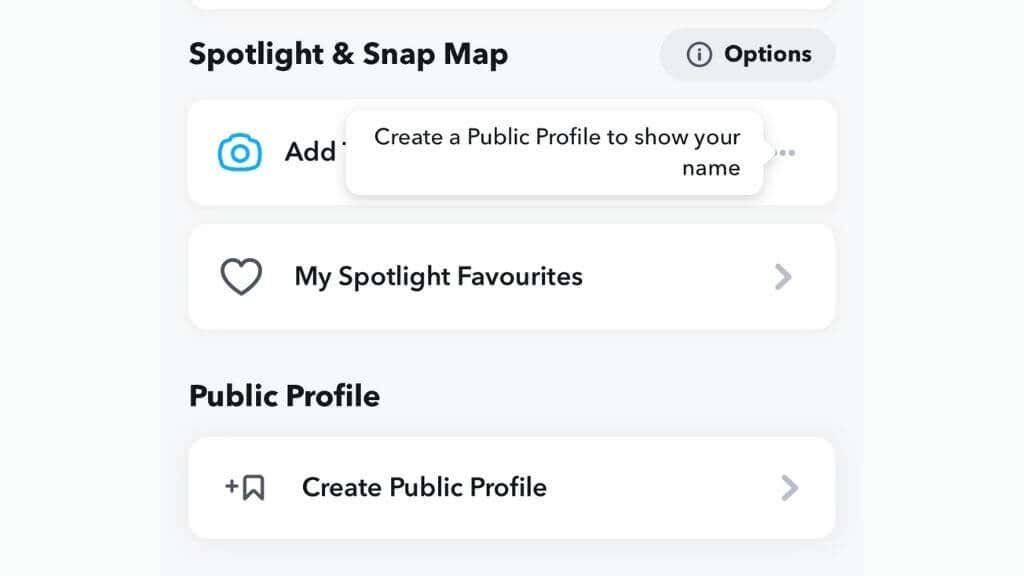
- Select Create Public Profile .
Follow the instructions and create the public profile to your liking.
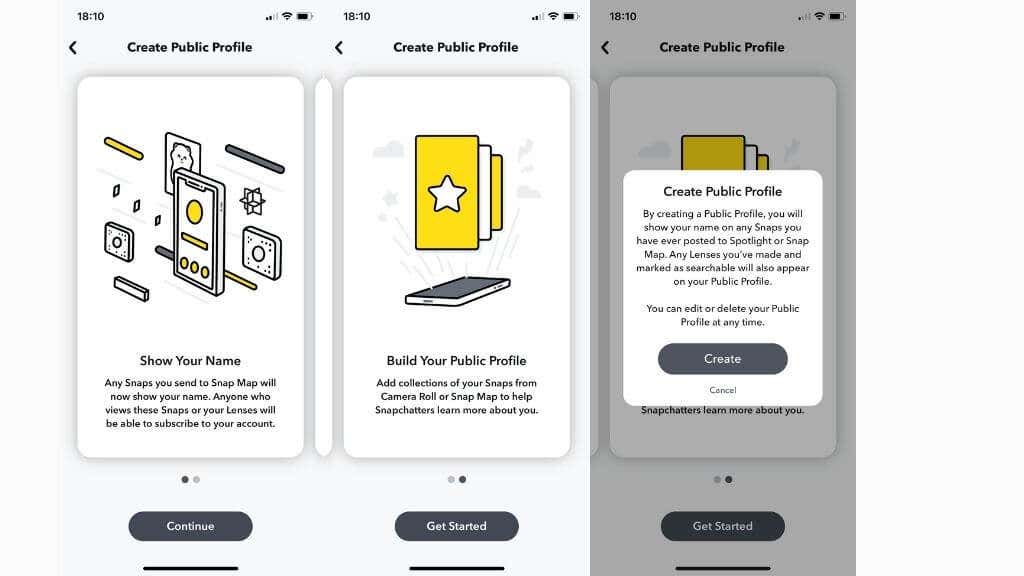
If you want to edit your profile later:
- Select your Bitmoji or Story icon .
- Select your Public Profile Card .
- Select Edit Profile .
Make changes to your profile, which will immediately reflect upon completion.
Note: We had a problem finding the public profile creation section on our Android device. Despite our account meeting the eligibility requirements, the setting was unavailable. Logging in to the Snapchat app on iOS solved the issue.
We could not find any information to explain this problem, but if you can’t find your public profile creation button despite knowing that you should be eligible, get in touch with Snapchat’s support.
Getting to Know Your Public Profile
Since the purpose of a public profile is to be seen and showcase your content and brand, it’s a good idea to have all bases covered by filling out your profile.
After tapping on your Bitmoji and selecting “My Public Profile,” you can choose to edit the profile and fill in the details that visitors will see when they find you.
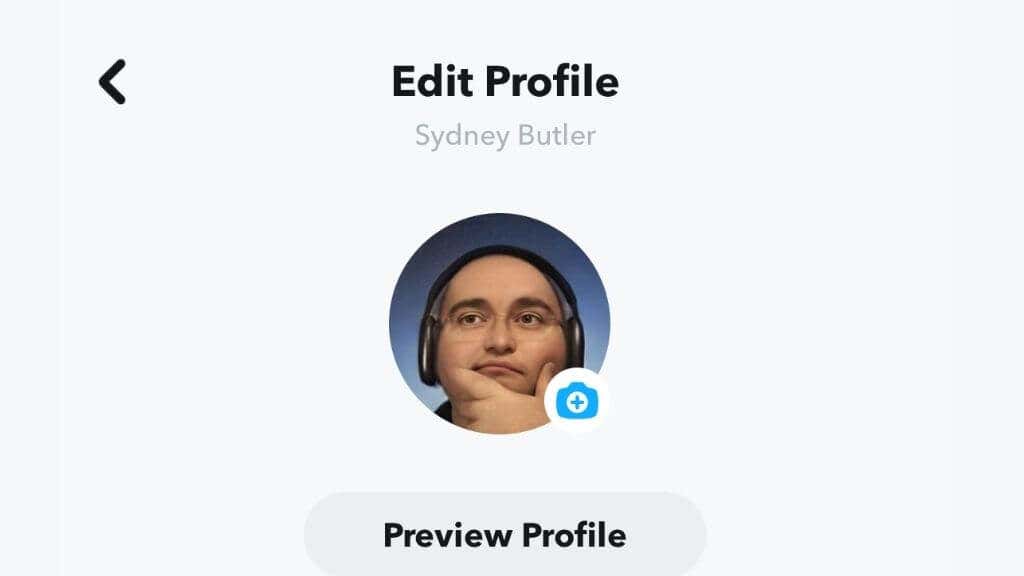
At the top of the screen, you can upload a profile photo, which is separate from your Bitmoji and is akin to a profile picture on Facebook or Twitter.
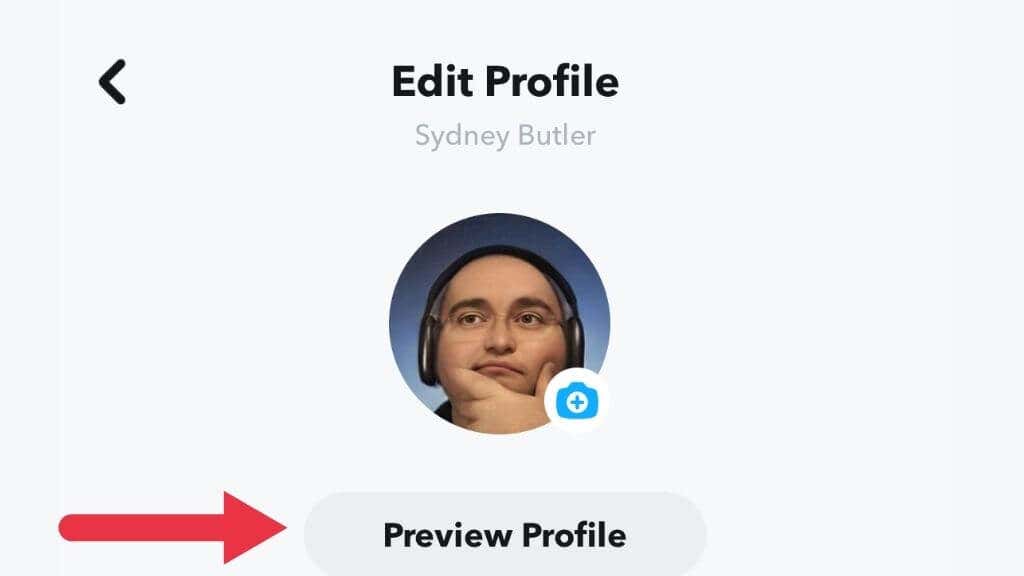
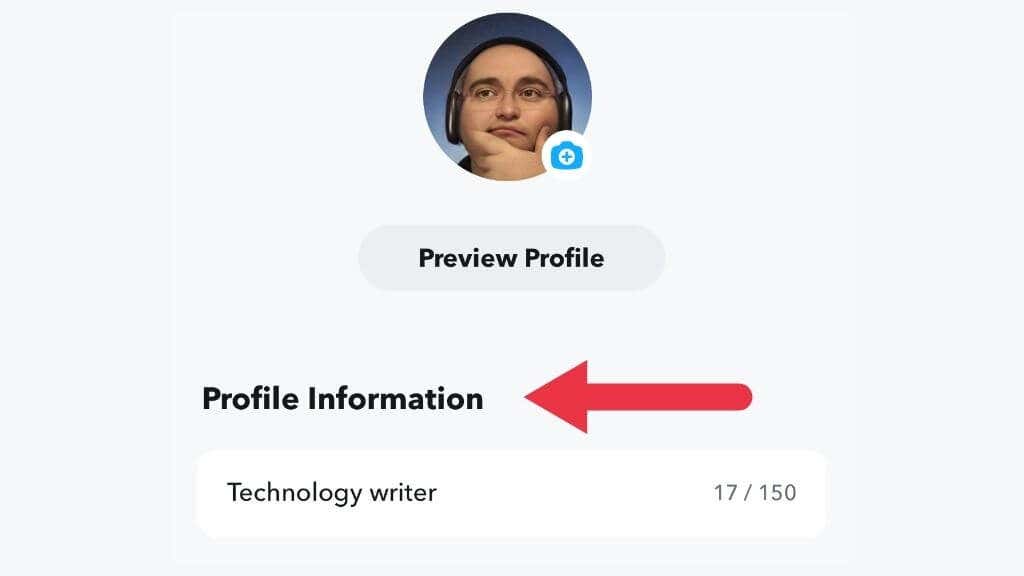
Your profile information section gives you 150 characters for a brief “what you’re all about” description.
There’s a section to fill in your location information, but be mindful of your privacy.
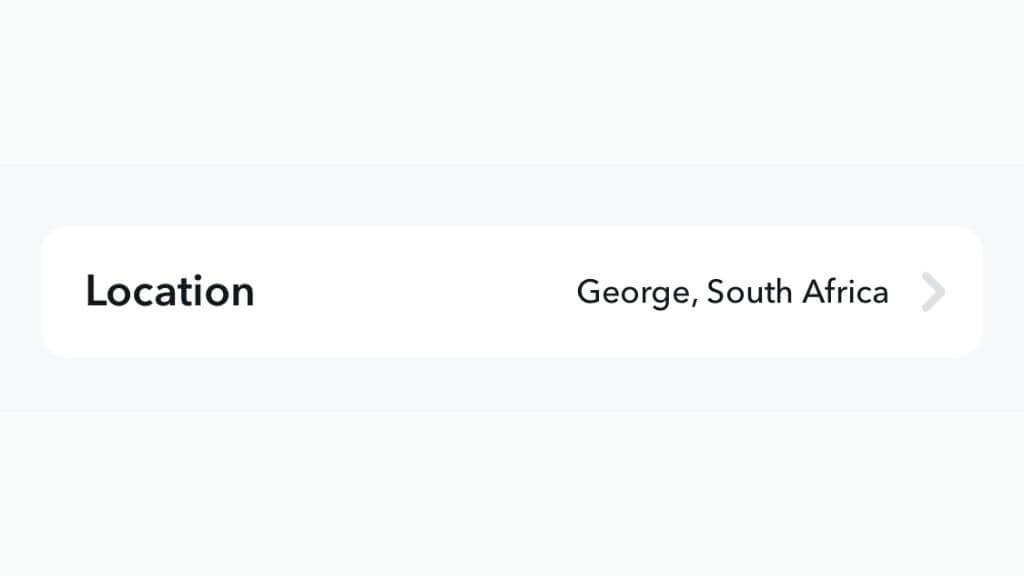
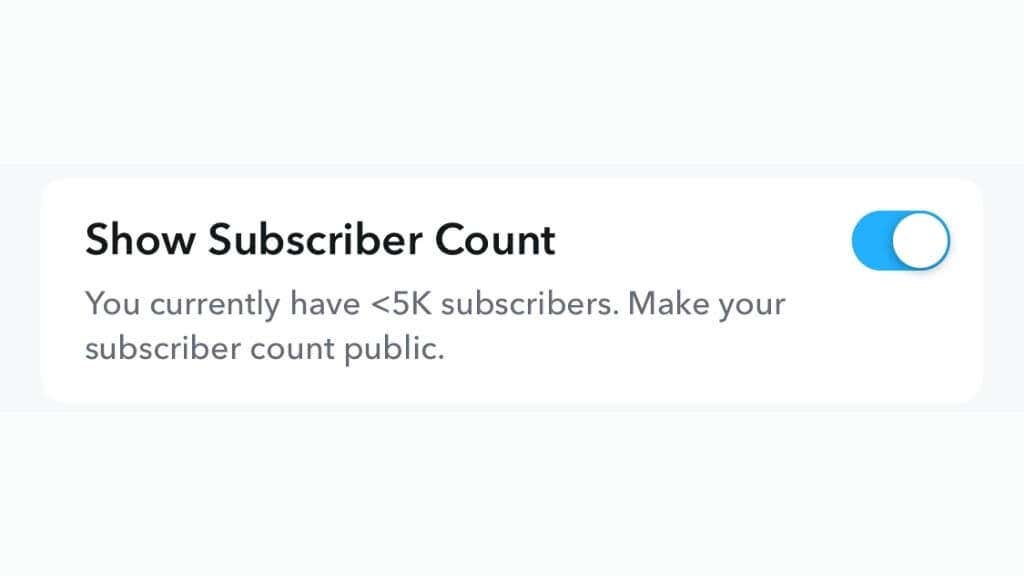
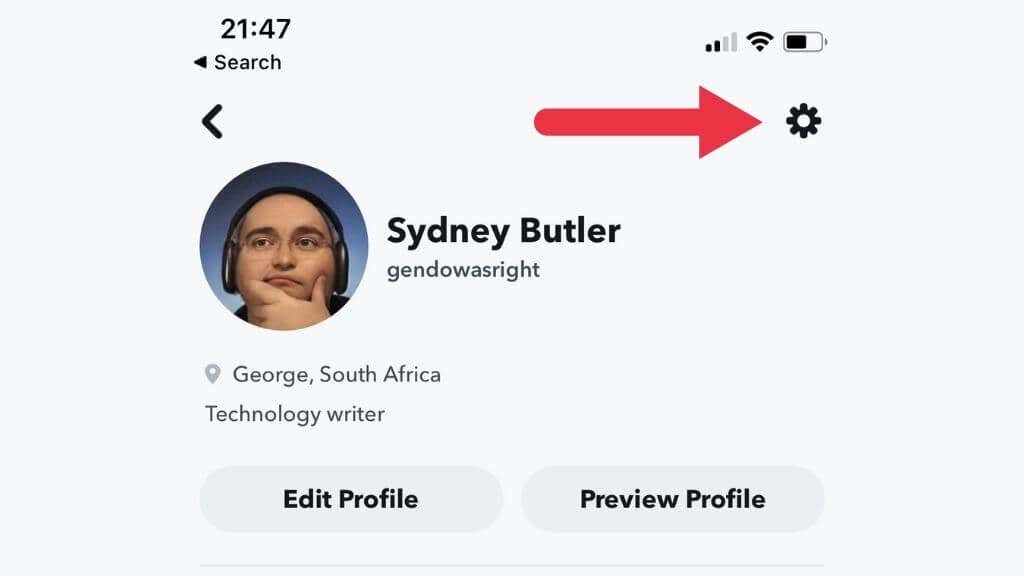
There are even more public profile options on your page. Simply select the gear icon in the top-right corner of the screen, and you’ll see a settings page with two main sections.
Under Public Profile Management, you can access the same Edit Profile page we just reviewed. Under Save a Story to Your Profile , you can easily access your Snaps or camera roll and create public stories.
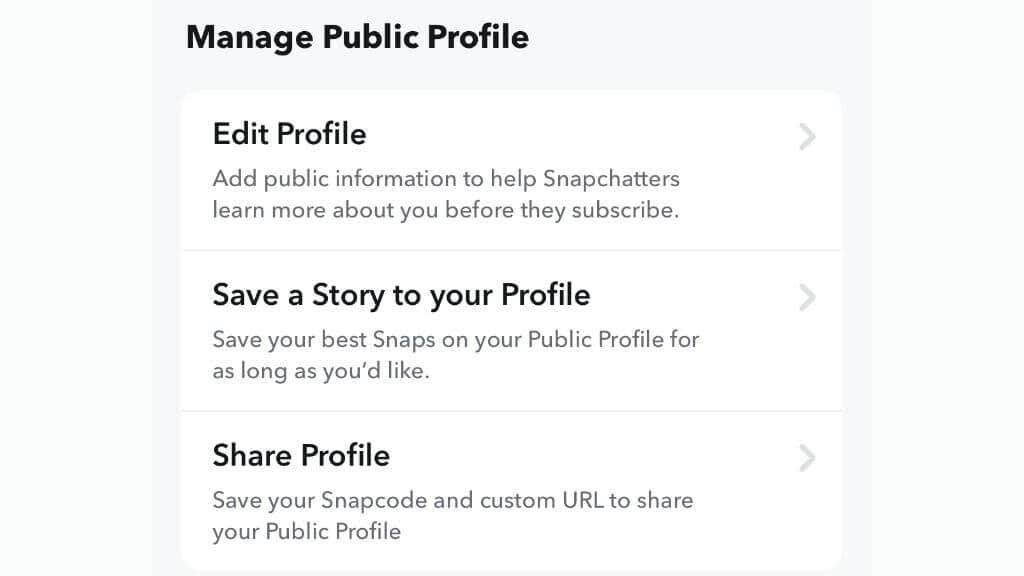
The Share Profile section is of particular interest since this is the fastest and easiest way to share your Profile URL on other platforms or in private messages.
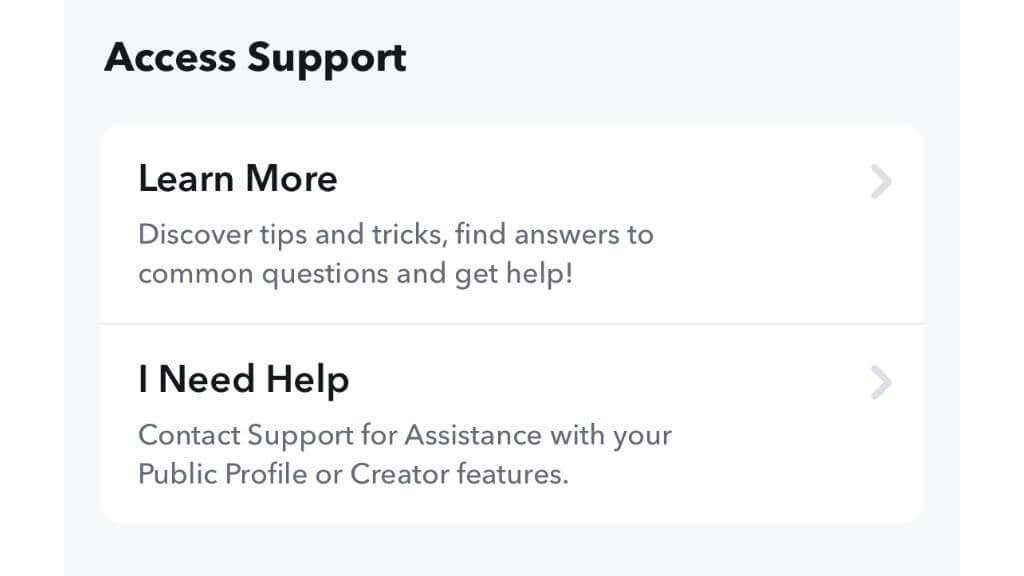
Getting Help and Information
Deleting Your Public Profile
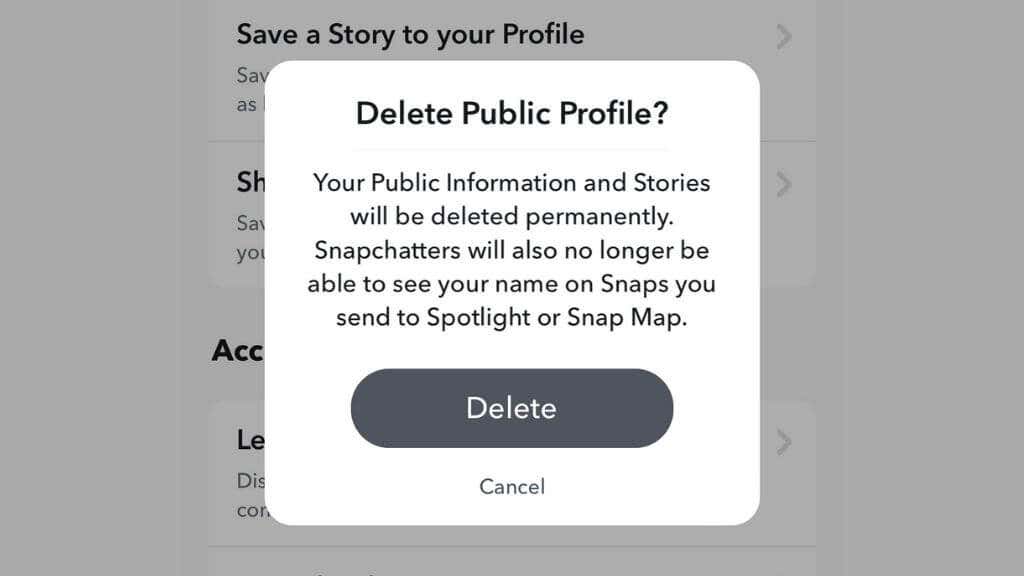
If you decide that a public profile on Snapchat isn’t for you, it’s not hard to delete the profile. Note that this deletion is permanent and irreversible.
To delete your public profile:
- From the camera screen, open Snapchat .
- Select your Bitmoji .
- Scroll down to Public Profiles .
- Select your public profile .
- Select the gear icon at the top right of the screen.
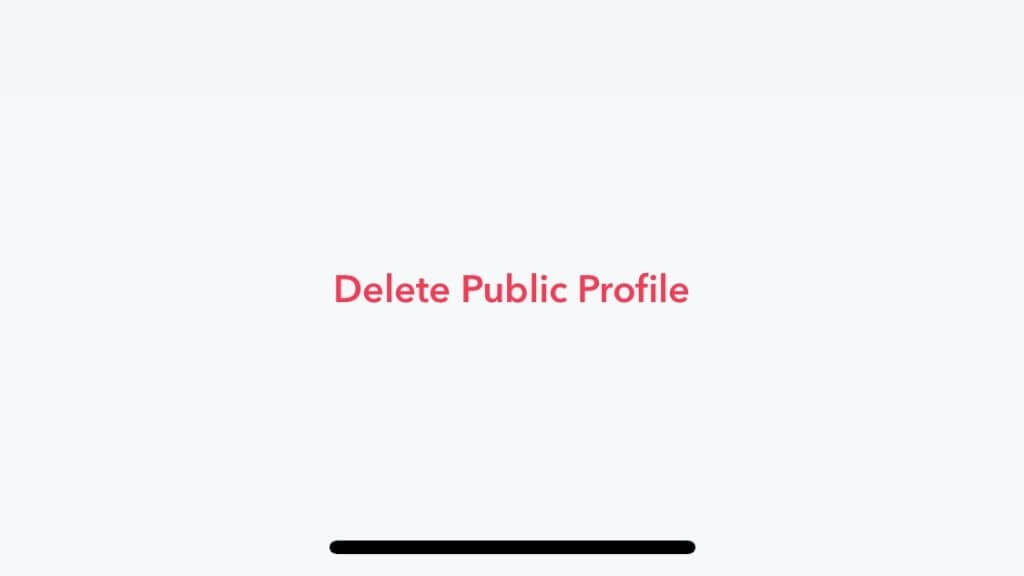
- Select Delete Public Profile and then confirm after reading the warning.
- How to See Mutual Friends On Snapchat
- How to Access and Use My AI in Snapchat
- How to Delete a Story on Snapchat
- How to See People’s Birthdays on Snapchat
- How to Turn Off Snapchat Notifications (Or Back On)
