Virtually all system processes, apps, and services on the Windows operating system have their executable (.exe) files. For instance, SMSS.exe powers the Microsoft Management Console, MMC.exe powers the Microsoft Management Console, and so on.
Usually, Windows requires some system services to execute essential tasks on your PC. Others, Windows can do without. The spooler subsystem app is a vital system process. In this explainer, we’ll walk you through the functions of the spooler subsystem app. Also, we’ll show you what to do if the app ever malfunctions.
What is the Spooler SubSystem App?
All Windows-powered computers ship with the spooler subsystem app. The program is an important system component that’s responsible for “spooling” printing tasks. The app acts as an intermediary that transports data from your applications (browser, word processors, etc.) to your printer.
When you send multiple print jobs to your printer, either from the same or different applications, the spooler subsystem app stores the print data in a queue on your PC’s memory.
The Spooler Subsystem then feeds the print jobs to your printer one at a time, in the exact order you sent them. That way, you don’t have to wait for your printer to execute a print job before sending another.
Basically, the spooler subsystem app facilitates the handshaking between your printer and Windows computer.
Is the Spooler SubSystem App Safe?
As mentioned earlier, system apps and processes are powered by their individual executable files. For the spooler subsystem app, that file is spoolsv.exe . Developed and signed by Microsoft, this app constantly runs in the background and is totally safe to use.
On average, the spooler subsystem app (or spoolsv.exe) barely consumes up to 1MB of memory space on Windows devices. Its CPU usage is also minimal.
However, there are instances when the spooler subsystem app goes rogue and may malfunction or slow down your system. Some users have reported high CPU usage by the Spooler Subsystem App .
There are several reasons why this happens: virus infection, corrupt or outdated driver, incorrect printer configuration, or an overloaded print queue.
Is the Spooler SubSystem App a Virus?
The spooler subsystem app may be a virus if a malicious program mirrors or camouflages the genuine spoolsv.exe executable file. Luckily, there are numerous techniques to confirm the legitimacy of the spooler subsystem app. All you need to do is verify the file location and the digital signature.
Check the spooler subsystem app’s Location
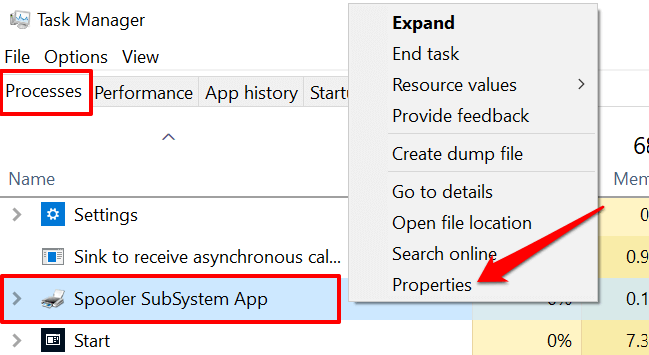
- Open the Task Manager ( Ctrl + Shift + Esc ), right-click Spooler SubSystem App in the Processes tab, and select Properties .
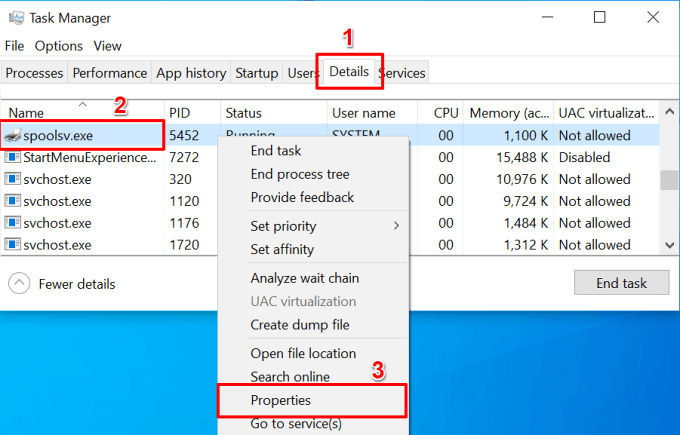
Alternatively, go to the Details tab, right-click spoolsv.exe , and select Properties .
- Check the “Location” row and ensure it reads C:\Windows\System32 .
That’s the default location of the spooler subsystem app on any Windows computer. If the location points to a different path or folder, the spoolsv.exe file is likely a malicious copy.
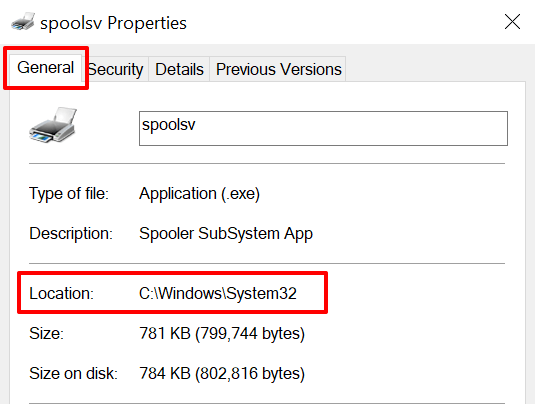
- Head to the “Details” tab and check the file’s copyright. It should read “Microsoft Corporation.” Otherwise, the file is likely a Trojan Horse .
What if the Spoolsv.exe Is a Virus?
If you’re sure that the spooler subsystem app isn’t genuine, remove the file from your computer immediately.
- Right-click the Spooler SubSystem App in the Task Manager and select Open file location .
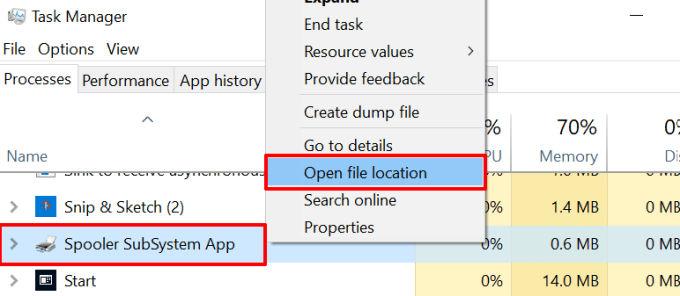
- Right-click the spoolsv file and select Delete .
You could run the file through your antivirus app or check out other ways to remove stubborn malware from your computer . Don’t have an antivirus app? Refer to this compilation of the best virus and malware scanners for Windows.
Online-based virus scanners are also great alternatives, especially if you don’t want to install untrusted apps on your device.
How to Fix Spooler SubSystem App Errors
In addition to the unusual usage of system resources, the spooler subsystem app sometimes crashes during use. Some error messages related to the process include “Spooler SubSystem App stopped working and was closed,” “Spooler SubSystem App has encountered a problem,” and “Spooler SubSystem has stopped working.”
If you ever encounter any of these errors, try the troubleshooting recommendations below.
1. Restart the Print Spooler Service
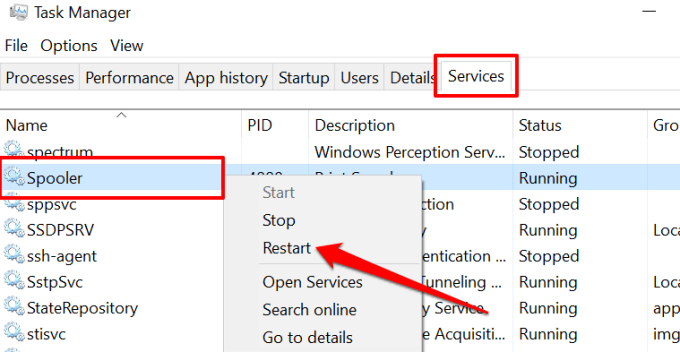
Doing this will terminate the print spooler and restart it. Although restarting the print spooler may clear data in your PC’s print queue, it’s a good troubleshooting step to fix error messages.
Launch the Task Manager, go to the Services tab, right-click Spooler , and select Restart .
2. Run the Windows Printer Troubleshooter
Windows has a dedicated troubleshooting tool for diagnosing and fixing printer-related problems. To access the tool, go to Settings > Updates & Security > Troubleshoot > Additional troubleshooters > Printer and select Run the troubleshooter .
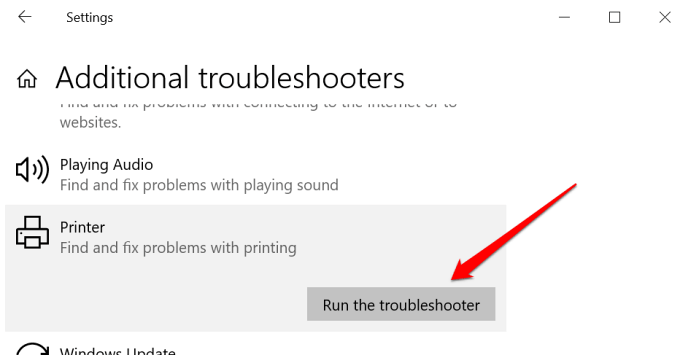
The troubleshooter will scan the spooler service for errors, check the printer’s driver, and run other diagnostic checks. Select Apply this fix on the results page if the troubleshooting tool detects any error, particularly with the spooler service. Otherwise, close the troubleshooter and try other solutions below.
3. Clear the Printer’s Queue
Spoolsv.exe may malfunction if your printer’s queue is overloaded or if there’s a print job stuck in the queue. Cancel all pending print jobs in the queue and check if that stabilizes the spooler subsystem app’s CPU and memory consumption.
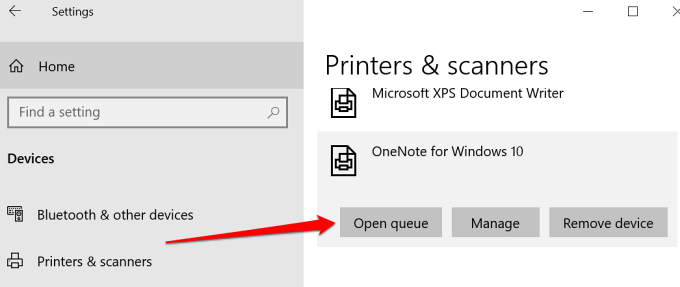
- Go to Settings > Devices > Printers & scanners and select the active printer in the “Printers & Scanners” section.

- Select Open queue .
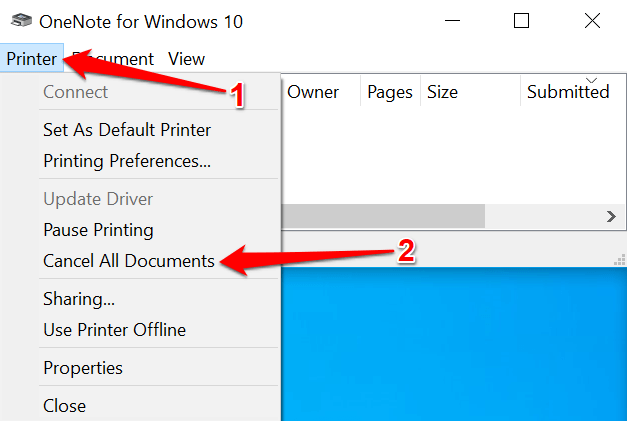
- On the printer’s toolbar, select Printer , and choose Cancel All Documents .
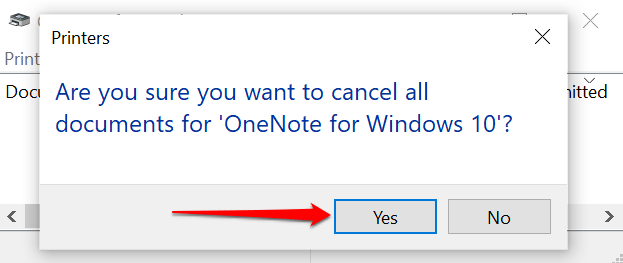
- Select Yes on the confirmation prompt to proceed.
4. Update the Printer’s Driver
Finally, you’ll want to ensure your printer’s driver is up-to-date. Corrupt or outdated drivers can cause several types of printing failures . You can remove or uninstall your printer’s driver and download the latest version from the printer manufacturer’s website. Alternatively, try updating the driver from the Windows Device Manager.
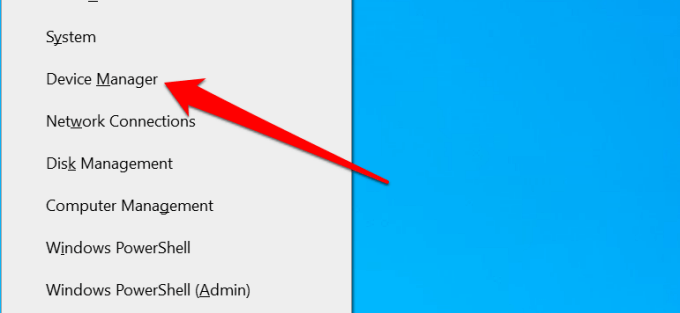
- Right-click the Start Menu icon and select Device Manager .
- Expand the “Print queue” category, right-click the printer, and select Update driver .
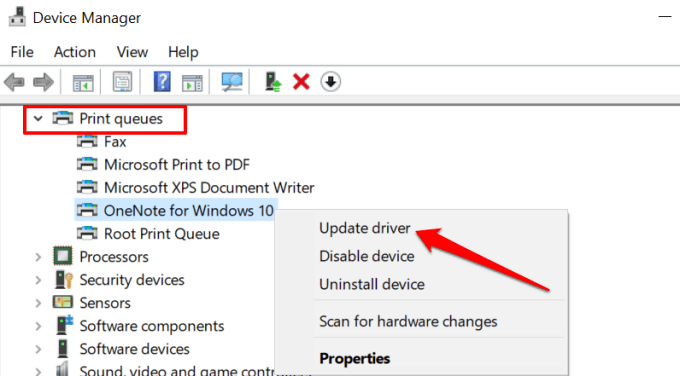
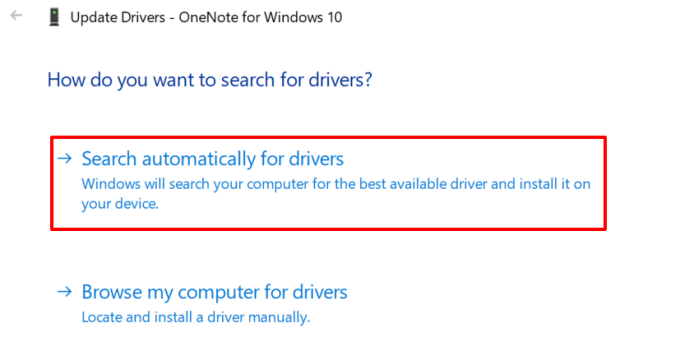
- Select Search automatically for drivers .
- If the update agent doesn’t find a new driver version, select Search for updated drivers on Windows Update .
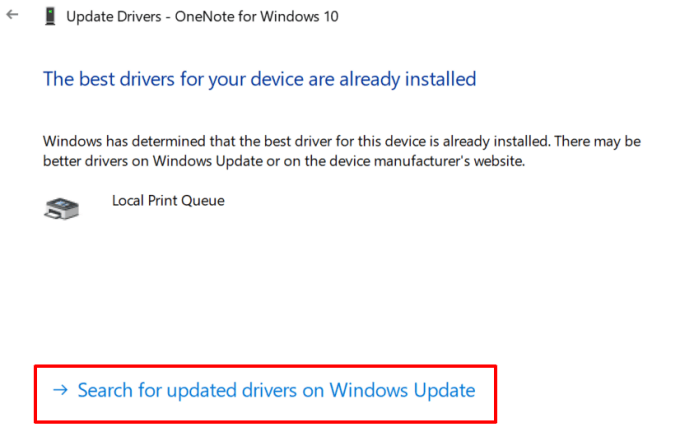
That’ll prompt the Device Manager to check your PC’s Windows Update history for an updated version of your printer’s driver.
Spooler SubSystem Demystified
That’s everything you need to know about the spooler subsystem app. It’s a safe and vital system process that cyberattackers can exploit to gain access to your computer. We should mention that updating Windows and restarting your computer can also fix the spoolsv.exe high CPU usage issue.
Drop a comment below if there’s anything you still don’t understand about the printer spooler process.
- Preparing for Windows 10 End of Support: Upgrading to Windows 11
- How to Fix a “This file does not have an app associated with it” Error on Windows
- How to Fix an Update Error 0x800705b4 on Windows
- How to Resolve “A JavaScript error occured in the main process” Error on Windows
- How to Fix the Network Discovery Is Turned Off Error on Windows
Sodiq has written thousands of tutorials, guides, and explainers over the past 4 years to help people solve problems with Android, iOS, Mac, and Windows devices. He also enjoys reviewing consumer tech products (smartphones, smart home devices, accessories, etc.) and binge-watching comedy series in his spare time. Read Sodiq’s Full Bio
‰PNG IHDR ¨ ºAÄ> šPLTEÿÿÿæææòòòÏÏÏÂÂÂðððñññÍÍÍæççÀÀÀÿ ÐÐÐ ………øøøííí¾¾¾åå庺ºÓÓÓªªªèèèôôôïïïéééêêêÑÑÑâââëëëÔÔÔìììÇÇÇööö···½½½áááõõõ—«<
Nothing can be more frustrating than carefully compiling your work and pressing print, only for your printer to randomly produce blanks. The printer may be new or in good working condition, but the printout is blank or missing ink.
While an empty ink cartridge is a common reason for this problem, it’s not always the case. You may replace your printer’s ink cartridges with new ones and still encounter the same problem.
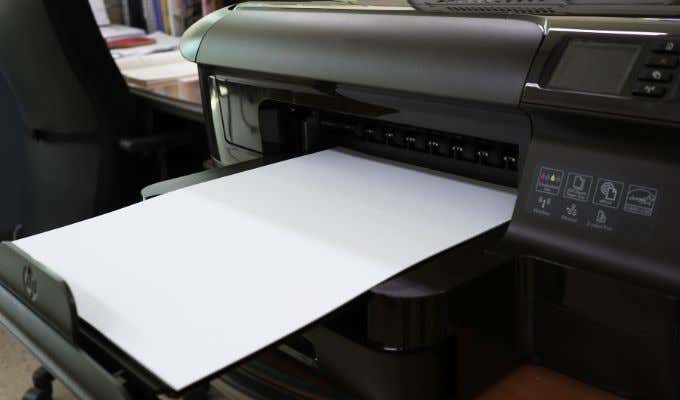
In this guide, we’ll look at some other possible reasons why your printer is printing blank pages and how you can resolve them.
Why Is My Printer Printing Blank Pages?
If you’ve checked your ink cartridges and they still have enough ink to print, chances are that your printer might still randomly produce blanks. Some of the reasons why you still get blank printouts include:
- Congested nozzles
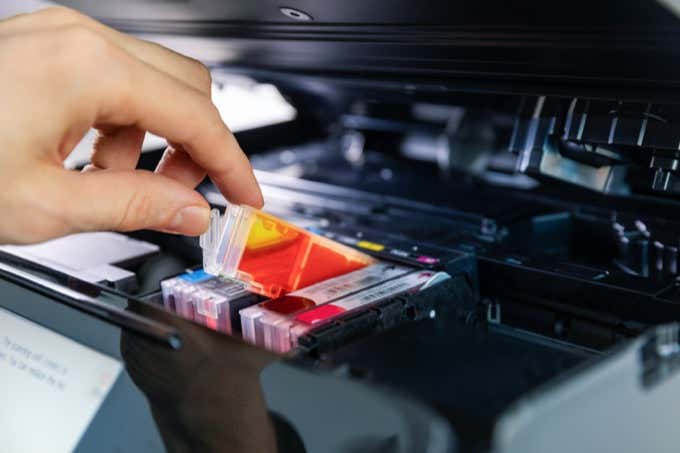
- Improper cartridge installation
- Cartridges dislodged from their proper place
- Driver and software issues
- Wrong paper size
- Blank pages in the document you’re printing
If you’re trying to print an Excel document and you’re getting blank printouts, there are several conditions in which this behavior can occur including:
- An error on a cell on the page you’re trying to print
- Errors selected to print as blank
- Data on a page is only in cells formatted in such a way that they’re blank
- Worksheet contains hidden columns with manual page breaks
- Worksheet contains drawing objects in unexpected areas
- Completely blank pages ahead of any pages containing data, which print as blank
What to Do When Your Printer Is Printing Blank Pages
No matter the cause of the problem, we’ll give you some solutions you can try to stop your printer from printing blank pages.
Preliminary Checks
- Place your printer on a flat, stable surface as any slight tilt can lead to printing issues.
- Replace the old ink cartridge if it’s low on ink. Make sure you’re using genuine ink or toner supplies for your printer.
- Ensure that you have removed the tape from your ink cartridge when installing it in your printer.
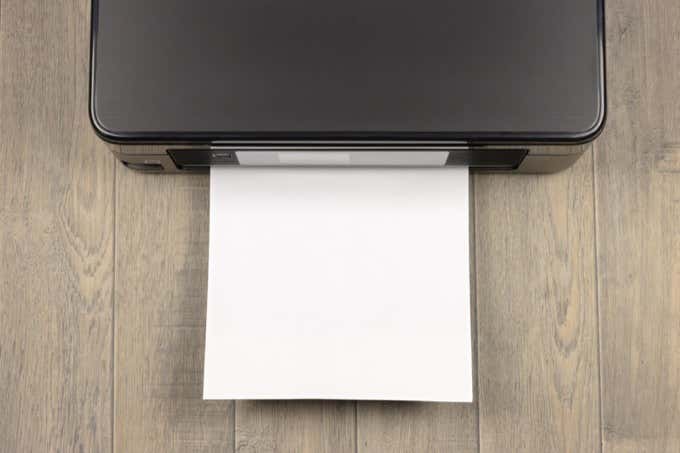
- Print a nozzle check pattern or test page to check whether the nozzles may be clogged. Use the Print Head Nozzle Check if your printer has that option and clean the print head if necessary.
- Check that the printing paper you’re using fulfills the printer’s specifications. For example, vellum or transparent paper isn’t supported by some printers.
- Ensure that your document has the correct paper size, orientation, layout and other printing settings.
Select Skip Blank Page
Make sure there’s no blank page in the document you’re trying to print. You can use the Print Preview function to check for any blank pages and remove them before printing. Alternatively, select Skip Blank Page in your printer software.
- In Windows 10, select Start > Settings > Devices > Printers & Scanners .
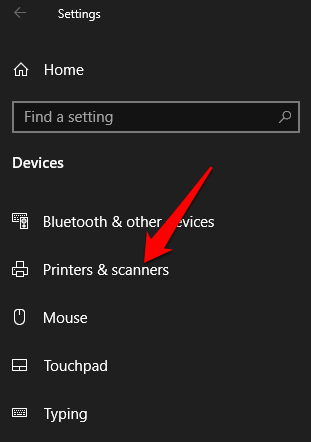
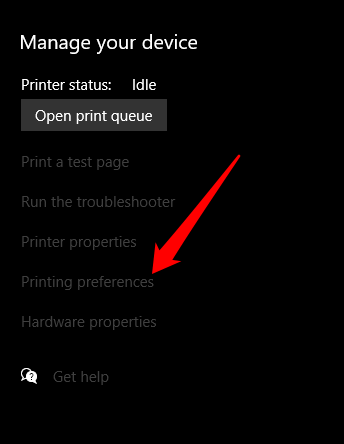
- Select your printer and then select Manage > Printing Preferences and then select Skip Blank Page .
- On your Mac, select menu > System Preferences > Printers & Scanners > Options & Supplies .
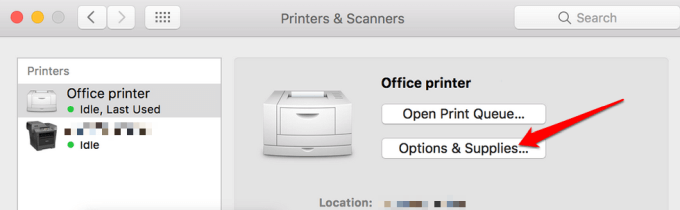
- Select the Driver or Options tab and then set Skip Blank Page to On .
Restart the Printer
For most devices, a restart usually resolves minor glitches so you can try and restart your printer and check if the blank printout issue goes away. Open your printer, remove both cartridges and unplug the power cord plus other cables from the printer.
After 10-15 minutes, plug the power cord and other cables back into the printer, reinstall both cartridges, switch the printer on and print a test page.
Align the Printer
If you just replaced your old ink cartridges, it’s imperative that you align them and calibrate the printer. This way, the cartridges won’t become misaligned and cause blank printouts or misaligned text.
For this guide, we’re using a HP printer so the steps may differ depending on your printer model.
- Turn on your printer, load some paper and go to the HP Solution Center. Select Settings > Print Settings .
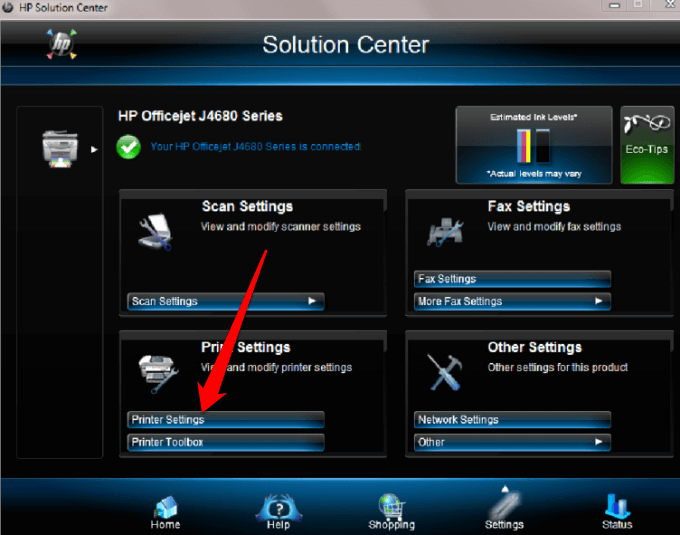
- Next, select Printer Toolbox .
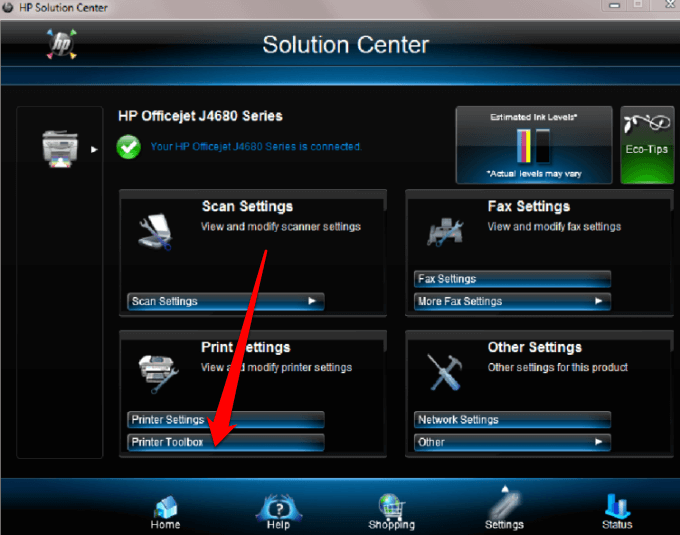
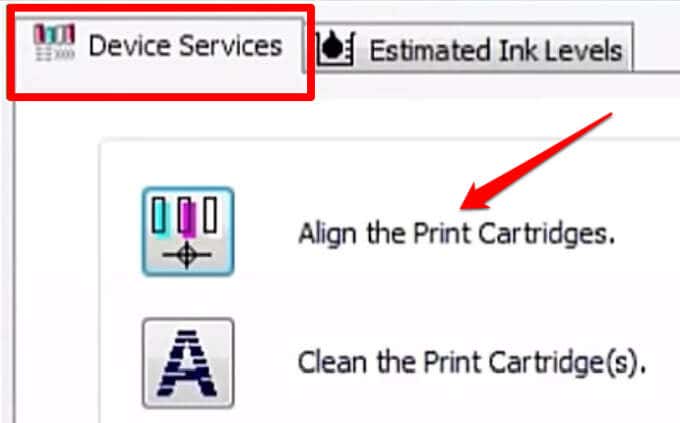
In the Printer Toolbox window, select Align the print cartridges under Device Services and then select Align . Follow the on-screen instructions to complete the process.
Run the Windows Printer Troubleshooter
If you’re still getting blank printouts, you can use the built-in printer troubleshooter utility to automatically detect and resolve printer issues.
- Right-click Start > Settings > Update & Security .
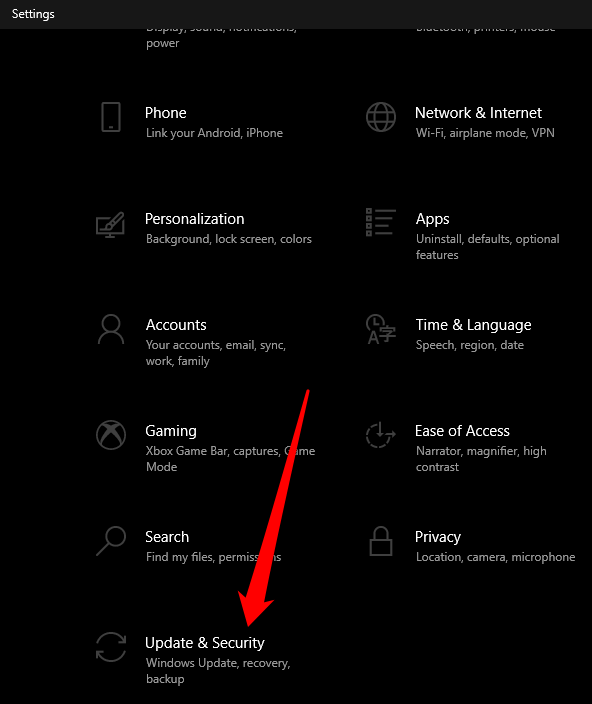
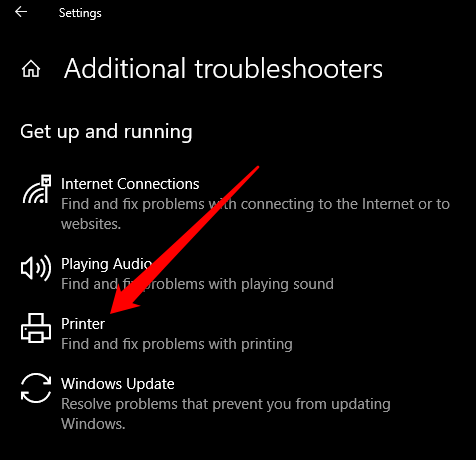
- Select Troubleshoot > Additional Troubleshooters and then select Printer under the Get up and running section.
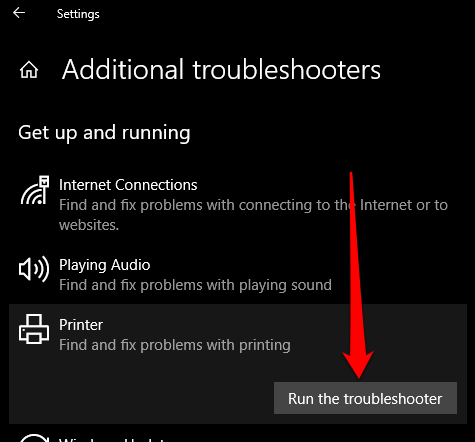
- Next, select Run the troubleshooter to begin.
Update the Printer Driver
Printer driver issues may also cause your printer to print blank pages.
To resolve this, you may need to update the printer driver or uninstall and reinstall it back so as to get the newest version of the driver. You can update your printer’s drivers by visiting the device manufacturer’s official page and downloading the available driver updates.
You can also update your printer driver via the Device Manager in Windows 10.
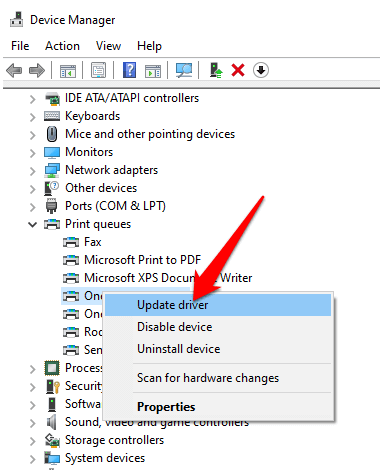
- Right-click Start > Device Manager and select the Print queue section to expand it.
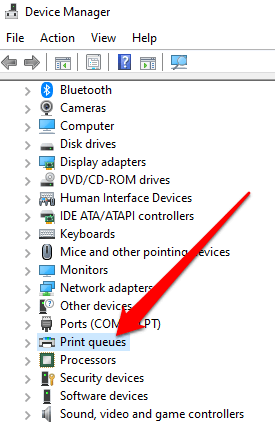
- Right-click your printer’s name and select Update driver .
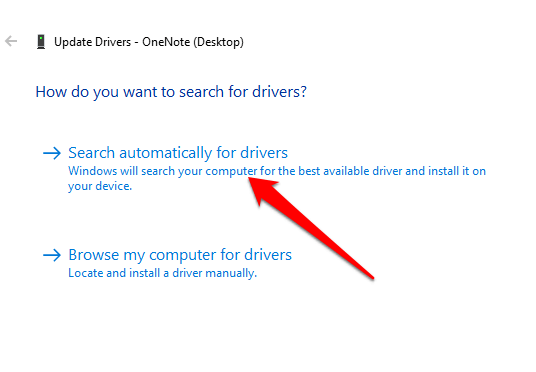
- Select Search automatically for updated driver software .
Print in Backup Mode
If you’ve completed all the preceding steps and you’re still getting blank printouts, you can try to print in backup mode. This workaround is useful when your printer has two cartridges such that you can remove the problem cartridge and print with the remaining one. For instance, you can remove the black cartridge and print with the remaining color cartridge.
Stop Printing Only Data
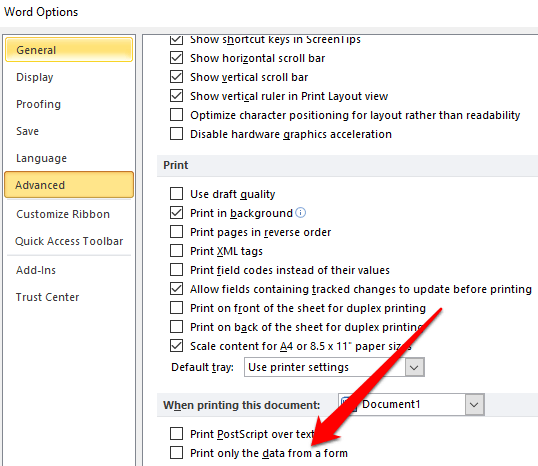
Sometimes you may see your document normally in Print Preview mode, but you get blank printouts or the pages contain data and nothing else. In such cases, you may have enabled the Print only the data from a form option.
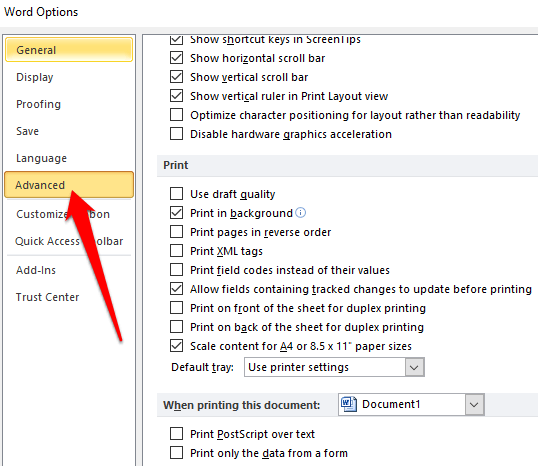
- To uncheck this option, select File > Options > Advanced .
- Scroll down to Print and uncheck the box next to Print only the data from a form . Select OK and try to print your document again.
Print Directly to the Printer
By default, the Spool prints documents so the program finishes printing faster option is selected on your printer. This may be the reason you’re getting blank printouts, but you can uncheck the option and choose to print directly to the printer.
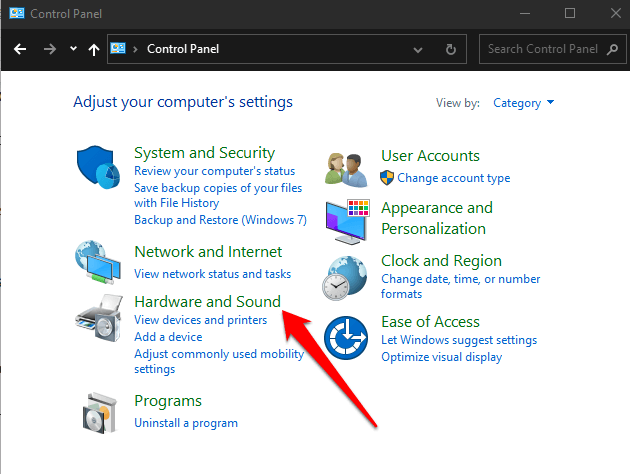
- Open Control Panel and select Hardware and Sound .
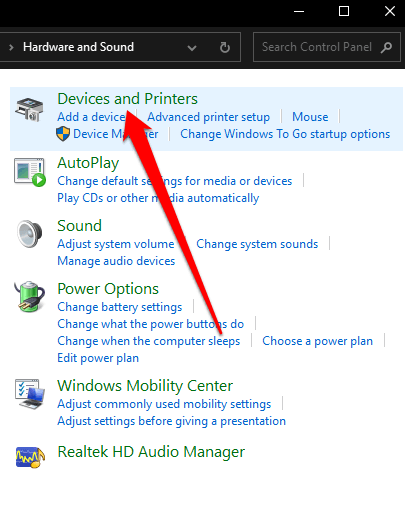
- Select Devices and Printers .
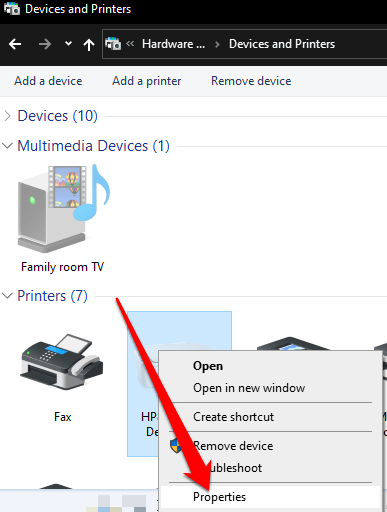
- Right-click your printer, select Properties > Advanced tab. Check the box next to Print directly to the printer and try printing your document again.
Why Is My Printer Printing Blank Pages in Excel?
If you’re having the same issue on Excel documents, try the following workarounds.
Use a Shortcut to Find Cells with Formulas that Return Blank Values
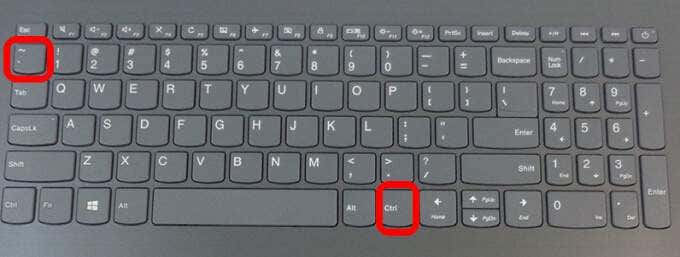
If your worksheet is still blank when printing it out, check whether there are formulas returning a blank value to a cell or cells. Press CTRL + ~ keys on your keyboard to see all the formulas on your worksheet. If you see any blank value formulas, delete the ones you don’t need and try to print again.
Set a Specific Area to Print
You can also set a printing selection on your worksheet so that you print a specific range. If you don’t set a specific area to print, pages that are completely blank may be unexpectedly printed.
Excel prints out cells shown in Print Preview mode. If you’re still getting blank printouts, chances are that you have a row or column that’s stretching past the Print Preview boundary.
Excel would see this as several blank pages that need to be printed to link the filled cells together. You can select Page Layout > Margins > Narrow to reduce the margins so they fit within the Print Preview boundary or set a specific area to print.
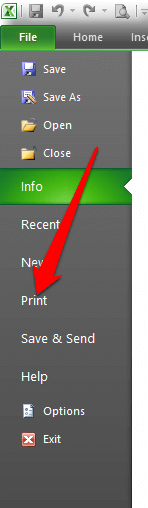
- Select File > Print .
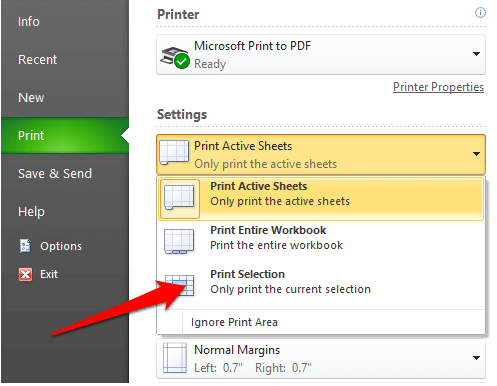
- Under the Settings dropdown, select Print Selection .
- Select the range of pages you want to print and then select Print .
Print Documents Normally Again
We hope one of these solutions helped you fix the printer printing blank pages.
If the printing problem persists, contact your printer manufacturer’s customer support and schedule a repair or replacement if the warranty is still valid.
We’ve covered how to troubleshoot common printer problems in Windows 10 , but if you’re using a wireless printer, turn to our guide on how to troubleshoot WiFi printers .
Let us know what worked for you by leaving a comment below.
- How to Fix the “Error – Printing” Status Error in Windows
- HP Printer Not Printing Black? 10 Fixes to Try
- How to Fix Missing or Failed Printhead Error on HP Printers
- How to Add a Printer to Your Chromebook
- How to Fix the Printer Error “0x0000011b” on Windows
Elsie is a technology writer and editor with a special focus on Windows, Android and iOS. She writes about software, electronics and other tech subjects, her ultimate goal being to help people out with useful solutions to their daily tech issues in a simple, straightforward and unbiased style. She has a BCom degree in Marketing and currently pursuing her Masters in Communications and New Media. Read Elsie’s Full Bio
If you connect to different printers across several locations all the time, you’ll probably not use all of the printers installed on your device – probably just once or twice. However, your device ends up with many printers installed on it without you realizing it.
Thankfully, you can remove any printer you’re no longer using, except it doesn’t completely get erased from your device – the printer driver remains in your device’s inventory in case you need it again.
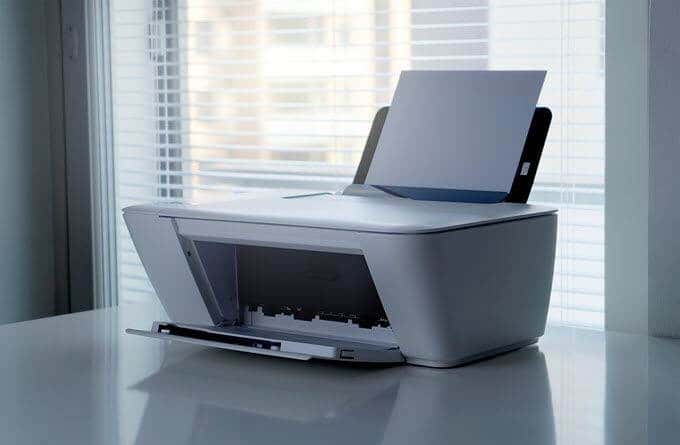
If you’re sure you won’t need it, you can remove or uninstall old, obsolete or uninstalled printer drivers , and leftover driver packages or registry entries from your device.
We’re going to walk you through five ways to completely uninstall printer drivers in Windows 10.
How To Remove Or Uninstall Printer Drivers In Windows 10
These are a few of the ways you can remove printer drivers in Windows 10:
- Uninstall printer software using Settings.
- Remove printer driver from Print Server Properties.
- Uninstall printer driver using Control Panel.
- Use Print Management to remove old printers.
- Delete old printers via Registry Editor.
- Uninstall printer using Command Prompt.
- Remove a printer using PowerShell.
- Delete remnants from Windows driver store.
Uninstall Printer Software Using Settings
If you don’t need a particular printer anymore, you can follow the usual steps to uninstall a printer from Settings and then uninstall its software, especially if using a third-party utility.
If the Settings app installed other tools to manage your printer automatically, you’ll have to manually remove the leftover software.
- Open Settings>Devices.
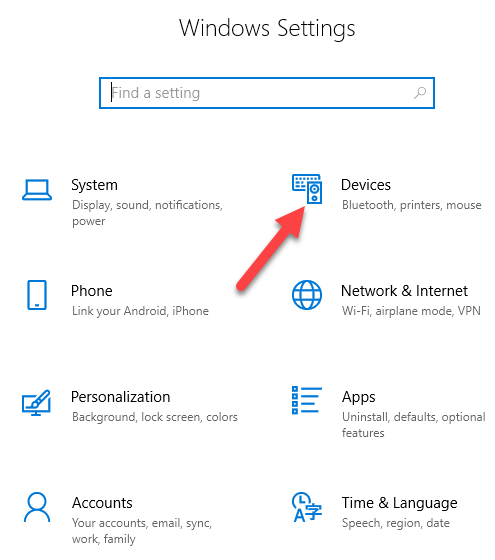
- Click Printers & Scanners .
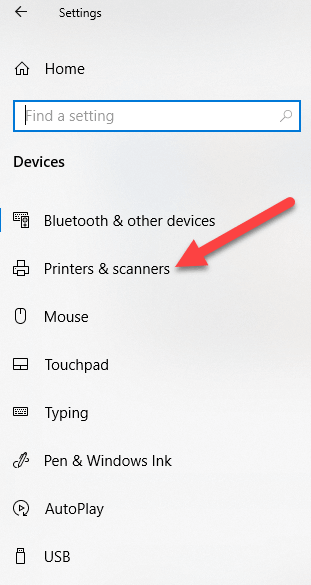
- Select your printer, click Remove device , and click Yes when asked to confirm the deletion.
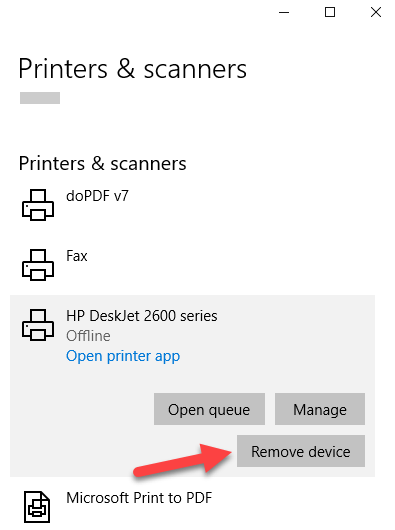
Note: The steps above only remove the printer from the list, so you’ll need to remove any leftover printer software or related applications.
- Open Settings>Apps .
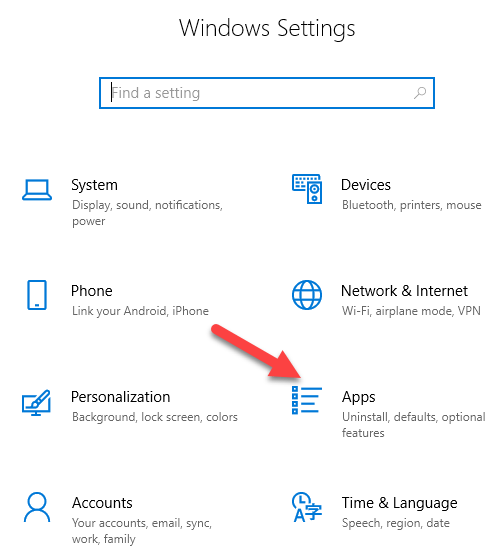
- Click Apps & Features and select the printer software you’d like to remove.
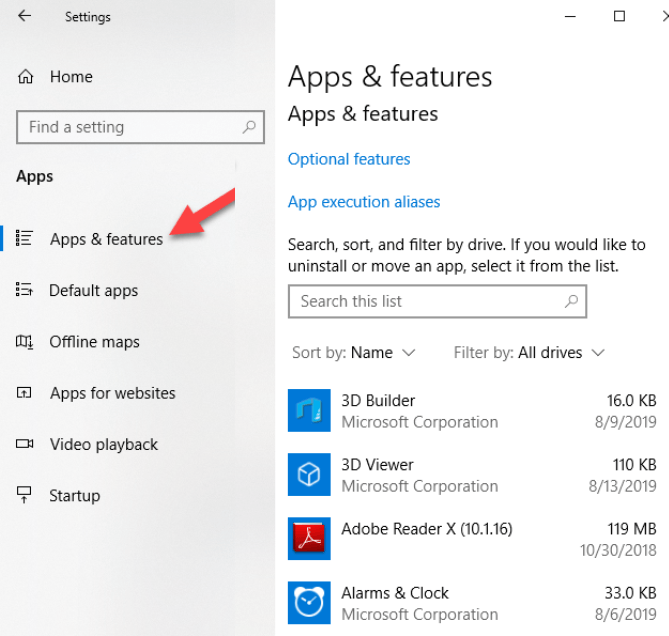
- Click Uninstall and follow the steps to completely remove any leftover printer-related applications.
Remove Printer Driver From Print Server Properties
If you’re still seeing an old printer, or one that you previously uninstalled, appearing on the Printers & Scanners page, you can remove or uninstall the printer driver and driver packages.
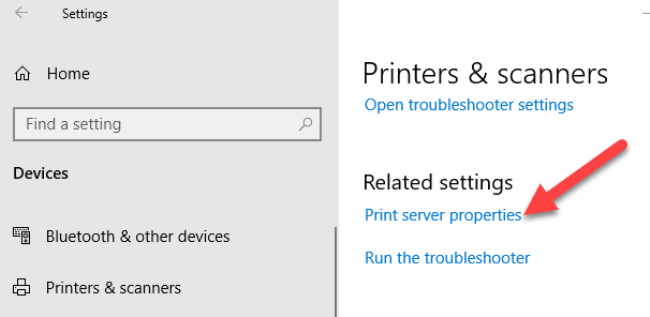
- Open Settings>Devices>Printers and Scanners on the left pane.
- Scroll down to Related settings and click Print Server Properties . Alternatively, you can right-click Start>Run and type printui /s /t2 to go to the Print Server properties page directly.
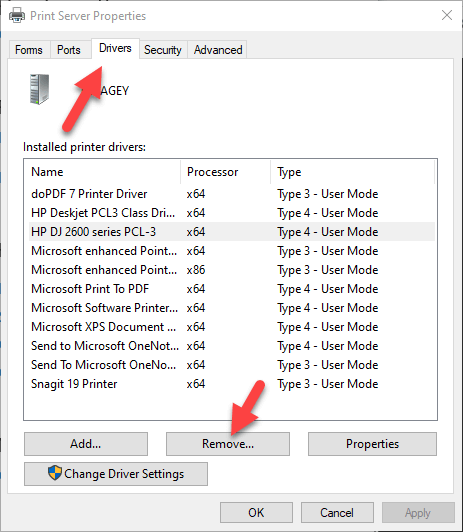
- Select the Drivers tab. From the list, click on the old printer entry and select Remove .
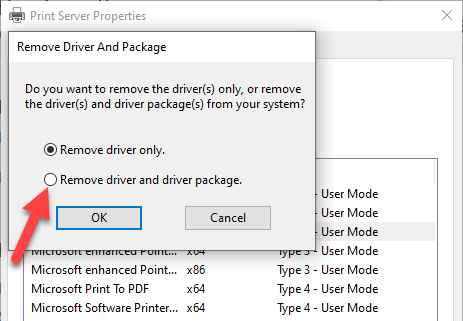
- You’ll get two options in a popup – Remove driver or Remove driver and driver package . Select the latter and click OK .
- If you get a confirmation prompt to Remove Driver Package , click Delete .
Uninstall Printer Driver Using Control Panel
You can remove and uninstall your printer and leftover printer driver or related apps from Control Panel using these steps.
- Open Control Panel>Hardware and Sound .
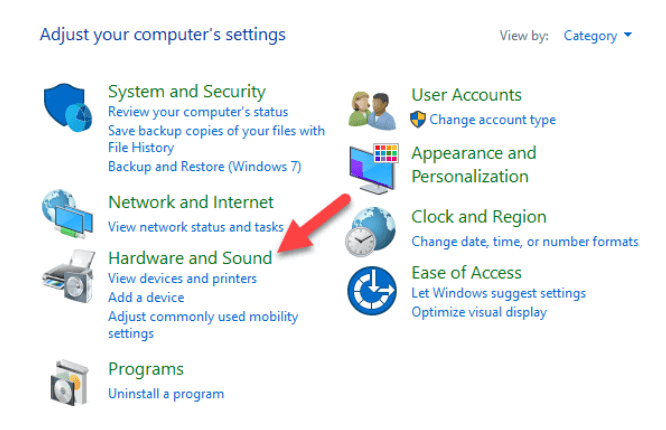
- Click Devices and Printers .
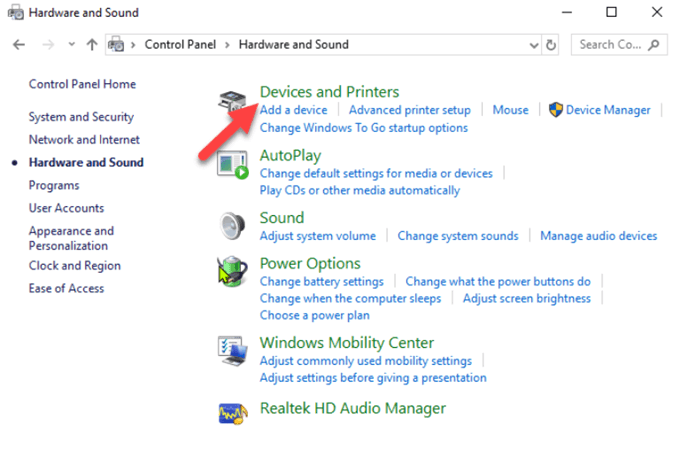
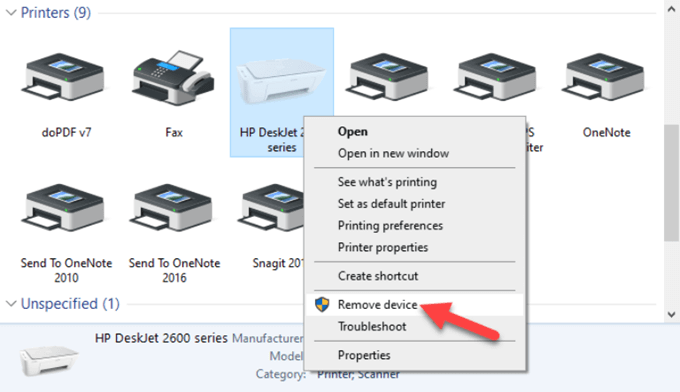
- Under Printers , right-click your device and click Remove device . Click Yes to confirm the action.
- Next, go to Settings>Apps>Apps & Features and select the software you want to remove.
- Click Uninstall and follow the on-screen steps to completely remove the printer software.
Use Print Management To Remove Old Printers
Ideally, if you used the Print Server properties method above, it should remove and uninstall the printer driver. However, you can use the Print Management console to completely remove printers you no longer use, and their drivers.
The Print Management dialog shows you the printers and current print jobs on your device. Before you delete the old printer driver though, make sure it’s not being used by any other printer.
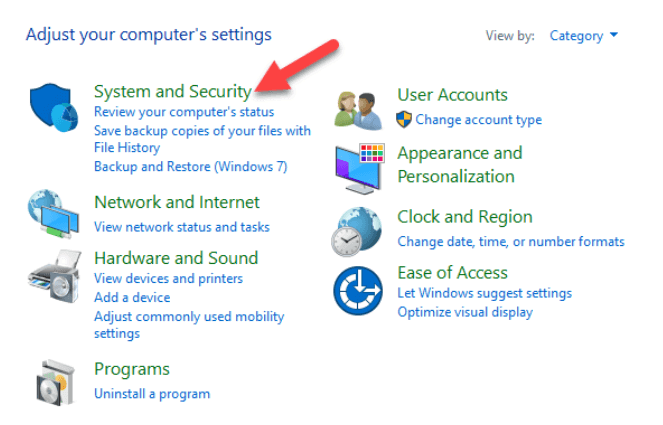
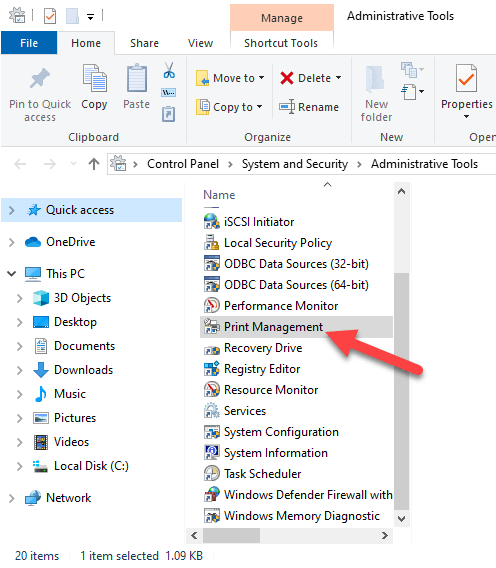
- Open Control Panel>System and Security .
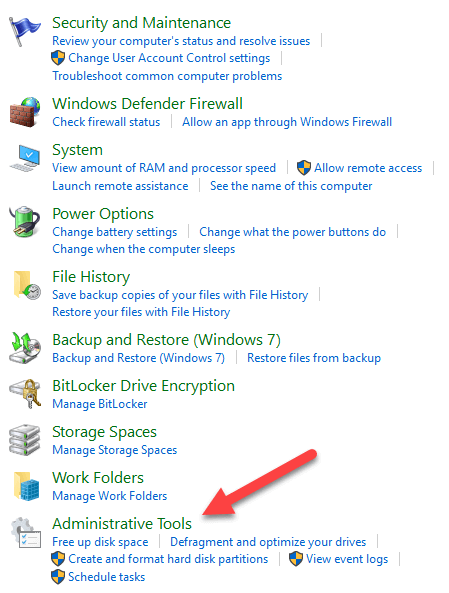
- Click Administrative Tools .
- Double-click the Print Management shortcut.
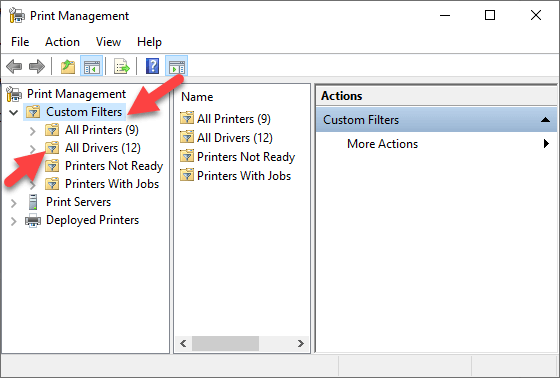
- Under Custom Filters , select All Printers .
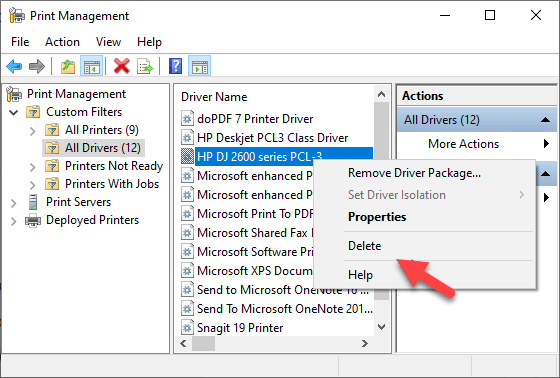
- Right-click the printer you want to remove.
- Click Delete and Yes to confirm the action.
- Open Settings>Apps>Apps & Features and click the printer software you want removed.
- Click Uninstall and follow on-screen instructions to completely remove the printer driver.
Delete Old Printers Via Registry Editor
If you open the Add a printer page and find old printers still listed there, edit the registry to remove leftover entries. To do this, start by creating a system restore point, and then follow the steps below.
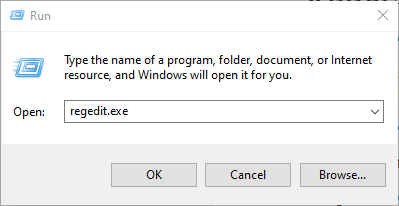
- Right-click Start>Run .
- Type regedit.exe and click OK (or press Enter on your keyboard) to open the Registry Editor.
Find the registry key:
HKEY_CURRENT_USERSOFTWAREClassesLocal SettingsPrintersRoamed
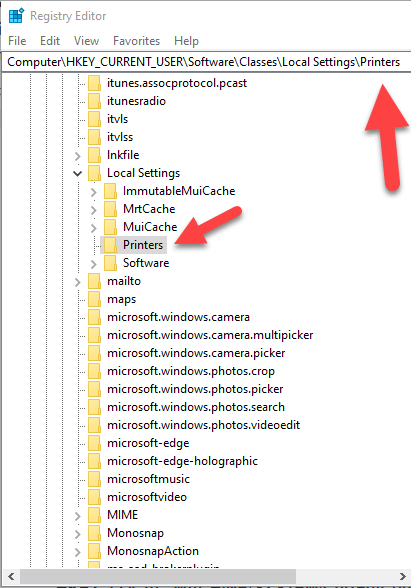
- Right-click the printer from the right pane, and select Delete .
- Check printer entries and delete unwanted items by going to this key: HKEY_CURRENT_USERPrintersConnections
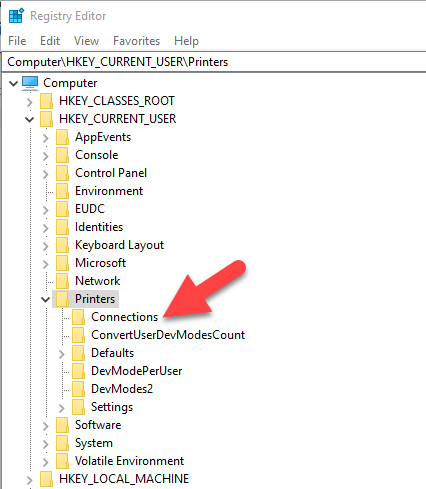
Next, go to this key:
HKEY_LOCAL_MACHINESYSTEMCurrentControlSetControlPrintPrinters
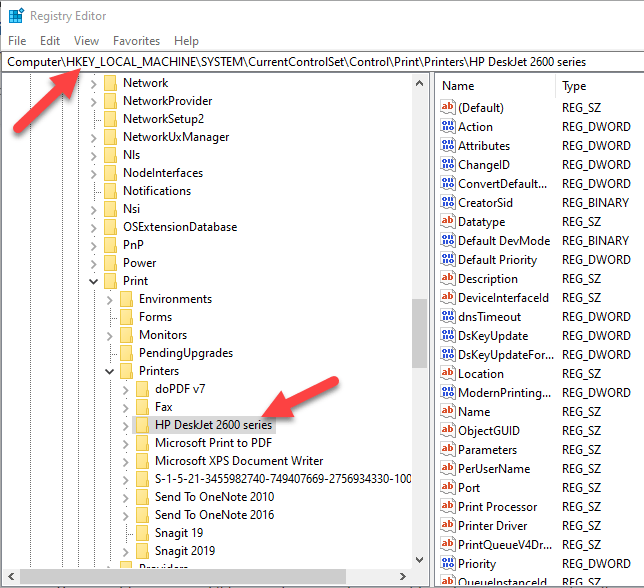
- Click to expand the key, right-click your printer and select Delete .
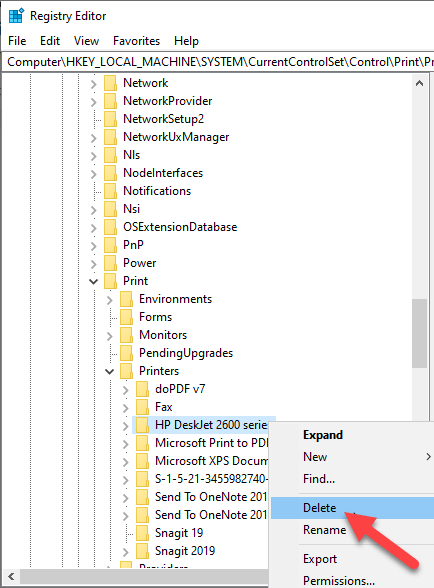
Some subkeys may still have references to your old printer, so you can clear the following as well:
HKEY_LOCAL_MACHINESYSTEMCurrentControlSetControlPrintEnvironmentsWindows NT x86DriversVersion-3 HKEY_LOCAL_MACHINESYSTEMCurrentControlSetControlPrintEnvironmentsWindows x64DriversVersion-3 HKEY_LOCAL_MACHINESYSTEMCurrentControlSetControlPrintEnvironmentsWindows x64DriversVersion-4
Once this is done, exit the Registry Editor.
Uninstall Printer Using Command Prompt
If you’re a fan of command lines, the Command Prompt is another tool you can use to delete a printer and remove related drivers and apps.
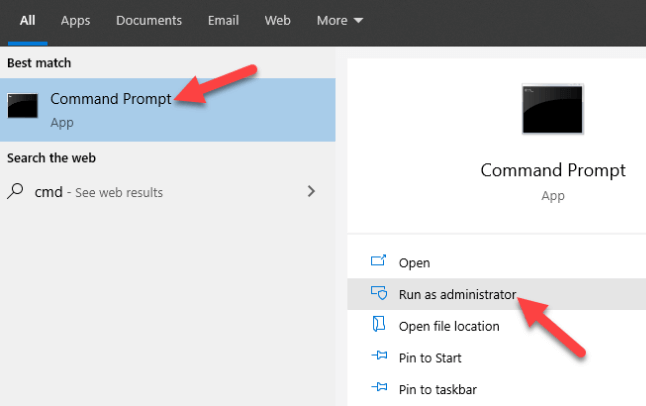
- Click Start and type CMD in the search bar.
- Click Command Prompt and select Run as administrator from the right pane.
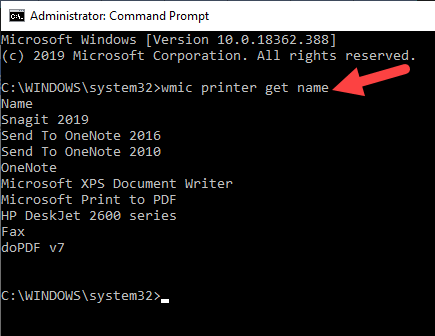
- In the Command Prompt window, type this command: wmic printer get name and press Enter to see the list of printers on your device.
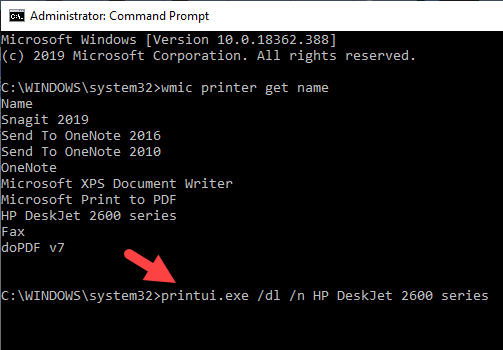
- To uninstall the printer, type printui.exe /dl /n “YOUR-PRINTER-NAME” and press Enter. Remember to replace YOUR-PRINTER-NAME with your printer’s full name. For example, printui.exe /dl /n HP DJ 2600 Series CL3 .
- To uninstall the printer software, open Settings>Apps>Apps & Features and select the printer software you want to remove. Click Uninstall and follow the on-screen instructions to complete the process.
Remove a Printer Using PowerShell
If you prefer PowerShell over Command Prompt, here are the steps to take to remove the printer and related software.
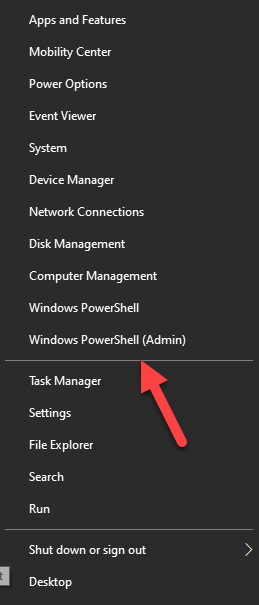
- Right-click Start > Windows PowerShell (Admin) .
- Type this command: Remove-Printer –Name “YOUR-PRINTER-NAME” .
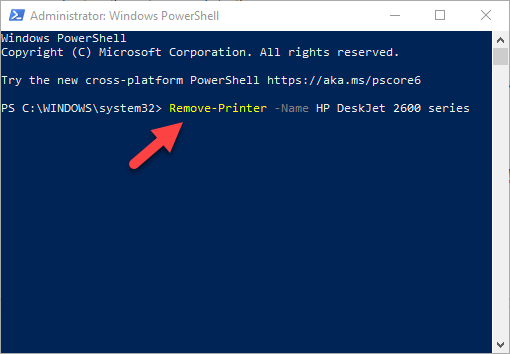
- Open Settings > Apps > Apps & Features , and click the software you want removed.
- Click Uninstall and follow the directions to remove it completely.
Delete Remnants From The Windows Driver Store
This solution is meant to remove any remnants of drivers that may still be on your device even after deleting driver packages.
In the driver store, you’ll find inbox and third-party driver packages, which were installed and stored in the folder even before the driver itself got installed.
Each of the subfolders in the store holds a driver package and corresponding .inf file , but it’s a bit difficult to find the specific driver package you’d like to remove.
The good news is you can use a third-party tool to explore the Windows driver store and completely remove the old printer driver once for all. It’ll also save you lots of space that would otherwise have been occupied by junk files.
What Happens When Drivers Are Deleted?
A device driver is a piece of software that tells your computer’s operating system how to communicate with the device it’s connected to.
For example, to connect to your printer and execute the print command, a printer driver is needed to bridge the gap between the two devices, and deliver the print job to you.
Without the printer driver, your printer is just hardware that doesn’t work. Similarly, deleting the printer driver after deleting the printer from your computer renders it inoperative.
However, if you delete the driver, you can undo the deletion using System Restore , from the previous restore point created when you deleted the driver from your computer.
Alternatively, Windows will automatically install the driver on your operating system by searching for it from its extensive library of drivers. If it doesn’t find a suitable driver, it’ll search for a driver online through Windows Update. Otherwise, you can visit the device manufacturer’s website to find the specific driver for your printer.
- Preparing for Windows 10 End of Support: Upgrading to Windows 11
- How to Fix a “This file does not have an app associated with it” Error on Windows
- How to Fix an Update Error 0x800705b4 on Windows
- How to Resolve “A JavaScript error occured in the main process” Error on Windows
- How to Fix the Network Discovery Is Turned Off Error on Windows
Elsie is a technology writer and editor with a special focus on Windows, Android and iOS. She writes about software, electronics and other tech subjects, her ultimate goal being to help people out with useful solutions to their daily tech issues in a simple, straightforward and unbiased style. She has a BCom degree in Marketing and currently pursuing her Masters in Communications and New Media. Read Elsie’s Full Bio
