Wish you could install programs in Windows via the command line? Now, there’s an easier way to install all your favorite apps on a fresh computer after Microsoft recently released its Windows Package Manager (WPM). It’s currently only in the preview stage right now.
It’s still a little buggy and it’s a little light on features compared to established package managers , like Chocolatey, but it’s great news for Windows devs and power users. And it might already be on your computer!
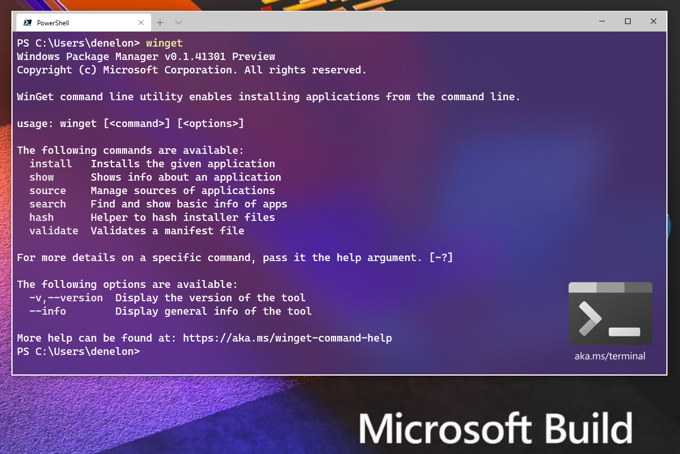
SourceMicrosoft
How Do I Get Windows Package Manager?
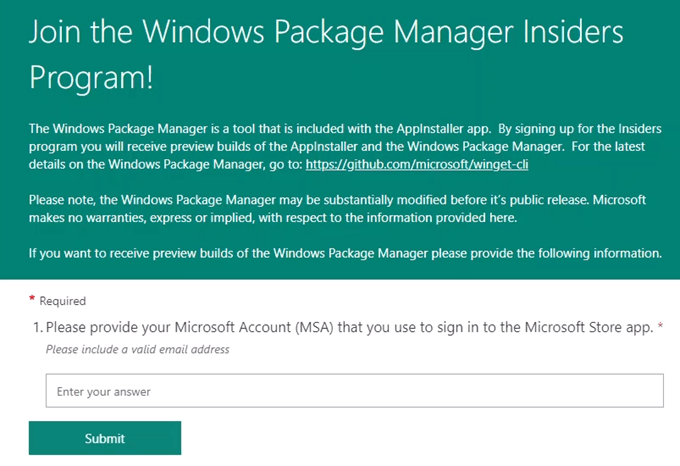
As of writing this, there are only 2 ways to get Windows Package Manager. You can get it through the Windows Insider Program or from GitHub .
Windows Insider Program
This method allows you to have the most recent previews of Windows 10 and the WPM. So, as features and fixes get added to WPM, they’ll just automatically be updated for you.
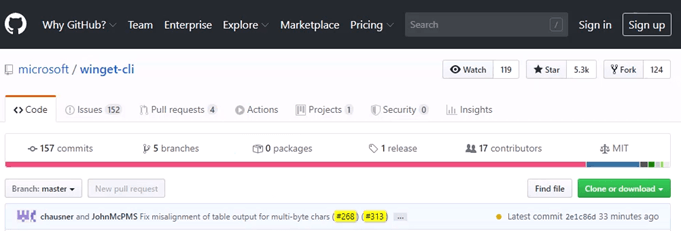
GitHub
If you already know how to use GitHub, this may be an easier way for you. You can find the WPM GitHub repository at https://github.com/microsoft/winget-cli .
Do I Have Windows Package Manager?
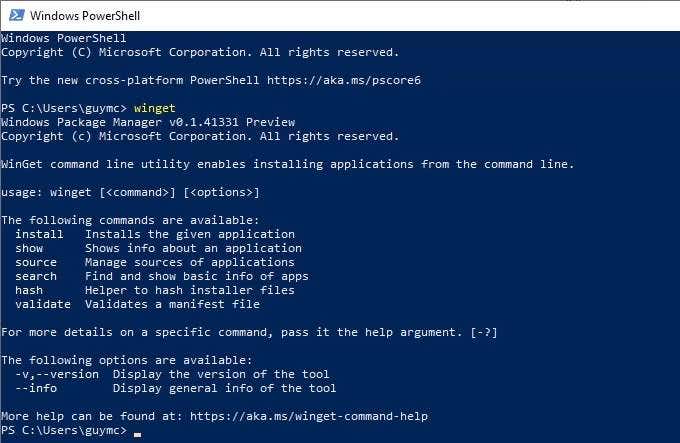
The way to tell if you have Windows Package Manager (WPM) is to open a PowerShell session and enter the cmdlet winget .
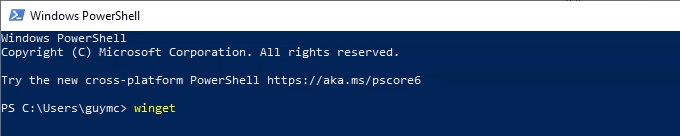
If you have WPM, you’ll see output like in the following image. It will list what version of WPM you have and some basic help about using it.
How Do I Use Windows Package Manager?
The first thing you should do is see what apps you can install with WPM. Enter the cmdlet winget search and press Enter .

You’ll see a list of all the app installation packages currently available.
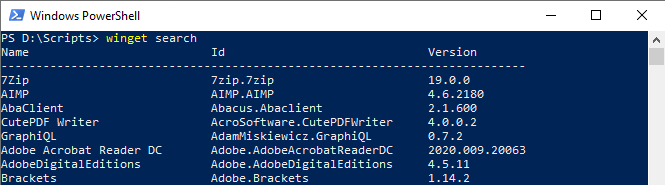
As of writing this, there were 386 packages available. Some of the more popular apps include; 7Zip, CutePDF Writer , Adobe Acrobat Reader DC , Kindle , iTunes, Audacity , several Linux distros , MalwareBytes , and a host of Microsoft apps related to Office , Azure , Windows and everything else Microsoft.
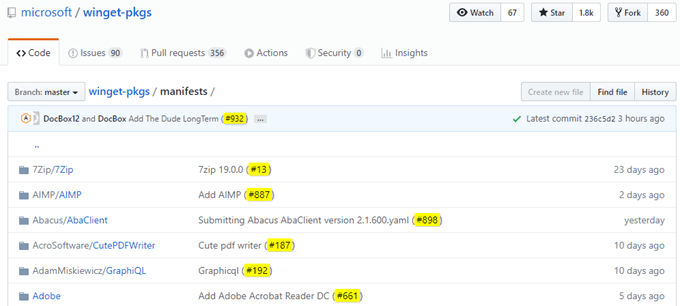
A full list of packages is also available at https://github.com/microsoft/winget-pkgs/tree/master/manifests .
There’s a lot to go through, so try searching for your favorite apps. Enter winget search keyword , where the keyword is the name of the app you’re looking for. If you’re not sure of the full name, it will search on a partial name too.

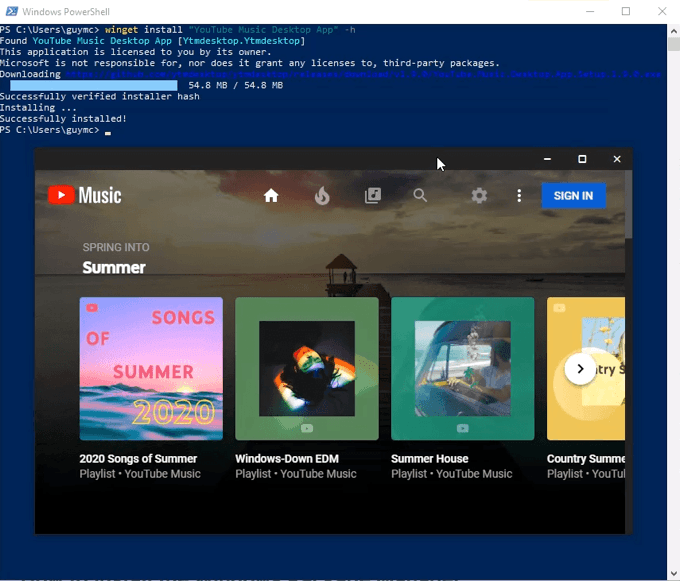
Once you’ve found the app you’d like to install, use winget install “AppName Here” . If the app has a one-word name, the quotation marks aren’t necessary.

If you prefer to have the app silently install with no more input from you, use the argument -h at the end. The command would look like winget install “AppName Here” -h

The app will download and install, without any further interaction from you.
How Can I Install Several Apps At Once With Windows Package Manager?
Since winget is a cmdlet, we can make a PowerShell script to do the installations. Make sure your system allows you to run PowerShell scripts first.
In Windows PowerShell ISE, enter the following:
winget install rufus -h; winget install gpu-z -h; winget install Putty -h; winget install FileZilla -h;
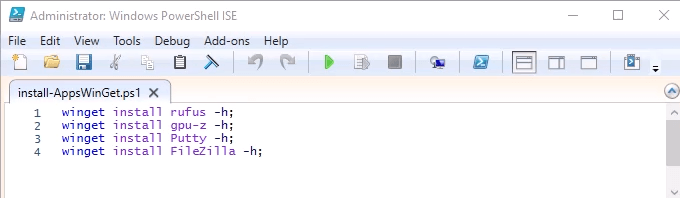
Save that as a PowerShell script with a name like install-AppsWinGet.ps1. You can run the script from within PowerShell ISE or from the regular PowerShell command line.
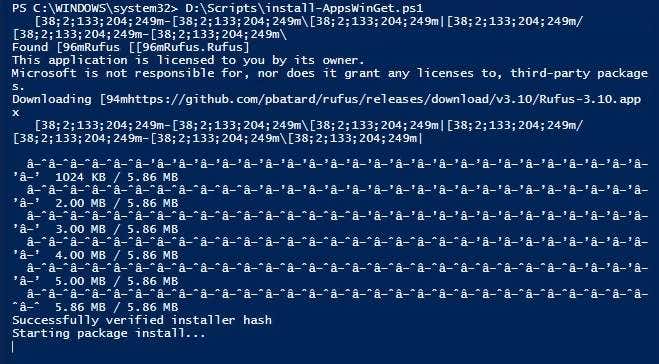
Note that you won’t see the pretty status bar like you would with a single WPM install. That’s ok. It’ll do the installs in sequence. The total time to download and install all 4 apps was 53 seconds.
Can I Uninstall Using Windows Package Manager?
No. Right now WPM is only for installing apps. The preview version of WPM is very young. If Microsoft wants WPM to become the de-facto package manager for Windows, expect the same functionality as Chocolatey or better in the near future.
Get Installing!
Now that you have Windows Package Manager and know how to use it, why not create a script to install every app you love? Save that script to a USB drive or cloud storage. Then, the next time you want to install them, just run the script. If you’ve never used a package manager, it’ll be faster and easier than ever before.
- Preparing for Windows 10 End of Support: Upgrading to Windows 11
- How to Fix a “This file does not have an app associated with it” Error on Windows
- How to Fix an Update Error 0x800705b4 on Windows
- How to Resolve “A JavaScript error occured in the main process” Error on Windows
- How to Fix the Network Discovery Is Turned Off Error on Windows
Guy has been published online and in print newspapers, nominated for writing awards, and cited in scholarly papers due to his ability to speak tech to anyone, but still prefers analog watches. Read Guy’s Full Bio
The PDF document format works on any modern smartphone, computer or tablet. If you want to share or archive a web page or document, PDF is an ideal format to use thanks to its compatibility and portability.
With a free PDF writer, you can add information or highlight some areas on the document in order to update the file. A PDF printer app on the other hand offers printing facilities for your documents, email messages, photos, and other files making it easy to print PDFs right from your device.
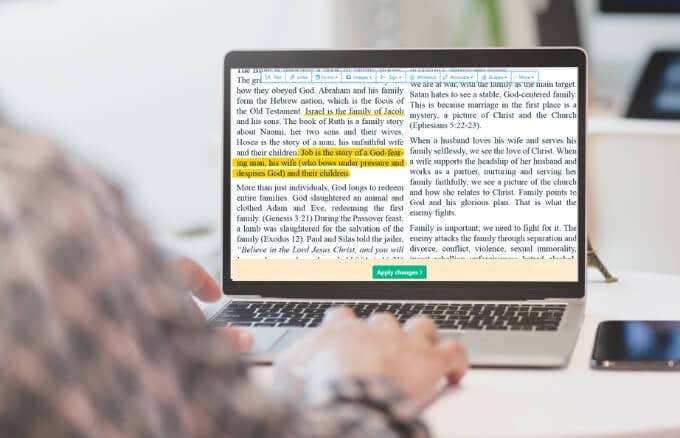
Best Free PDF Writers and Printers
If you’re looking for the best free PDF writers and printers to use with your laptop or mobile device, here are some great options you can try.
1. Write on PDF
Write on PDF is a free PDF writer that allows you to make notes on PDF documents. The powerful and convenient app contains many features to add text, highlight and add free handwritten notes with ease.
Among other things you can do with Write on PDF include the ability to search throughout the PDF document, bookmark for navigation, sync with Dropbox , and view in vertical and horizontal ways.
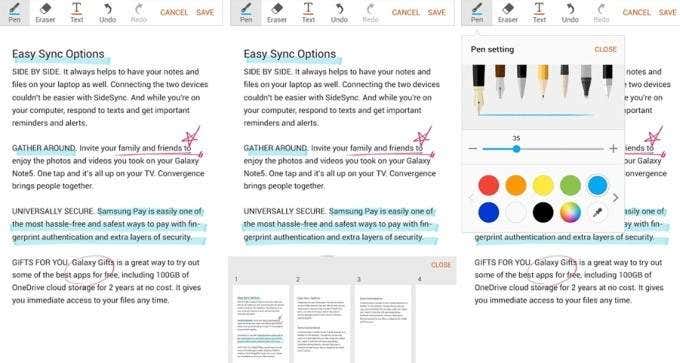
On top of that, you can give tabs to list all the PDF files in your device, save or share a PDF file with your text and drawing content.
2.Sejda PDF Editor
Sejda is an online PDF writer that allows you to add text, images, shapes and drawings. You can also create forms , add annotations, highlight and whiteout sections of a document.
The powerful PDF writer and printer app is available online, which handles processing in the cloud, but you can also get the desktop edition for offline editing, which processes files locally.
If you need to quickly edit your PDF or add signatures to PDF documents, Sejda does that very well. In addition, Sejda recognizes text with OCR , and allows you to merge documents, add headers or footers with page numbers, crop or rotate pages, and split PDF files into smaller documents.
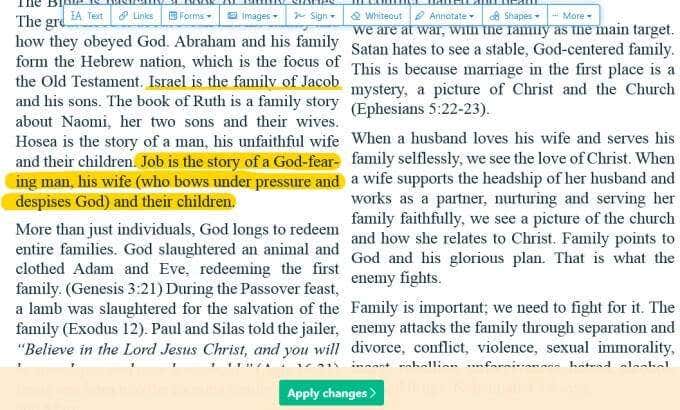
Sejda’s easy-to-use editor packs an impressive suite of features but its free version has page and hourly limits, limited access to specific tools, and limited file uploads no larger than 50MB in size. Plus, you can only work with one document at a time when using the web version of the app.
3.Xodo
Xodo is a free PDF printer, writer and viewer app that makes it easy to markup documents and supports annotations that works with other PDF viewers.
With Xodo, you can save digital signatures as you would with Adobe Acrobat and use it across multiple documents. You can also edit, annotate, and share PDF files on the web, mobile and desktop devices so you can get things done.
If you want to fill forms, Xodo takes the stress out of filling forms by allowing you to do it with a touch of your finger whether you’re using a tablet or smartphone.
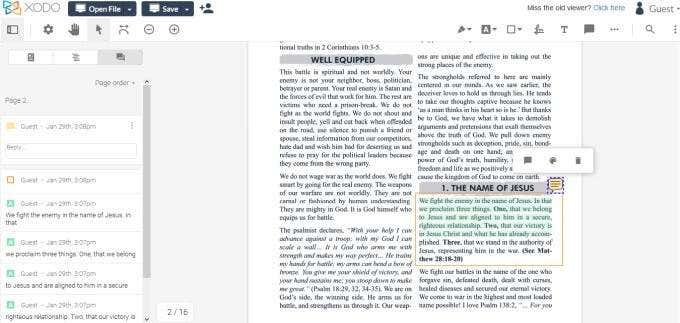
Plus, you can annotate PDFs by adding sticky notes, underlining, highlighting, or striking out passages. If you want, you can insert shapes, draw freehand, and change your annotation’s size, color, opacity and thickness.
If you’re working as a team, Xodo has a chat feature that transforms your PDF into a virtual meeting room . This way, you can collaborate with others online in real time from a smartphone or computer, eliminating the need for emails or having to find time to meet.
4.Foxit MobilePDF
Foxit MobilePDF is a small, lightweight PDF viewer that lets you open, view and annotate PDF documents.
The app supports zooming, annotations and searching text, but you can also create PDFs and convert them into Microsoft Office documents.
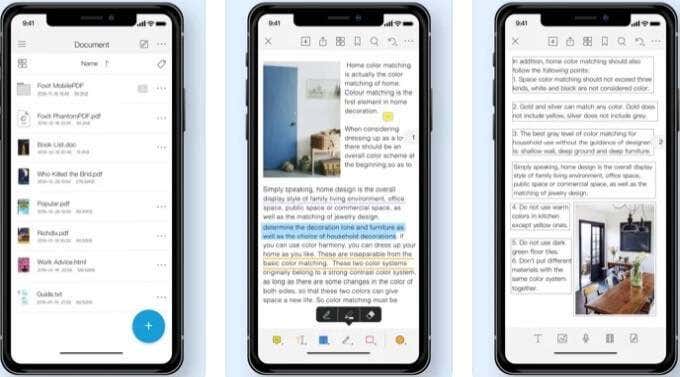
The free PDF writer and printer covers most of your needs when it comes to PDFs while delivering industry leading capabilities to use PDF files on the go.
5.CutePDF Writer
The app offers 128-bit AES security to encrypt your PDF file and restrict access from unauthorized users so that only you can access, edit, print and extract the content. If you want to edit a PDF though, you can still use the CutePDF Editor from your web browser.
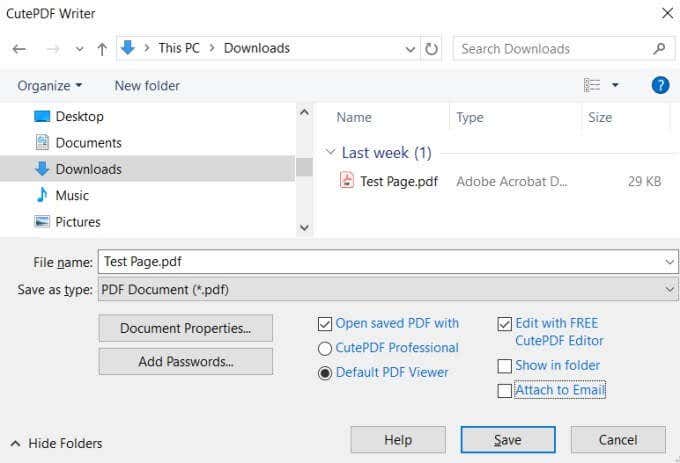
Plus, you can convert printable documents to professional quality PDFs , and print your files by selecting CutePDF Writer from your list of printers on your PC.
The app only works with Windows (Vista to Windows 10 and Windows Server 2008-2019), and you need an additional free postscript to PDF driver to create PDFs.
6.BullZip PDF Printer
BullZip PDF printer is a free PDF printer, which means you can use its free version but with certain limitations. However, the app doesn’t contain pop ups or ads, and if you need advanced features, you can always go for its commercial application, which removes the 10 user limit in the free version.
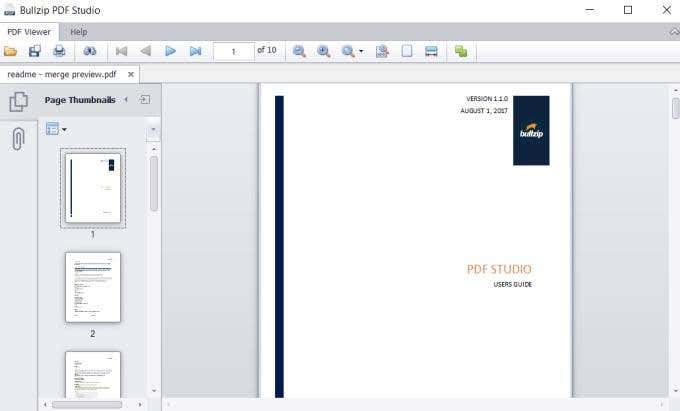
With the BullZip PDF printer, you can write PDF documents from Windows programs, control whether you want to see the resulting PDF document and password protect your PDFs .
The app offers 128/256 bit AES encryption to add security to your PDFs, and you can edit it to add watermark text and sign PDF documents using digital certificates. Plus, BullZip PDF printer supports multiple output types including PNG, JPEG, BMP, PCX, PDF and TIFF.
7.doPDF
If you just need a PDF printer app, doPDF is a solid choice.
The free PDF printer app creates PDF files and allows you to convert printable files to PDFs. The app installs as a virtual PDF printer driver and you can print to PDF without downloading malware or other random add-ons.
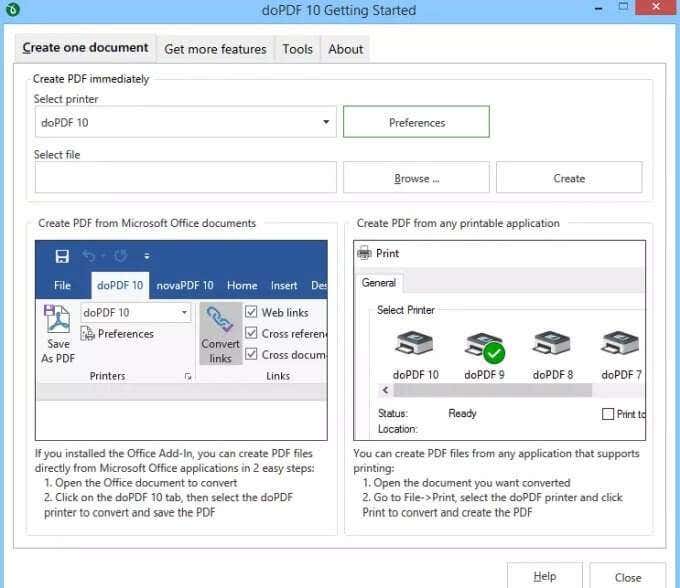
You can convert PDFs to DOCX, PPTX, HTML or TXT files and print them out, or convert Microsoft Office documents into PDFs for printing or web publishing based on your needs.
The main downside with doPDF is that you can’t write or edit using the app; it’s just for printing or converting printable files or images to PDFs .
Quickly Edit and Print PDFs
There are so many tools you can use to write or print to PDF, making it difficult to select one. If you’re just looking for a simple tool, you can use the built-in Microsoft Print to PDF service in Windows 10. For macOS users, turn to our step-by-step guide on how to edit PDFs on Mac.
- The Best Free AI Courses to Boost Your Skills
- 6 Best Procreate Alternatives for Windows PC
- 5 Best Podcast Apps for Windows
- Best 10 Free PDF Editors for Windows
- 5 Best Audiobook Players for Windows
Elsie is a technology writer and editor with a special focus on Windows, Android and iOS. She writes about software, electronics and other tech subjects, her ultimate goal being to help people out with useful solutions to their daily tech issues in a simple, straightforward and unbiased style. She has a BCom degree in Marketing and currently pursuing her Masters in Communications and New Media. Read Elsie’s Full Bio
