The Windows Store, now known as the Microsoft Store, is the official digital storefront that’s included with Windows 10 by default. You can find apps, software, professional and personal devices, resources, and games to download and use on your Windows device.
To access the Microsoft Store, you can use the web version to browse through and find additional items that are exclusive to the web version. You can also browse and install some free apps from the Microsoft Store without signing into Windows 10 using your Microsoft Account . Another way is to use the Store webpage for Windows apps .
However, the challenge comes when you need some Windows apps, which are only exclusively available on the Microsoft Store, but the Windows Store won’t open. We’ve rounded up some helpful tips to show you what to do if the Windows Store won’t open.
Note : The steps in this article apply to Windows 10.
How To Fix When The Windows Store Won’t Open
Before you get to the fixes for the Windows Store not working or not opening issue, here are a few things you can check for:

- Is Windows up to date? You can check this by clicking Start > Settings > Update & Security > Windows Update > Check for Updates
- Are you signed in with a Microsoft Account?
- Are your GPU or video card drivers up to date?
- Is User Account Control enabled?
- Do you have any network connection problems ?
If you confirm that all these are in place, but the Windows Store still won’t open, try the following fixes.
Check Your Computer’s Location, Date And Time Settings
If your computer’s date and time are inaccurate, the Windows Store won’t open. This may sound odd but it affects how the Store works. When the Store boots up, it tracks time so it’s always checking to see if your computer’s time and the Store’s time are in sync.
- To check and adjust your date and time settings, click Start > Settings > Time & Language .
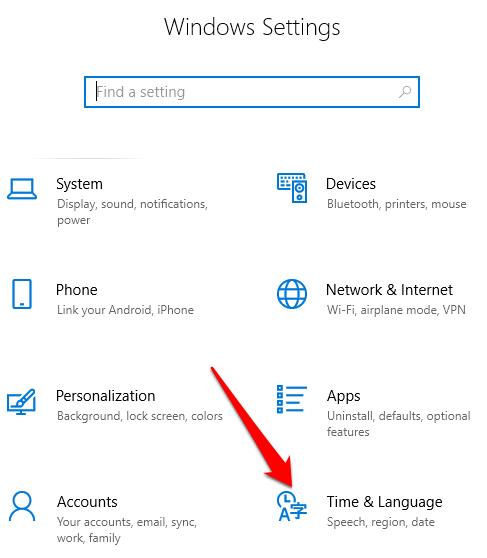
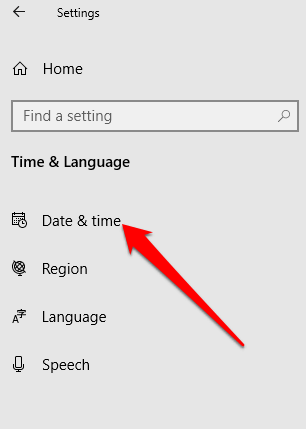
- Click Date & Time to verify your computer’s date and time settings.
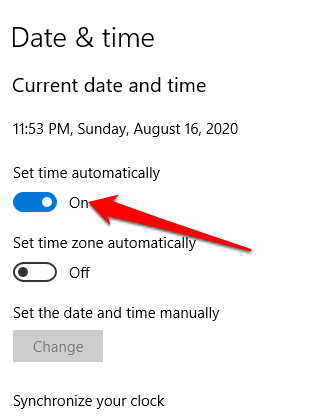
- Toggle the Set the time automatically slider to Off , wait for it to process your request, and then toggle it back to On . This will update your time to the most accurate setting.
- The location settings also need to be set to show your current location and time zone for the Windows Store to open and work as it should. Click Start > Settings > Time & Language .
- Click Region to check your location.
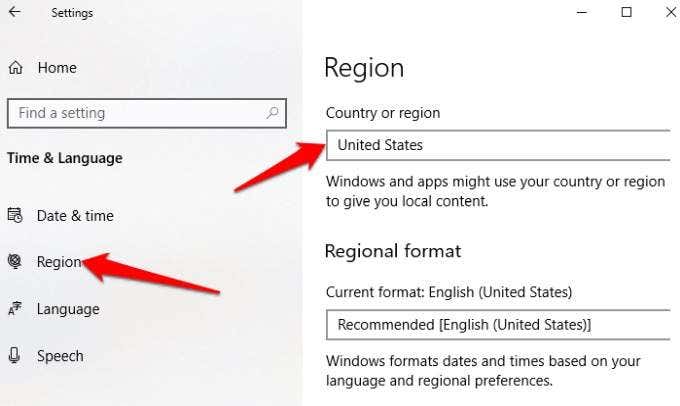
Once your location, date and time settings are accurate, try opening the Windows Store again and see if it works.
Clear The Windows Store Cache
Over time, the Windows Store cache may become corrupted. This may cause the Store not to open or work properly. Clearing the Store’s cache can help resolve any underlying issues or glitches.
- To clear the Store cache, right-click Start > Run and type wsreset.exe . Press Enter or click OK .
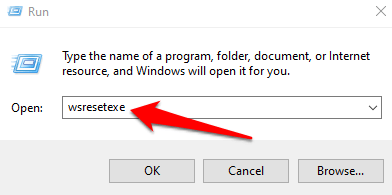
- A blank Command Prompt window will appear and close after a few seconds. During this time, the cache will be reset, and once the window closes, you can try to open the Windows Store again.
Update Windows and Windows Store
Microsoft constantly provides updates and bug fixes for Windows users. As frequent as the Windows 10 updates may come, they just might be the fix you need to improve the Windows Store and get it working again.
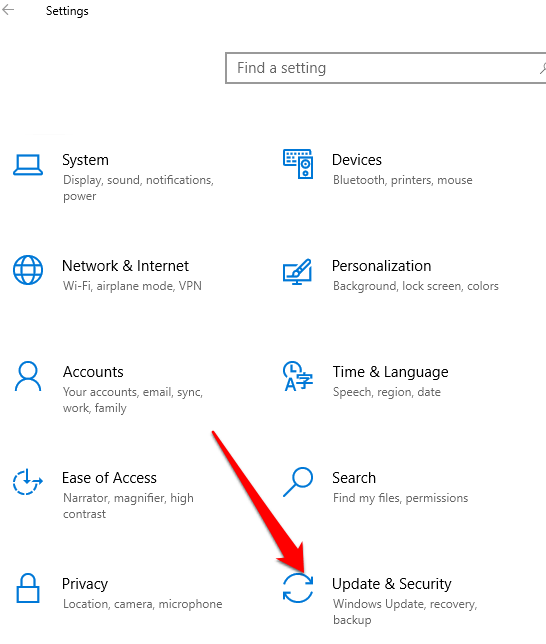
- To update Windows and the Windows Store, click Start > Settings and select Update & Security .
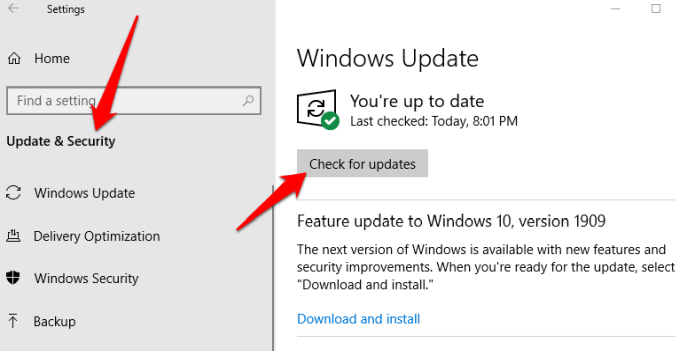
- Click Windows Update > Check for updates and allow Windows to check for and install any pending updates.
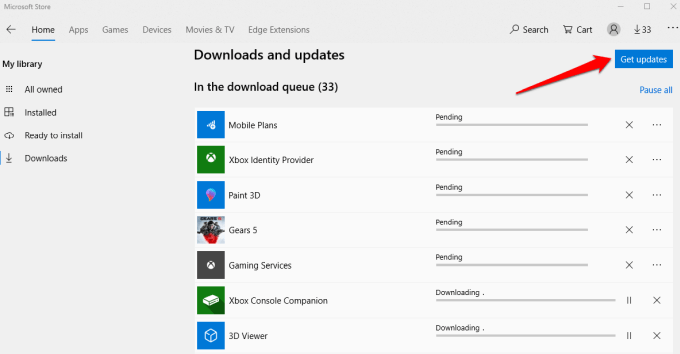
- If you manage to update Windows, try and open the Windows Store to update it. If the Store opens, click the three dots at the top right side and select Downloads and Updates . Click Get updates to update the Store.
Reset Windows Store
If the Windows Store still won’t open, you can reset it back to default settings.
Note : Resetting the Windows Store will clear your settings, preferences, and login details among other things, but it doesn’t delete your purchases or installed apps .
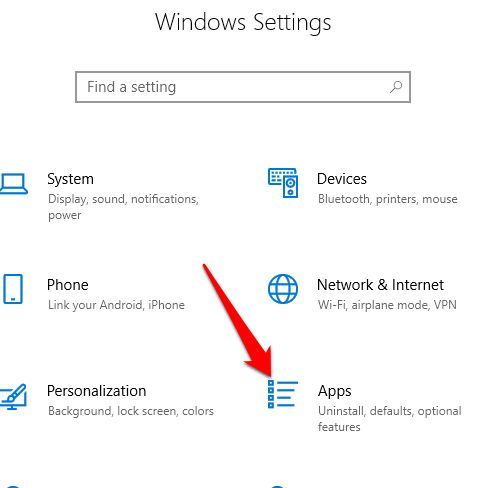
- Click Start > Settings and select Apps .
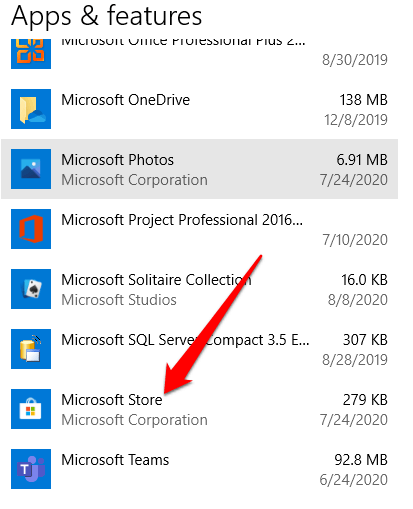
- Click Microsoft Store .
- Next, click Advanced options.
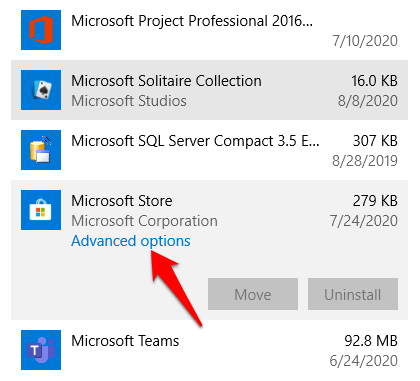
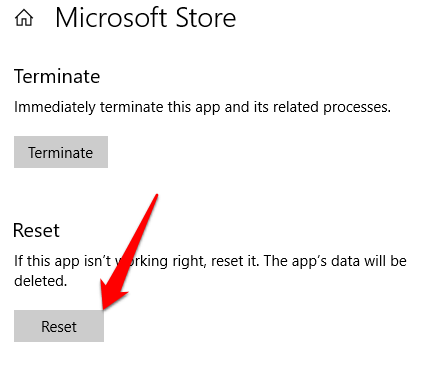
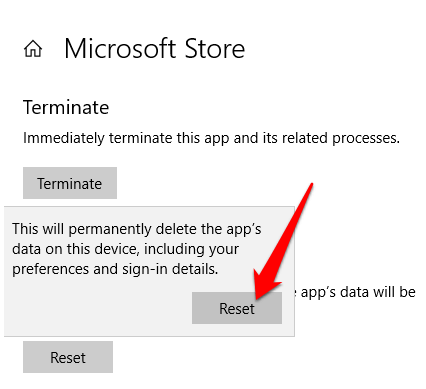
- Click Reset . A warning will appear saying that the app’s data will be deleted.
- Click Reset again.
Take Ownership Of The WindowsApp Folder
The WindowsApp folder contains all the apps automatically installed on your hard drive, but it’s not easily accessible. If you’re not the owner of the WindowsApp folder on your computer, the Windows Store may not work properly.
You need to set yourself as the owner of the folder and have full control over it to allow the Store to open and work well.
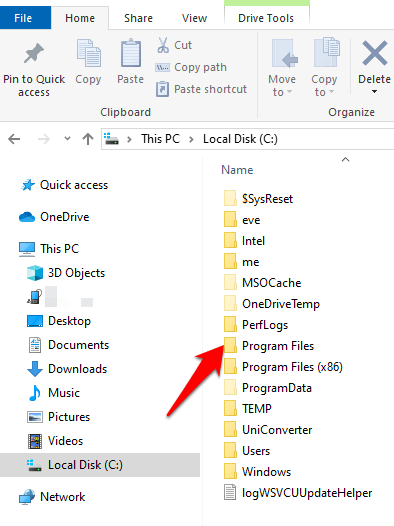
- To take ownership of the WindowsApp folder, open File Explorer and go to Local Disk (C): > Program Files folder.
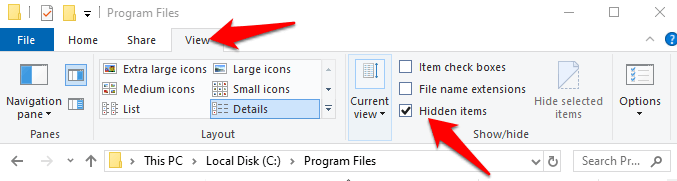
- Click on the View tab and select Hidden Items to see the WindowsApps folder.
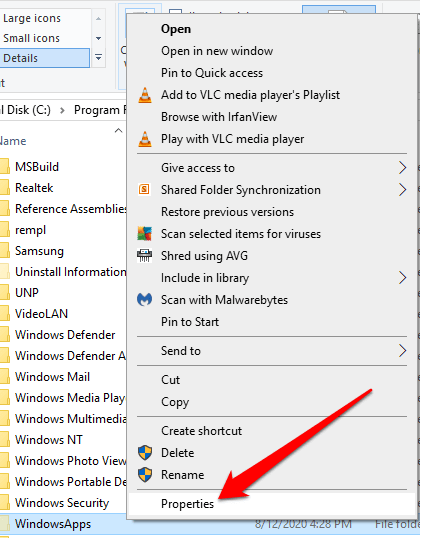
- To open the folder, right-click on it and select Properties from the context menu.
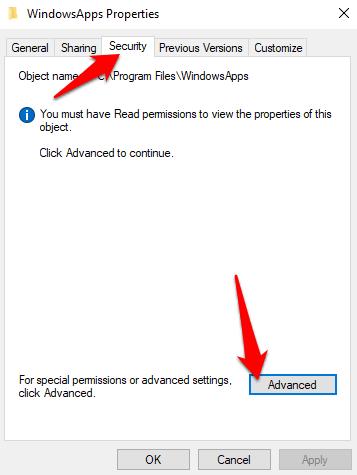
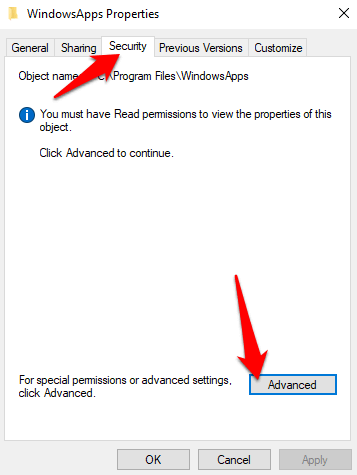
- Click the Security tab in the Properties window and then click Advanced .
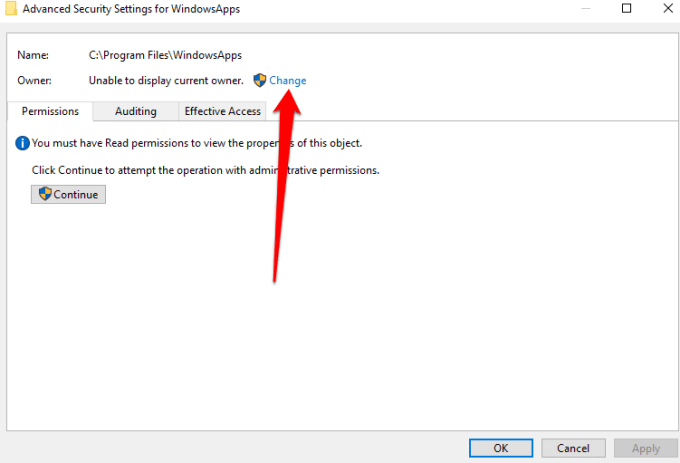
- Click the Change link in the Advanced Security Settings .
- Enter your administrator username in the Select User or Group window. Click on the CheckNames button, and then click OK .
- Before applying the change, select the Replace owner on sub containers and objects checkbox. This way, you’ll be able to interact with other files and folders within the WindowsApps folder. Click OK to save the changes.
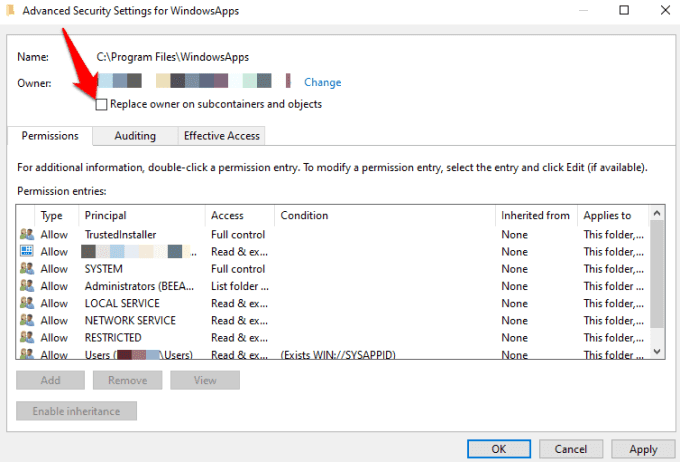
Once you’ve taken ownership of the WindowsApp folder, open it and check if you can launch the Windows Store.
Check Proxy Settings
The Windows Store may not open or work well if your device’s network settings are configured incorrectly. In such cases, a misconfigured proxy setting could affect the Windows Store.
To resolve the problem and get the Windows Store working again, disable the proxy and uninstall any VPN if you’ve installed one.
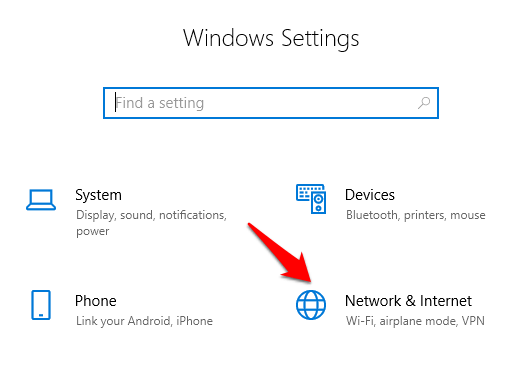
- Check your proxy settings as well. You can do this by clicking Start > Settings > Network & Internet .
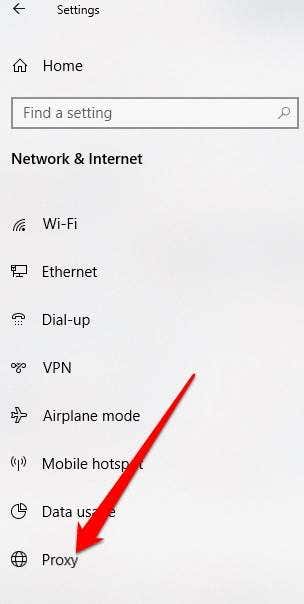
- Select Proxy .
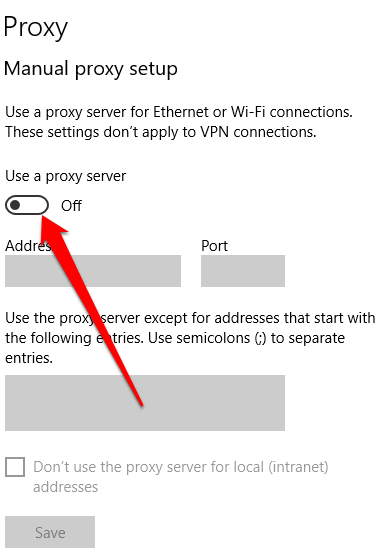
- Under Manual proxy setup , set the Use a proxy server to Off , and then try to open the Windows Store again.
Edit The Registry
If you’re trying to open the Windows Store and get a connection error, checking and editing the registry will help prevent further problems that such errors can bring. Always make sure to backup the registry before making any changes there.
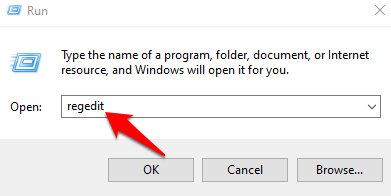
- Right-click Start > Run and type regedit in the Run box. Click OK or press Enter to open the Registry Editor.
- Navigate to the folder path:
HKEY_LOCAL_MACHINE\SOFTWARE\Microsoft\Windows NT\CurrentVersion\NetworkList\Profiles
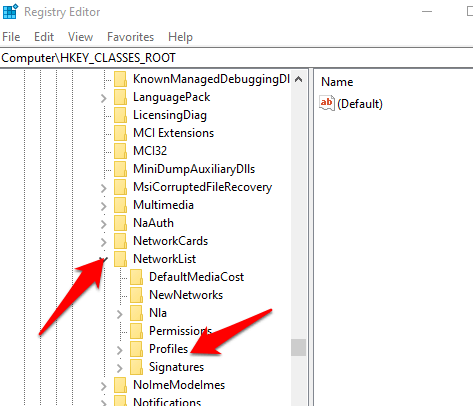
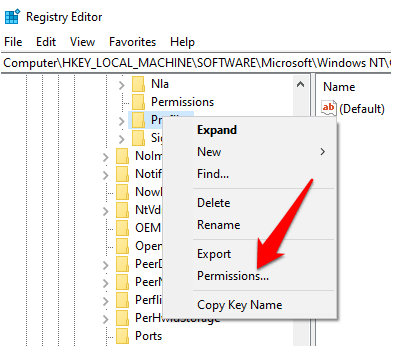
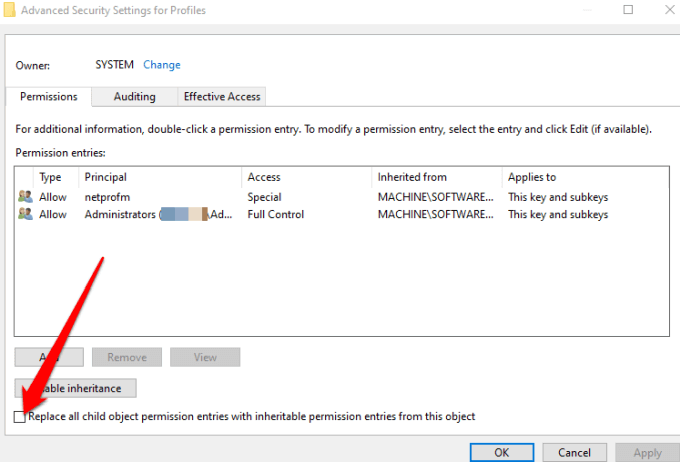
- Right click Profiles > Permissions .
- Click Advanced.
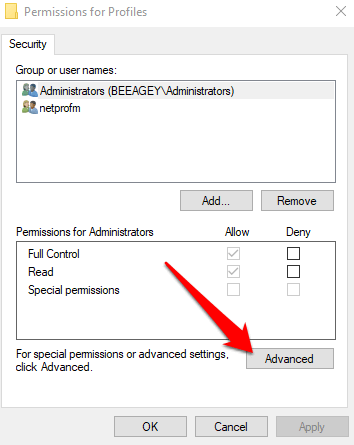
- Check the Replace all child object permission entries with inheritable permission entries from this object box. Click OK , restart your computer, and try to open the Windows Store again.
Change DNS Address
Sometimes you may see the 0x80131500 error when trying to open the Windows Store. In this case, your computer is probably connecting to the internet via DNS servers that are assigned automatically by your home networking setup or your ISP.
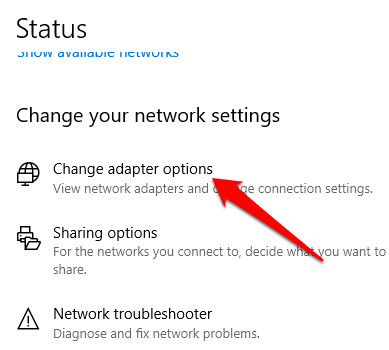
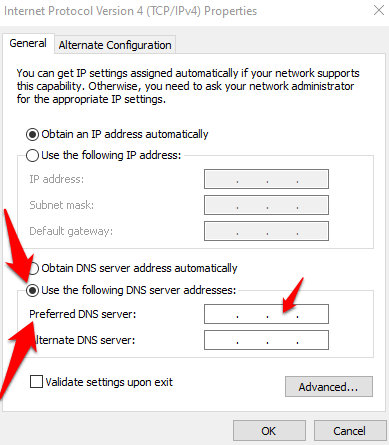
- You can change the DNS server address by clicking Start > Settings > Network & Internet > Status > Change adapter options .
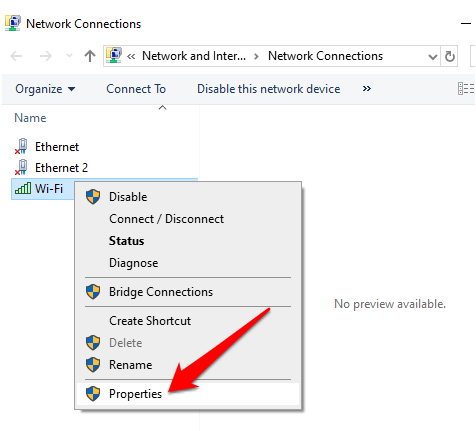
- Right-click your network connection, click Properties .
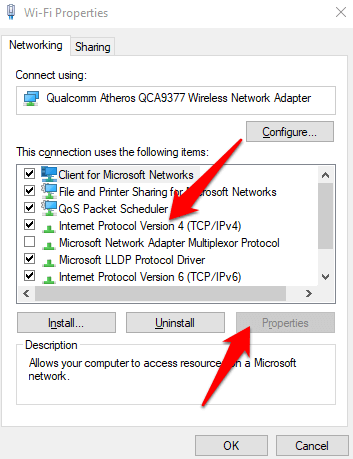
- Scroll down, click IPV4 (Internet Protocol Version 4) and then select Properties .
- Click on Use the following DNS addresses , and enter 1.1.1.1 in the Preferred DNS server box . Click OK and then try to open the Windows Store again. This is using CloudFlare for your DNS, but you can read our guide on the best public DNS servers if you want more options.
Re-register Windows Store
It’s not easy to uninstall Windows Store, but you can re-register it on your computer.
- Right-click Start > Windows PowerShell (Admin).
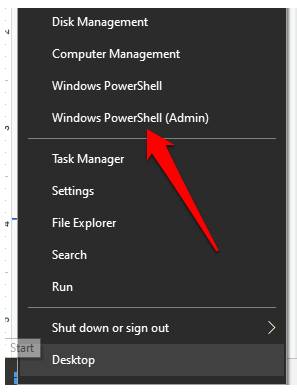
- Enter the following command and press Enter:
"& {$manifest = (Get-AppxPackage Microsoft.WindowsStore).InstallLocation + '\AppxManifest.xml' ; Add-AppxPackage -DisableDevelopmentMode -Register $manifest}"
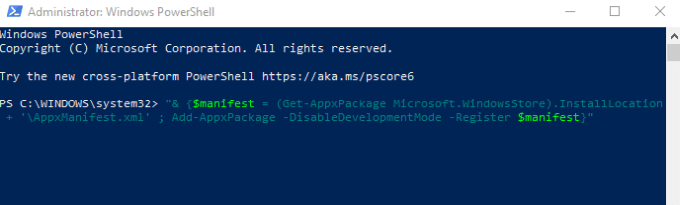
Close PowerShell and try to open Windows Store again.
Reinstall Windows Store
If all else fails, reinstall the Windows Store. You can do this through Windows PowerShell.
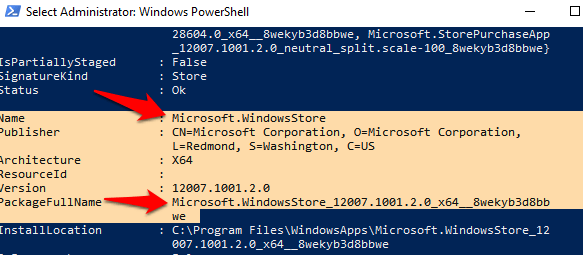
- Right-click Start > Windows PowerShell (Admin) and type: get-appxpackage -allusers
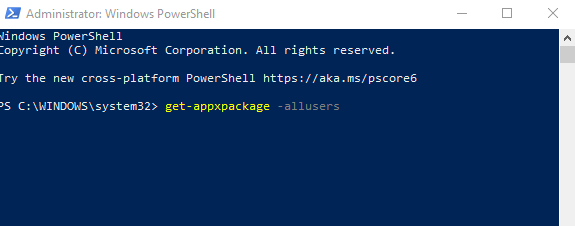
- Look for the Microsoft WindowsStore entry, go to the PackageFullName line and copy the information there to the clipboard. It will look something like this: Microsoft.WindowsStore_12007.1001.2.0_x64__8wekyb3d8bbwe (The store number will look different from the one in our example).
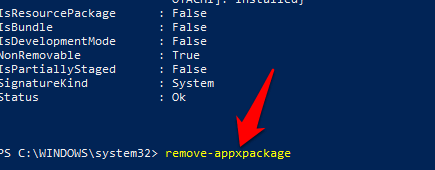
- In Windows PowerShell, type remove-appxpackage followed by a space, and then paste the PackageName you copied to the clipboard. The PackageName may look something like this:
remove-appxpackage Microsoft.WindowsStore_(number)_x64__8wekyb3d8bbwe
Press Enter to run the command.
- Restart your computer and reinstall Windows Store. To do this, go back to PowerShell and type:
Add-AppxPackage -register "C:\Program Files\WindowsApps\Microsoft.WindowsStore_11804.1001.8.0_x64__8wekyb3d8bbwe\AppxManifest.xml" –DisableDevelopmentMode
Get Your Windows Store Back
We hope you now know what to do if the Windows Store won’t open. You can also use the Xbox app to buy and run the same games you were running through the Store. Xbox app also offers other gamer-focused features along with the added perks of friend lists.
- How to Fix Microsoft Store Error Code 0x803F8001
- Can’t Sign Into the Microsoft Store? Try These 7 Fixes
- Top 7 Ways to Fix “Microsoft Store Is Blocked” Error
- How to Reinstall Microsoft Store in Windows
- Microsoft Store Download Keeps Stopping? 12 Ways to Fix
Elsie is a technology writer and editor with a special focus on Windows, Android and iOS. She writes about software, electronics and other tech subjects, her ultimate goal being to help people out with useful solutions to their daily tech issues in a simple, straightforward and unbiased style. She has a BCom degree in Marketing and currently pursuing her Masters in Communications and New Media. Read Elsie’s Full Bio
