
Microsoft Teams has become one of the most popular team communication tools, and they’ve now made it possible to use your own custom images as virtual backgrounds. Whether you’re looking for something professional or funny, dozens of websites offer free, creative custom images for you to use.
In this article, we’ll cover the ten best locations for downloading your Microsoft Teams background images for free.
1. Microsoft Teams Custom Background Gallery
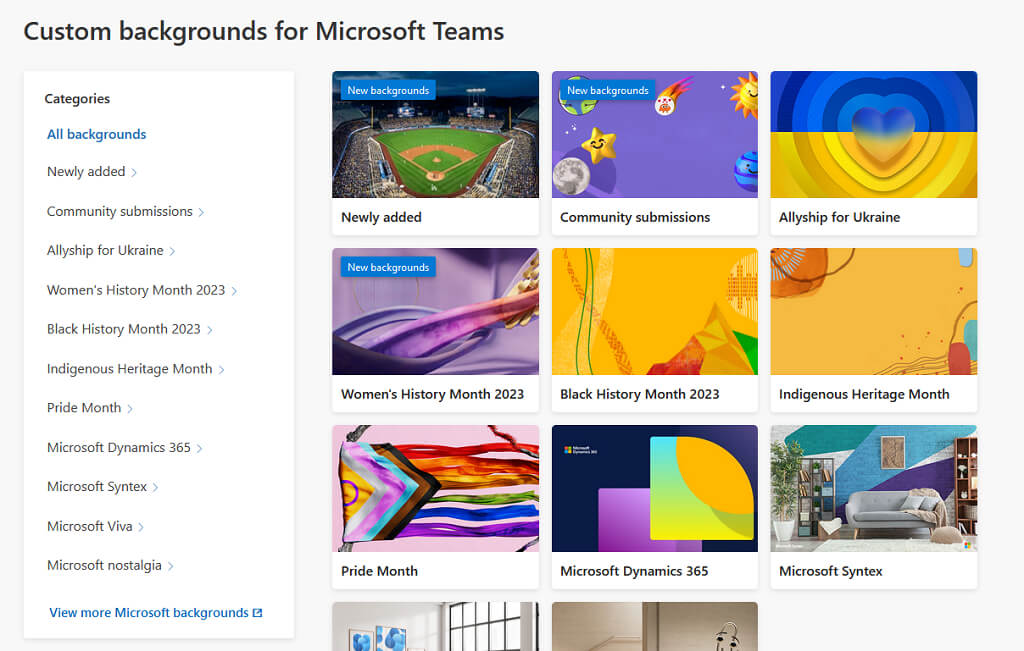
The first place to check is Windows’ dedicated Microsoft Teams website . Here, they’ve laid out some ideal Microsoft Teams backgrounds to use. Even better, their selection is laid out by categories. Choose from a stack of themed images to reflect current events, or just find a funny image that looks good behind you.
2. Unsplash
Unsplash is a website that provides free, high-quality stock photography. You can either search their website for free backgrounds or head straight to their curated list . Here, you’ll find pictures of living rooms, nice clutter-free backgrounds, and photos of nice workspaces.

3.Pexels
Pexels is a great source for background images to use in your next video meeting or webinar. Simply load their website and search for whatever Microsoft Teams background image you’d like to use.

4. Pixabay
Pixabay is the final stock photography website on this list. Like Pexels and Unsplash, they have a database of over 2.8 million photos waiting to be used as background images. Search for an image using their search bar and download whatever image meets your needs. Even better — it’s free.

5. FOX Entertainment
FOX Entertainment has released its own FOX Microsoft Teams backgrounds that you can use in your next virtual meeting. Here, they’ve provided a bunch of hilarious backgrounds from shows like The Simpsons, Family Guy, and Lego Masters. To download backgrounds, right-click the image and select Save image as…

6. Marvel
Marvel has also released their selection of background images based on their popular TV shows and movies. These backgrounds can be used in any video call software, whether it’s Microsoft Teams, Zoom, Skype, or Sharepoint. Simply right-click an image and select Save image as… to download it.

7. Disney
Another popular choice — especially if you’ve got kids — is Disney. The company has curated a list of beautiful backgrounds from famous Disney and Pixar movies that will bring a smile to your face. From Toy Story to Star Wars, you’ll find something for everyone on this list.

8. Wallpaper Hub
Wallpaper Hub has a huge selection of images to choose from. These range from beautiful landscapes to screenshots from famous movies. Have a browse through their images and see if there are any that you’d like to use in your next Microsoft Teams virtual meeting.
9. Room for Zoom
Room for Zoom is a website dedicated to providing video conferencing backgrounds. These images are chosen chiefly for their humor — they line up perfectly to look like it is your background. On their website, you’ll find hundreds of photos, from top-tier memes to classic movie scenes.

10. BBC Empty Sets Collection
Our final choice is the BBC’s Empty Sets collection. They’ve provided a collection of photos of empty sets used in their TV shows over the last six decades. So take your next meeting from the Tardis or your favorite Fawlty Towers location.

Don’t Want An Image? Don’t Worry
You can use these images in your Microsoft Teams meetings to reduce distractions or just have a bit of fun. But, if you don’t want to use a background image (or need something more professional), why not use some of Teams’ built-in background effects?
- Microsoft Teams Installation Failed? Here’s How to Fix It
- How to Refresh Microsoft Teams
- Microsoft Teams Chat Messages Not Showing? Try These 4 Fixes
- How to Schedule a Teams Meeting in Microsoft Outlook
- How to Test Audio in Microsoft Teams
Jake Harfield is an Australian freelance writer whose passion is finding out how different technologies work. He has written for several online publications, focusing on explaining what he has learned to help others with their tech problems. He’s an avid hiker and birder, and in his spare time you’ll find him in the Aussie bush listening to the birdsong. Read Jake’s Full Bio
