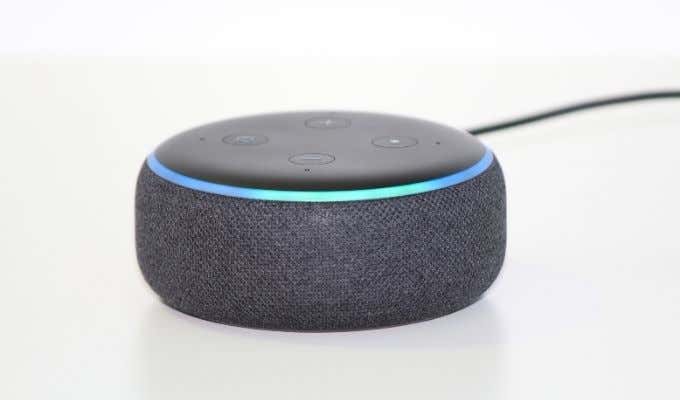
Since your Echo speaker doesn’t have a screen, it uses a light ring to provide visual feedback. Even the screen-equipped Echo Show has a small light band that also uses this feedback method.

Light codes are great in principle, but if you don’t know what the lights mean it’s nothing more than something pretty to look at. The good news is that there aren’t too many of these light codes and most of them have fairly benign meanings.
Where Is the Light Located?
You Can Ask Alexa Directly
Maybe we should have waited until the end of the article to tell you that, but stick around to the end because Alexa won’t always be in a position to speak so it’s worth knowing these light by sight in advance.
A Slow Yellow Burst a Few Seconds Apart
This slow, pulsing yellow circle might look like some sort of error, but it’s actually nothing serious.
It means there are notifications or messages waiting for your attention. All you have to do is ask Alexa what your notifications or messages are and she’ll tell you.
Hopefully it wasn’t a reminder about your mom’s birthday.
A Blue Ring Peaking on a Cyan Section
With this light code, a blue circle with cyan tips shoots out to meet at the opposite end of the ring. This is possibly the most common light code anyone with an Echo will see.
That’s because it means that Alexa is listening. The light will glimmer in acknowledgement while Alexa thinks about a witty retort.
A Solid Red Ring
While a red ring on an old Xbox 360 meant “Surprise, you have to buy a new Xbox” on an Echo speaker it just means that the microphone has been muted and Alexa isn’t listening. If you’re using an Echo device that has a camera, it also means the camera won’t record you.
If you want Alexa to hear you, you’ll have to press the dedicated mute button on your Echo and the red ring should turn off, indicating that Alexa is now ready to hear your request.
Spinning Blue Ring
If you’re seeing a spinning blue and cyan ring, it means that your Echo device is starting up. If everything is OK, the ring will flash cyan-blue and then turn off. If this is the first time the Echo has been switched on, or it has been reset, then the light will turn orange.
A Spinning Orange Section on Black
If you see this, it means your Echo is in its initial setup mode. It will first try to connect to the internet and then proceed with all the housekeeping it needs, which might include downloading updates.
Pulsing Green
If you see a pulsing green light, congratulations! It means that there’s an incoming call and someone wants to talk to you. Once you answer the call, the ring will change to a spinning green light. So go ahead and say “Alexa answer call” to find out who wants to have a chat with you.
A Purple Flash
A purple light has one more meaning, but it only applies when an Echo is first set up. If you see a purple light at that time, it means there’s some sort of issue with the WiFi.
A White Circle
A white circle shows you the current volume level when you adjust the volume. As you increase volume the white circle will full up more and vice versa.
A solid white light means that Alexa is in Guard Mode. In this mode Alexa listens to the ambient sounds in your home and tries to deduce if something weird or dangerous is going on. If Alexa thinks something fishy is happening, she’ll let you know. To turn Guard Mode off, say “Alexa, I’m home.” Assuming you’re authorized to do it, of course.
One Ring to Rule Them All
This probably felt like a very long list of color codes to remember, but if you look again you’ll probably realize that it’s actually not that complicated. Once you’ve spent some time with Alexa and your Echo, this colorful communication system will feel like second nature.
- How to Create Alexa Skills for Your Business or Employees
- How to Create Skills With Alexa Blueprints
- How to Shop With Alexa for All Your Shopping
- 10 Cool Alexa Tricks to Try With Your Amazon Echo
- How to Change Alexa Language to Spanish and Other Languages
However, you may be looking for something in particular. Maybe you want a trivia game about your family, a fairy tale where your child is the star character or a guide to your home and neighborhood for a houseguest.

Well, guess what? You can make your own skill using Alexa blueprints. Here’s how!
Browse Alexa Skill Blueprints
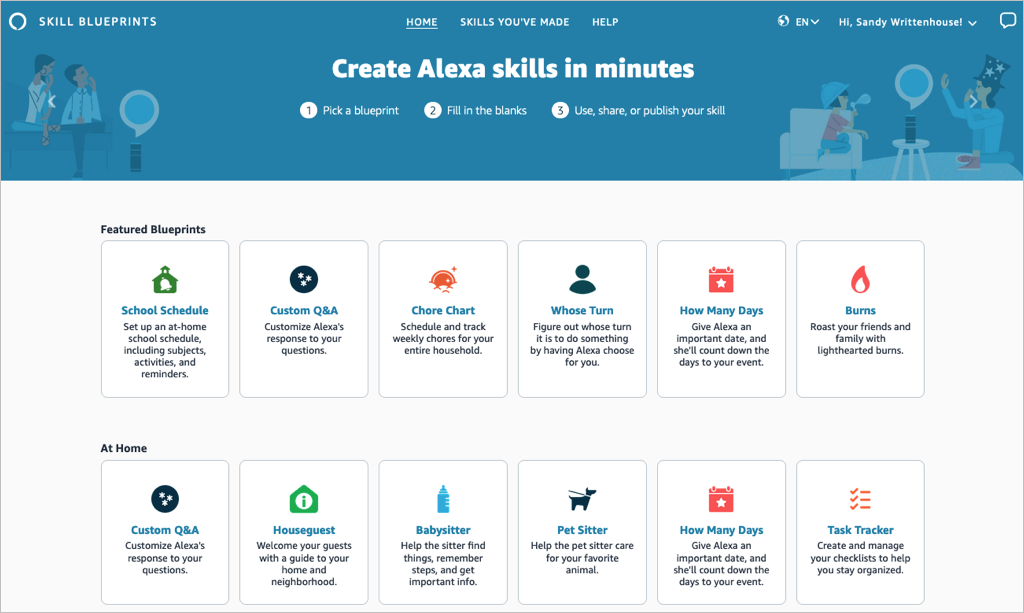
Select a blueprint to view more details and check out examples. This helps you see how the babysitter blueprint can help when you’re away, or the family jokes blueprint can liven up quality time.
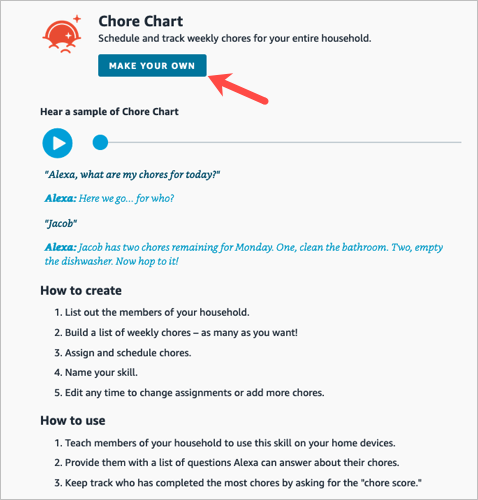
If you find one you want, pick Make Your Own on the skill information screen.
Create a Skill
The steps are the same whether you’re creating a skill with a blueprint on the web or on your mobile device. However, those steps may differ depending on the type of blueprint you select.
For instance, you’ll enter different information for a birthday trivia skill compared to one for flashcards, the pet sitter, or bedtime stories. You can see these steps when you select a blueprint to view its details.
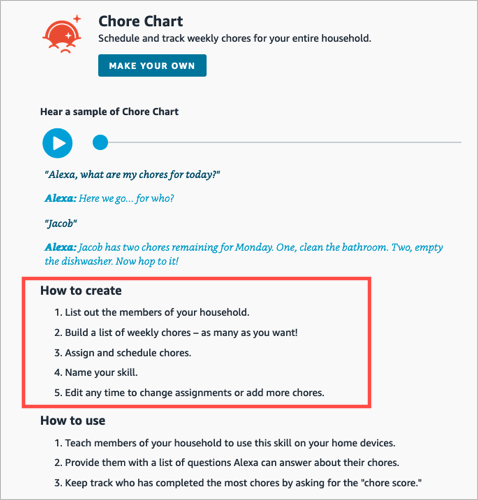
To show you just how easy it is, we’ll create one on each device.
Make a Chore Chart Skill on the Web
For this first example, we’ll use the Chore Chart blueprint to create a skill on the website. This skill helps keep track of household chores and who is responsible for each one.
- Visit the Alexa Blueprints website, sign into your Amazon account, and choose a blueprint.
- As described above, select Make Your Own directly below the skill name. If you see a short tutorial for building the skill, choose Start Now when you get to the end.
- Next, you’ll be prompted to replace the details for the skill with your own. For the Chore Chart, we’ll fill in the names of our household members and chores.
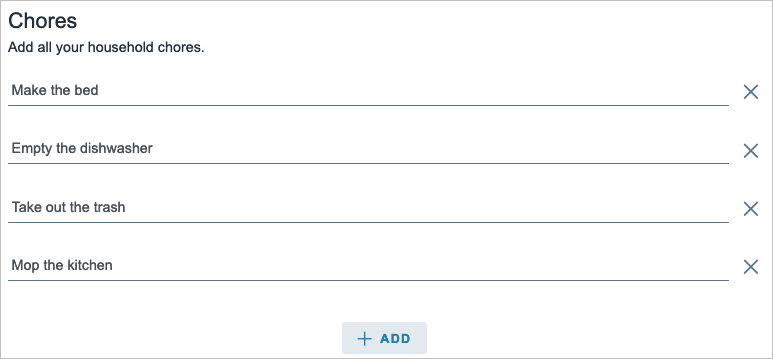
- Select Next on the top right to move to the next step.
- Here again, you may be asked to enter more details for the skill. For the Chore Chart blueprint, we assign the chores to the household members. Just keep in mind that the number of prompts and requested details depend on the exact skill and blueprint.
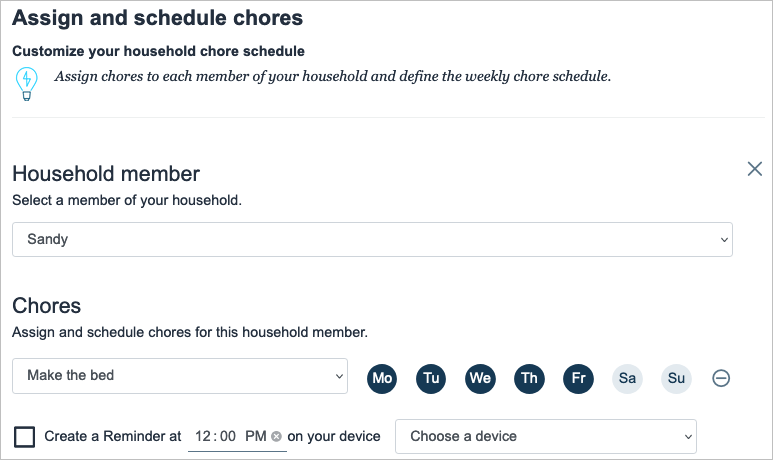
- Select Next to continue.
- One step that you’ll find in most blueprints is for customizing the experience. This refers to how you interact with Alexa for that particular skill. For instance, you can enter introduction phrases for when someone opens the skill and then other phrases for when someone completes a chore. These are the phrases Alexa uses for that specific skill.
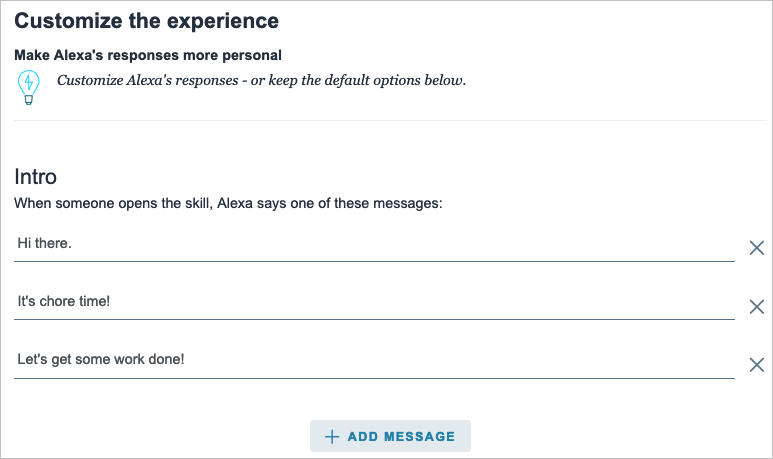
- Select Next to finish entering the details.
- The final step in creating a skill is to give it a name. Try to use something meaningful that you’ll remember but also something simple enough for Alexa to recognize.

- Select Next one last time to create the skill.
After a few moments to process all the information, your skill should be ready to use!

Make a Whose Turn Skill in the Mobile App
For this next example, we’ll use the Whose Turn blueprint to create a skill in the Alexa app. This skill prompts Alexa to choose whose turn it is to do something.
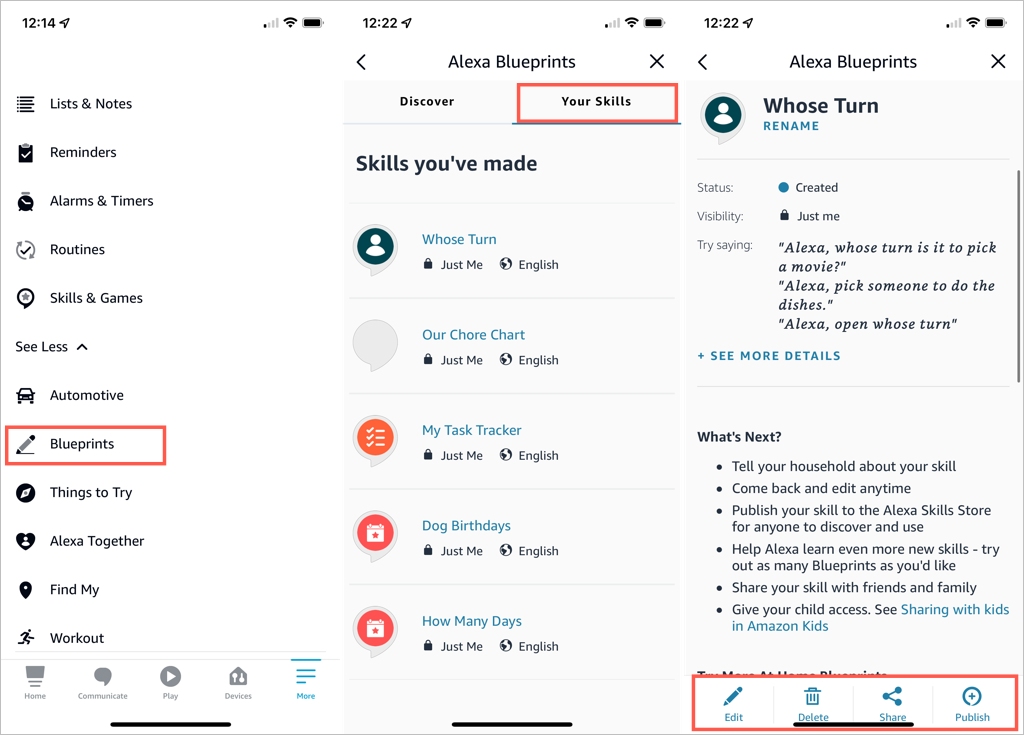
- Open the Alexa app on Android or iOS and select the More tab.
- Pick See More in the top section and choose Blueprints .
- Browse the options by category, just like on the website. Then, select the one you want to use and tap Make Your Own .
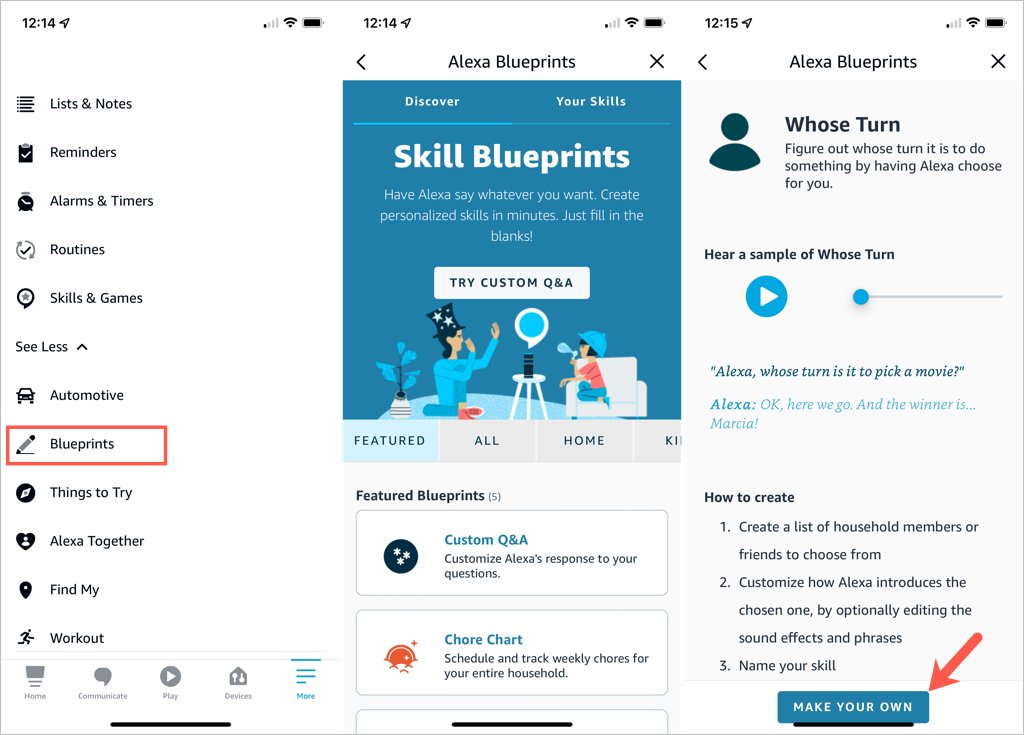
- Replace the details for the skill with your own. For the Whose Turn skill, we’ll add the names for Alexa’s choices.
- Tap Next on the top right to continue.
- The next step for the Whose Turn skill is to personalize the experience. This allows you to customize how Alexa picks a name. After you ask a question, Alexa uses the phrases and sound effects you select in this section. Optionally, you can scroll down for additional customization options.
- Tap Next to name your custom skill.
- Select the text on the name line to edit it or enter your own. Again, pick a meaningful name and one that’s easy for Alexa to recognize.
- Tap Next to create the skill.
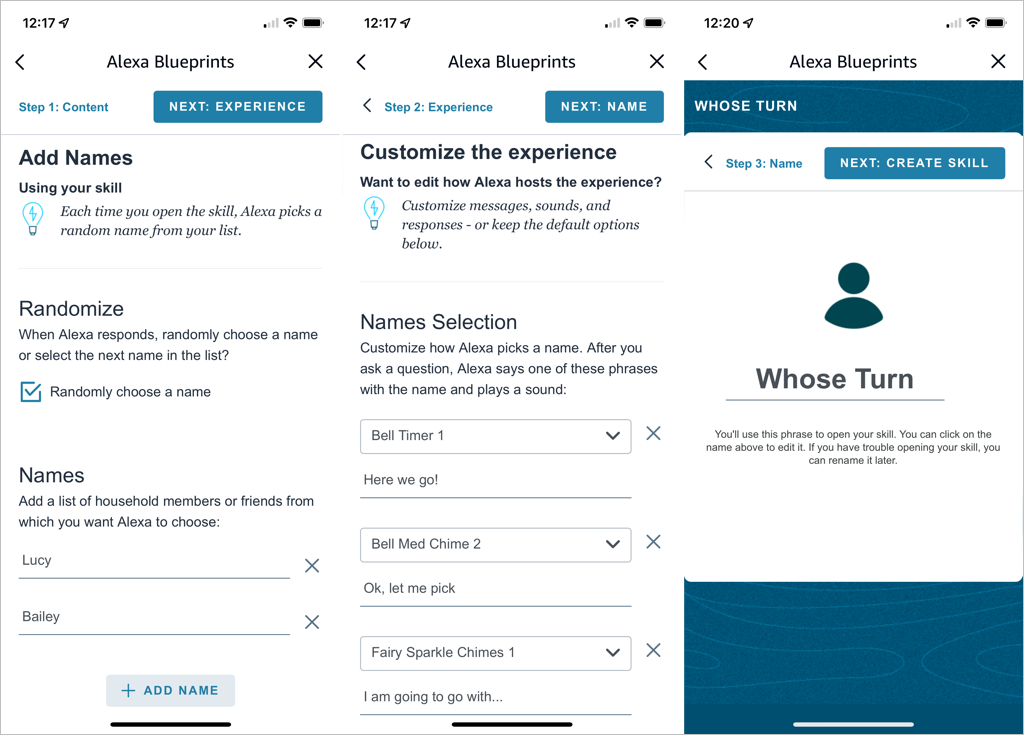
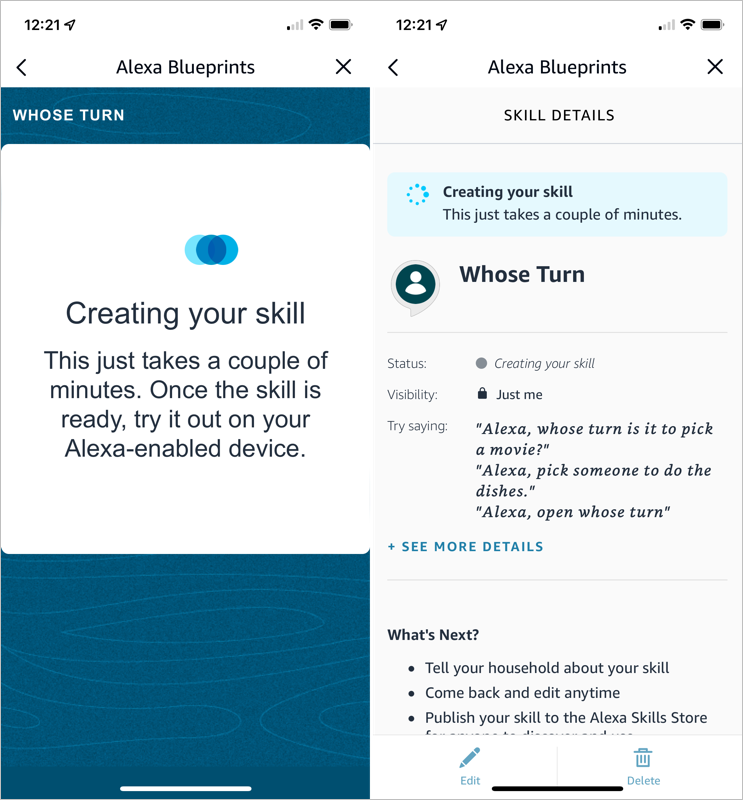
You’ll see the progress as your skill is created and a confirmation when the process completes. You can tap the X on the top right to exit when you finish reviewing your skill.
Edit Skills You Create
Once you create a skill using Alexa Blueprints, you may want to make adjustments to it. You can do this on the web and in the mobile app too.
Your Skills on the Web
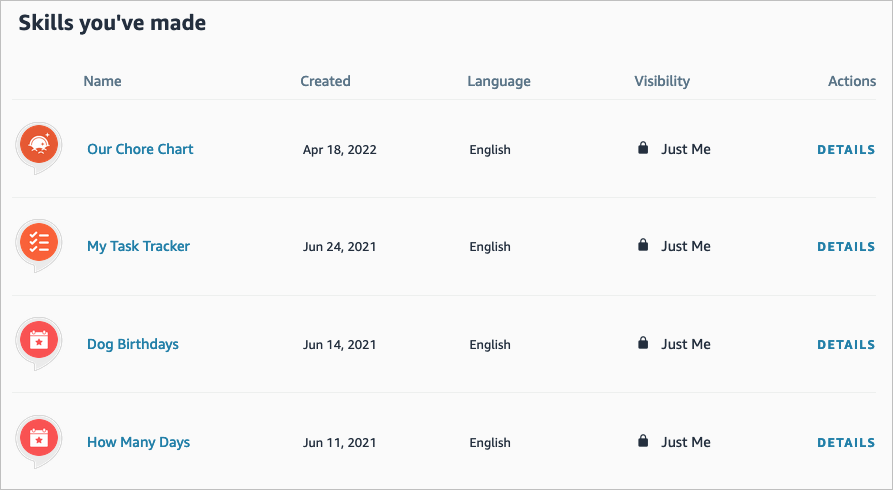
- Visit the Alexa Blueprints website and sign in. Select Skills You’ve Made at the top.
- You’ll see a list of your skills. Choose Details to the right to open the one you want to edit.
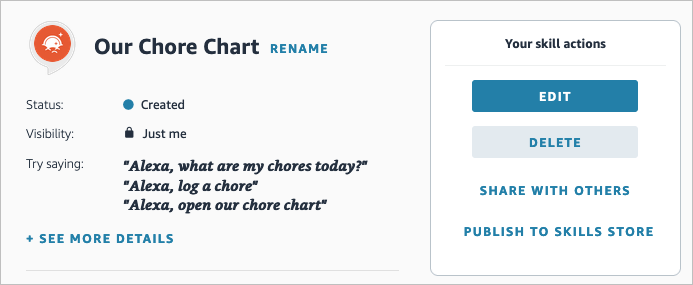
- On the right side, select Edit or Delete . You’ll notice you can also pick Share With Others to make it easy for your family or friends to access or Publish to Skills Store for other Alexa users.
Your Skills in the Mobile App
You can edit your custom skills easily in the Alexa mobile app as well.
- Go to the Menu tab.
- Select See More > Blueprints .
- On the Your Skills tab, select the blueprint you want to edit.
- Use the buttons at the bottom to make your changes.
Take Advantage of Alexa Blueprints
Even though there are many premade skills you can pick from, creating your own Alexa skills gives you great ways to personalize the experience on your Alexa devices, get tasks done, or have a little fun !
- How to Create Alexa Skills for Your Business or Employees
- How to Shop With Alexa for All Your Shopping
- 10 Cool Alexa Tricks to Try With Your Amazon Echo
- How to Change Alexa Language to Spanish and Other Languages
- Why Alexa Is Flashing Yellow, Green, and What Does it Mean?
