
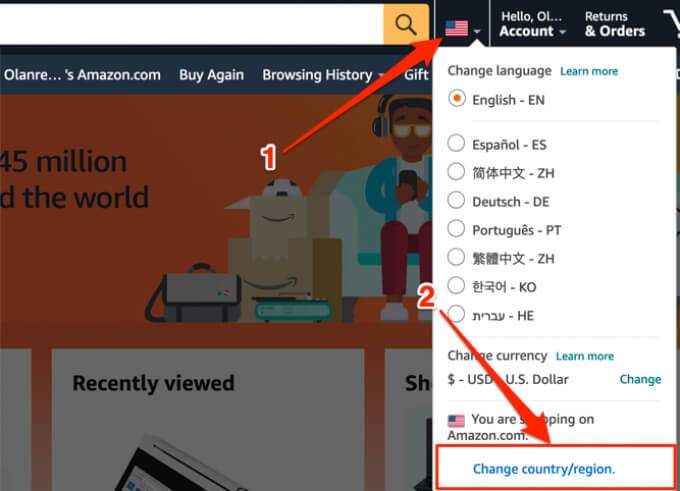
On PC, click the flag icon next to the search bar and select your preferred language from the drop-down list.
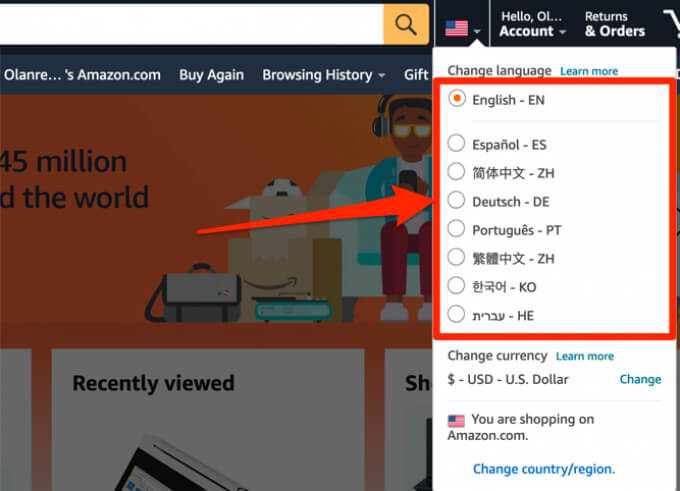
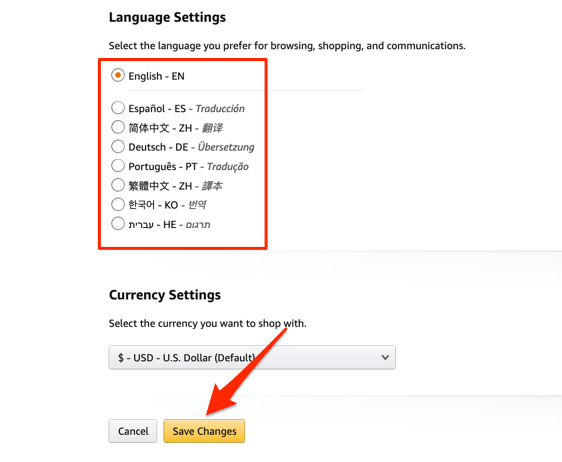
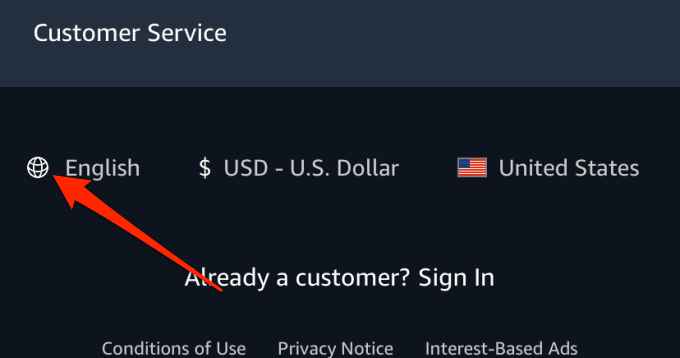
Select your preferred language and click Save Changes .
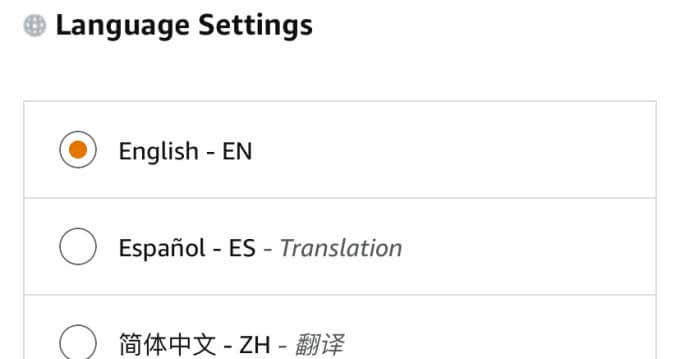
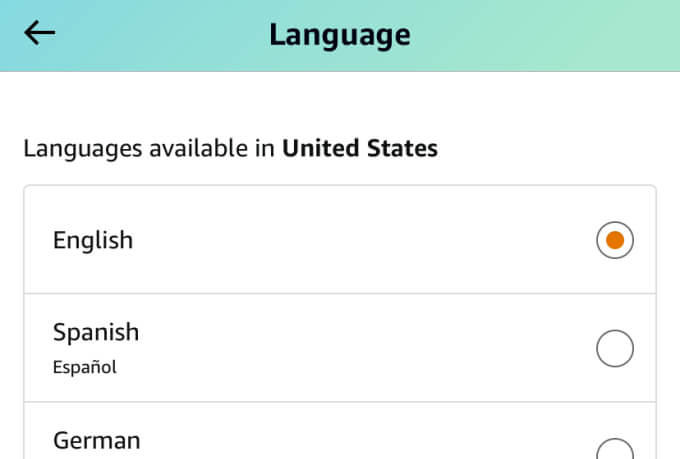
To change your preferred language on the mobile app, tap the hamburger menu icon and go to Settings > Country & Language > Language and select the language available in your region.
2. Change Country/Region
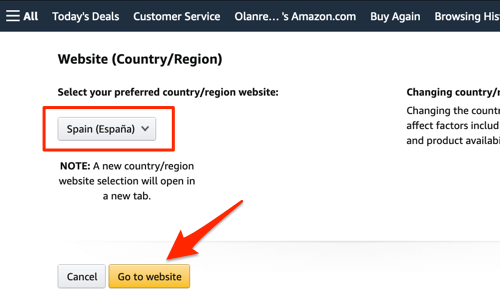
Click the drop-down button , select your preferred country, and click the Go to website button.
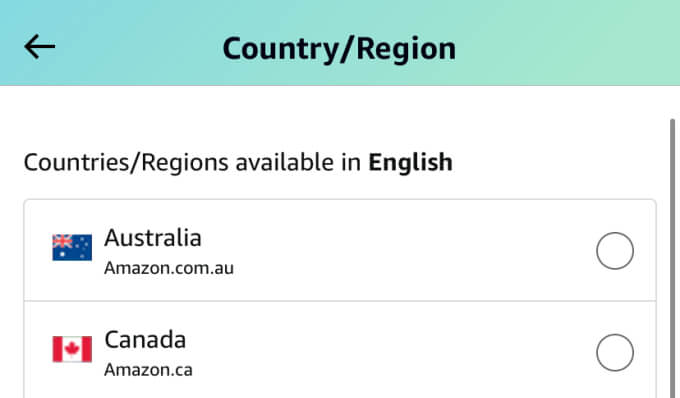
On the mobile app, tap the menu icon and go to Settings > Country & Language > Country/Region , and select a country in the Countries/Regions available in English (or your preferred language) section.
3. Check VPN Settings
4. Check Websites’ Location and Language
There are two possible reasons why this language switch happens:
- Spain (or a Spanish-speaking country) is the default location of the third-party website or search engine.
- Spanish is the default language of the Amazon marketplace website where the product vendor is registered to sell.
- Spanish is the default language of the third-party website or search engine.
There’s little you can do about the first two possibilities, but you can try changing the default language of your preferred search engine. Some websites also allow you to change your preferred language, so look out for that, too.
- On Google search’s results page, click on Settings below the search box and select Search settings .
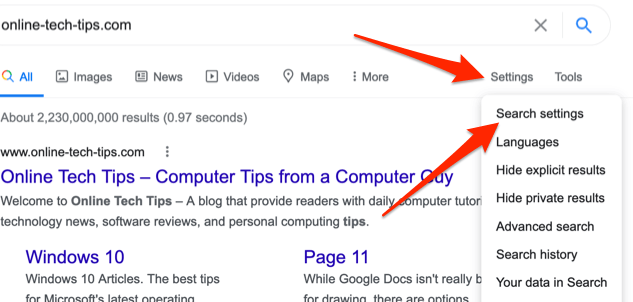
- Scroll to the Region Settings section, select Current Region or a non-Spanish country, and click Save when you’re done.
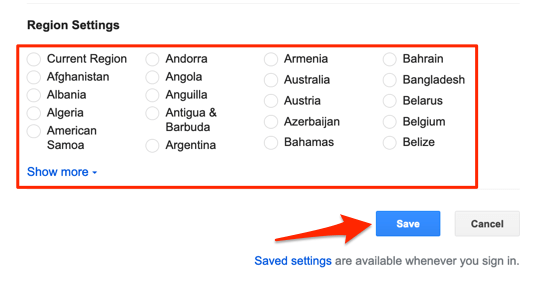
Quick Tip: Click the Show more drop-down button to reveal all countries.
For Microsoft Bing, click the hamburger menu icon , select Settings , and select Country/Region .
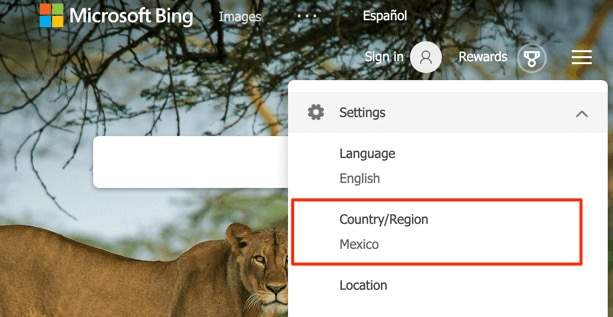
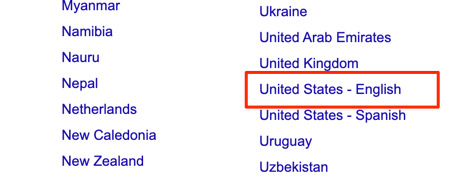
Select your preferred country and that’s it. If you’re choosing the US as your preferred country, be sure to click United States – English , not “United States – Spanish.”
- Enter this address below in Chrome’s address bar and press Enter .
chrome://settings/siteData
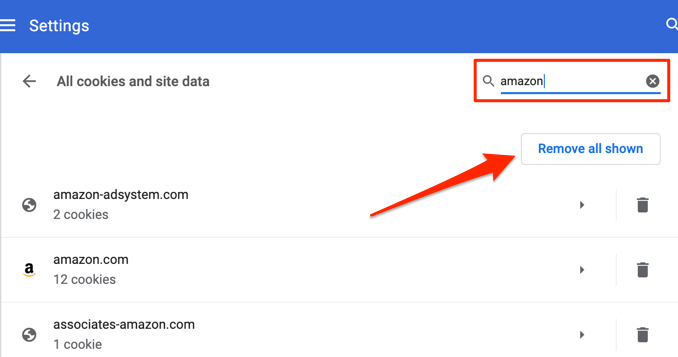
- Click Clear all on the confirmation prompt to proceed.
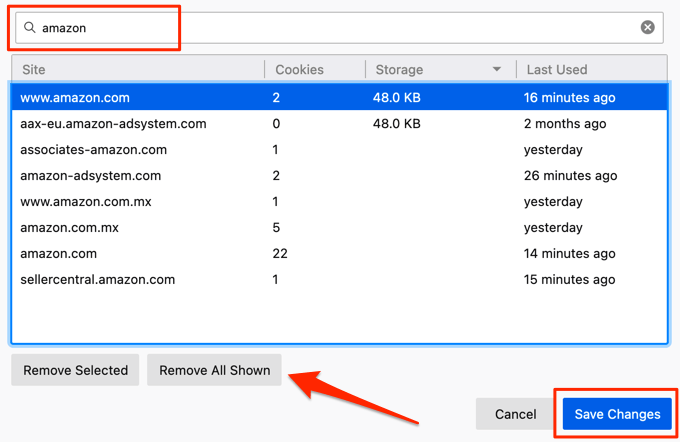
- Enter this address below in Chrome’s address bar and press Enter .
edge://settings/siteData
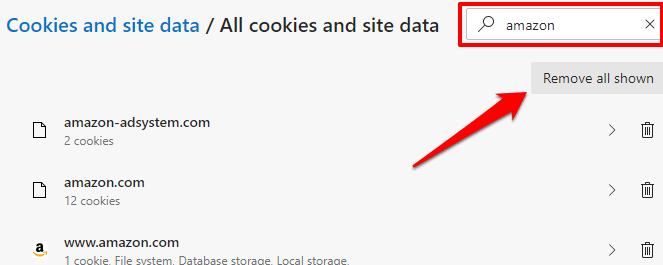
- Click Clear on the confirmation prompt to proceed.
6. Check Your Browser’s Language Preferences
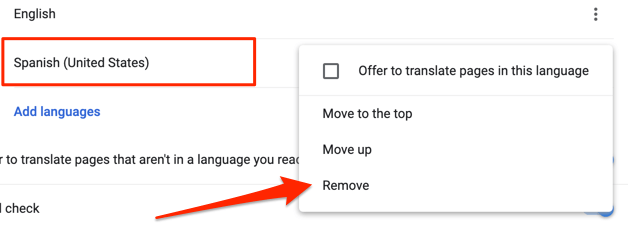
Remove Spanish Language on Chrome
Go to Settings > Advanced > Language and check the languages on the preferences list. If you spot any variation of Spanish on the list, click the menu icon next to it, and select Remove .
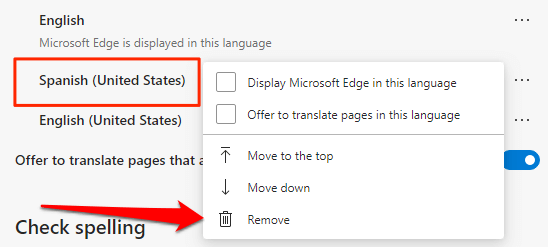
Remove Spanish Language on Microsoft Edge
Click the menu icon and go to Settings > Languages . If you find Spanish in the Preferred languages section, click the menu icon next to it and select Remove .
7. Update Browser/App
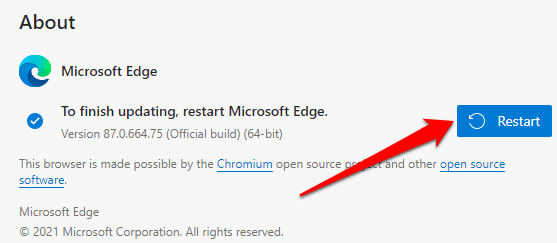
For Chrome, go to Settings > About Chrome and check if there’s an update available. To update Microsoft Edge, go to Settings > About Microsoft Edge and the browser will automatically update itself. You’ll be prompted to restart your browser to complete the update.
Shop in Your Preferred Lingo
- Amazon Fire Stick Home Screen Not Loading? 9 Ways to Fix
- How to Share Your Amazon Cart
- How to Delete a Delivery Address From Amazon
- Deleting Order History from Amazon: All You Need to Know
- How to Cancel Amazon Gift Card Order (and Get a Refund)
