Windows 10 isn’t as sluggish and bloated as some versions that have come before. Which means you shouldn’t have any serious performance complaints. Then again, why leave free performance on the table by running unnecessary services ?
There’s a long list of Windows 10 services that most users don’t need. So you can safely disable these unnecessary Windows 10 services and satisfy your craving for pure speed.

Some Common Sense Advice First
Windows services all have specific jobs. Some of these jobs are critical for your computer to work properly. If you disable a Windows service that’s needed for the normal operation of your computer, you can get locked out of your machine or may have to undo what you’ve done.
We tested disabling all the unnecessary services listed below via the Services app on our computer. However, we can’t take any responsibility for something going wrong on your specific machine. Don’t mess around with random services not listed here and always create a system restore point or system backup before making changes.
We rate a process as “ safe to disable ” if it doesn’t affect the core functionality of your computer, but we don’t recommend that you actually disable every single one of these services since they are not harmful and can be useful too.
The Print Spooler
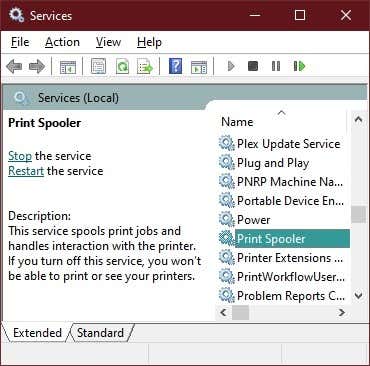
Do you have a printer? Do you ever use it? Printers are becoming a niche item as we all transition to paperless documentation and use smartphone cameras to scan documents. If you don’t use a printer then you can safely disable the print spooler . This is a service that manages and queues print jobs. Without any print jobs to process it just sits there using up RAM and CPU time.
Windows Image Acquisition
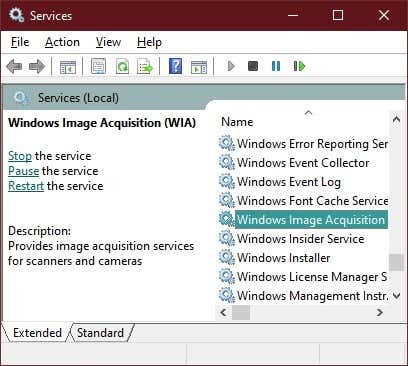
This is the service that waits until you press the button on your scanner and then manages the process of getting the image where it needs to go. This also affects communication with digital cameras and video cameras that you connect directly to your computer, so be aware of that if you need this function.
Fax Services
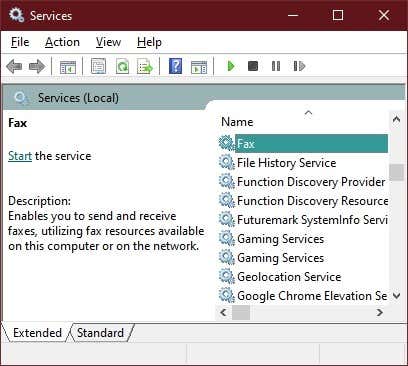
Unbelievably, there are actually plenty of businesses that still use fax machines. Fax usage is very niche however, so it’s almost certain that you don’t need fax services on your computer.
If you are one of the five people sending and receiving faxes from your computer, well then this doesn’t apply to you. Also, buy a scanner instead.
Bluetooth
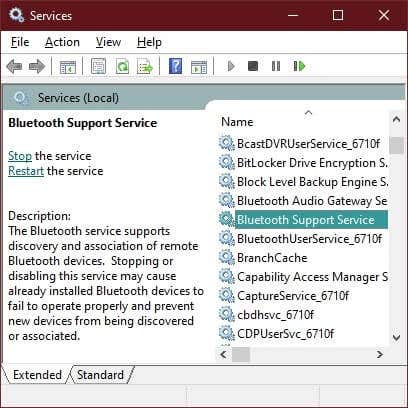
It’s safe to disable the Bluetooth service if you don’t need it. It can be a precaution against Bluetooth attacks too. These days Bluetooth devices such as mice, game controllers and headphones are common. So only a small number of users who never use Bluetooth should consider this.
Windows Search
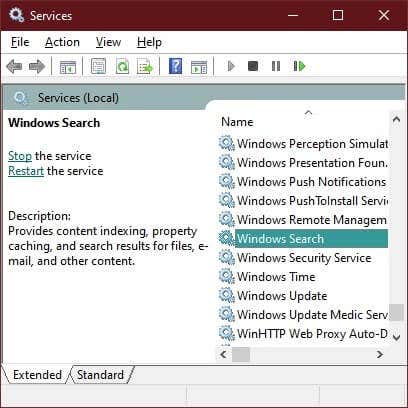
Windows Search is safe to disable and can have a noticeable effect on your performance, because it also disables the Windows search indexer . It’s not something we recommend most people do however. Instant, fast search performance is one of the best features of Windows 10.
It’s an option if you don’t make much use of Windows search or your CPU is really slow. Go ahead and disable it to see if it boosts performance.
Windows Error Reporting
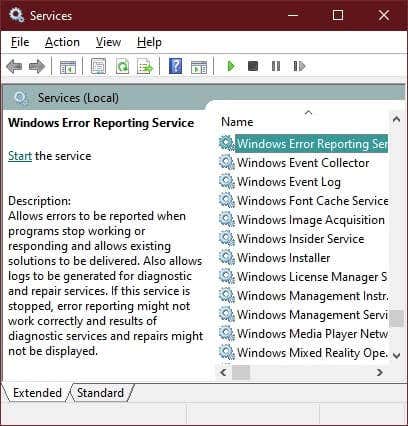
Windows sends an error report back to Microsoft when things go wrong. Microsoft uses this information to fix problems in future updates. Some people have a privacy issue with this and choose not to send reports.
If you don’t want to send error reports to Microsoft, you can go beyond selecting Don’t send every time and disable the entire service. If you’re having problems with the error reporting system you may also want to have a look at our Windows werfault.exe guide .
Windows Insider Service
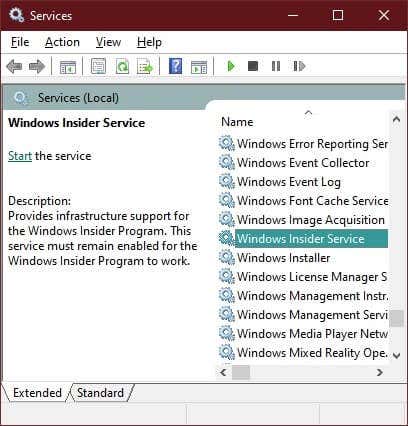
The Windows Insider program lets users try out upcoming releases of Windows before they are rolled out to all users. That’s not something anyone should do on a mission-critical computer. If you don’t want to be in the Windows Insiders program, go ahead and disable this service.
Remote Desktop
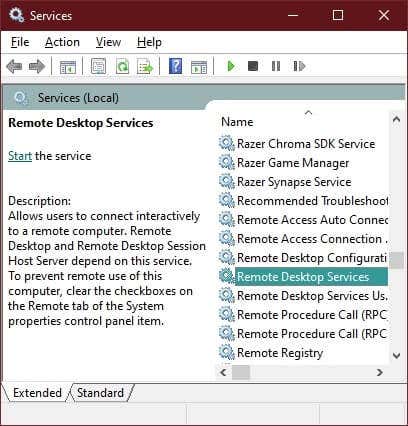
There are three remote desktop services listed in Windows 10. These three services work together to make remote control of your computer possible. If you don’t use the remote desktop functionality of Windows, then you can disable all three of these services.
However, keep in mind that Microsoft Support often uses remote desktop technology to help fix issues you might be experiencing. Remote support won’t work if you disable these services. But remote desktop technology can also be a serious security issue and is often used in fake support scams. So disabling these services can also help improve the security of your computer.
Remote Registry
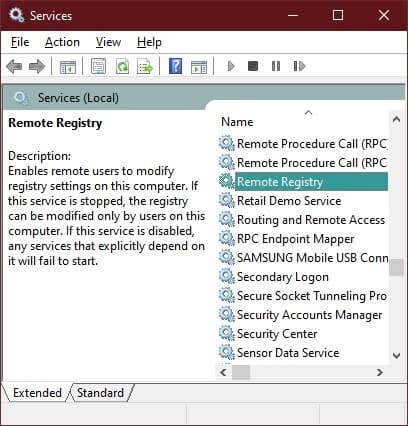
The registry is an essential component of Windows that stores crucial information about the computer’s configuration. Leave it alone if you are not an expert. The remote registry service allows someone to modify a computer’s registry remotely.
That’s a useful feature for system administrators, but most users will only modify their registries locally. If they ever modify it at all. That means almost everyone can go ahead and disable this service. In fact, it might even be a good security measure, since hackers can’t mess with your registry remotely.
Touch Keyboard and Handwriting Panel Service
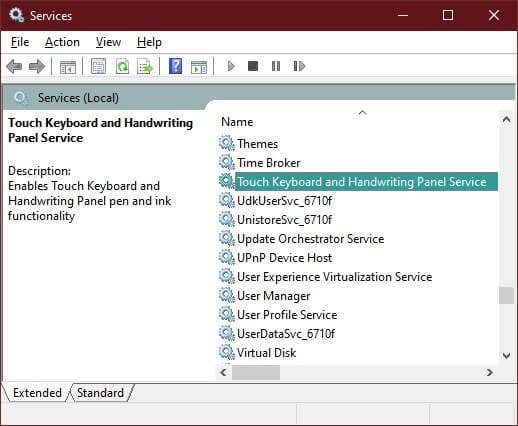
Windows 10 is now fully compatible with both touch screens and handwriting recognition, but most desktop and laptop systems don’t have that hardware. Disable this service if you don’t use the touch keyboard or a pen.
Disable Windows Services With Care
Disabling these services won’t give you drastic speed boosts. Though, you can get an extra frame or two out of your video games or open even more tabs in your browser.
There are several more services you can stop. But, we strongly recommend against messing with the Windows services you are unsure about. It’s especially risky to disable services that are essential to your hardware, such as those related to your graphics card. Always research a given Windows service before you disable it.
- Preparing for Windows 10 End of Support: Upgrading to Windows 11
- How to Fix a “This file does not have an app associated with it” Error on Windows
- How to Fix an Update Error 0x800705b4 on Windows
- How to Resolve “A JavaScript error occured in the main process” Error on Windows
- How to Fix the Network Discovery Is Turned Off Error on Windows
Sydney Butler is a social scientist and technology fanatic who tries to understand how people and technology coexist. He has two decades of experience as a freelance computer technician and more than a decade as a technologies researcher and instructor. Sydney has been a professional technology writer for more than five years and covers topics such as VR, Gaming, Cyber security and Transhumanism. Read Sydney’s Full Bio
There will be many instances when it is useful to know what has been printed from a certain computer. You can find out everything that you’re about to print and you will also know how to view what you’ve already printed — whether it was recent or a long time ago.
You can also check to see if anyone else has been printing from your computer without your permission.
How To Access Your Print Queue
Viewing your print queue allows you to see the document that you’re about to print. This comes in handy if you think you’ve accidentally sent the wrong file to your print queue.
If you did send the wrong file to your printing list, you will end up wasting time, ink, and paper. The solution? Check your print queue to be 100% certain.
- First, press the Windows button and search for Printers & scanners . Once it shows up, launch this.
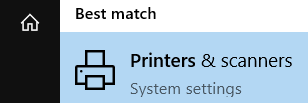
- Now find the list of printing devices.
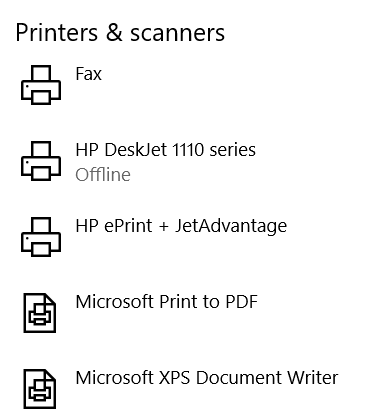
- Then select the name of your printer. Click on it to open a menu just under it. Then choose Open queue .
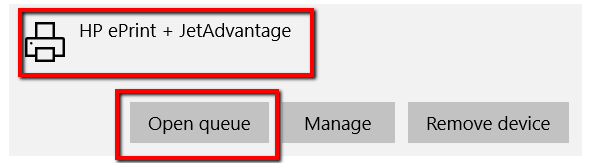
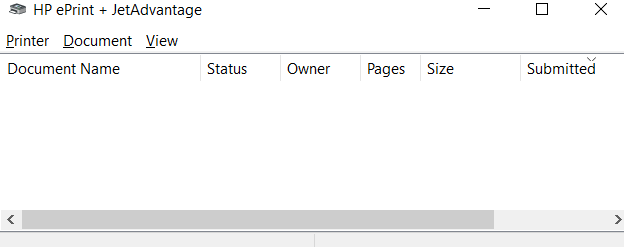
- Once you click Open queue , a window will pop up. There, you will see a list of what’s about to go through your printer. You will also get to view a recent print job.
The print queue provides you with all the information that you need regarding the documents that are and were on your queue. This includes the Document Name, Status , and Size .
How To View Your Recent Print History
Even though your printer’s queue lets you view print jobs, it’s limited to recent documents. If you want a complete log of all recently printed documents, you’re out of luck. You can’t count on your printer’s queue for this.
But luckily, there’s a workaround. Instead of going to your printer’s queue, you can turn to the Event Manager .
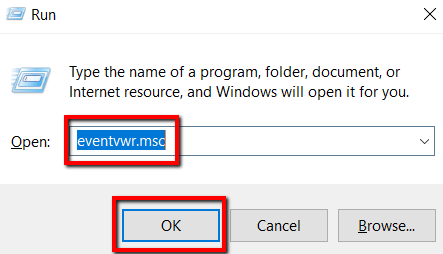
- First, press the Windows key, search for Run , then launch the app.
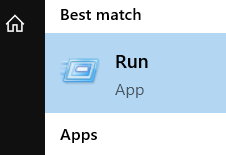
- Type in eventvwr.msc . Then click OK . Doing this will confirm the action and run the task.
This grants access to the Event Viewer . This program allows you (and all the administrators and users of your computer) to access event logs on a remote machine.
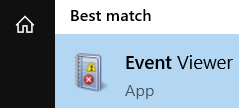
While using Run is easy, there is an alternative. That is to launch Event Viewer directly from the start menu.
- Press the Windows key, search for the program, and press enter.
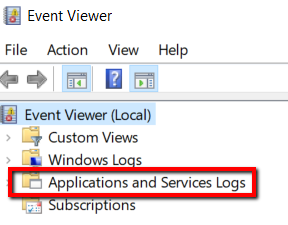
- There, select Applications and Services Logs .
- Next up is to select Microsoft . Then go with Windows .
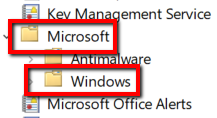
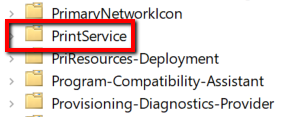
- Once you expand Windows , you will reveal lots of items. Fortunately, this list is alphabetical and therefore makes the hunt easy. So scroll down to ‘P’ and find PrintService . Then select this option.
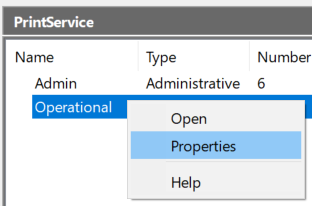
- Choose Operational . Right-click on it and from the selection, go with Properties .
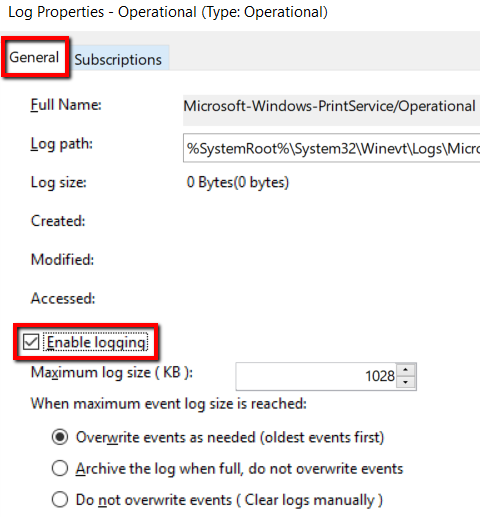
- There, go to the General tab. Look for Enable logging . Beside it is a box for that allows relevant information to be recorded.
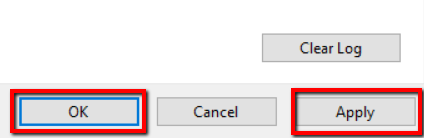
- Once you’re done, click Apply . Then hit OK to save the changes and close the window.
From this point on, you will have a record of future print jobs. Anytime you want, you can view this record.
- To see it in action, simply launch the PrintService folder. Right-click on it and select Open Saved Log .
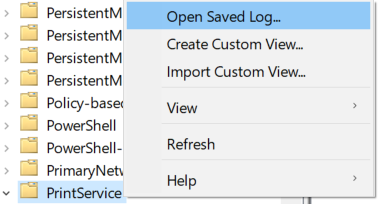
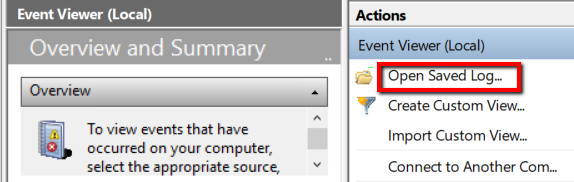
- Once you open this, you will see a list of logs from the moment you enabled logging. Or you can just launch Event Viewer and select Open Saved Log .
How To Check Your Printing History
Enabling your system to record future printing jobs is one useful function. But what if you want to look back on what you have already printed since the beginning of time ?
If you’re on Windows 10, it’s not going to be a problem. Just follow these simple steps.
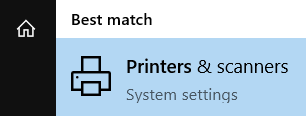
- First, hit the Windows button and launch Printers & scanners .
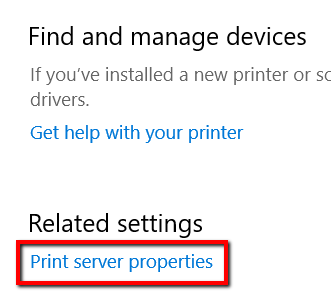
- There, scroll down to the Related settings section. Next, you need to fire up Print server properties .
- From there, select the Advanced tab.
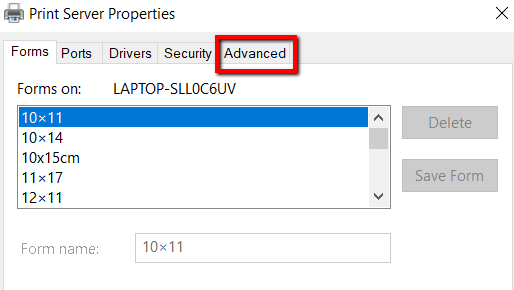
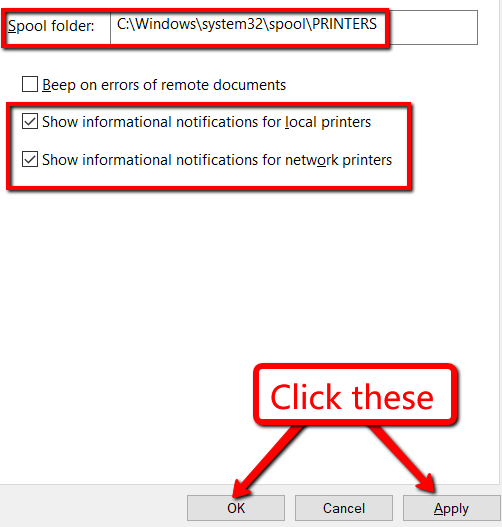
- On this tab, you can check your spool folder . You should also check the boxes that say the following: Show informational notifications for local printers and Show informational notifications for network printers.
- To save the changes, click Apply . Now, select OK .
To make sure all the changes you applied take effect, restart your computer.
Preparing for Windows 10 End of Support: Upgrading to Windows 11
How to Fix a “This file does not have an app associated with it” Error on Windows
How to Fix an Update Error 0x800705b4 on Windows
How to Resolve “A JavaScript error occured in the main process” Error on Windows
How to Fix the Network Discovery Is Turned Off Error on Windows
Christopher Jan Benitez is a freelance writer for hire who provides actionable and useful web content to small businesses and startups. In his spare time, he religiously watches professional wrestling and finds solace in listening to ’80s speed metal. Read Christopher’s Full Bio
